climate control NISSAN FRONTIER 2018 Owner´s Manual
[x] Cancel search | Manufacturer: NISSAN, Model Year: 2018, Model line: FRONTIER, Model: NISSAN FRONTIER 2018Pages: 502, PDF Size: 4.85 MB
Page 12 of 502
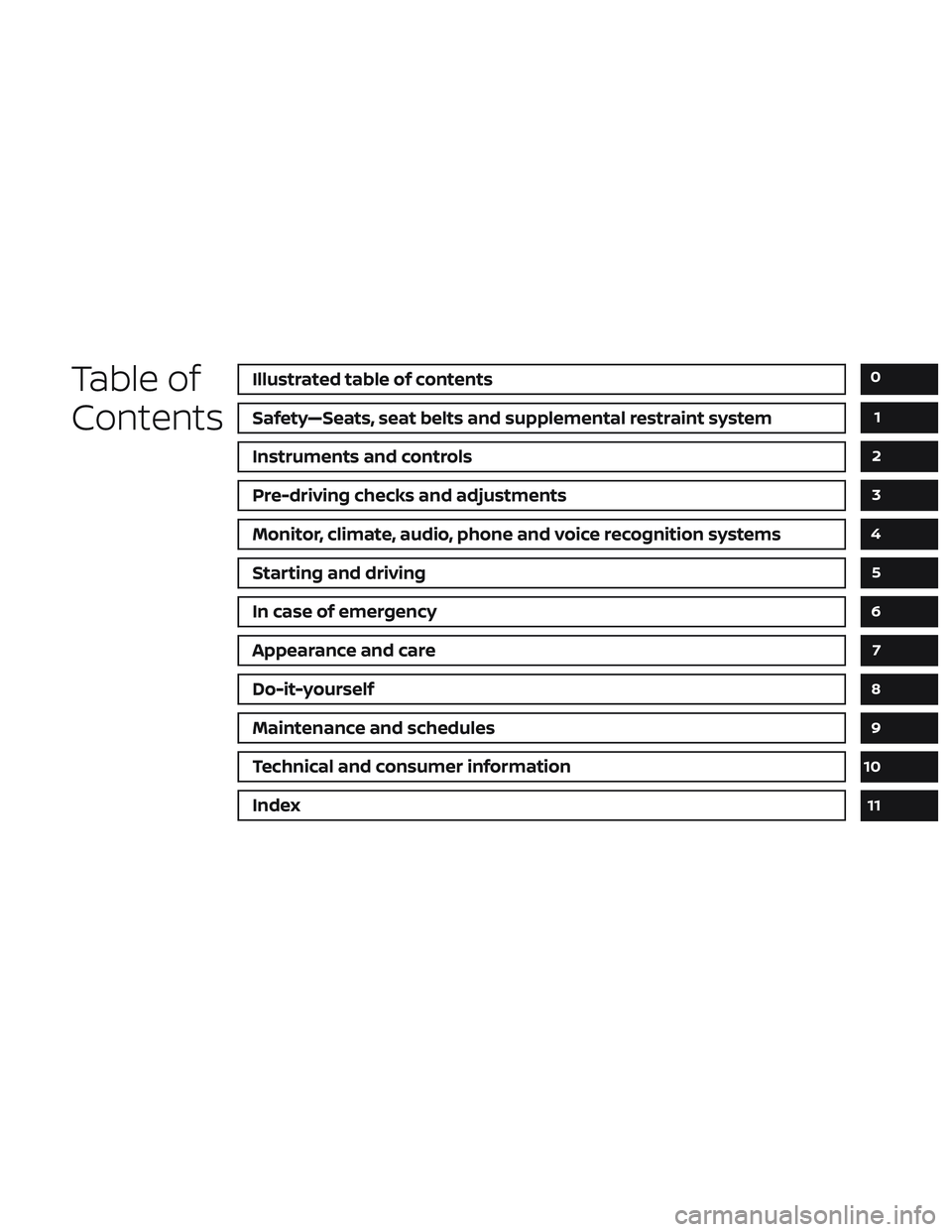
Table of
ContentsIllustrated table of contents
Safety—Seats, seat belts and supplemental restraint system
Instruments and controls
Pre-driving checks and adjustments
Monitor, climate, audio, phone and voice recognition systems
Starting and driving
In case of emergency
Appearance and care
Do-it-yourself
Maintenance and schedules
Technical and consumer information
Index
0
1
2
3
4
5
6
7
8
9
10
11
Page 20 of 502
15. Electronic locking rear differential(E-Lock) system switch
(if so equipped) (P. 2-37)
Heated seat switches
(if so equipped) (P. 2-34)
Rear sonar switch (if so equipped)
(P. 2-39)
Vehicle Dynamic Control (VDC)
OFF switch (P. 2-35)
16. Shif t lever (P. 5-14)
17. 4WD shif t switch (if so equipped)
(P. 5-26)
18. Climate controls (P. 4-17, P. 4-26)
19. Hazard warning flasher switch
(P. 6-2)
20. Ignition switch (P. 5-10)
21. Tilt steering wheel control
(if so equipped) (P. 3-14)
22. Cargo lamp switch (P. 2-34) Clutch interlock (clutch start)
switch (if so equipped) (P. 2-38)
Hill descent control switch
(if so equipped) (P. 2-36)
Outside mirror controls
(if so equipped) (P. 3-15)
Illustrated table of contents
0-7
Page 120 of 502
15. Electronic locking rear differential(E-Lock) system switch
(if so equipped) (P. 2-37)
Heated seat switches
(if so equipped) (P. 2-34)
Rear sonar switch (if so equipped)
(P. 2-39)
Vehicle Dynamic Control (VDC)
OFF switch (P. 2-35)
16. Shif t lever (P. 5-14)
17. 4WD shif t switch (if so equipped)
(P. 5-26)
18. Climate controls (P. 4-17, P. 4-26)
19. Hazard warning flasher switch
(P. 6-2)
20. Ignition switch (P. 5-10)
21. Tilt steering wheel control
(if so equipped) (P. 3-14)
22. Cargo lamp switch (P. 2-34) Clutch interlock (clutch start)
switch (if so equipped) (P. 2-38)
Hill descent control switch
(if so equipped) (P. 2-36)
Outside mirror controls
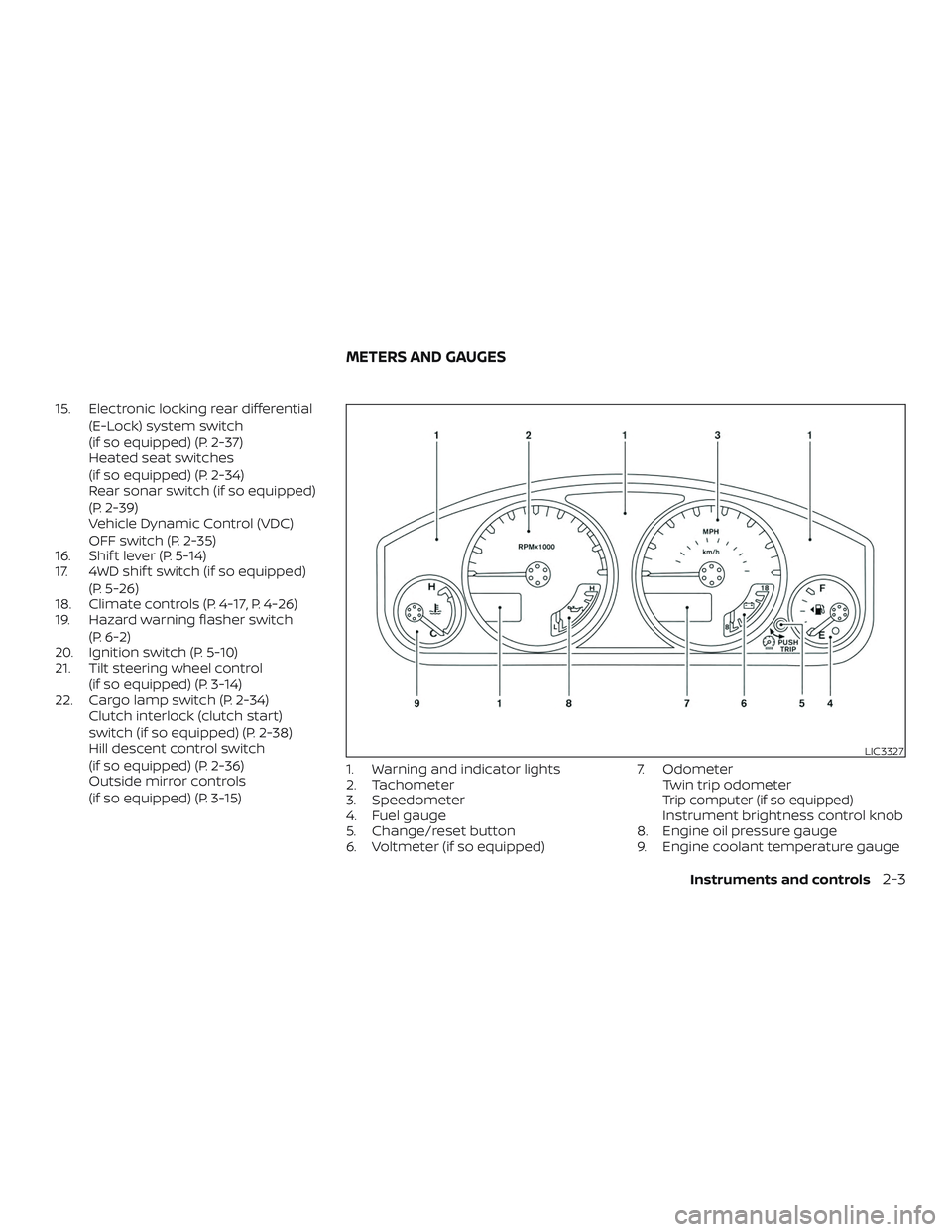
(if so equipped) (P. 3-15) 1. Warning and indicator lights
2. Tachometer
3. Speedometer
4. Fuel gauge
5. Change/reset button
6. Voltmeter (if so equipped) 7. Odometer
Twin trip odometer
Trip computer (if so equipped)Instrument brightness control knob
8. Engine oil pressure gauge
9. Engine coolant temperature gauge
LIC3327
METERS AND GAUGES
Instruments and controls2-3
Page 202 of 502
4 Monitor, climate, audio, phone and
voice recognition systems
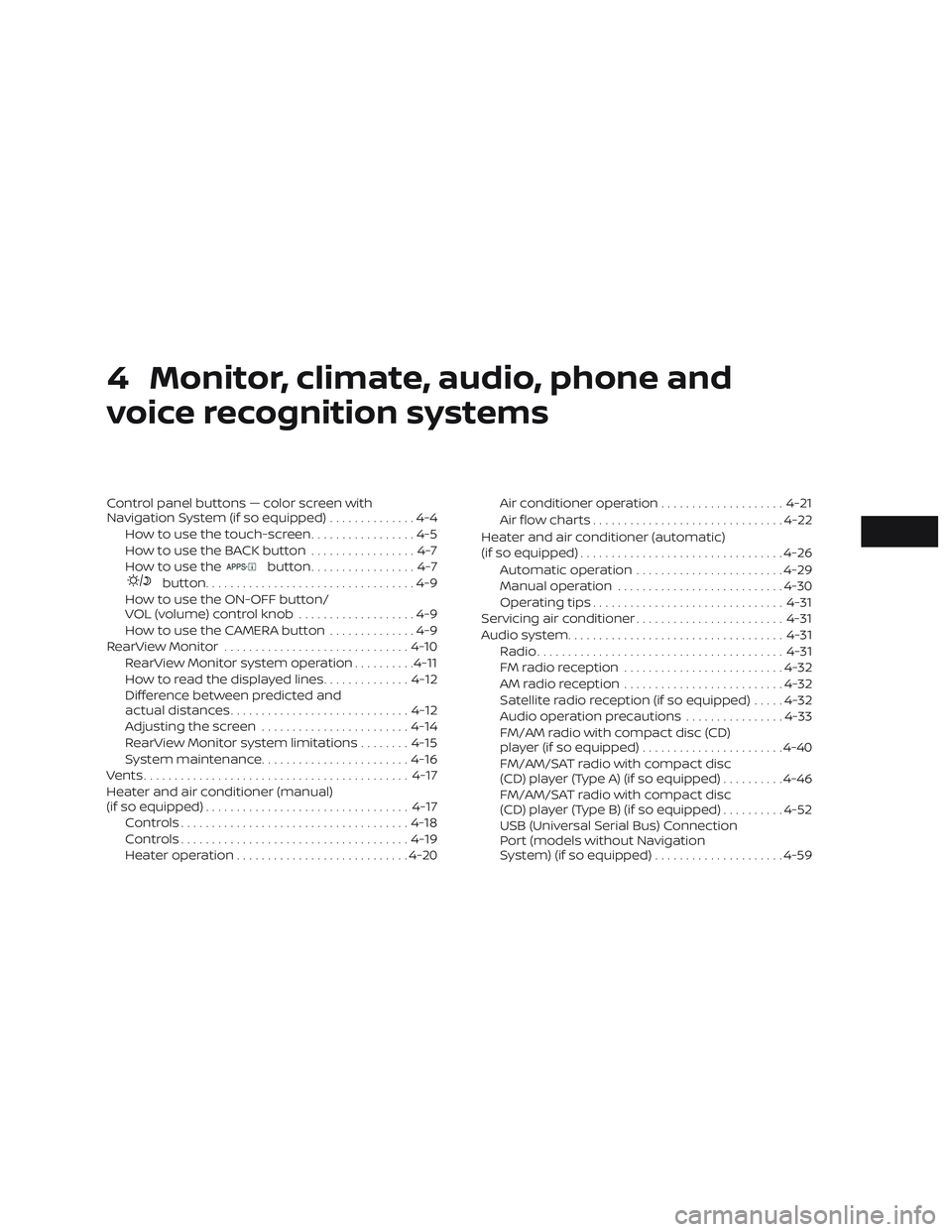
Control panel buttons — color screen with
Navigation System (if so equipped)..............4-4
How to use the touch-screen .................4-5
HowtousetheBACKbutton .................4-7
How to use the
button.................4-7
button..................................4-9
How to use the ON-OFF button/
VOL (volume) control knob ...................4-9
How to use the CAMERA button ..............4-9
RearView Monitor .............................. 4-10
RearView Monitor system operation ..........4-11
How to read the displayed lines ..............4-12
Difference between predicted and
actual distances ............................. 4-12
Adjusting the screen ........................ 4-14
RearView Monitor system limitations ........4-15
System maintenance ........................ 4-16
Vents ........................................... 4-17
Heater and air conditioner (manual)
(if so equipped) ................................. 4-17
Controls ..................................... 4-18
Controls ..................................... 4-19
Heater operation ............................ 4-20Air conditioner operation
....................4-21
Air flow charts ............................... 4-22
Heater and air conditioner (automatic)
(if so equipped) ................................. 4-26
Automatic operation ........................ 4-29
Manual operation ........................... 4-30
Operating tips ............................... 4-31
Servicing air conditioner ........................4-31
Audio system ................................... 4-31
Radio ........................................ 4-31
FM radio reception .......................... 4-32
AM radio reception .......................... 4-32
Satellite radio reception (if so equipped) .....4-32
Audio operation precautions ................4-33
FM/AM radio with compact disc (CD)
player (if so equipped) .......................4-40
FM/AM/SAT radio with compact disc
(CD) player (Type A) (if so equipped) ..........4-46
FM/AM/SAT radio with compact disc
(CD) player (Type B) (if so equipped) ..........4-52
USB (Universal Serial Bus) Connection
Port (models without Navigation
System) (if so equipped) .....................4-59
Page 205 of 502
WARNING
∙ Positioning of the heating or air con-ditioning controls and display con-
trols should not be done while driving
in order that full attention may be
given to the driving operation.
∙ Do not disassemble or modif y this system. If you do, it may result in acci-
dents, fire, or electrical shock.
∙ Do not use this system if you notice any abnormality, such as a frozen
screen or lack of sound. Continued
use of the system may result in acci-
dent, fire or electric shock.
∙ In case you notice any foreign object in the system hardware, spill liquid on
it, or notice smoke or smell coming
from it, stop using the system imme-
diately. Ignoring such conditions may
lead to accidents, fire or electrical
shock. It is recommended that you
visit a NISSAN dealer for servicing.
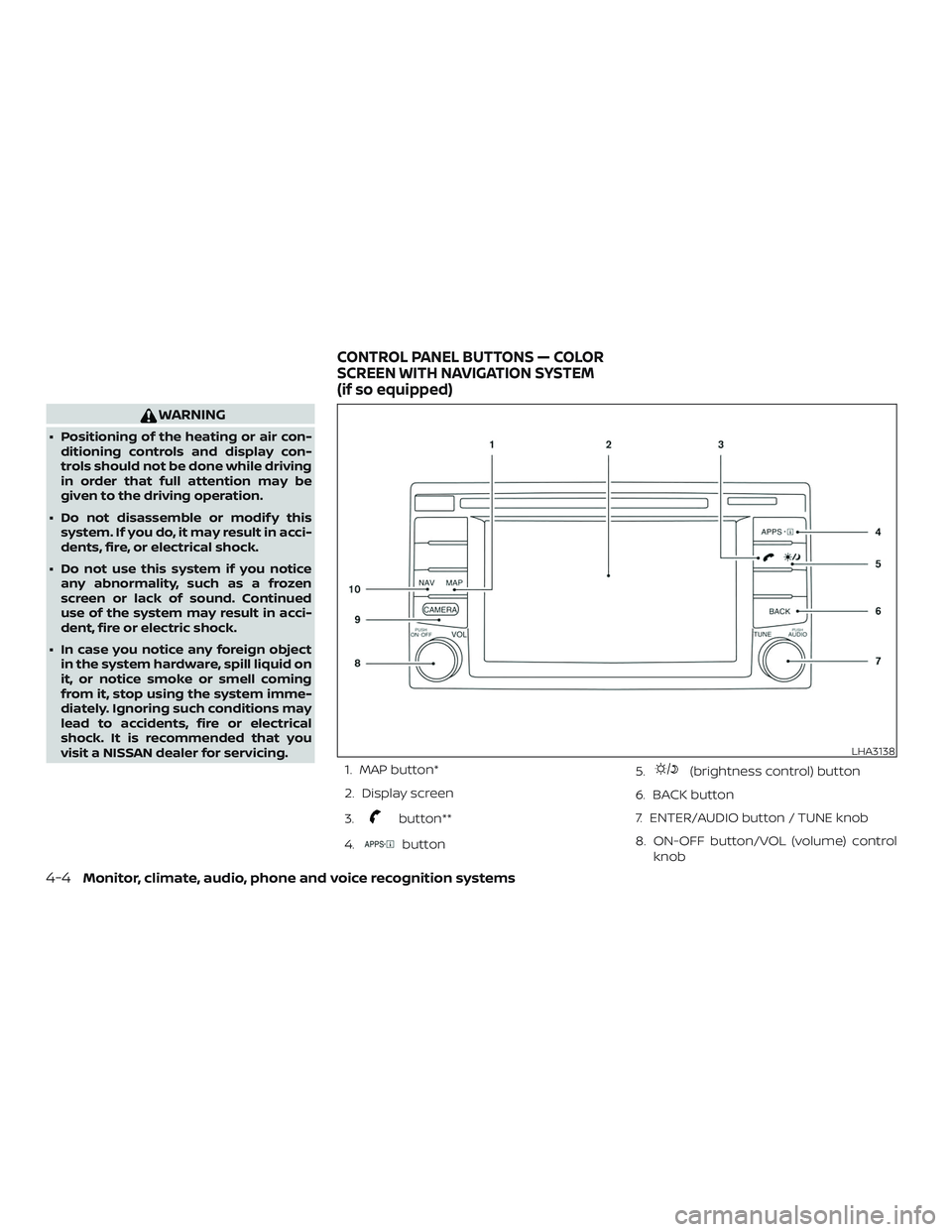
1. MAP button*
2. Display screen
3.
button**
4.
button 5.
(brightness control) button
6. BACK button
7. ENTER/AUDIO button / TUNE knob
8. ON-OFF button/VOL (volume) control knob
LHA3138
CONTROL PANEL BUTTONS — COLOR
SCREEN WITH NAVIGATION SYSTEM
(if so equipped)
4-4Monitor, climate, audio, phone and voice recognition systems
Page 206 of 502
9. CAMERA button
10. NAV button*
* For additional information, refer to the
separate NissanConnect® Owner’s Manual
regarding the Navigation system control
buttons.
** For additional information, refer to the
“Bluetooth® Hands-Free Phone System
with Navigation System” in this section.
When you use this system, make sure the
engine is running.
If you use the system with the engine not
running (ignition ON or ACC) for a long
time, it will discharge the battery, and
the engine will not start.
Reference symbols:
“Example” — Words marked in quotes refer
to a key shown only on the display. These
keys can be selected by touching the
screen.HOW TO USE THE TOUCH-SCREEN
CAUTION
∙ The glass display screen may break if it is hit with a hard or sharp object. If
the glass screen breaks, do not touch
it. Doing so could result in an injury.
∙ To clean the display, never use a rough cloth, alcohol, benzine, thinner or any
kind of solvent or paper towel with a
chemical cleaning agent. They will
scratch or deteriorate the panel.
∙ Do not splash any liquid such as water or car fragrance on the display. Con-
tact with liquid will cause the system
to malfunction.
To help ensure safe driving, some functions
cannot be operated while driving.
The on-screen functions that are not avail-
able while driving will be grayed out or
muted.
Park the vehicle in a safe location and then
operate the navigation system.
WARNING
∙ ALWAYS give your full attention to driving.
∙ Avoid using vehicle features that could distract you. If distracted, you
could lose control of your vehicle and
cause an accident.
Monitor, climate, audio, phone and voice recognition systems4-5
Page 209 of 502
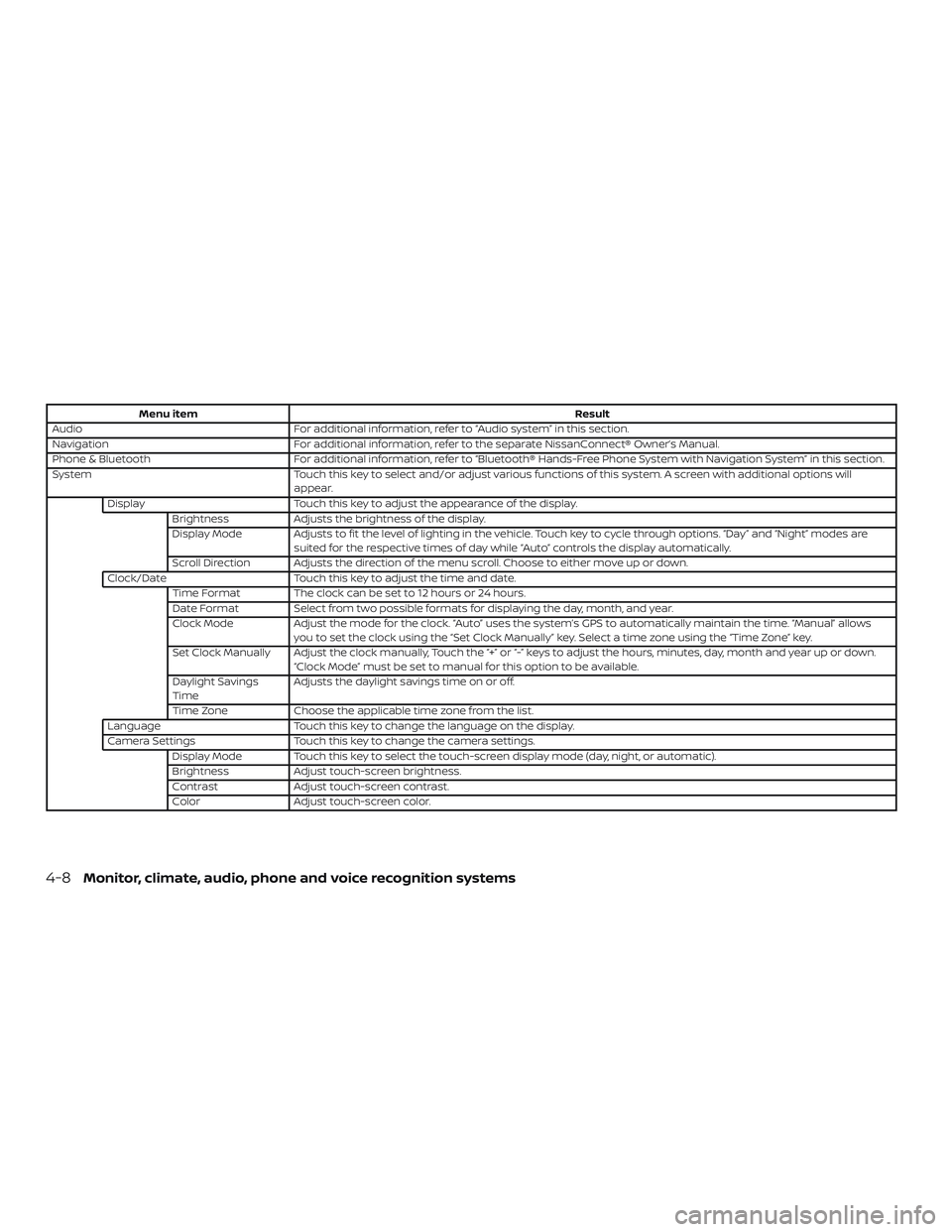
Menu itemResult
Audio For additional information, refer to “Audio system” in this section.
Navigation For additional information, refer to the separate NissanConnect® Owner’s Manual.
Phone & Bluetooth For additional information, refer to “Bluetooth® Hands-Free Phone System with Navigation System” in this section.
System Touch this key to select and/or adjust various functions of this system. A screen with additional options will
appear.
Display Touch this key to adjust the appearance of the display.
Brightness Adjusts the brightness of the display.
Display Mode Adjusts to fit the level of lighting in the vehicle. Touch key to cycle through options. “Day” and “Night” modes are suited for the respective times of day while “Auto” controls the display automatically.
Scroll Direction Adjusts the direction of the menu scroll. Choose to either move up or down.
Clock/Date Touch this key to adjust the time and date.
Time Format The clock can be set to 12 hours or 24 hours.
Date Format Select from two possible formats for displaying the day, month, and year.
Clock Mode Adjust the mode for the clock. “Auto” uses the system’s GPS to automatically maintain the time. “Manual” allows
you to set the clock using the “Set Clock Manually” key. Select a time zone using the “Time Zone” key.
Set Clock Manually Adjust the clock manually, Touch the “+” or “-” keys to adjust the hours, minutes, day, month and year up or down. “Clock Mode” must be set to manual for this option to be available.
Daylight Savings
Time Adjusts the daylight savings time on or off.
Time Zone Choose the applicable time zone from the list.
Language Touch this key to change the language on the display.
Camera Settings Touch this key to change the camera settings.
Display Mode Touch this key to select the touch-screen display mode (day, night, or automatic).
Brightness Adjust touch-screen brightness.
Contrast Adjust touch-screen contrast.
Color Adjust touch-screen color.
4-8Monitor, climate, audio, phone and voice recognition systems
Page 210 of 502
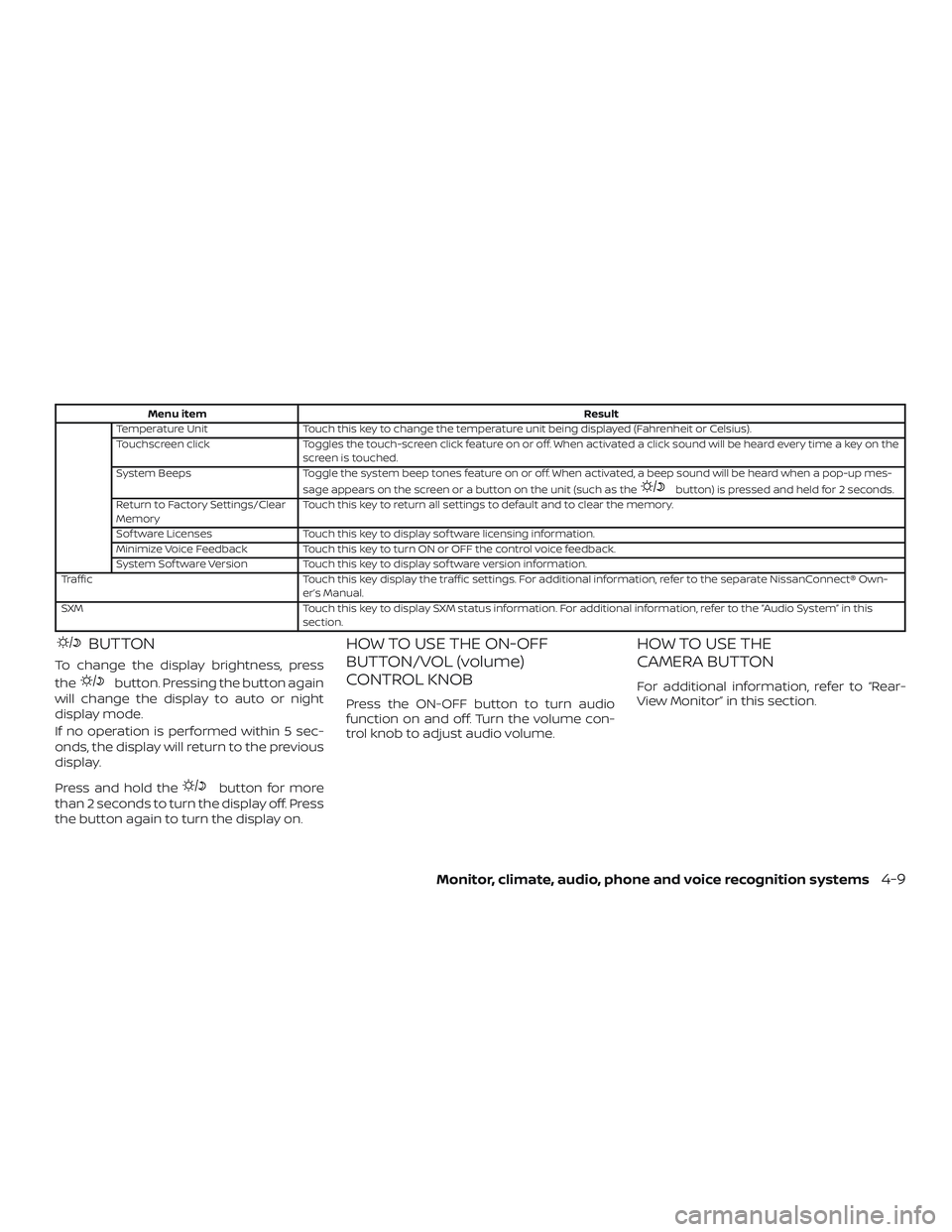
Menu itemResult
Temperature Unit Touch this key to change the temperature unit being displayed (Fahrenheit or Celsius).
Touchscreen click Toggles the touch-screen click feature on or off. When activated a click sound will be heard every time a key on the
screen is touched.
System Beeps Toggle the system beep tones feature on or off. When activated, a beep sound will be heard when a pop-up mes-
sage appears on the screen or a button on the unit (such as the
button) is pressed and held for 2 seconds.
Return to Factory Settings/Clear
Memory Touch this key to return all settings to default and to clear the memory.
Sof tware Licenses Touch this key to display sof tware licensing information.
Minimize Voice Feedback Touch this key to turn ON or OFF the control voice feedback.
System Sof tware Version Touch this key to display sof tware version information.
Traffic Touch this key display the traffic settings. For additional information, refer to the separate NissanConnect® Own-
er’s Manual.
SXM Touch this key to display SXM status information. For additional information, refer to the “Audio System” in this
section.
BUTTON
To change the display brightness, press
the
button. Pressing the button again
will change the display to auto or night
display mode.
If no operation is performed within 5 sec-
onds, the display will return to the previous
display.
Press and hold the
button for more
than 2 seconds to turn the display off. Press
the button again to turn the display on.
HOW TO USE THE ON-OFF
BUTTON/VOL (volume)
CONTROL KNOB
Press the ON-OFF button to turn audio
function on and off. Turn the volume con-
trol knob to adjust audio volume.
HOW TO USE THE
CAMERA BUTTON
For additional information, refer to “Rear-
View Monitor” in this section.
Monitor, climate, audio, phone and voice recognition systems4-9
Page 216 of 502
For vehicles with navigation system1. Firmly apply the brake and place the shif t lever in R (Reverse)
2. Press the
button on the control
panel.
3. The screen will display the Night set- tings.
4. Turn the TUNE knob to adjust the set- ting up or down.
5. Press the
button again to access
the Auto settings.
6. Turn the TUNE knob to adjust the set- ting up or down.
∙ Do not adjust the display settings of the RearView Monitor while the vehicle is
moving.
REARVIEW MONITOR SYSTEM
LIMITATIONS
WARNING
Listed below are the system limitations
for RearView Monitor. Failure to operate
the vehicle in accordance with these
system limitations could result in seri-
ous injury or death. ∙ The system cannot completely elimi-
nate blind spots and may not show
every object.
∙ Underneath the bumper and the cor- ner areas of the bumper cannot be
viewed on the RearView Monitor be-
cause of its monitoring range limita-
tion. The system will not show small
objects below the bumper, and may
not show objects close to the bumper
or on the ground.
∙ Objects viewed in the RearView Moni- tor differ from actual distance be-
cause a wide-angle lens is used.
∙ Objects in the RearView Monitor will appear visually opposite compared to
when viewed in the rearview and out-
side mirrors.
∙ Use the displayed lines as a reference. The lines are highly affected by the
number of occupants, fuel level, ve-
hicle position, road conditions and
road grade.
∙ Make sure that the tailgate is securely closed when backing up. ∙ Do not put anything on the rearview
camera. The rearview camera is in-
stalled on the tailgate.
∙ When washing the vehicle with high pressure water, be sure not to spray it
around the camera. Otherwise, water
may enter the camera unit causing
water condensation on the lens, a
malfunction, fire or an electric shock.
∙ Do not strike the camera. It is a preci- sion instrument. Otherwise, it may
malfunction or cause damage result-
ing in a fire or an electric shock.
The following are operating limitations and
do not represent a system malfunction: ∙ When the temperature is extremely high or low, the screen may not clearly
display objects.
∙ When strong light directly shines on the camera, objects may not be displayed
clearly.
∙ Vertical lines may be seen in objects on the screen. This is due to strong re-
flected light from the bumper.
∙ The screen may flicker under fluores- cent light.
Monitor, climate, audio, phone and voice recognition systems4-15
Page 219 of 502
∙ When parking, set the heater and airconditioner controls to turn off air recir-
culation to allow fresh air into the pas-
senger compartment. This should help
reduce odors inside the vehicle.
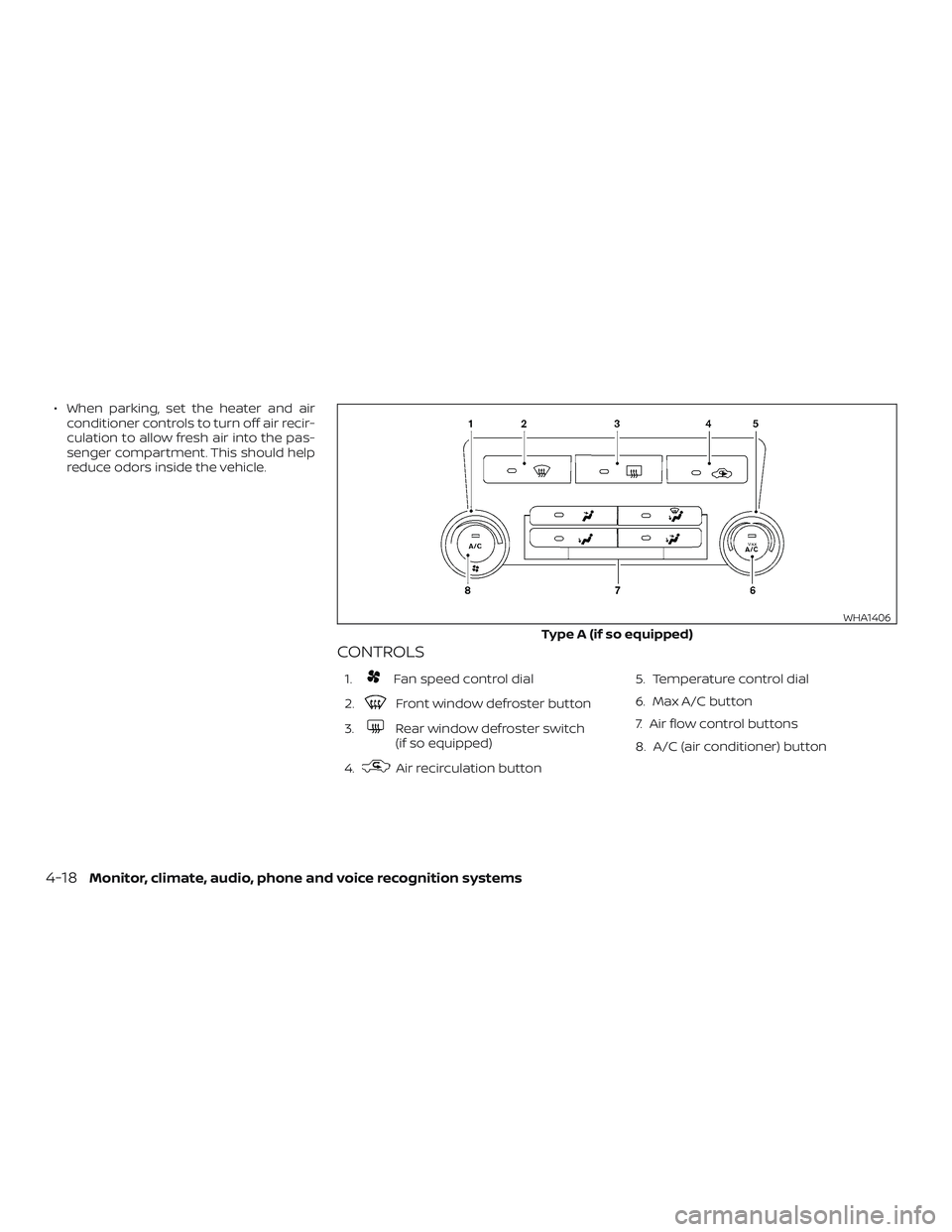
CONTROLS
1.Fan speed control dial
2.
Front window defroster button
3.
Rear window defroster switch
(if so equipped)
4.
Air recirculation button 5. Temperature control dial
6. Max A/C button
7. Air flow control buttons
8. A/C (air conditioner) button
Type A (if so equipped)
WHA1406
4-18Monitor, climate, audio, phone and voice recognition systems