radio NISSAN FRONTIER 2019 Owner´s Manual
[x] Cancel search | Manufacturer: NISSAN, Model Year: 2019, Model line: FRONTIER, Model: NISSAN FRONTIER 2019Pages: 516, PDF Size: 5.04 MB
Page 244 of 516
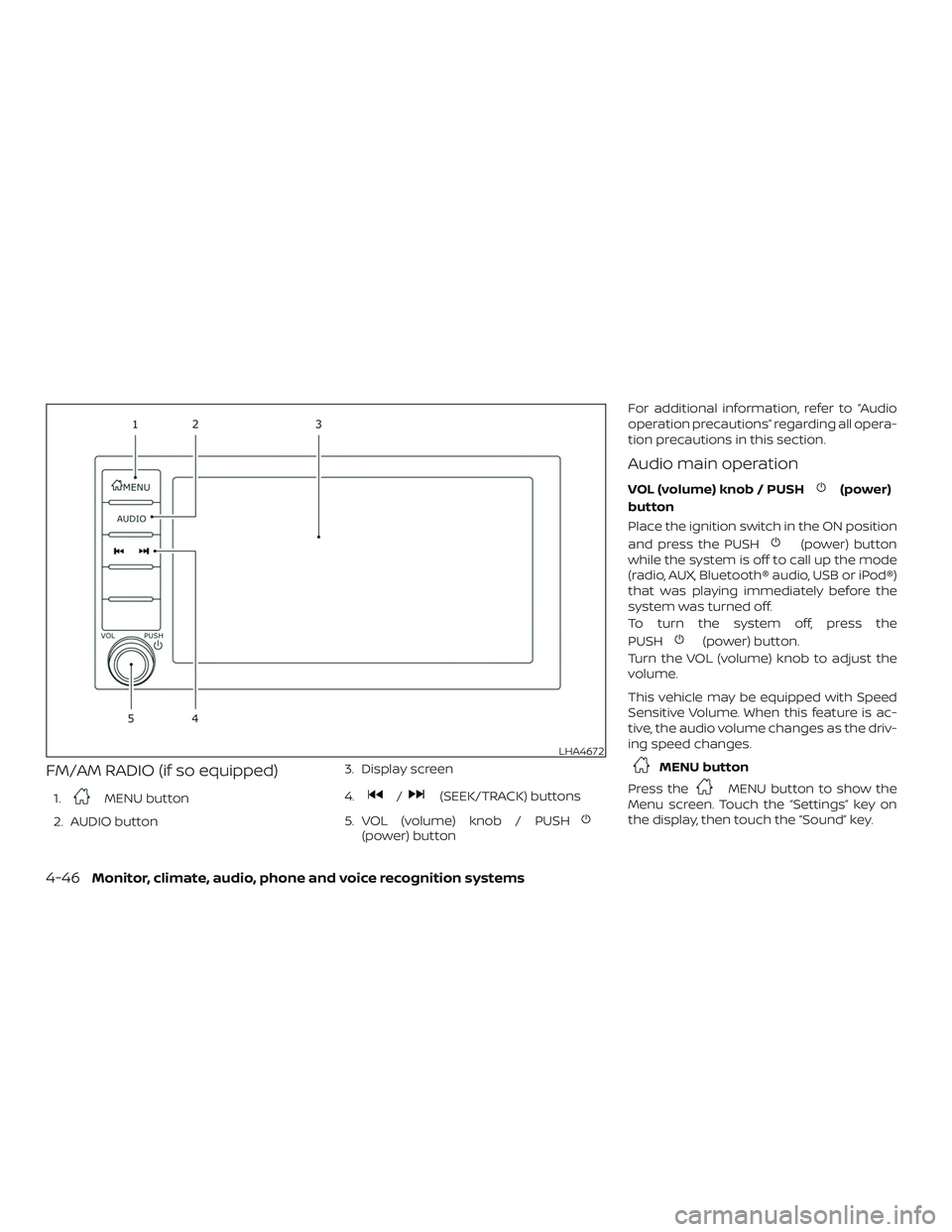
FM/AM RADIO (if so equipped)
1.MENU button
2. AUDIO button 3. Display screen
4./(SEEK/TRACK) buttons
5. VOL (volume) knob / PUSH
(power) button For additional information, refer to “Audio
operation precautions” regarding all opera-
tion precautions in this section.
Audio main operation
VOL (volume) knob / PUSH(power)
button
Place the ignition switch in the ON position
and press the PUSH
(power) button
while the system is off to call up the mode
(radio, AUX, Bluetooth® audio, USB or iPod®)
that was playing immediately before the
system was turned off.
To turn the system off, press the
PUSH
(power) button.
Turn the VOL (volume) knob to adjust the
volume.
This vehicle may be equipped with Speed
Sensitive Volume. When this feature is ac-
tive, the audio volume changes as the driv-
ing speed changes.
MENU button
Press the
MENU button to show the
Menu screen. Touch the “Settings” key on
the display, then touch the “Sound” key.
LHA4672
4-46Monitor, climate, audio, phone and voice recognition systems
Page 246 of 516
AUDIO button
Push to display the audio screen. When this
button is pushed while the audio screen is
not displayed, the last audio source played
will play.
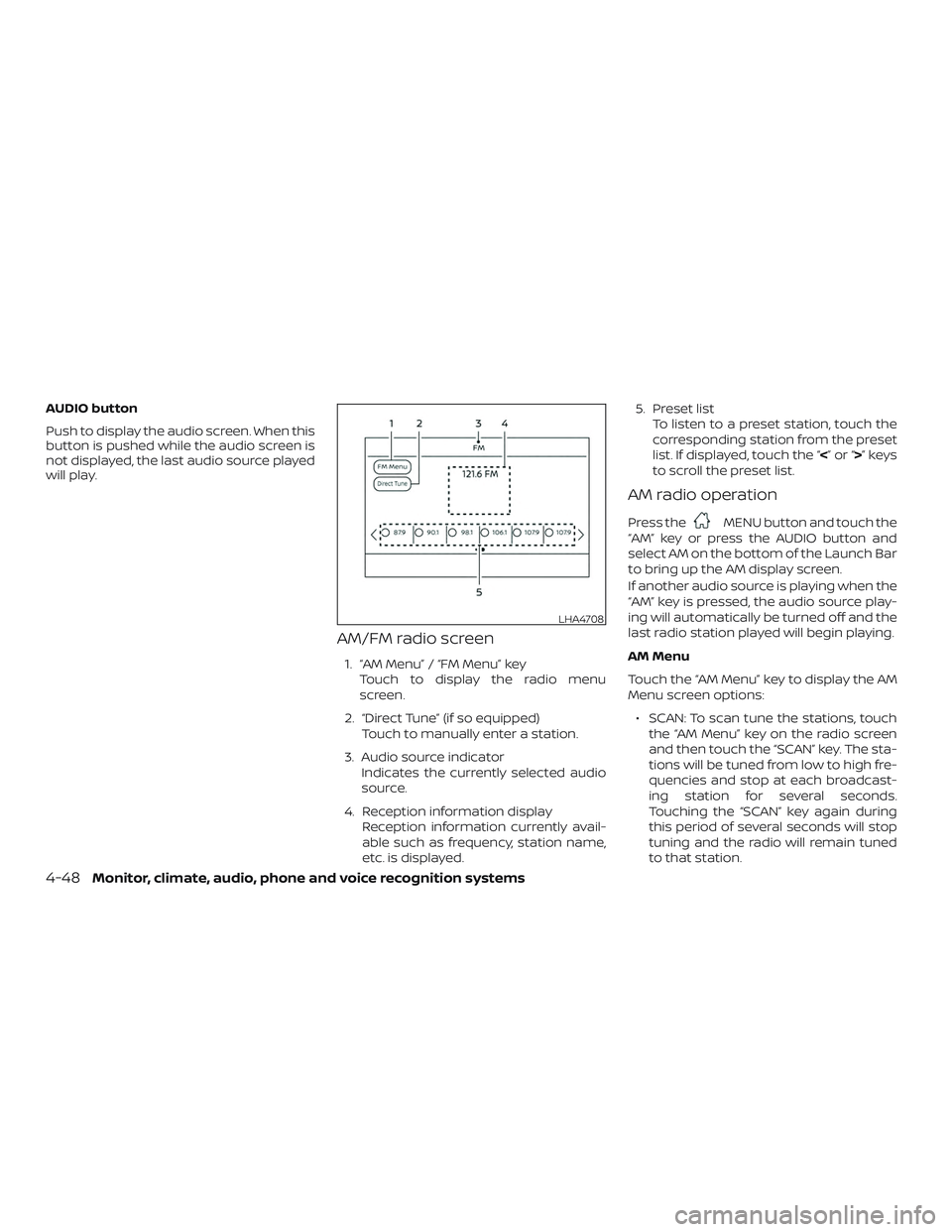
AM/FM radio screen
1. “AM Menu” / “FM Menu” keyTouch to display the radio menu
screen.
2. “Direct Tune” (if so equipped) Touch to manually enter a station.
3. Audio source indicator Indicates the currently selected audio
source.
4. Reception information display Reception information currently avail-
able such as frequency, station name,
etc. is displayed. 5. Preset list
To listen to a preset station, touch the
corresponding station from the preset
list. If displayed, touch the “ <”or“>”keys
to scroll the preset list.
AM radio operation
Press theMENU button and touch the
“AM” key or press the AUDIO button and
select AM on the bottom of the Launch Bar
to bring up the AM display screen.
If another audio source is playing when the
“AM” key is pressed, the audio source play-
ing will automatically be turned off and the
last radio station played will begin playing.
AM Menu
Touch the “AM Menu” key to display the AM
Menu screen options:
∙ SCAN: To scan tune the stations, touch the “AM Menu” key on the radio screen
and then touch the “SCAN” key. The sta-
tions will be tuned from low to high fre-
quencies and stop at each broadcast-
ing station for several seconds.
Touching the “SCAN” key again during
this period of several seconds will stop
tuning and the radio will remain tuned
to that station.
LHA4708
4-48Monitor, climate, audio, phone and voice recognition systems
Page 247 of 516
∙ Refresh: Touch the “Refresh” key to scanand update the station list displayed on
the right side of the AM Menu screen.
(SEEK/TRACK) buttons
Press the
orbuttons to tune
from low to high or high to low frequencies
and to stop at the next broadcasting sta-
tion.
1 to 6 station memory operations
Up to six stations can be registered in the
preset list.
1. Select the AM radio band.
2. Tune to the station you wish to store.
3. Touch and hold one of the preset num- bers in the preset list.
The information such as frequency will be
displayed on the preset list.
To select and listen to the preset stations,
push
oron the steering wheel
briefly or touch a preferred station on the
preset list on the radio screen.
FM radio operation
Press theMENU button and touch the
“FM” key or press the AUDIO button and
select FM on the bottom of the Launch Bar
to bring up the FM display screen.
If another audio source is playing when the
“FM” key is pressed, the audio source play-
ing will automatically be turned off and the
last radio station played will begin playing.
The FM stereo indicator (STEREO) is shown
on the screen during FM stereo reception.
When the stereo broadcast signal is weak,
the radio automatically changes from ste-
reo to monaural reception.
FM Menu
Touch the “FM Menu” key to display the FM
Menu screen options:
∙ SCAN: To scan tune the stations, touch the “FM Menu” key on the radio screen
and then touch the “SCAN” key. The sta-
tions will be tuned from low to high fre-
quencies and stop at each broadcast-
ing stations for several seconds.
Touching the “SCAN” key again during
this period of several seconds will stop
tuning and the radio will remain tuned
to that station. ∙ Refresh: Touch the “Refresh” key to up-
date the station list displayed on the
right side of the FM Menu screen.
∙ RDS Info: Radio station and song infor- mation can be displayed on the FM dis-
play screen.
(SEEK/TRACK) buttons
Press the
orbuttons to tune
from low to high or high to low frequencies
and to stop at the next broadcasting sta-
tion.
1 to 12 station memory operations
Up to 12 stations can be registered in the
preset list.
1. Select the FM radio band.
2. Tune to the station you wish to store.
3. Touch and hold one of the preset num- bers in the preset list.
The information such as frequency will be
displayed on the preset list.
To select and listen to the preset stations,
push
oron the steering wheel
briefly or touch a preferred station on the
preset list on the radio screen.
Monitor, climate, audio, phone and voice recognition systems4-49
Page 249 of 516
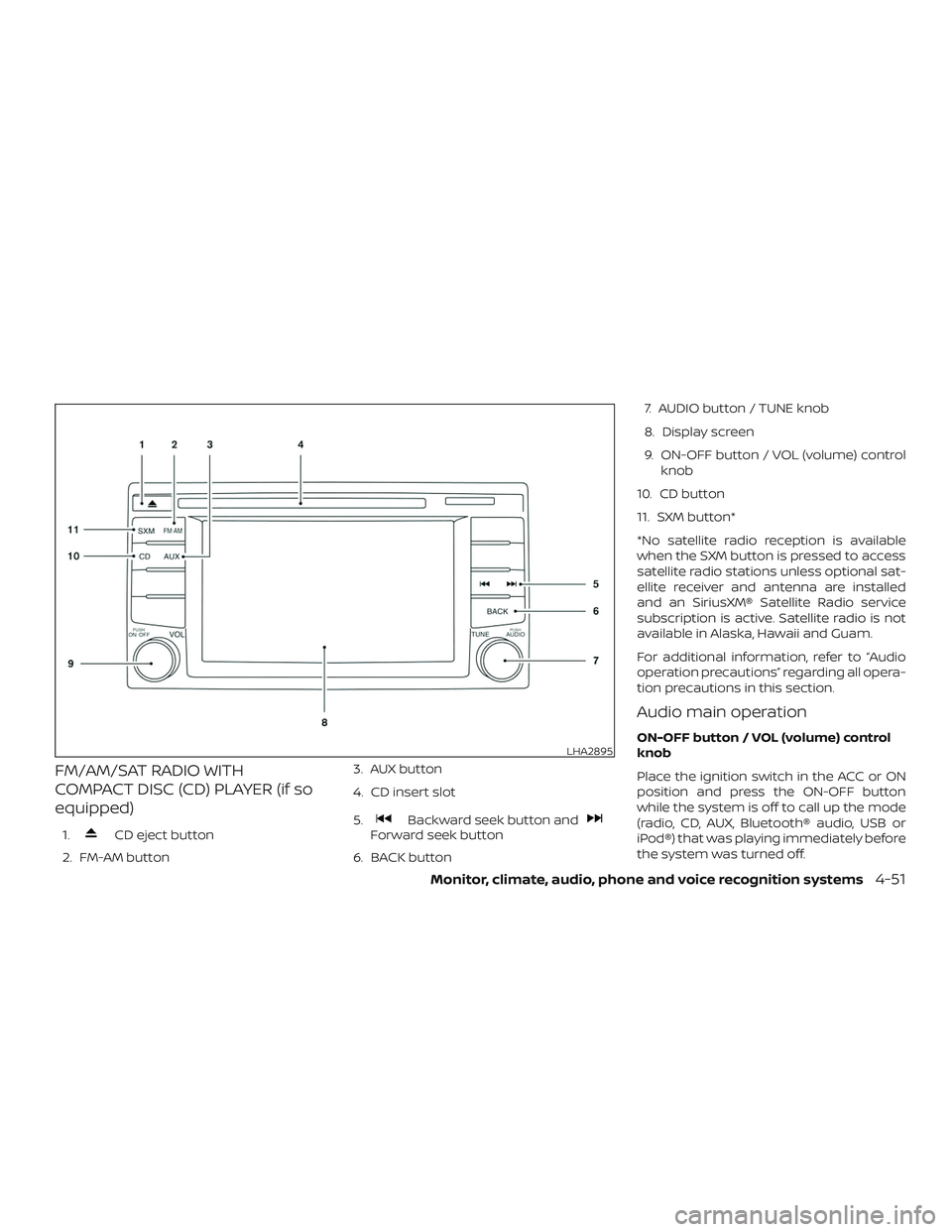
FM/AM/SAT RADIO WITH
COMPACT DISC (CD) PLAYER (if so
equipped)
1.CD eject button
2. FM-AM button 3. AUX button
4. CD insert slot
5.Backward seek button andForward seek button
6. BACK button 7. AUDIO button / TUNE knob
8. Display screen
9. ON-OFF button / VOL (volume) control
knob
10. CD button
11. SXM button*
*No satellite radio reception is available
when the SXM button is pressed to access
satellite radio stations unless optional sat-
ellite receiver and antenna are installed
and an SiriusXM® Satellite Radio service
subscription is active. Satellite radio is not
available in Alaska, Hawaii and Guam.
For additional information, refer to “Audio
operation precautions” regarding all opera-
tion precautions in this section.
Audio main operation
ON-OFF button / VOL (volume) control
knob
Place the ignition switch in the ACC or ON
position and press the ON-OFF button
while the system is off to call up the mode
(radio, CD, AUX, Bluetooth® audio, USB or
iPod®) that was playing immediately before
the system was turned off.LHA2895
Monitor, climate, audio, phone and voice recognition systems4-51
Page 250 of 516
To turn the system off, press the ON-OFF
button.
Turn the VOL (volume) control knob to ad-
just the volume.
This vehicle may be equipped with Speed
Sensitive Volume. When this feature is ac-
tive, the audio volume changes as the driv-
ing speed changes.Audio settings
1. Press the [
] button.
2. Touch the “Settings” key.
3. Touch the “Audio” key.
Use the touch-screen to adjust the follow-
ing items to the desired setting:
Audio
Bass Adjusts the bass to the desired level.
Treble Adjusts the treble to the desired level.
Balance Adjusts the balance to the desired level. Balance adjusts the sound level between the lef t and right
speakers.
Fade Adjusts the fade to the desired level. Fade adjusts the sound level between the front and rear speakers.
Speed Sensitive Vol. Adjusts the speed sensitive volume function, which increases the volume of the audio system as the
speed of the vehicle increases. Set to “ 0 ” to disable the feature. The higher the setting, the more the vol-
ume increases in relation to vehicle speed.
AUX Volume Level Controls the volume level of incoming sound when an auxiliary device is connected to the system. Avail-
able options are Low (Quiet), Medium, and High (Loud).
Bass, treble, balance and fade can also be adjusted by pressing the AUDIO button and turning the TUNE knob to select the item to adjust.
When the desired item is shown on the display, turn the tuning to adjust and then press the AUDIO button until the display returns to the
main audio screen. If the button is not pressed for approximately 10 seconds, the radio or CD display will automatically reappear.
4-52Monitor, climate, audio, phone and voice recognition systems
Page 251 of 516
![NISSAN FRONTIER 2019 Owner´s Manual SXM settings
To view the SXM settings:1. Press the [
] button.
2. Touch the “Settings” key.
3. Touch the “SXM” key.
The signal strength, activation status and
other information are displayed o](/img/5/40337/w960_40337-250.png "NISSAN FRONTIER 2019 Owner´s Manual SXM settings
To view the SXM settings:1. Press the [
] button.
2. Touch the “Settings” key.
3. Touch the “SXM” key.
The signal strength, activation status and
other information are displayed o")
SXM settings
To view the SXM settings:1. Press the [
] button.
2. Touch the “Settings” key.
3. Touch the “SXM” key.
The signal strength, activation status and
other information are displayed on the
screen.
FM/AM/SAT radio operation
FM·AM button
Press the FM·AM button to change the
band as follows:
AM →P1→ FM1→FM→P2
If another audio source is playing when the
FM·AM button is pressed, the audio source
playing will automatically be turned off and
the last radio station played will begin play-
ing.
The FM stereo indicator (STEREO) is shown
on the screen during FM stereo reception.
When the stereo broadcast signal is weak,
the radio automatically changes from ste-
reo to monaural reception. SXM band select
Pressing the SXM button will change the
band as follows:
SXM1*
→SXM2* →SXM3* →SXM1* (satellite,
if so equipped)
When the SXM button is pressed while the
ignition switch is in the ACC or ON position,
the radio will come on at the last station
played.
The last station played will also come on
when the ON-OFF button is pressed to turn
the radio on.
*When the SXM button is pressed, the sat-
ellite radio mode will be skipped unless an
optional satellite receiver and antenna are
installed and a SiriusXM® Satellite Radio
service subscription is active. Satellite radio
is not available in Alaska, Hawaii and Guam.
If a compact disc is playing when the SXM
button is pressed, the compact disc will
automatically be turned off and the last
radio station played will come on.
While the radio is in SXM mode, the opera-
tion can be controlled through the touch-
screen. Touch the “Categories” key to dis- play a list of categories. Touch a category
displayed on the list to display options
within that category.
Tuning with the touch-screen
When in AM or FM mode, the radio can be
tuned using the touch-screen. To bring up
the visual tuner, touch the “Tune” key on the
lower right corner of the screen. A screen
appears with a bar running from low fre-
quencies on the lef t to high frequencies on
the right. Touch the screen at the location
of the frequency you wish to tune and the
station will change to that frequency. To
return to the regular radio display screen,
touch the “OK” key.
Tuning with the TUNE knob
The radio can also be manually tuned us-
ing the TUNE knob. When in FM or AM mode,
turn the TUNE knob to the lef t for lower
frequencies or to the right for higher fre-
quencies. When in SXM mode, turn the
TUNE knob to change the channel.
SEEK tuning
When in FM or AM mode, press the
orseek buttons to tune from low to
high or high to low frequencies and to stop
at the next broadcasting station.
Monitor, climate, audio, phone and voice recognition systems4-53
Page 252 of 516
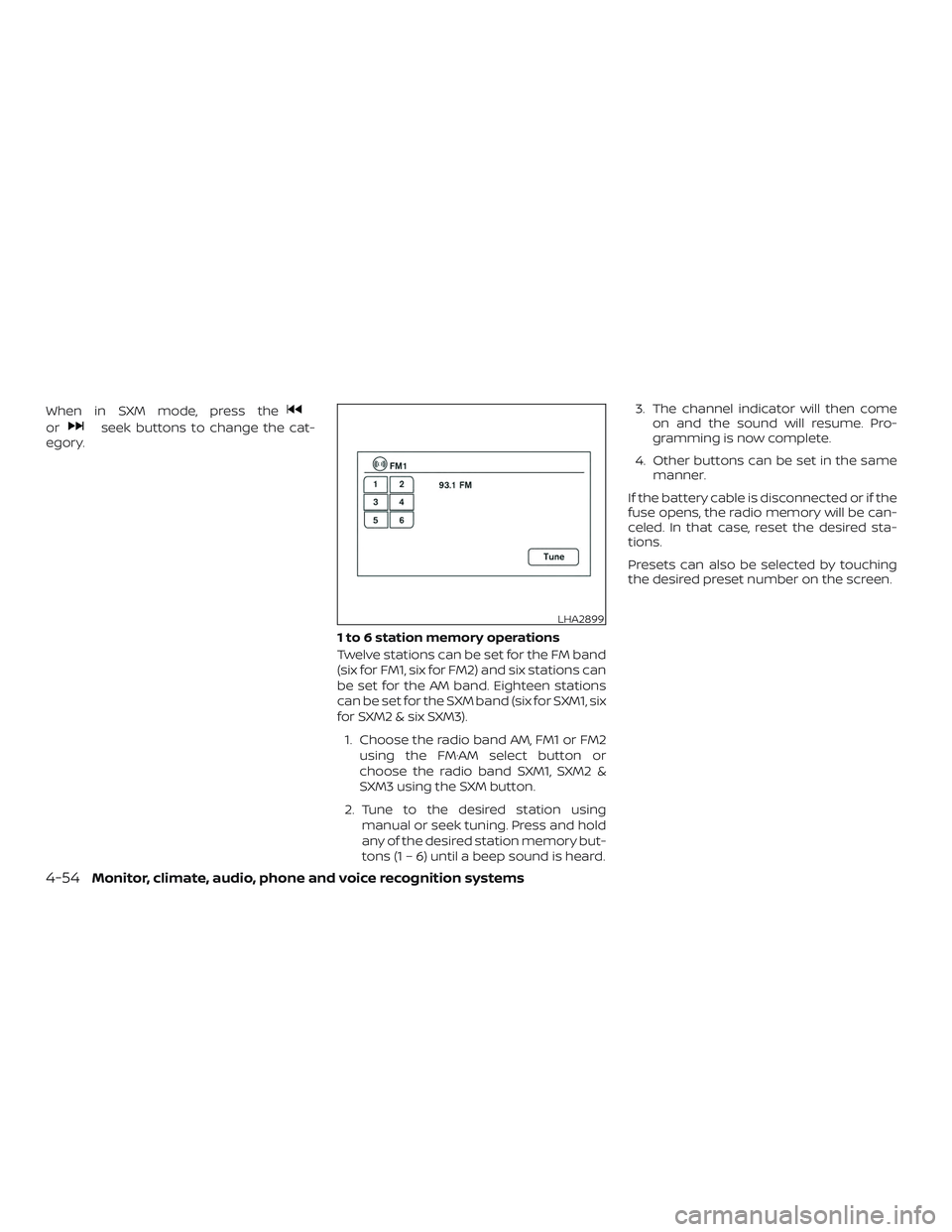
When in SXM mode, press the
orseek buttons to change the cat-
egory.
1 to 6 station memory operations
Twelve stations can be set for the FM band
(six for FM1, six for FM2) and six stations can
be set for the AM band. Eighteen stations
can be set for the SXM band (six for SXM1, six
for SXM2 & six SXM3).1. Choose the radio band AM, FM1 or FM2 using the FM·AM select button or
choose the radio band SXM1, SXM2 &
SXM3 using the SXM button.
2. Tune to the desired station using manual or seek tuning. Press and hold
any of the desired station memory but-
tons (1 – 6) until a beep sound is heard. 3. The channel indicator will then come
on and the sound will resume. Pro-
gramming is now complete.
4. Other buttons can be set in the same manner.
If the battery cable is disconnected or if the
fuse opens, the radio memory will be can-
celed. In that case, reset the desired sta-
tions.
Presets can also be selected by touching
the desired preset number on the screen.
LHA2899
4-54Monitor, climate, audio, phone and voice recognition systems
Page 254 of 516
REPLAYTo replay a track from
the beginning, press the
“
” key. The user can
continue to press the
“
” key to replay pre-
vious songs, but can only
go back as far as the
system permits. The sys-
tem will warn the user
when they cannot skip
any further back by dis-
playing “At the End” in the
bottom lef t corner of the
screen.
SKIP To skip a track, press the
“
” key. “Live” will ap-
pear in the bottom lef t
corner of the screen indi-
cating the difference
from play time to live
audio. PAUSE
To pause a track, press
the “
”key.
REWIND/
FA ST
FORWARD To rewind/ fast forward a
track, hold the “
”or
“
”key.
Compact Disc (CD) player
operation
If the radio is already operating, it automati-
cally turns off and the compact disc begins
to play.
CD button
When the CD button is pressed with the
system off and the compact disc loaded,
the system will turn on and the compact
disc will start to play.
When the CD button is pressed with a com-
pact disc loaded and the radio playing, the
radio will automatically be turned off and
the compact disc will start to play.
4-56Monitor, climate, audio, phone and voice recognition systems
Page 264 of 516
Changing play mode
Repeat mode
Touch the “
” key on the iPod® screen
to change the repeat mode. The following
modes are available.
No text displayed: Repeat off
All: Repeat all
One: Repeat track
Random mode
Touch the “
” key on the screen to
change the random mode as follows.
No text displayed: Random off
Songs: Random play
iPod® Menu
Touch the “iPod Menu” key on the iPod®
screen to display the iPod® Menu screen.
“Now Playing” key Touch to display the USB
screen.
“Folder List” key
(if so equipped) Touch to display the folder
list. Touch an item on the list
to select the folder. The sub-
folder or track list will be
displayed. Select a sub-folder
or track from the list.
“Album Artwork”
key Touch to run on/off the al-
bum artwork display on the
USB screen.
“Playlists” key Touch to display the list ac- cording to the selected item.
“Artists” key
“Albums” key
“Songs” key
“Podcasts” key
“Genres” key
“Composers” key
“Audiobooks” key
“iTunes Radio”
key
iPod®* PLAYER OPERATION WITH
NAVIGATION SYSTEM (if so
equipped)
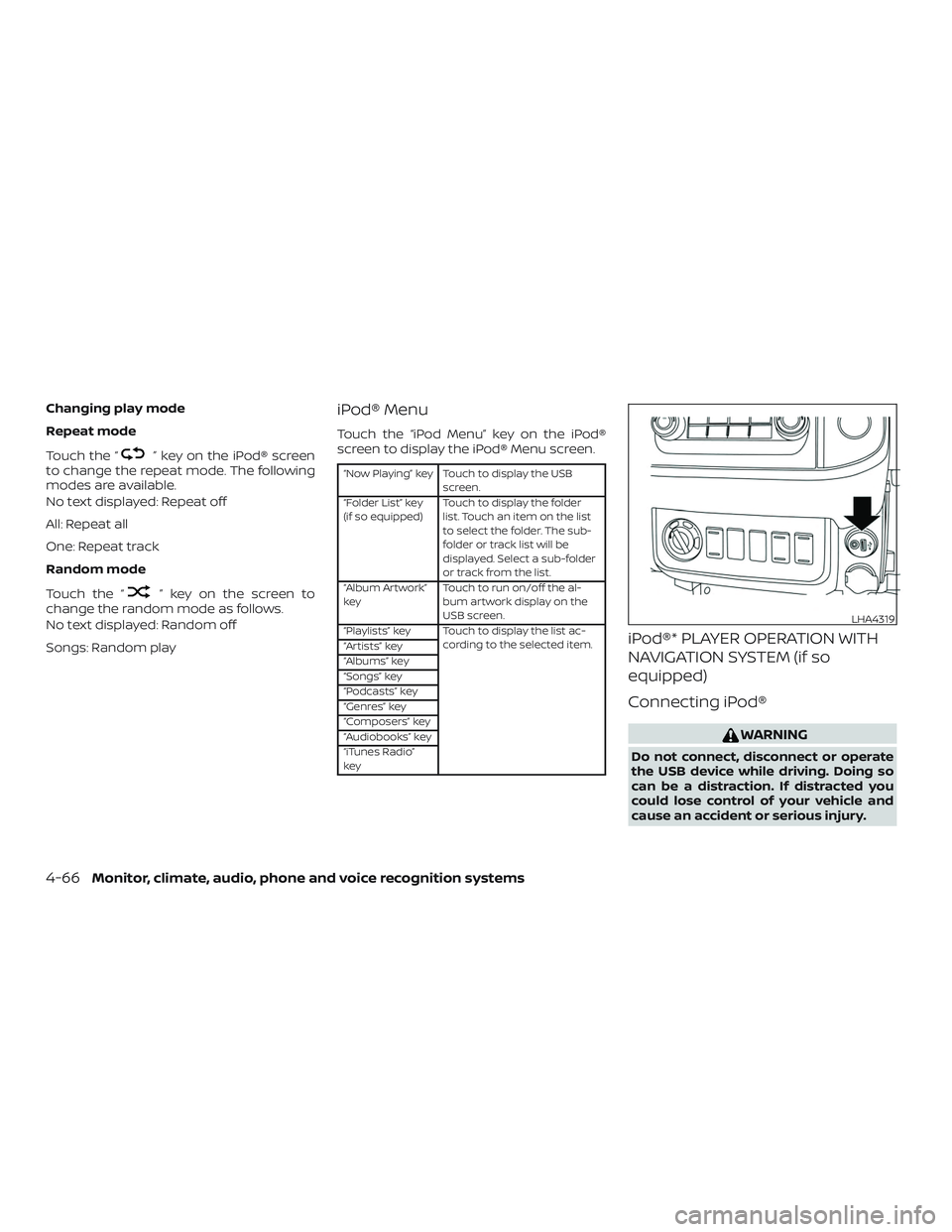
Connecting iPod®
WARNING
Do not connect, disconnect or operate
the USB device while driving. Doing so
can be a distraction. If distracted you
could lose control of your vehicle and
cause an accident or serious injury.
LHA4319
4-66Monitor, climate, audio, phone and voice recognition systems
Page 273 of 516
MODE select switch
Push the MODE select switch to change
the mode in the following sequence:
AM→P1 (if so equipped) →FM1 →FM2 →P2
(if so equipped) →(SXM1 →SXM2 →SXM3
(satellite radio, if so equipped)) →CD* (if so
equipped) →USB/iPod®* →Bluetooth® Au-
dio* →AUX* →AM
* These modes are only available when
compatible media storage is inserted into
the device or connected to the system.
Volume control switch
Push the volume control switch to increase
or decrease the volume.
Tuning switch
While the display is showing a map or audio
screen, tilt the Tuning switch upward or
downward to select a station, track, CD or
folder. For most audio sources, tilting the
switch up/down for more than 1.5 seconds
provides a different function than a tilting
up/down for less than 1.5 seconds.
AM and FM ∙ Tilt up/down for less than 1.5 seconds to increase or decrease the preset station. ∙ Tilt up/down for more than 1.5 seconds
to seek up or down to the next station.
SXM (if so equipped) ∙ Tilt up/down for less than 1.5 seconds to increase or decrease the preset station.
∙ Tilt up/down for more than 1.5 seconds to go to the next or previous channel.
iPod® ∙ Tilt up/down for less than 1.5 seconds to increase or decrease the track number.
∙ Tilt up/down for more than 1.5 seconds to fast forward or rewind the track be-
ing played.
CD (if so equipped) ∙ Tilt up/down for less than 1.5 seconds to increase or decrease the track number.
∙ Tilt up/down for more than 1.5 seconds to increase or decrease the folder num-
ber (if playing compressed audio files).
USB ∙ Tilt up/down for less than 1.5 seconds to increase or decrease the track number.
∙ Tilt up/down for more than 1.5 seconds to fast forward or rewind the track be-
ing played. Bluetooth® Audio
∙ Tilt up/down for less than 1.5 seconds to skip ahead or back to the next song.
∙ Tilt up/down for more than 1.5 seconds to reverse or fast forward the current
song.
ANTENNA
The antenna cannot be shortened, but can
be removed. When you need to remove the
antenna, turn the antenna rod counter-
clockwise.
To install the antenna rod, turn the antenna
rod clockwise and hand tighten.
CAUTION
∙ Always properly tighten the antennarod during installation or the antenna
rod may break during vehicle
operation.
∙ Be sure that the antenna is removed before the vehicle enters an auto-
matic car wash.
Monitor, climate, audio, phone and voice recognition systems4-75