USB NISSAN FRONTIER 2020 Owner´s Manual
[x] Cancel search | Manufacturer: NISSAN, Model Year: 2020, Model line: FRONTIER, Model: NISSAN FRONTIER 2020Pages: 492, PDF Size: 3.05 MB
Page 268 of 492
ANTENNA
The antenna cannot be shortened, but can
be removed. When you need to remove the
antenna, turn the antenna rod counter-
clockwise.
To install the antenna rod, turn the antenna
rod clockwise and hand tighten.
CAUTION
• Always properly tighten the antenna
rod during installation or the an-
tenna rod may break during vehicle
operation.
• Be sure that the antenna is removed
before the vehicle enters an auto-
matic car wash. Your vehicle may be equipped with
NissanConnect® Mobile Apps, allowing you
to control various compatible smartphone
applications through the vehicle’s display
screen. A basic package is included for a
period of time form the original in-service
date of the vehicle. For more details about
your Mobile Apps trial, please visit
www.nissanusa.com/connect/faq#apps-
&-features.
NOTE:
A compatible smartphone and registra-
tion is required to use mobile applica-
tions or to access connected features of
certain vehicle applications.
REGISTERING WITH
NISSANCONNECT® MOBILE APPS
To use the Smartphone Integration feature, it
is necessary for the user to register. In order
to register, visit the NissanConnect® Mobile
Apps website, www.nissanusa.com/
connect/ or www.nissan.ca/en/connect or
www.nissan.ca/fr/connect and sign up or
create an account through the prompts on
the NissanConnect® Mobile Apps. Once reg-
istered, download the NissanConnect® Mo-
bile Apps from your compatible phone’s ap-
plication download source and then log into
the application. If you already have an ac-
count created through the App, please log in.
CONNECT PHONE
To use this feature, a compatible smart-
phone must be connected via Bluetooth®
or USB to the vehicle. For additional infor-
mation, refer to “Bluetooth® Hands-Free
Phone System with Navigation System” in
this section.
NOTE:
Apple iPhones® require the phone to be
plugged in via USB for NissanConnect®
Mobile Apps to function.
For Android phones, NissanConnect®
Mobile Apps requires the phone to be
paired via Bluetooth®.
NISSANCONNECT® MOBILE APPS (if
so equipped)
4-72Monitor, climate, audio, phone and voice recognition systems
Page 270 of 492
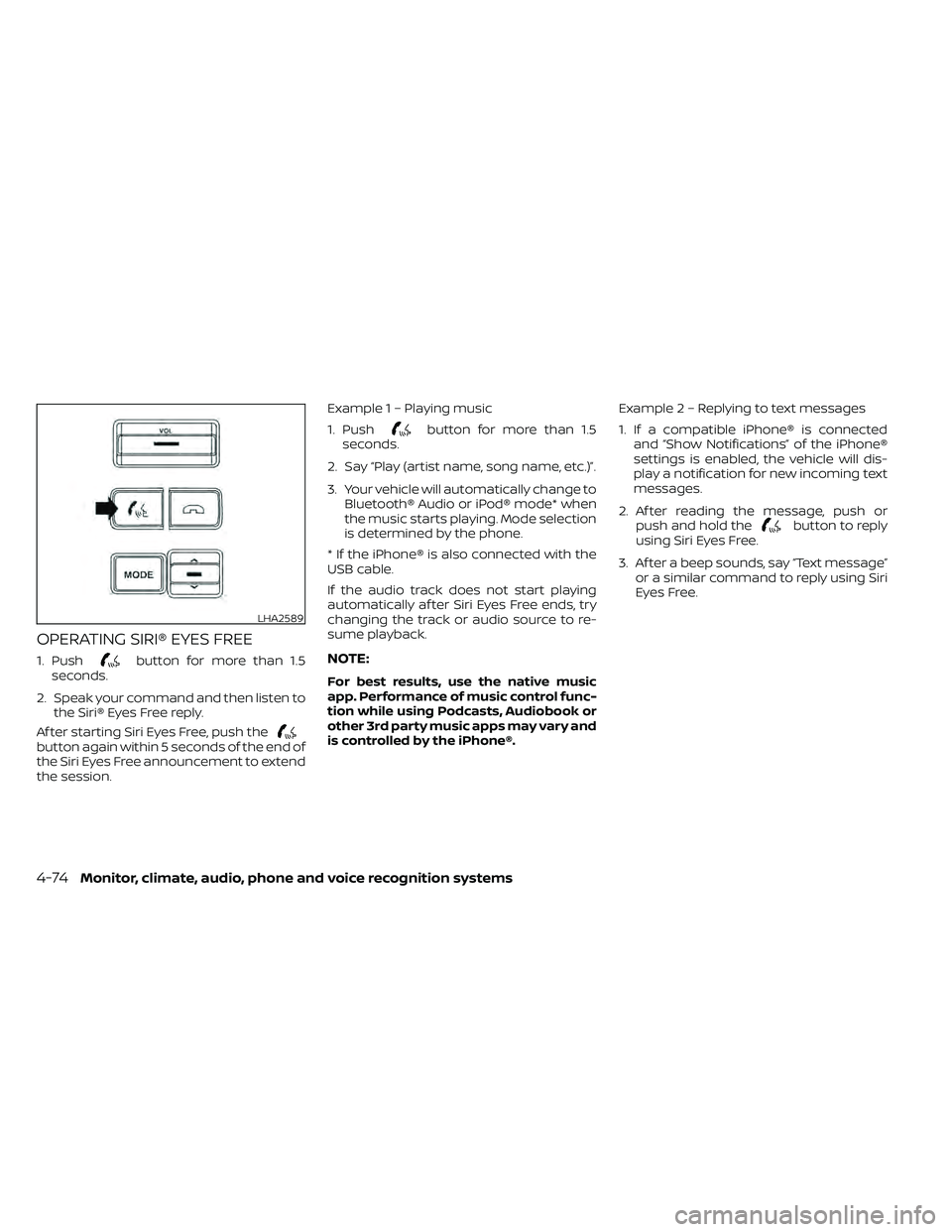
OPERATING SIRI® EYES FREE
1. Pushbutton for more than 1.5
seconds.
2. Speak your command and then listen to the Siri® Eyes Free reply.
Af ter starting Siri Eyes Free, push the
button again within 5 seconds of the end of
the Siri Eyes Free announcement to extend
the session. Example 1 – Playing music
1. Push
button for more than 1.5
seconds.
2. Say “Play (artist name, song name, etc.)”.
3. Your vehicle will automatically change to Bluetooth® Audio or iPod® mode* when
the music starts playing. Mode selection
is determined by the phone.
* If the iPhone® is also connected with the
USB cable.
If the audio track does not start playing
automatically af ter Siri Eyes Free ends, try
changing the track or audio source to re-
sume playback.
NOTE:
For best results, use the native music
app. Performance of music control func-
tion while using Podcasts, Audiobook or
other 3rd party music apps may vary and
is controlled by the iPhone®. Example2–Repl
ying to text messages
1. If a compatible iPhone® is connected and “Show Notifications” of the iPhone®
settings is enabled, the vehicle will dis-
play a notification for new incoming text
messages.
2. Af ter reading the message, push or push and hold the
button to reply
using Siri Eyes Free.
3. Af ter a beep sounds, say “Text message” or a similar command to reply using Siri
Eyes Free.
LHA2589
4-74Monitor, climate, audio, phone and voice recognition systems
Page 271 of 492
TROUBLESHOOTING GUIDE
SymptomCause and Countermeasure
Cannot access Siri Eyes
Freefromswitchonthe
steering wheel Check if a Bluetooth® connection is established between the iPhone® and the system.
Check if Siri is enabled on the device. On your phone, go to Siri setting.
Check that Siri can be accessed from the device lock screen. This can be set in the settings menu of your phone.
Audio Source does not
change automatically to
iPod® or Bluetooth® Au-
dio mode For best results, use the native Music app. Performance of music control function while using Podcasts, Audiobook or other 3rd party
music apps may vary.
For best results, play media already stored on your device. Streaming music or playback from cloud storage may degrade perfor-
mance.
Switch the source manually by pressing the AUX or MEDIA button on the vehicle audio system or the SOURCE select switch on the
steering wheel.
Play, pause, next track,
previous track or play
timer does not work For best results, use the native Music app. Performance of music control function while using Podcasts, Audiobook or other 3rd party
music apps may vary and is controlled by the device.
Cannot hear any music/
audio being played back
from a connected
iPhone® Check that the audio source is set to Bluetooth® Audio or iPod® mode. A USB connection is required for iPod® mode.
Cannot receive text mes-
sage notifications on the
vehicle audio system Check if “Send Notifications” is enabled on your phone. On the phone, go to Bluetooth® settings. Find the device name, like “My Car”.
Press the INFO button. Turn on “Show Notifications”.
Cannot reply to text mes-
sage notifications by Siri
Eyes Free Af ter receiving an incoming text message, follow on-screen guidance. Push the
button on the steering wheel for more than 1.5
seconds for Siri Eyes Free. Af ter Siri Eyes Free starts, say “Text Message”.
Monitor, climate, audio, phone and voice recognition systems4-75
Page 273 of 492
OPERATING SIRI® EYES FREE
1. Push or push and hold thebutton.
2. Speak your command and then listen to the Siri Eyes Free reply.
Af ter starting Siri Eyes Free, push the
button again within 5 seconds of the end of
the Siri Eyes Free announcement to extend
the session.
Example 1 – Playing music
1. Push or push and hold the
button.
2. Say “Play (artist name, song name, etc.)”.
3. Your vehicle will automatically change to Bluetooth® Audio or iPod® mode* when
the music starts playing. Mode selection
is determined by the phone.
* If the iPhone® is also connected with the
USB cable.
If the audio track does not start playing
automatically af ter Siri Eyes Free ends, try
changing the track or audio source to re-
sume playback.
NOTE:
For best results, use the native music
app. Performance of music control func-
tion while using Podcasts, Audiobook or
other 3rd party music apps may vary and
is controlled by the iPhone®.
Example2–Repl ying to text messages
1. If a compatible iPhone® is connected and “Show Notifications” of the iPhone®
settings is enabled, the vehicle will dis-
play a notification for new incoming text
messages.
2. Af ter reading the message, push or push and hold the
button to reply
using Siri Eyes Free.
3. Af ter a beep sounds, say “Text message” or a similar command to reply using Siri
Eyes Free.
CHANGING SIRI® EYES FREE
SETTINGS
Settings for Siri® Eyes Free can be found in
the Bluetooth® settings menu. For addi-
tional information, refer to “Bluetooth® set-
tings” in this section.
1. Press the [
] button.
2. Touch the “Settings” key.
3. Touch the “Phone & Bluetooth” key.
4. Touch the “Phone settings” key.
5. Select “Short Press” or “Long Press” to set the activation.
Monitor, climate, audio, phone and voice recognition systems4-77
Page 274 of 492
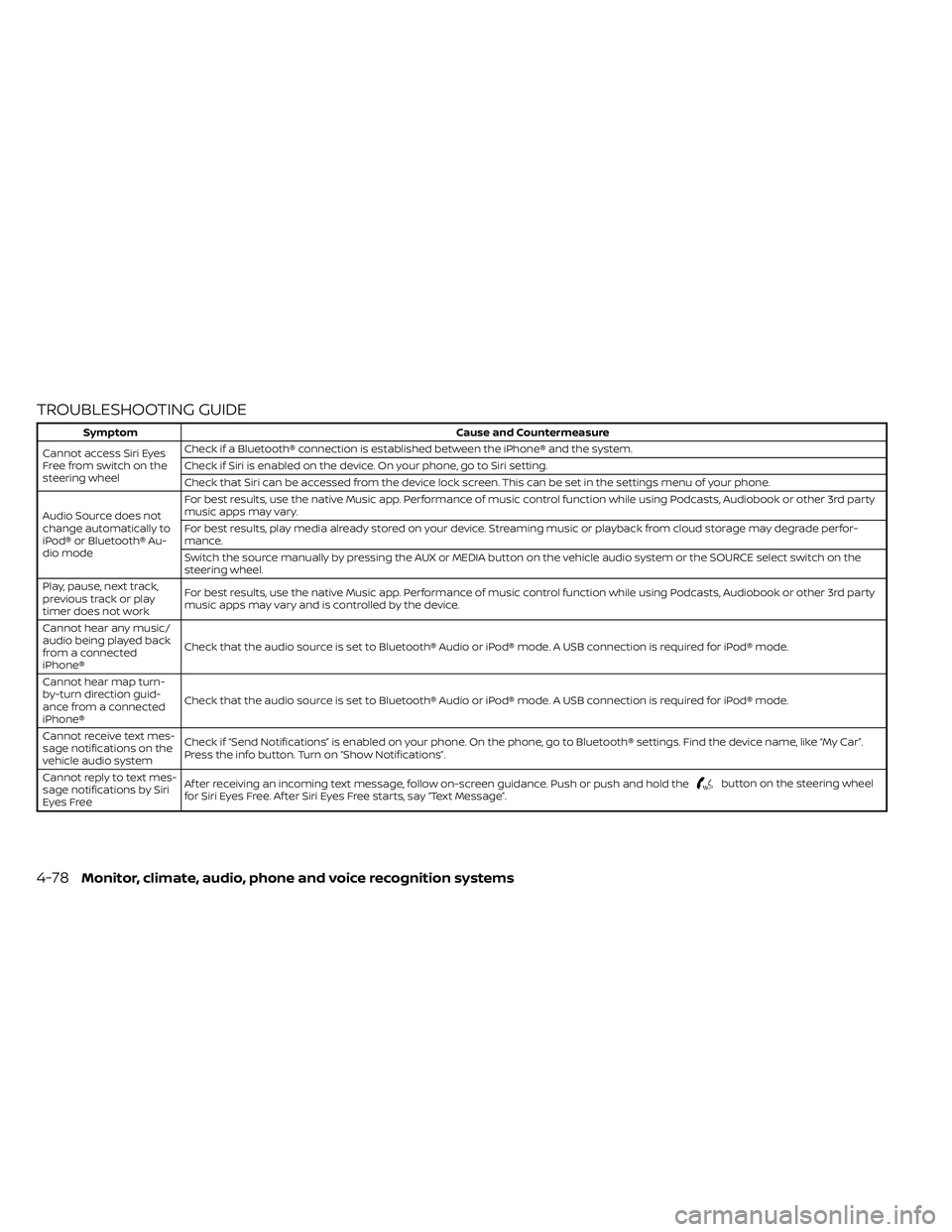
TROUBLESHOOTING GUIDE
SymptomCause and Countermeasure
Cannot access Siri Eyes
Freefromswitchonthe
steering wheel Check if a Bluetooth® connection is established between the iPhone® and the system.
Check if Siri is enabled on the device. On your phone, go to Siri setting.
Check that Siri can be accessed from the device lock screen. This can be set in the settings menu of your phone.
Audio Source does not
change automatically to
iPod® or Bluetooth® Au-
dio mode For best results, use the native Music app. Performance of music control function while using Podcasts, Audiobook or other 3rd party
music apps may vary.
For best results, play media already stored on your device. Streaming music or playback from cloud storage may degrade perfor-
mance.
Switch the source manually by pressing the AUX or MEDIA button on the vehicle audio system or the SOURCE select switch on the
steering wheel.
Play, pause, next track,
previous track or play
timer does not work For best results, use the native Music app. Performance of music control function while using Podcasts, Audiobook or other 3rd party
music apps may vary and is controlled by the device.
Cannot hear any music/
audio being played back
from a connected
iPhone® Check that the audio source is set to Bluetooth® Audio or iPod® mode. A USB connection is required for iPod® mode.
Cannot hear map turn-
by-turn direction guid-
ance from a connected
iPhone® Check that the audio source is set to Bluetooth® Audio or iPod® mode. A USB connection is required for iPod® mode.
Cannot receive text mes-
sage notifications on the
vehicle audio system Check if “Send Notifications” is enabled on your phone. On the phone, go to Bluetooth® settings. Find the device name, like “My Car”.
Press the info button. Turn on “Show Notifications”.
Cannot reply to text mes-
sage notifications by Siri
Eyes Free Af ter receiving an incoming text message, follow on-screen guidance. Push or push and hold the
button on the steering wheel
for Siri Eyes Free. Af ter Siri Eyes Free starts, say “Text Message”.
4-78Monitor, climate, audio, phone and voice recognition systems
Page 477 of 492
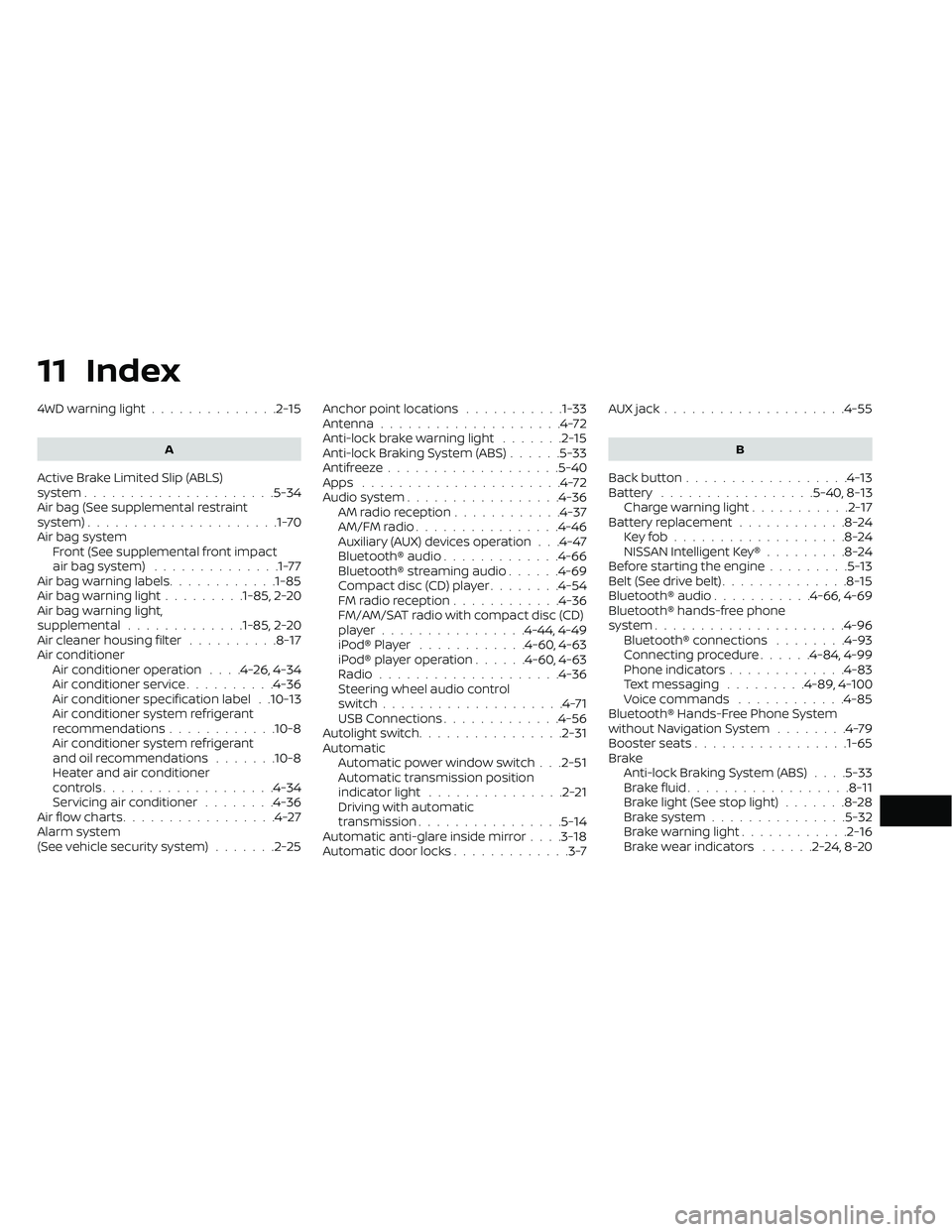
11 Index
4WD warning light..............2-15
A
Active Brake Limited Slip (ABLS)
system.....................5-34Air bag (See supplemental restraint
system).....................1-70Air bag system
Front (See supplemental front impact
air bag system)
..............1-77Air bag warning labels............1-85Air bag warning light.........1-85, 2-20Air bag warning light,
supplemental.............1-85, 2-20Air cleaner housing filter..........8-17Air conditionerAir conditioner operation. . . .4-26, 4-34Air conditioner service..........4-36Air conditioner specification label. .10-13Air conditioner system refrigerant
recommendations............10-8Air conditioner system refrigerant
and oil recommendations.......10-8Heater and air conditioner
controls.................. .4-34Servicing air conditioner........4-36Air flow charts.................4-27Alarm system
(See vehicle security system).......2-25
Anchor point locations...........1-33Antenna....................4-72Anti-lock brake warning light.......2-15Anti-lock Braking System (ABS)......5-33Antifreeze...................5-40Apps......................4-72Audio system.................4-36AM radio reception............4-37AM/FM radio................4-46Auxiliary (AUX) devices operation. . .4-47Bluetooth® audio.............4-66Bluetooth® streaming audio......4-69Compact disc (CD) player........4-54FM radio reception............4-36FM/AM/SAT radio with compact disc (CD)
player................4-44, 4-49iPod® Player............4-60, 4-63iPod® player operation......4-60, 4-63Radio................... .4-36Steering wheel audio control
switch....................4-71USB Connections.............4-56Autolight switch................2-31Automatic
Automatic power window switch. . .2-51Automatic transmission position
indicator light...............2-21Driving with automatic
transmission................5-14Automatic anti-glare inside mirror. . . .3-18Automatic door locks.............3-7
AUX jack................... .4-55
B
Back button..................4-13Battery.................5-40, 8-13Charge warning light...........2-17Battery replacement............8-24Key fob...................8-24NISSAN Intelligent Key®.........8-24Before starting the engine.........5-13Belt (See drive belt)..............8-15Bluetooth® audio...........4-66, 4-69Bluetooth® hands-free phone
system.................... .4-96Bluetooth® connections........4-93Connecting procedure......4-84, 4-99Phone indicators.............4-83Text messaging.........4-89, 4-100Voice commands............4-85Bluetooth® Hands-Free Phone System
without Navigation System........4-79Booster seats.................1-65Brake
Anti-lock Braking System (ABS). . . .5-33Brake fluid..................8-11Brake light (See stop light).......8-28Brake system...............5-32Brake warning light............2-16Brake wear indicators......2-24,8-20
Page 483 of 492
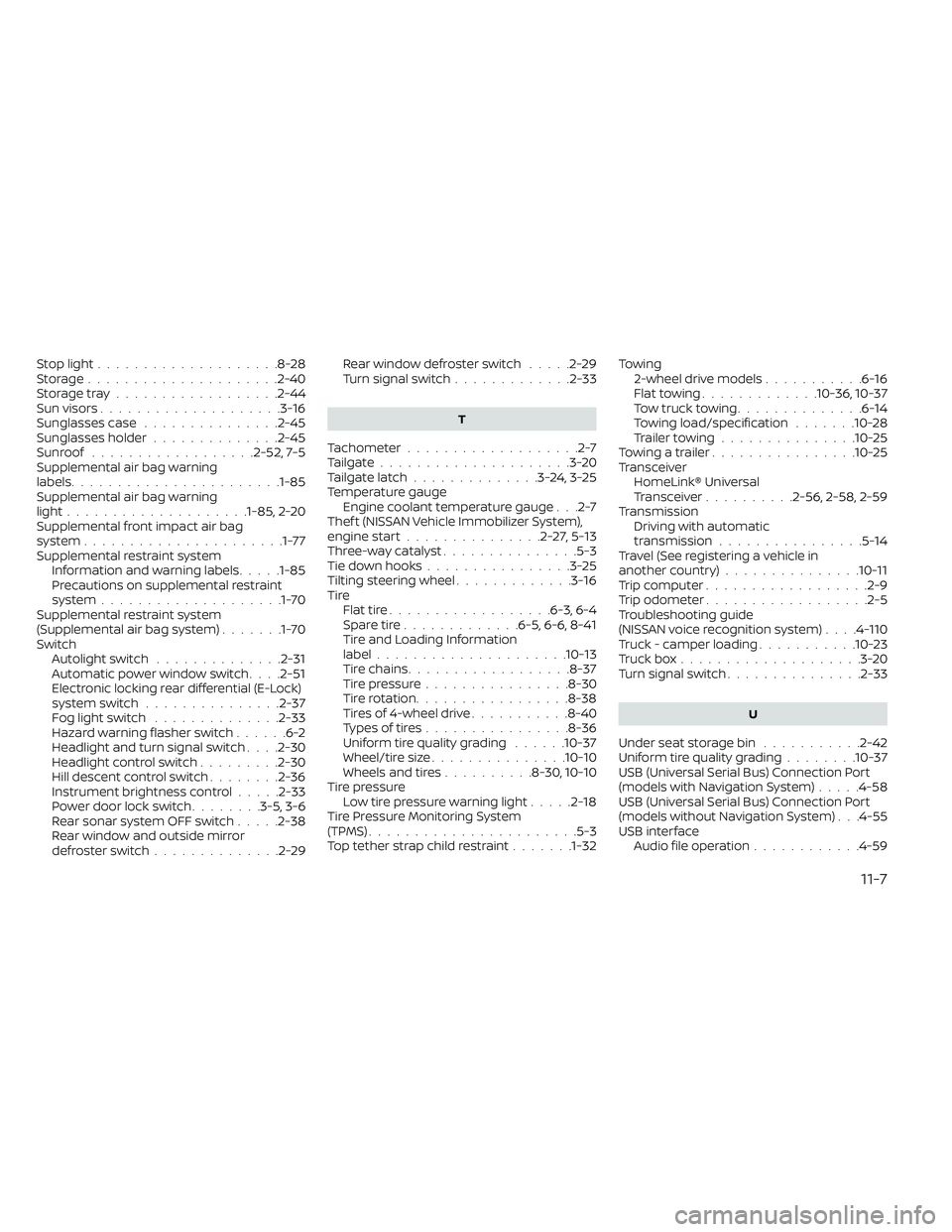
Stop light....................8-28Storage.....................2-40Storage tray..................2-44Sun visors....................3-16Sunglasses case...............2-45Sunglasses holder..............2-45Sunroof..................2-52, 7-5Supplemental air bag warning
labels...................... .1-85Supplemental air bag warning
light....................1-85, 2-20Supplemental front impact air bag
system......................1-77Supplemental restraint system
Information and warning labels.....1-85Precautions on supplemental restraint
system....................1-70Supplemental restraint system
(Supplemental air bag system).......1-70SwitchAutolight switch..............2-31Automatic power window switch. . . .2-51Electronic locking rear differential (E-Lock)
system switch...............2-37Fog light switch..............2-33Hazard warning flasher switch......6-2Headlight and turn signal switch. . . .2-30Headlight control switch.........2-30Hill descent control switch........2-36Instrument brightness control.....2-33Power door lock switch........3-5, 3-6Rear sonar system OFF switch.....2-38Rear window and outside mirror
defroster switch..............2-29
Rear window defroster switch.....2-29Turn signal switch.............2-33
T
Tachometer...................2-7Tailgate.....................3-20Tailgate latch..............3-24,3-25Temperature gaugeEngine coolant temperature gauge. . .2-7Thef t (NISSAN Vehicle Immobilizer System),
engine start...............2-27,5-13Three-way catalyst...............5-3Tie down hooks................3-25Tilting steering wheel.............3-16TireFlat tire................. .6-3, 6-4Spare tire.............6-5, 6-6, 8-41Tire and Loading Information
label.................... .10-13Tire chains..................8-37Tire pressure................8-30Tire rotation.................8-38Tires of 4-wheel drive...........8-40Types of tires................8-36Uniform tire quality grading......10-37Wheel/tire size...............10-10Wheels and tires..........8-30, 10-10Tire pressure
Low tire pressure warning light.....2-18Tire Pressure Monitoring System
(TPMS)...................... .5-3Top tether strap child restraint.......1-32
Towing
2-wheel drive models...........6-16Flat towing.............10-36, 10-37Tow truck towing..............6-14Towing load/specification.......10-28Trailer towing...............10-25Towing a trailer................10-25TransceiverHomeLink® Universal
Transceiver
..........2-56, 2-58, 2-59TransmissionDriving with automatic
transmission
................5-14Travel (See registering a vehicle in
another country)...............10-11Trip computer................. .2-9Trip odometer..................2-5Troubleshooting guide
(NISSAN voice recognition system). . . .4-110Truck - camper loading...........10-23Truck box....................3-20Turn signal switch...............2-33
U
Under seat storage bin...........2-42Uniform tire quality grading........10-37USB (Universal Serial Bus) Connection Port
(models with Navigation System).....4-58USB (Universal Serial Bus) Connection Port
(models without Navigation System). . .4-55USB interface
Audio file operation............4-59
11-7