navigation system NISSAN FRONTIER 2020 Owner´s Manual
[x] Cancel search | Manufacturer: NISSAN, Model Year: 2020, Model line: FRONTIER, Model: NISSAN FRONTIER 2020Pages: 492, PDF Size: 3.05 MB
Page 272 of 492
Apple Siri® Eyes Free personal assistant
can be accessed from the vehicle. Siri Eyes
Free can be accessed in Siri Eyes Free
mode to reduce user distraction. In this
mode, Siri Eyes Free is available for interac-
tion by voice control. Af ter connecting a
compatible Apple device by using
Bluetooth®, Siri Eyes Free can be activated
from the
button on the steering
wheel.
Siri® is a trademark of Apple Inc., registered
in the U.S. and other countries.
• Some Siri Eyes Free functions, such as displaying pictures or opening apps, may
not be available while driving.
• For best results, always update your de- vice to the latest sof tware version.
• Keep the interior of the vehicle as quiet as possible. Close the windows to eliminate
the surrounding noises (traffic noises, vi-
bration sounds, etc.), which may prevent
the system from recognizing the voice
commands correctly.
• For functions that can be used in Siri Eyes Free, please refer to the Apple website.
REQUIREMENTS
Siri® is only available on the iPhone® 4S or
later. Devices released before iPhone® 4S
are not supported by the Siri® Eyes Free
system. Visit www.apple.com/ios/siri for
details about device compatibility.
Siri must be enabled on the phone. Please
check phone settings.
If the device has a lock screen, Siri must be
accessible from the lock screen. Please
check phone settings.
For best results, always update your device
to the latest sof tware version.
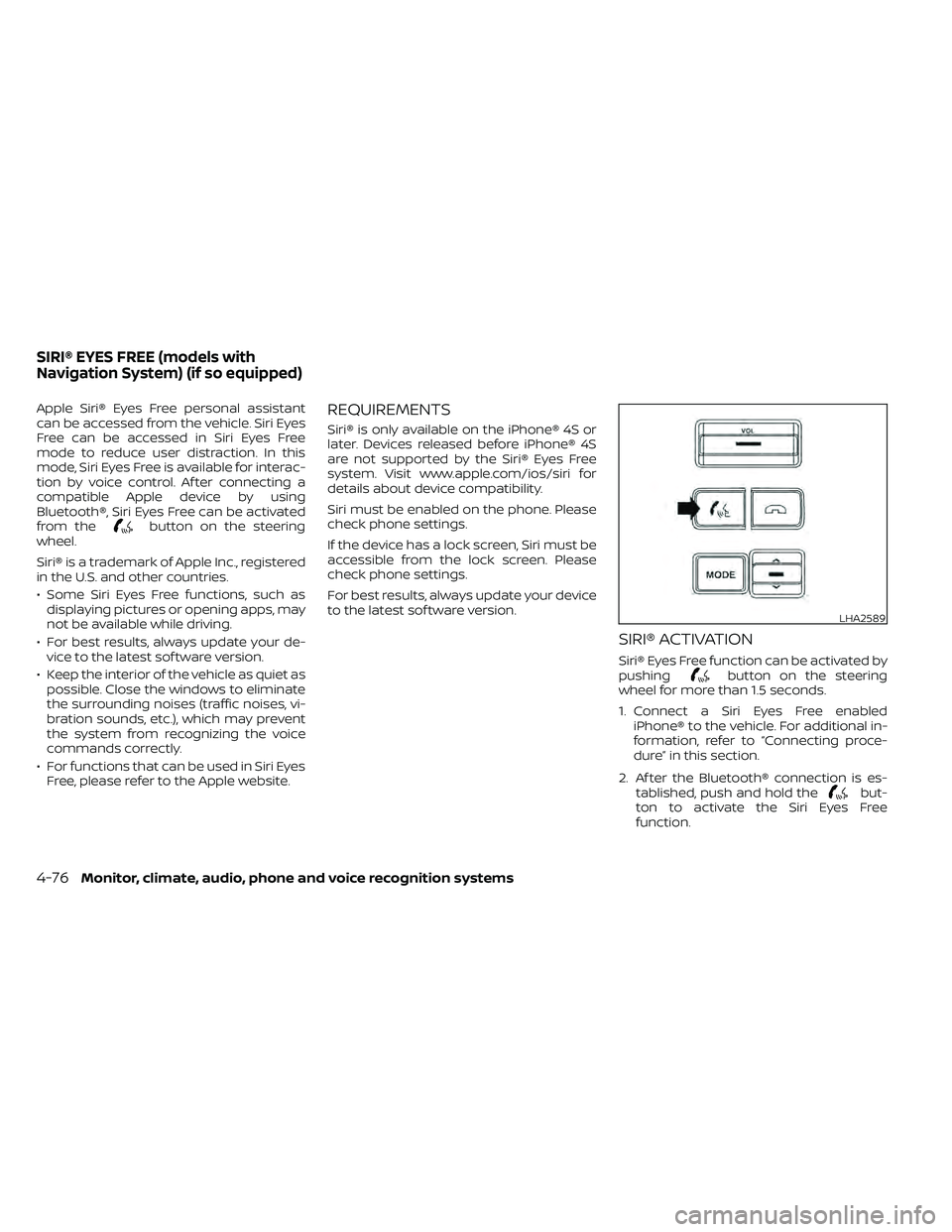
SIRI® ACTIVATION
Siri® Eyes Free function can be activated by
pushingbutton on the steering
wheel for more than 1.5 seconds.
1. Connect a Siri Eyes Free enabled iPhone® to the vehicle. For additional in-
formation, refer to “Connecting proce-
dure” in this section.
2. Af ter the Bluetooth® connection is es- tablished, push and hold the
but-
ton to activate the Siri Eyes Free
function.
LHA2589
SIRI® EYES FREE (models with
Navigation System) (if so equipped)
4-76Monitor, climate, audio, phone and voice recognition systems
Page 275 of 492
When installing a CB, ham radio or car
phone in your vehicle, be sure to observe
the following precautions; otherwise, the
new equipment may adversely affect the
engine control system and other electronic
parts.
WARNING
• A cellular phone should not be used
for any purpose while driving so full
attention may be given to vehicle op-
eration. Some jurisdictions prohibit
the use of cellular phones while
driving.
• If you must make a call while your
vehicle is in motion, the hands free
cellular phone operational mode (if
so equipped) is highly recom-
mended. Exercise extreme caution at
all times so full attention may be
given to vehicle operation.
• If you are unable to devote full atten-
tion to vehicle operation while talk-
ing on the phone, pull off the road to
a safe location and stop your vehicle.
CAUTION
• Keep the antenna as far away as pos-
sible from the electronic control
modules.
• Keep the antenna wire more than 8 in
(20 cm) away from the electronic
control system harnesses. Do not
route the antenna wire next to any
harness.
• Adjust the antenna standing-wave
ratio as recommended by the
manufacturer.
• Connect the ground wire from the CB
radio chassis to the body.
• For additional information, it is rec-
ommended that you visit a NISSAN
dealer.
• Do not ground electrical accessories
directly to the battery terminal. Do-
ing so will bypass the variable volt-
age control system and the vehicle
battery may not charge completely.
For additional information, refer to
“Variable voltage control system” in
the “Do-it-yourself ” section of this
manual.
• Use electrical accessories with the
engine running to avoid discharging
the vehicle battery.WARNING
• Use a phone af ter stopping your ve-
hicle in a safe location. If you have to
use a phone while driving, exercise
extreme caution at all times so full
attention may be given to vehicle
operation.
• If you are unable to devote full atten-
tion to vehicle operation while talk-
ing on the phone, pull off the road to
a safe location and stop your vehicle.
CAUTION
To avoid discharging the vehicle bat-
tery, use a phone af ter starting the
engine.
CAR PHONE OR CB RADIO BLUETOOTH® HANDS-FREE PHONE
SYSTEM WITHOUT NAVIGATION
SYSTEM (if so equipped)
Monitor, climate, audio, phone and voice recognition systems4-79
Page 287 of 492
Reading a received text message
1. Press and hold the
button on the
steering wheel for less than 1.5 seconds.
2. Say “Read Text” af ter the tone.
The display will show a list of 20 messages
with the sender and delivery time. Touch
the “Next” key on the screen to view all mes-
sages. To view a text message press the
button on the steering wheel and
speak the number item list on the screen.
The following options will be available:
• Play Speak this command to have the system
say the message.
• Reply Speak this command to send a text mes-
sage response to the sender of the text
message.
• Call Speak this command to call the sender.
• Previous Speak this command to move to the pre-
vious text message (if available).
•Next Speak this command to move to the next
text message (if available). Siri® Eyes Free (if so equipped)
If a connected phone is equipped with Siri®,
it can also be used to create custom mes-
sages that are sent through the phone. For
additional information, refer to “Siri® Eyes
Free (models without Navigation System)”
in this section.
NOTE:
Text messages are only displayed if the
vehicle speed is less than 5 mph (8 km/h).
NOTE:
For Apple iPhones®, text messages can
only be sent through Siri.
Text messaging using the control
panel
Display received message list
1. Press the
button on the control
panel.
2. Touch the “Text Message” key on the screen
3. Touch an item on the list to read or reply to the message.
Up to 100 messages can be stored in the
message list. Received message screen
Touching the “Read” key on the incoming
message notification screen or selecting a
message from the message list will show
the details of the received message on the
display.
Available actions:
•Prev.
Touch this key to read the previous mes-
sage.
•Next Touch this key to read the next message.
• Play/Stop Touch the “Play ” key to have the hands-
free phone system read out the received
message. Touch the “Stop” key to stop
reading.
• Call If the sender of the message is registered
in the phonebook, touch the “Call” key to
make a call to the sender.
• Reply A reply message can be selected from
the predefined list or by a custom mes-
sage.
Monitor, climate, audio, phone and voice recognition systems4-91
Page 292 of 492
Volume & beeps
There are several methods to customize
the volume settings.
Volume & Beeps
The Volume & Beeps screen can be found
by pressing the
MENU button on the
control panel, touching the “Settings” key
on the screen and selecting “Volume &
Beeps”. To adjust the volume of the follow-
ing options, touch the “–” and “+” keys on the
screen.
The available settings are:
• Ringtone Adjust the volume level of the ringtone of
incoming calls.
• Outgoing Call Adjust the volume level of the outgoing
calls.
• Voice Prompt Vol. Adjust the volume level of the system
voice.
• Text-to-speech Vol. Adjust the volume of the replay voice for
text messaging.
• Button Beeps Turns on/off the button beep sounds and
alarm for prohibited operations. Volume Settings
The Volume settings screen can be found
by pressing the
button on the control
panel then touching the “Volume” key on
the screen. To adjust the volume of the
following options, touch the “–” and “+” keys
on the screen.
The available settings are:
• Ringtone Adjust the volume level of the ringtone of
incoming calls.
• Outgoing Call Adjust the volume level of the outgoing
calls.
WARNING
• Use a phone af ter stopping your ve-
hicle in a safe location. If you have to
use a phone while driving, exercise
extreme caution at all times so full
attention may be given to vehicle
operation.
• If you are unable to devote full atten-
tion to vehicle operation while talk-
ing on the phone, pull off the road to
a safe location and stop your vehicle.
CAUTION
To avoid discharging the vehicle bat-
tery, use a phone af ter starting the
engine.
BLUETOOTH® HANDS-FREE PHONE
SYSTEM WITH NAVIGATION SYSTEM
(if so equipped)
4-96Monitor, climate, audio, phone and voice recognition systems
Page 298 of 492
Reading a received text message:
1. Press the
button on the steering
wheel.
2. Say “Phone” af ter the tone.
3. Say “Read Text” af ter the tone.
The text message, sender and delivery
time are shown on the screen. Use the
buttons to scroll through all text mes-
sages if more than one are available. Press
the
button to exit the text message
screen. Press thebutton to access
the following options for replying to the text
message:
• Call Back Speak this command to call the sender of
the text message using the Bluetooth®
Hands-Free Phone System. • Send Text
Speak this command to send a text mes-
sage response to the sender of the text
message.
• Read Text Speak this command to read the text
message again.
• Previous Text Speak this command to move to the pre-
vious text message (if available).
• Next Text Speak this command to move to the next
text message (if available). Siri® Eyes Free (if so equipped)
If a connected phone is equipped with Siri®,
it can also be used to create custom mes-
sages that are sent through the phone. For
additional information, refer to “Siri® Eyes
Free (models with Navigation System)” in
this section.
NOTE:
Text messages are only displayed if the
vehicle speed is less than 5 mph (8 km/h).
NOTE:
For Apple iPhones®, text messages can
only be sent through Siri.
4-102Monitor, climate, audio, phone and voice recognition systems
Page 302 of 492
The NISSAN Voice Recognition System al-
lows hands-free operation of the systems
equipped on this vehicle, such as the
phone and navigation systems.
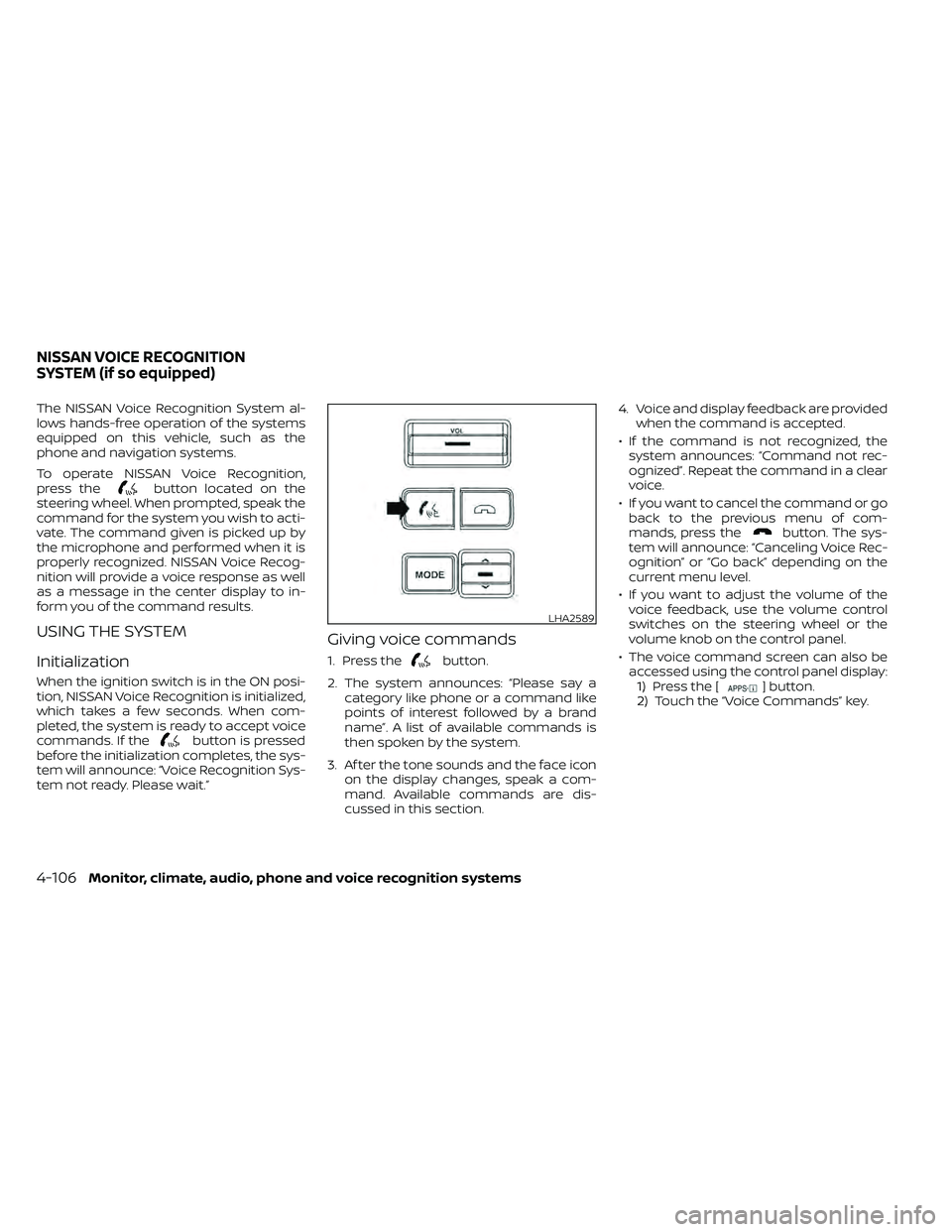
To operate NISSAN Voice Recognition,
press the
button located on the
steering wheel. When prompted, speak the
command for the system you wish to acti-
vate. The command given is picked up by
the microphone and performed when it is
properly recognized. NISSAN Voice Recog-
nition will provide a voice response as well
as a message in the center display to in-
form you of the command results.
USING THE SYSTEM
Initialization
When the ignition switch is in the ON posi-
tion, NISSAN Voice Recognition is initialized,
which takes a few seconds. When com-
pleted, the system is ready to accept voice
commands. If the
button is pressed
before the initialization completes, the sys-
tem will announce: “Voice Recognition Sys-
tem not ready. Please wait.”
Giving voice commands
1. Press thebutton.
2. The system announces: “Please say a category like phone or a command like
points of interest followed by a brand
name”. A list of available commands is
then spoken by the system.
3. Af ter the tone sounds and the face icon on the display changes, speak a com-
mand. Available commands are dis-
cussed in this section. 4. Voice and display feedback are provided
when the command is accepted.
• If the command is not recognized, the system announces: “Command not rec-
ognized”. Repeat the command in a clear
voice.
• If you want to cancel the command or go back to the previous menu of com-
mands, press the
button. The sys-
tem will announce: “Canceling Voice Rec-
ognition” or “Go back” depending on the
current menu level.
• If you want to adjust the volume of the voice feedback, use the volume control
switches on the steering wheel or the
volume knob on the control panel.
• The voice command screen can also be accessed using the control panel display:1.1) Press the [
] button.
2.2) Touch the “Voice Commands” key.
LHA2589
NISSAN VOICE RECOGNITION
SYSTEM (if so equipped)
4-106Monitor, climate, audio, phone and voice recognition systems
Page 303 of 492
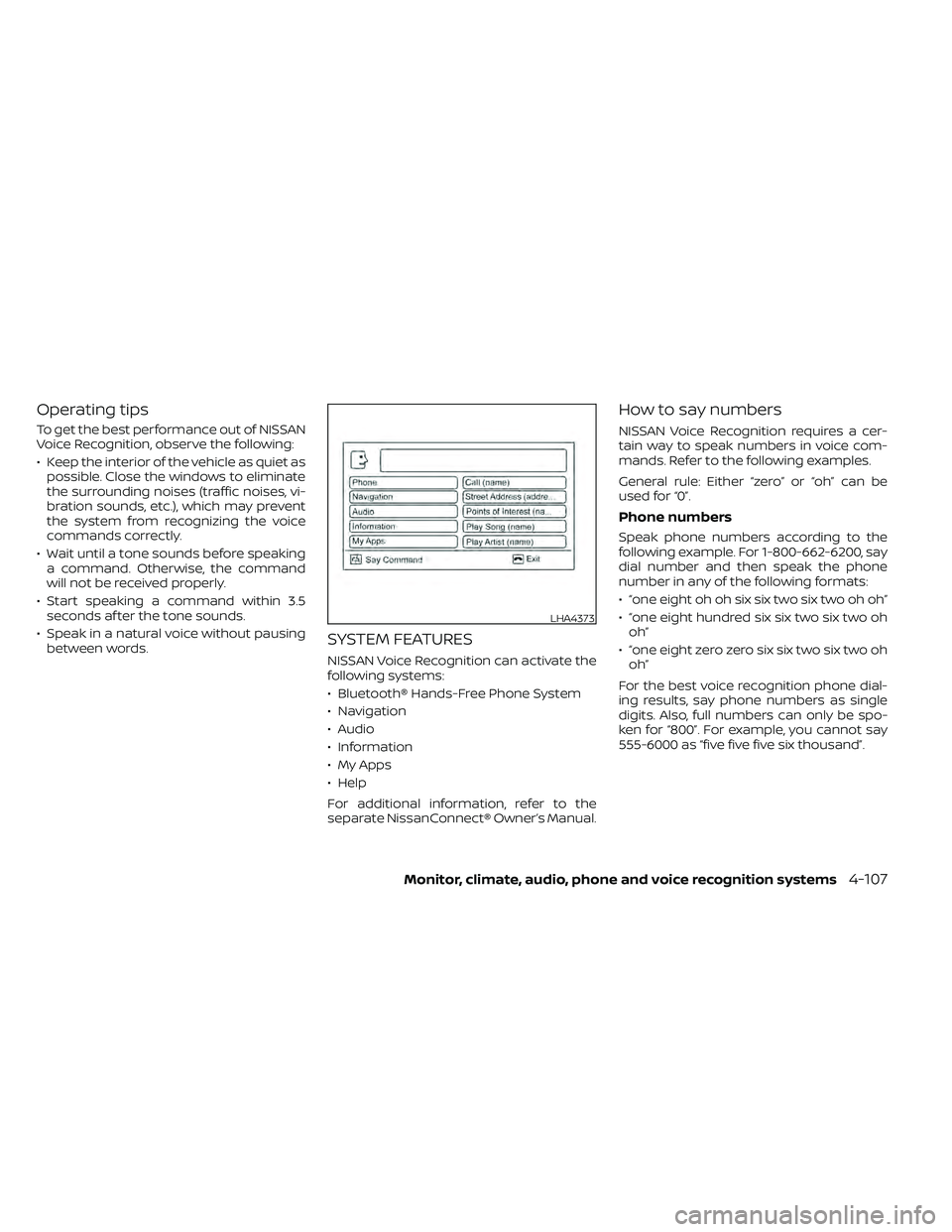
Operating tips
To get the best performance out of NISSAN
Voice Recognition, observe the following:
• Keep the interior of the vehicle as quiet aspossible. Close the windows to eliminate
the surrounding noises (traffic noises, vi-
bration sounds, etc.), which may prevent
the system from recognizing the voice
commands correctly.
• Wait until a tone sounds before speaking a command. Otherwise, the command
will not be received properly.
• Start speaking a command within 3.5 seconds af ter the tone sounds.
• Speak in a natural voice without pausing between words.
SYSTEM FEATURES
NISSAN Voice Recognition can activate the
following systems:
• Bluetooth® Hands-Free Phone System
• Navigation
• Audio
• Information
• My Apps
• Help
For additional information, refer to the
separate NissanConnect® Owner’s Manual.
How to say numbers
NISSAN Voice Recognition requires a cer-
tain way to speak numbers in voice com-
mands. Refer to the following examples.
General rule: Either “zero” or “oh” can be
used for “0”.
Phone numbers
Speak phone numbers according to the
following example. For 1-800-662-6200, say
dial number and then speak the phone
number in any of the following formats:
• “one eight oh oh six six two six two oh oh”
• “one eight hundred six six two six two ohoh”
• “one eight zero zero six six two six two oh oh”
For the best voice recognition phone dial-
ing results, say phone numbers as single
digits. Also, full numbers can only be spo-
ken for “800”. For example, you cannot say
555-6000 as “five five five six thousand”.
LHA4373
Monitor, climate, audio, phone and voice recognition systems4-107
Page 304 of 492
BLUETOOTH® HANDS-FREE
PHONE SYSTEM VOICE
COMMANDS
To access the Bluetooth® Hands-Free
Phone System voice commands:
1. Press the
button.
2. Say “Call” and then a name in the vehicle phonebook to call that entry. Otherwise,
say “Phone” to access various phone
commands.
If the Bluetooth® has been set to “Off ”, the
system announces: “Bluetooth® is off.
Would you like to turn Bluetooth® on?”
If no phone is connected to the system and
the vehicle is stationary, the system an-
nounces: “There is no phone connected.
Would you like to connect a phone now?”
Say “Yes” to connect a phone. All further
Bluetooth® Hands-Free Phone System
voice commands are only available if a
phone is connected.
If a phone is connected and Bluetooth® is
set to “On”, the following voice commands
are available:
• Call (a name)
Speak the name of the contact in which
you are trying to call. System will confirm
correct contact. Say “Dial” to initiate dialing.
• Dial Number Allows for up to 24 digits to be dialed.
Af ter the number is entered, say “Dial” to
initiate dialing. Say “Correction” to cor-
rect the number entered. Say “Go Back”
to return to the main menu.
• List Phonebook Starting with the first alphabetical entry
in the vehicle phonebook, the system
prompts for an additional command.
Say “Dial” to call the number of the
phonebook entry. Say “Send Text” to
send a text message to the number of
the phonebook entry. Say “Next Entry” to
skip to the next alphabetical entry in the
vehicle phonebook, where the same op-
tions will then be available.
• Recent Calls The system prompts for an additional
command. Say “Missed Calls”, “Incoming
Calls” or “Outgoing Calls” to display a list
of such calls on the screen.
Speak the number of the entry displayed
on the screen to dial that number or say
“Next Page” to view entries on the next
page (if available). • Redial
Redials the last called number.
• Read Text Reads an incoming text message.
• Send Text Sends a text message.
• Select Phone The system replies “Please use manual
controls to continue”. Use manual con-
trols to change the active phone from
among the listed phones connected to
the vehicle.
• Siri (if so equipped) The system replies “starting Siri”. For ad-
ditional information, refer to “Siri® Eyes
Free (models with Navigation System)” in
this section.
For additional information, refer to
“Bluetooth® Hands-Free Phone System
with Navigation System” in this section.
4-108Monitor, climate, audio, phone and voice recognition systems
Page 305 of 492
NAVIGATION SYSTEM VOICE
COMMANDS
The following voice commands are avail-
able for the navigation system:
• Street Address (address)
• Points of Interest (name)
• POI by Category
• Home
• Address Book
• Previous Destinations
• Enter Address in Steps
• Cancel Route
For additional information, refer to the
separate NissanConnect® Owner’s Manual.
AUDIO SYSTEM VOICE COMMANDS
To access the audio system voice com-
mands:
1. Press the
button.
2. Say “Audio”
3. Speak a command from the following available commands:
• Play (AM, FM, etc.) Allows user to select radio band • Tune AM (number)
Allows user to tune directly to a desired
AM frequency
• Tune FM (number) Allows user to tune directly to a desired
FM frequency
• SXM channel (number) Allows user to tune directly to a desired
SXM station (if so equipped)
• CD Track (number) Allows user to select track to be played
• Play Song (name) Allows user to select song name to be
played
• Play Artist (name) Allows user to select artist to be played
• Play Album (name) Allows user to select album name to be
played
For additional information, refer to “Audio
system” in this section.
INFORMATION VOICE COMMANDS
The following voice commands are avail-
able for the information functions of the
navigation system:
• Traffic
• Fuel Prices
• Stocks
• Movie Listings
• Current Weather
• Weather Map
• 5—dayForecast
• 6 — hour Forecast
For additional information, refer to the
separate NissanConnect® Owner’s Manual.
MY APPS VOICE COMMANDS
Many Apps can be accessed using this
voice command. For additional informa-
tion, refer to “NissanConnect® Mobile Apps”
in this section.
Monitor, climate, audio, phone and voice recognition systems4-109
Page 320 of 492
AUTO ACC:
With the vehicle in the P (Park) position, the
Intelligent Key with you, and the ignition
switch placed from the ON to the OFF po-
sition, the radio can still be used for a period
of time, or until the driver’s door is opened.
Af ter a period of time, functions such as
radio, navigation, and Bluetooth® Hands-
Free Phone System may be restarted by
pressing the “ON-OFF button/VOLUME
control knob” or the key fob unlock button.
For additional information, refer to “Monitor,
climate, audio, phone and voice recogni-
tion systems” in this manual.
EMERGENCY ENGINE SHUT OFF
To shut off the engine in an emergency
situation while driving, perform the follow-
ing procedure:
• Rapidly push the ignition switch threeconsecutive times in less than 1.5 sec-
onds, or
• Push and hold the ignition switch for more than 2 seconds.
NISSAN INTELLIGENT KEY®
BATTERY DISCHARGE
If the battery of the NISSAN Intelligent Key®
is discharged or environmental conditions
interfere with the Intelligent Key operation,
start the engine according to the following
procedure:
1. Place the shif t lever in the P (Park) position.
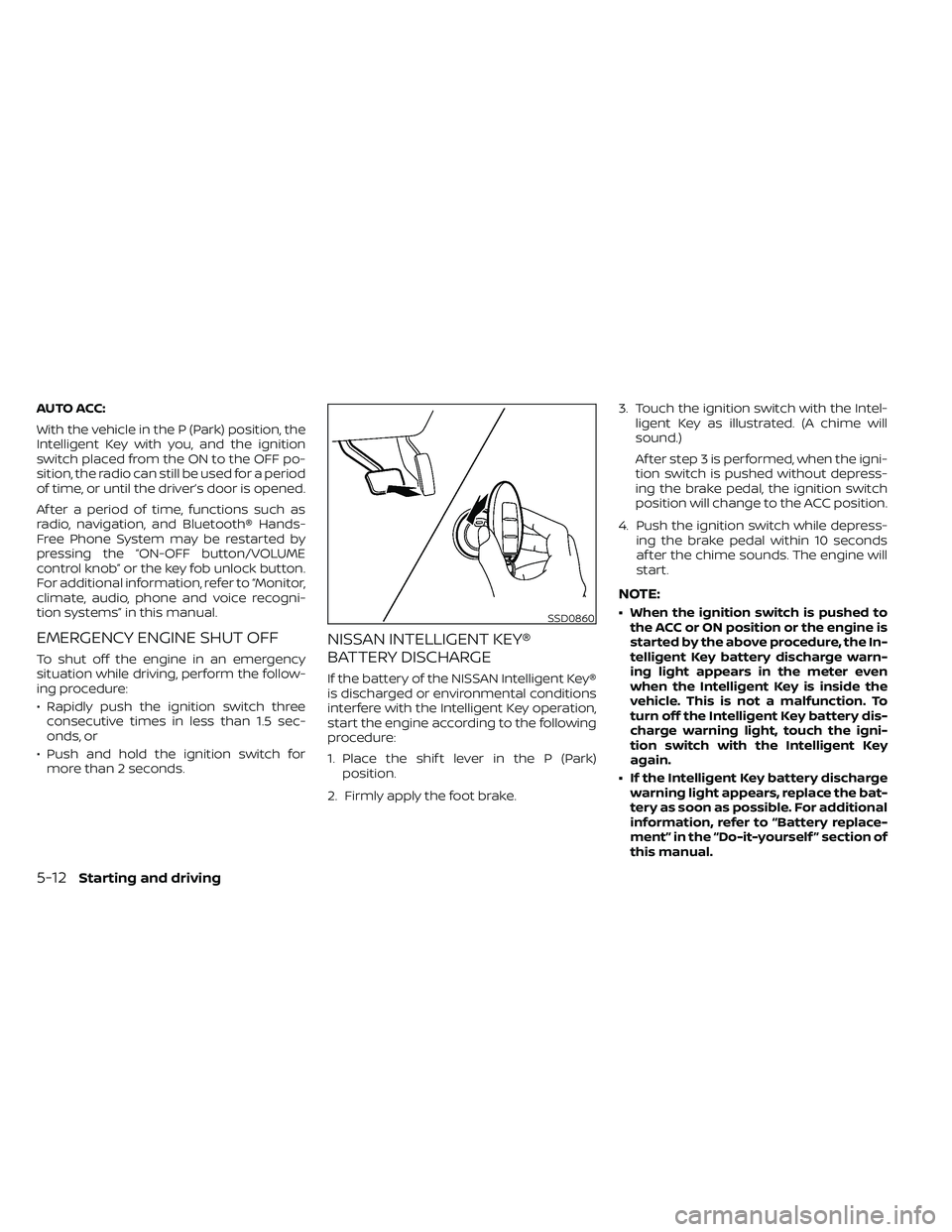
2. Firmly apply the foot brake. 3. Touch the ignition switch with the Intel-
ligent Key as illustrated. (A chime will
sound.)
Af ter step 3 is performed, when the igni-
tion switch is pushed without depress-
ing the brake pedal, the ignition switch
position will change to the ACC position.
4. Push the ignition switch while depress- ing the brake pedal within 10 seconds
af ter the chime sounds. The engine will
start.
NOTE:
• When the ignition switch is pushed tothe ACC or ON position or the engine is
started by the above procedure, the In-
telligent Key battery discharge warn-
ing light appears in the meter even
when the Intelligent Key is inside the
vehicle. This is not a malfunction. To
turn off the Intelligent Key battery dis-
charge warning light, touch the igni-
tion switch with the Intelligent Key
again.
• If the Intelligent Key battery discharge warning light appears, replace the bat-
tery as soon as possible. For additional
information, refer to “Battery replace-
ment” in the “Do-it-yourself ” section of
this manual.SSD0860
5-12Starting and driving