navigation system NISSAN FRONTIER 2020 Owner´s Manual
[x] Cancel search | Manufacturer: NISSAN, Model Year: 2020, Model line: FRONTIER, Model: NISSAN FRONTIER 2020Pages: 492, PDF Size: 3.05 MB
Page 216 of 492
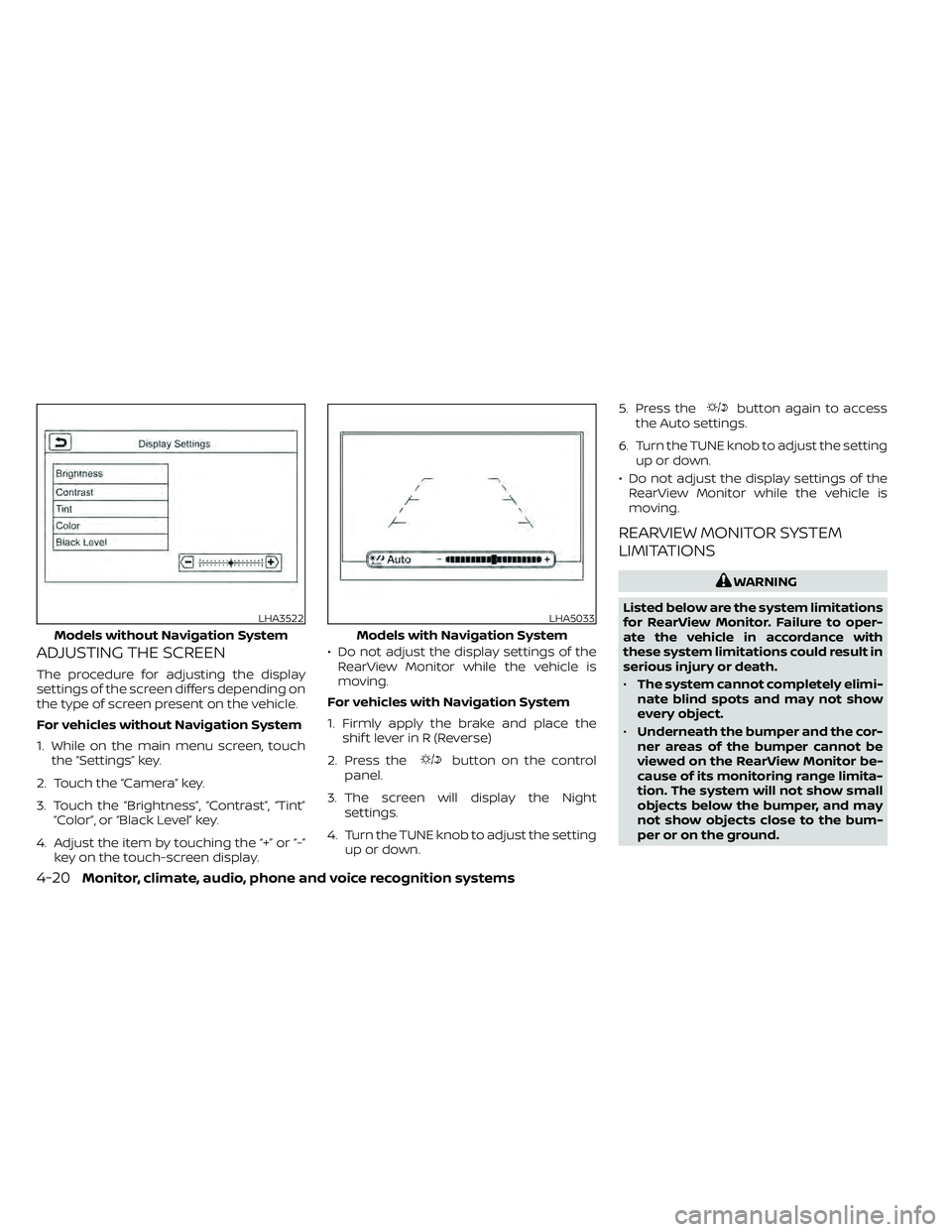
ADJUSTING THE SCREEN
The procedure for adjusting the display
settings of the screen differs depending on
the type of screen present on the vehicle.
For vehicles without Navigation System
1. While on the main menu screen, touchthe “Settings” key.
2. Touch the “Camera” key.
3. Touch the “Brightness”, “Contrast”, “Tint” “Color”, or “Black Level” key.
4. Adjust the item by touching the “+” or “-” key on the touch-screen display. • Do not adjust the display settings of the
RearView Monitor while the vehicle is
moving.
For vehicles with Navigation System
1. Firmly apply the brake and place the shif t lever in R (Reverse)
2. Press the
button on the control
panel.
3. The screen will display the Night settings.
4. Turn the TUNE knob to adjust the setting up or down. 5. Press the
button again to access
the Auto settings.
6. Turn the TUNE knob to adjust the setting up or down.
• Do not adjust the display settings of the RearView Monitor while the vehicle is
moving.
REARVIEW MONITOR SYSTEM
LIMITATIONS
WARNING
Listed below are the system limitations
for RearView Monitor. Failure to oper-
ate the vehicle in accordance with
these system limitations could result in
serious injury or death.
• The system cannot completely elimi-
nate blind spots and may not show
every object.
• Underneath the bumper and the cor-
ner areas of the bumper cannot be
viewed on the RearView Monitor be-
cause of its monitoring range limita-
tion. The system will not show small
objects below the bumper, and may
not show objects close to the bum-
per or on the ground.
LHA3522
Models without Navigation System
LHA5033
Models with Navigation System
4-20Monitor, climate, audio, phone and voice recognition systems
Page 244 of 492
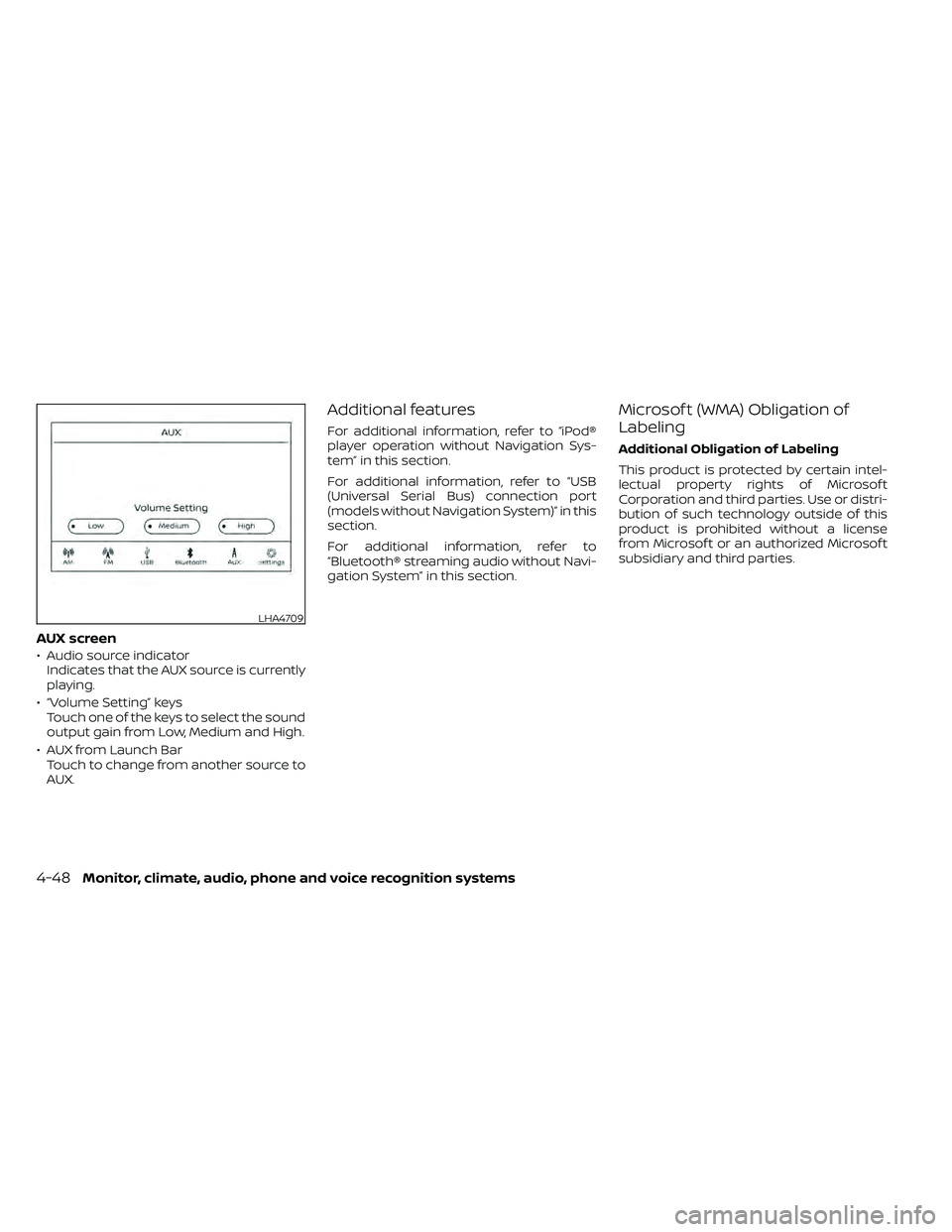
AUX screen
• Audio source indicatorIndicates that the AUX source is currently
playing.
• “Volume Setting” keys Touch one of the keys to select the sound
output gain from Low, Medium and High.
• AUX from Launch Bar Touch to change from another source to
AUX.
Additional features
For additional information, refer to “iPod®
player operation without Navigation Sys-
tem” in this section.
For additional information, refer to “USB
(Universal Serial Bus) connection port
(models without Navigation System)” in this
section.
For additional information, refer to
“Bluetooth® streaming audio without Navi-
gation System” in this section.
Microsof t (WMA) Obligation of
Labeling
Additional Obligation of Labeling
This product is protected by certain intel-
lectual property rights of Microsof t
Corporation and third parties. Use or distri-
bution of such technology outside of this
product is prohibited without a license
from Microsof t or an authorized Microsof t
subsidiary and third parties.
LHA4709
4-48Monitor, climate, audio, phone and voice recognition systems
Page 251 of 492
SEEK (Reverse or Fast
Forward) buttons
Press and hold theorseek but-
tons for 1.5 seconds while the compact disc
is playing to reverse or fast forward the
track being played. The compact disc plays
at an increased speed while reversing or
fast forwarding. When the button is re-
leased, the compact disc returns to normal
play speed.
SEEK buttons
Press theseek button while a CD or
MP3/WMA CD is playing to return to the
beginning of the current track. Press the
seek button several times to skip
backward several tracks.
Press the
seek button while a CD or
MP3/WMA CD is playing to advance one
track. Press the
seek button several
times to skip forward several tracks. If the
last track on a CD is skipped, the first track
on the disc is played. If the last track in a
folder of an MP3/WMA CD is skipped, the
first track of the next folder is played.
AUX button
The AUX IN audio input port accepts any
standard analog audio input such as from
a portable cassette tape/CD player, MP3
player or a laptop computer. Press the AUX
button to play a compatible device
plugged into the AUX IN port.
CD EJECT button
When theCD EJECT button is pressed
with a compact disc loaded, the compact
disc will eject and the last source will be
played.
If the disc is not removed within 10 seconds,
the disc will reload.
Additional features
For additional information, refer to “iPod®
player operation with Navigation System”
in this section.
For additional information, refer to “USB
(Universal Serial Bus) connection port
(models with Navigation System)” in this
section.
For additional information, refer to
“Bluetooth® streaming audio with Naviga-
tion System” in this section.
USB (Universal Serial Bus)
CONNECTION PORT (models
without Navigation System) (if so
equipped)
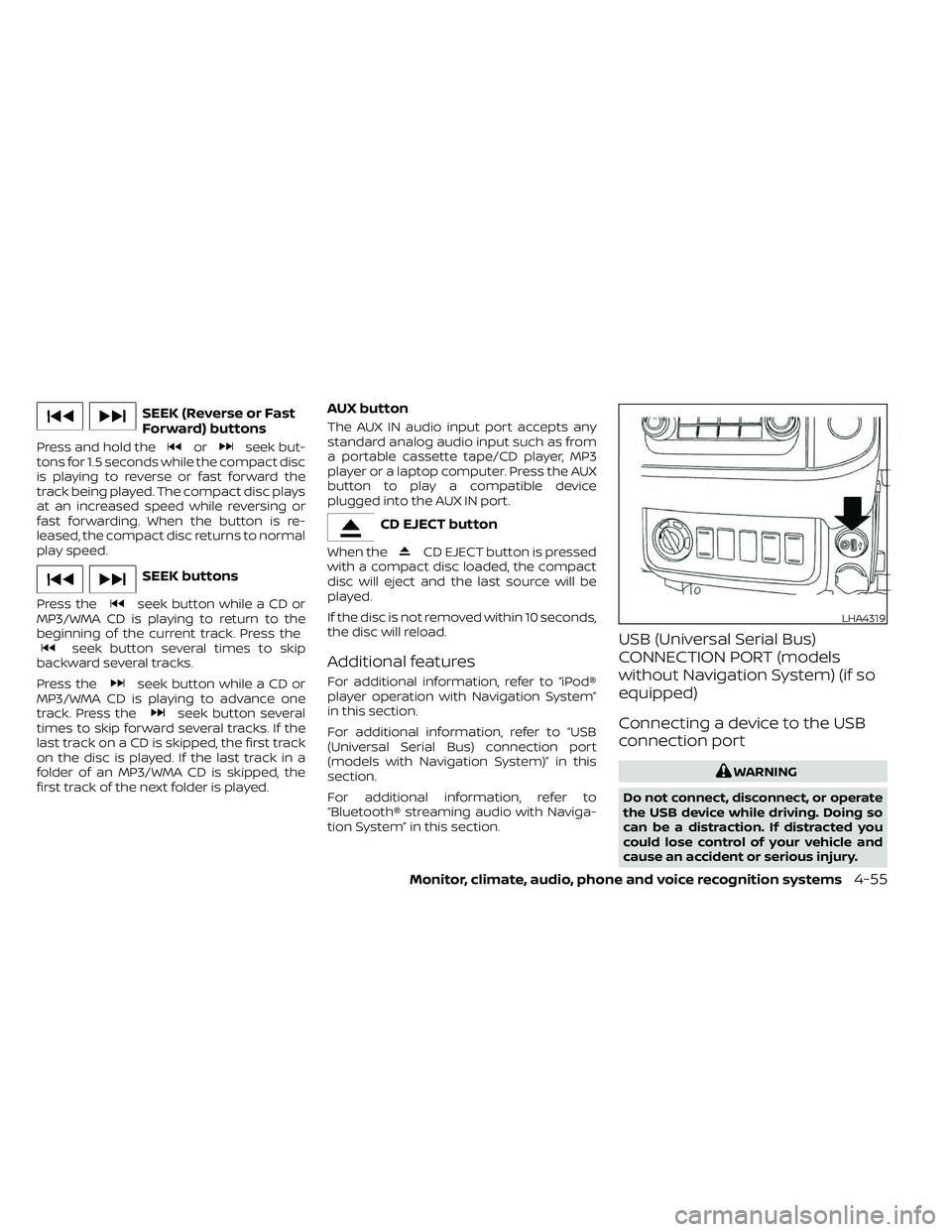
Connecting a device to the USB
connection port
WARNING
Do not connect, disconnect, or operate
the USB device while driving. Doing so
can be a distraction. If distracted you
could lose control of your vehicle and
cause an accident or serious injury.
LHA4319
Monitor, climate, audio, phone and voice recognition systems4-55
Page 254 of 492
Fast-forwarding/rewinding
To rewind or fast-forward the track, push
and hold theorbuttons on the
control panel or touch and hold the “”
or “” keys on the screen.
Changing play mode
Repeat mode
Touch the “
” key on the USB screen to
change the repeat mode.
The following modes are available:
No text displayed: Repeat off
All: Repeat all
1 Folder: Repeat folder/sub-folder
1 Track: Repeat track
Random mode
Touch the “
” key on the screen to
change the random mode as follows:
No text displayed: Random off
Random: Random play
All: Repeat all
1 Folder: Repeat folder/sub-folder
USB menu
Touch the “USB Menu” key on the USB
screen to display the USB Menu screen.
“Now Playing” key Touch to display the USB
screen.
“Folder List” key Touch to display the folder list. Touch an item on the list to
select the folder. The sub-
folder or track list will be dis-
played. Select a sub-folder or
track from the list.
“Album Artwork” Touch to run on/off the album artwork display on the USB
screen.
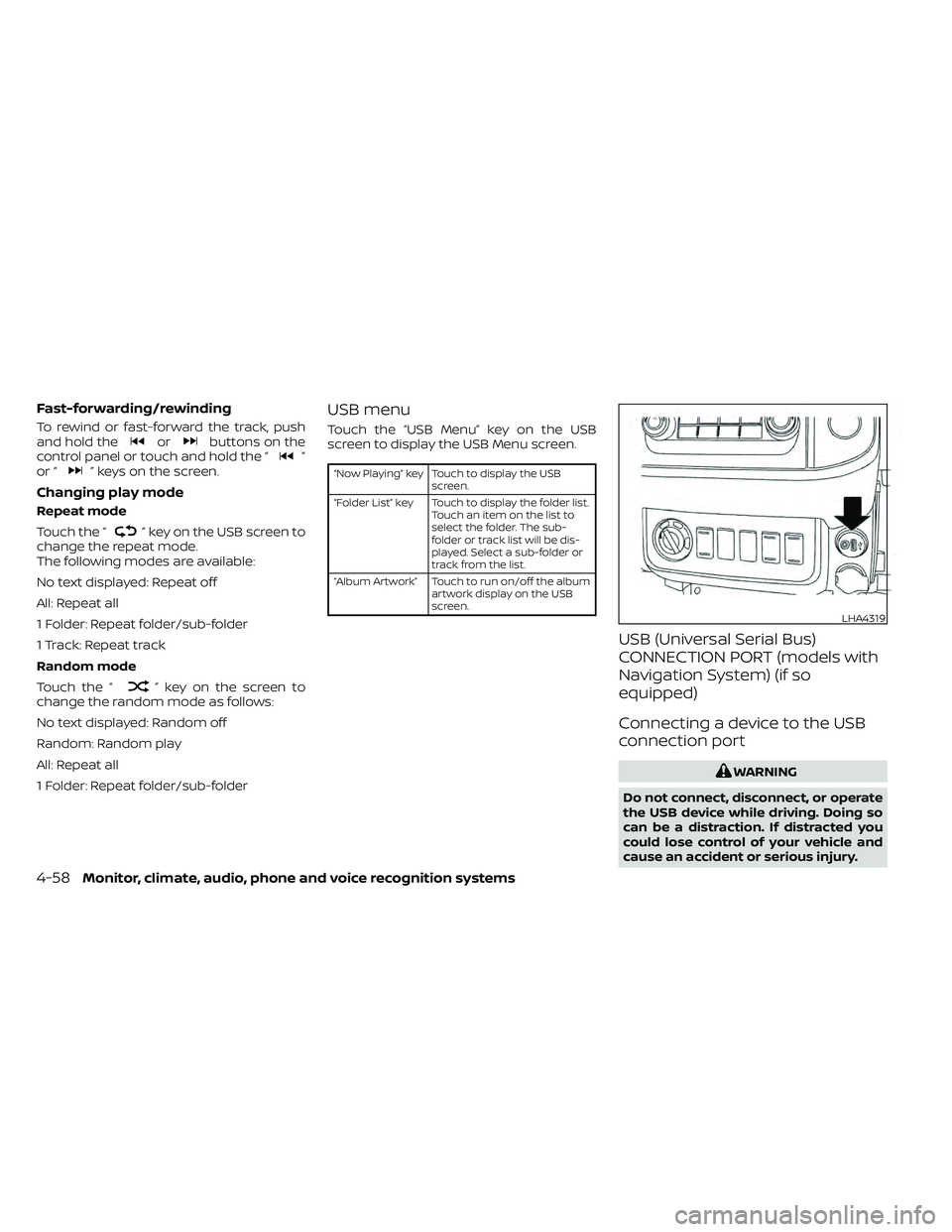
USB (Universal Serial Bus)
CONNECTION PORT (models with
Navigation System) (if so
equipped)
Connecting a device to the USB
connection port
WARNING
Do not connect, disconnect, or operate
the USB device while driving. Doing so
can be a distraction. If distracted you
could lose control of your vehicle and
cause an accident or serious injury.
LHA4319
4-58Monitor, climate, audio, phone and voice recognition systems
Page 256 of 492
Press theseeking button while an
audio file on the USB device is playing to
advance one track. Press the
seeking
button several times to skip forward sev-
eral tracks. If the last track in a folder on the
USB device is skipped, the first track of the
next folder is played.
Random and repeat play mode
While files on a USB device are playing, the
play pattern can be altered so that songs
are repeated or played randomly.
Random
Touch the “Random” key to apply a random
play pattern to the USB device. When the
Random mode is active, the text “Random”
on the key will illuminate and the text “Ran-
dom Folder” appears. By touching the “Ran-
dom” key once more, the text “Random All”
appears. To cancel Random mode, touch
the “Random” key until no text is illumi-
nated. Repeat
Touch the “Repeat” key to apply a repeat
play pattern to the USB device. When the
Repeat mode is active, the text on the “Re-
peat” key will illuminate and the text “Re-
peat Track” appears. By touching the “Re-
peat” key once more, the text “Repeat
Folder” appears. To cancel Repeat mode,
touch the “Repeat” key until no text is illumi-
nated.
iPod®* PLAYER OPERATION
WITHOUT NAVIGATION SYSTEM (if
so equipped)
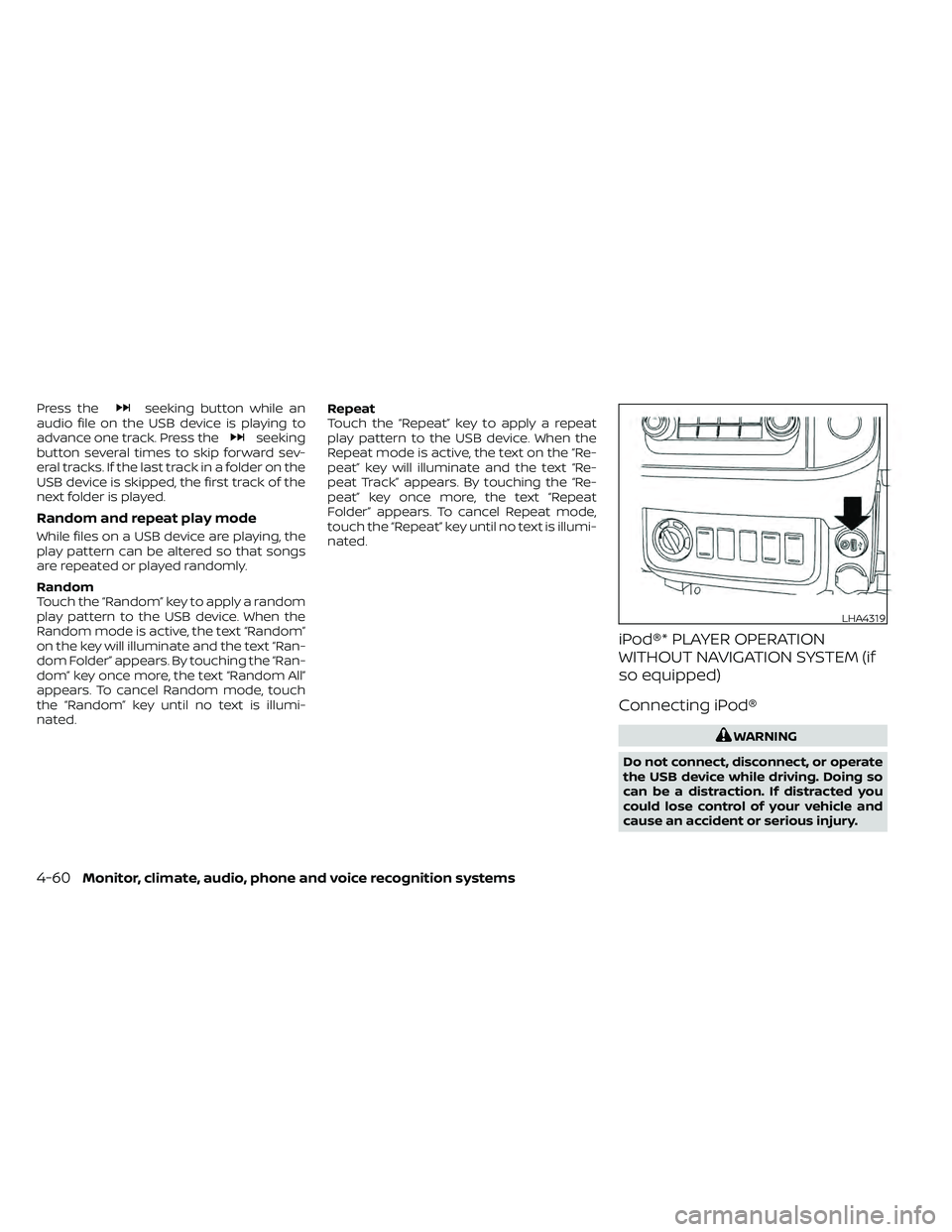
Connecting iPod®
WARNING
Do not connect, disconnect, or operate
the USB device while driving. Doing so
can be a distraction. If distracted you
could lose control of your vehicle and
cause an accident or serious injury.
LHA4319
4-60Monitor, climate, audio, phone and voice recognition systems
Page 259 of 492
Changing play mode
Repeat mode
Touch the “
” key on the iPod® screen
to change the repeat mode. The following
modes are available.
No text displayed: Repeat off
All: Repeat all
One: Repeat track
Random mode
Touch the “
” key on the screen to
change the random mode as follows.
No text displayed: Random off
Songs: Random play
iPod® Menu
Touch the “iPod Menu” key on the iPod®
screen to display the iPod® Menu screen.
“Now Playing” key Touch to display the USB
screen.
“Folder List” key (if
so equipped) Touch to display the folder list.
Touch an item on the list to
select the folder. The sub-
folder or track list will be dis-
played. Select a sub-folder or
track from the list.
“Album Artwork”
key Touch to run on/off the album
artwork display on the USB
screen.
“Playlists” key Touch to display the list ac- cording to the selected item.
“Artists” key
“Albums” key
“Songs” key
“Podcasts” key
“Genres” key
“Composers” key
“Audiobooks” key
“iTunes Radio”
key
iPod®* PLAYER OPERATION WITH
NAVIGATION SYSTEM (if so
equipped)
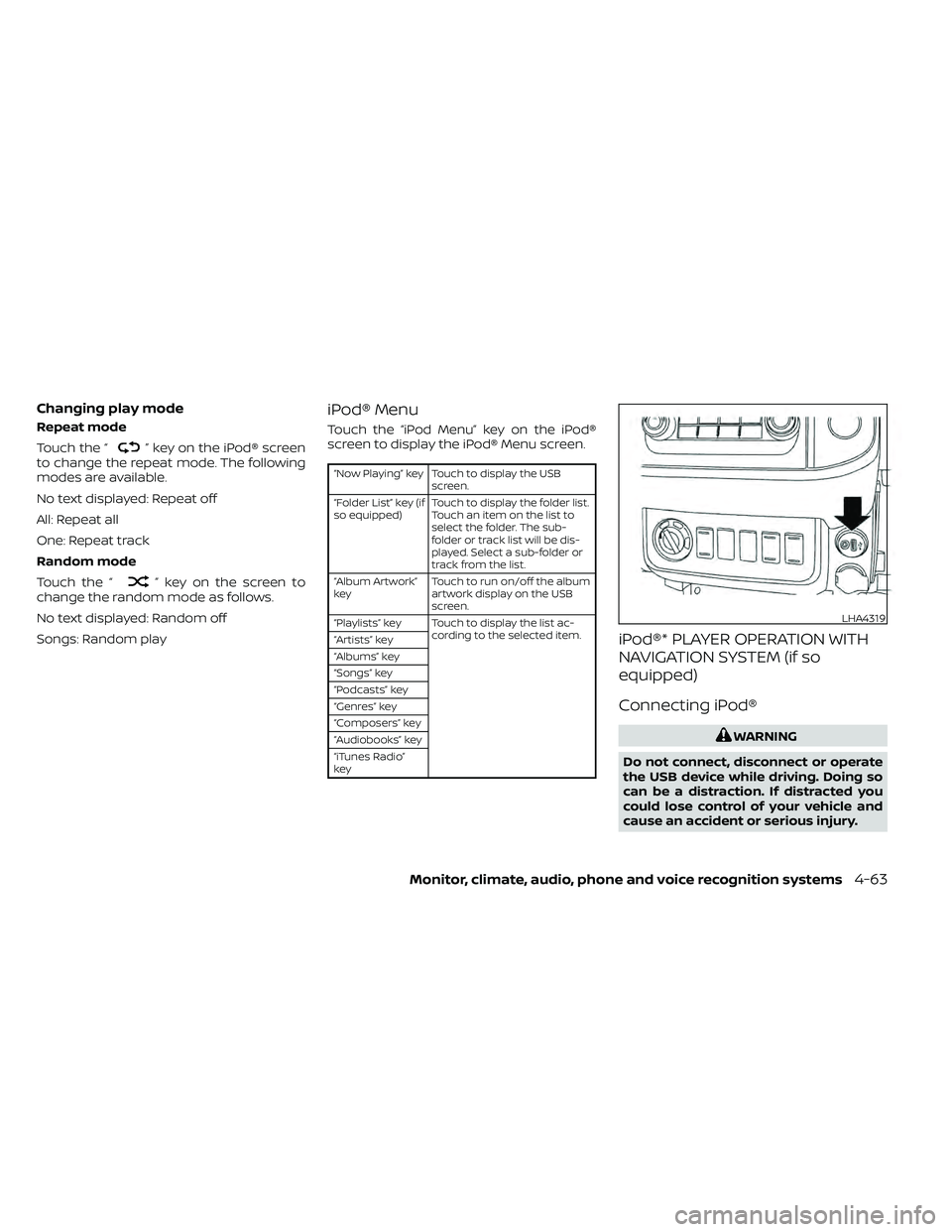
Connecting iPod®
WARNING
Do not connect, disconnect or operate
the USB device while driving. Doing so
can be a distraction. If distracted you
could lose control of your vehicle and
cause an accident or serious injury.
LHA4319
Monitor, climate, audio, phone and voice recognition systems4-63
Page 262 of 492
SEEK buttons
Press the SEEK buttonorto skip
backward or forward one track.
Press and hold the SEEK button
orfor 1.5 seconds while a track is playing
to reverse or fast forward the track being
played. The track plays at an increased
speed while reversing or fast forwarding.
When the button is released, the track re-
turns to normal play speed.
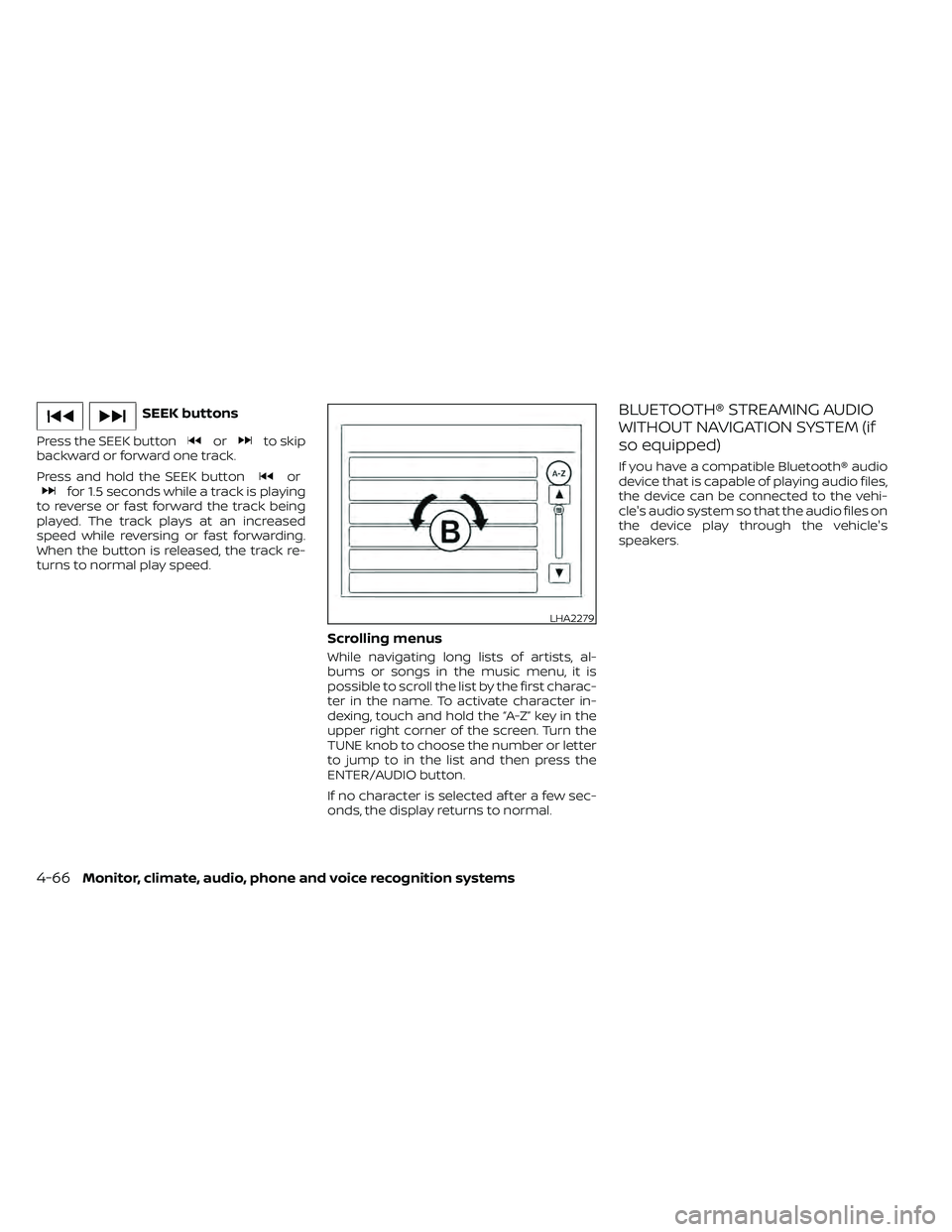
Scrolling menus
While navigating long lists of artists, al-
bums or songs in the music menu, it is
possible to scroll the list by the first charac-
ter in the name. To activate character in-
dexing, touch and hold the “A-Z” key in the
upper right corner of the screen. Turn the
TUNE knob to choose the number or letter
to jump to in the list and then press the
ENTER/AUDIO button.
If no character is selected af ter a few sec-
onds, the display returns to normal.
BLUETOOTH® STREAMING AUDIO
WITHOUT NAVIGATION SYSTEM (if
so equipped)
If you have a compatible Bluetooth® audio
device that is capable of playing audio files,
the device can be connected to the vehi-
cle's audio system so that the audio files on
the device play through the vehicle's
speakers.
LHA2279
4-66Monitor, climate, audio, phone and voice recognition systems
Page 265 of 492
Changing play mode
Repeat mode
Touch the “
” key on the screen to
change the repeat mode.
Random mode
Touch the “
” key on the screen to
change the random mode.
NOTE:
Available repeat/random modes change
depending on the connected device.
BT Menu
Touch the “BT Menu” key on the Bluetooth®
audio screen to display the Bluetooth® au-
dio menu screen.
The following items are available.
“Now Playing” key Touch to display the
Bluetooth® audio screen.
“Current List” key (if so
equipped)* A list of track in the cur-
rently selected folder is dis-
played.
“Connections” key Touch to display the con- nections screen.
“Folder List” key* Touch to display the folder list. Touch an item on the
list to select the folder.
*: displayed only when available.
NOTE:
Depending on the connected device, the
“BT Menu” key may not be displayed.
BLUETOOTH® STREAMING AUDIO
WITH NAVIGATION SYSTEM (if so
equipped)
If you have a compatible Bluetooth® audio
device that is capable of playing audio files,
the device can be connected to the vehi-
cle's audio system so that the audio files on
the device play through the vehicle's
speakers.
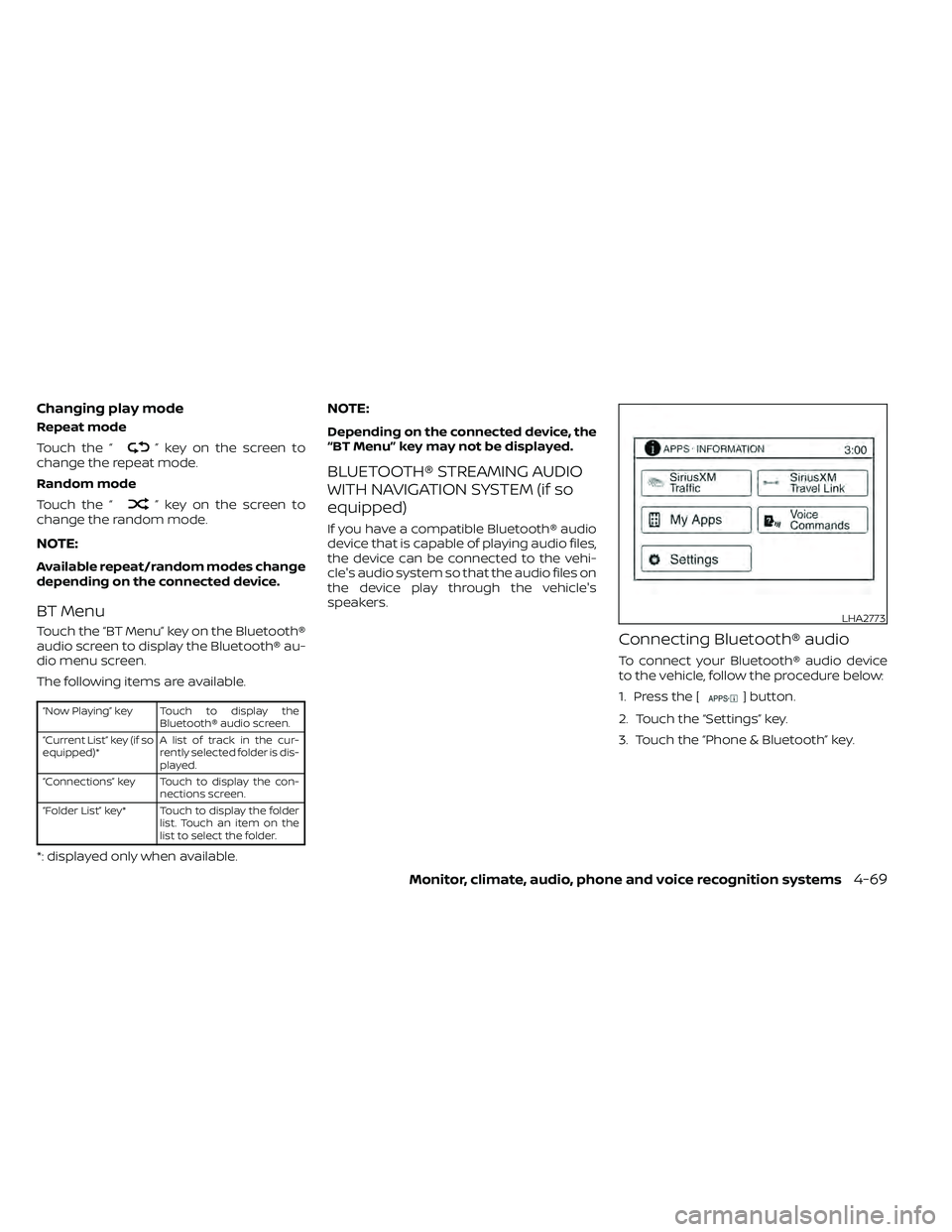
Connecting Bluetooth® audio
To connect your Bluetooth® audio device
to the vehicle, follow the procedure below:
1. Press the [
] button.
2. Touch the “Settings” key.
3. Touch the “Phone & Bluetooth” key.
LHA2773
Monitor, climate, audio, phone and voice recognition systems4-69
Page 268 of 492
ANTENNA
The antenna cannot be shortened, but can
be removed. When you need to remove the
antenna, turn the antenna rod counter-
clockwise.
To install the antenna rod, turn the antenna
rod clockwise and hand tighten.
CAUTION
• Always properly tighten the antenna
rod during installation or the an-
tenna rod may break during vehicle
operation.
• Be sure that the antenna is removed
before the vehicle enters an auto-
matic car wash. Your vehicle may be equipped with
NissanConnect® Mobile Apps, allowing you
to control various compatible smartphone
applications through the vehicle’s display
screen. A basic package is included for a
period of time form the original in-service
date of the vehicle. For more details about
your Mobile Apps trial, please visit
www.nissanusa.com/connect/faq#apps-
&-features.
NOTE:
A compatible smartphone and registra-
tion is required to use mobile applica-
tions or to access connected features of
certain vehicle applications.
REGISTERING WITH
NISSANCONNECT® MOBILE APPS
To use the Smartphone Integration feature, it
is necessary for the user to register. In order
to register, visit the NissanConnect® Mobile
Apps website, www.nissanusa.com/
connect/ or www.nissan.ca/en/connect or
www.nissan.ca/fr/connect and sign up or
create an account through the prompts on
the NissanConnect® Mobile Apps. Once reg-
istered, download the NissanConnect® Mo-
bile Apps from your compatible phone’s ap-
plication download source and then log into
the application. If you already have an ac-
count created through the App, please log in.
CONNECT PHONE
To use this feature, a compatible smart-
phone must be connected via Bluetooth®
or USB to the vehicle. For additional infor-
mation, refer to “Bluetooth® Hands-Free
Phone System with Navigation System” in
this section.
NOTE:
Apple iPhones® require the phone to be
plugged in via USB for NissanConnect®
Mobile Apps to function.
For Android phones, NissanConnect®
Mobile Apps requires the phone to be
paired via Bluetooth®.
NISSANCONNECT® MOBILE APPS (if
so equipped)
4-72Monitor, climate, audio, phone and voice recognition systems
Page 269 of 492
APPLICATION DOWNLOAD
Once connected, the NissanConnect® App
will search your phone to determine which
compatible applications are currently in-
stalled. The user will then choose which
apps they want to bring into their vehicle
from the list of apps within the “Manage My
Apps” section of the NissanConnect® App
on their smartphone. The vehicle will then
download the in-vehicle interface for each
of these compatible applications. Once
downloaded, the user can access their se-
lected smartphone applications through
the vehicle touch-screen. For additional in-
formation, refer to www.nissanusa.com/
connect or www.nissan.ca/en/connect or
www.nissan.ca/fr/connect regarding ap-
plication availability.Apple Siri® Eyes Free personal assistant
can be accessed from the vehicle. Siri Eyes
Free can be accessed in Siri Eyes Free
mode to reduce user distraction. In this
mode, Siri Eyes Free is available for interac-
tion by voice control. Af ter connecting a
compatible Apple device by using
Bluetooth®, Siri Eyes Free can be activated
from the
button on the steering
wheel.
Siri® is a trademark of Apple Inc., registered
in the U.S. and other countries.
• Some Siri Eyes Free functions, such as displaying pictures or opening apps, may
not be available while driving.
• For getting best results, always update your device to the latest sof tware version.
• Keep the interior of the vehicle as quiet as possible. Close the windows to eliminate
the surrounding noises (traffic noises, vi-
bration sounds, etc.), which may prevent
the system from recognizing the voice
commands correctly.
• For functions that can be used in Siri Eyes Free, please refer to the Apple website.
REQUIREMENTS
Siri® is only available on the iPhone® 4S or
later. Devices released before iPhone® 4S
are not supported by the Siri® Eyes Free
system. Visit www.apple.com/ios/siri for
details about device compatibility.
Siri must be enabled on the phone. Please
check phone settings.
If the device has a lock screen, Siri must be
accessible from the lock screen. Please
check phone settings.
For best results, always update your device
to the latest sof tware version.
SIRI® EYES FREE (models without
Navigation System) (if so equipped)
Monitor, climate, audio, phone and voice recognition systems4-73