ignition NISSAN FRONTIER 2020 Owner´s Manual
[x] Cancel search | Manufacturer: NISSAN, Model Year: 2020, Model line: FRONTIER, Model: NISSAN FRONTIER 2020Pages: 492, PDF Size: 3.05 MB
Page 213 of 492
•The distance guide line and the ve-
hicle width line should be used as a
reference only when the vehicle is on
a level paved surface. The distance
viewed on the monitor is for refer-
ence only and may be different than
the actual distance between the ve-
hicle and displayed objects.
CAUTION
Do not scratch the camera lens when
cleaning dirt or snow from the front of
the camera.
The RearView Monitor system automati-
cally shows a rear view of the vehicle when
the shif t lever is shif ted into the R (Reverse)
position. Press the CAMERA button (if so
equipped) while in the R (Reverse) position
to cycle through guideline options. The ra-
dio can still be heard while the RearView
Monitor is active. To display the rear view, the RearView Moni-
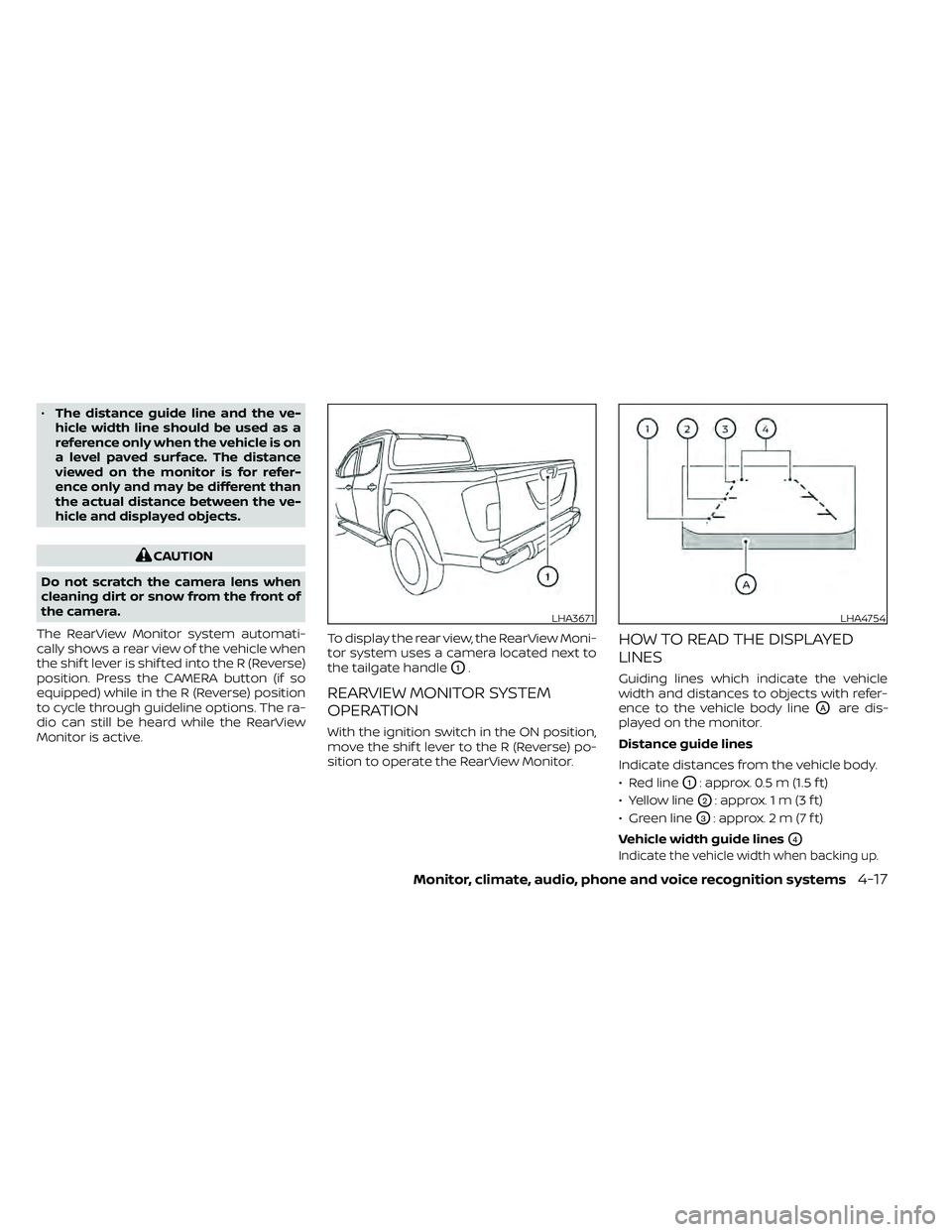
tor system uses a camera located next to
the tailgate handle
O1.
REARVIEW MONITOR SYSTEM
OPERATION
With the ignition switch in the ON position,
move the shif t lever to the R (Reverse) po-
sition to operate the RearView Monitor.
HOW TO READ THE DISPLAYED
LINES
Guiding lines which indicate the vehicle
width and distances to objects with refer-
ence to the vehicle body line
OAare dis-
played on the monitor.
Distance guide lines
Indicate distances from the vehicle body.
• Red line
O1: approx. 0.5 m (1.5 f t)
• Yellow line
O2: approx. 1 m (3 f t)
• Green line
O3: approx. 2 m (7 f t)
Vehicle width guide lines
O4
Indicate the vehicle width when backing up.
LHA3671LHA4754
Monitor, climate, audio, phone and voice recognition systems4-17
Page 232 of 492
The air conditioner system in your NISSAN
vehicle is charged with a refrigerant de-
signed with the environment in mind.
This refrigerant does not harm the
earth's ozone layer.
Special charging equipment and lubricant
is required when servicing your NISSAN air
conditioner. Using improper refrigerants or
lubricants will cause severe damage to
your air conditioner system. For additional
information, refer to “Air conditioner sys-
tem refrigerant and oil recommendations”
in the “Technical and consumer informa-
tion” section of this manual.
It is recommended that you visit a NISSAN
dealer to service your “environmentally
friendly ” air conditioning system.
WARNING
The air conditioner system contains re-
frigerant under high pressure. To avoid
personal injury, any air conditioner ser-
vice should be done only by an experi-
enced technician with proper equip-
ment.
RADIO
With the ignition placed in the ACC or ON
position, press the PUSH(power) or
ON•OFF button to turn the radio on. If you
listen to the radio with the engine not run-
ning, the ignition should be placed in the
ACC position.
Radio reception is affected by station sig-
nal strength, distance from radio transmit-
ter, buildings, bridges, mountains and other
external influences. Intermittent changes
in reception quality normally are caused by
these external influences.
Using a cellular phone in or near the vehicle
may influence radio reception quality.
Radio reception
Your NISSAN radio system is equipped with
state-of-the-art electronic circuits to en-
hance radio reception. These circuits are
designed to extend reception range, and to
enhance the quality of that reception.
However, there are some general charac-
teristics of both FM and AM radio signals
that can affect radio reception quality in a
moving vehicle, even when the finest
equipment is used. These characteristics
are completely normal in a given reception
area and do not indicate any malfunction
in your NISSAN radio system. Reception conditions will constantly
change because of vehicle movement.
Buildings, terrain, signal distance and inter-
ference from other vehicles can work
against ideal reception. Described below
are some of the factors that can affect your
radio reception.
Some cellular phones or other devices may
cause interference or a buzzing noise to
come from the audio system speakers.
Storing the device in a different location
may reduce or eliminate the noise.
FM RADIO RECEPTION
Range: FM range is normally limited to 25 –
30 mi (40 – 48 km), with monaural (single
channel) FM having slightly more range
than stereo FM. External influences may
sometimes interfere with FM station re-
ception even if the FM station is within 25
mi (40 km). The strength of the FM signal is
directly related to the distance between
the transmitter and receiver. FM signals fol-
low a line-of-sight path, exhibiting many of
the same characteristics as light. For ex-
ample, they will reflect off objects.
Fade and drif t: As your vehicle moves away
from a station transmitter, the signals will
tend to fade and/or drif t.
SERVICING AIR CONDITIONER
AUDIO SYSTEM
4-36Monitor, climate, audio, phone and voice recognition systems
Page 240 of 492
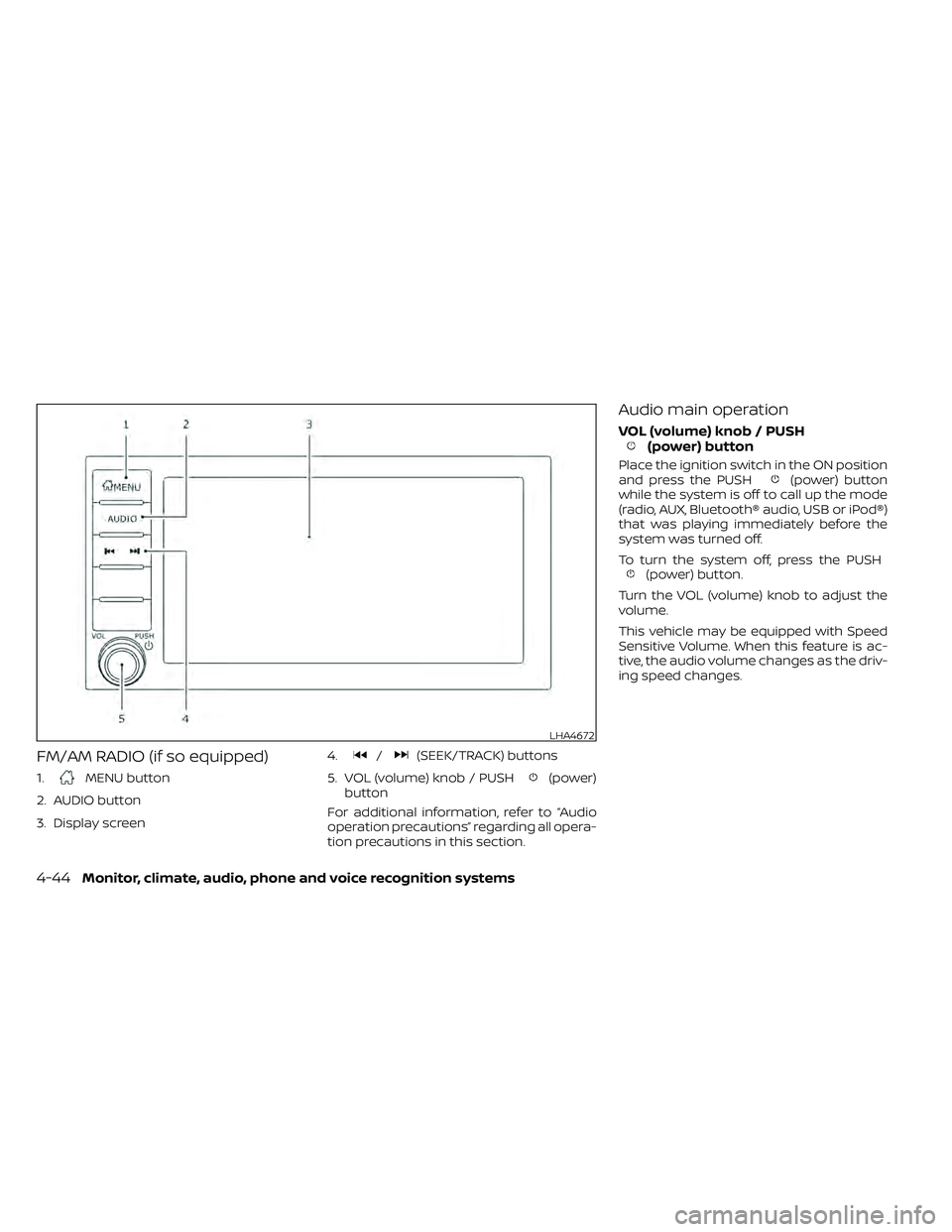
FM/AM RADIO (if so equipped)
1.MENU button
2. AUDIO button
3. Display screen 4.
/(SEEK/TRACK) buttons
5. VOL (volume) knob / PUSH
(power)
button
For additional information, refer to “Audio
operation precautions” regarding all opera-
tion precautions in this section.
Audio main operation
VOL (volume) knob / PUSH(power) button
Place the ignition switch in the ON position
and press the PUSH(power) button
while the system is off to call up the mode
(radio, AUX, Bluetooth® audio, USB or iPod®)
that was playing immediately before the
system was turned off.
To turn the system off, press the PUSH
(power) button.
Turn the VOL (volume) knob to adjust the
volume.
This vehicle may be equipped with Speed
Sensitive Volume. When this feature is ac-
tive, the audio volume changes as the driv-
ing speed changes.
LHA4672
4-44Monitor, climate, audio, phone and voice recognition systems
Page 246 of 492
Audio main operation
ON-OFF button / VOL (volume) control
knob
Place the ignition switch in the ACC or ON
position and press the ON-OFF button
while the system is off to call up the mode
(radio, CD, AUX, Bluetooth® audio, USB or
iPod®) that was playing immediately before
the system was turned off.To turn the system off, press the ON-OFF
button.
Turn the VOL (volume) control knob to ad-
just the volume.
This vehicle may be equipped with Speed
Sensitive Volume. When this feature is ac-
tive, the audio volume changes as the driv-
ing speed changes.
Audio settings
1. Press the [] button.
2. Touch the “Settings” key.
3. Touch the “Audio” key.
Use the touch-screen to adjust the follow-
ing items to the desired setting:
Audio Bass Adjusts the bass to the desired level.
Treble Adjusts the treble to the desired level.
Balance Adjusts the balance to the desired level. Balance adjusts the sound level between the lef t and right speak-
ers.
Fade Adjusts the fade to the desired level. Fade adjusts the sound level between the front and rear speakers.
Speed Sensitive Vol. Adjusts the speed sensitive volume function, which increases the volume of the audio system as the
speed of the vehicle increases. Set to “ 0 ” to disable the feature. The higher the setting, the more the vol-
ume increases in relation to vehicle speed.
AUX Volume Level Controls the volume level of incoming sound when an auxiliary device is connected to the system. Avail-
able options are Low (Quiet), Medium, and High (Loud).
Bass, treble, balance and fade can also be adjusted by pressing the AUDIO button and turning the TUNE knob to select the item to adjust.
When the desired item is shown on the display, turn the tuning to adjust and then press the AUDIO button until the display returns to the
main audio screen. If the button is not pressed for approximately 10 seconds, the radio or CD display will automatically reappear.
4-50Monitor, climate, audio, phone and voice recognition systems
Page 247 of 492
![NISSAN FRONTIER 2020 Owner´s Manual SXM settings
To view the SXM settings:
1. Press the [
] button.
2. Touch the “Settings” key.
3. Touch the “SXM” key.
The signal strength, activation status and
other information are displayed](/img/5/40336/w960_40336-246.png "NISSAN FRONTIER 2020 Owner´s Manual SXM settings
To view the SXM settings:
1. Press the [
] button.
2. Touch the “Settings” key.
3. Touch the “SXM” key.
The signal strength, activation status and
other information are displayed")
SXM settings
To view the SXM settings:
1. Press the [
] button.
2. Touch the “Settings” key.
3. Touch the “SXM” key.
The signal strength, activation status and
other information are displayed on the
screen.
FM/AM/SAT radio operation
FM·AM button
Press the FM·AM button to change the
band as follows:
AM →P1→ FM1→FM→P2
If another audio source is playing when the
FM·AM button is pressed, the audio source
playing will automatically be turned off and
the last radio station played will begin play-
ing.
The FM stereo indicator (STEREO) is shown
on the screen during FM stereo reception.
When the stereo broadcast signal is weak,
the radio automatically changes from ste-
reo to monaural reception.
SXM band select
Pressing the SXM button will change the
band as follows:
SXM1* →SXM2* →SXM3* →SXM1* (satellite,
if so equipped)
When the SXM button is pressed while the
ignition switch is in the ACC or ON position, the
radio will come on at the last station played.
The last station played will also come on
when the ON-OFF button is pressed to turn
the radio on.
*When the SXM button is pressed, the sat-
ellite radio mode will be skipped unless an
optional satellite receiver and antenna are
installed and a SiriusXM® Satellite Radio
service subscription is active. Satellite radio
is not available in Alaska, Hawaii and Guam.
If a compact disc is playing when the SXM
button is pressed, the compact disc will
automatically be turned off and the last
radio station played will come on.
While the radio is in SXM mode, the opera-
tion can be controlled through the touch-
screen. Touch the “Categories” key to dis-
play a list of categories. Touch a category
displayed on the list to display options
within that category.
Tuning with the touch-screen
When in AM or FM mode, the radio can be
tuned using the touch-screen. To bring up
the visual tuner, touch the “Tune” key on the
lower right corner of the screen. A screen
appears with a bar running from low fre-
quencies on the lef t to high frequencies on
the right. Touch the screen at the location
of the frequency you wish to tune and the
station will change to that frequency. To
return to the regular radio display screen,
touch the “OK” key.
Tuning with the TUNE knob
The radio can also be manually tuned us-
ing the TUNE knob. When in FM or AM mode,
turn the TUNE knob to the lef t for lower
frequencies or to the right for higher fre-
quencies. When in SXM mode, turn the
TUNE knob to change the channel.
SEEK tuning
When in FM or AM mode, press theorseek buttons to tune from low to high
or high to low frequencies and to stop at
the next broadcasting station.
When in SXM mode, press the
orseek buttons to change the category.
Monitor, climate, audio, phone and voice recognition systems4-51
Page 255 of 492
CAUTION
• Do not force the USB device into the
USB port. Inserting the USB device
tilted or up-side-down into the port
may damage the port. Make sure
that the USB device is connected cor-
rectly into the USB port.
• Do not grab the USB port cover (if so
equipped) when pulling the USB de-
vice out of the port. This could dam-
age the port and the cover.
• Do not leave the USB cable in a place
where it can be pulled unintention-
ally. Pulling the cable may damage
the port.
For additional information, refer to your de-
vice manufacturer’s owner information re-
garding the proper use and care of the
device.
The USB port is located on the instrument
panel. Insert the USB device into the instru-
ment panel.
When a compatible storage device is
plugged into the connection port, compat-
ible audio files on the storage device can be
played through the vehicle's audio system.Audio file operation
AUX (auxiliary) button
Place the ignition switch in the ON or ACC
position and press the AUX button to
switch to the USB input mode. If another
audio source is playing and a USB connec-
tion port device is inserted, press the AUX
button until the center display changes to
the USB memory mode.
If the system has been turned off while the
USB memory was playing, press the ON-
OFF button to restart the USB memory.
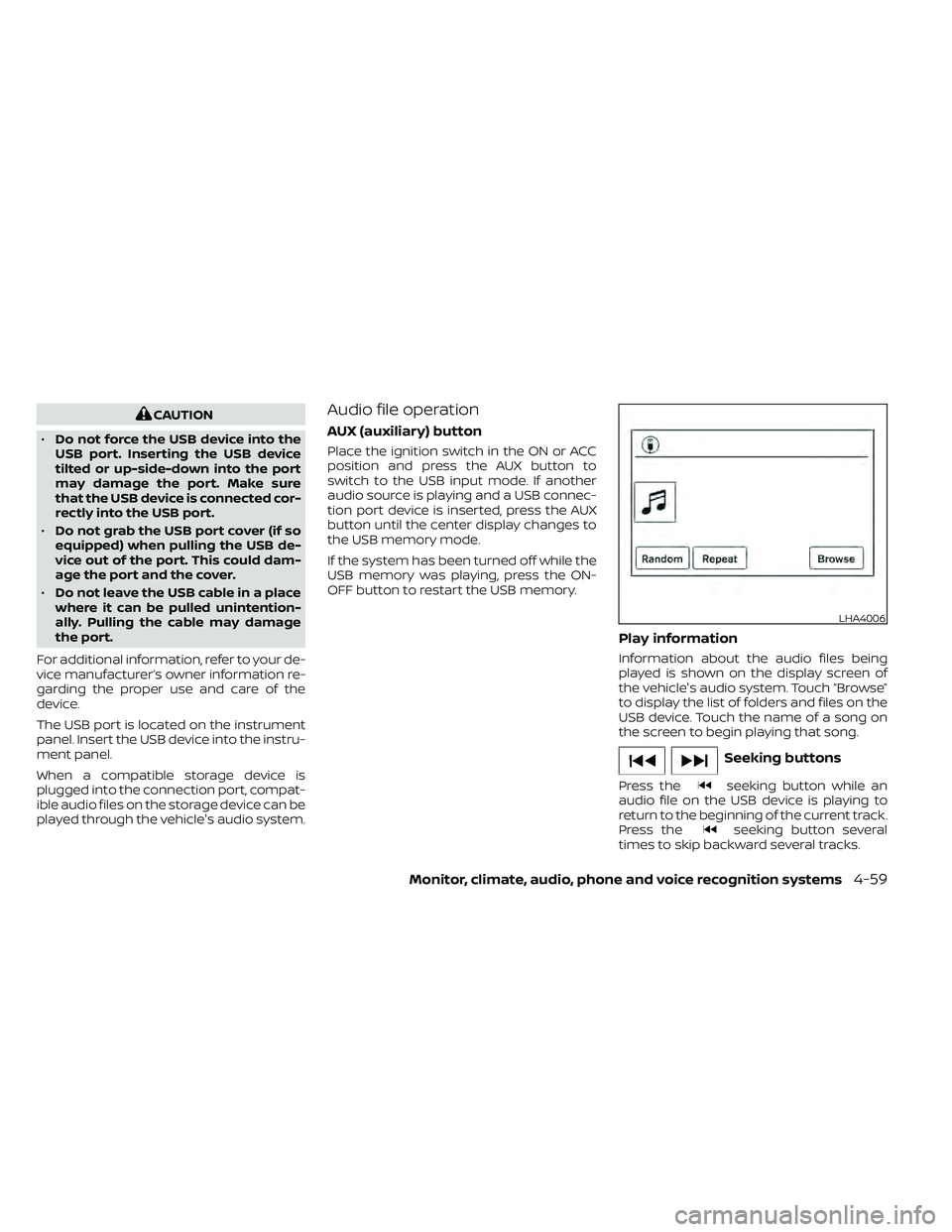
Play information
Information about the audio files being
played is shown on the display screen of
the vehicle's audio system. Touch “Browse”
to display the list of folders and files on the
USB device. Touch the name of a song on
the screen to begin playing that song.
Seeking buttons
Press theseeking button while an
audio file on the USB device is playing to
return to the beginning of the current track.
Press the
seeking button several
times to skip backward several tracks.
LHA4006
Monitor, climate, audio, phone and voice recognition systems4-59
Page 257 of 492
CAUTION
• Do not force the USB device into the
USB port. Inserting the USB device
tilted or up-side-down into the port
may damage the port. Make sure
that the USB device is connected cor-
rectly into the USB port.
• Do not grab the USB port cover (if so
equipped) when pulling the USB de-
vice out of the port. This could dam-
age the port and the cover.
• Do not leave the USB cable in a place
where it can be pulled unintention-
ally. Pulling the cable may damage
the port.
For additional information, refer to your de-
vice manufacturer’s owner information re-
garding the proper use and care of the
device.
To connect an iPod® to the vehicle so that
the iPod® can be controlled with the audio
system controls and display screen, use
the USB connection port located on the
center console below the heater and air
conditioner controls. Connect the iPod®-
specific end of the cable to the iPod® and
the USB end of the cable to the USB con-
nection port on the vehicle. If your iPod®
supports charging via a USB connection, its battery will be charged while connected to
the vehicle with the ignition switch in the
ON position. The port is illuminated for bet-
ter visibility when the headlight switch is in
the ON position.
While connected to the vehicle, the iPod®
can only be operated by the vehicle audio
controls.
To disconnect the iPod® from the vehicle,
remove the USB end of the cable from the
USB connection port on the vehicle, then
remove the cable from the iPod®.
* iPod® is a trademark of Apple Inc., regis-
tered in the U.S. and other countries.
Compatibility
The following models are compatible:
• iPod® Classic 5th generation (firmware
version 1.3.0 or later)
• iPod® Classic 6th generation (firmware version 2.0.1 or later)
• iPod® Classic 7th generation (firmware version 2.0.4 or later)
• iPod® Touch 2nd generation (firmware version 4.2.1 or later)*
• iPod® Touch 3rd generation (firmware version 5.1 or later) • iPod® Touch 4th generation (firmware
version 5.1 or later)
• iPod® nano - 1st generation (firmware version 1.3.1 or later)
• iPod® nano - 2nd generation (firmware version 1.1.3 or later)
• iPod® nano - 3rd generation (firmware version 1.1.3 or later)
• iPod® nano - 4th generation (firmware version 1.0.4 or later)
• iPod® nano - 5th generation (firmware version 1.0.2 or later)
• iPod® nano - 6th generation (firmware version 1.1 or later)
• iPhone® 3G (firmware version 4.2.1 or later)
• iPhone® 3GS (firmware version 5.1 or later)
• iPhone® 4 (firmware version 5.1 or later)
• iPhone® 4S (firmware version 5.1 or later)
* Some features of this iPod® may not be
fully functional.
Make sure that your iPod® firmware is up-
dated to the version indicated above.
Monitor, climate, audio, phone and voice recognition systems4-61
Page 261 of 492
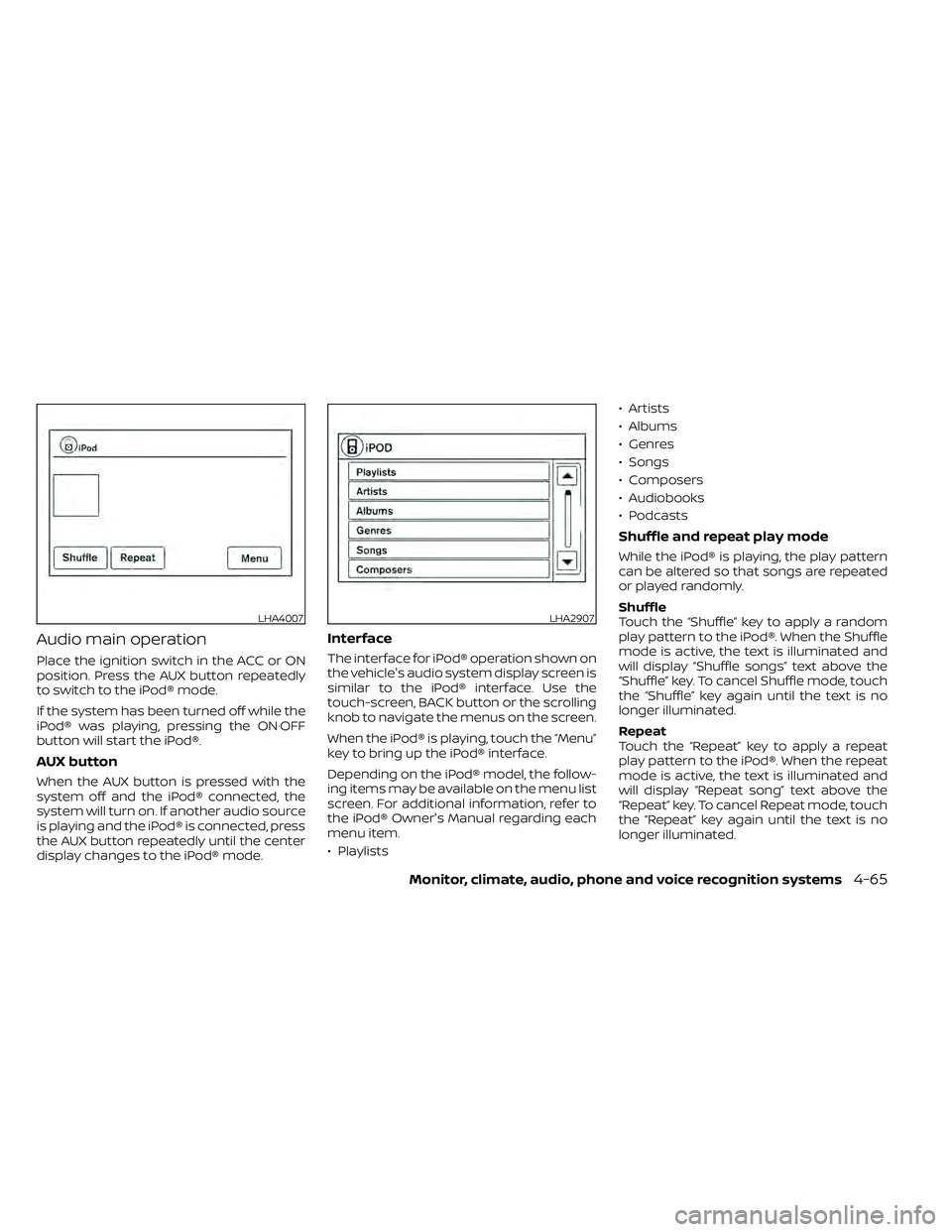
Audio main operation
Place the ignition switch in the ACC or ON
position. Press the AUX button repeatedly
to switch to the iPod® mode.
If the system has been turned off while the
iPod® was playing, pressing the ON·OFF
button will start the iPod®.
AUX button
When the AUX button is pressed with the
system off and the iPod® connected, the
system will turn on. If another audio source
is playing and the iPod® is connected, press
the AUX button repeatedly until the center
display changes to the iPod® mode.
Interface
The interface for iPod® operation shown on
the vehicle's audio system display screen is
similar to the iPod® interface. Use the
touch-screen, BACK button or the scrolling
knob to navigate the menus on the screen.
When the iPod® is playing, touch the “Menu”
key to bring up the iPod® interface.
Depending on the iPod® model, the follow-
ing items may be available on the menu list
screen. For additional information, refer to
the iPod® Owner's Manual regarding each
menu item.
• Playlists• Artists
• Albums
• Genres
• Songs
• Composers
• Audiobooks
• Podcasts
Shuffle and repeat play mode
While the iPod® is playing, the play pattern
can be altered so that songs are repeated
or played randomly.
Shuffle
Touch the “Shuffle” key to apply a random
play pattern to the iPod®. When the Shuffle
mode is active, the text is illuminated and
will display “Shuffle songs” text above the
“Shuffle” key. To cancel Shuffle mode, touch
the “Shuffle” key again until the text is no
longer illuminated.
Repeat
Touch the “Repeat” key to apply a repeat
play pattern to the iPod®. When the repeat
mode is active, the text is illuminated and
will display “Repeat song” text above the
“Repeat” key. To cancel Repeat mode, touch
the “Repeat” key again until the text is no
longer illuminated.
LHA4007LHA2907
Monitor, climate, audio, phone and voice recognition systems4-65
Page 276 of 492
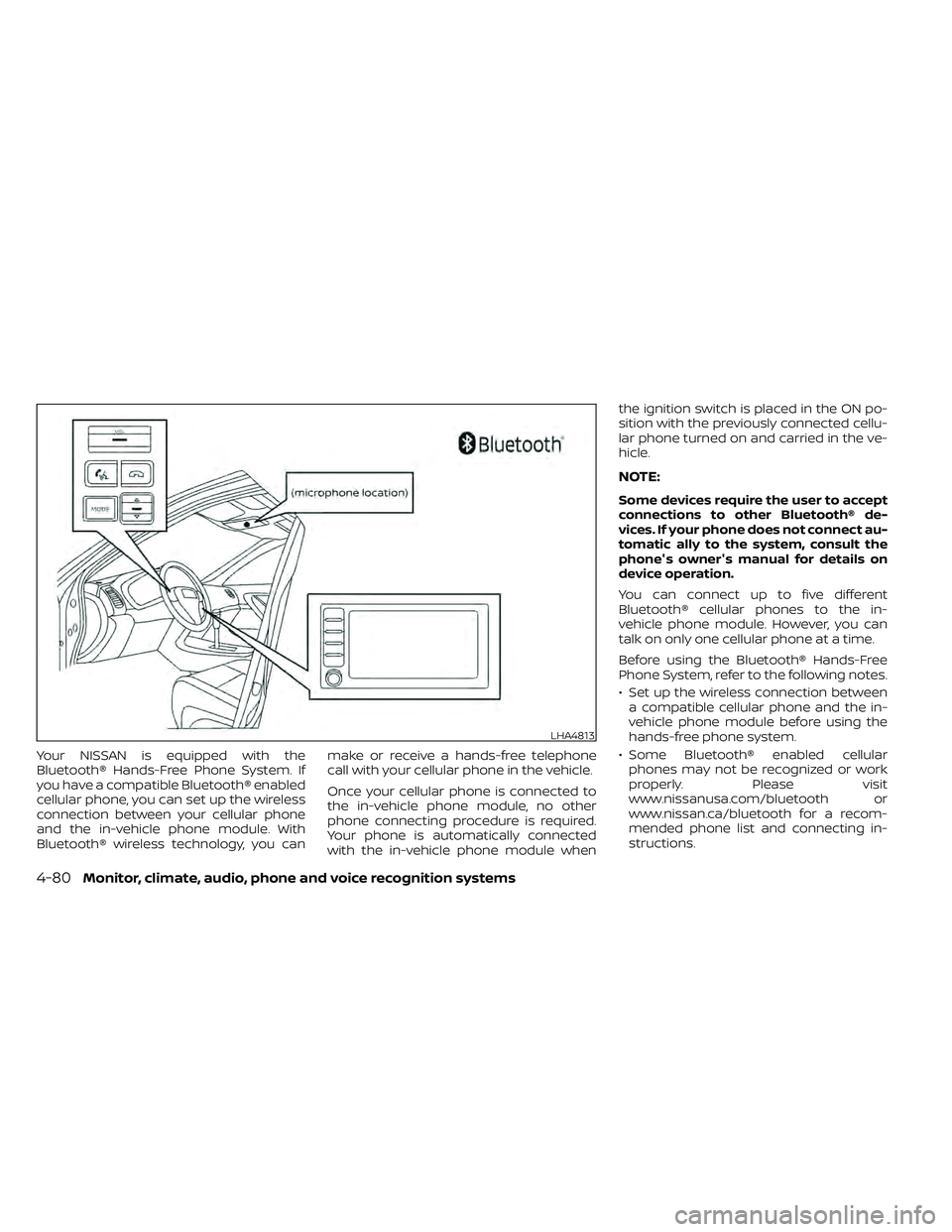
Your NISSAN is equipped with the
Bluetooth® Hands-Free Phone System. If
you have a compatible Bluetooth® enabled
cellular phone, you can set up the wireless
connection between your cellular phone
and the in-vehicle phone module. With
Bluetooth® wireless technology, you canmake or receive a hands-free telephone
call with your cellular phone in the vehicle.
Once your cellular phone is connected to
the in-vehicle phone module, no other
phone connecting procedure is required.
Your phone is automatically connected
with the in-vehicle phone module whenthe ignition switch is placed in the ON po-
sition with the previously connected cellu-
lar phone turned on and carried in the ve-
hicle.
NOTE:
Some devices require the user to accept
connections to other Bluetooth® de-
vices. If your phone does not connect au-
tomatic ally to the system, consult the
phone's owner's manual for details on
device operation.
You can connect up to five different
Bluetooth® cellular phones to the in-
vehicle phone module. However, you can
talk on only one cellular phone at a time.
Before using the Bluetooth® Hands-Free
Phone System, refer to the following notes.
• Set up the wireless connection between
a compatible cellular phone and the in-
vehicle phone module before using the
hands-free phone system.
• Some Bluetooth® enabled cellular phones may not be recognized or work
properly. Please visit
www.nissanusa.com/bluetooth or
www.nissan.ca/bluetooth for a recom-
mended phone list and connecting in-
structions.
LHA4813
4-80Monitor, climate, audio, phone and voice recognition systems
Page 277 of 492
• You will not be able to use a hands-freephone under the following conditions:– Your vehicle is outside of the cellular service area.
– Your vehicle is in an area where it is difficult to receive a cellular signal; such
as in a tunnel, in an underground park-
ing garage, near a tall building or in a
mountainous area.
– Your cellular phone is locked to prevent it from being dialed.
• When the radio wave condition is not ideal or ambient sound is too loud, it may
be difficult to hear the other person's
voice during a call.
• Do not place the cellular phone in an area surrounded by metal or far away from
the in-vehicle phone module to prevent
tone quality degradation and wireless
connection disruption.
• While a cellular phone is connected through the Bluetooth® wireless connec-
tion, the battery power of the cellular
phone may discharge quicker than usual.
The Bluetooth® Hands-Free Phone Sys-
tem cannot charge cellular phones.
• For additional information, you can visit www.nissanusa.com/bluetooth or
www.nissan.ca/bluetooth for trouble-
shooting help. •Some cellular phones or other devices
may cause interference or a buzzing noise
to come from the audio system speakers.
Storing the device in a different location
may reduce or eliminate the noise.
• For additional information, refer to the cellular phone owner's manual regarding
the telephone charges, cellular phone
antenna and body, etc.
REGULATORY INFORMATION
FCC Regulatory information
– CAUTION: To maintain compliance with FCC’s RF exposure guidelines, use only
the supplied antenna. Unauthorized an-
tenna, modification, or attachments
could damage the transmitter and may
violate FCC regulations.
– Operation is subject to the following two conditions:1. 1) This device may not cause interfer- ence and
2.2) this device must accept any interfer- ence, including interference that may
cause undesired operation of the
device.
IC Regulatory information
– Operation is subject to the following two conditions: (1) this device may not cause
interference, and (2) this device must ac- cept any interference, including interfer-
ence that may cause undesired opera-
tion of the device.
– This Class B digital apparatus meets all requirements of the Canadian
Interference-Causing Equipment Regu-
lations.
BLUETOOTH® is a
trademark owned by
Bluetooth SIG, Inc. and
licensed to
Panasonic.
USING THE SYSTEM
The system allows hands-free operation of
the Bluetooth® Hands-Free Phone System.
If the vehicle is in motion, some commands
may not be available so full attention may
be given to vehicle operation.
Initialization
When the ignition switch is placed in the ON
position, NISSAN Voice Recognition is initial-
ized, which takes a few seconds. If the
button is pressed before the initialization
completes, the system will announce
“There is no phone connected” and will not
react to voice commands.
Monitor, climate, audio, phone and voice recognition systems4-81