AUX NISSAN FRONTIER 2020 Owner´s Manual
[x] Cancel search | Manufacturer: NISSAN, Model Year: 2020, Model line: FRONTIER, Model: NISSAN FRONTIER 2020Pages: 492, PDF Size: 3.05 MB
Page 16 of 492
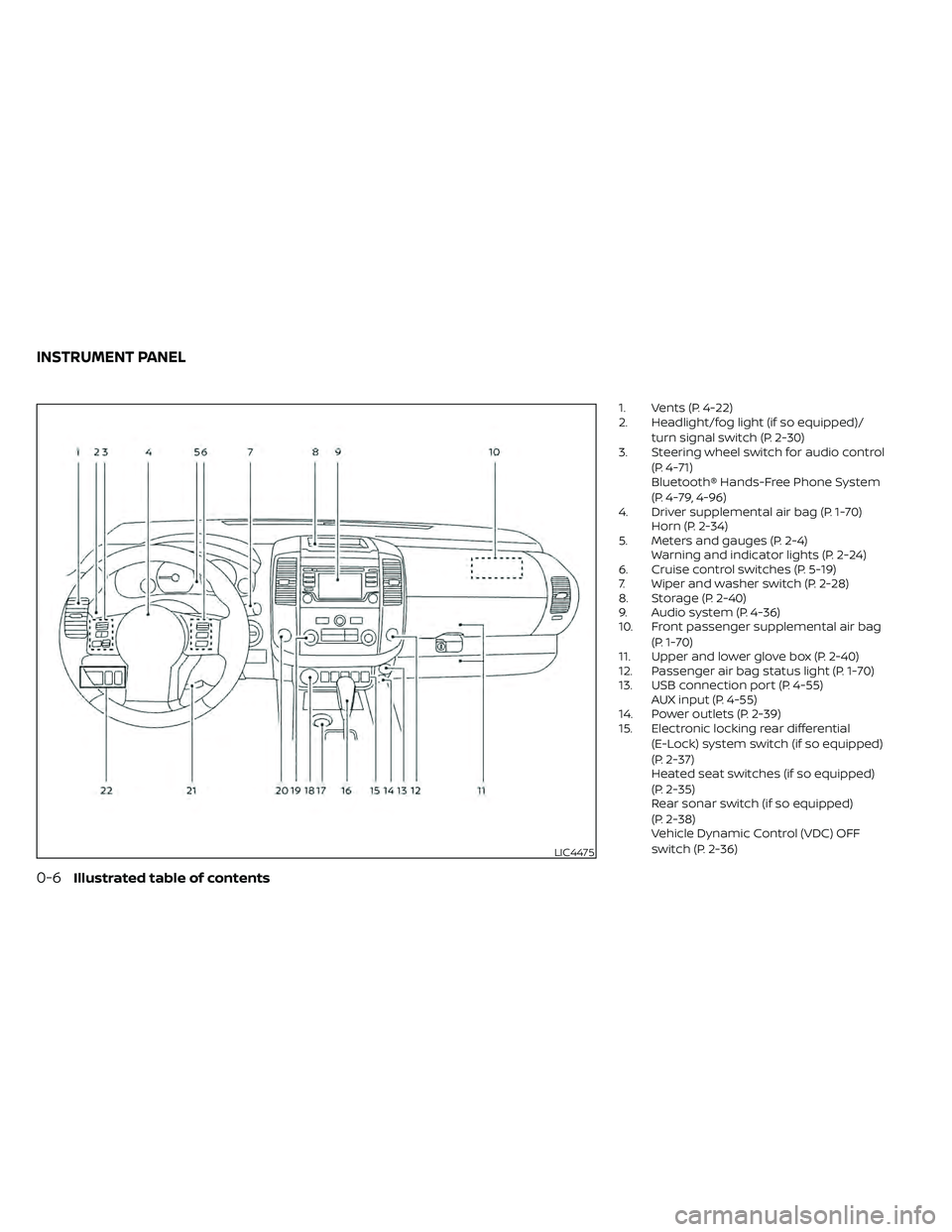
1. Vents (P. 4-22)
2. Headlight/fog light (if so equipped)/turn signal switch (P. 2-30)
3. Steering wheel switch for audio control
(P. 4-71)
Bluetooth® Hands-Free Phone System
(P. 4-79, 4-96)
4. Driver supplemental air bag (P. 1-70) Horn (P. 2-34)
5. Meters and gauges (P. 2-4) Warning and indicator lights (P. 2-24)
6. Cruise control switches (P. 5-19)
7. Wiper and washer switch (P. 2-28)
8. Storage (P. 2-40)
9. Audio system (P. 4-36)
10. Front passenger supplemental air bag
(P. 1-70)
11. Upper and lower glove box (P. 2-40)
12. Passenger air bag status light (P. 1-70)
13. USB connection port (P. 4-55) AUX input (P. 4-55)
14. Power outlets (P. 2-39)
15. Electronic locking rear differential
(E-Lock) system switch (if so equipped)
(P. 2-37)
Heated seat switches (if so equipped)
(P. 2-35)
Rear sonar switch (if so equipped)
(P. 2-38)
Vehicle Dynamic Control (VDC) OFF
switch (P. 2-36)
LIC4475
INSTRUMENT PANEL
0-6Illustrated table of contents
Page 112 of 492

1. Vents (P. 4-22)
2. Headlight/fog light (if so equipped)/turn signal switch (P. 2-30)
3. Steering wheel switch for audio control
(P. 4-71)
Bluetooth® Hands-Free Phone System
(P. 4-79, 4-96)
4. Driver supplemental air bag (P. 1-70) Horn (P. 2-34)
5. Meters and gauges (P. 2-4) Warning and indicator lights (P. 2-24)
6. Cruise control switches (P. 5-19)
7. Wiper and washer switch (P. 2-28)
8. Storage (P. 2-40)
9. Audio system (P. 4-36)
10. Front passenger supplemental air bag
(P. 1-70)
11. Upper and lower glove box (P. 2-40)
12. Passenger air bag status light (P. 1-70)
13. USB connection port (P. 4-55) AUX input (P. 4-55)
14. Power outlets (P. 2-39)
15. Electronic locking rear differential
(E-Lock) system switch (if so equipped)
(P. 2-37)
Heated seat switches (if so equipped)
(P. 2-35)
Rear sonar switch (if so equipped)
(P. 2-38)
Vehicle Dynamic Control (VDC) OFF
switch (P. 2-36)
LIC4475
INSTRUMENT PANEL
2-2Instruments and controls
Page 205 of 492
(brightness control) BUTTON
To change the display brightness, press thebutton. Pressing the button again will
change the display to the day or the night
display.
Press and hold the
button for more
than 2 seconds to turn the display off. Press
and hold the button again to turn the dis-
play on.
HOW TO USE THE VOL (volume)
KNOB / PUSH
(power)
BUTTON
Press the PUSH(power) button to turn
audio function on and off. Turn the VOL
(volume) knob to adjust audio volume.
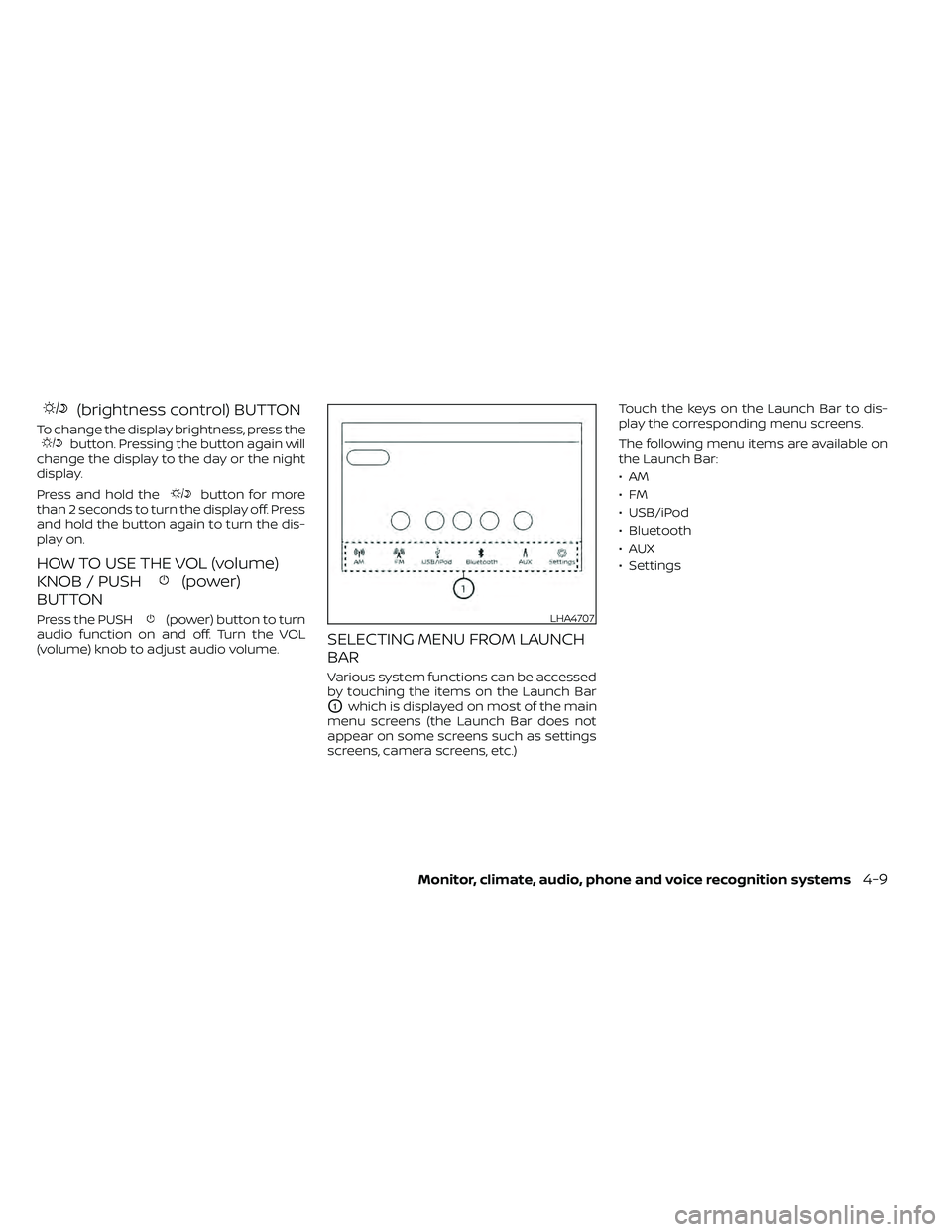
SELECTING MENU FROM LAUNCH
BAR
Various system functions can be accessed
by touching the items on the Launch Bar
O1which is displayed on most of the main
menu screens (the Launch Bar does not
appear on some screens such as settings
screens, camera screens, etc.) Touch the keys on the Launch Bar to dis-
play the corresponding menu screens.
The following menu items are available on
the Launch Bar:
•AM
•FM
• USB/iPod
• Bluetooth
•AUX
• Settings
LHA4707
Monitor, climate, audio, phone and voice recognition systems4-9
Page 240 of 492
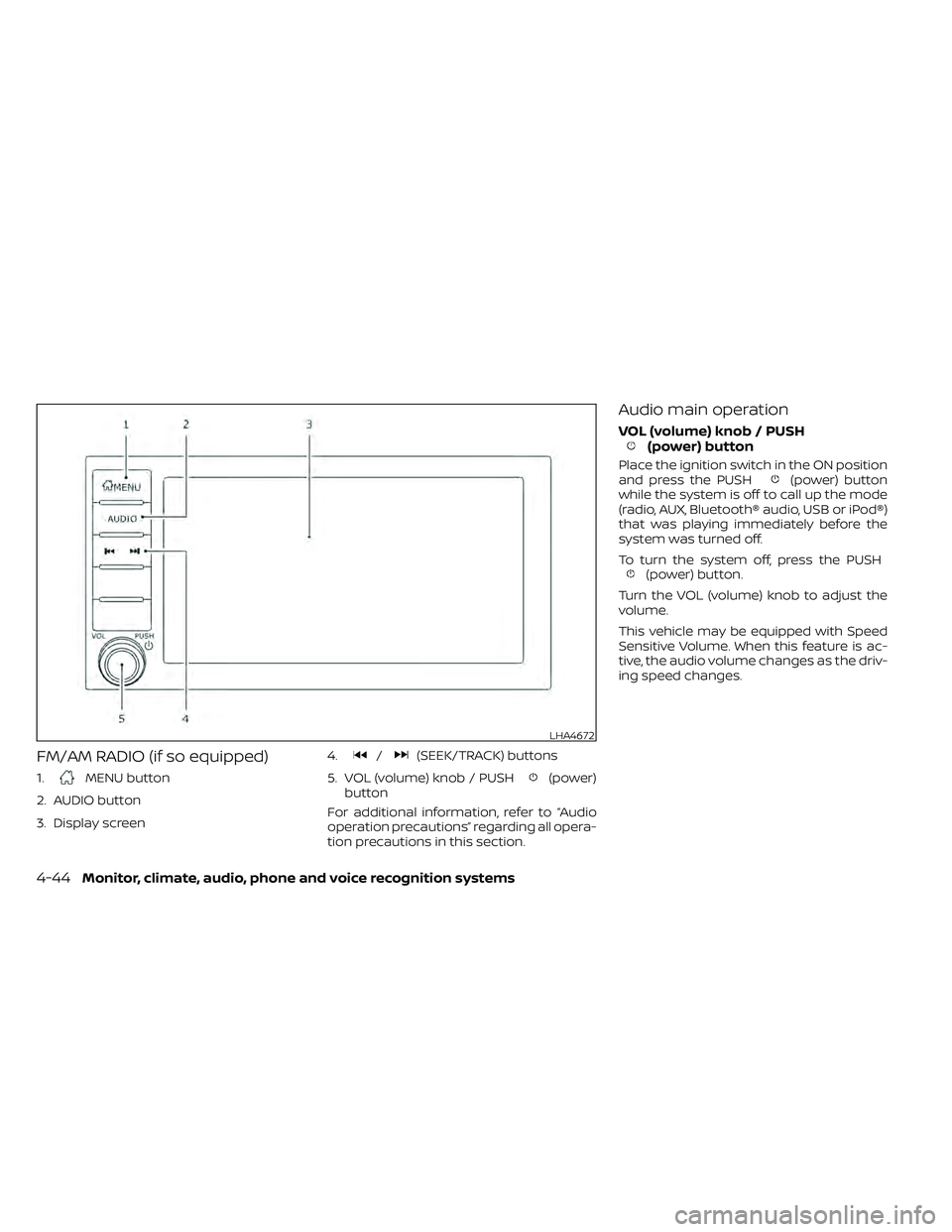
FM/AM RADIO (if so equipped)
1.MENU button
2. AUDIO button
3. Display screen 4.
/(SEEK/TRACK) buttons
5. VOL (volume) knob / PUSH
(power)
button
For additional information, refer to “Audio
operation precautions” regarding all opera-
tion precautions in this section.
Audio main operation
VOL (volume) knob / PUSH(power) button
Place the ignition switch in the ON position
and press the PUSH(power) button
while the system is off to call up the mode
(radio, AUX, Bluetooth® audio, USB or iPod®)
that was playing immediately before the
system was turned off.
To turn the system off, press the PUSH
(power) button.
Turn the VOL (volume) knob to adjust the
volume.
This vehicle may be equipped with Speed
Sensitive Volume. When this feature is ac-
tive, the audio volume changes as the driv-
ing speed changes.
LHA4672
4-44Monitor, climate, audio, phone and voice recognition systems
Page 243 of 492
FM radio operation
Press theMENU button and touch the
“FM” key or press the AUDIO button and
select FM on the bottom of the Launch Bar
to bring up the FM display screen.
If another audio source is playing when the
“FM” key is pressed, the audio source play-
ing will automatically be turned off and the
last radio station played will begin playing.
The FM stereo indicator (STEREO) is shown
on the screen during FM stereo reception.
When the stereo broadcast signal is weak,
the radio automatically changes from ste-
reo to monaural reception.
FM Menu
Touch the “FM Menu” key to display the FM
Menu screen options:
• SCAN: To scan tune the stations, touch the “FM Menu” key on the radio screen
and then touch the “SCAN” key. The sta-
tions will be tuned from low to high fre-
quencies and stop at each broadcasting
stations for several seconds. Touching
the “SCAN” key again during this period of
several seconds will stop tuning and the
radio will remain tuned to that station. • Refresh: Touch the “Refresh” key to up-
date the station list displayed on the right
side of the FM Menu screen.
• RDS Info: Radio station and song informa- tion can be displayed on the FM display
screen.
(SEEK/TRACK) buttons
Press the
orbuttons to tune
from low to high or high to low frequencies
and to stop at the next broadcasting sta-
tion.
1 to 12 Station memory operations
Up to 12 stations can be registered in the
preset list.
1. Select the FM radio band.
2. Tune to the station you wish to store.
3. Touch and hold one of the preset num- bers in the preset list.
The information such as frequency will be
displayed on the preset list.
To select and listen to the preset stations,
push
oron the steering wheel
briefly or touch a preferred station on the
preset list on the radio screen.
Auxiliary (AUX) devices operation
Connecting auxiliary devices
Connect an AUX device into the AUX input
jack located on the center console below
the heater and air conditioner controls.
The AUX input jack accepts any standard
analog audio input such as from a portable
cassette player, CD player, MP3 player or
phone.
Insert a 1/8 in (3.5 mm) stereo mini plug in
the audio input jack. If a cable with a mono
plug is used, the audio output may not
function normally.
Activation and playing
Turn on the AUX device. Connect an AUX
cable to the AUX device and the AUX input
jack. Select AUX mode from the audio
source menu screen or by pressing the
Source button on the steering wheel.
Monitor, climate, audio, phone and voice recognition systems4-47
Page 244 of 492
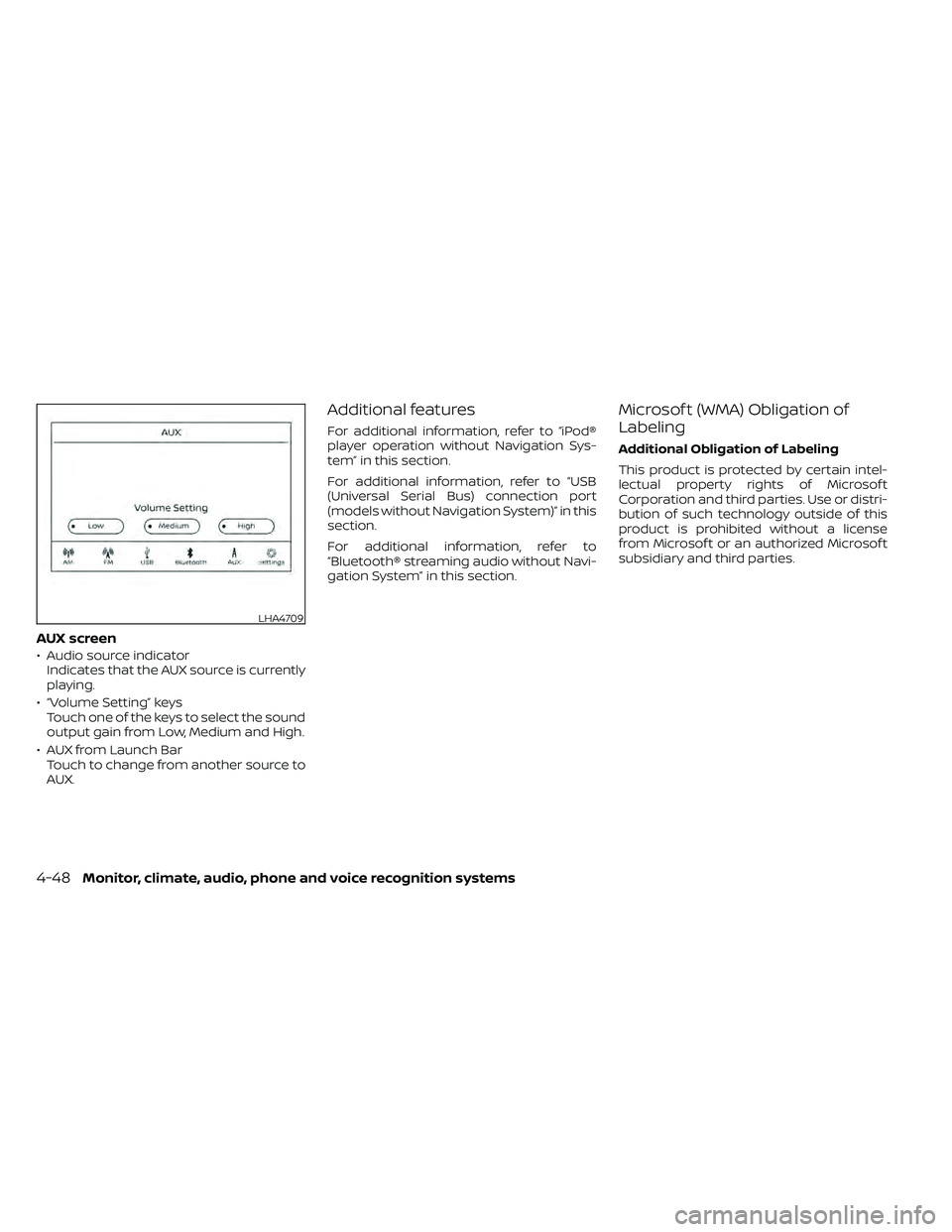
AUX screen
• Audio source indicatorIndicates that the AUX source is currently
playing.
• “Volume Setting” keys Touch one of the keys to select the sound
output gain from Low, Medium and High.
• AUX from Launch Bar Touch to change from another source to
AUX.
Additional features
For additional information, refer to “iPod®
player operation without Navigation Sys-
tem” in this section.
For additional information, refer to “USB
(Universal Serial Bus) connection port
(models without Navigation System)” in this
section.
For additional information, refer to
“Bluetooth® streaming audio without Navi-
gation System” in this section.
Microsof t (WMA) Obligation of
Labeling
Additional Obligation of Labeling
This product is protected by certain intel-
lectual property rights of Microsof t
Corporation and third parties. Use or distri-
bution of such technology outside of this
product is prohibited without a license
from Microsof t or an authorized Microsof t
subsidiary and third parties.
LHA4709
4-48Monitor, climate, audio, phone and voice recognition systems
Page 245 of 492
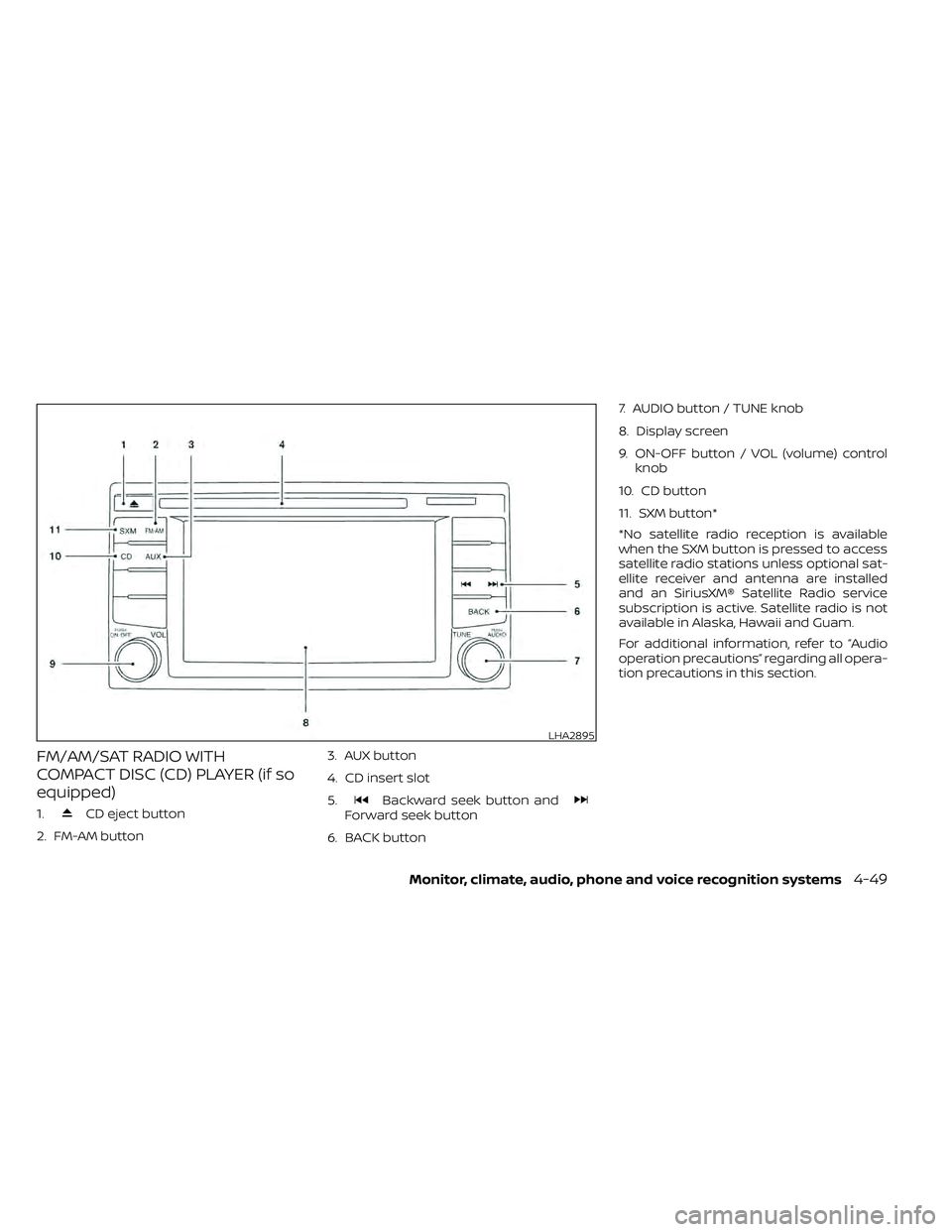
FM/AM/SAT RADIO WITH
COMPACT DISC (CD) PLAYER (if so
equipped)
1.CD eject button
2. FM-AM button 3. AUX button
4. CD insert slot
5.Backward seek button andForward seek button
6. BACK button 7. AUDIO button / TUNE knob
8. Display screen
9. ON-OFF button / VOL (volume) control
knob
10. CD button
11. SXM button*
*No satellite radio reception is available
when the SXM button is pressed to access
satellite radio stations unless optional sat-
ellite receiver and antenna are installed
and an SiriusXM® Satellite Radio service
subscription is active. Satellite radio is not
available in Alaska, Hawaii and Guam.
For additional information, refer to “Audio
operation precautions” regarding all opera-
tion precautions in this section.
LHA2895
Monitor, climate, audio, phone and voice recognition systems4-49
Page 246 of 492
Audio main operation
ON-OFF button / VOL (volume) control
knob
Place the ignition switch in the ACC or ON
position and press the ON-OFF button
while the system is off to call up the mode
(radio, CD, AUX, Bluetooth® audio, USB or
iPod®) that was playing immediately before
the system was turned off.To turn the system off, press the ON-OFF
button.
Turn the VOL (volume) control knob to ad-
just the volume.
This vehicle may be equipped with Speed
Sensitive Volume. When this feature is ac-
tive, the audio volume changes as the driv-
ing speed changes.
Audio settings
1. Press the [] button.
2. Touch the “Settings” key.
3. Touch the “Audio” key.
Use the touch-screen to adjust the follow-
ing items to the desired setting:
Audio Bass Adjusts the bass to the desired level.
Treble Adjusts the treble to the desired level.
Balance Adjusts the balance to the desired level. Balance adjusts the sound level between the lef t and right speak-
ers.
Fade Adjusts the fade to the desired level. Fade adjusts the sound level between the front and rear speakers.
Speed Sensitive Vol. Adjusts the speed sensitive volume function, which increases the volume of the audio system as the
speed of the vehicle increases. Set to “ 0 ” to disable the feature. The higher the setting, the more the vol-
ume increases in relation to vehicle speed.
AUX Volume Level Controls the volume level of incoming sound when an auxiliary device is connected to the system. Avail-
able options are Low (Quiet), Medium, and High (Loud).
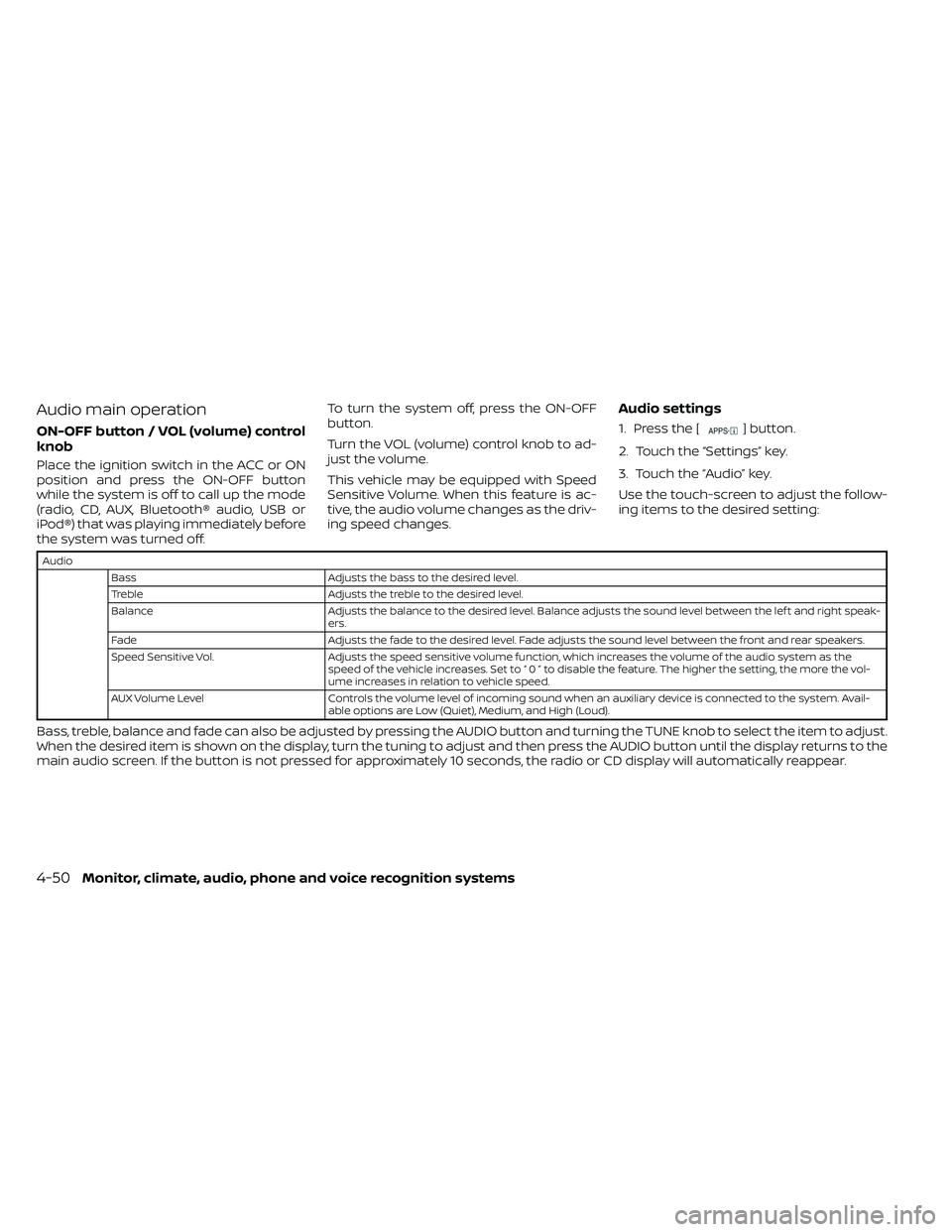
Bass, treble, balance and fade can also be adjusted by pressing the AUDIO button and turning the TUNE knob to select the item to adjust.
When the desired item is shown on the display, turn the tuning to adjust and then press the AUDIO button until the display returns to the
main audio screen. If the button is not pressed for approximately 10 seconds, the radio or CD display will automatically reappear.
4-50Monitor, climate, audio, phone and voice recognition systems
Page 251 of 492
SEEK (Reverse or Fast
Forward) buttons
Press and hold theorseek but-
tons for 1.5 seconds while the compact disc
is playing to reverse or fast forward the
track being played. The compact disc plays
at an increased speed while reversing or
fast forwarding. When the button is re-
leased, the compact disc returns to normal
play speed.
SEEK buttons
Press theseek button while a CD or
MP3/WMA CD is playing to return to the
beginning of the current track. Press the
seek button several times to skip
backward several tracks.
Press the
seek button while a CD or
MP3/WMA CD is playing to advance one
track. Press the
seek button several
times to skip forward several tracks. If the
last track on a CD is skipped, the first track
on the disc is played. If the last track in a
folder of an MP3/WMA CD is skipped, the
first track of the next folder is played.
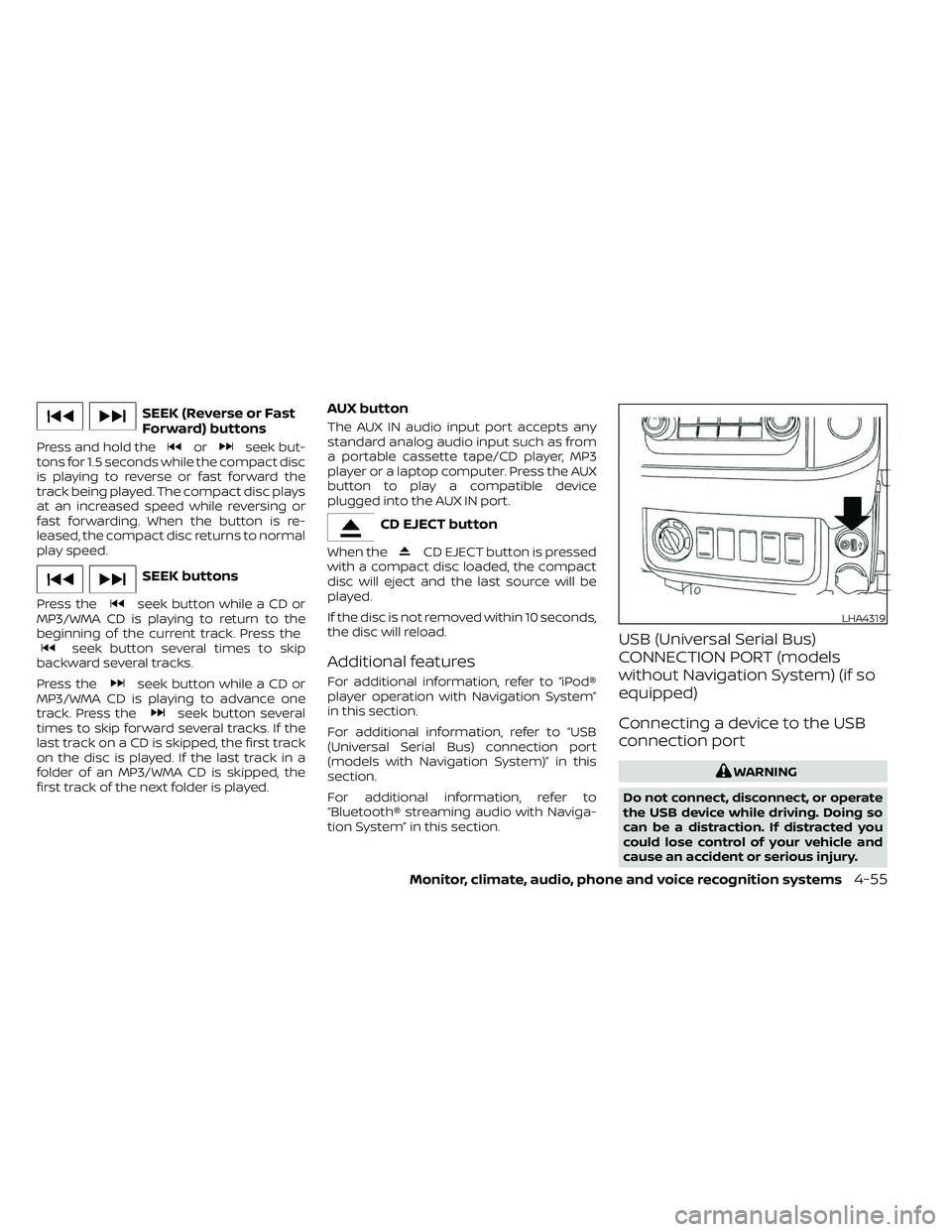
AUX button
The AUX IN audio input port accepts any
standard analog audio input such as from
a portable cassette tape/CD player, MP3
player or a laptop computer. Press the AUX
button to play a compatible device
plugged into the AUX IN port.
CD EJECT button
When theCD EJECT button is pressed
with a compact disc loaded, the compact
disc will eject and the last source will be
played.
If the disc is not removed within 10 seconds,
the disc will reload.
Additional features
For additional information, refer to “iPod®
player operation with Navigation System”
in this section.
For additional information, refer to “USB
(Universal Serial Bus) connection port
(models with Navigation System)” in this
section.
For additional information, refer to
“Bluetooth® streaming audio with Naviga-
tion System” in this section.
USB (Universal Serial Bus)
CONNECTION PORT (models
without Navigation System) (if so
equipped)
Connecting a device to the USB
connection port
WARNING
Do not connect, disconnect, or operate
the USB device while driving. Doing so
can be a distraction. If distracted you
could lose control of your vehicle and
cause an accident or serious injury.
LHA4319
Monitor, climate, audio, phone and voice recognition systems4-55
Page 255 of 492
CAUTION
• Do not force the USB device into the
USB port. Inserting the USB device
tilted or up-side-down into the port
may damage the port. Make sure
that the USB device is connected cor-
rectly into the USB port.
• Do not grab the USB port cover (if so
equipped) when pulling the USB de-
vice out of the port. This could dam-
age the port and the cover.
• Do not leave the USB cable in a place
where it can be pulled unintention-
ally. Pulling the cable may damage
the port.
For additional information, refer to your de-
vice manufacturer’s owner information re-
garding the proper use and care of the
device.
The USB port is located on the instrument
panel. Insert the USB device into the instru-
ment panel.
When a compatible storage device is
plugged into the connection port, compat-
ible audio files on the storage device can be
played through the vehicle's audio system.Audio file operation
AUX (auxiliary) button
Place the ignition switch in the ON or ACC
position and press the AUX button to
switch to the USB input mode. If another
audio source is playing and a USB connec-
tion port device is inserted, press the AUX
button until the center display changes to
the USB memory mode.
If the system has been turned off while the
USB memory was playing, press the ON-
OFF button to restart the USB memory.
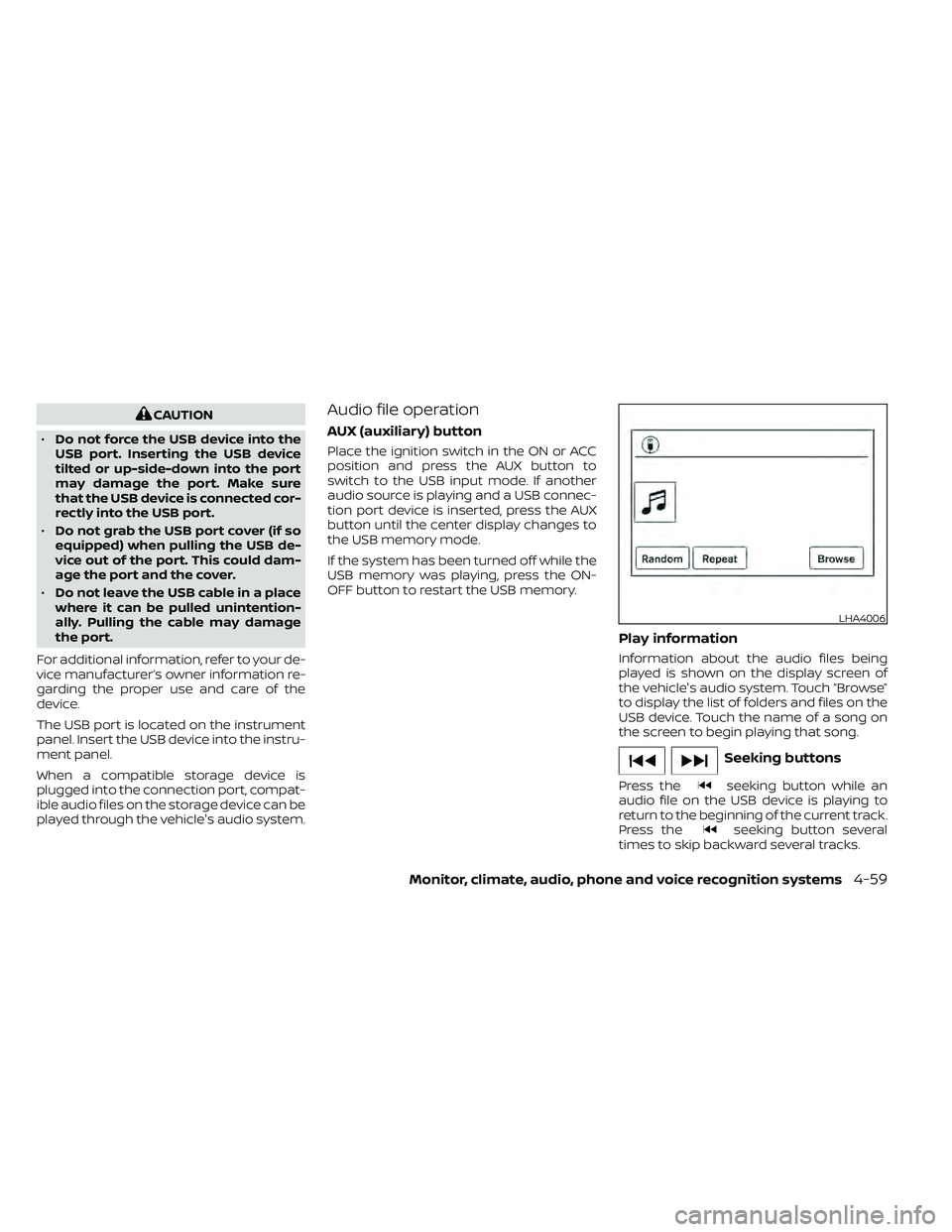
Play information
Information about the audio files being
played is shown on the display screen of
the vehicle's audio system. Touch “Browse”
to display the list of folders and files on the
USB device. Touch the name of a song on
the screen to begin playing that song.
Seeking buttons
Press theseeking button while an
audio file on the USB device is playing to
return to the beginning of the current track.
Press the
seeking button several
times to skip backward several tracks.
LHA4006
Monitor, climate, audio, phone and voice recognition systems4-59