AUX NISSAN FRONTIER 2021 User Guide
[x] Cancel search | Manufacturer: NISSAN, Model Year: 2021, Model line: FRONTIER, Model: NISSAN FRONTIER 2021Pages: 492, PDF Size: 2.86 MB
Page 261 of 492
Audio main operation
Place the ignition switch in the ACC or ON
position. Press the AUX button repeatedly
to switch to the iPod® mode.
If the system has been turned off while the
iPod® was playing, pressing the ON·OFF
button will start the iPod®.
AUX button
When the AUX button is pressed with the
system off and the iPod® connected, the
system will turn on. If another audio source
is playing and the iPod® is connected, press
the AUX button repeatedly until the center
display changes to the iPod® mode.
Interface
The interface for iPod® operation shown on
the vehicle's audio system display screen is
similar to the iPod® interface. Use the
touch-screen, BACK button or the scrolling
knob to navigate the menus on the screen.
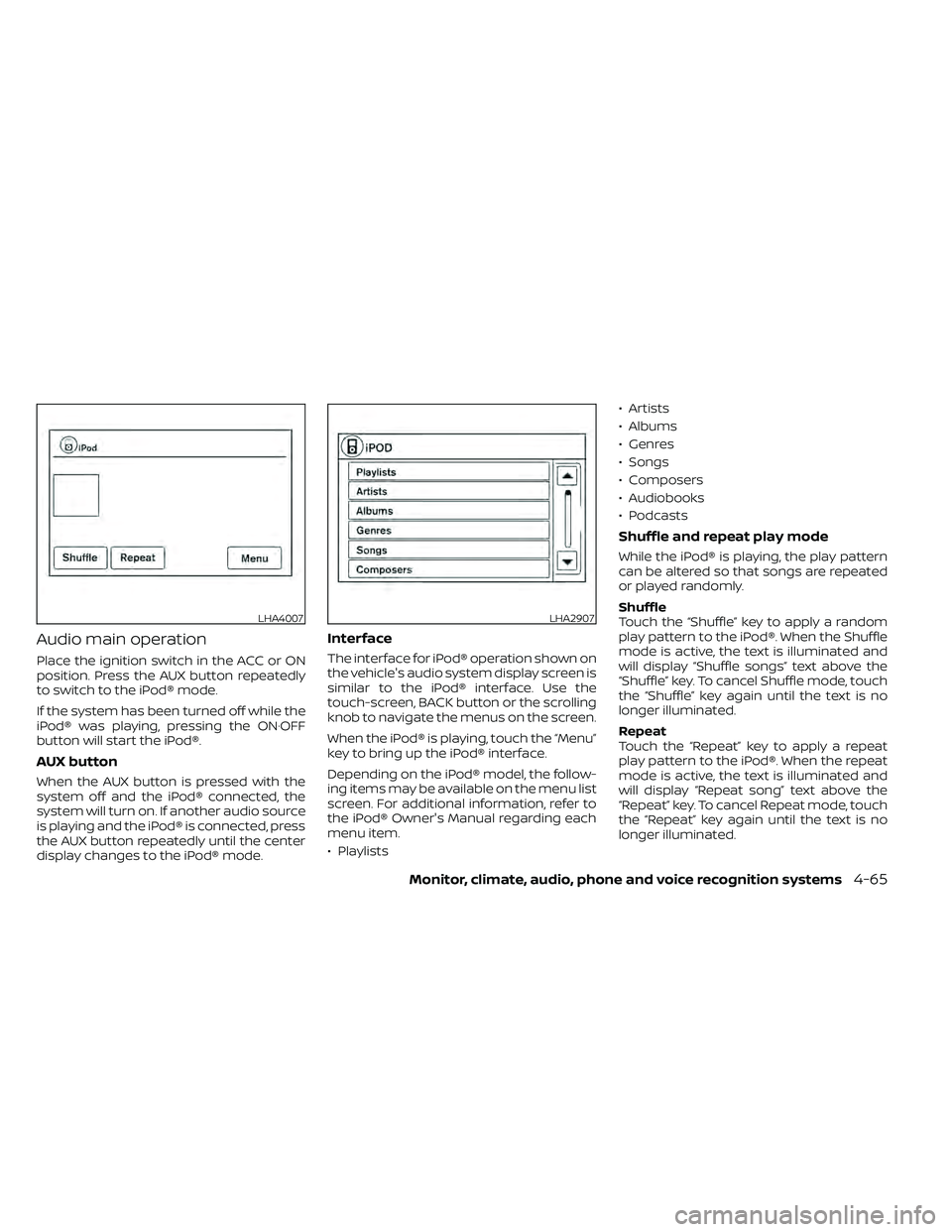
When the iPod® is playing, touch the “Menu”
key to bring up the iPod® interface.
Depending on the iPod® model, the follow-
ing items may be available on the menu list
screen. For additional information, refer to
the iPod® Owner's Manual regarding each
menu item.
• Playlists• Artists
• Albums
• Genres
• Songs
• Composers
• Audiobooks
• Podcasts
Shuffle and repeat play mode
While the iPod® is playing, the play pattern
can be altered so that songs are repeated
or played randomly.
Shuffle
Touch the “Shuffle” key to apply a random
play pattern to the iPod®. When the Shuffle
mode is active, the text is illuminated and
will display “Shuffle songs” text above the
“Shuffle” key. To cancel Shuffle mode, touch
the “Shuffle” key again until the text is no
longer illuminated.
Repeat
Touch the “Repeat” key to apply a repeat
play pattern to the iPod®. When the repeat
mode is active, the text is illuminated and
will display “Repeat song” text above the
“Repeat” key. To cancel Repeat mode, touch
the “Repeat” key again until the text is no
longer illuminated.
LHA4007LHA2907
Page 266 of 492
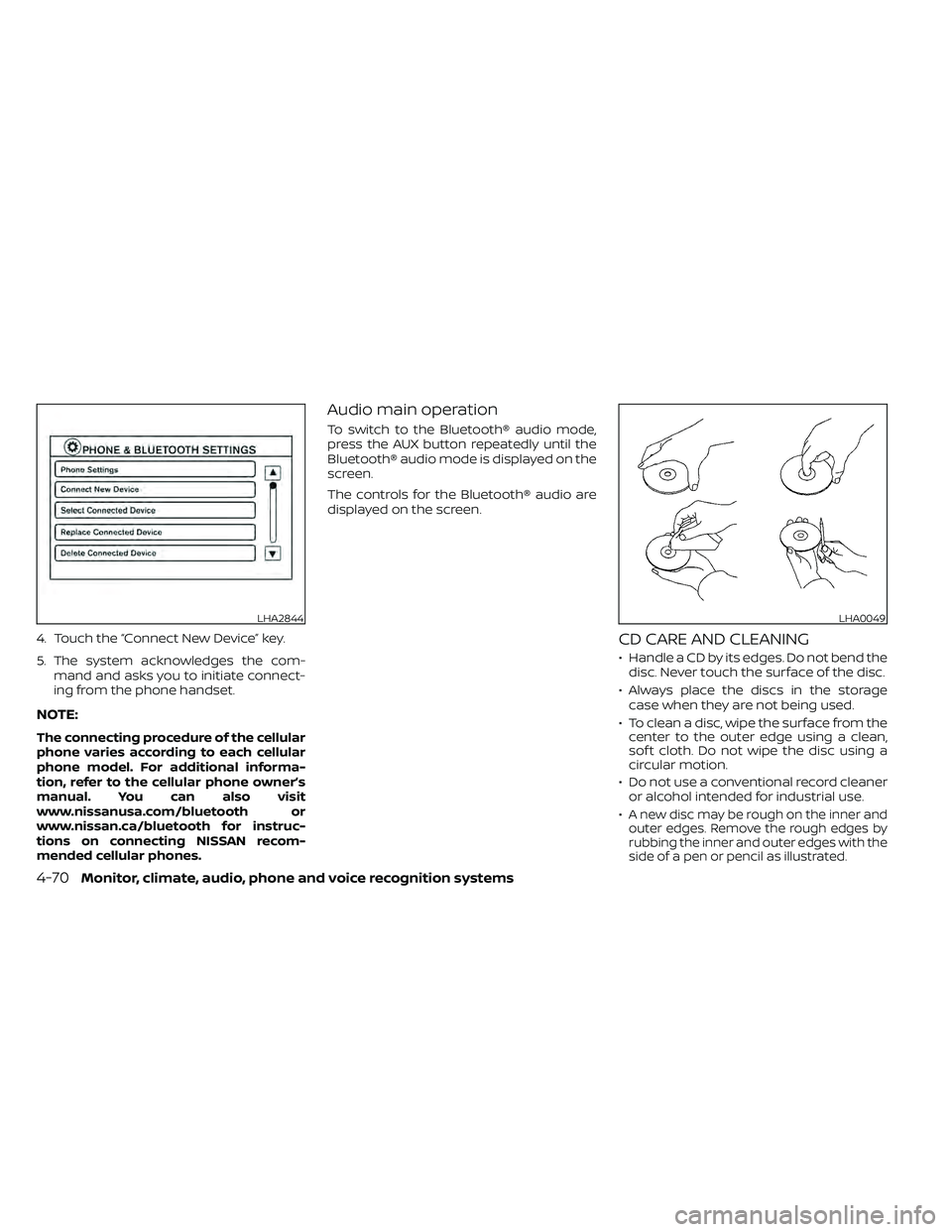
4. Touch the “Connect New Device” key.
5. The system acknowledges the com-mand and asks you to initiate connect-
ing from the phone handset.
NOTE:
The connecting procedure of the cellular
phone varies according to each cellular
phone model. For additional informa-
tion, refer to the cellular phone owner’s
manual. You can also visit
www.nissanusa.com/bluetooth or
www.nissan.ca/bluetooth for instruc-
tions on connecting NISSAN recom-
mended cellular phones.
Audio main operation
To switch to the Bluetooth® audio mode,
press the AUX button repeatedly until the
Bluetooth® audio mode is displayed on the
screen.
The controls for the Bluetooth® audio are
displayed on the screen.
CD CARE AND CLEANING
• Handle a CD by its edges. Do not bend thedisc. Never touch the surface of the disc.
• Always place the discs in the storage case when they are not being used.
• To clean a disc, wipe the surface from the center to the outer edge using a clean,
sof t cloth. Do not wipe the disc using a
circular motion.
• Do not use a conventional record cleaner or alcohol intended for industrial use.
•
A new disc may be rough on the inner and
outer edges. Remove the rough edges by
rubbing the inner and outer edges with the
side of a pen or pencil as illustrated.
LHA2844LHA0049
4-70Monitor, climate, audio, phone and voice recognition systems
Page 267 of 492
STEERING WHEEL SWITCH FOR
AUDIO CONTROL
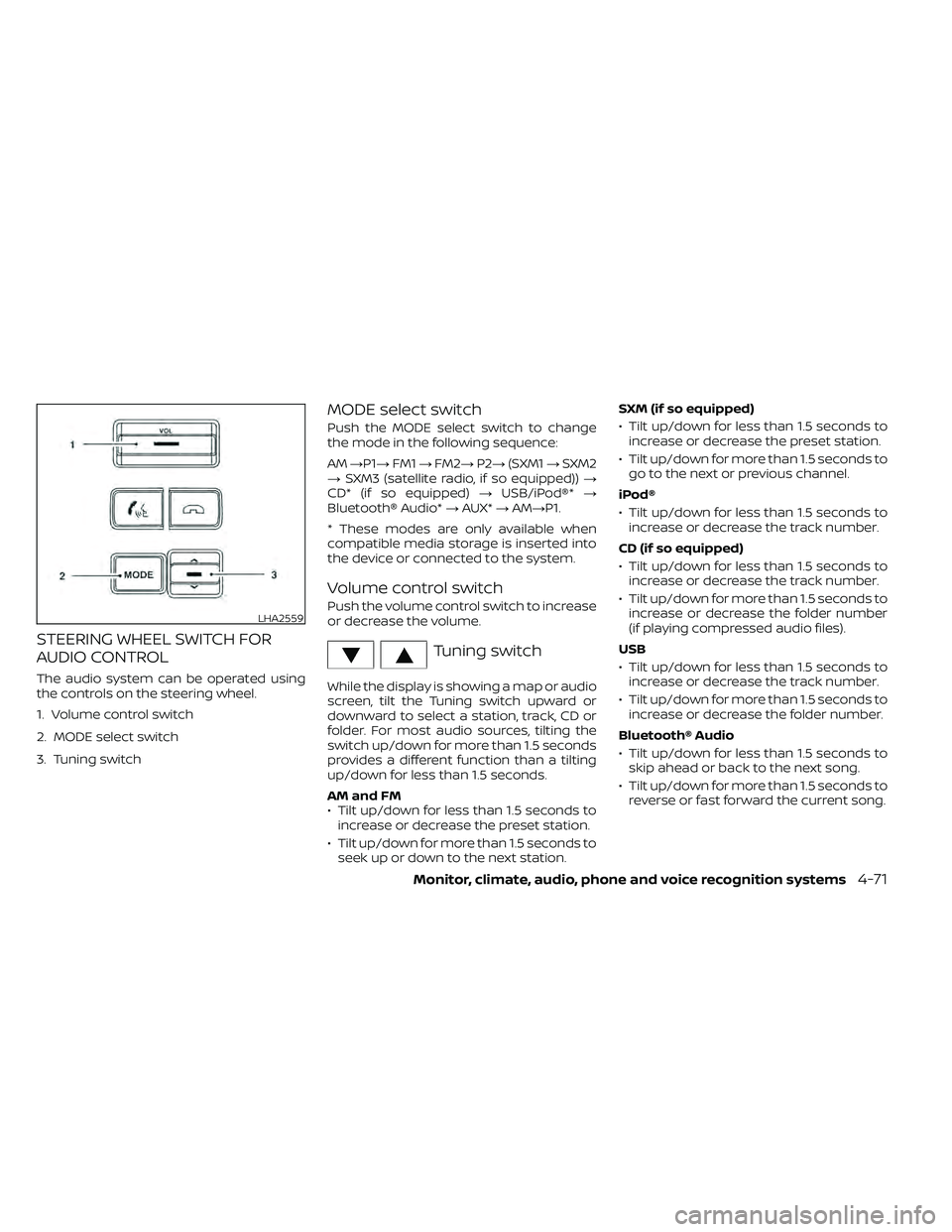
The audio system can be operated using
the controls on the steering wheel.
1. Volume control switch
2. MODE select switch
3. Tuning switch
MODE select switch
Push the MODE select switch to change
the mode in the following sequence:
AM→P1→ FM1→FM2→ P2→(SXM1 →SXM2
→ SXM3 (satellite radio, if so equipped)) →
CD* (if so equipped) →USB/iPod®* →
Bluetooth® Audio* →AUX* →AM→P1.
* These modes are only available when
compatible media storage is inserted into
the device or connected to the system.
Volume control switch
Push the volume control switch to increase
or decrease the volume.
Tuning switch
While the display is showing a map or audio
screen, tilt the Tuning switch upward or
downward to select a station, track, CD or
folder. For most audio sources, tilting the
switch up/down for more than 1.5 seconds
provides a different function than a tilting
up/down for less than 1.5 seconds.
AM and FM
• Tilt up/down for less than 1.5 seconds to increase or decrease the preset station.
• Tilt up/down for more than 1.5 seconds to seek up or down to the next station. SXM (if so equipped)
• Tilt up/down for less than 1.5 seconds to
increase or decrease the preset station.
• Tilt up/down for more than 1.5 seconds to go to the next or previous channel.
iPod®
• Tilt up/down for less than 1.5 seconds to increase or decrease the track number.
CD (if so equipped)
• Tilt up/down for less than 1.5 seconds to increase or decrease the track number.
• Tilt up/down for more than 1.5 seconds to increase or decrease the folder number
(if playing compressed audio files).
USB
• Tilt up/down for less than 1.5 seconds to increase or decrease the track number.
• Tilt up/down for more than 1.5 seconds to increase or decrease the folder number.
Bluetooth® Audio
• Tilt up/down for less than 1.5 seconds to skip ahead or back to the next song.
• Tilt up/down for more than 1.5 seconds to reverse or fast forward the current song.
LHA2559