climate NISSAN FRONTIER 2021 Repair Manual
[x] Cancel search | Manufacturer: NISSAN, Model Year: 2021, Model line: FRONTIER, Model: NISSAN FRONTIER 2021Pages: 492, PDF Size: 2.86 MB
Page 288 of 492
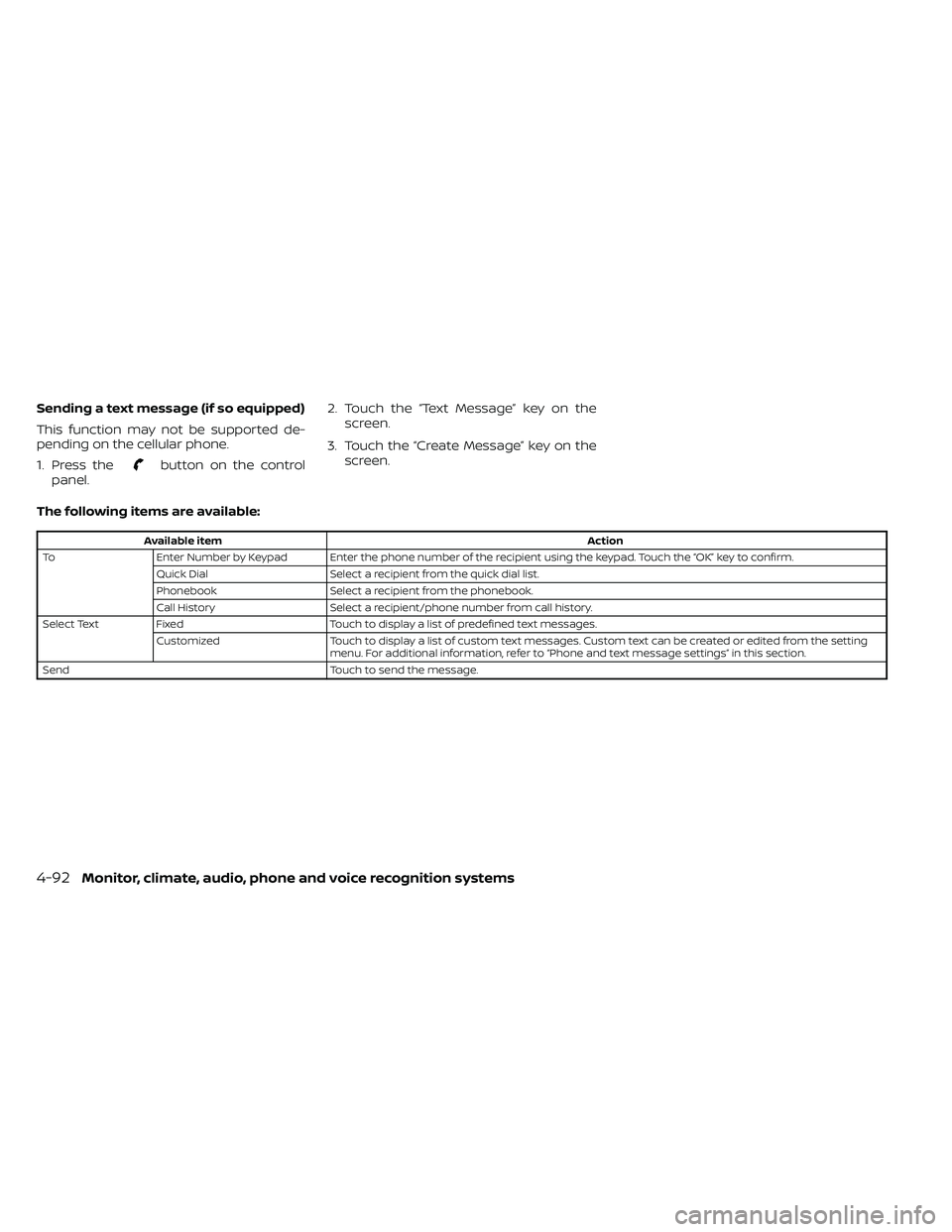
Sending a text message (if so equipped)
This function may not be supported de-
pending on the cellular phone.
1. Press the
button on the control
panel. 2. Touch the “Text Message” key on the
screen.
3. Touch the “Create Message” key on the screen.
The following items are available:
Available item Action
To Enter Number by Keypad Enter the phone number of the recipient using the keypad. Touch the “OK” key to confirm.
Quick Dial Select a recipient from the quick dial list.
Phonebook Select a recipient from the phonebook.
Call History Select a recipient/phone number from call history.
Select Text Fixed Touch to display a list of predefined text messages.
Customized Touch to display a list of custom text messages. Custom text can be created or edited from the setting
menu. For additional information, refer to “Phone and text message settings” in this section.
Send Touch to send the message.
4-92Monitor, climate, audio, phone and voice recognition systems
Page 290 of 492
“” (info) key
Touch the “” key on the screen to
display the information of the cellular
phone or to delete the device.
Touch the “Delete” key to remove a paired
device then select “Yes” when a message
appears.
“” (Bluetooth® Hands-Free
Phone System connection) key
A list of connected devices will be displayed
on the screen. Touch the “” key next to
the name to connect a device to the
Hands-Free Phone System. If the phone is
listed as a favorite, a star will appear on the
icon. Touch the key again to disconnect the
device. The device will not be removed
from the list. For additional information on
removing a device, refer to “
(info) key”
in this section.
“” (Bluetooth® Audio
connection) key
A list of connected devices will be displayed
on the screen. Touch the “” key next to
the name to connect a device to
Bluetooth® Audio. If the device is listed as a
favorite, a star will appear on the icon.
Touch the key again to disconnect the de-
vice. The device will not be removed from
the list. For additional information on re-
moving a device, refer to “
(info) key” in
this section.
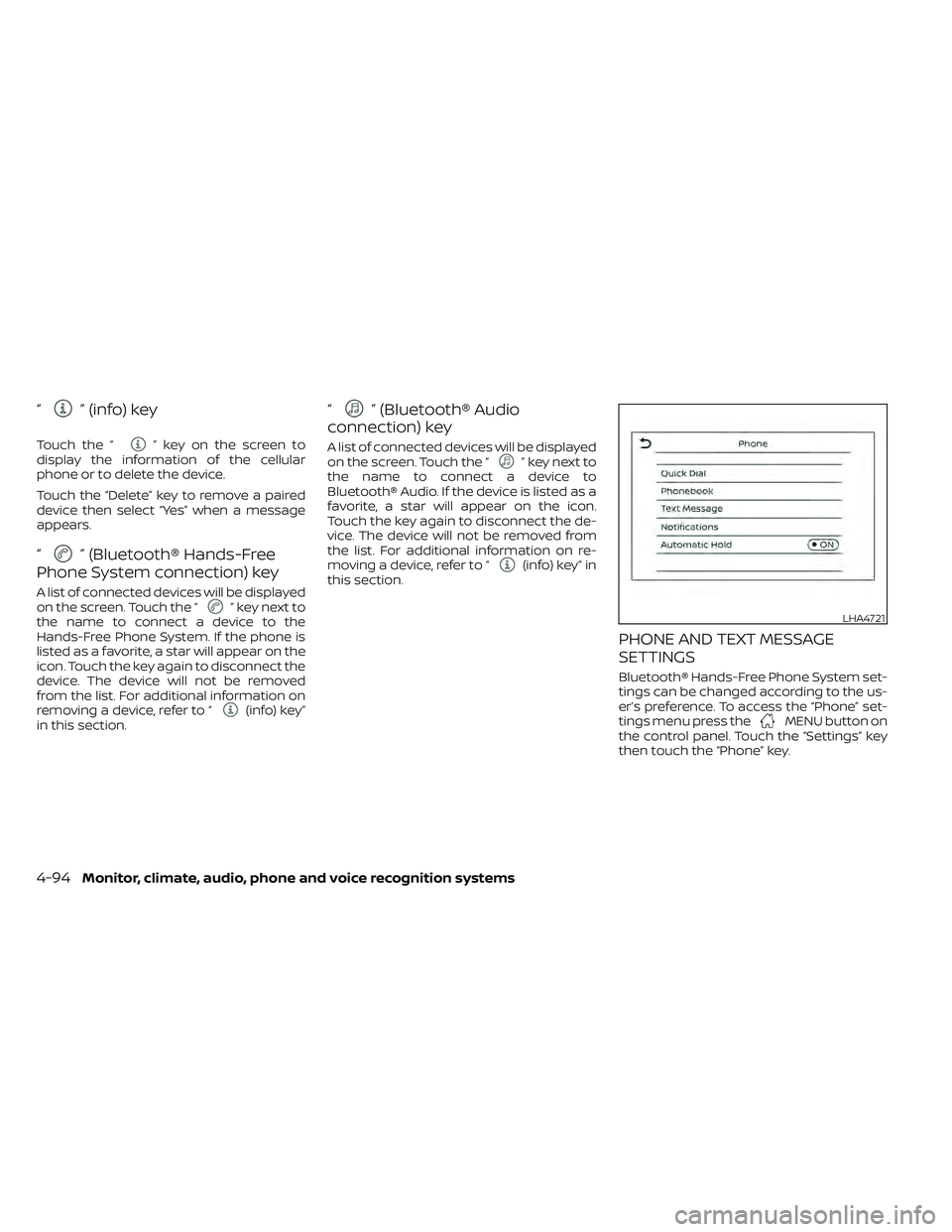
PHONE AND TEXT MESSAGE
SETTINGS
Bluetooth® Hands-Free Phone System set-
tings can be changed according to the us-
er’s preference. To access the “Phone” set-
tings menu press the
MENU button on
the control panel. Touch the “Settings” key
then touch the “Phone” key.
LHA4721
4-94Monitor, climate, audio, phone and voice recognition systems
Page 291 of 492
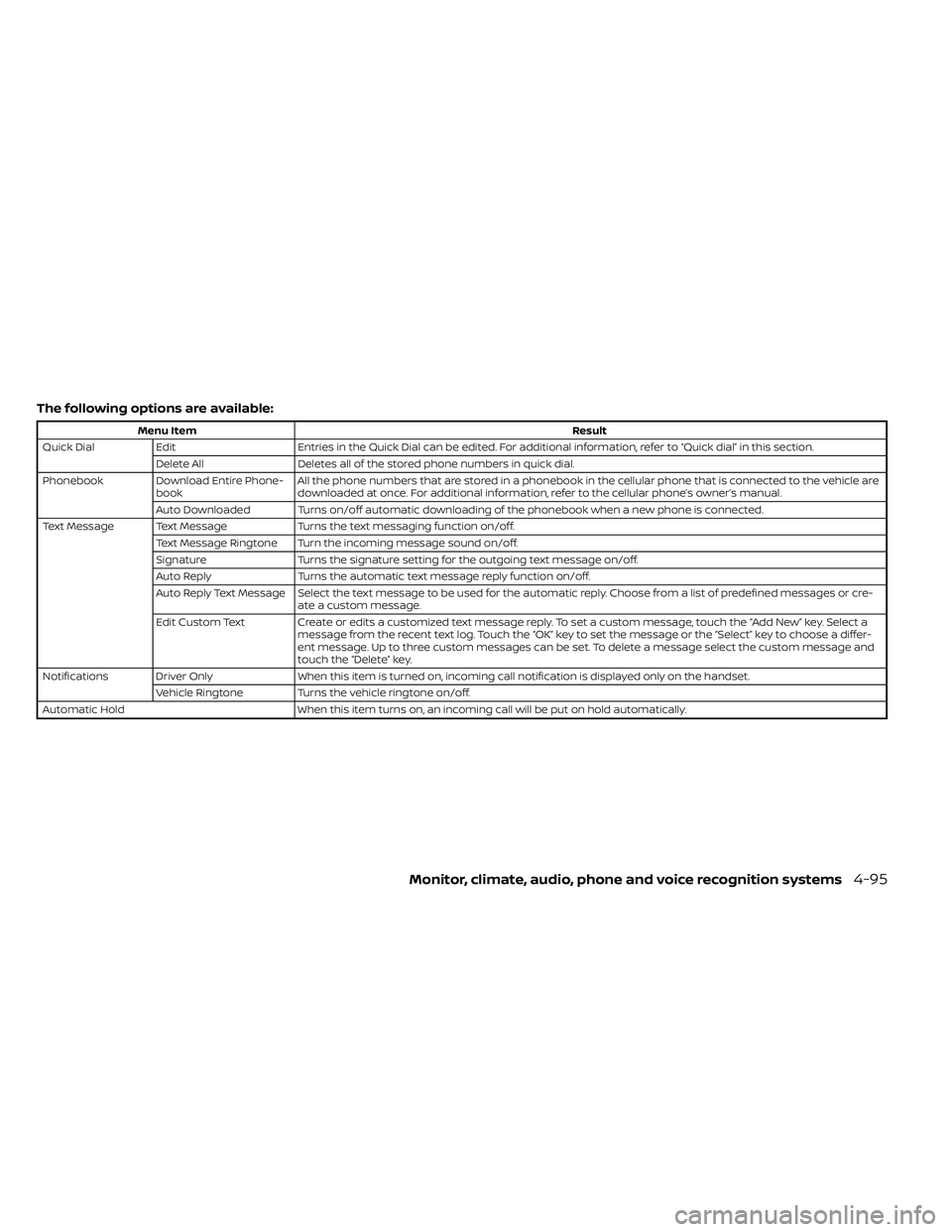
The following options are available:
Menu ItemResult
Quick Dial Edit Entries in the Quick Dial can be edited. For additional information, refer to “Quick dial” in this section.
Delete All Deletes all of the stored phone numbers in quick dial.
Phonebook Download Entire Phone- book All the phone numbers that are stored in a phonebook in the cellular phone that is connected to the vehicle are
downloaded at once. For additional information, refer to the cellular phone’s owner’s manual.
Auto Downloaded Turns on/off automatic downloading of the phonebook when a new phone is connected.
Text Message Text Message Turns the text messaging function on/off.
Text Message Ringtone Turn the incoming message sound on/off.
Signature Turns the signature setting for the outgoing text message on/off.
Auto Reply Turns the automatic text message reply function on/off.
Auto Reply Text Message Select the text message to be used for the automatic reply. Choose from a list of predefined messages or cre- ate a custom message.
Edit Custom Text Create or edits a customized text message reply. To set a custom message, touch the “Add New” key. Select a message from the recent text log. Touch the “OK” key to set the message or the “Select” key to choose a differ-
ent message. Up to three custom messages can be set. To delete a message select the custom message and
touch the “Delete” key.
Notifications Driver Only When this item is turned on, incoming call notification is displayed only on the handset.
Vehicle Ringtone Turns the vehicle ringtone on/off.
Automatic Hold When this item turns on, an incoming call will be put on hold automatically.
Monitor, climate, audio, phone and voice recognition systems4-95
Page 292 of 492
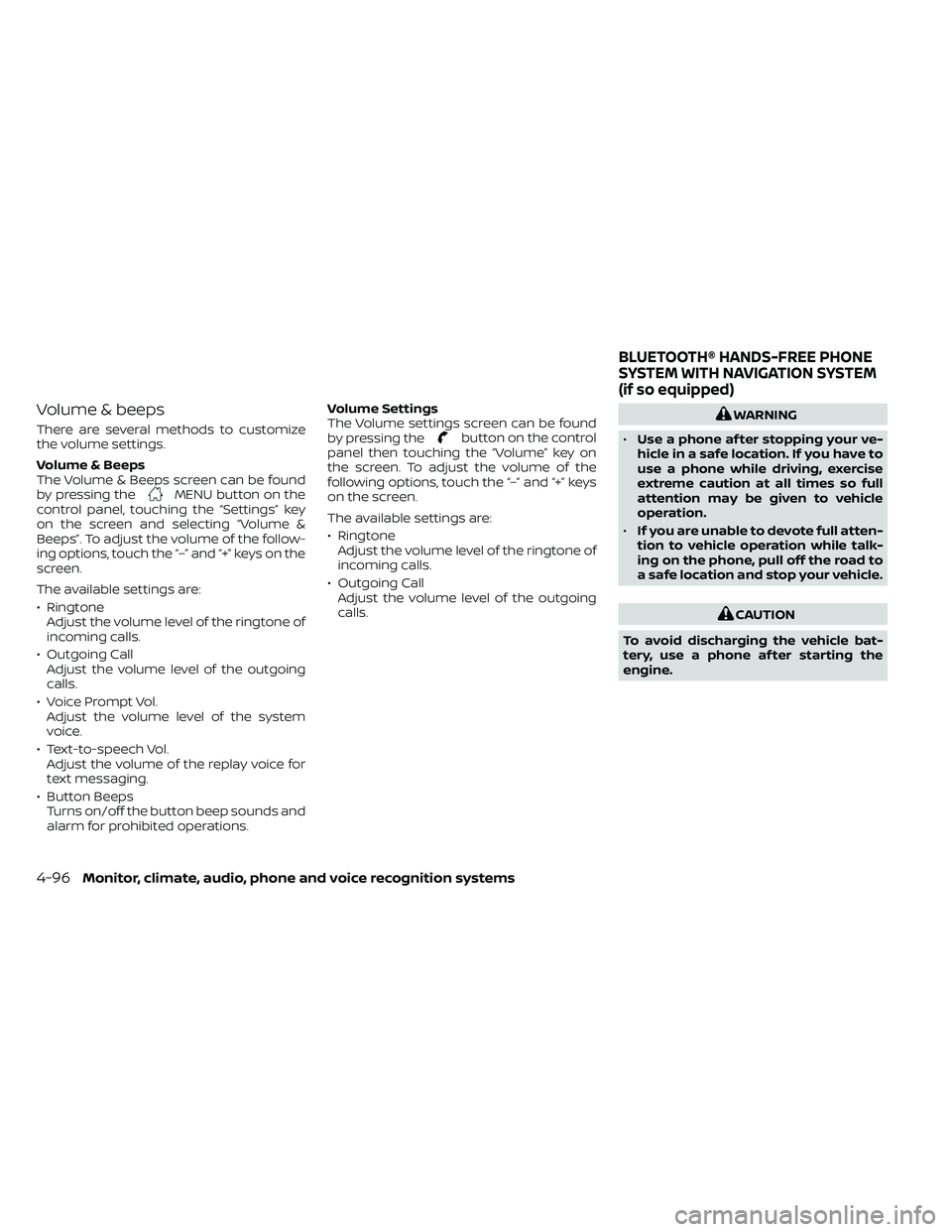
Volume & beeps
There are several methods to customize
the volume settings.
Volume & Beeps
The Volume & Beeps screen can be found
by pressing the
MENU button on the
control panel, touching the “Settings” key
on the screen and selecting “Volume &
Beeps”. To adjust the volume of the follow-
ing options, touch the “–” and “+” keys on the
screen.
The available settings are:
• Ringtone Adjust the volume level of the ringtone of
incoming calls.
• Outgoing Call Adjust the volume level of the outgoing
calls.
• Voice Prompt Vol. Adjust the volume level of the system
voice.
• Text-to-speech Vol. Adjust the volume of the replay voice for
text messaging.
• Button Beeps Turns on/off the button beep sounds and
alarm for prohibited operations. Volume Settings
The Volume settings screen can be found
by pressing the
button on the control
panel then touching the “Volume” key on
the screen. To adjust the volume of the
following options, touch the “–” and “+” keys
on the screen.
The available settings are:
• Ringtone Adjust the volume level of the ringtone of
incoming calls.
• Outgoing Call Adjust the volume level of the outgoing
calls.
CAUTION
To avoid discharging the vehicle bat-
tery, use a phone af ter starting the
engine.
BLUETOOTH® HANDS-FREE PHONE
SYSTEM WITH NAVIGATION SYSTEM
(if so equipped)
4-96Monitor, climate, audio, phone and voice recognition systems
Page 294 of 492
– Your vehicle is in an area where it isdifficult to receive cellular signal; such
as in a tunnel, in an underground park-
ing garage, near a tall building or in a
mountainous area.
– Your cellular phone is locked to prevent it from being dialed.
• When the radio wave condition is not ideal or ambient sound is too loud, it may
be difficult to hear the other person's
voice during a call.
• Immediately af ter the ignition switch is placed in the ON position, it may be im-
possible to receive a call for a short period
of time.
• Do not place the cellular phone in an area surrounded by metal or far away from
the in-vehicle phone module to prevent
tone quality degradation and wireless
connection disruption.
• While a cellular phone is connected through the Bluetooth® wireless connec-
tion, the battery power of the cellular
phone may discharge quicker than usual.
The Bluetooth® Hands-Free Phone Sys-
tem cannot charge cellular phones. • If the hands-free phone system seems to
be malfunctioning, refer to “Trouble-
shooting guide” in this section. You can
also visit www.nissanusa.com/bluetooth
or www.nissan.ca/bluetooth for trouble-
shooting help.
• Some cellular phones or other devices may cause interference or a buzzing
noise to come from the audio system
speakers. Storing the device in a different
location may reduce or eliminate the
noise.
• Refer to the cellular phone owner's manual regarding the telephone
charges, cellular phone antenna and
body, etc.
• The signal strength display on the moni- tor will not coincide with the signal
strength display of some cellular phones.
REGULATORY INFORMATION
FCC Regulatory information
– CAUTION: To maintain compliance with FCC’s RF exposure guidelines, use only
the supplied antenna. Unauthorized an-
tenna, modification, or attachments
could damage the transmitter and may
violate FCC regulations. – Operation is subject to the following two
conditions:1. 1) This device may not cause interfer- ence and
2.2) this device must accept any interfer- ence, including interference that may
cause undesired operation of the
device.
IC Regulatory information
– Operation is subject to the following two conditions: (1) this device may not cause
interference, and (2) this device must ac-
cept any interference, including interfer-
ence that may cause undesired opera-
tion of the device.
– This Class B digital apparatus meets all requirements of the Canadian
Interference-Causing Equipment Regu-
lations.BLUETOOTH® is a
trademark owned by
Bluetooth SIG, Inc. and
licensed to Bosch.
4-98
Monitor, climate, audio, phone and voice recognition systems
Page 297 of 492
NOTE:
This feature is automatically disabled if
the connected device does not support
the Message Access Profile (MAP). For
additional information, refer to the
phone’s owner’s manual for details and
instructions.
NOTE:
Many phones may require special per-
mission to enable text messaging. Check
the phone’s screen during Bluetooth®
pairing. For some phones, you may need
to enable ‘Notifications’ in the phone’s
Bluetooth® menu for text messages to
appear on the headunit. For additional
information, refer to your phone’s own-
er’s manual. Text message integration
requires that the phone support MAP
(Message Access Profile) for both receiv-
ing and sending text messages. Some
phones may not support all text mes-
saging features. For additional informa-
tion, please refer to
www.nissanusa.com/bluetooth or
www.nissan.ca/bluetooth for compat-
ibility information, as well as your de-
vice’s owner’s manual.The system allows for the sending and re-
ceiving of text messages through the ve-
hicle interface.
Sending a text message:
1. Press the
button on the steering
wheel.
2. Say “Phone” af ter the tone.
3. Say “Send Text” af ter the tone.
4. The system will provide a list of available commands in order to determine the
recipient of the text message. Choose
from the following:
• To (a name)
• Enter Number
• Missed Calls
• Incoming Calls
• Outgoing Calls
For additional information about these op-
tions, refer to “Voice commands” in this
section. 5. Once a recipient is chosen, the system
prompts for which message to send.
Nine predefined messages are available
as well as three custom messages. To
choose one of the predefined mes-
sages, speak one of the following af ter
the tone:
• “Driving, can't text”
• “Call me”
• “On my way ”
• “Running late”
• “Okay ”
• “Yes”
• “No”
• “Where are you?”
• “When?”
• “Custom Messages”
To send one of the custom messages, say
“Custom Messages”. If more than one cus-
tom message is stored, the system will
prompt for the number of the desired cus-
tom message. For additional information
on setting and managing custom text
messages, refer to “Bluetooth® settings” in
this section.
Monitor, climate, audio, phone and voice recognition systems4-101
Page 298 of 492
Reading a received text message:
1. Press the
button on the steering
wheel.
2. Say “Phone” af ter the tone.
3. Say “Read Text” af ter the tone.
The text message, sender and delivery
time are shown on the screen. Use the
buttons to scroll through all text mes-
sages if more than one are available. Press
the
button to exit the text message
screen. Press thebutton to access
the following options for replying to the text
message:
• Call Back Speak this command to call the sender of
the text message using the Bluetooth®
Hands-Free Phone System. • Send Text
Speak this command to send a text mes-
sage response to the sender of the text
message.
• Read Text Speak this command to read the text
message again.
• Previous Text Speak this command to move to the pre-
vious text message (if available).
• Next Text Speak this command to move to the next
text message (if available). Siri® Eyes Free (if so equipped)
If a connected phone is equipped with Siri®,
it can also be used to create custom mes-
sages that are sent through the phone. For
additional information, refer to “Siri® Eyes
Free (models with Navigation System)” in
this section.
NOTE:
Text messages are only displayed if the
vehicle speed is less than 5 mph (8 km/h).
NOTE:
For Apple iPhones®, text messages can
only be sent through Siri.
4-102Monitor, climate, audio, phone and voice recognition systems
Page 300 of 492
![NISSAN FRONTIER 2021 Repair Manual PHONE SETTINGS
To access the phone settings:
1. Press the [
] button.
2. Touch the “Settings” key.
3. Touch the “Phone & Bluetooth” key.
4. Touch the “Phone Settings” key and ad- just the](/img/5/56721/w960_56721-299.png "NISSAN FRONTIER 2021 Repair Manual PHONE SETTINGS
To access the phone settings:
1. Press the [
] button.
2. Touch the “Settings” key.
3. Touch the “Phone & Bluetooth” key.
4. Touch the “Phone Settings” key and ad- just the")
PHONE SETTINGS
To access the phone settings:
1. Press the [
] button.
2. Touch the “Settings” key.
3. Touch the “Phone & Bluetooth” key.
4. Touch the “Phone Settings” key and ad- just the following settings as desired:
• Start Siri® by: Touch “Short Press” or “Long Press” to set
how Siri® is operated on the steering
wheel.
• Sort Phonebook By: Touch “First Name” or “Last Name” to
choose how phonebook entries are al-
phabetically displayed on the screen.
• Use Phonebook From: Touch “Handset” to use the phone's
phonebook. Touch “SIM” to use the
phonebook on the SIM card. Select “Both”
to use both sources. • Download Phonebook Now:
Touch to download the phonebook to
the vehicle from the chosen source.
• Record Name for Phonebook Entry: Touch to record a name for a phonebook
entry for use with the NISSAN Voice Rec-
ognition System.
• Phone Notifications for: Notifications may be displayed on the
center display screen.
• Text Messaging (if so equipped): Touch to toggle the text message func-
tionality on or off.
• Show Incoming Text for: Text notifications may be displayed on
the center display screen. Touch “Off ” to
turn off all text notifications.
• Auto Reply: Touch to toggle the auto reply functional-
ity on or off. • Auto Reply Message:
Touch to indicate preferred message to
be sent when “Auto Reply” function is ac-
tivated.
• Use Vehicle's Signature: Touch to toggle on or off the addition of
the vehicle signature to outgoing mes-
sages.
• Custom Text Messages: Touch this option to select a custom
message to edit. There are 4 customer
message slots available.
4-104Monitor, climate, audio, phone and voice recognition systems
Page 304 of 492
BLUETOOTH® HANDS-FREE
PHONE SYSTEM VOICE
COMMANDS
To access the Bluetooth® Hands-Free
Phone System voice commands:
1. Press the
button.
2. Say “Call” and then a name in the vehicle phonebook to call that entry. Otherwise,
say “Phone” to access various phone
commands.
If the Bluetooth® has been set to “Off ”, the
system announces: “Bluetooth® is off.
Would you like to turn Bluetooth® on?”
If no phone is connected to the system and
the vehicle is stationary, the system an-
nounces: “There is no phone connected.
Would you like to connect a phone now?”
Say “Yes” to connect a phone. All further
Bluetooth® Hands-Free Phone System
voice commands are only available if a
phone is connected.
If a phone is connected and Bluetooth® is
set to “On”, the following voice commands
are available:
• Call (a name)
Speak the name of the contact in which
you are trying to call. System will confirm
correct contact. Say “Dial” to initiate dialing.
• Dial Number Allows for up to 24 digits to be dialed.
Af ter the number is entered, say “Dial” to
initiate dialing. Say “Correction” to cor-
rect the number entered. Say “Go Back”
to return to the main menu.
• List Phonebook Starting with the first alphabetical entry
in the vehicle phonebook, the system
prompts for an additional command.
Say “Dial” to call the number of the
phonebook entry. Say “Send Text” to
send a text message to the number of
the phonebook entry. Say “Next Entry” to
skip to the next alphabetical entry in the
vehicle phonebook, where the same op-
tions will then be available.
• Recent Calls The system prompts for an additional
command. Say “Missed Calls”, “Incoming
Calls” or “Outgoing Calls” to display a list
of such calls on the screen.
Speak the number of the entry displayed
on the screen to dial that number or say
“Next Page” to view entries on the next
page (if available). • Redial
Redials the last called number.
• Read Text Reads an incoming text message.
• Send Text Sends a text message.
• Select Phone The system replies “Please use manual
controls to continue”. Use manual con-
trols to change the active phone from
among the listed phones connected to
the vehicle.
• Siri (if so equipped) The system replies “starting Siri”. For ad-
ditional information, refer to “Siri® Eyes
Free (models with Navigation System)” in
this section.
For additional information, refer to
“Bluetooth® Hands-Free Phone System
with Navigation System” in this section.
4-108Monitor, climate, audio, phone and voice recognition systems
Page 305 of 492
NAVIGATION SYSTEM VOICE
COMMANDS
The following voice commands are avail-
able for the navigation system:
• Street Address (address)
• Points of Interest (name)
• POI by Category
• Home
• Address Book
• Previous Destinations
• Enter Address in Steps
• Cancel Route
For additional information, refer to the
separate NissanConnect® Owner’s Manual.
AUDIO SYSTEM VOICE COMMANDS
To access the audio system voice com-
mands:
1. Press the
button.
2. Say “Audio”
3. Speak a command from the following available commands:
• Play (AM, FM, etc.) Allows user to select radio band • Tune AM (number)
Allows user to tune directly to a desired
AM frequency
• Tune FM (number) Allows user to tune directly to a desired
FM frequency
• SXM channel (number) Allows user to tune directly to a desired
SXM station (if so equipped)
• CD Track (number) Allows user to select track to be played
• Play Song (name) Allows user to select song name to be
played
• Play Artist (name) Allows user to select artist to be played
• Play Album (name) Allows user to select album name to be
played
For additional information, refer to “Audio
system” in this section.
INFORMATION VOICE COMMANDS
The following voice commands are avail-
able for the information functions of the
navigation system:
• Traffic
• Fuel Prices
• Stocks
• Movie Listings
• Current Weather
• Weather Map
• 5—dayForecast
• 6 — hour Forecast
For additional information, refer to the
separate NissanConnect® Owner’s Manual.
MY APPS VOICE COMMANDS
Many Apps can be accessed using this
voice command. For additional informa-
tion, refer to “NissanConnect® Mobile Apps”
in this section.
Monitor, climate, audio, phone and voice recognition systems4-109