change time NISSAN GT-R 2011 User Guide
[x] Cancel search | Manufacturer: NISSAN, Model Year: 2011, Model line: GT-R, Model: NISSAN GT-R 2011Pages: 312, PDF Size: 13.07 MB
Page 128 of 312
Black plate (128,1)
Model "R35-N" EDITED: 2009/ 10/ 30
AUDIO OPERATION PRECAUTIONS
RadioPush the ignition switch to the ACC or ON
position and push the radio band select button
to turn on the radio. If you listen to the radio with
the engine not running, the ignition switch
should be pushed to the ACC position.
Radio reception is affected by station signal
strength, distance from radio transmitter, build-
ings, bridges, mountains and other external
influences. Intermittent changes in reception
quality normally are caused by these external
influences.
Using a cellular phone in or near the
vehicle may influence radio reception
quality.Radio reception:Your NISSAN radio system is equipped with
state-of-the-art electronic circuits to enhance
radio reception. These circuits are designed to
extend reception range, and to enhance the
quality of that reception.
However there are some general characteristics
of both FM and AM radio signals that can affect
radio reception quality in a moving vehicle, even
when the finest equipment is used. These
characteristics are completely normal in a given
reception area, and do not indicate any mal-
function in your NISSAN radio system.Reception conditions will constantly change
because of vehicle movement. Buildings, terrain,
signal distance and interference from other
vehicles can work against ideal reception.
Described below are some of the factors that
can affect your radio reception.
Some cellular phones or other devices may
cause interference or a buzzing noise to come
from the audio system speakers. Storing the
device in a different location may reduce or
eliminate the noise.
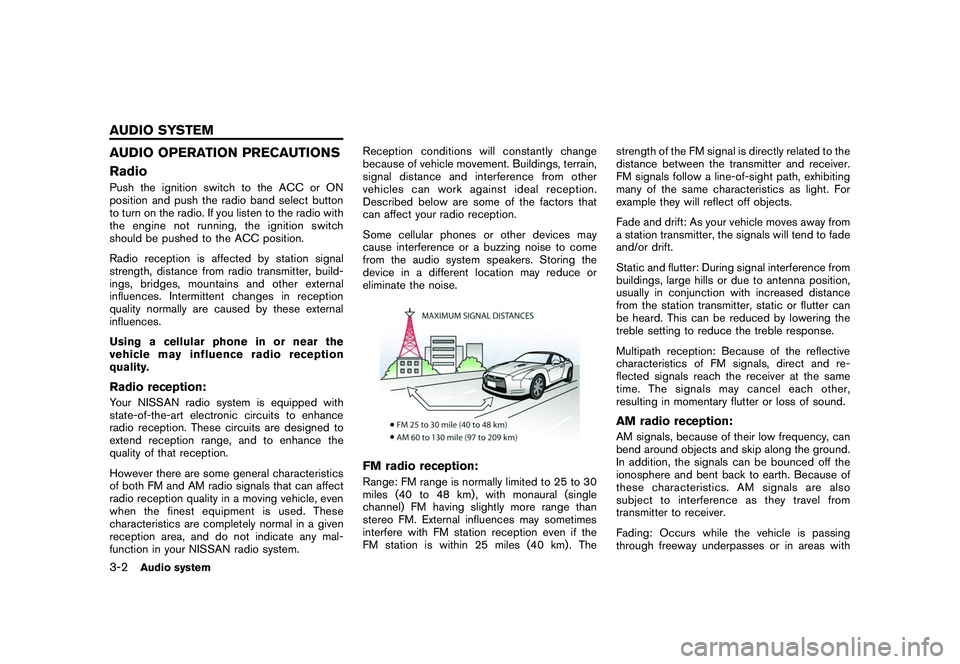
FM radio reception:Range: FM range is normally limited to 25 to 30
miles (40 to 48 km) , with monaural (single
channel) FM having slightly more range than
stereo FM. External influences may sometimes
interfere with FM station reception even if the
FM station is within 25 miles (40 km). The
strength of the FM signal is directly related to the
distance between the transmitter and receiver.
FM signals follow a line-of-sight path, exhibiting
many of the same characteristics as light. For
example they will reflect off objects.
Fade and drift: As your vehicle moves away from
a station transmitter, the signals will tend to fade
and/or drift.
Static and flutter: During signal interference from
buildings, large hills or due to antenna position,
usually in conjunction with increased distance
from the station transmitter, static or flutter can
be heard. This can be reduced by lowering the
treble setting to reduce the treble response.
Multipath reception: Because of the reflective
characteristics of FM signals, direct and re-
flected signals reach the receiver at the same
time. The signals may cancel each other,
resulting in momentary flutter or loss of sound.
AM radio reception:AM signals, because of their low frequency, can
bend around objects and skip along the ground.
In addition, the signals can be bounced off the
ionosphere and bent back to earth. Because of
these characteristics. AM signals are also
subject to interference as they travel from
transmitter to receiver.
Fading: Occurs while the vehicle is passing
through freeway underpasses or in areas with
3-2
Audio system
AUDIO SYSTEM
Page 129 of 312
Black plate (129,1)
Model "R35-N" EDITED: 2009/ 10/ 30
many tall buildings. It can also occur for several
seconds during ionospheric turbulence even in
areas where no obstacles exist.
Static: Caused by thunderstorms, electrical
power lines, electric signs and even traffic lights.Satellite radio reception:When the satellite radio is used for the first time
or the battery has been replaced, the satellite
radio may not work properly. This is not a
malfunction. Wait more than 10 minutes with the
satellite radio ON and the vehicle outside of any
metal or large building for the satellite radio to
receive all of the necessary data.
The satellite radio mode requires an active XM
®
Satellite Radio subscription. The satellite radio is
not available in Alaska, Hawaii and Guam.
The satellite radio performance may be affected
if cargo carried on the roof blocks the satellite
radio signal.
If possible, do not put cargo near the satellite
antenna.
A build up of ice on the satellite radio antenna
can affect satellite radio performance. Remove
the ice to restore satellite radio reception.
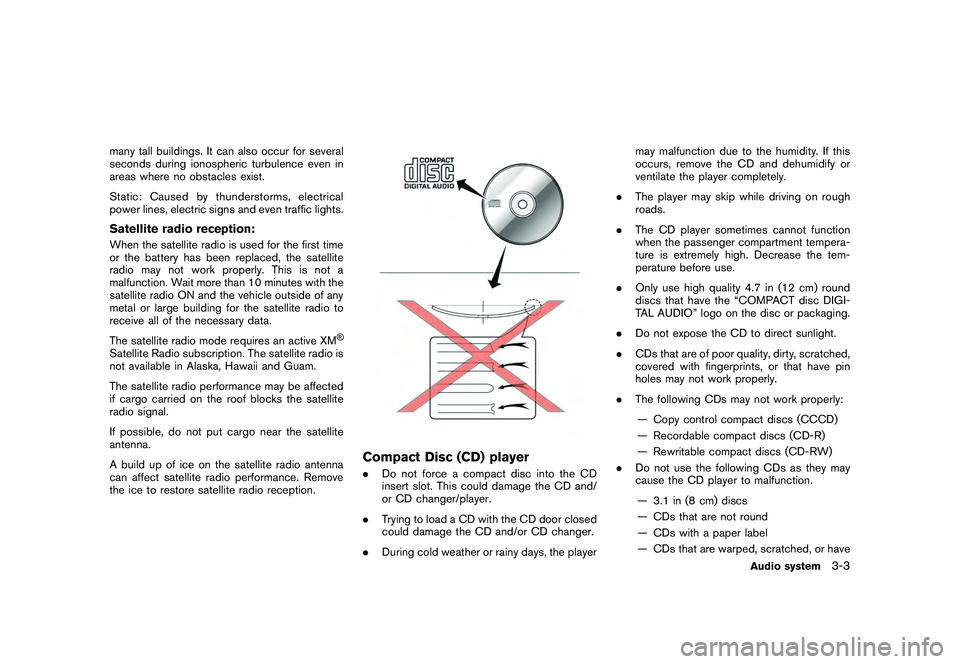
Compact Disc (CD) player.Do not force a compact disc into the CD
insert slot. This could damage the CD and/
or CD changer/player.
. Trying to load a CD with the CD door closed
could damage the CD and/or CD changer.
. During cold weather or rainy days, the player may malfunction due to the humidity. If this
occurs, remove the CD and dehumidify or
ventilate the player completely.
. The player may skip while driving on rough
roads.
. The CD player sometimes cannot function
when the passenger compartment tempera-
ture is extremely high. Decrease the tem-
perature before use.
. Only use high quality 4.7 in (12 cm) round
discs that have the “COMPACT disc DIGI-
TAL AUDIO” logo on the disc or packaging.
. Do not expose the CD to direct sunlight.
. CDs that are of poor quality, dirty, scratched,
covered with fingerprints, or that have pin
holes may not work properly.
. The following CDs may not work properly:
— Copy control compact discs (CCCD)
— Recordable compact discs (CD-R)
— Rewritable compact discs (CD-RW)
. Do not use the following CDs as they may
cause the CD player to malfunction.
— 3.1 in (8 cm) discs
— CDs that are not round
— CDs with a paper label
— CDs that are warped, scratched, or have
Audio system
3-3
Page 132 of 312
Black plate (132,1)
Model "R35-N" EDITED: 2009/ 10/ 30
midify or ventilate the USB player comple-
tely.
. The USB player sometimes cannot function
when the passenger compartment tempera-
ture is extremely high. Decrease the tem-
perature before use.
. Do not leave USB memory in a place prone
to static electricity or where the air condi-
tioner blows directly. The data in the USB
memory may be damaged.
. The vehicle is not equipped with a USB
memory stick.
. A USB device cannot be formatted with this
system. To format a USB device, use a
personal computer.
. Partitioned USB devices may not be played
correctly.
. Some characters used in other languages
(Chinese, Japanese, etc.) are not displayed
properly on the vehicle center screen. Using
English language characters with a USB
device is recommended.
. Do not connect a USB device if a connector
or cable is wet. Allow the cable and/or
connectors to dry completely before con-
necting the USB device. If the connector is
exposed to fluids other than water, evapora-
tive residue may cause a short between the connector pins.
. Large video podcast files cause slow
responses in an iPod
®. The vehicle center
display may momentarily black out, but it will
soon recover.
. If an iPod
®automatically selects large video
podcast files while in the shuffle mode, the
vehicle center display may momentarily
black out, but it will soon recover.
. Audiobooks may not play in the same order
as they appear on an iPod
®.
. An iPod nano
®(1st Generation) may remain
in fast forward or rewind mode if it is
connected during a seek operation. In this
case, please manually reset the iPod
®.
. An iPod nano
®(2nd Generation) will con-
tinue to fast forward or rewind if it is
disconnected during a seek operation.
. An incorrect song title may appear when the
Play Mode is changed while using the iPod
nano
®(2nd Generation)
iPod
®is a trademark of Apple Inc., registered in
the U.S. and other countries.
Compressed Audio Files (MP3/
WMA/AAC/ATRAC3)Explanation of terms:. MP3 — MP3 is short for Moving Pictures
Experts Group Audio Layer 3. MP3 is the
most well known compressed digital audio
file format. This format allows for near “CD
quality” sound, but at a fraction of the size of
normal audio files. MP3 conversion of an
audio track can reduce the file size by
approximately a 10:1 ratio (Sampling: 44.1
kHz, Bit rate: 128 kbps) with virtually no
perceptible loss in quality. The compression
reduces certain parts of sound that seem
inaudible to most people.
. WMA — Windows Media Audio (WMA) is a
compressed audio format created by Micro-
soft as an alternative to MP3. The WMA
codec offers greater file compression than
the MP3 codec, enabling storage of more
digital audio tracks in the same amount of
space when compared to MP3s at the same
level of quality.
. AAC/M4A — Advanced Audio Coding
(AAC) is a lossy audio compression format.
Audio files that have been encoded with
AAC are generally smaller in size and deliver
a higher quality of sound than MP3.
. Bit rate — Bit rate denotes the number of
bits per second used by a digital music file.
3-6
Audio system
Page 138 of 312
Black plate (138,1)
Model "R35-N" EDITED: 2009/ 10/ 30
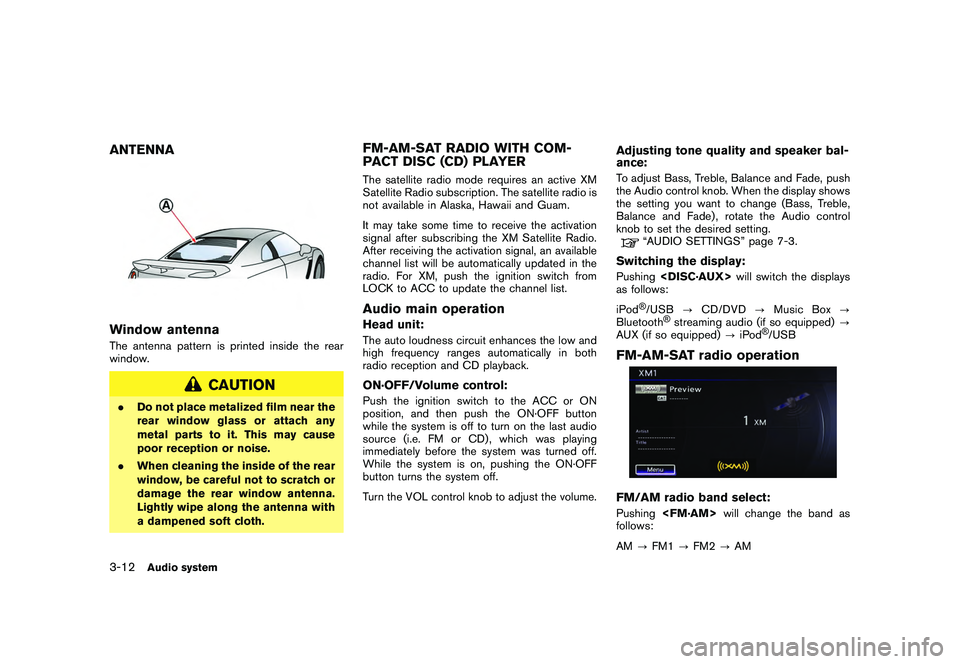
ANTENNAWindow antennaThe antenna pattern is printed inside the rear
window.
CAUTION
.Do not place metalized film near the
rear window glass or attach any
metal parts to it. This may cause
poor reception or noise.
. When cleaning the inside of the rear
window, be careful not to scratch or
damage the rear window antenna.
Lightly wipe along the antenna with
a dampened soft cloth.
FM-AM-SAT RADIO WITH COM-
PACT DISC (CD) PLAYERThe satellite radio mode requires an active XM
Satellite Radio subscription. The satellite radio is
not available in Alaska, Hawaii and Guam.
It may take some time to receive the activation
signal after subscribing the XM Satellite Radio.
After receiving the activation signal, an available
channel list will be automatically updated in the
radio. For XM, push the ignition switch from
LOCK to ACC to update the channel list.Audio main operationHead unit:The auto loudness circuit enhances the low and
high frequency ranges automatically in both
radio reception and CD playback.ON·OFF/Volume control:Push the ignition switch to the ACC or ON
position, and then push the ON·OFF button
while the system is off to turn on the last audio
source (i.e. FM or CD) , which was playing
immediately before the system was turned off.
While the system is on, pushing the ON·OFF
button turns the system off.
Turn the VOL control knob to adjust the volume.
Adjusting tone quality and speaker bal-
ance:To adjust Bass, Treble, Balance and Fade, push
the Audio control knob. When the display shows
the setting you want to change (Bass, Treble,
Balance and Fade) , rotate the Audio control
knob to set the desired setting.
“AUDIO SETTINGS” page 7-3.
Switching the display:Pushing
as follows:
iPod
®/USB ?CD/DVD ?Music Box ?
Bluetooth
®streaming audio (if so equipped) ?
AUX (if so equipped) ?iPod
®/USB
FM-AM-SAT radio operationFM/AM radio band select:Pushing
follows:
AM ?FM1 ?FM2 ?AM
3-12
Audio system
Page 142 of 312
Black plate (142,1)
Model "R35-N" EDITED: 2009/ 10/ 30
DVD (DIGITAL VERSATILE DISC)
PLAYER OPERATION
PrecautionsStart the engine when using the DVD entertain-
ment system.
Movies will not be shown on the front display
while the vehicle is in any drive position to
reduce driver distraction. Audio is available
when a movie is played. To view movies in the
front display, stop the vehicle in a safe location,
move the shift lever to the P (Park) position and
apply the parking brake.
WARNING
.The driver must not attempt to
operate the DVD system or wear
the headphones while the vehicle is
in motion so that full attention may
be given to vehicle operation.
. Do not attempt to modify the system
to display a movie on the front
screen while the vehicle is being
driven. Doing so may distract the
driver and may cause a collision and
serious personal injury or death.
CAUTION
.Only operate the DVD while the
vehicle engine is running. Operating
the DVD for extended periods of
time with the engine OFF can dis-
charge the vehicle battery.
. Do not allow the system to get wet.
Excessive moisture such as spilled
liquids may cause the system to
malfunction.
. While playing VIDEO-CD media, this
DVD player does not guarantee
complete functionality of all VI-
DEO-CD formats.Display settingsTo adjust the front display mode, push
[Others] and then select [Display].
To adjust the display ON/OFF, brightness, tint,
color and contrast, select [Display Adjustment]
and then select each key.
Then you can adjust each item using the center
dial. After changes have been made push
<
> to save the setting.
Playing a DVDDISC·AUX button:Park the vehicle in a safe location for the
front seat occupants to operate the DVD
drive while watching the images.
Push
and turn the display to the DVD mode.
When a DVD is loaded, it will be replayed
automatically.
The operation screen will be turned on when
is pushed while a DVD is being played, and it
will turn off automatically after a period of time.
To turn it on again, push
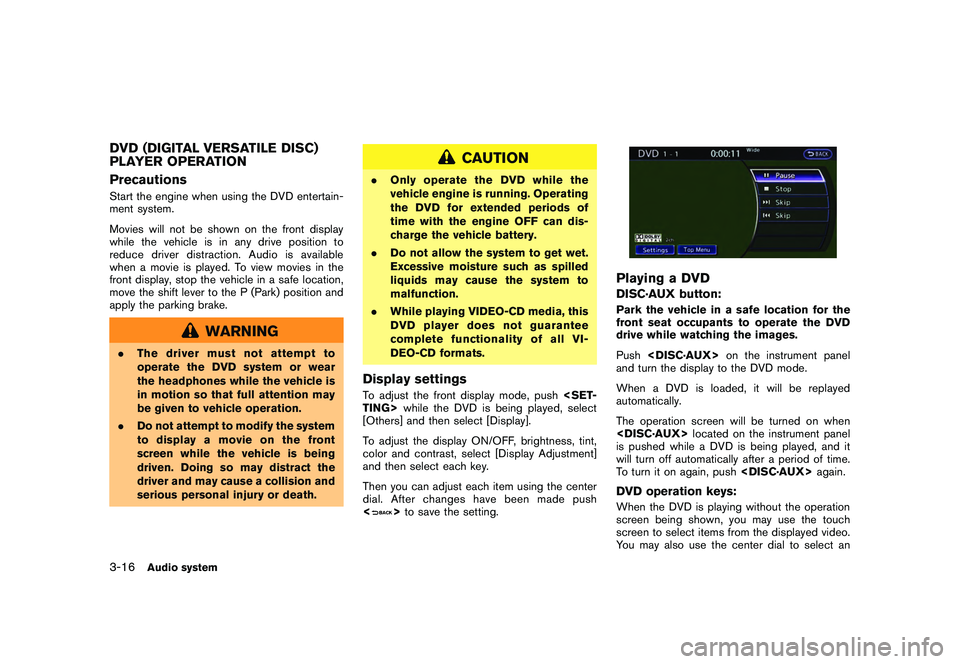
screen being shown, you may use the touch
screen to select items from the displayed video.
You may also use the center dial to select an
3-16
Audio system
Page 143 of 312
Black plate (143,1)
Model "R35-N" EDITED: 2009/ 10/ 30
item from the displayed video. When the
operation screen is being shown, use the center
dial or touch screen to select an item from the
displayed menus.
PAUSE:
Select [
]to pause the DVD. To resume
playing the DVD, use [PLAY].
PLAY:
Select [
]to start playing the DVD, for
example, after pausing the DVD.
STOP:
Select [
]to stop playing the DVD.
/
Next/Previous Chapter:
Select []or [
]to skip the chapter(s) of
the disc forward/backward. The chapters will
advance/go back the number of times this key is
selected.
/
Commercial Skip:
This function is only for DVD-VIDEO, DVD-VR.
Select []or [
]to skip forward or
backwards by the set amount as defined in the
DVD Settings menu.
/
Next/Previous Image:
This function is only for DVD-AUDIO. Select
[
] or [
]to advance or rewind the still
image. The still image will advance or rewind the
number of times this key is selected.
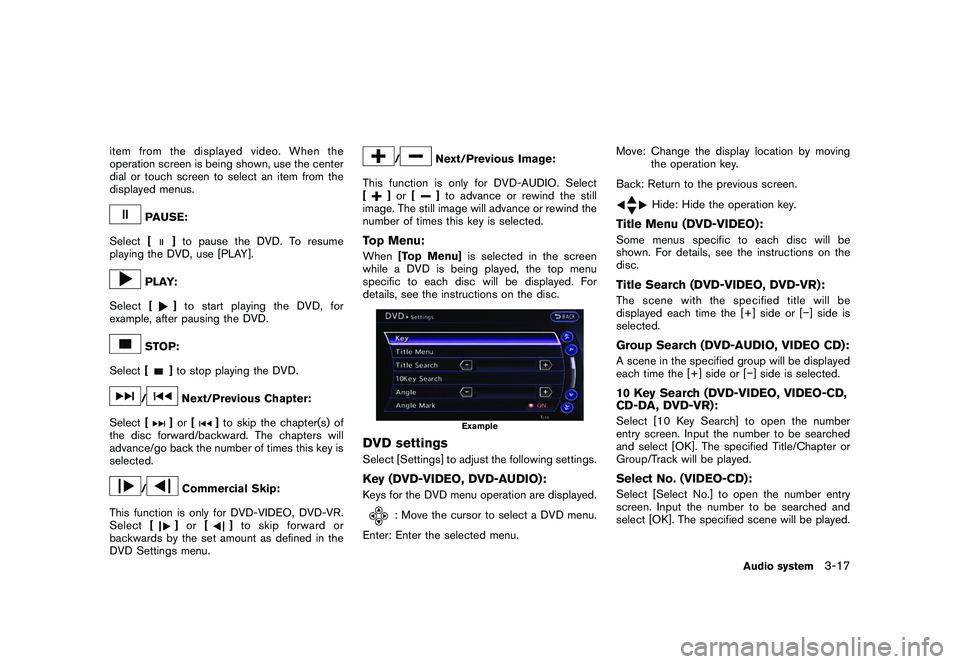
Top Menu:When [Top Menu] is selected in the screen
while a DVD is being played, the top menu
specific to each disc will be displayed. For
details, see the instructions on the disc.
Example
DVD settingsSelect [Settings] to adjust the following settings.Key (DVD-VIDEO, DVD-AUDIO):Keys for the DVD menu operation are displayed.
: Move the cursor to select a DVD menu.
Enter: Enter the selected menu. Move: Change the display location by moving
the operation key.
Back: Return to the previous screen.
Hide: Hide the operation key.
Title Menu (DVD-VIDEO):Some menus specific to each disc will be
shown. For details, see the instructions on the
disc.Title Search (DVD-VIDEO, DVD-VR):The scene with the specified title will be
displayed each time the [+] side or [ ] side is
selected.Group Search (DVD-AUDIO, VIDEO CD):A scene in the specified group will be displayed
each time the [+] side or [] side is selected.10 Key Search (DVD-VIDEO, VIDEO-CD,
CD-DA, DVD-VR):Select [10 Key Search] to open the number
entry screen. Input the number to be searched
and select [OK]. The specified Title/Chapter or
Group/Track will be played.Select No. (VIDEO-CD):Select [Select No.] to open the number entry
screen. Input the number to be searched and
select [OK]. The specified scene will be played.
Audio system
3-17
Page 144 of 312
Black plate (144,1)
Model "R35-N" EDITED: 2009/ 10/ 30
Angle (DVD-VIDEO):If the DVD contains different angles (such as
moving images) , the current image angle can be
switched to another one. Select [Angle]. The
angle will change each time the [+] side or []
side is selected.Angle Mark (DVD-VIDEO):When this item is turned on, an angle mark will
be shown on the bottom of the screen if the
scene can be seen from a different angle.Menu Skip (DVD-VIDEO):DVD menus are automatically configured and
the contents will be played directly when [Menu
Skip] is turned on. Note that some discs may not
be played directly even if this item is turned on.CM Skip (DVD-VIDEO):Select [CM Skip]. Choose the setting time from
15, 30 or 60 seconds by selecting the [+] side
or [ ] side.DRC (DVD-VIDEO, DVD-VR):DRC (Dynamic Range Compression) automati-
cally adjusts the soundtrack volume level to
maintain a more even sound to the speakers.DVD Language (DVD-VIDEO, VIDEO-
CD):Select [DVD Language] to open the number
entry screen. Input the number corresponding to
the preferred language and select [OK]. The DVD top menu language will be changed to the
one specified.
Display:To adjust the image quality of the screen, select
the preferred adjustment items.Audio:Select the preferred language for audio.Subtitle (DVD-VIDEO, DVD-VR):Select the preferred language for subtitles.Display Mode (DVD-VIDEO, VIDEO-CD,
DVD-VR):Select from the “Full”, “Wide”, “Normal” or
“Cinema” modes.Title List (DVD-VR):Select the preferred title from the list.Play Mode:Select the preferred play mode.PG/PL Mode (DVD-VR):Select the “PG” or “PL” mode.
USB MEMORY OPERATION
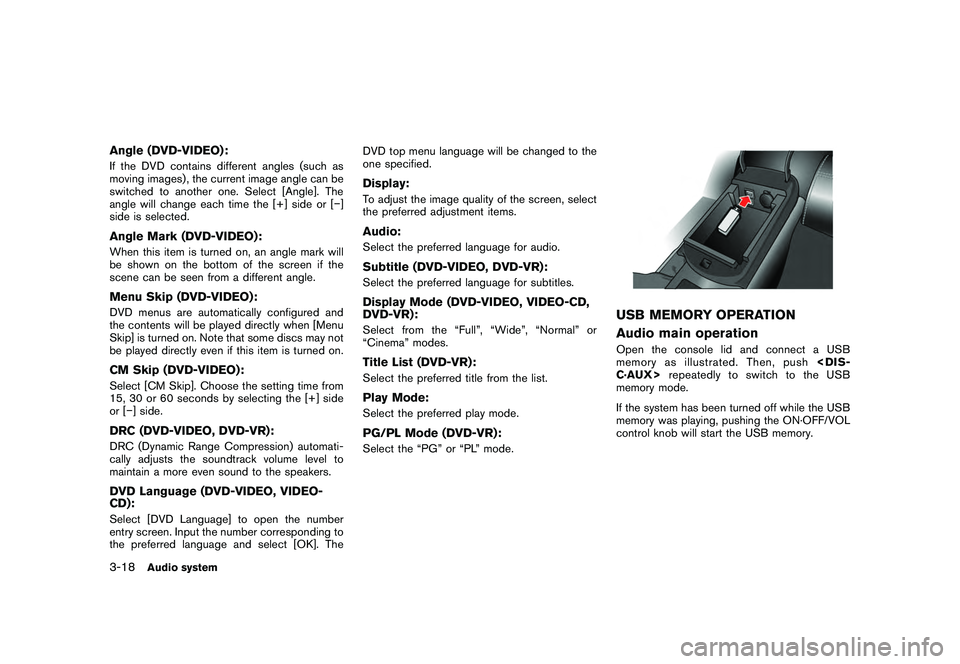
Audio main operationOpen the console lid and connect a USB
memory as illustrated. Then, push
memory mode.
If the system has been turned off while the USB
memory was playing, pushing the ON·OFF/VOL
control knob will start the USB memory.
3-18
Audio system
Page 146 of 312
Black plate (146,1)
Model "R35-N" EDITED: 2009/ 10/ 30
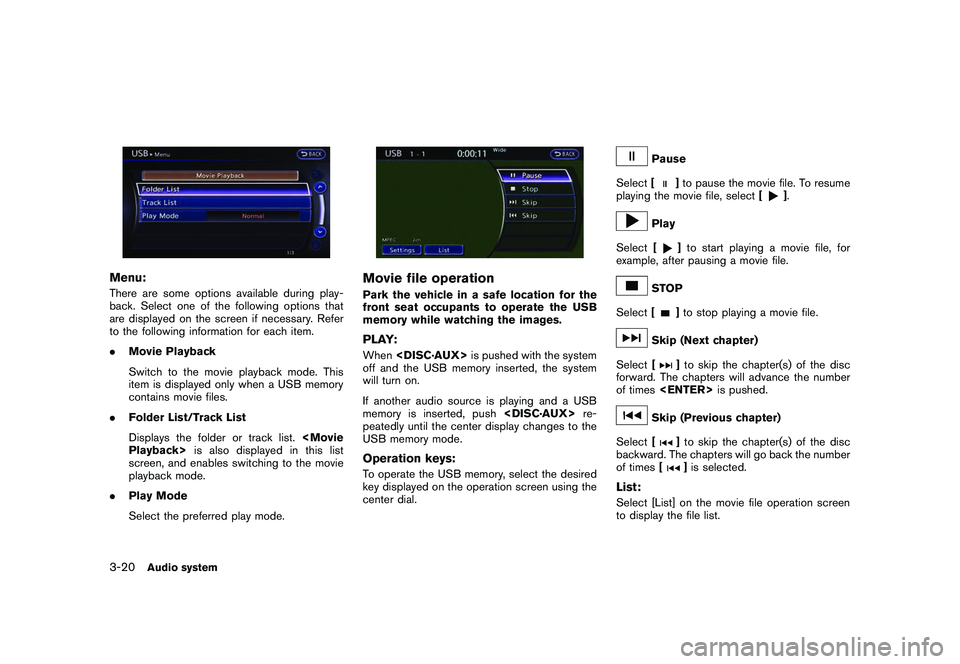
Menu:There are some options available during play-
back. Select one of the following options that
are displayed on the screen if necessary. Refer
to the following information for each item.
.Movie Playback
Switch to the movie playback mode. This
item is displayed only when a USB memory
contains movie files.
. Folder List/Track List
Displays the folder or track list.
screen, and enables switching to the movie
playback mode.
. Play Mode
Select the preferred play mode.
Movie file operationPark the vehicle in a safe location for the
front seat occupants to operate the USB
memory while watching the images.PLAY:When
off and the USB memory inserted, the system
will turn on.
If another audio source is playing and a USB
memory is inserted, push
peatedly until the center display changes to the
USB memory mode.Operation keys:To operate the USB memory, select the desired
key displayed on the operation screen using the
center dial.
Pause
Select [
]to pause the movie file. To resume
playing the movie file, select [
].
Play
Select [
]to start playing a movie file, for
example, after pausing a movie file.
STOP
Select [
]to stop playing a movie file.
Skip (Next chapter)
Select [
]to skip the chapter(s) of the disc
forward. The chapters will advance the number
of times
Skip (Previous chapter)
Select [
]to skip the chapter(s) of the disc
backward. The chapters will go back the number
of times []is selected.
List:Select [List] on the movie file operation screen
to display the file list.
3-20
Audio system
Page 153 of 312
Black plate (153,1)
Model "R35-N" EDITED: 2009/ 10/ 30
.The recording process can be
stopped at any time. All tracks that
were played before the CD was
stopped are stored.
. Individual tracks can be deleted
from the hard-disk drive after the
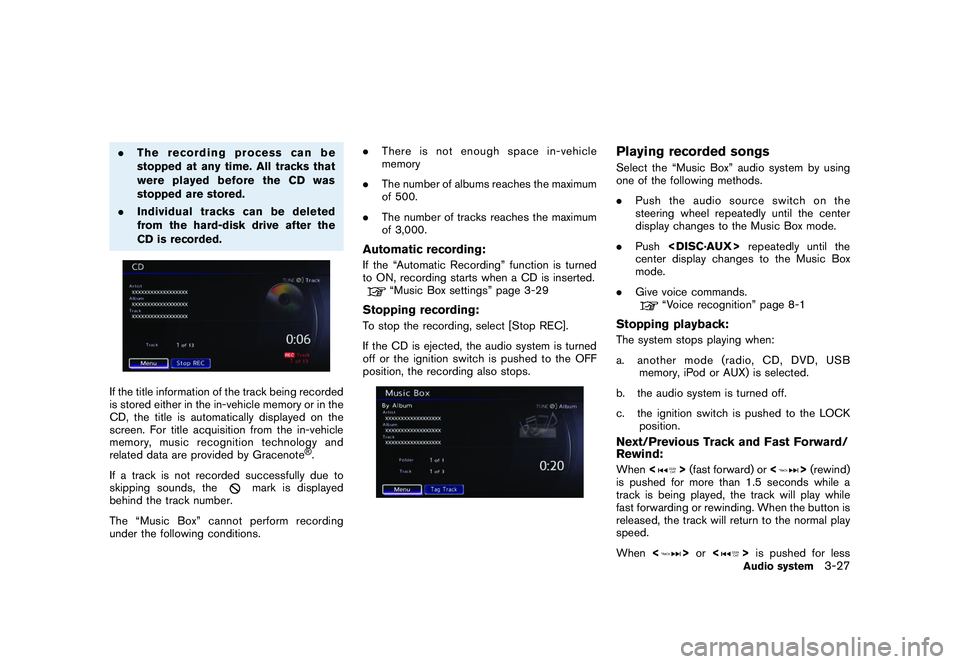
CD is recorded.If the title information of the track being recorded
is stored either in the in-vehicle memory or in the
CD, the title is automatically displayed on the
screen. For title acquisition from the in-vehicle
memory, music recognition technology and
related data are provided by Gracenote
®.
If a track is not recorded successfully due to
skipping sounds, the
mark is displayed
behind the track number.
The “Music Box” cannot perform recording
under the following conditions. .
There is not enough space in-vehicle
memory
. The number of albums reaches the maximum
of 500.
. The number of tracks reaches the maximum
of 3,000.
Automatic recording:If the “Automatic Recording” function is turned
to ON, recording starts when a CD is inserted.
“Music Box settings” page 3-29
Stopping recording:To stop the recording, select [Stop REC].
If the CD is ejected, the audio system is turned
off or the ignition switch is pushed to the OFF
position, the recording also stops.
Playing recorded songsSelect the “Music Box” audio system by using
one of the following methods.
.Push the audio source switch on the
steering wheel repeatedly until the center
display changes to the Music Box mode.
. Push
center display changes to the Music Box
mode.
. Give voice commands.
“Voice recognition” page 8-1
Stopping playback:The system stops playing when:
a. another mode (radio, CD, DVD, USB
memory, iPod or AUX) is selected.
b. the audio system is turned off.
c. the ignition switch is pushed to the LOCK position.Next/Previous Track and Fast Forward/
Rewind:When <
>(fast forward) or <
>(rewind)
is pushed for more than 1.5 seconds while a
track is being played, the track will play while
fast forwarding or rewinding. When the button is
released, the track will return to the normal play
speed.
When <
>or <
>is pushed for lessAudio system
3-27
Page 176 of 312
Black plate (180,1)
Model "R35-N" EDITED: 2009/ 10/ 30
By pushing
screen with audio information that is always at
the top can be displayed.
Each time
part of the screen changes between air condi-
tioner, fuel economy and navigation directions.
INFO:
There are different status screens displayed
depending on various factors, such as the
currently active mode, whether a destination
has been set or not, etc.
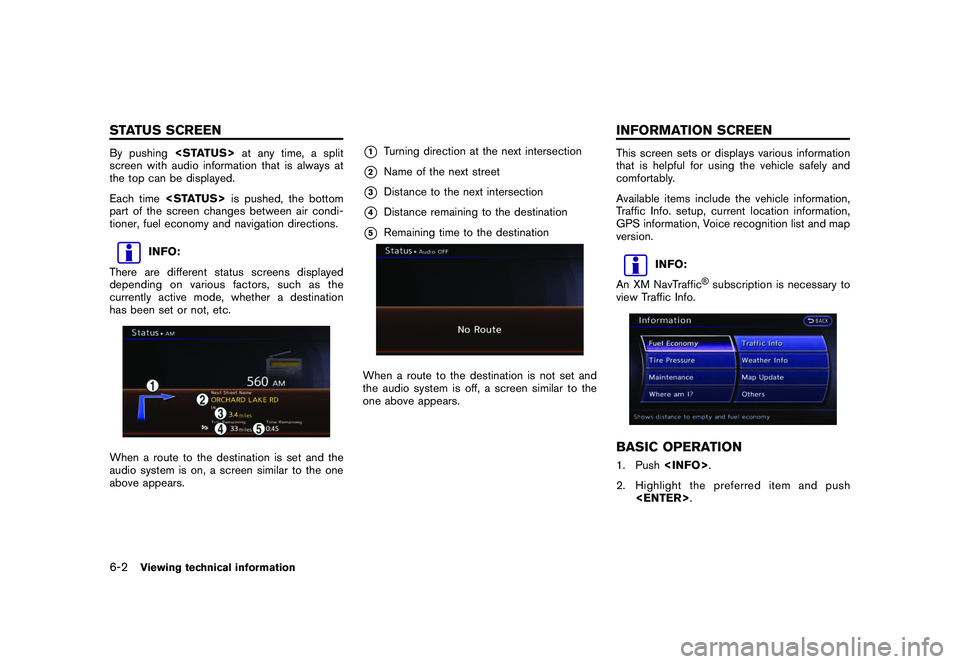
When a route to the destination is set and the
audio system is on, a screen similar to the one
above appears.
*1
Turning direction at the next intersection
*2
Name of the next street
*3
Distance to the next intersection
*4
Distance remaining to the destination
*5
Remaining time to the destination
When a route to the destination is not set and
the audio system is off, a screen similar to the
one above appears.
This screen sets or displays various information
that is helpful for using the vehicle safely and
comfortably.
Available items include the vehicle information,
Traffic Info. setup, current location information,
GPS information, Voice recognition list and map
version.
INFO:
An XM NavTraffic
®subscription is necessary to
view Traffic Info.
BASIC OPERATION1. Push
2. Highlight the preferred item and push
6-2
Viewing technical information
STATUS SCREEN INFORMATION SCREEN