change time NISSAN GT-R 2011 Owner's Manual
[x] Cancel search | Manufacturer: NISSAN, Model Year: 2011, Model line: GT-R, Model: NISSAN GT-R 2011Pages: 312, PDF Size: 13.07 MB
Page 181 of 312
Black plate (185,1)
Model "R35-N" EDITED: 2009/ 10/ 30
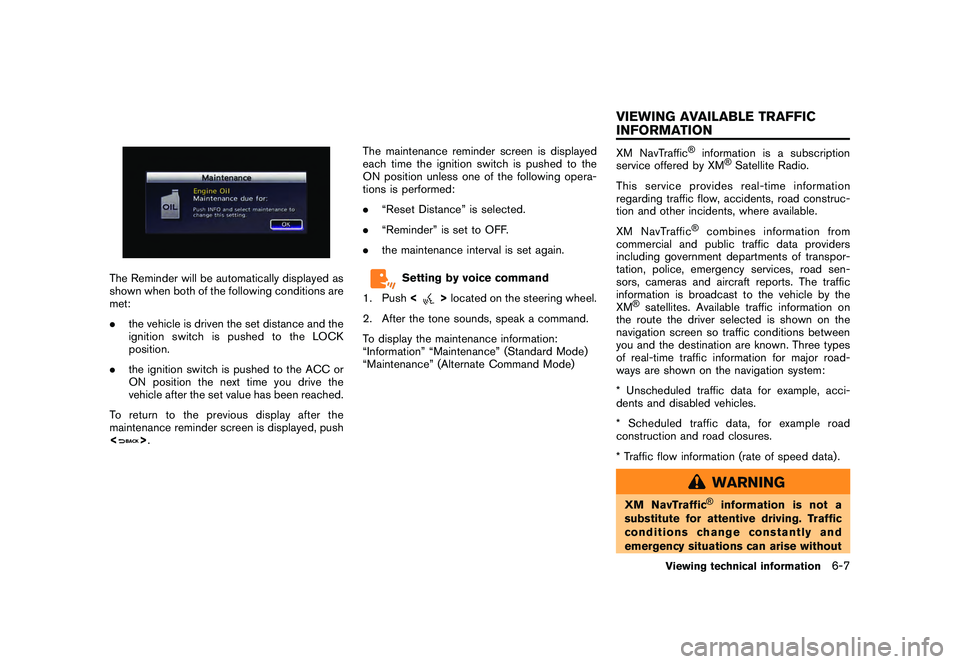
The Reminder will be automatically displayed as
shown when both of the following conditions are
met:
.the vehicle is driven the set distance and the
ignition switch is pushed to the LOCK
position.
. the ignition switch is pushed to the ACC or
ON position the next time you drive the
vehicle after the set value has been reached.
To return to the previous display after the
maintenance reminder screen is displayed, push
<
> . The maintenance reminder screen is displayed
each time the ignition switch is pushed to the
ON position unless one of the following opera-
tions is performed:
.
“Reset Distance” is selected.
. “Reminder” is set to OFF.
. the maintenance interval is set again.
Setting by voice command
1. Push <
>located on the steering wheel.
2. After the tone sounds, speak a command.
To display the maintenance information:
“Information” “Maintenance” (Standard Mode)
“Maintenance” (Alternate Command Mode)
XM NavTraffic
®
information is a subscription
service offered by XM
®Satellite Radio.
This service provides real-time information
regarding traffic flow, accidents, road construc-
tion and other incidents, where available.
XM NavTraffic
®
combines information from
commercial and public traffic data providers
including government departments of transpor-
tation, police, emergency services, road sen-
sors, cameras and aircraft reports. The traffic
information is broadcast to the vehicle by the
XM
®satellites. Available traffic information on
the route the driver selected is shown on the
navigation screen so traffic conditions between
you and the destination are known. Three types
of real-time traffic information for major road-
ways are shown on the navigation system:
* Unscheduled traffic data for example, acci-
dents and disabled vehicles.
* Scheduled traffic data, for example road
construction and road closures.
* Traffic flow information (rate of speed data) .
WARNING
XM NavTraffic
®
information is not a
substitute for attentive driving. Traffic
conditions change constantly and
emergency situations can arise without
Viewing technical information
6-7
VIEWING AVAILABLE TRAFFIC
INFORMATION
Page 187 of 312
Black plate (191,1)
Model "R35-N" EDITED: 2009/ 10/ 30
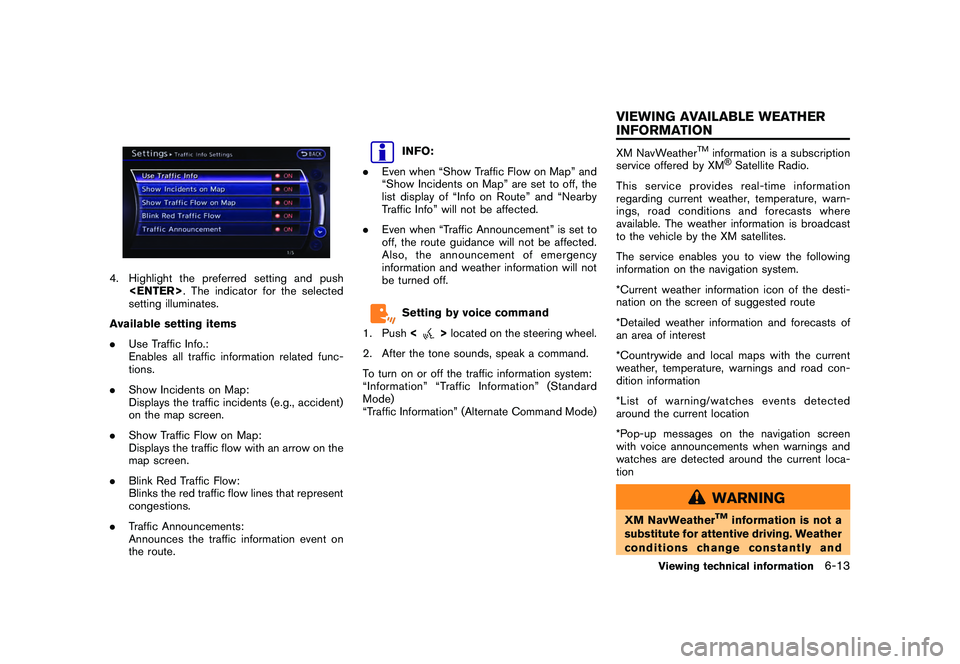
4. Highlight the preferred setting and push
setting illuminates.
Available setting items
. Use Traffic Info.:
Enables all traffic information related func-
tions.
. Show Incidents on Map:
Displays the traffic incidents (e.g., accident)
on the map screen.
. Show Traffic Flow on Map:
Displays the traffic flow with an arrow on the
map screen.
. Blink Red Traffic Flow:
Blinks the red traffic flow lines that represent
congestions.
. Traffic Announcements:
Announces the traffic information event on
the route.
INFO:
. Even when “Show Traffic Flow on Map” and
“Show Incidents on Map” are set to off, the
list display of “Info on Route” and “Nearby
Traffic Info” will not be affected.
. Even when “Traffic Announcement” is set to
off, the route guidance will not be affected.
Also, the announcement of emergency
information and weather information will not
be turned off.Setting by voice command
1. Push <
>located on the steering wheel.
2. After the tone sounds, speak a command.
To turn on or off the traffic information system:
“Information” “Traffic Information” (Standard
Mode)
“Traffic Information” (Alternate Command Mode)
XM NavWeather
TM
information is a subscription
service offered by XM®Satellite Radio.
This service provides real-time information
regarding current weather, temperature, warn-
ings, road conditions and forecasts where
available. The weather information is broadcast
to the vehicle by the XM satellites.
The service enables you to view the following
information on the navigation system.
*Current weather information icon of the desti-
nation on the screen of suggested route
*Detailed weather information and forecasts of
an area of interest
*Countrywide and local maps with the current
weather, temperature, warnings and road con-
dition information
*List of warning/watches events detected
around the current location
*Pop-up messages on the navigation screen
with voice announcements when warnings and
watches are detected around the current loca-
tion
WARNING
XM NavWeather
TM
information is not a
substitute for attentive driving. Weather
conditions change constantly and
Viewing technical information
6-13
VIEWING AVAILABLE WEATHER
INFORMATION
Page 203 of 312
Black plate (209,1)
Model "R35-N" EDITED: 2009/ 10/ 30
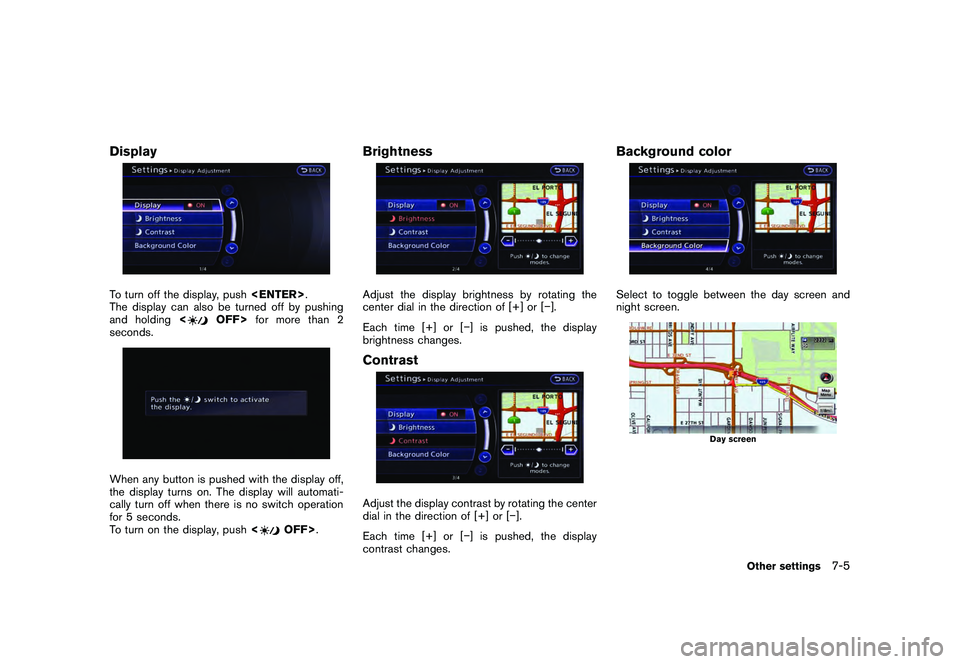
DisplayTo turn off the display, push
The display can also be turned off by pushing
and holding <
OFF>for more than 2
seconds.
When any button is pushed with the display off,
the display turns on. The display will automati-
cally turn off when there is no switch operation
for 5 seconds.
To turn on the display, push <
OFF>.
BrightnessAdjust the display brightness by rotating the
center dial in the direction of [+] or [ ].
Each time [+] or [] is pushed, the display
brightness changes.ContrastAdjust the display contrast by rotating the center
dial in the direction of [+] or [].
Each time [+] or [] is pushed, the display
contrast changes.
Background colorSelect to toggle between the day screen and
night screen.
Day screen
Other settings
7-5
Page 210 of 312
![NISSAN GT-R 2011 Owners Manual Black plate (216,1)
Model "R35-N" EDITED: 2009/ 10/ 30
display the previous file.
SETTING THE IMAGE VIEWERThe Image Viewer setting display will appear
when selecting [Settings] on the full screen
disp](/img/5/58175/w960_58175-209.png "NISSAN GT-R 2011 Owners Manual Black plate (216,1)
Model \"R35-N\" EDITED: 2009/ 10/ 30
display the previous file.
SETTING THE IMAGE VIEWERThe Image Viewer setting display will appear
when selecting [Settings] on the full screen
disp")
Black plate (216,1)
Model "R35-N" EDITED: 2009/ 10/ 30
display the previous file.
SETTING THE IMAGE VIEWERThe Image Viewer setting display will appear
when selecting [Settings] on the full screen
display and pushing
settings are available for the full screen display.
. Slideshow Speed
Choose [Slideshow Speed] and push
changing time from 5, 10, 30, 60 seconds or
“No Auto Change”.
. Slideshow Order
Choose [Slideshow Order] and push
“Random” or “Order List”.Operating tips. Only files that meet the following conditions
will be displayed.
— File format: JPEG (“.jpg” or “.jpeg”)
— File size: 2 MB or less
— Display size: 1,536 62,048 pixels or
less
. If an electronic device (such as a digital
camera) is directly connected to the vehicle
using a USB cable, no image will be
displayed on the screen. .
If the file name is too long, some file names
may not be entirely displayed.7-12
Other settings
Page 214 of 312
Black plate (220,1)
Model "R35-N" EDITED: 2009/ 10/ 30
NISSAN Voice Recognition allows hands-free
operation of the navigation system and other
systems equipped on this vehicle, in one of two
modes, Standard Mode or Alternate Command
Mode. Standard Mode allows the operation of
Navigation, Phone, Audio, Information and Help.
The commands that are available are always
shown on the display and announced by the
system. To perform operations, simply follow the
prompts given by the system. In Standard Mode,
hands-free operation of Change map view,
Route selection and Bluetooth Audio, etc. is
not available through Voice Recognition.
Alternate Command Mode allows advanced
operations. When this mode is active, an
expanded list of commands can be spoken after
pushing<
>, and the voice command menu
prompts are turned off. Note that in this mode
the recognition success rate may be affected
because the number of available commands and
ways of speaking each command are increased.
Otherwise, it is recommended that Alternate
Command Mode be turned OFF and Standard
Mode be used for the best recognition perfor-
mance.
“Alternate Command Mode” page 8-13INFO:
. To improve recognition success when Alter-
nate Command Mode is active, try using the Speaker Adaptation function available in that
mode.
“SPEAKER ADAPTATION” page 8-23
Otherwise, it is recommended that Alternate
Command Mode be turned OFF and Stan-
dard Mode be used for the best recognition
performance.
. For the voice commands for the audio,
phone and other systems, refer to the
vehicle Owner’s Manual. The following sec-
tions refer only to the navigation, phone and
information systems.
. If the air conditioner is set to “Auto”, the fan
speed is automatically lowered so that
commands can be recognized more easily.
CONFIRMING HOW TO USE VOICE
COMMANDSWhen operating the voice recognition system
for the first time or if help is preferred to use the
system, the User Guide can be displayed.
It is possible to confirm how to use voice
commands by accessing a simplified User
Guide, which contains basic instructions and
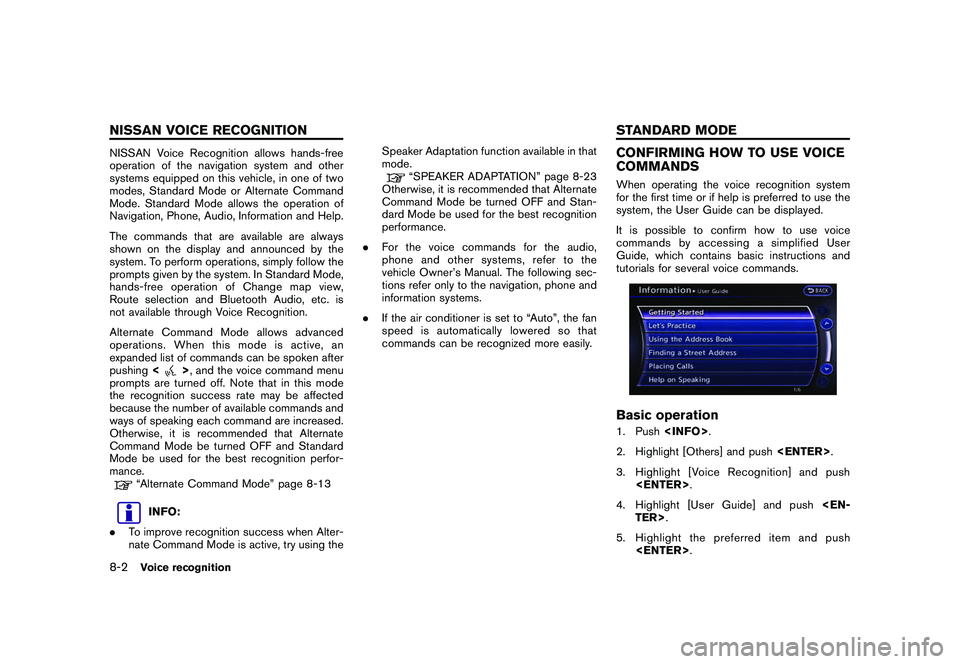
tutorials for several voice commands.Basic operation1. Push
2. Highlight [Others] and push
3. Highlight [Voice Recognition] and push
4. Highlight [User Guide] and push
5. Highlight the preferred item and push
8-2
Voice recognition
NISSAN VOICE RECOGNITION STANDARD MODE
Page 221 of 312
Black plate (227,1)
Model "R35-N" EDITED: 2009/ 10/ 30
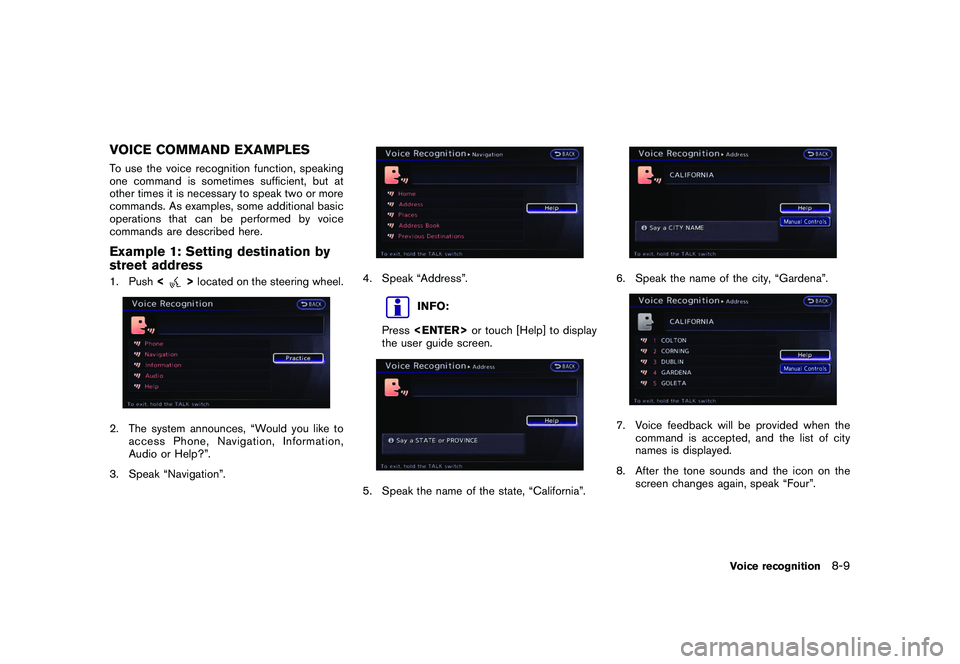
VOICE COMMAND EXAMPLESTo use the voice recognition function, speaking
one command is sometimes sufficient, but at
other times it is necessary to speak two or more
commands. As examples, some additional basic
operations that can be performed by voice
commands are described here.Example 1: Setting destination by
street address1. Push<
>located on the steering wheel.
2. The system announces, “Would you like to
access Phone, Navigation, Information,
Audio or Help?”.
3. Speak “Navigation”.
4. Speak “Address”.
INFO:
Press
the user guide screen.
5. Speak the name of the state, “California”.
6. Speak the name of the city, “Gardena”.7. Voice feedback will be provided when the command is accepted, and the list of city
names is displayed.
8. After the tone sounds and the icon on the screen changes again, speak “Four”.
Voice recognition
8-9
Page 237 of 312
![NISSAN GT-R 2011 Owners Manual Black plate (243,1)
Model "R35-N" EDITED: 2009/ 10/ 30
INFO:
With [Continuous Learning] set to on, the
system does not go back to the command
list screen, allowing to continue voice
command learning b](/img/5/58175/w960_58175-236.png "NISSAN GT-R 2011 Owners Manual Black plate (243,1)
Model \"R35-N\" EDITED: 2009/ 10/ 30
INFO:
With [Continuous Learning] set to on, the
system does not go back to the command
list screen, allowing to continue voice
command learning b")
Black plate (243,1)
Model "R35-N" EDITED: 2009/ 10/ 30
INFO:
With [Continuous Learning] set to on, the
system does not go back to the command
list screen, allowing to continue voice
command learning by the system.
12. If the system has learned the command correctly, “None” will change to “Stored”.
Editing registered itemsIt is possible to edit user names and select
learning function settings.
1. Push
2. Highlight [Others] and push
3. Highlight [Voice Recognition] and push
5. Highlight a user to edit, and push
7. Highlight an item to edit, and push
Setting items
. [Edit User Name]:
Edit the user name.
. [Delete Voice Data]:
Reset the user voice that the voice
recognition system has learned.
. [Continuous Learning]:
Have the system learn the voice com-
mands of the user in succession, without
selecting commands one by one.VOICE COMMAND EXAMPLESTo use the voice recognition function, speaking
one command is sometimes sufficient, but at
other times it is necessary to speak two or more
commands. As examples, some additional basic
operations by voice commands are described
here.
Voice recognition
8-25
Page 254 of 312
Black plate (260,1)
Model "R35-N" EDITED: 2009/ 10/ 30
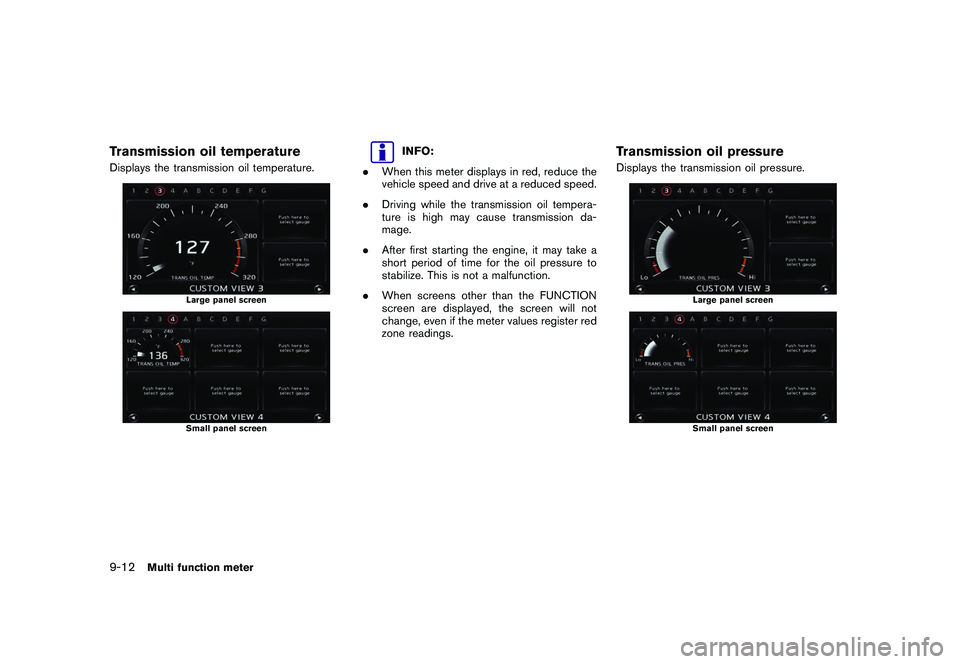
Transmission oil temperatureDisplays the transmission oil temperature.
Large panel screenSmall panel screen
INFO:
. When this meter displays in red, reduce the
vehicle speed and drive at a reduced speed.
. Driving while the transmission oil tempera-
ture is high may cause transmission da-
mage.
. After first starting the engine, it may take a
short period of time for the oil pressure to
stabilize. This is not a malfunction.
. When screens other than the FUNCTION
screen are displayed, the screen will not
change, even if the meter values register red
zone readings.
Transmission oil pressureDisplays the transmission oil pressure.
Large panel screenSmall panel screen
9-12
Multi function meter
Page 262 of 312
Black plate (268,1)
Model "R35-N" EDITED: 2009/ 10/ 30
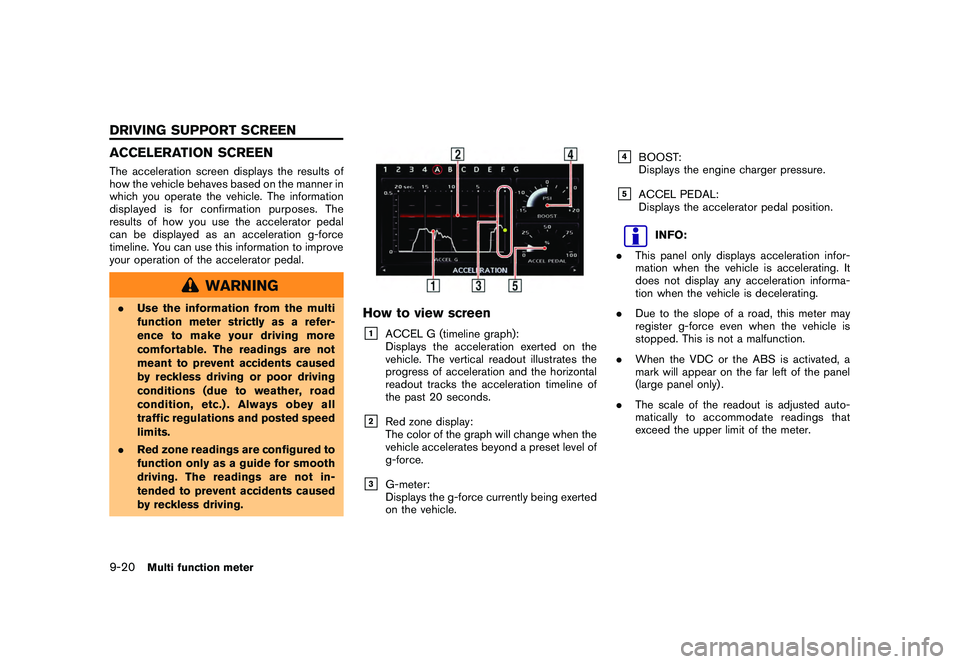
ACCELERATION SCREENThe acceleration screen displays the results of
how the vehicle behaves based on the manner in
which you operate the vehicle. The information
displayed is for confirmation purposes. The
results of how you use the accelerator pedal
can be displayed as an acceleration g-force
timeline. You can use this information to improve
your operation of the accelerator pedal.
WARNING
.Use the information from the multi
function meter strictly as a refer-
ence to make your driving more
comfortable. The readings are not
meant to prevent accidents caused
by reckless driving or poor driving
conditions (due to weather, road
condition, etc.) . Always obey all
traffic regulations and posted speed
limits.
. Red zone readings are configured to
function only as a guide for smooth
driving. The readings are not in-
tended to prevent accidents caused
by reckless driving.
How to view screen&1
ACCEL G (timeline graph):
Displays the acceleration exerted on the
vehicle. The vertical readout illustrates the
progress of acceleration and the horizontal
readout tracks the acceleration timeline of
the past 20 seconds.
&2
Red zone display:
The color of the graph will change when the
vehicle accelerates beyond a preset level of
g-force.
&3
G-meter:
Displays the g-force currently being exerted
on the vehicle.
&4
BOOST:
Displays the engine charger pressure.
&5
ACCEL PEDAL:
Displays the accelerator pedal position.
INFO:
. This panel only displays acceleration infor-
mation when the vehicle is accelerating. It
does not display any acceleration informa-
tion when the vehicle is decelerating.
. Due to the slope of a road, this meter may
register g-force even when the vehicle is
stopped. This is not a malfunction.
. When the VDC or the ABS is activated, a
mark will appear on the far left of the panel
(large panel only) .
. The scale of the readout is adjusted auto-
matically to accommodate readings that
exceed the upper limit of the meter.
9-20
Multi function meter
DRIVING SUPPORT SCREEN
Page 264 of 312
Black plate (270,1)
Model "R35-N" EDITED: 2009/ 10/ 30
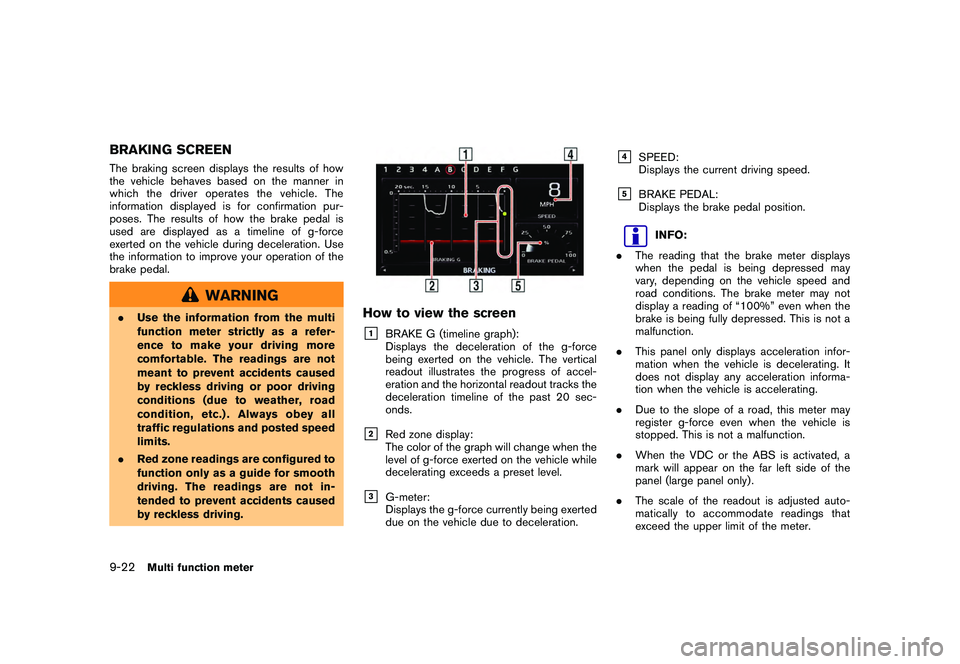
BRAKING SCREENThe braking screen displays the results of how
the vehicle behaves based on the manner in
which the driver operates the vehicle. The
information displayed is for confirmation pur-
poses. The results of how the brake pedal is
used are displayed as a timeline of g-force
exerted on the vehicle during deceleration. Use
the information to improve your operation of the
brake pedal.
WARNING
.Use the information from the multi
function meter strictly as a refer-
ence to make your driving more
comfortable. The readings are not
meant to prevent accidents caused
by reckless driving or poor driving
conditions (due to weather, road
condition, etc.) . Always obey all
traffic regulations and posted speed
limits.
. Red zone readings are configured to
function only as a guide for smooth
driving. The readings are not in-
tended to prevent accidents caused
by reckless driving.
How to view the screen&1
BRAKE G (timeline graph):
Displays the deceleration of the g-force
being exerted on the vehicle. The vertical
readout illustrates the progress of accel-
eration and the horizontal readout tracks the
deceleration timeline of the past 20 sec-
onds.
&2
Red zone display:
The color of the graph will change when the
level of g-force exerted on the vehicle while
decelerating exceeds a preset level.
&3
G-meter:
Displays the g-force currently being exerted
due on the vehicle due to deceleration.
&4
SPEED:
Displays the current driving speed.
&5
BRAKE PEDAL:
Displays the brake pedal position.
INFO:
. The reading that the brake meter displays
when the pedal is being depressed may
vary, depending on the vehicle speed and
road conditions. The brake meter may not
display a reading of “100%” even when the
brake is being fully depressed. This is not a
malfunction.
. This panel only displays acceleration infor-
mation when the vehicle is decelerating. It
does not display any acceleration informa-
tion when the vehicle is accelerating.
. Due to the slope of a road, this meter may
register g-force even when the vehicle is
stopped. This is not a malfunction.
. When the VDC or the ABS is activated, a
mark will appear on the far left side of the
panel (large panel only) .
. The scale of the readout is adjusted auto-
matically to accommodate readings that
exceed the upper limit of the meter.
9-22
Multi function meter