ignition NISSAN GT-R 2011 User Guide
[x] Cancel search | Manufacturer: NISSAN, Model Year: 2011, Model line: GT-R, Model: NISSAN GT-R 2011Pages: 312, PDF Size: 13.07 MB
Page 200 of 312
Black plate (206,1)
Model "R35-N" EDITED: 2009/ 10/ 30
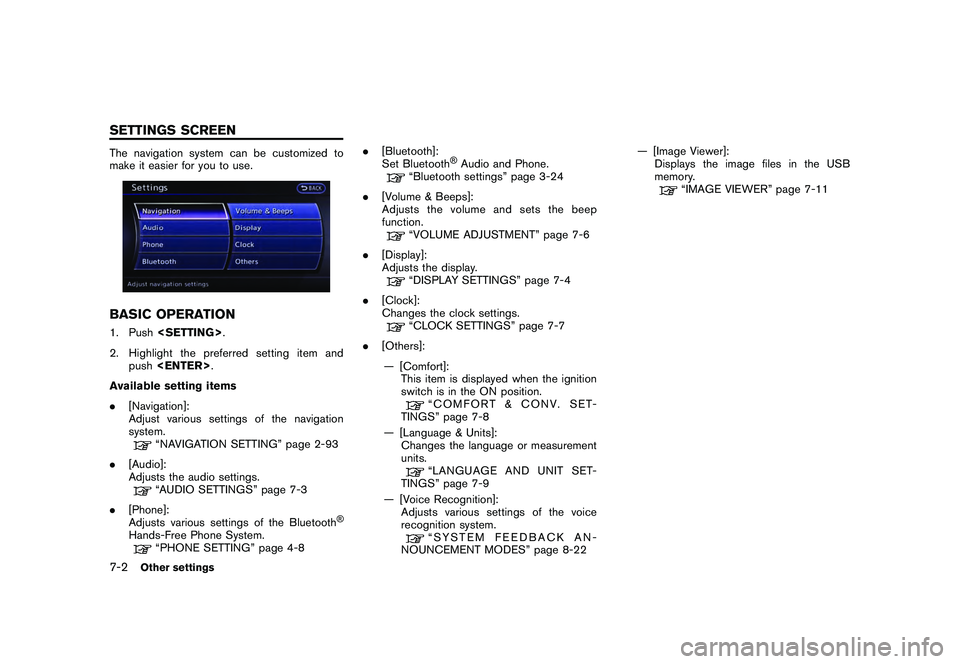
The navigation system can be customized to
make it easier for you to use.BASIC OPERATION1. Push
2. Highlight the preferred setting item and push
Available setting items
. [Navigation]:
Adjust various settings of the navigation
system.
“NAVIGATION SETTING” page 2-93
. [Audio]:
Adjusts the audio settings.“AUDIO SETTINGS” page 7-3
. [Phone]:
Adjusts various settings of the Bluetooth
®
Hands-Free Phone System.
“PHONE SETTING” page 4-8 .
[Bluetooth]:
Set Bluetooth
®Audio and Phone.
“Bluetooth settings” page 3-24
. [Volume & Beeps]:
Adjusts the volume and sets the beep
function.“VOLUME ADJUSTMENT” page 7-6
. [Display]:
Adjusts the display.“DISPLAY SETTINGS” page 7-4
. [Clock]:
Changes the clock settings.“CLOCK SETTINGS” page 7-7
. [Others]:
— [Comfort]: This item is displayed when the ignition
switch is in the ON position.
“COMFORT & CONV. SET-
TINGS” page 7-8
— [Language & Units]: Changes the language or measurement
units.“LANGUAGE AND UNIT SET-
TINGS” page 7-9
— [Voice Recognition]: Adjusts various settings of the voice
recognition system.“SYSTEM FEEDBACK AN-
NOUNCEMENT MODES” page 8-22 — [Image Viewer]:
Displays the image files in the USB
memory.
“IMAGE VIEWER” page 7-11
7-2
Other settings
SETTINGS SCREEN
Page 206 of 312
![NISSAN GT-R 2011 User Guide Black plate (212,1)
Model "R35-N" EDITED: 2009/ 10/ 30
Available setting items
.[On-screen Clock]:
Select to toggle the clock display located in
the top right corner of the display between
on and off.](/img/5/58175/w960_58175-205.png "NISSAN GT-R 2011 User Guide Black plate (212,1)
Model \"R35-N\" EDITED: 2009/ 10/ 30
Available setting items
.[On-screen Clock]:
Select to toggle the clock display located in
the top right corner of the display between
on and off.")
Black plate (212,1)
Model "R35-N" EDITED: 2009/ 10/ 30
Available setting items
.[On-screen Clock]:
Select to toggle the clock display located in
the top right corner of the display between
on and off. The indicator light illuminates
when the clock display is set to on.
. [Clock Format (24h)]:
Select the clock format between 12-hour
and 24-hour times. The indicator light
illuminates when the clock is set to the 24-
hour format.
. [Offset (hour)]:
Use the center dial to adjust the offset value
(between 12 and +12) .
. [Offset (min)]:
Use the center dial to adjust the offset value
(between 59 and +59) .
. [Daylight Savings Time]:
Select to toggle the daylight savings time
setting between on and off. The indicator
light illuminates when the daylight savings
time setting is set to on. .
[Time Zone]:
Select an appropriate time zone from the list
that appears when this item is highlighted.
— Pacific
— Mountain
— Central
— Eastern
— Atlantic
— Newfoundland
— Hawaii
— Alaska
This key does not appear on the display until the
ignition switch is pushed to the ON position.
1. Push
2. Highlight [Comfort] and push
3. Highlight the preferred setting item and push
selected item illuminates.
4. After setting, push
>to
apply the setting.
5. Push <
>to return to the previous
screen. Push
Page 207 of 312
Black plate (213,1)
Model "R35-N" EDITED: 2009/ 10/ 30
.Speed Sensing Wiper Interval:
When this item is turned to ON, the wiper
interval is adjusted automatically according
to the vehicle speed.
. Selective Door Unlock:
When this item is turned to ON, only the
driver’s door is unlocked first after the door
unlock operation. When the door handle
request switch on the driver’s or front
passenger’s side door is pushed to be
unlocked, only the corresponding door is
unlocked first. All the doors can be unlocked
if the door unlock operation is performed
again within 60 seconds.
When this item is turned to OFF, all the
doors will be unlocked after the door unlock
operation is performed once.
. Intelligent Key Lock/Unlock:
When this item is turned to ON, door lock/
unlock function by pushing the door handle
request switch will be activated.
. Return All Settings to Default:
Select this item, push
choose “YES” if you want to return all
settings to the default.
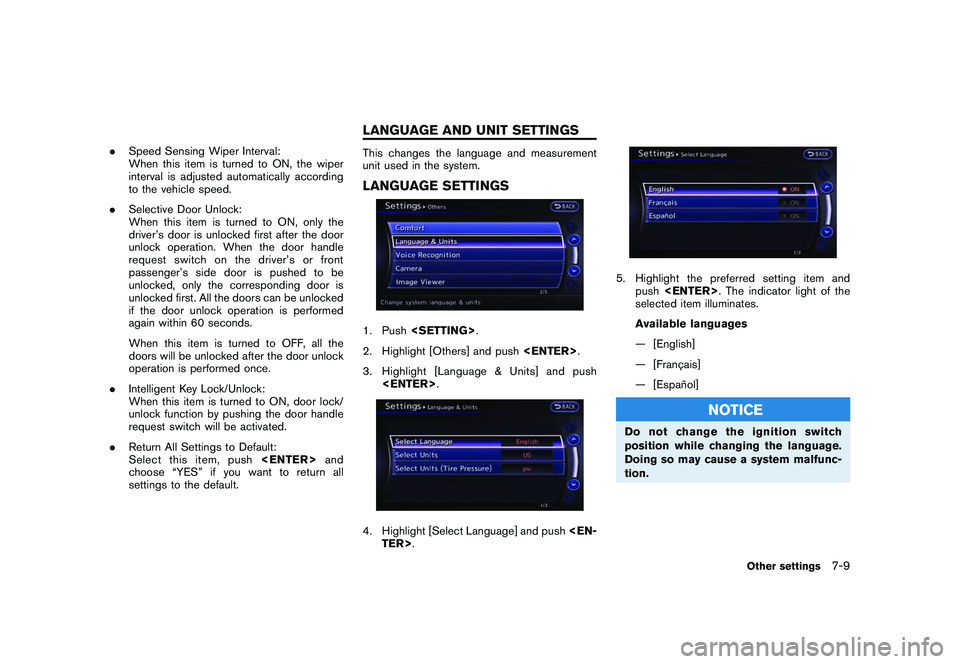
This changes the language and measurement
unit used in the system.LANGUAGE SETTINGS1. Push
2. Highlight [Others] and push
3. Highlight [Language & Units] and push
5. Highlight the preferred setting item and push
selected item illuminates.
Available languages
— [English]
— [Franc¸ ais]
— [Espan ˜
ol]
NOTICE
Do not change the ignition switch
position while changing the language.
Doing so may cause a system malfunc-
tion.
Other settings
7-9
LANGUAGE AND UNIT SETTINGS
Page 216 of 312
![NISSAN GT-R 2011 User Guide Black plate (222,1)
Model "R35-N" EDITED: 2009/ 10/ 30
Tutorials on operation of voice re-
cognition systemWhen selecting [Using the Address Book],
[Finding a Street Address] or [Placing Calls],
the s](/img/5/58175/w960_58175-215.png "NISSAN GT-R 2011 User Guide Black plate (222,1)
Model \"R35-N\" EDITED: 2009/ 10/ 30
Tutorials on operation of voice re-
cognition systemWhen selecting [Using the Address Book],
[Finding a Street Address] or [Placing Calls],
the s")
Black plate (222,1)
Model "R35-N" EDITED: 2009/ 10/ 30
Tutorials on operation of voice re-
cognition systemWhen selecting [Using the Address Book],
[Finding a Street Address] or [Placing Calls],
the system displays tutorials on how to perform
these operations using voice recognition.Useful tips for correct operationIt is possible to display useful speaking informa-
tion that may help the system to accept a voice
command correctly.
1. Highlight [Help on Speaking] and push
2. To confirm the page, scroll the screen using the up and down switches of the main
directional buttons or the center dial.USING VOICE RECOGNITION SYS-
TEM
InitializationWhen the ignition switch is pushed to the ON
position, Voice Recognition is initialized, which
takes a few seconds. When completed, the
system is ready to accept voice commands. If
<
>is pushed before the initialization
completes, the display will show the message:
“System not ready”.
BEFORE STARTINGTo get the best recognition performance from
Voice Recognition, observe the following items.
. The interior of the vehicle should be as quiet
as possible. Close the windows to eliminate
the surrounding noises (traffic noise and
vibration sounds, etc.) , which may prevent
the system from correctly recognizing the
voice commands.
. Wait until the tone sounds before speaking a
command.
. Speak in a natural conversational voice without pausing between words.
GIVING VOICE COMMANDS1. Push
wheel.
2. A list of commands appears on the screen, and the system provides the voice menu
prompt “Would you like to access Phone,
Navigation, Information, Audio or Help?”.
3. After the tone sounds and the icon on the screen changes from [
]to[
], speak
a command.
4. Continue to follow the voice menu prompts and speak after the tone sounds until the
preferred operation is completed.
8-4
Voice recognition
Page 233 of 312
![NISSAN GT-R 2011 User Guide Black plate (239,1)
Model "R35-N" EDITED: 2009/ 10/ 30
1. Highlight [Voice Recognition Settings] andpush <ENTER> .
2. To confirm the page, scroll the screen using the up and down switches of the main](/img/5/58175/w960_58175-232.png "NISSAN GT-R 2011 User Guide Black plate (239,1)
Model \"R35-N\" EDITED: 2009/ 10/ 30
1. Highlight [Voice Recognition Settings] andpush <ENTER> .
2. To confirm the page, scroll the screen using the up and down switches of the main")
Black plate (239,1)
Model "R35-N" EDITED: 2009/ 10/ 30
1. Highlight [Voice Recognition Settings] andpush
2. To confirm the page, scroll the screen using the up and down switches of the main
directional buttons or the center dial.Adapting Voice Recognition System
to Your VoiceThe voice recognition system is equipped with a
learning function to adapt to the user’s voice for
better recognition. It is possible to confirm how
to operate the learning function through this
tutorial.
1. Highlight [Adapting the System to YourVoice] and push
starts.2. The voice guide demonstrates the steps that have to be performed.
3. When the tutorial is completed, the system automatically switches to the Menu screen.
USING VOICE RECOGNITION SYS-
TEM
InitializationWhen the ignition switch is pushed to the ON
position, Voice Recognition is initialized, which
takes a few seconds. When completed, the
system is ready to accept voice commands. If
<
>is pushed before the initialization
completes, the display will show the message:
“System not ready”.
BEFORE STARTINGTo get the best recognition performance out of
Voice Recognition, observe the following:
. The interior of the vehicle should be as quiet
as possible. Close the windows to eliminate
the surrounding noises (traffic noise and
vibration sounds, etc.) , which may prevent
the system from correctly recognizing the
voice commands.
. Wait until the tone sounds before speaking a
command.
. Speak in a natural conversational voice
without pausing between words.
Voice recognition
8-21
Page 271 of 312
Black plate (277,1)
Model "R35-N" EDITED: 2009/ 10/ 30
&3
SPEED:
Displays the vehicle speed while driving.
&4
ELAPSED TIME:
Displays the total elapsed time measured
since the stopwatch function was started.
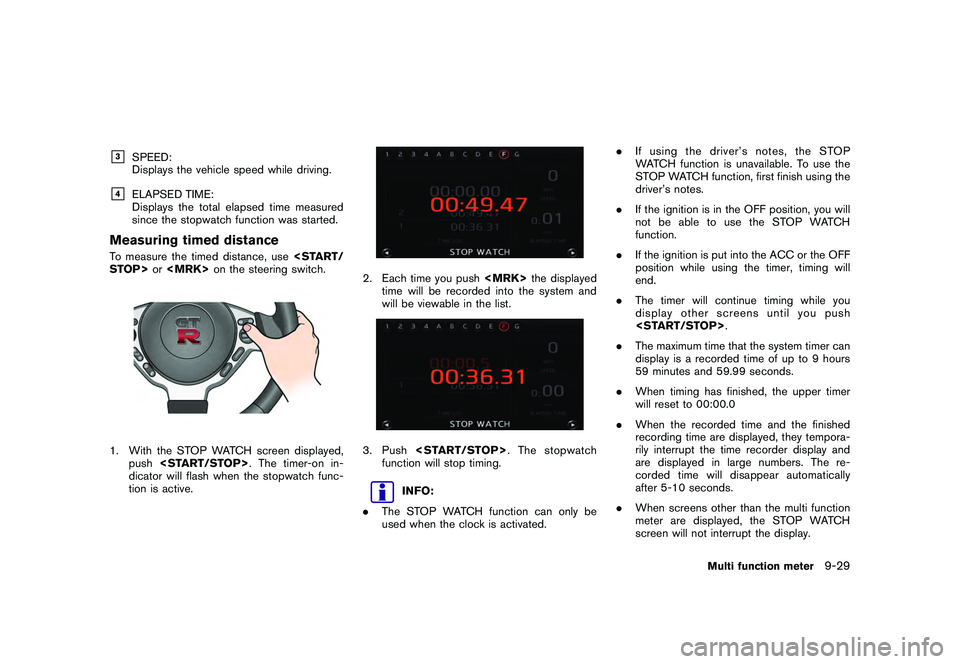
Measuring timed distanceTo measure the timed distance, use
push
dicator will flash when the stopwatch func-
tion is active.
2. Each time you push
time will be recorded into the system and
will be viewable in the list.3. Push
function will stop timing.
INFO:
. The STOP WATCH function can only be
used when the clock is activated. .
If using the driver’s notes, the STOP
WATCH function is unavailable. To use the
STOP WATCH function, first finish using the
driver’s notes.
. If the ignition is in the OFF position, you will
not be able to use the STOP WATCH
function.
. If the ignition is put into the ACC or the OFF
position while using the timer, timing will
end.
. The timer will continue timing while you
display other screens until you push
. The maximum time that the system timer can
display is a recorded time of up to 9 hours
59 minutes and 59.99 seconds.
. When timing has finished, the upper timer
will reset to 00:00.0
. When the recorded time and the finished
recording time are displayed, they tempora-
rily interrupt the time recorder display and
are displayed in large numbers. The re-
corded time will disappear automatically
after 5-10 seconds.
. When screens other than the multi function
meter are displayed, the STOP WATCH
screen will not interrupt the display.
Multi function meter
9-29
Page 282 of 312
Black plate (288,1)
Model "R35-N" EDITED: 2009/ 10/ 30
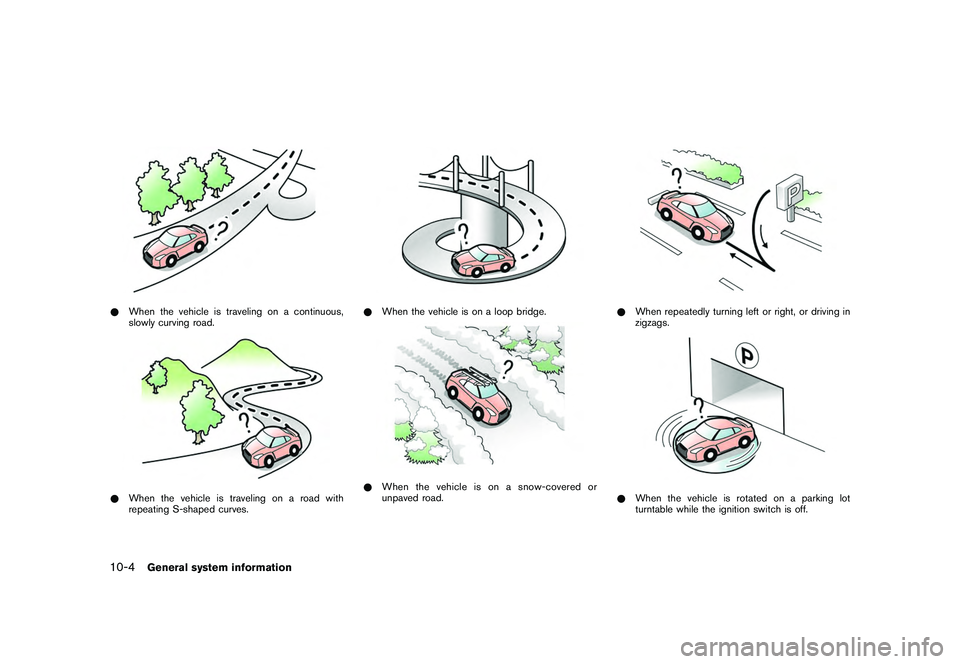
*When the vehicle is traveling on a continuous,
slowly curving road.*When the vehicle is traveling on a road with
repeating S-shaped curves.
*When the vehicle is on a loop bridge.*When the vehicle is on a snow-covered or
unpaved road.
*When repeatedly turning left or right, or driving in
zigzags.*When the vehicle is rotated on a parking lot
turntable while the ignition switch is off.
10-4
General system information
Page 300 of 312
Black plate (306,1)
Model "R35-N" EDITED: 2009/ 10/ 30
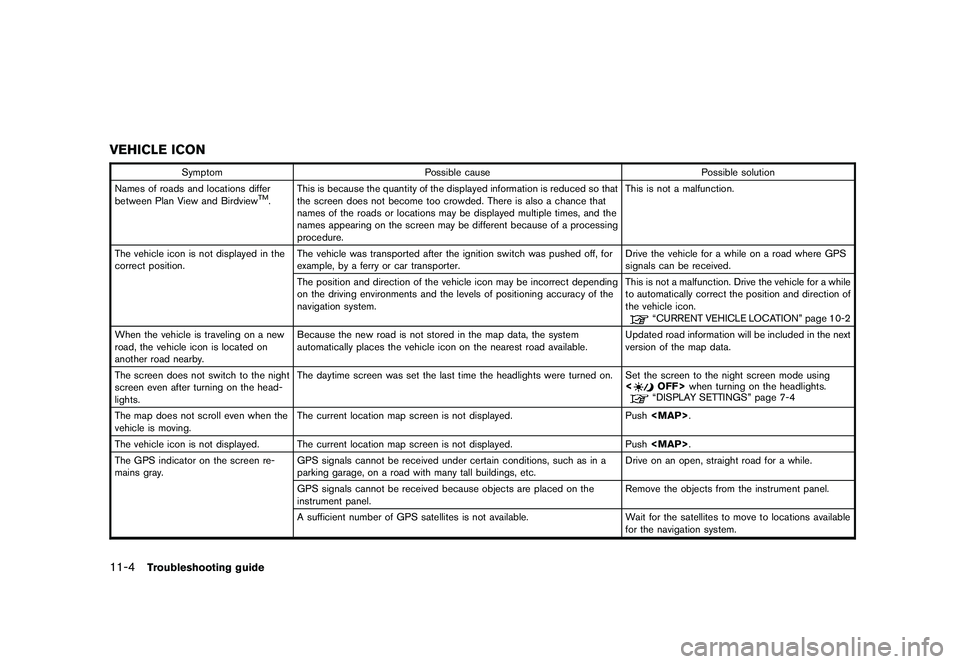
VEHICLE ICON
SymptomPossible cause Possible solution
Names of roads and locations differ
between Plan View and Birdview
TM. This is because the quantity of the displayed information is reduced so that
the screen does not become too crowded. There is also a chance that
names of the roads or locations may be displayed multiple times, and the
names appearing on the screen may be different because of a processing
procedure. This is not a malfunction.
The vehicle icon is not displayed in the
correct position. The vehicle was transported after the ignition switch was pushed off, for
example, by a ferry or car transporter. Drive the vehicle for a while on a road where GPS
signals can be received.
The position and direction of the vehicle icon may be incorrect depending
on the driving environments and the levels of positioning accuracy of the
navigation system. This is not a malfunction. Drive the vehicle for a while
to automatically correct the position and direction of
the vehicle icon.
“CURRENT VEHICLE LOCATION” page 10-2
When the vehicle is traveling on a new
road, the vehicle icon is located on
another road nearby. Because the new road is not stored in the map data, the system
automatically places the vehicle icon on the nearest road available.
Updated road information will be included in the next
version of the map data.
The screen does not switch to the night
screen even after turning on the head-
lights. The daytime screen was set the last time the headlights were turned on. Set the screen to the night screen mode using
The map does not scroll even when the
vehicle is moving. The current location map screen is not displayed. Push