display NISSAN GT-R 2011 Owners Manual
[x] Cancel search | Manufacturer: NISSAN, Model Year: 2011, Model line: GT-R, Model: NISSAN GT-R 2011Pages: 312, PDF Size: 13.07 MB
Page 291 of 312
Black plate (297,1)
Model "R35-N" EDITED: 2009/ 10/ 30
HOW TO ORDER MAP DATA UP-
DATESTo order updated map data, contact the
NISSAN NAVIGATION SYSTEM HELPDESK.
See the contact information on the inside front
cover of this manual.ABOUT MAP DATA1. This map data has been prepared byHITACHI, LTD. under licence from ZENRIN
CO., LTD. and NAVTEQ. ZENRIN CO., LTD.
has added, processed and digitized data
based on the digital road map data of
Navigation Technologies Corporation. Due
to the production timing of the map data,
some new roads may not be included in this
map data or some of the names or roads
may be different from those at the time you
use this map data.
2. Traffic control and regulation data used in this map data may be different from those at
the time you use this map data due to the
data production timing. When driving your
vehicle, follow the actual traffic control signs
and notices on the roads.
3. Reproducing or copying this map software is strictly prohibited by law.
Published by Nissan North America, Inc.*C
2006 Navigation Technologies. All rights reserved.
Certain business data provided by infoUSA, Inc.,
Omaha, NE, Copyright
*C1993-2008 NAVTEQ. All Rights Reserved.
*C2008, All Rights Reserved.
*CZENRIN CO., LTD. 2009. All rights reserved.
*CZENRIN USA, INC. 2008. All rights reserved.
*C2008 Zagat Survey, LLC.
WARNING
.
This navigation system should not
be used to replace your own judge-
ment. No itinerary suggested by this
navigation system should ever over-
ride any highway regulations, your
own judgement, or a knowledge of
safe driving practices. Do not follow
the navigation system’s suggested
itinerary if it would cause you to
perform a dangerous or illegal act,
place you in a dangerous situation,
or take you into an area you con-
sider unsafe.
. The advice provided by the naviga-
tion system is to be regarded as a
suggestion only. There may be times when the navigation system
displays the vehicle’s location in-
correctly, fails to suggest the short-
est route, or fails to direct you to the
your desired destination. In such
instances, rely on your own driving
judgement, taking into account the
driving conditions at the time.
. Do not use the navigation system to
locate emergency services. The da-
tabase does not contain a complete
listing of emergency services such
as police stations, fire halls, hospi-
tals and walk-in clinics. Please
show discretion and ask for direc-
tions in such instances.
. As the driver, you alone are respon-
sible for your driving safety.
— In order to avoid a traffic acci-
dent, do not operate the system
while driving.
— In order to avoid a traffic acci- dent, operate the system only
when the vehicle is stopped at a
safe place and the parking
brake is on.
— In order to avoid a traffic acci- dent or traffic offence, remem-
General system information
10-13
MAP DATA
Page 292 of 312
Black plate (298,1)
Model "R35-N" EDITED: 2009/ 10/ 30
ber that actual road conditions
and traffic regulations take pre-
cedence over the information
contained on the navigation sys-
tem.
— The Software may contain inac- curate or incomplete informa-
tion due to the passage of
time, changing circumstances,
and the sources of information
used. Please respect current
traffic conditions and regula-
tions at all times while driving.
— Where actual road conditions and highway regulations differ
from the information contained
on the navigation system, abide
by the highway regulations.
— Keep the amount of time spent viewing the screen while driving
to a strict minimum.
The navigation system does not provide,
nor represent in any way information on:
traffic and highway regulations; technical
aspects of the vehicle including weight,
height, width, load and speed limits; road
conditions including grade, percentage of
incline and surface conditions; obstacles
such as the height and width of bridges and tunnels; and other current driving or
road conditions. Always rely on your own
judgement when driving a car, taking into
account current driving conditions.
The marks of companies displayed by this
product to indicate business locations are the
marks of their respective owners. The use of
such marks in this product does not imply any
sponsorship, approval, or endorsement by such
companies of this product.
END-USER TERMSThe data (“Data”) is provided for your personal,
internal use only and not for resale. It is
protected by copyright, and is subject to the
following terms and conditions which are agreed
to by you, on the one hand, and HITACHI
(“HITACHI”) and its licensors (including their
licensors and suppliers) on the other hand.*C2008 NAVTEQ. All rights reserved.
The Data for areas of Canada includes informa-
tion taken with permission from Canadian
authorities, including:
*CHer Majesty the Queen
in Right of Canada,*C
Queen’s Printer for
Ontario,
*C
Canada Post Corporation, Geo-
Base
®.
NAVTEQ holds a non-exclusive license from the
United States Postal Service
®to publish and
sell ZIP+4
®information.
*CUnited States Postal Service
®2008. Prices
are not established, controlled or approved by
the United States Postal Service®. The following
trademarks and registrations are owned by the
USPS: United States Postal Service, USPS, and
ZIP+4.
Terms and conditionsPersonal Use Only. You agree to use this Data
together with Nissan Automotive Products for
the solely personal, non-commercial purposes
for which you were licensed, and not for service
bureau, timesharing or other similar purposes.
Accordingly, but subject to the restrictions set
forth in the following paragraphs, you may copy
this Data only as necessary for your personal
use to (i) view it, and (ii) save it, provided that
you do not remove any copyright notices that
appear and do not modify the Data in any way.
You agree not to otherwise reproduce, copy,
modify, decompile, disassemble or reverse
engineer any portion of this Data, and may not
transfer or distribute it in any form, for any
purpose, except to the extent permitted by
mandatory laws. Multi-disc sets may only be
transferredorsoldasacompletesetas
provided by HITACHI and not as a subset
thereof.Restrictions. Except where you have been
specifically licensed to do so by HITACHI, and
without limiting the preceding paragraph, you
may not (a) use this Data with any products,
10-14
General system information
Page 294 of 312
Black plate (300,1)
Model "R35-N" EDITED: 2009/ 10/ 30
NAVTEQ Data (hereinafter “Data”) is a “com-
mercial item” as that term is defined at 48 C.F.R.
(“FAR”) 2.101, is licensed in accordance with
ENDUSER TERMS, and each copy of the Data
delivered or otherwise furnished shall be marked
and embedded as appropriate with the following
“Notice of Use,” and shall be treated in
accordance with such Notice:
NOTICE OF USE
CONTRACTOR (MANUFACTURER/SUPPLIER) NAME: NAVTEQ
CONTRACTOR (MANUFACTURER/SUPPLIER)
ADDRESS: 425 West Randolph St., Chicago, Illinois 60606
This Data is a commercial item as defined in FAR
2.101 and is subject to END-USER TERMS under which this Data was provided.
*C2008 NAVTEQ - All rights reserved.
If the Contracting Officer, federal government
agency, or any federal official refuses to use the
legend provided herein, the Contracting Officer,
federal government agency, or any federal
official must notify NAVTEQ prior to seeking
additional or alternative rights in the Data.
The display is a liquid crystal display and should
be handled with care.
WARNING
Never disassemble the display. Some
parts utilize extremely high voltage.
Touching them may result in serious
personal injury.CHARACTERISTICS OF LIQUID
CRYSTAL DISPLAY.If the temperature inside the vehicle is
especially low, the display will stay relatively
dim or the movement of the images may be
slow. These conditions are normal. The
display will function normally when the
interior of the vehicle has warmed up.
. Some pixels in the display are darker or
brighter than others. This condition is an
inherent characteristic of liquid crystal dis-
plays, and it is not a malfunction.
. A remnant of the previous display image may
remain on the screen. This screen burn is
inherent in displays, and it is not a malfunc-
tion.
INFO:
The screen may become distorted by strong
magnetic fields.
MAINTENANCE OF DISPLAY
CAUTION
. To clean the display, never use a
rough cloth, alcohol, benzine, thin-
ner and any kind of solvent or paper
towel with a chemical cleaning
agent. They will scratch or deterio-
rate the panel.
. Do not splash any liquid such as
water or car fragrance on the dis-
play. Contact with liquid will cause
the system to malfunction.
To clean the display screen, use a dry, soft cloth.
If additional cleaning is necessary, use a small
amount of neutral detergent with a soft cloth.
Never spray the screen with water or detergent.
Dampen the cloth first, then wipe the screen.
10-16
General system information
HOW TO HANDLE DISPLAY
Page 299 of 312
Black plate (305,1)
Model "R35-N" EDITED: 2009/ 10/ 30
BASIC OPERATIONS
SymptomPossible cause Possible solution
No image is displayed. The brightness is at the lowest setting.Adjust the brightness of the display.
The system in the video mode. Push
mode.
“Audio system” page 3-1
The display is turned off. Push <
OFF>to turn on the display.
No voice guidance is available.
or
The volume is too high or too low. The volume is not set correctly, or it is turned off. Adjust the volume of voice guidance.
Voice guidance is not provided for certain streets (roads
displayed in gray) .
This is not a malfunction.
No map is displayed on the screen. A screen other than map screen is displayed. Push
Page 300 of 312
Black plate (306,1)
Model "R35-N" EDITED: 2009/ 10/ 30
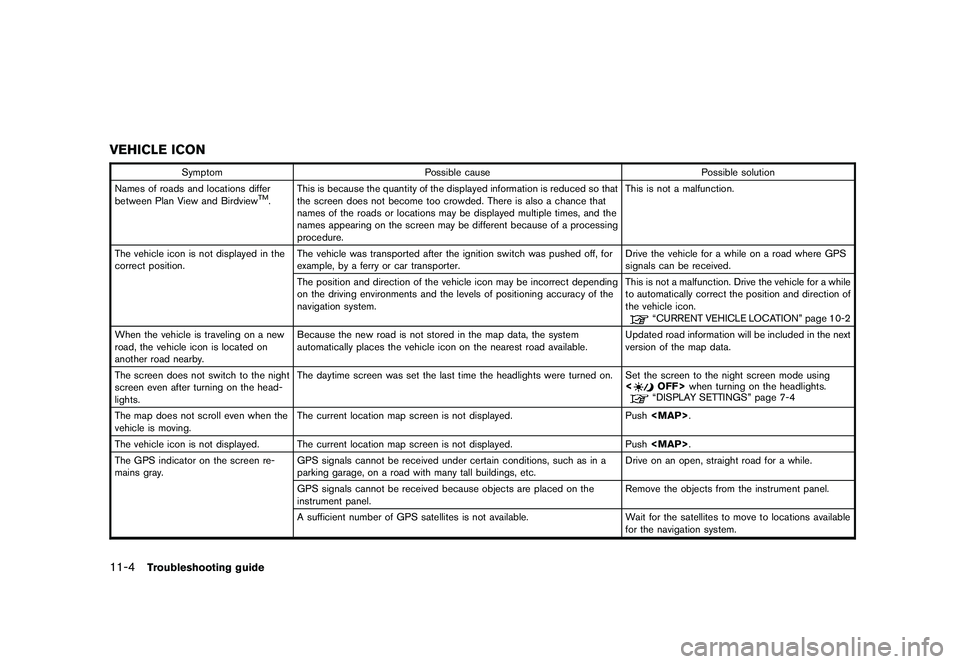
VEHICLE ICON
SymptomPossible cause Possible solution
Names of roads and locations differ
between Plan View and Birdview
TM. This is because the quantity of the displayed information is reduced so that
the screen does not become too crowded. There is also a chance that
names of the roads or locations may be displayed multiple times, and the
names appearing on the screen may be different because of a processing
procedure. This is not a malfunction.
The vehicle icon is not displayed in the
correct position. The vehicle was transported after the ignition switch was pushed off, for
example, by a ferry or car transporter. Drive the vehicle for a while on a road where GPS
signals can be received.
The position and direction of the vehicle icon may be incorrect depending
on the driving environments and the levels of positioning accuracy of the
navigation system. This is not a malfunction. Drive the vehicle for a while
to automatically correct the position and direction of
the vehicle icon.
“CURRENT VEHICLE LOCATION” page 10-2
When the vehicle is traveling on a new
road, the vehicle icon is located on
another road nearby. Because the new road is not stored in the map data, the system
automatically places the vehicle icon on the nearest road available.
Updated road information will be included in the next
version of the map data.
The screen does not switch to the night
screen even after turning on the head-
lights. The daytime screen was set the last time the headlights were turned on. Set the screen to the night screen mode using
The map does not scroll even when the
vehicle is moving. The current location map screen is not displayed. Push
Page 302 of 312
Black plate (308,1)
Model "R35-N" EDITED: 2009/ 10/ 30
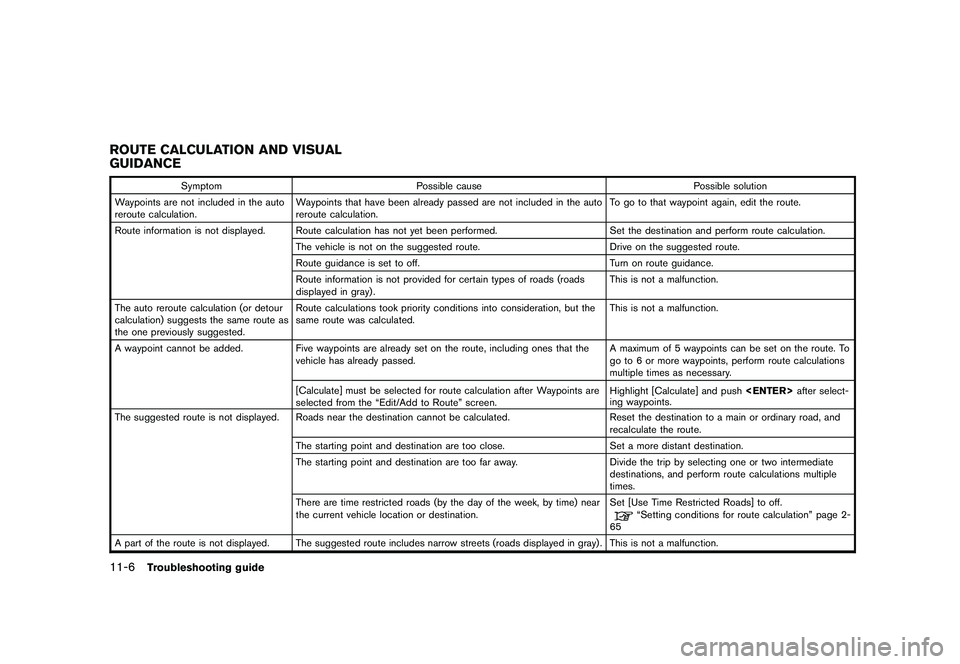
ROUTE CALCULATION AND VISUAL
GUIDANCE
SymptomPossible cause Possible solution
Waypoints are not included in the auto
reroute calculation. Waypoints that have been already passed are not included in the auto
reroute calculation. To go to that waypoint again, edit the route.
Route information is not displayed. Route calculation has not yet been performed. Set the destination and perform route calculation.
The vehicle is not on the suggested route. Drive on the suggested route.
Route guidance is set to off. Turn on route guidance.
Route information is not provided for certain types of roads (roads
displayed in gray) . This is not a malfunction.
The auto reroute calculation (or detour
calculation) suggests the same route as
the one previously suggested. Route calculations took priority conditions into consideration, but the
same route was calculated.
This is not a malfunction.
A waypoint cannot be added. Five waypoints are already set on the route, including ones that the
vehicle has already passed. A maximum of 5 waypoints can be set on the route. To
go to 6 or more waypoints, perform route calculations
multiple times as necessary.
[Calculate] must be selected for route calculation after Waypoints are
selected from the “Edit/Add to Route” screen. Highlight [Calculate] and push
ing waypoints.
The suggested route is not displayed. Roads near the destination cannot be calculated. Reset the destination to a main or ordinary road, and
recalculate the route.
The starting point and destination are too close. Set a more distant destination.
The starting point and destination are too far away. Divide the trip by selecting one or two intermediate
destinations, and perform route calculations multiple
times.
There are time restricted roads (by the day of the week, by time) near
the current vehicle location or destination. Set [Use Time Restricted Roads] to off.
“Setting conditions for route calculation” page 2-
65
A part of the route is not displayed. The suggested route includes narrow streets (roads displayed in gray) . This is not a malfunction.
11-6
Troubleshooting guide
Page 305 of 312
Black plate (311,1)
Model "R35-N" EDITED: 2009/ 10/ 30
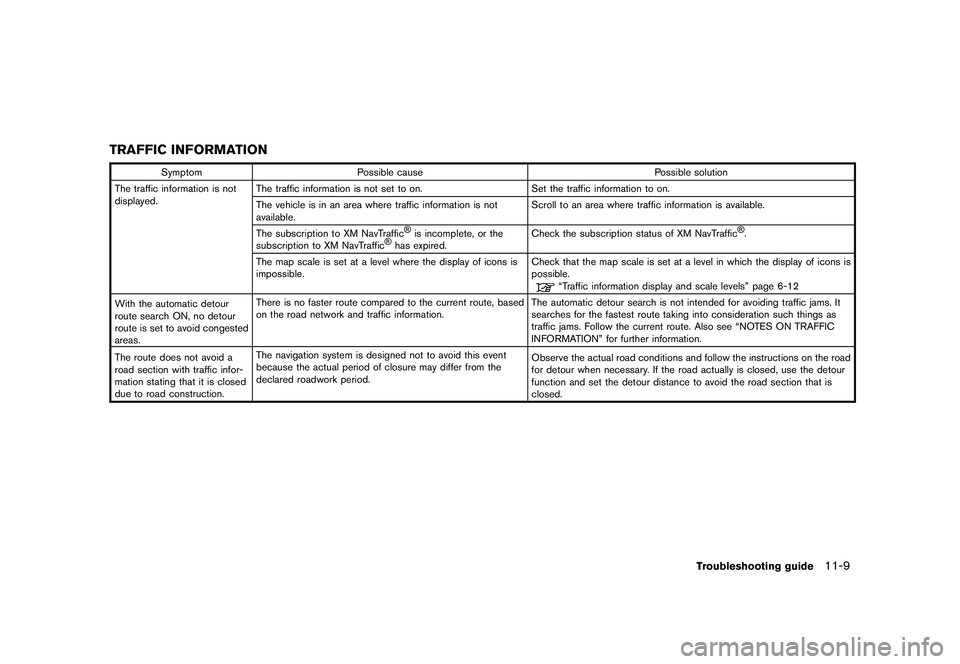
TRAFFIC INFORMATION
SymptomPossible cause Possible solution
The traffic information is not
displayed. The traffic information is not set to on.
Set the traffic information to on.
The vehicle is in an area where traffic information is not
available. Scroll to an area where traffic information is available.
The subscription to XM NavTraffic
®is incomplete, or the
subscription to XM NavTraffic
®has expired. Check the subscription status of XM NavTraffic
®.
The map scale is set at a level where the display of icons is
impossible. Check that the map scale is set at a level in which the display of icons is
possible.
“Traffic information display and scale levels” page 6-12
With the automatic detour
route search ON, no detour
route is set to avoid congested
areas. There is no faster route compared to the current route, based
on the road network and traffic information.
The automatic detour search is not intended for avoiding traffic jams. It
searches for the fastest route taking into consideration such things as
traffic jams. Follow the current route. Also see “NOTES ON TRAFFIC
INFORMATION” for further information.
The route does not avoid a
road section with traffic infor-
mation stating that it is closed
due to road construction. The navigation system is designed not to avoid this event
because the actual period of closure may differ from the
declared roadwork period.
Observe the actual road conditions and follow the instructions on the road
for detour when necessary. If the road actually is closed, use the detour
function and set the detour distance to avoid the road section that is
closed.
Troubleshooting guide
11-9
Page 309 of 312
Black plate (1,1)
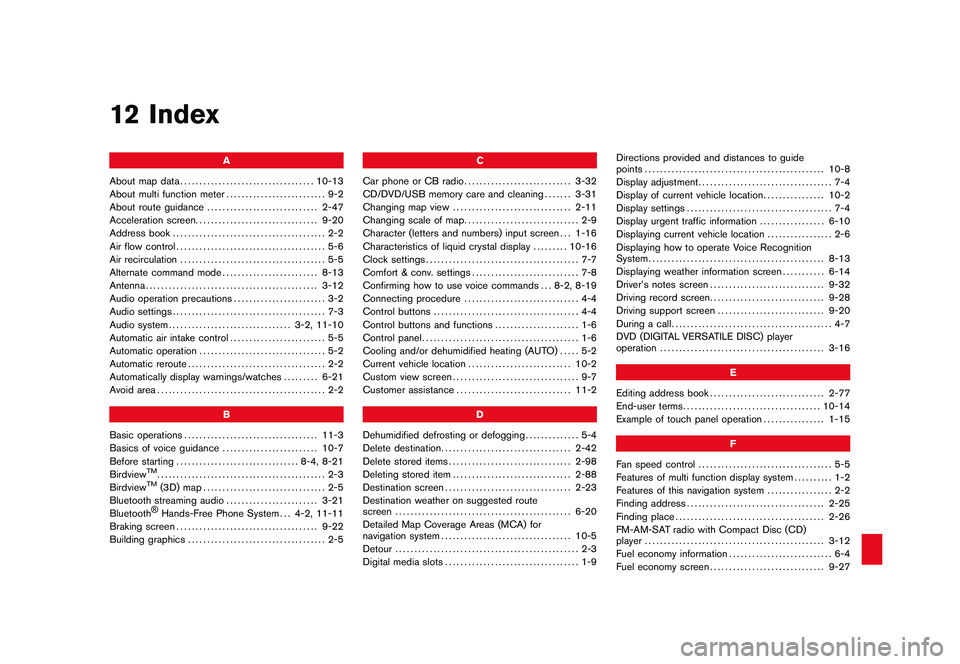
12 Index
A
About map data ................................... 10-13
About multi function meter .......................... 9-2
About route guidance ............................. 2-47
Acceleration screen ................................ 9-20
Address book ........................................ 2-2
Air flow control ....................................... 5-6
Air recirculation ...................................... 5-5
Alternate command mode ......................... 8-13
Antenna ............................................. 3-12
Audio operation precautions ........................ 3-2
Audio settings ........................................ 7-3
Audio system ................................ 3-2, 11-10
Automatic air intake control ......................... 5-5
Automatic operation ................................. 5-2
Automatic reroute .................................... 2-2
Automatically display warnings/watches ......... 6-21
Avoid area ............................................ 2-2
B
Basic operations ................................... 11-3
Basics of voice guidance ......................... 10-7
Before starting ................................ 8-4, 8-21
Birdview
TM............................................ 2-3
BirdviewTM
(3D) map ................................ 2-5
Bluetooth streaming audio ........................ 3-21
Bluetooth®Hands-Free Phone System . . . 4-2, 11-11
Braking screen ..................................... 9-22
Building graphics .................................... 2-5 C
Car phone or CB radio ............................ 3-32
CD/DVD/USB memory care and cleaning ....... 3-31
Changing map view ............................... 2-11
Changing scale of map .............................. 2-9
Character (letters and numbers) input screen . . . 1-16
Characteristics of liquid crystal display ......... 10-16
Clock settings ........................................ 7-7
Comfort & conv. settings ............................ 7-8
Confirming how to use voice commands . . . 8-2, 8-19
Connecting procedure .............................. 4-4
Control buttons ...................................... 4-4
Control buttons and functions ...................... 1-6
Control panel ......................................... 1-6
Cooling and/or dehumidified heating (AUTO) ..... 5-2
Current vehicle location ........................... 10-2
Custom view screen ................................. 9-7
Customer assistance .............................. 11-2
D
Dehumidified defrosting or defogging .............. 5-4
Delete destination .................................. 2-42
Delete stored items ................................ 2-98
Deleting stored item ............................... 2-88
Destination screen ................................. 2-23
Destination weather on suggested route
screen .............................................. 6-20
Detailed Map Coverage Areas (MCA) for
navigation system .................................. 10-5
Detour ................................................ 2-3
Digital media slots ................................... 1-9 Directions provided and distances to guide
points
............................................... 10-8
Display adjustment ................................... 7-4
Display of current vehicle location ................ 10-2
Display settings ...................................... 7-4
Display urgent traffic information ................. 6-10
Displaying current vehicle location ................. 2-6
Displaying how to operate Voice Recognition
System .............................................. 8-13
Displaying weather information screen ........... 6-14
Driver’s notes screen .............................. 9-32
Driving record screen .............................. 9-28
Driving support screen ............................ 9-20
During a call .......................................... 4-7
DVD (DIGITAL VERSATILE DISC) player
operation ........................................... 3-16
E
Editing address book .............................. 2-77
End-user terms .................................... 10-14
Example of touch panel operation ................ 1-15
F
Fan speed control ................................... 5-5
Features of multi function display system .......... 1-2
Features of this navigation system ................. 2-2
Finding address .................................... 2-25
Finding place ....................................... 2-26
FM-AM-SAT radio with Compact Disc (CD)
player ............................................... 3-12
Fuel economy information ........................... 6-4
Fuel economy screen .............................. 9-27
Model "R35-N" EDITED: 2009/ 12/ 7
Page 310 of 312
Black plate (2,1)
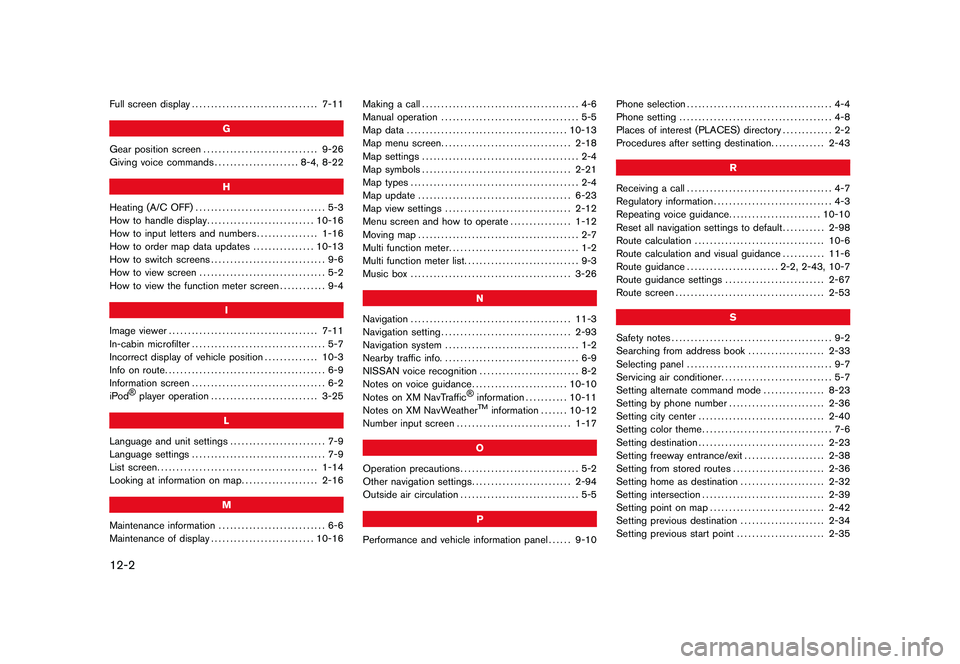
12-2Full screen display................................. 7-11
G
Gear position screen .............................. 9-26
Giving voice commands ...................... 8-4, 8-22
H
Heating (A/C OFF) .................................. 5-3
How to handle display ............................ 10-16
How to input letters and numbers ................ 1-16
How to order map data updates ................ 10-13
How to switch screens .............................. 9-6
How to view screen ................................. 5-2
How to view the function meter screen ............ 9-4
I
Image viewer ....................................... 7-11
In-cabin microfilter ................................... 5-7
Incorrect display of vehicle position .............. 10-3
Info on route .......................................... 6-9
Information screen ................................... 6-2
iPod
®player operation ............................ 3-25
L
Language and unit settings ......................... 7-9
Language settings ................................... 7-9
List screen .......................................... 1-14
Looking at information on map .................... 2-16
M
Maintenance information ............................ 6-6
Maintenance of display ........................... 10-16 Making a call
......................................... 4-6
Manual operation .................................... 5-5
Map data .......................................... 10-13
Map menu screen .................................. 2-18
Map settings ......................................... 2-4
Map symbols ....................................... 2-21
Map types ............................................ 2-4
Map update ........................................ 6-23
Map view settings ................................. 2-12
Menu screen and how to operate ................ 1-12
Moving map .......................................... 2-7
Multi function meter .................................. 1-2
Multi function meter list. ............................. 9-3
Music box .......................................... 3-26
N
Navigation .......................................... 11-3
Navigation setting .................................. 2-93
Navigation system ................................... 1-2
Nearby traffic info. ................................... 6-9
NISSAN voice recognition .......................... 8-2
Notes on voice guidance ......................... 10-10
Notes on XM NavTraffic
®information ........... 10-11
Notes on XM NavWeatherTM
information ....... 10-12
Number input screen .............................. 1-17
O
Operation precautions ............................... 5-2
Other navigation settings .......................... 2-94
Outside air circulation ............................... 5-5
P
Performance and vehicle information panel ...... 9-10Phone selection
...................................... 4-4
Phone setting ........................................ 4-8
Places of interest (PLACES) directory ............. 2-2
Procedures after setting destination .............. 2-43
R
Receiving a call ...................................... 4-7
Regulatory information ............................... 4-3
Repeating voice guidance ........................ 10-10
Reset all navigation settings to default ........... 2-98
Route calculation .................................. 10-6
Route calculation and visual guidance ........... 11-6
Route guidance ........................ 2-2, 2-43, 10-7
Route guidance settings .......................... 2-67
Route screen ....................................... 2-53
S
Safety notes .......................................... 9-2
Searching from address book .................... 2-33
Selecting panel ...................................... 9-7
Servicing air conditioner ............................. 5-7
Setting alternate command mode ................ 8-23
Setting by phone number ......................... 2-36
Setting city center ................................. 2-40
Setting color theme .................................. 7-6
Setting destination ................................. 2-23
Setting freeway entrance/exit ..................... 2-38
Setting from stored routes ........................ 2-36
Setting home as destination ...................... 2-32
Setting intersection ................................ 2-39
Setting point on map .............................. 2-42
Setting previous destination ...................... 2-34
Setting previous start point ....................... 2-35
Model "R35-N" EDITED: 2009/ 10/ 30
Page 311 of 312
Black plate (3,1)
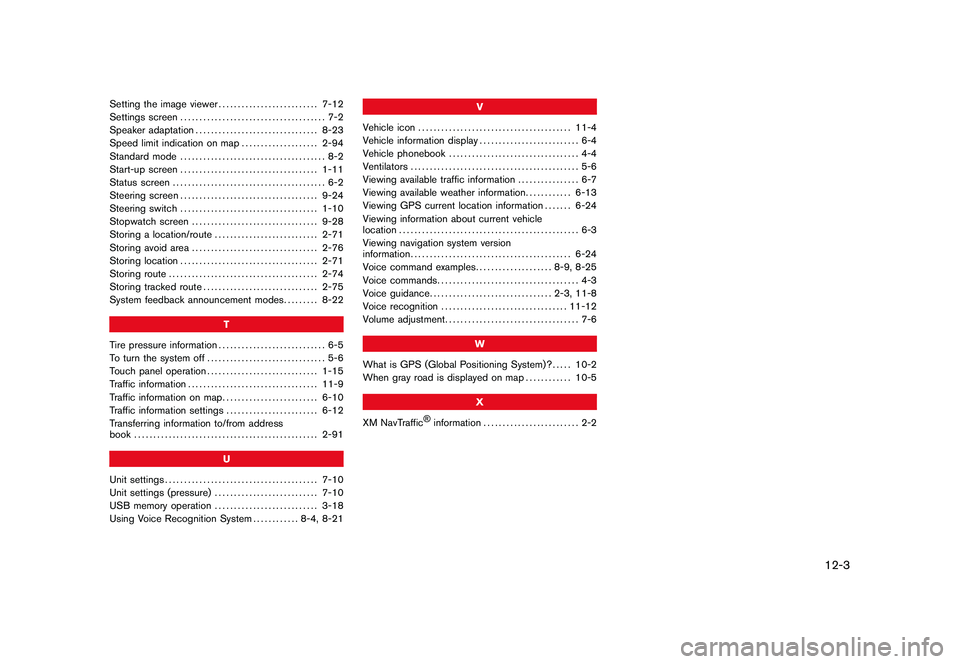
Setting the image viewer.......................... 7-12
Settings screen ...................................... 7-2
Speaker adaptation ................................ 8-23
Speed limit indication on map .................... 2-94
Standard mode ...................................... 8-2
Start-up screen .................................... 1-11
Status screen ........................................ 6-2
Steering screen .................................... 9-24
Steering switch .................................... 1-10
Stopwatch screen ................................. 9-28
Storing a location/route ........................... 2-71
Storing avoid area ................................. 2-76
Storing location .................................... 2-71
Storing route ....................................... 2-74
Storing tracked route .............................. 2-75
System feedback announcement modes ......... 8-22
T
Tire pressure information ............................ 6-5
To turn the system off ............................... 5-6
Touch panel operation ............................. 1-15
Traffic information .................................. 11-9
Traffic information on map ......................... 6-10
Traffic information settings ........................ 6-12
Transferring information to/from address
book ................................................ 2-91
U
Unit settings ........................................ 7-10
Unit settings (pressure) ........................... 7-10
USB memory operation ........................... 3-18
Using Voice Recognition System ............ 8-4, 8-21 V
Vehicle icon ........................................ 11-4
Vehicle information display .......................... 6-4
Vehicle phonebook .................................. 4-4
Ventilators ............................................ 5-6
Viewing available traffic information ................ 6-7
Viewing available weather information ............ 6-13
Viewing GPS current location information ....... 6-24
Viewing information about current vehicle
location ............................................... 6-3
Viewing navigation system version
information .......................................... 6-24
Voice command examples .................... 8-9, 8-25
Voice commands ..................................... 4-3
Voice guidance ................................ 2-3, 11-8
Voice recognition ................................. 11-12
Volume adjustment ................................... 7-6
W
What is GPS (Global Positioning System)? ..... 10-2
When gray road is displayed on map ............ 10-5
X
XM NavTraffic
®information ......................... 2-2
12-3
Model "R35-N" EDITED: 2009/ 10/ 30