sat NISSAN GT-R 2017 R35 Multi Function Display User Guide
[x] Cancel search | Manufacturer: NISSAN, Model Year: 2017, Model line: GT-R, Model: NISSAN GT-R 2017 R35Pages: 248, PDF Size: 1.72 MB
Page 89 of 248
![NISSAN GT-R 2017 R35 Multi Function Display User Guide Menu itemResult
[Where am I?] The name and distance of the next/previous street, and other information that
indicates the current vehicle location are displayed. GPS coordinates and altitude are
shown](/img/5/524/w960_524-88.png "NISSAN GT-R 2017 R35 Multi Function Display User Guide Menu itemResult
[Where am I?] The name and distance of the next/previous street, and other information that
indicates the current vehicle location are displayed. GPS coordinates and altitude are
shown")
Menu itemResult
[Where am I?] The name and distance of the next/previous street, and other information that
indicates the current vehicle location are displayed. GPS coordinates and altitude are
shown on the bottom right.
[SXM Weather Alerts] Display the list of weather alerts.
Touch [Nearby Current] to display nearby current alerts, touch [Nearby Destination] to
display nearby destination alerts.
[Navigation Version] Displays the information of the current map version, program version, unit code, etc.
[GPS Position] Displays GPS information, such as number of satellites, latitude/longitude, and
approximate altitude.
INFO:
A SiriusXM Travel Link or SiriusXM Traffic subscription is necessary to receive SiriusXM information services.
5. Information
5-5
Page 93 of 248
NISSANCONNECTSMSERVICES
(if so equipped)
SUBSCRIPTION TO NISSANCON-
NECT
SMSERVICES
Except for services received under Demonstra-
tion Mode, it is necessary to subscribe to
NissanConnect
SMServices in order to use the
NissanConnectSMServices. To activate Nissan-
ConnectSMServices, you can enroll via the
NissanConnectSMServices Companion App,
NissanConnectSMportal website, or it is recom-
mended you contact a NISSAN dealer.
NissanConnect
SMServices are offered by Sir-
iusXM or other third party vendors in accordance
with the terms and conditions and privacy
policies outlined in a Subscription Agreement.
For Canadian Customers Only:
Some NissanConnect
SMServices, such as
Automatic Collision Notification (ACN) , Emer-
gency Calling (E-Call) , Assisted Search, Con-
nected Search, and Roadside Assistance
Service are offered for a trial period of sixty-days
from the date of purchase or lease of your vehicle
(Demonstration Mode) . Demonstration Mode will
automatically end at the expiration of the sixty-
day period. You can decline these services by
visiting the NissanConnect
SMportal website. All services offered under Demonstration Mode are
offered under the same terms and conditions and
privacy policy as services provided under a
regular subscription. These terms and conditions
are available from the NissanConnect
SMportal
website.
LEGAL DISCLAIMER
Avoid operating NissanConnectSMServices in
such a way that you are distracted while driving.
Except for services provided under Demonstra-
tion Mode, a NissanConnect
SMServices Sub-
scription Agreement is required to use this
service.
Beginning on the date of purchase of your
vehicle, a trial period for the services is included
for a limited period of time. At the expiration of
the trial subscription period, your credit card will
be charged and your service will automatically
renew in accordance with the terms of your
NissanConnect
SMServices Subscription Agree-
ment.
Services are dependent upon subscription en-
rollment and the telematics device being in
operative condition, cellular connection availabil-
ity, navigation map data, and GPS satellite signal
reception, which can limit the ability to reach
NissanConnect
SMServices or to receive sup-
port. The service requires a compatible GSM/ GPRS cellular network. Should the cellular
provider terminate or restrict network service,
services will not be available. Under this circum-
stance, your service may be suspended or
terminated without notice and without liability to
NISSAN, NISSAN’s third party service providers,
the underlying wireless carrier or any third party
beneficiary. In the event that a change of
telecommunications systems or services be-
comes necessary, you are solely responsible for
replacing, as well as the cost of replacing, any
equipment in the vehicle that is necessitated.
Terms and conditions of NissanConnect
SM
Services Subscription Agreement apply.
NISSANCONNECTSMSERVICES
FEATURES
NissanConnectSMServices provides various
types of information and services by connecting
your vehicle to the NissanConnect
SMServices
Data Center and NissanConnectSMServices
Response Center using the TCU (Telematics
Control Unit) installed in your vehicle.
5. Information
5-9
Page 94 of 248
5. Information
WARNING
.Please note that the Automatic Colli-
sion Notification service and Emer-
gency Call function cannot be used in
the following conditions:
— Emergency functions and services will not be available without a paid
subscription to NissanConnect
SM
Services.
— The NissanConnect
SMServices
network system is disabled.
— The vehicle moves outside the service area where the TCU (Tele-
matics Control Unit) is connected
to the system.
— The vehicle is outside the area where the cellular network service
is receivable.
— The vehicle is in a location with poor signal reception such as tun-
nels, underground parking gar-
ages, behind buildings or in
mountainous areas.
— The line is busy. — The TCU (Telematics Control Unit)
or other systems of your vehicle
are not working properly.
— It may not be possible to make an emergency call depending on the
severity of a collision and/or emer-
gency.
. Park the vehicle in a safe location
and set the parking brake before
operating
. Only use this service in case of an
emergency. There may be a penalty
for inappropriate use of the service.
. Radio waves could adversely affect
electric medical equipment. Indivi-
duals who use a pacemaker should
contact the device manufacturer re-
garding any possible effects before
using the system.
. The TCU (Telematics Control Unit)
antenna is installed inside the upper
central part of the instrument panel.
An occupant should not get any
closer to the antenna than specified
by the pacemaker manufacturer. The
radio waves from the TCU antenna
may adversely affect the operation of
the pacemaker while using the Nis- sanConnect
SMServices.
INFO:
. NissanConnect
SMServices features are
dependent upon subscription enrollment
and the telematics device being in operative
condition, cellular connectivity, navigation
map data and GPS satellite signal reception.
Terms and conditions of the NissanCon-
nect
SMServices Subscription Agreement
apply.
. Enrollment is required in order to receive
NissanConnect
SMServices. The services
that can be received vary depending on the
plan in which you are enrolled.
. A six-month trial is included beginning on the
date of purchase, however you must still be
enrolled and activated to use services.
. After the trial period, you must enroll in a paid
subscription for NissanConnect
SMServices
to continue using the features. The services
that can be received vary depending on the
plan to which you subscribe.
. Laws in some jurisdictions may restrict the
use of “Text-to-Speech.” Check local reg-
ulations before using this feature.
5-10
Page 104 of 248
5. Information
SiriusXM TRAVEL LINK
SiriusXM Travel Link information is a subscription
service offered by SiriusXM Satellite Radio. It is
necessary to subscribe to use the SiriusXM
Travel Link information.
This service provides real-time information re-
garding current weather, fuel prices, sports
scores, stock tickers and movie times where
available. The SiriusXM Travel Link is broadcast
to the vehicle by SiriusXM Satellite Radio.
The service enables you to view the following
information on the navigation system:
*Current information around the destination
*Detailed information and forecasts of an area of
interest
*Countrywide and local maps with the current
weather, temperature, warnings and road condi-
tion information
*List of warning/watches events detected
around the current location
*Pop-up messages on the navigation screen with
voice announcements when warnings and
watches are detected around the current loca-
tion
SXM service menus can be accessed from the
information screen.
“Information menu” (page 5-2)
WARNING
SiriusXM Travel Link information is not a
substitute for attentive driving. Weather
conditions change constantly and emer-
gency situations can arise without warn-
ing. Relying only on SiriusXM Travel Link
information could result in serious per-
sonal injury.
VIEWING SiriusXM TRAVEL LINK
SiriusXM Satellite Radio and SiriusXM Travel
Link subscriptions are sold separately or as a
package, and are continuous until you call
SiriusXM to cancel. See SiriusXM Customer
Agreement for complete terms at www.siriusxm.
com (for U.S.) or www.siriusxm.ca (for Canada) .
SiriusXM Travel Link is available in select
markets.
For more information, refer to the SiriusXM
website or call Listener Care.SiriusXM website:
For U.S.
www.siriusxm.com/travellink
For Canada www.siriusxm.ca/siriusxm-traffic-services/
siriusxm-travel-link (English)
www.siriusxm.ca/fr/services-siriusxm-
traffic/siriusxm-travel-link (French)
Listener Care:
For U.S.
1-877-447-0011
For Canada
1-877-438-9677
INFO:
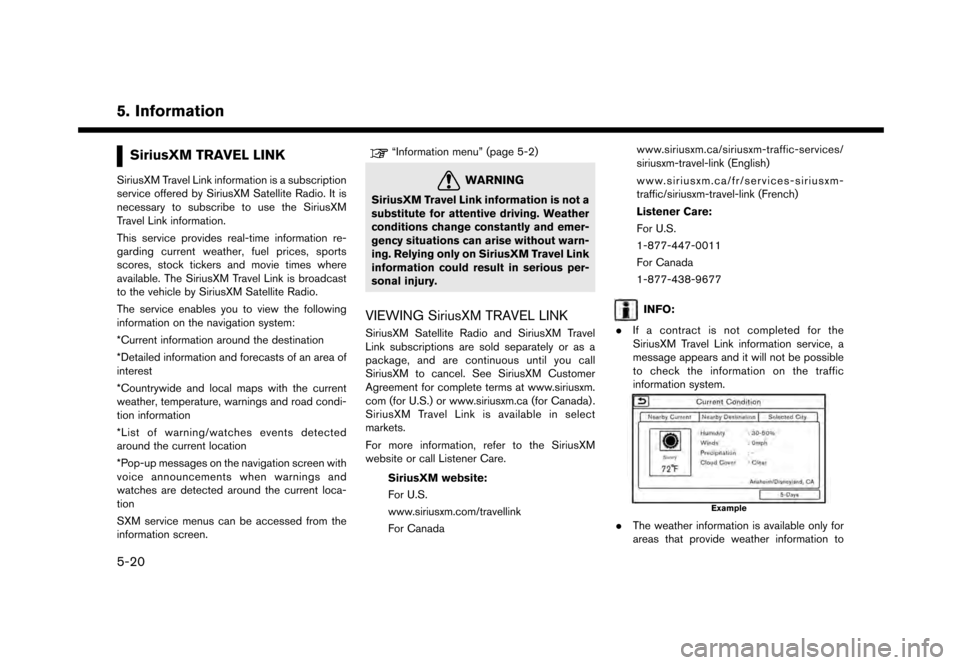
. If a contract is not completed for the
SiriusXM Travel Link information service, a
message appears and it will not be possible
to check the information on the traffic
information system.
Example
.The weather information is available only for
areas that provide weather information to
5-20
Page 105 of 248
SiriusXM Travel Link.
. Not all vehicles or devices are capable of
receiving all services offered by SiriusXM.
Data displays and individual product avail-
ability vary by vehicle hardware. Current
information and features may not be available
in all locations, or on all receivers. SiriusXM is
not responsible for any errors or inaccuracies
in the data services or their use in the vehicle.
Notes on SiriusXM Traffic information
.The SiriusXM Traffic information service is
not provided for some cities. In addition, the
cities for which the traffic information service
is provided may be changed.
. In some cases, infrastructure problems may
prevent the complete display of the traffic
information. This is not a malfunction.
. Due to infrastructure problems, or due to the
time when the traffic information service
broadcast is received, the displayed informa-
tion may differ from the actual traffic condi-
tions.
. Depending on the traffic information, a
detour route may be slower than the original
route. .
SiriusXM Satellite Radio and SiriusXM Traffic
subscriptions are sold separately or as a
package, and are continuous until you call
SiriusXM to cancel. See SiriusXM Customer
Agreement for complete terms at the Sir-
iusXM website.
SiriusXM website:
For U.S.
www. siriusxm.com
For Canada
www.siriusxm.ca (English)
www.siriusxm.ca/fr (French)
SiriusXM Travel Link is available in select
markets. For more information, refer to the
SiriusXM website or call Listener Care.
SiriusXM website:
For U.S.
www.siriusxm.com/traffic
For Canada
www.siriusxm.ca/siriusxm-traffic-services/
siriusxm-travel-link (English)
www.siriusxm.ca/fr/services-siriusxm-
traffic/siriusxm-travel-link (French)
Listener Care:
For U.S. 1-877-447-0011
For Canada
1-877-438-9677
. SiriusXM Traffic is available in over 130
metropolitan markets. For the most current
list of markets covered, please refer to the
SiriusXM website or call Listener Care.
SiriusXM website:
For U.S.
www.siriusxm.com/siriusxmtraffic
For Canada
www.siriusxm.ca/siriusxm-traffic-services/
siriusxm-traffic (English)
www.siriusxm.ca/fr/services-siriusxm-
traffic/siriusxm-traffic (French)
Listener Care:
For U.S.
1-877-447-0011
For Canada
1-877-438-9677
. Due to road maintenance, infrastructure
problems (e.g. malfunction of road sensors,
outage of central computer of infrastructure)
or natural disasters, there are times when
some or all traffic information may not be
5. Information
5-21
Page 131 of 248
INFO:
If a point on a freeway is set as the destination, a
confirmation message is displayed.
SETTING WITH NISSANCON-
NECTSMSERVICES (if so equipped)
It is possible to set the destination using the
NissanConnectSMServices features.“NissanConnectSMServices” (page 5-9)
INFO:
Use of NissanConnect
SMServices features is
dependent upon a valid subscription and the
telematics device being in operative condition, as
well as cellular connectivity, navigation map data
and GPS satellite signal reception being avail-
able.
Setting from information feeds
If the downloaded NissanConnectSMServices
information feed has location data, you can set it
as a destination. It is also possible to use
NissanConnect
SMServices features such as
“Destination Download”, “Send to Car” or
“Journey Planner”, etc. to set a destination.
For details of the services and settings, refer to
NissanConnect
SMServices website or contact
the NissanConnectSMServices support line. NissanConnect
SMServices website:
For U.S.
www.nissanusa.com/connect
For Canada
www.nissan.ca/nissanconnect (English)
www.nissan.ca/nissanconnect/fr (French)
NissanConnect
SMServices support
line:
1-855-426-6628
1. Touch [Info] on the Launch Bar.
2. Touch [NissanConnect Services].
3. Touch [All Information Feeds]. A list screen is displayed.
4. Touch a preferred folder. A list of information feeds is displayed.
5. Touch a preferred information feed.
INFO:
The methods for setting a destination differ
depending on the specific service (Roadside
Assistance Service, Assisted Search, Destina-
tion Download, Connected Search, etc.) and
NissanConnect
SMServices may be updated
during ownership. Please see the NissanCon- nect
SMServices website for the latest features
and services, as well as the most up-to-date user
guide. NissanConnect
SMServices website:
For U.S.
www.nissanusa.com/connect
For Canada
www.nissan.ca/nissanconnect (English)
www.nissan.ca/nissanconnect/fr (French)
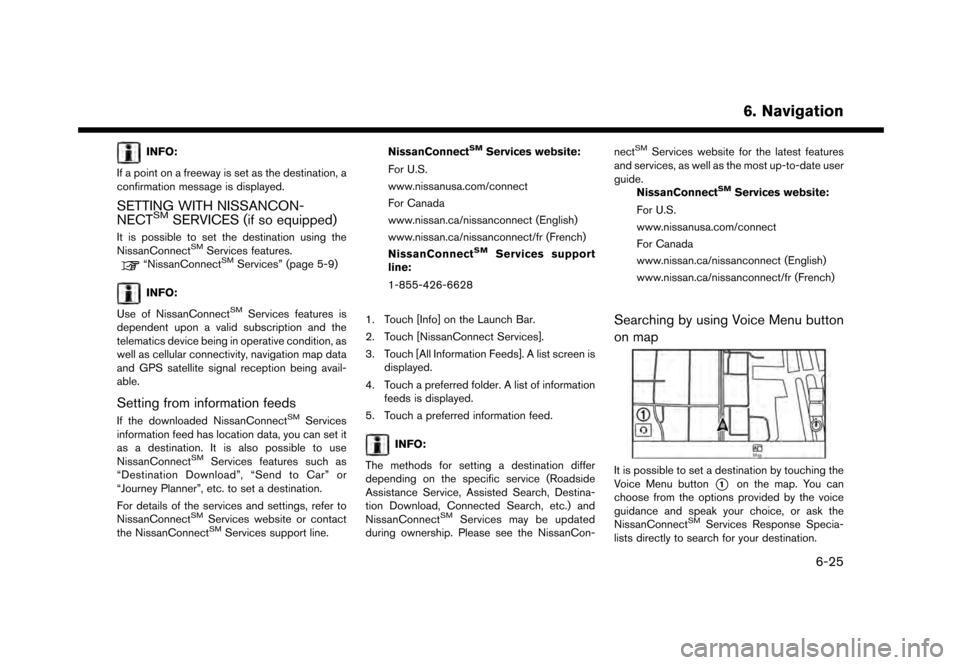
Searching by using Voice Menu button
on map
It is possible to set a destination by touching the
Voice Menu button
*1on the map. You can
choose from the options provided by the voice
guidance and speak your choice, or ask the
NissanConnect
SMServices Response Specia-
lists directly to search for your destination.
6. Navigation
6-25
Page 149 of 248
VIEWING TRAFFIC INFORMA-
TION
SiriusXM Traffic information is a subscription
service offered by SiriusXM Satellite Radio.
This service provides real-time information re-
garding traffic flow, accidents, road construction
and other incidents, where available.
SiriusXM Traffic combines information from
commercial and public traffic data providers
including government departments of transpor-
tation, police, emergency services, road sensors,
cameras and aircraft reports. The traffic informa-
tion is broadcast to the vehicle by the SiriusXM
satellites. Available traffic information on the
route the driver selected is shown on the
navigation screen so traffic conditions between
you and the destination are known. Three types
of real-time traffic information for major roadways
are shown on the navigation system:
* Unscheduled traffic data for example, accidents
and disabled vehicles.
* Scheduled traffic data, for example road
construction and road closures.
* Traffic flow information (rate of speed data) .
WARNING
SiriusXM Traffic information is not a
substitute for attentive driving. Traffic
conditions change constantly and emer-
gency situations can arise without warn-
ing. Relying only on SiriusXM Traffic
information may lead to a collision and
could result in serious personal injury.
NOTE:
. Flow information is provided only for
roads equipped with traffic sensors and
is not available in all markets covered
by the service. Flow data may not be
available on portions of a road that is
under construction.
. A SiriusXM Traffic subscription is ne-
cessary to view Traffic Info.
“SiriusXM Travel Link” (page 5-20)
VIEWING AVAILABLE TRAFFIC IN-
FORMATION
Viewing traffic events from list
1. Touch [Info] on the Launch Bar.
2. Touch [SXM Traffic]. A list of available types
of information are displayed.
Available
items Function
[Info on
Route] Displays a list of traffic information
found on the route from the current
vehicle location to the destination.
Available only when a route is set.
[Nearby
Traffic Info] Displays a list of available traffic
information around the current ve-
hicle location.
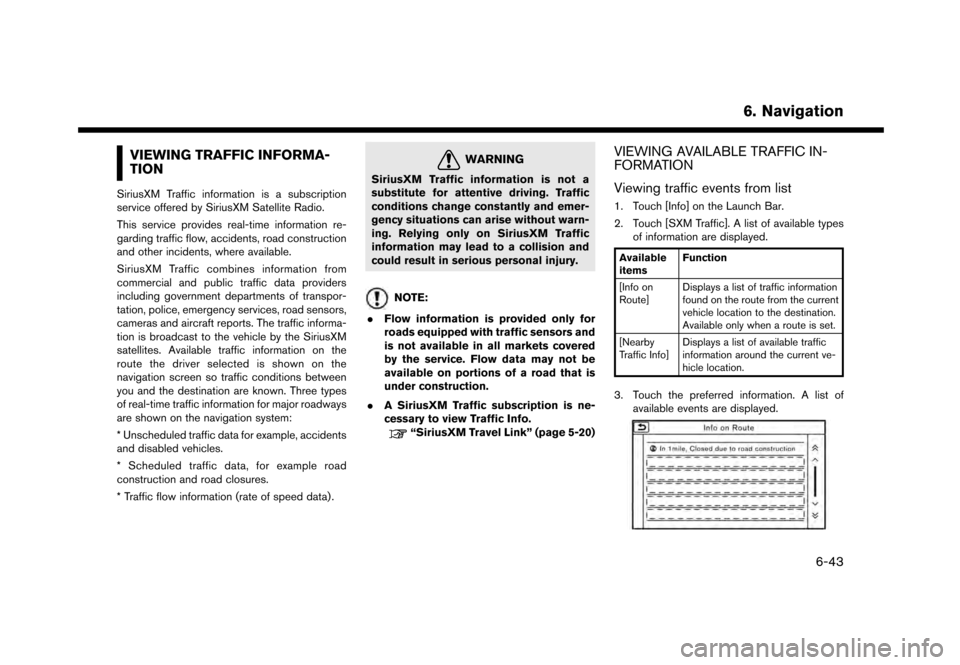
3. Touch the preferred information. A list of
available events are displayed.
6. Navigation
6-43
Page 163 of 248
GENERAL INFORMATION FOR
NAVIGATION SYSTEM
CURRENT VEHICLE LOCATION
Display of current vehicle location
This navigation system combines the data
obtained from the vehicle (by gyro sensor) and
from GPS (Global Positioning System) satellites
to calculate the current location of the vehicle.
This position is then displayed throughout route
guidance to a destination.
What is GPS (Global Positioning Sys-
tem)?
GPS is a position detecting system that uses
satellites deployed by the U.S. government. This
navigation system receives radio signals from
three or more different satellites that orbit
13,049 miles (21,000 km) above the earth in
space, and detect the position of the vehicle by
utilizing the principle of triangulation.
Positioning adjustment:
When the system judges that the vehicle position
is not accurate based on vehicle speed and gyro
sensor data calculations, the system will auto-
matically adjust the position of the vehicle icon
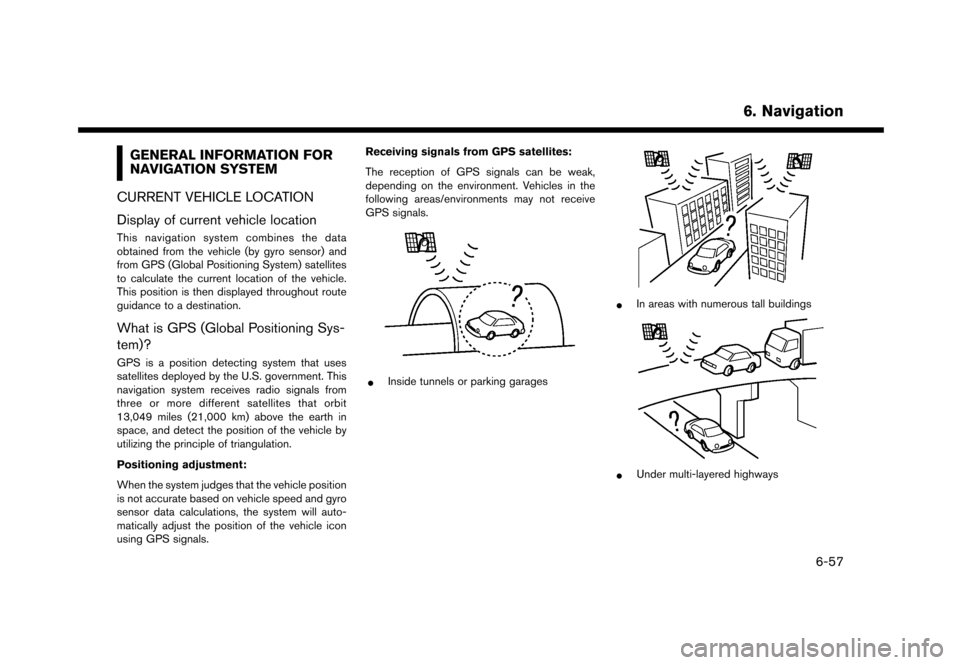
using GPS signals. Receiving signals from GPS satellites:
The reception of GPS signals can be weak,
depending on the environment. Vehicles in the
following areas/environments may not receive
GPS signals.
*Inside tunnels or parking garages
*In areas with numerous tall buildings
*Under multi-layered highways
6. Navigation
6-57
Page 176 of 248
7. Voice recognition
VOICE RECOGNITION
USING VOICE RECOGNITION SYS-
TEM
Initialization
When the ignition switch is in the ON or ACC
position, the voice recognition is initialized.
When the initialization is complete, the system
is ready to accept voice commands. If <
>on
the steering wheel is pushed before the initi-
alization completes, the display will show a
message to wait until the system is ready.
BEFORE STARTING
To get the best recognition performance from the
voice recognition, observe the following items.
. The interior of the vehicle should be as quiet
as possible. Close the windows to eliminate
the surrounding noises (traffic noise, vibra-
tion sounds, etc.) , which may prevent the
system from correctly recognizing the voice
commands.
. Wait until the tone sounds before speaking a
command.
. Speak in a natural conversational voice
without pausing between words. .
The system recognizes commands given
from the driver’s seat.
GIVING VOICE COMMANDS
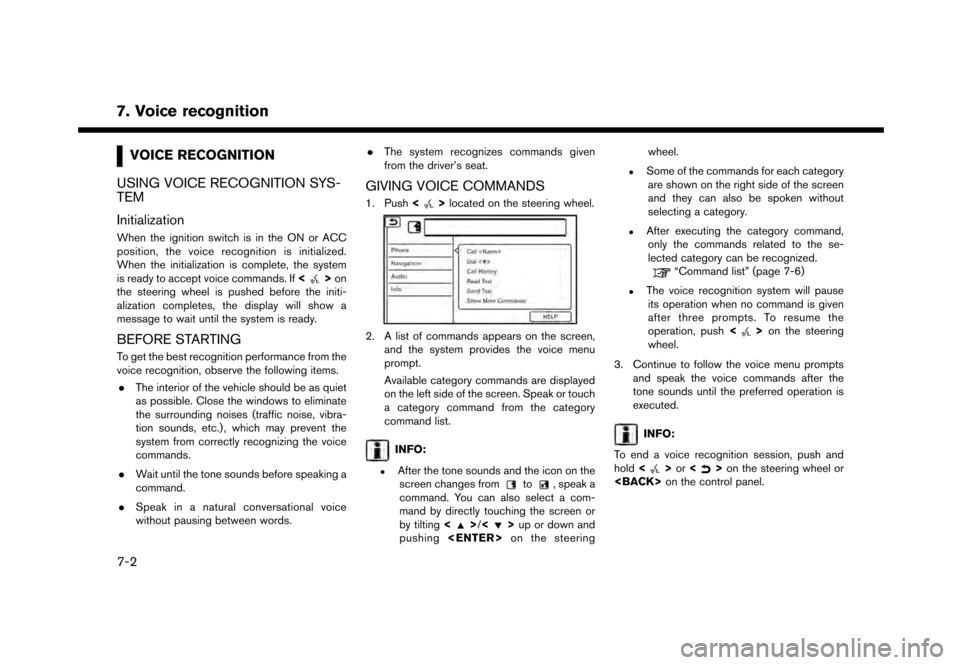
1. Push <>located on the steering wheel.
2. A list of commands appears on the screen,
and the system provides the voice menu
prompt.
Available category commands are displayed
on the left side of the screen. Speak or touch
a category command from the category
command list.
INFO:
.After the tone sounds and the icon on thescreen changes fromto, speak a
command. You can also select a com-
mand by directly touching the screen or
by tilting <
>/<>up or down and
pushing
.Some of the commands for each category
are shown on the right side of the screen
and they can also be spoken without
selecting a category.
.After executing the category command,only the commands related to the se-
lected category can be recognized.
“Command list” (page 7-6)
.The voice recognition system will pauseits operation when no command is given
after three prompts. To resume the
operation, push <
>on the steering
wheel.
3. Continue to follow the voice menu prompts and speak the voice commands after the
tone sounds until the preferred operation is
executed.
INFO:
To end a voice recognition session, push and
hold <
>or <>on the steering wheel or
7-2
Page 186 of 248
7. Voice recognition
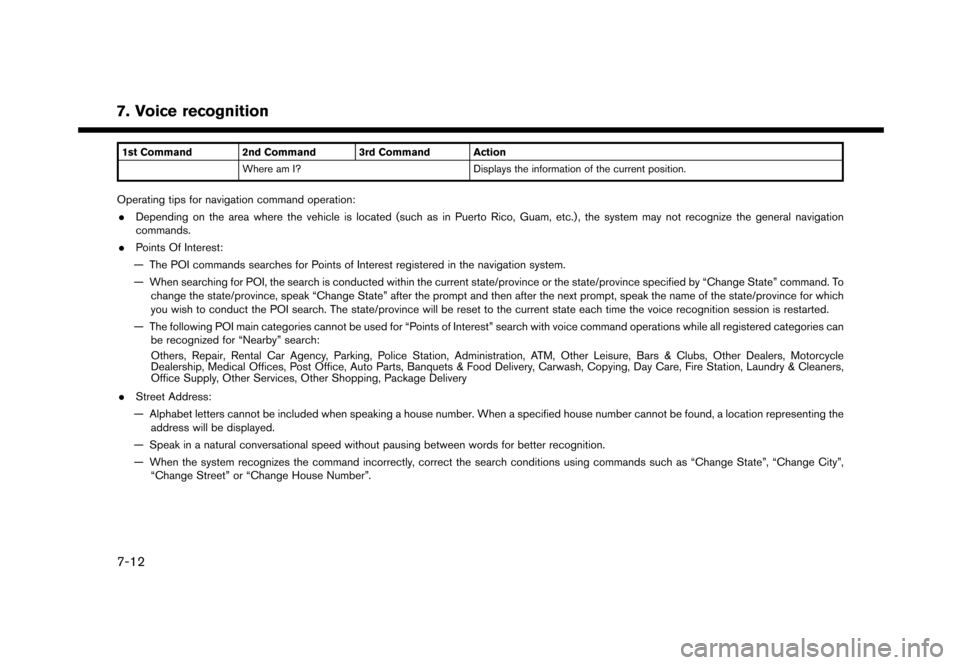
1st Command 2nd Command 3rd Command ActionWhere am I? Displays the information of the current position.
Operating tips for navigation command operation:
. Depending on the area where the vehicle is located (such as in Puerto Rico, Guam, etc.) , the system may not recognize the general navigation
commands.
. Points Of Interest:
— The POI commands searches for Points of Interest registered in the navigation system.
— When searching for POI, the search is conducted within the current state/province or the state/province specified by “Change State” command. To change the state/province, speak “Change State” after the prompt and then after the next prompt, speak the name of the state/province for which
you wish to conduct the POI search. The state/province will be reset to the current state each time the voice recognition session is restarted.
— The following POI main categories cannot be used for “Points of Interest” search with voice command operations while all registered categories can be recognized for “Nearby” search:
Others, Repair, Rental Car Agency, Parking, Police Station, Administration, ATM, Other Leisure, Bars & Clubs, Other Dealers, Motorcycle
Dealership, Medical Offices, Post Office, Auto Parts, Banquets & Food Delivery, Carwash, Copying, Day Care, Fire Station, Laundry & Cleaners,
Office Supply, Other Services, Other Shopping, Package Delivery
. Street Address:
— Alphabet letters cannot be included when speaking a house number. When a specified house number cannot be found, a location representing the address will be displayed.
— Speak in a natural conversational speed without pausing between words for better recognition.
— When the system recognizes the command incorrectly, correct the search conditions using commands such as “Change State”, “Change City”, “Change Street” or “Change House Number”.
7-12