Nissan App NISSAN JUKE 2016 F15 / 1.G LC2 Kai Navigation Manual
[x] Cancel search | Manufacturer: NISSAN, Model Year: 2016, Model line: JUKE, Model: NISSAN JUKE 2016 F15 / 1.GPages: 87, PDF Size: 0.68 MB
Page 67 of 87
mWARNING
●Radio waves could adversely affect
electric medical equipment. Individu-
als who use a pacemaker should
contact the device manufacturer re-
garding any possible effects before
using the system.
● The TCU antenna is installed inside
the upper-central part of the instru-
ment panel. An occupant should not
get any closer to the antenna than
specified by the pacemaker
manufacturer. The radio waves from
the TCU antenna may adversely af-
fect the operation of the pacemaker
while using the NissanConnect
SM
Services.
● Please note that the Automatic Colli-
sion Notification service and Emer-
gency Calling function cannot be
used in the following conditions:
– The vehicle moves outside the Nis- sanConnect
SMServices area and
connection with the TCU (Telematics
Control Unit) is affected. – The vehicle is in a location with poor
signal reception such as a tunnel,
underground parking, behind a
building or in a mountainous area.
– It may not be possible to make an emergency call in all accidents or
emergencies, or if you are in a loca-
tion without reception.
INFO:
●
NissanConnectSMServices features are de-
pendent upon subscription enrollment and the
telematics device being in operative condition,
cellular connectivity, navigation map data and
GPS satellite signal reception. Terms and con-
ditions of the NissanConnect
SMServices Sub-
scription Agreement apply.
● Enrollment is required in order to receive Nis-
sanConnectSMServices. The services that
can be received vary depending on the plan in
which you are enrolled.
● A six-month trial is included beginning on the
date of purchase, however you must still be
enrolled and activated to use services.
● After the trial period, you must enroll in a paid
subscription for NissanConnect
SMServices
to continue using the features. The services
that can be received vary depending on the plan to which you subscribe.
● Laws in some jurisdictions may restrict the
use of “Text-to-Speech.” Check local regula-
tions before using this feature.
NissanConnect
SMServices may be updated.
The latest detailed information is available on the
following websites or from the support line.
NissanConnect
SMServices website:
For U.S. customers
www.nissanusa.com/connect
For Canadian customers
www.nissan.ca/nissanconnect (English)
www.nissan.ca/nissanconnect/fr (French)
NissanConnect
SMServices support line:
1-855-426-6628
Roadside Assistance Service
Enhanced Roadside Assistance allows you to
receive assistance from the Roadside Response
Specialist for a non-emergency incident that re-
quires a towing or third-party response service.
The service is accessed by touching the Voice
Menu button on the navigation screen. Roadside
Assistance may also be used in conjunction with
the Emergency Assistance service, if warranted.
(page 6-10)
General system information6-5
Page 68 of 87
Emergency Calling (E-Call)
The Emergency Calling (E-Call) feature provides
emergency assistance by connecting to a Re-
sponse Specialist. In the event of an emergency,
by pressing the in-vehicle SOS button to use
this feature. The Response Specialist provides
various assistance depending on the situation.
(page 6-10)
Automatic Collision Notification (ACN)
The TCU (Telematics Control Unit) generates a
signal automatically to the NissanConnect
SM
Services Response Center in the case of an ac-
cident severe enough to trigger one of the vehi-
cle’s air bags. Upon the signal, a Response Spe-
cialist receives the vehicle location and customer
information and notifies the proper authorities in
accordance with established policies and
procedures.
Curfew Alert
Customers can set time interval for acceptable
and unacceptable operation of the vehicle via
NissanConnect
SMPortal Website and Nissan-
ConnectSMServices Companion App. If the time
restrictions are violated, the customer will be au-
tomatically notified (email, text message, or
phone call) . Remote Door Lock/Unlock
The Remote Door Lock/Unlock feature allows
the customer to access the vehicle remotely
from the NissanConnect
SMServices website or
Companion App to send lock or unlock com-
mands to the vehicle.
Remote Sound Horn and Flash Lights
Customers can activate the vehicle’s headlights
and horn via the NissanConnect
SMServices
website or Companion App.
Remote Engine Start
If the vehicle is equipped with TCU (Telematics
Control Unit) , Remote Start and via the Intelli-
gent Key, customers can remotely start the ve-
hicle via the NissanConnect
SMServices website
or Companion App.
Alarm Notification
Customers can set an area for the vehicle to stay
in or out of via the NissanConnectSMServices
website or Companion App. Customers will be no-
tified when vehicle is out-of-bounds based on their
notification preferences (e-mail, text, phone call) .
Maintenance Alert/Reminder
The center sends maintenance and other rel-
evant info. to registered e-mail address
(PC/Mobile) based on the vehicle information
(e.g. driving mileage and etc.) sent at the center
access timing. Details of vehicle information are
separately examined. Google
TMSend-To-Car
Customers can access turn-by-turn navigation
provided by Google maps and sent directly to
the NissanConnect
SMvehicle.
Journey Planner
Customers can create a multiple way-point route
via Journey Planner on the NissanConnect
SM
Services website and send the details directly to
their vehicle.
Destination Send-To-Car
Customers can search for different locations via
the NissanConnect
SMServices website and
send them directly to their vehicle.
Connected Search
Customers can access Internet search engines
directly from the vehicle to find exact destina-
tions to navigate to.
Assisted Search
Customers can use Assisted Search to get fur-
ther destination assistance via operator service
or live Response Specialist for more detailed
information.
Stolen Vehicle Locator
In the event that the customer’s vehicle is stolen,
after filing a police report the customer can con-
tact NissanConnect
SMServices via phone and
report the vehicle stolen. At that point, Nissan-
6-6General system information
Page 69 of 87
ConnectSMServices emergency support staff
will work with authorities to attempt to recover
the vehicle.
Valet Alert
Customers will be notified if their vehicle is
driven more than 0.2 miles once they activate
Valet Alert via the NissanConnect
SMServices
website or Companion App.
Notice to Bluetooth® Hands-free
phone users
This is to avoid various services by NissanCon-
nectSMServices Response Specialists (such as
Assisted Search) and NissanConnectSMSer-
vices emergency support staff being interrupted
by incoming calls. Incoming phone calls received
while the vehicle is connected to the Service
Center will not be listed in the call history of the
Bluetooth® Hands-free phone system. However
those incoming calls may be listed in the call his-
tory of your mobile phone, depending on its
capabilities. After disconnecting communication
with the NissanConnect
SMServices Response
Specialist or NissanConnectSMServices emer-
gency support staff, check the incoming call his-
tory on your mobile phone when it is safe to do
so.
Service application
A separately purchased NissanConnectSMSer-
vices subscription is required. For more details,
refer to the NissanConnect
SMServices website
or contact the NissanConnectSMServices sup-
port line.
NissanConnect
SMServices website:
For U.S. customers
www.nissanusa.com/connect
For Canadian customers
www.nissan.ca/nissanconnect (English)
www.nissan.ca/nissanconnect/fr (French)
NissanConnect
SMServices support line:
1-855-426-6628
INFO:
If the vehicle is owned by another person and is
resold, the subscription for this service must be
canceled and all data stored on the device must
be deleted.
Operating tips
mWARNING
● Use NissanConnectSMServices after
stopping your vehicle in a safe
location. If you have to use Nissan-
Connect
SMServices while driving,
exercise extreme caution at all times
so full attention may be given to ve-
hicle operation.
● If you are unable to devote full atten-
tion to vehicle operation while talk-
ing with NissanConnect
SMServices,
pull off the road to a safe location
and stop your vehicle.
● Do not use NissanConnectSMServices with
the engine stopped. Doing so may discharge
the vehicle battery.
● NissanConnect
SMServices cannot be used
under the following conditions:
– NissanConnect
SMServices subscription
has expired.
– The vehicle is outside the area where the cellular network service is receivable.
General system information6-7
Page 70 of 87
– The vehicle is in a location with poor sig-nal reception such as tunnels, under-
ground parking garages, behind build-
ings or in mountainous areas.
– The line is busy.
– The TCU (Telematics Control Unit) or other systems of your vehicle are not
working properly.
– The NissanConnect
SMServices network
system is disabled.
● Information Feeds download cannot be used
when the vehicle is connected to the Nissan-
Connect
SMServices Data Center and Nis-
sanConnectSMServices Response Center.
● Communication with the NissanConnect
SM
Services Data Center is related to the data
communication mode and may cause occa-
sional difficulty in receiving signals, and the
signal receivable area may be limited com-
pared to regular mobile phones.
● You may hear clicks or experience interrup-
tions while speaking with the NissanCon-
nect
SMServices Response Specialists. This
is due to a shift in the connection zone and is
not a malfunction. ●
Depending on the line used, the sound vol-
ume may decrease. Adjust the volume as
necessary.
● Received sounds may be distorted or ambient
noise may sound like voices of a crowd. This
is due to the use of the digital line and is not a
malfunction.
● You may hear your own voice from the
speaker when talking with the NissanCon-
nect
SMServices Response Specialists due to
a network disturbance. When this occurs, re-
connect the line after a few minutes or at a dif-
ferent location.
● This vehicle incorporates a communication
device that is called a TCU (Telematics Con-
trol Unit) . The communication connection be-
tween this unit and the NissanConnect
SM
Data Center allows for various services.
When the system connects to the Nissan-
Connect
SMData Center, an antenna icon will
appear in the upper right corner of the screen.
Use the service in a location where the symbol
representing good signal reception appears
on the screen.
: When the signal reception is good.
: When the signal reception is bad. ●
NissanConnect
SMServices uses the TCU
(Telematics Control Unit) . Even if the signal
strength bar of the in-vehicle data communi-
cation module indicates good reception, con-
nection to the NissanConnect
SMData Center
may be disabled. This does not indicate a
malfunction. Operate the system again after a
few minutes.
6-8General system information
Page 72 of 87
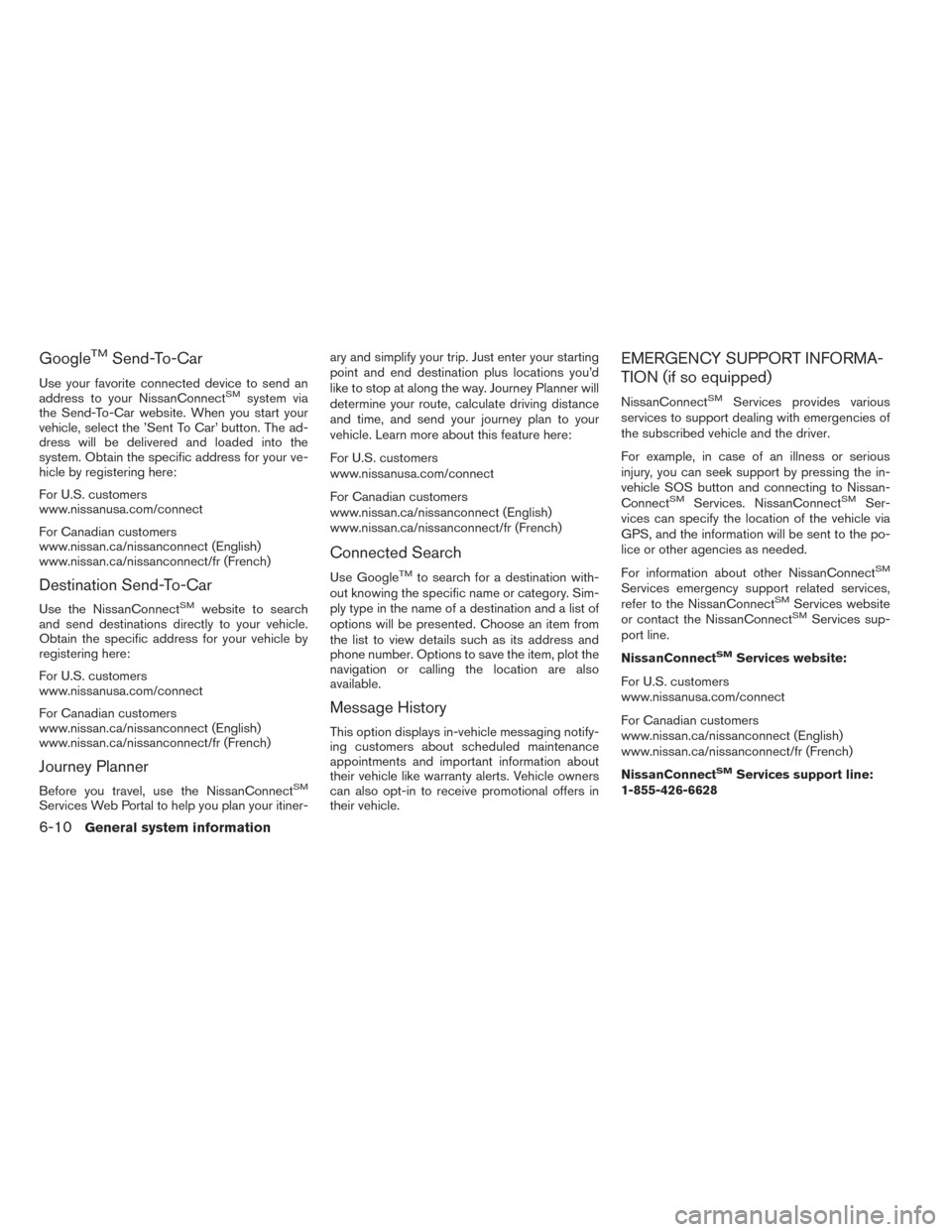
GoogleTMSend-To-Car
Use your favorite connected device to send an
address to your NissanConnectSMsystem via
the Send-To-Car website. When you start your
vehicle, select the ’Sent To Car’ button. The ad-
dress will be delivered and loaded into the
system. Obtain the specific address for your ve-
hicle by registering here:
For U.S. customers
www.nissanusa.com/connect
For Canadian customers
www.nissan.ca/nissanconnect (English)
www.nissan.ca/nissanconnect/fr (French)
Destination Send-To-Car
Use the NissanConnectSMwebsite to search
and send destinations directly to your vehicle.
Obtain the specific address for your vehicle by
registering here:
For U.S. customers
www.nissanusa.com/connect
For Canadian customers
www.nissan.ca/nissanconnect (English)
www.nissan.ca/nissanconnect/fr (French)
Journey Planner
Before you travel, use the NissanConnectSM
Services Web Portal to help you plan your itiner- ary and simplify your trip. Just enter your starting
point and end destination plus locations you’d
like to stop at along the way. Journey Planner will
determine your route, calculate driving distance
and time, and send your journey plan to your
vehicle. Learn more about this feature here:
For U.S. customers
www.nissanusa.com/connect
For Canadian customers
www.nissan.ca/nissanconnect (English)
www.nissan.ca/nissanconnect/fr (French)
Connected Search
Use GoogleTMto search for a destination with-
out knowing the specific name or category. Sim-
ply type in the name of a destination and a list of
options will be presented. Choose an item from
the list to view details such as its address and
phone number. Options to save the item, plot the
navigation or calling the location are also
available.
Message History
This option displays in-vehicle messaging notify-
ing customers about scheduled maintenance
appointments and important information about
their vehicle like warranty alerts. Vehicle owners
can also opt-in to receive promotional offers in
their vehicle.
EMERGENCY SUPPORT INFORMA-
TION (if so equipped)
NissanConnectSMServices provides various
services to support dealing with emergencies of
the subscribed vehicle and the driver.
For example, in case of an illness or serious
injury, you can seek support by pressing the in-
vehicle SOS button and connecting to Nissan-
Connect
SMServices. NissanConnectSMSer-
vices can specify the location of the vehicle via
GPS, and the information will be sent to the po-
lice or other agencies as needed.
For information about other NissanConnect
SM
Services emergency support related services,
refer to the NissanConnectSMServices website
or contact the NissanConnectSMServices sup-
port line.
NissanConnect
SMServices website:
For U.S. customers
www.nissanusa.com/connect
For Canadian customers
www.nissan.ca/nissanconnect (English)
www.nissan.ca/nissanconnect/fr (French)
NissanConnect
SMServices support line:
1-855-426-6628
6-10General system information
Page 73 of 87
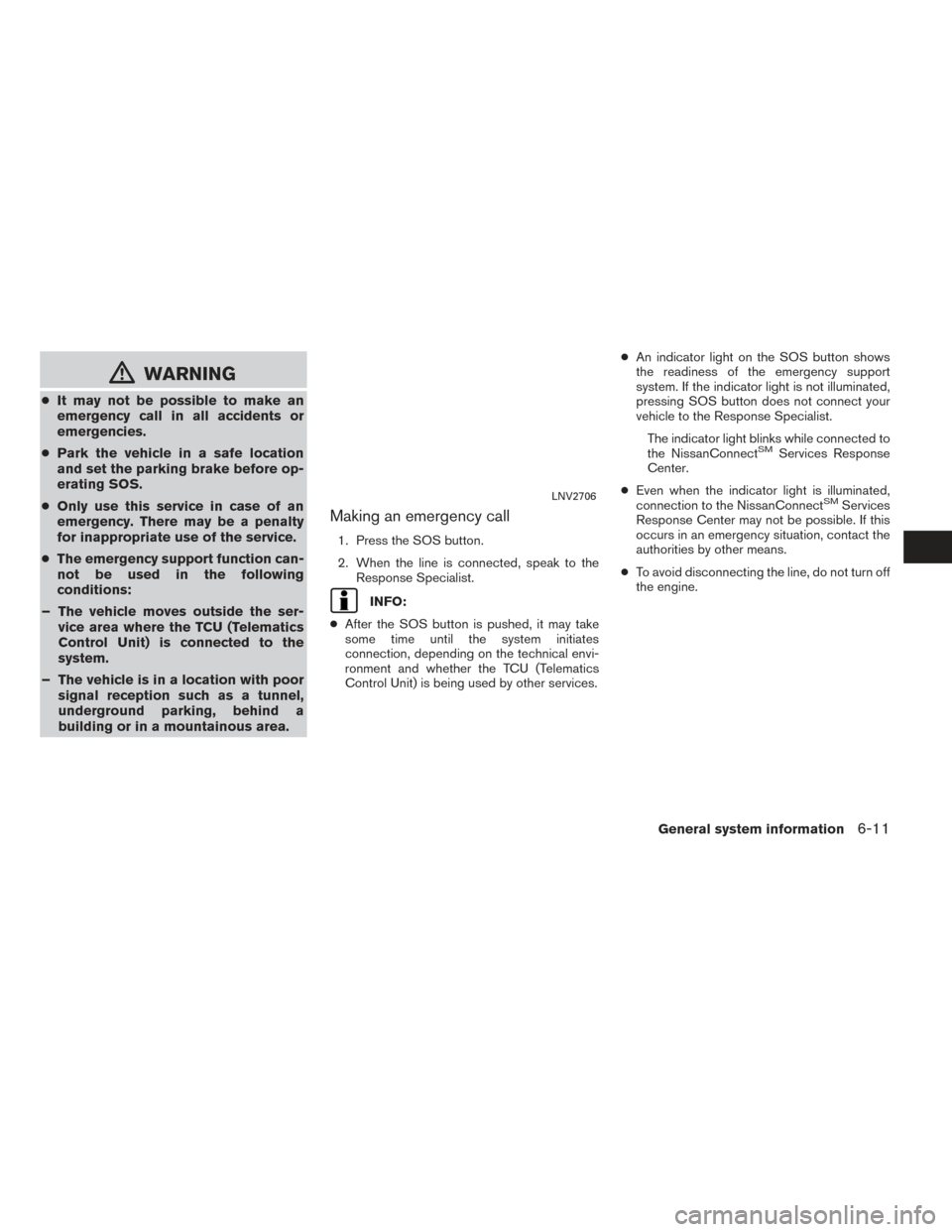
mWARNING
●It may not be possible to make an
emergency call in all accidents or
emergencies.
● Park the vehicle in a safe location
and set the parking brake before op-
erating SOS.
● Only use this service in case of an
emergency. There may be a penalty
for inappropriate use of the service.
● The emergency support function can-
not be used in the following
conditions:
– The vehicle moves outside the ser- vice area where the TCU (Telematics
Control Unit) is connected to the
system.
– The vehicle is in a location with poor signal reception such as a tunnel,
underground parking, behind a
building or in a mountainous area.
Making an emergency call
1. Press the SOS button.
2. When the line is connected, speak to the
Response Specialist.
INFO:
● After the SOS button is pushed, it may take
some time until the system initiates
connection, depending on the technical envi-
ronment and whether the TCU (Telematics
Control Unit) is being used by other services. ●
An indicator light on the SOS button shows
the readiness of the emergency support
system. If the indicator light is not illuminated,
pressing SOS button does not connect your
vehicle to the Response Specialist.
The indicator light blinks while connected to
the NissanConnect
SMServices Response
Center.
● Even when the indicator light is illuminated,
connection to the NissanConnect
SMServices
Response Center may not be possible. If this
occurs in an emergency situation, contact the
authorities by other means.
● To avoid disconnecting the line, do not turn off
the engine.LNV2706
General system information6-11
Page 82 of 87
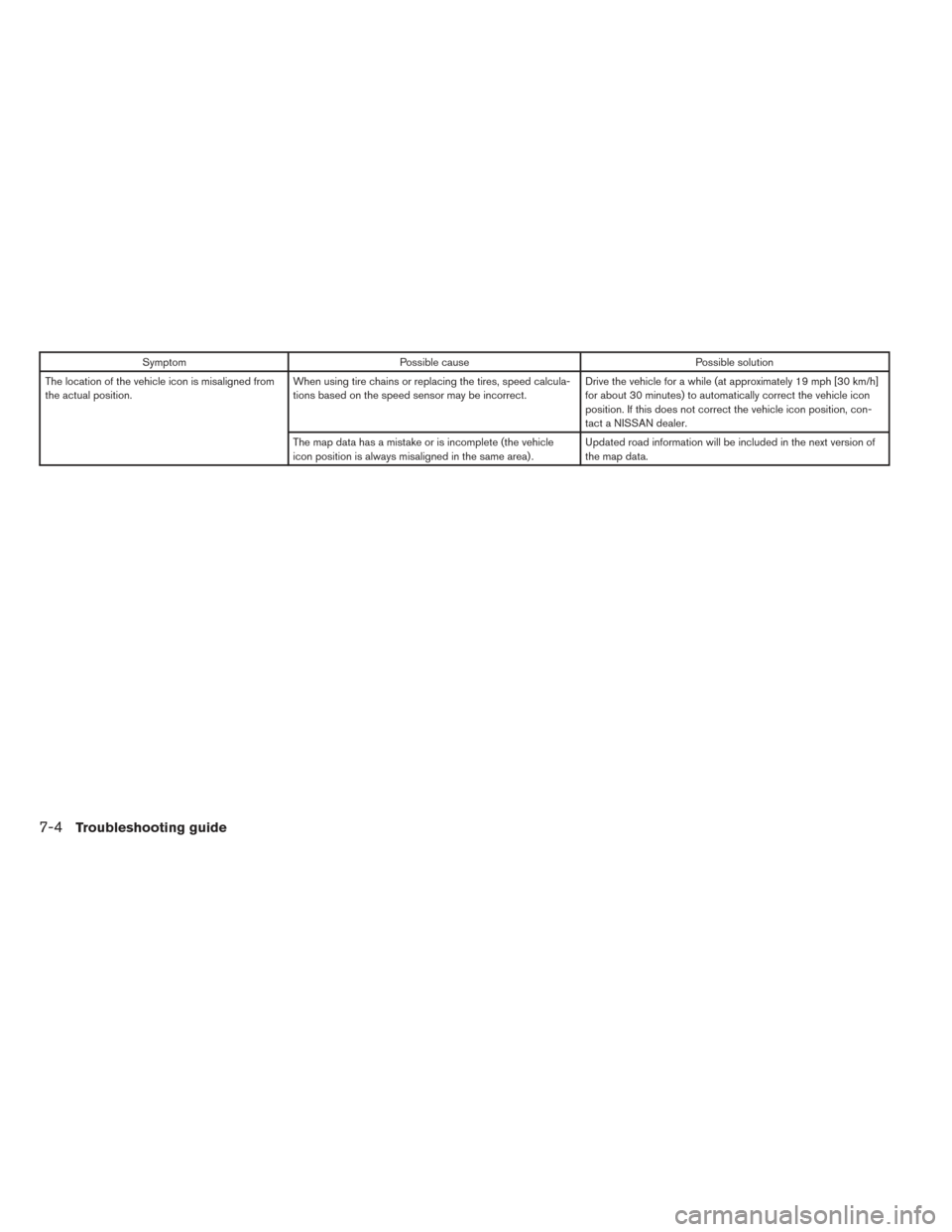
SymptomPossible cause Possible solution
The location of the vehicle icon is misaligned from
the actual position. When using tire chains or replacing the tires, speed calcula-
tions based on the speed sensor may be incorrect. Drive the vehicle for a while (at approximately 19 mph [30 km/h]
for about 30 minutes) to automatically correct the vehicle icon
position. If this does not correct the vehicle icon position, con-
tact a NISSAN dealer.
The map data has a mistake or is incomplete (the vehicle
icon position is always misaligned in the same area) . Updated road information will be included in the next version of
the map data.
7-4Troubleshooting guide