eco NISSAN KICKS 2020 Owner´s Manual
[x] Cancel search | Manufacturer: NISSAN, Model Year: 2020, Model line: KICKS, Model: NISSAN KICKS 2020Pages: 500, PDF Size: 3.43 MB
Page 181 of 500
• Do not close the lif tgate while holding thegas stays or hang anything on them. Do-
ing so may lead to hands or arms be-
coming trapped in the lif tgate and could
result in an injury.
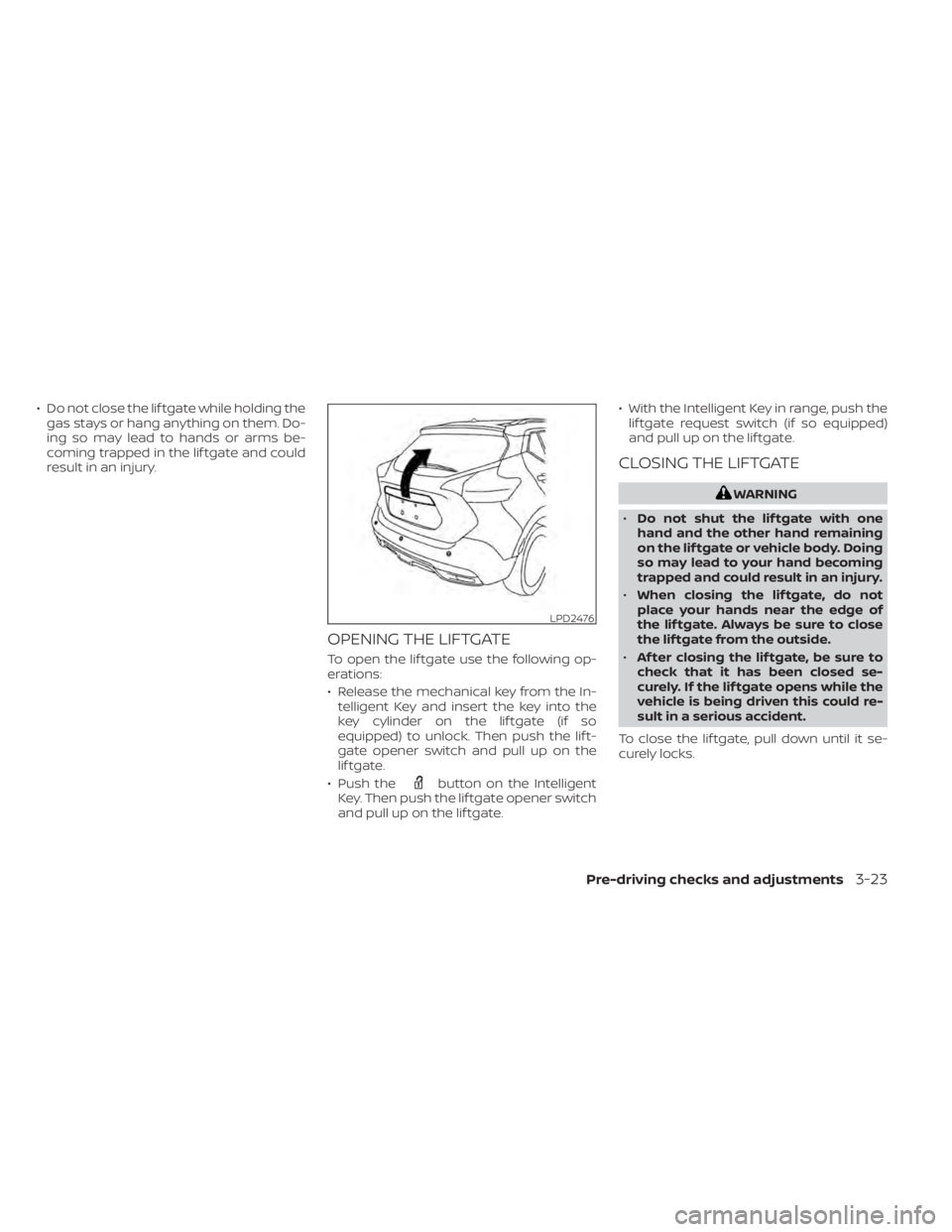
OPENING THE LIFTGATE
To open the lif tgate use the following op-
erations:
• Release the mechanical key from the In-telligent Key and insert the key into the
key cylinder on the lif tgate (if so
equipped) to unlock. Then push the lif t-
gate opener switch and pull up on the
lif tgate.
• Push the
button on the Intelligent
Key. Then push the lif tgate opener switch
and pull up on the lif tgate. • With the Intelligent Key in range, push the
lif tgate request switch (if so equipped)
and pull up on the lif tgate.
CLOSING THE LIFTGATE
WARNING
• Do not shut the lif tgate with one
hand and the other hand remaining
on the lif tgate or vehicle body. Doing
so may lead to your hand becoming
trapped and could result in an injury.
• When closing the lif tgate, do not
place your hands near the edge of
the lif tgate. Always be sure to close
the lif tgate from the outside.
• Af ter closing the lif tgate, be sure to
check that it has been closed se-
curely. If the lif tgate opens while the
vehicle is being driven this could re-
sult in a serious accident.
To close the lif tgate, pull down until it se-
curely locks.
LPD2476
Pre-driving checks and adjustments3-23
Page 182 of 500
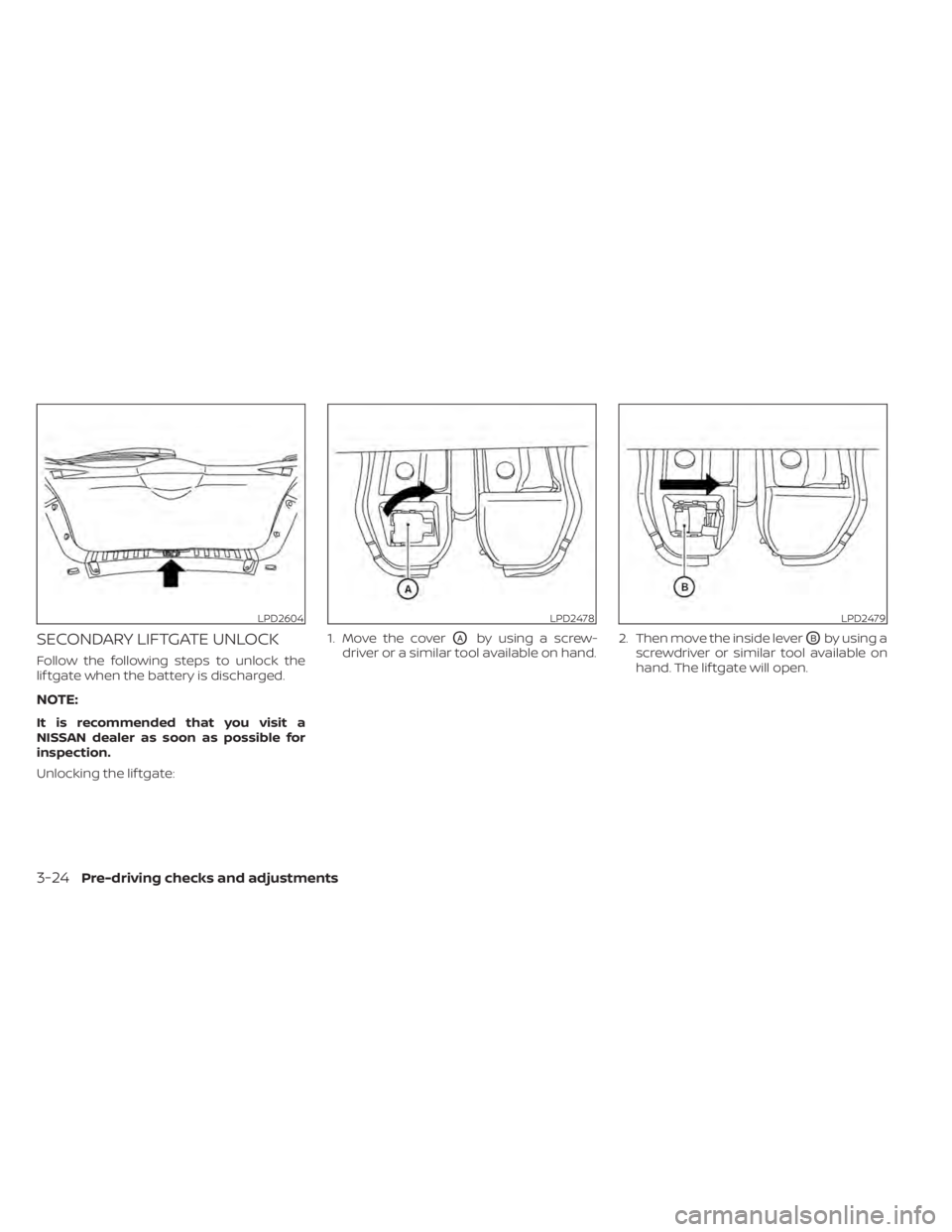
SECONDARY LIFTGATE UNLOCK
Follow the following steps to unlock the
lif tgate when the battery is discharged.
NOTE:
It is recommended that you visit a
NISSAN dealer as soon as possible for
inspection.
Unlocking the lif tgate:1. Move the cover
OAby using a screw-
driver or a similar tool available on hand. 2. Then move the inside leverOBby using a
screwdriver or similar tool available on
hand. The lif tgate will open.
LPD2604LPD2478LPD2479
3-24Pre-driving checks and adjustments
Page 183 of 500
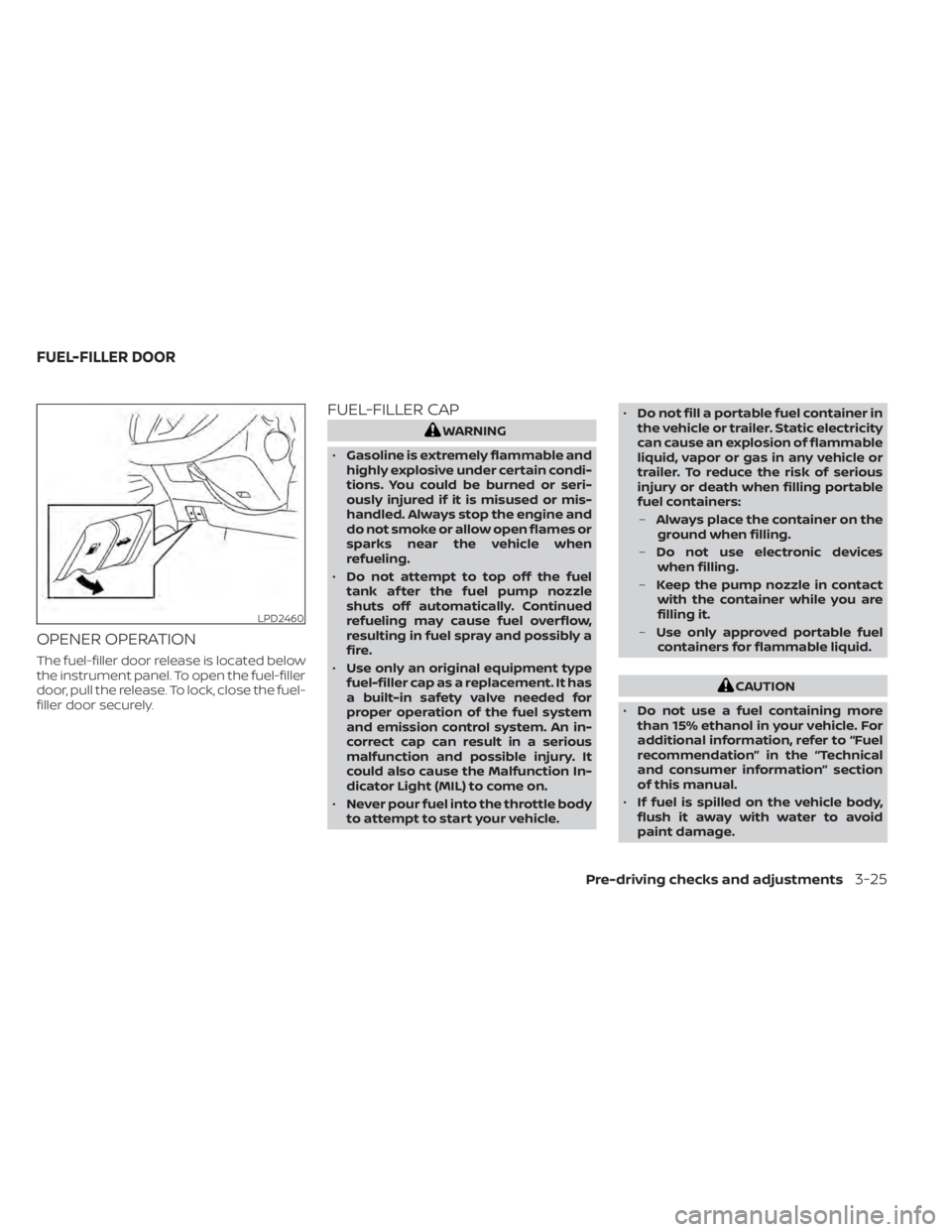
OPENER OPERATION
The fuel-filler door release is located below
the instrument panel. To open the fuel-filler
door, pull the release. To lock, close the fuel-
filler door securely.
FUEL-FILLER CAP
WARNING
• Gasoline is extremely flammable and
highly explosive under certain condi-
tions. You could be burned or seri-
ously injured if it is misused or mis-
handled. Always stop the engine and
do not smoke or allow open flames or
sparks near the vehicle when
refueling.
• Do not attempt to top off the fuel
tank af ter the fuel pump nozzle
shuts off automatically. Continued
refueling may cause fuel overflow,
resulting in fuel spray and possibly a
fire.
• Use only an original equipment type
fuel-filler cap as a replacement. It has
a built-in safety valve needed for
proper operation of the fuel system
and emission control system. An in-
correct cap can result in a serious
malfunction and possible injury. It
could also cause the Malfunction In-
dicator Light (MIL) to come on.
• Never pour fuel into the throttle body
to attempt to start your vehicle. •
Do not fill a portable fuel container in
the vehicle or trailer. Static electricity
can cause an explosion of flammable
liquid, vapor or gas in any vehicle or
trailer. To reduce the risk of serious
injury or death when filling portable
fuel containers:
– Always place the container on the
ground when filling.
– Do not use electronic devices
when filling.
– Keep the pump nozzle in contact
with the container while you are
filling it.
– Use only approved portable fuel
containers for flammable liquid.
CAUTION
• Do not use a fuel containing more
than 15% ethanol in your vehicle. For
additional information, refer to “Fuel
recommendation” in the “Technical
and consumer information” section
of this manual.
• If fuel is spilled on the vehicle body,
flush it away with water to avoid
paint damage.
LPD2460
FUEL-FILLER DOOR
Pre-driving checks and adjustments3-25
Page 188 of 500
4 Monitor, climate, audio, phone and
voice recognition systems
NissanConnect® Owner’s Manual
(if so equipped)..................................4-2
Control panel buttons ...........................4-3
How to use the touch-screen ................4-4
How to use the
MENU button ...........4-6(brightness control) button .............4-8
How to use the VOL (volume) knob /
PUSH
(power)button....................4-8
Selecting menu from launch bar .............4-8
RearView Monitor (if so equipped) ...............4-9
RearView Monitor system operation .........4-10
How to read the displayed lines ..............4-11
Difference between predicted and
actual distances ............................. 4-11
How to park with predicted course
lines ......................................... 4-13
Adjusting the screen ........................ 4-14
How to turn on and off predicted
course lines ................................. 4-15
RearView Monitor system limitations ........4-15
System maintenance ....................... 4-16
Intelligent Around View Monitor
(if so equipped) ................................. 4-17
Intelligent Around View Monitor system
operation ................................... 4-18
Difference between predicted and
actual distances ............................ 4-21How to park with predicted course
lines
......................................... 4-23
How to switch the display ...................4-24
Adjusting the screen ........................ 4-24
Intelligent Around View Monitor system
limitations .................................. 4-25
System maintenance .......................4-27
Moving Object Detection (MOD)
(if so equipped) ................................. 4-28
MOD system operation ......................4-29
Turning MOD on and off (if so equipped) .....4-31
MOD system limitations .....................4-31
System maintenance .......................4-32
Vents .......................................... 4-32
Heater and air conditioner (manual)
(if so equipped) ................................. 4-33
Controls ..................................... 4-34
Heater operation ............................ 4-35
Air conditioner operation ....................4-36
Air flow charts ............................... 4-37
Heater and air conditioner (automatic)
(if so equipped) ................................. 4-41
Automatic operation ........................ 4-42
Manual operation ........................... 4-42
Operating tips ............................... 4-43
Ser
vicing air conditioner ........................ 4-44
Page 190 of 500
Refer to the NissanConnect® Owner’s
Manual that includes the following infor-
mation.
• Audio system
• Apple CarPlay®
• Android Auto
TM
• Bluetooth® Hands-Free Phone system
• Viewing information
• Other settings
• Voice Recognition (if so equipped)
• General system information
WARNING
• Positioning of the heating or air con-
ditioning controls and display con-
trols should not be done while driv-
ing in order that full attention may be
given to the driving operation.
• Do not disassemble or modif y this
system. If you do, it may result in ac-
cidents, fire, or electrical shock.
• Do not use this system if you notice
any abnormality, such as a frozen
screen or lack of sound. Continued
use of the system may result in acci-
dent, fire or electric shock.
• In case you notice any foreign object
in the system hardware, spill liquid
on it, or notice smoke or smell com-
ing from it, stop using the system im-
mediately. Ignoring such conditions
may lead to accidents, fire or electri-
cal shock. It is recommended that
you visit a NISSAN dealer for
servicing.
NISSANCONNECT® OWNER’S
MANUAL (if so equipped)
4-2Monitor, climate, audio, phone and voice recognition systems
Page 191 of 500
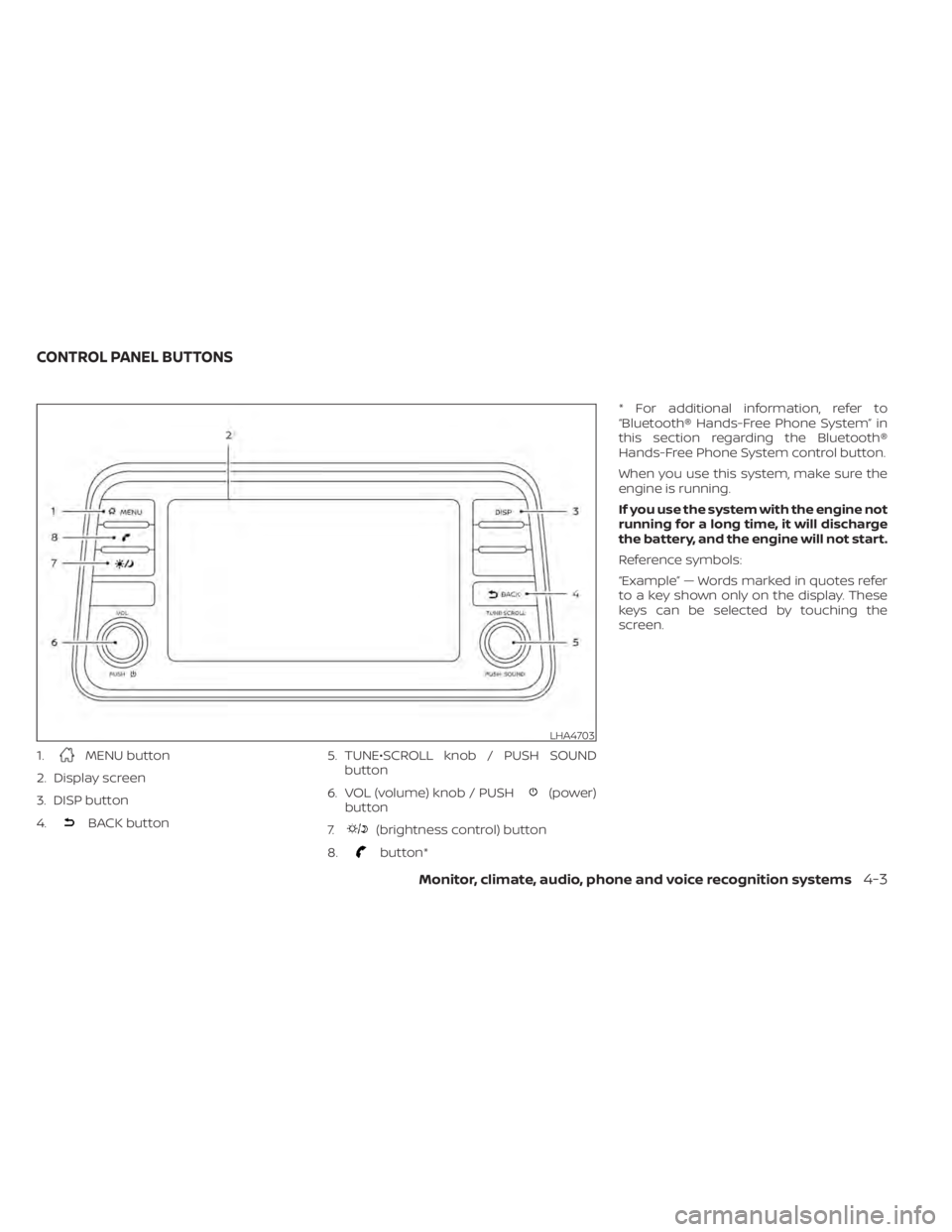
1.MENU button
2. Display screen
3. DISP button
4.
BACK button 5. TUNE•SCROLL knob / PUSH SOUND
button
6. VOL (volume) knob / PUSH
(power)
button
7.
(brightness control) button
8.
button* * For additional information, refer to
“Bluetooth® Hands-Free Phone System” in
this section regarding the Bluetooth®
Hands-Free Phone System control button.
When you use this system, make sure the
engine is running.
If you use the system with the engine not
running for a long time, it will discharge
the battery, and the engine will not start.
Reference symbols:
“Example” — Words marked in quotes refer
to a key shown only on the display. These
keys can be selected by touching the
screen.
LHA4703
CONTROL PANEL BUTTONS
Monitor, climate, audio, phone and voice recognition systems4-3
Page 192 of 500
HOW TO USE THE TOUCH-SCREEN
CAUTION
• The glass display screen may break if
it is hit with a hard or sharp object. If
the glass screen breaks, do not touch
it. Doing so could result in an injury.
• To clean the display, never use a
rough cloth, alcohol, benzine, thinner
or any kind of solvent or paper towel
with a chemical cleaning agent. They
will scratch or deteriorate the panel.
• Do not splash any liquid such as wa-
ter or car fragrance on the display.
Contact with liquid will cause the sys-
tem to malfunction. To help ensure safe driving, some functions
cannot be operated while driving.
The on-screen functions that are not avail-
able while driving will be “grayed out” or
muted.
WARNING
• ALWAYS give your full attention to
driving.
• Avoid using vehicle features that
could distract you. If distracted, you
could lose control of your vehicle and
cause an accident.
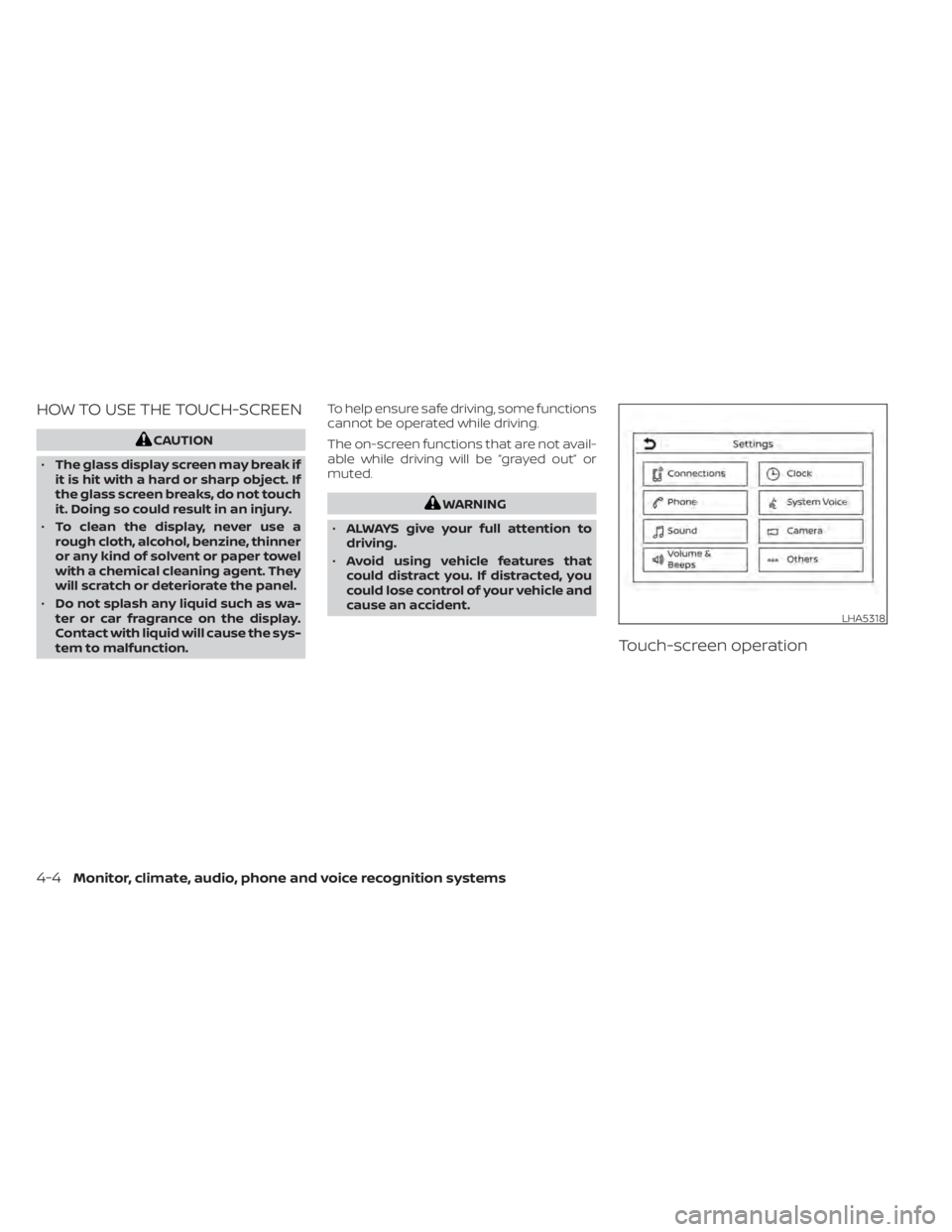
Touch-screen operation
LHA5318
4-4Monitor, climate, audio, phone and voice recognition systems
Page 193 of 500
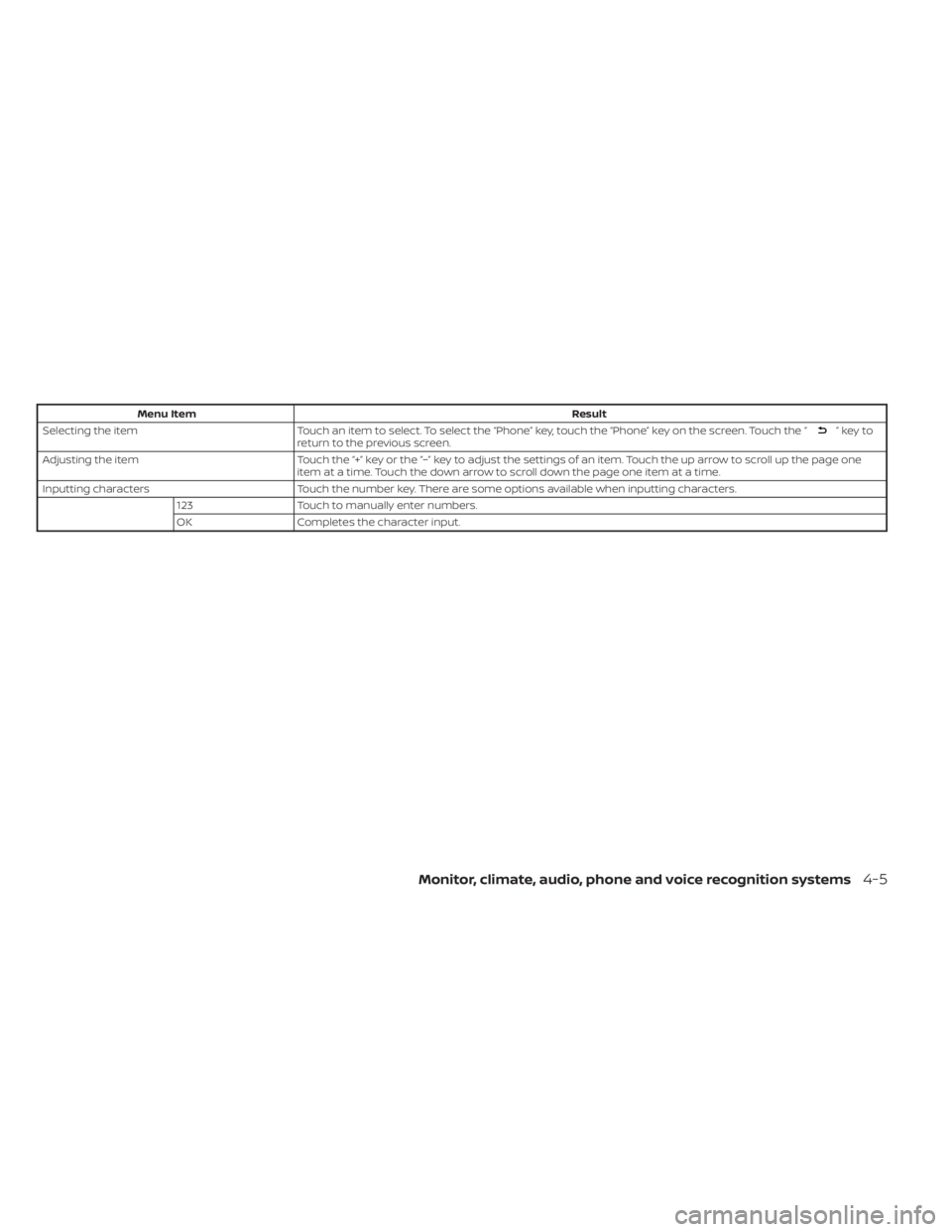
Menu ItemResult
Selecting the item Touch an item to select. To select the “Phone” key, touch the “Phone” key on the screen. Touch the “
”keyto
return to the previous screen.
Adjusting the item Touch the “+” key or the “−” key to adjust the settings of an item. Touch the up arrow to scroll up the page one
item at a time. Touch the down arrow to scroll down the page one item at a time.
Inputting characters Touch the number key. There are some options available when inputting characters.
123 Touch to manually enter numbers.
OK Completes the character input.
Monitor, climate, audio, phone and voice recognition systems4-5
Page 194 of 500
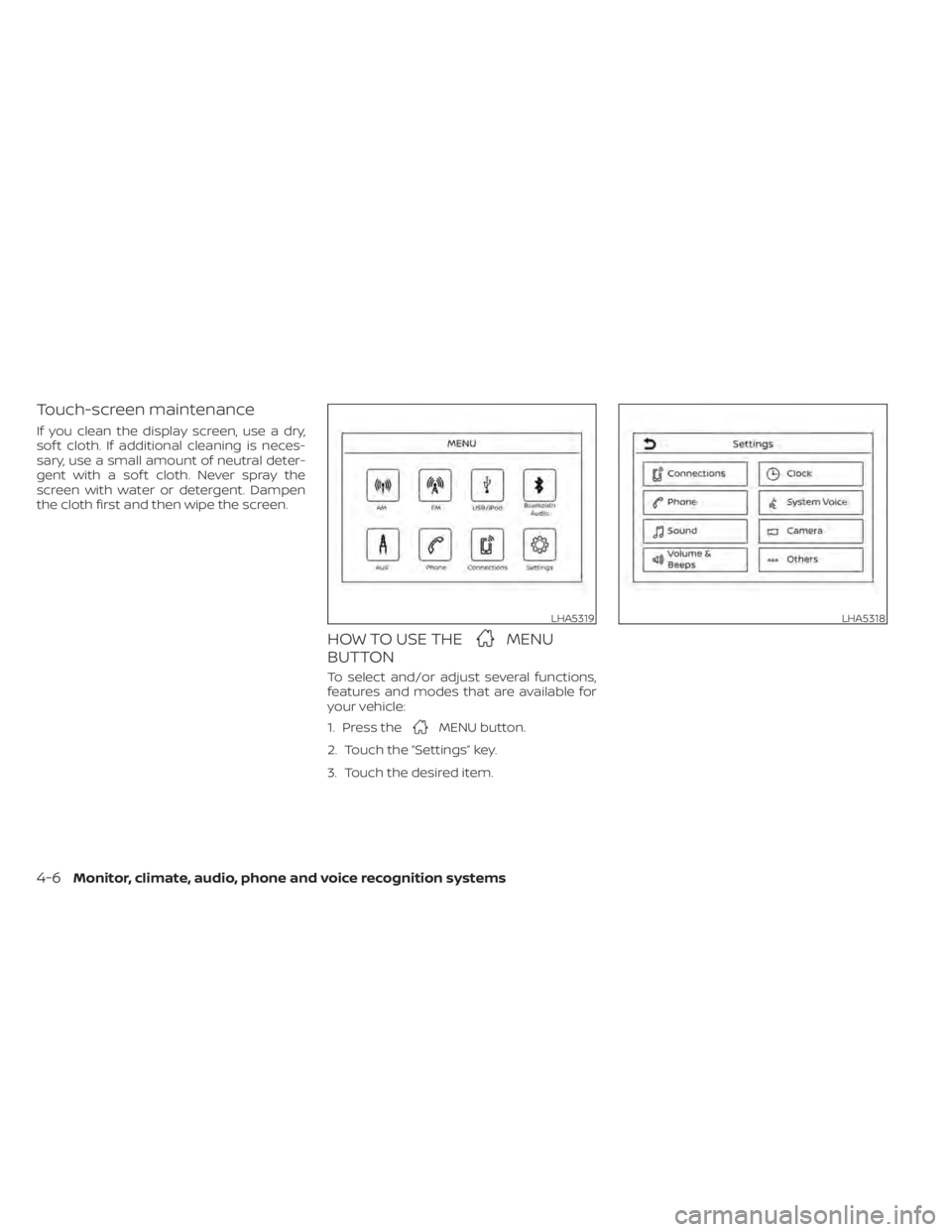
Touch-screen maintenance
If you clean the display screen, use a dry,
sof t cloth. If additional cleaning is neces-
sary, use a small amount of neutral deter-
gent with a sof t cloth. Never spray the
screen with water or detergent. Dampen
the cloth first and then wipe the screen.
HOW TO USE THEMENU
BUTTON
To select and/or adjust several functions,
features and modes that are available for
your vehicle:
1. Press the
MENU button.
2. Touch the “Settings” key.
3. Touch the desired item.
LHA5319LHA5318
4-6Monitor, climate, audio, phone and voice recognition systems
Page 195 of 500
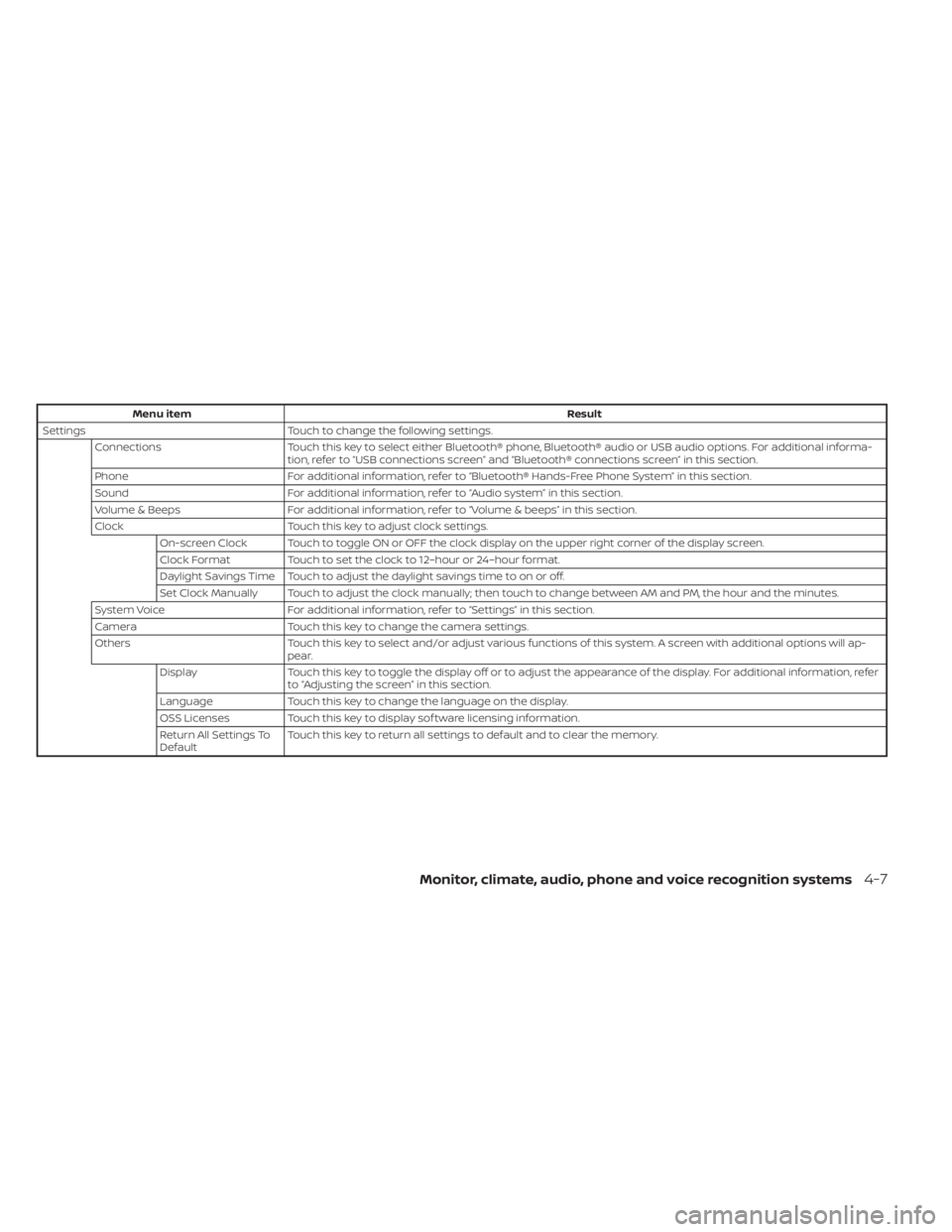
Menu itemResult
Settings Touch to change the following settings.
Connections Touch this key to select either Bluetooth® phone, Bluetooth® audio or USB audio options. For additional informa-
tion, refer to “USB connections screen” and “Bluetooth® connections screen” in this section.
Phone For additional information, refer to “Bluetooth® Hands-Free Phone System” in this section.
Sound For additional information, refer to “Audio system” in this section.
Volume & Beeps For additional information, refer to “Volume & beeps” in this section.
Clock Touch this key to adjust clock settings.
On-screen Clock Touch to toggle ON or OFF the clock display on the upper right corner of the display screen.
Clock Format Touch to set the clock to 12–hour or 24–hour format.
Daylight Savings Time Touch to adjust the daylight savings time to on or off.
Set Clock Manually Touch to adjust the clock manually; then touch to change between AM and PM, the hour and the minutes.
System Voice For additional information, refer to “Settings” in this section.
Camera Touch this key to change the camera settings.
Others Touch this key to select and/or adjust various functions of this system. A screen with additional options will ap-
pear.
Display Touch this key to toggle the display off or to adjust the appearance of the display. For additional information, refer
to “Adjusting the screen” in this section.
Language Touch this key to change the language on the display.
OSS Licenses Touch this key to display sof tware licensing information.
Return All Settings To
Default Touch this key to return all settings to default and to clear the memory.
Monitor, climate, audio, phone and voice recognition systems4-7