Display NISSAN KICKS 2020 Owner´s Manual
[x] Cancel search | Manufacturer: NISSAN, Model Year: 2020, Model line: KICKS, Model: NISSAN KICKS 2020Pages: 500, PDF Size: 3.43 MB
Page 188 of 500
4 Monitor, climate, audio, phone and
voice recognition systems
NissanConnect® Owner’s Manual
(if so equipped)..................................4-2
Control panel buttons ...........................4-3
How to use the touch-screen ................4-4
How to use the
MENU button ...........4-6(brightness control) button .............4-8
How to use the VOL (volume) knob /
PUSH
(power)button....................4-8
Selecting menu from launch bar .............4-8
RearView Monitor (if so equipped) ...............4-9
RearView Monitor system operation .........4-10
How to read the displayed lines ..............4-11
Difference between predicted and
actual distances ............................. 4-11
How to park with predicted course
lines ......................................... 4-13
Adjusting the screen ........................ 4-14
How to turn on and off predicted
course lines ................................. 4-15
RearView Monitor system limitations ........4-15
System maintenance ....................... 4-16
Intelligent Around View Monitor
(if so equipped) ................................. 4-17
Intelligent Around View Monitor system
operation ................................... 4-18
Difference between predicted and
actual distances ............................ 4-21How to park with predicted course
lines
......................................... 4-23
How to switch the display ...................4-24
Adjusting the screen ........................ 4-24
Intelligent Around View Monitor system
limitations .................................. 4-25
System maintenance .......................4-27
Moving Object Detection (MOD)
(if so equipped) ................................. 4-28
MOD system operation ......................4-29
Turning MOD on and off (if so equipped) .....4-31
MOD system limitations .....................4-31
System maintenance .......................4-32
Vents .......................................... 4-32
Heater and air conditioner (manual)
(if so equipped) ................................. 4-33
Controls ..................................... 4-34
Heater operation ............................ 4-35
Air conditioner operation ....................4-36
Air flow charts ............................... 4-37
Heater and air conditioner (automatic)
(if so equipped) ................................. 4-41
Automatic operation ........................ 4-42
Manual operation ........................... 4-42
Operating tips ............................... 4-43
Ser
vicing air conditioner ........................ 4-44
Page 189 of 500
Audio system.................................. 4-44
Radio ....................................... 4-44
FM radio reception .......................... 4-45
AM radio reception .......................... 4-45
Audio operation precautions ................4-45
FM/AM radio ................................ 4-49
USB (Universal Serial Bus) connection
port......................................... 4-54
iPod®* player operation .....................4-57
Bluetooth® streaming audio .................4-60
Steering wheel switch for audio control .....4-63
USB/iPod® charging ports ...................4-63
Antenna ..................................... 4-64
Siri® Eyes Free (if so equipped) ..................4-64
Requirements ............................... 4-65
Operating Siri® Eyes Free ....................4-65
Troubleshooting guide ......................4-66
Car phone or CB radio .......................... 4-67Bluetooth® Hands-Free Phone System
.........4-67
Regulatory information ......................4-69
Using the system ........................... 4-69
Indicators ................................... 4-71
Control buttons ............................. 4-71
Connecting procedure ......................4-72
Voice commands ........................... 4-73
Phone display screen .......................4-75
Making a call ................................ 4-76
Receiving a call .............................. 4-77
During a call ................................. 4-77
Ending a call ................................ 4-77
Text messaging (if so equipped) .............4-78
Bluetooth® connections screen .............4-81
Phone and text message settings ...........4-82
iPod®/iPhone® ................................. 4-84
Page 190 of 500
Refer to the NissanConnect® Owner’s
Manual that includes the following infor-
mation.
• Audio system
• Apple CarPlay®
• Android Auto
TM
• Bluetooth® Hands-Free Phone system
• Viewing information
• Other settings
• Voice Recognition (if so equipped)
• General system information
WARNING
• Positioning of the heating or air con-
ditioning controls and display con-
trols should not be done while driv-
ing in order that full attention may be
given to the driving operation.
• Do not disassemble or modif y this
system. If you do, it may result in ac-
cidents, fire, or electrical shock.
• Do not use this system if you notice
any abnormality, such as a frozen
screen or lack of sound. Continued
use of the system may result in acci-
dent, fire or electric shock.
• In case you notice any foreign object
in the system hardware, spill liquid
on it, or notice smoke or smell com-
ing from it, stop using the system im-
mediately. Ignoring such conditions
may lead to accidents, fire or electri-
cal shock. It is recommended that
you visit a NISSAN dealer for
servicing.
NISSANCONNECT® OWNER’S
MANUAL (if so equipped)
4-2Monitor, climate, audio, phone and voice recognition systems
Page 191 of 500
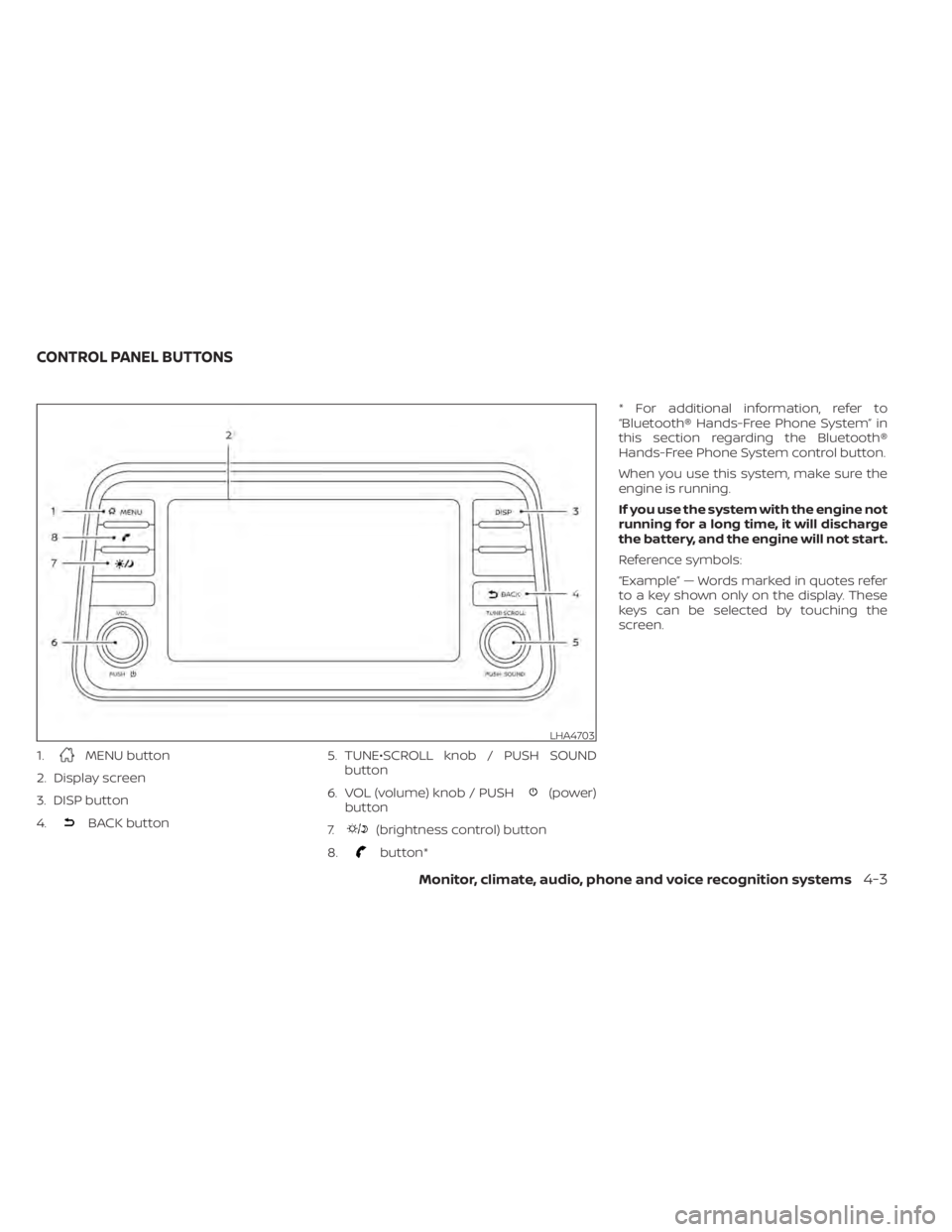
1.MENU button
2. Display screen
3. DISP button
4.
BACK button 5. TUNE•SCROLL knob / PUSH SOUND
button
6. VOL (volume) knob / PUSH
(power)
button
7.
(brightness control) button
8.
button* * For additional information, refer to
“Bluetooth® Hands-Free Phone System” in
this section regarding the Bluetooth®
Hands-Free Phone System control button.
When you use this system, make sure the
engine is running.
If you use the system with the engine not
running for a long time, it will discharge
the battery, and the engine will not start.
Reference symbols:
“Example” — Words marked in quotes refer
to a key shown only on the display. These
keys can be selected by touching the
screen.
LHA4703
CONTROL PANEL BUTTONS
Monitor, climate, audio, phone and voice recognition systems4-3
Page 192 of 500
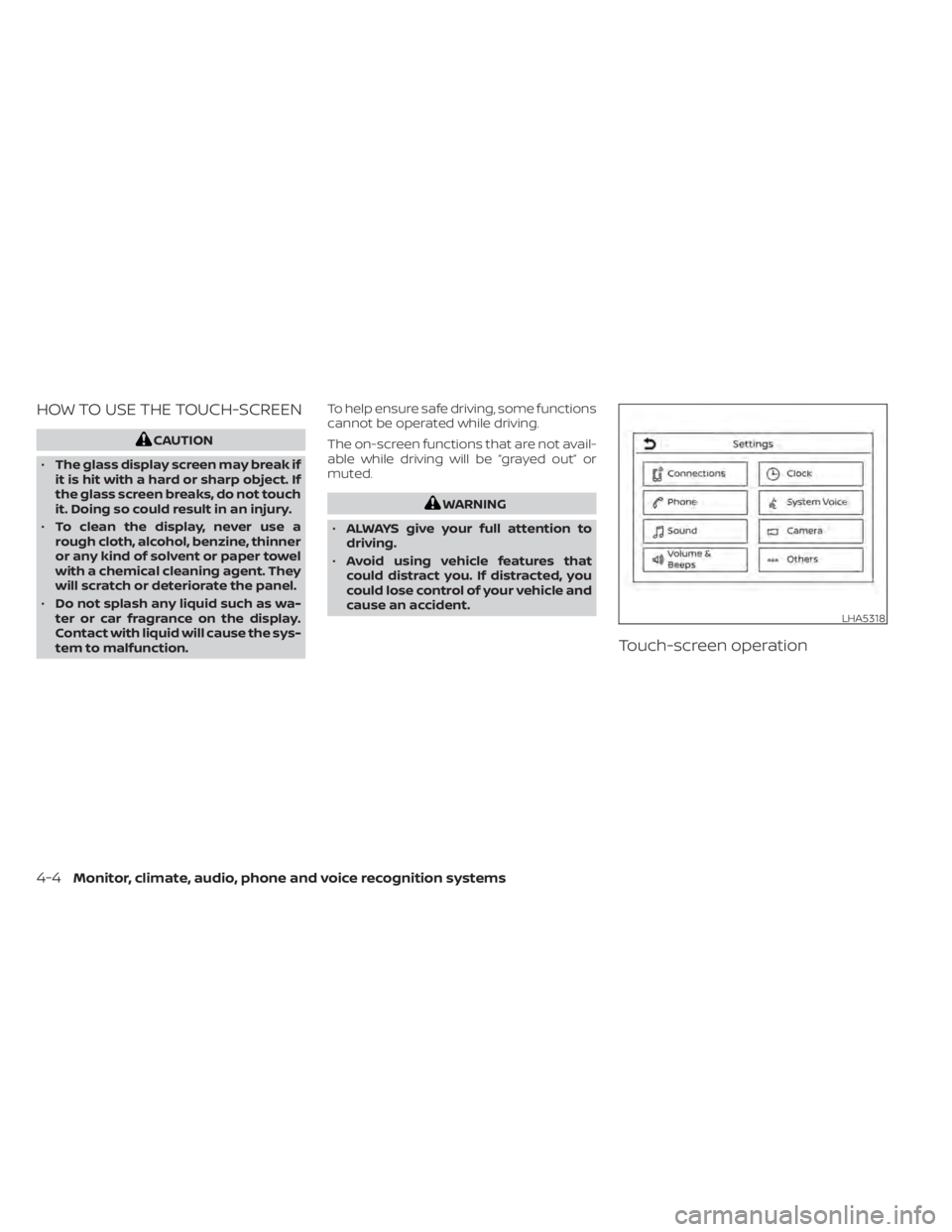
HOW TO USE THE TOUCH-SCREEN
CAUTION
• The glass display screen may break if
it is hit with a hard or sharp object. If
the glass screen breaks, do not touch
it. Doing so could result in an injury.
• To clean the display, never use a
rough cloth, alcohol, benzine, thinner
or any kind of solvent or paper towel
with a chemical cleaning agent. They
will scratch or deteriorate the panel.
• Do not splash any liquid such as wa-
ter or car fragrance on the display.
Contact with liquid will cause the sys-
tem to malfunction. To help ensure safe driving, some functions
cannot be operated while driving.
The on-screen functions that are not avail-
able while driving will be “grayed out” or
muted.
WARNING
• ALWAYS give your full attention to
driving.
• Avoid using vehicle features that
could distract you. If distracted, you
could lose control of your vehicle and
cause an accident.
Touch-screen operation
LHA5318
4-4Monitor, climate, audio, phone and voice recognition systems
Page 194 of 500
Touch-screen maintenance
If you clean the display screen, use a dry,
sof t cloth. If additional cleaning is neces-
sary, use a small amount of neutral deter-
gent with a sof t cloth. Never spray the
screen with water or detergent. Dampen
the cloth first and then wipe the screen.
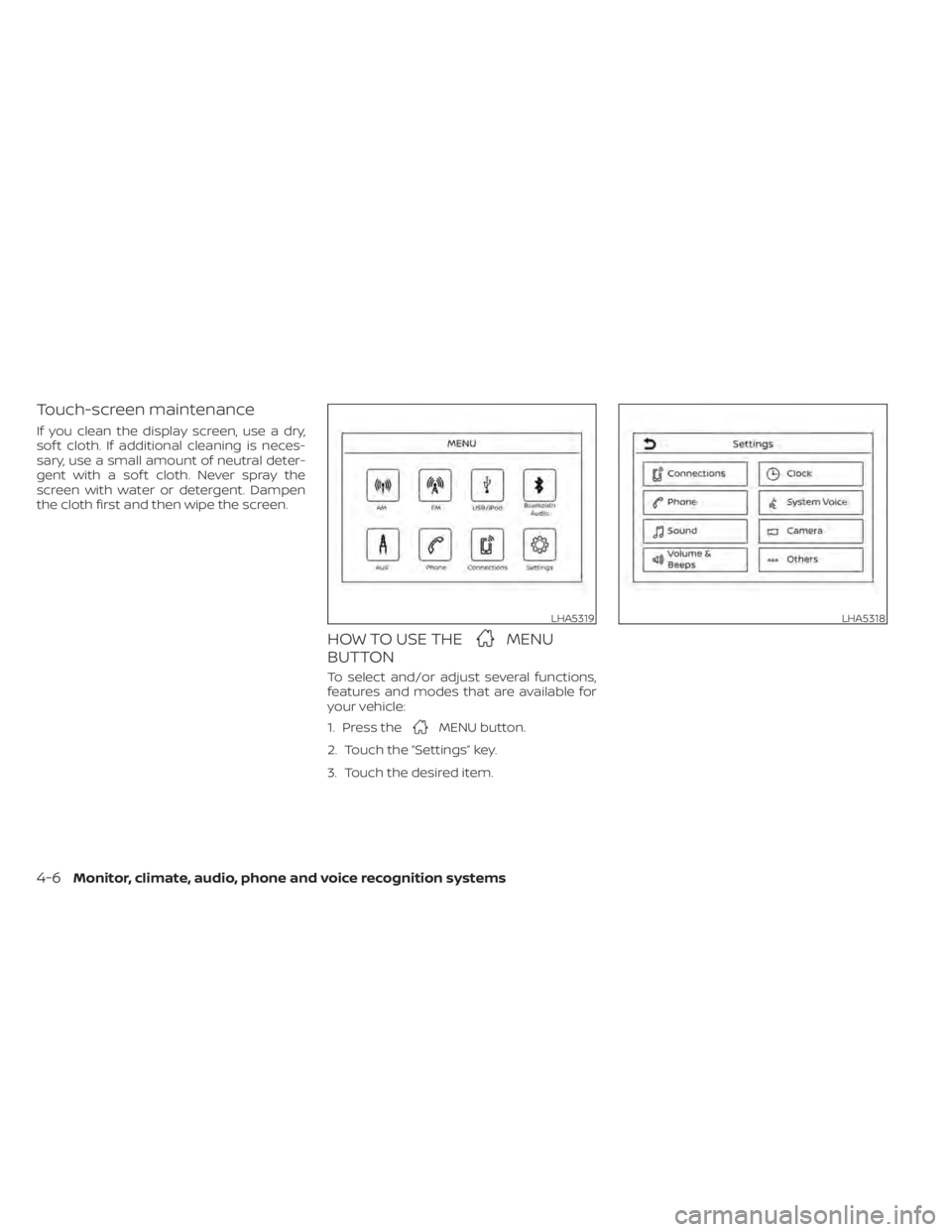
HOW TO USE THEMENU
BUTTON
To select and/or adjust several functions,
features and modes that are available for
your vehicle:
1. Press the
MENU button.
2. Touch the “Settings” key.
3. Touch the desired item.
LHA5319LHA5318
4-6Monitor, climate, audio, phone and voice recognition systems
Page 195 of 500
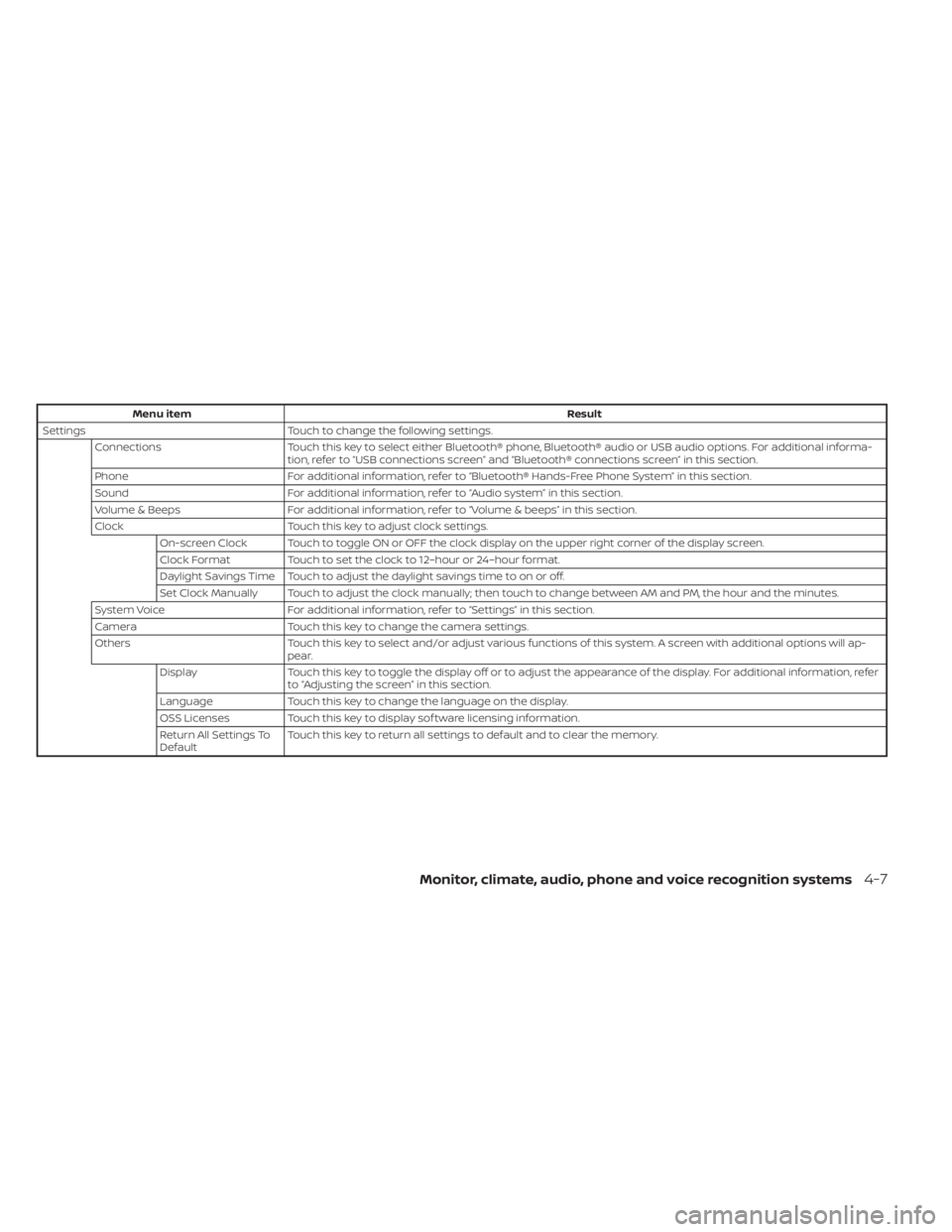
Menu itemResult
Settings Touch to change the following settings.
Connections Touch this key to select either Bluetooth® phone, Bluetooth® audio or USB audio options. For additional informa-
tion, refer to “USB connections screen” and “Bluetooth® connections screen” in this section.
Phone For additional information, refer to “Bluetooth® Hands-Free Phone System” in this section.
Sound For additional information, refer to “Audio system” in this section.
Volume & Beeps For additional information, refer to “Volume & beeps” in this section.
Clock Touch this key to adjust clock settings.
On-screen Clock Touch to toggle ON or OFF the clock display on the upper right corner of the display screen.
Clock Format Touch to set the clock to 12–hour or 24–hour format.
Daylight Savings Time Touch to adjust the daylight savings time to on or off.
Set Clock Manually Touch to adjust the clock manually; then touch to change between AM and PM, the hour and the minutes.
System Voice For additional information, refer to “Settings” in this section.
Camera Touch this key to change the camera settings.
Others Touch this key to select and/or adjust various functions of this system. A screen with additional options will ap-
pear.
Display Touch this key to toggle the display off or to adjust the appearance of the display. For additional information, refer
to “Adjusting the screen” in this section.
Language Touch this key to change the language on the display.
OSS Licenses Touch this key to display sof tware licensing information.
Return All Settings To
Default Touch this key to return all settings to default and to clear the memory.
Monitor, climate, audio, phone and voice recognition systems4-7
Page 196 of 500
(brightness control) BUTTON
To change the display brightness, press thebutton. Pressing the button again will
change the display to the day or the night
display.
Press and hold the
button for more
than 2 seconds to turn the display off. Press
and hold the button again to turn the dis-
play on.
HOW TO USE THE VOL (volume)
KNOB / PUSH
(power)
BUTTON
Press the PUSH(power) button to turn
audio function on and off. Turn the VOL
(volume) knob to adjust audio volume.
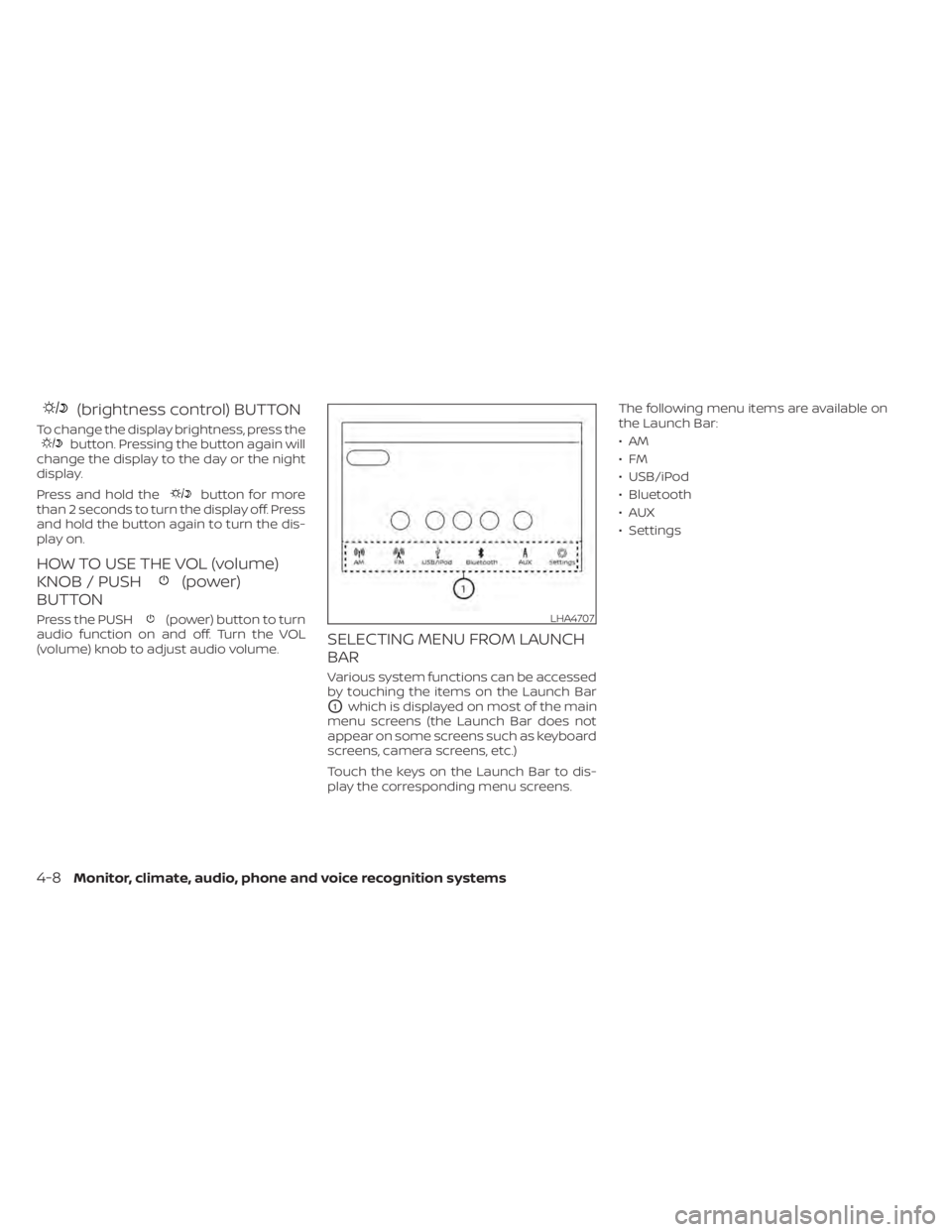
SELECTING MENU FROM LAUNCH
BAR
Various system functions can be accessed
by touching the items on the Launch Bar
O1which is displayed on most of the main
menu screens (the Launch Bar does not
appear on some screens such as keyboard
screens, camera screens, etc.)
Touch the keys on the Launch Bar to dis-
play the corresponding menu screens. The following menu items are available on
the Launch Bar:
•AM
•FM
• USB/iPod
• Bluetooth
•AUX
• Settings
LHA4707
4-8Monitor, climate, audio, phone and voice recognition systems
Page 198 of 500
WARNING
• Failure to follow the warnings and in-
structions for proper use of the Rear-
View Monitor system could result in
serious injury or death.
• RearView Monitor is a convenience
feature and is not a substitute for
proper backing. Always turn and look
out the windows and check mirrors
to be sure that it is safe to move be-
fore operating the vehicle. Always
back up slowly.
• The system is designed as an aid to
the driver in showing large station-
ary objects directly behind the ve-
hicle, to help avoid damaging the
vehicle.
• The distance guide lines and the ve-
hicle width lines should be used as a
reference only when the vehicle is on
a level paved surface. The distance
viewed on the monitor is for refer-
ence only and may be different than
the actual distance between the ve-
hicle and displayed objects.CAUTION
Do not scratch the camera lens when
cleaning dirt or snow from the front of
the camera.
The RearView Monitor system automati-
cally shows a rear view of the vehicle when
the shif t lever is shif ted into the R (Reverse)
position. The radio can still be heard while
the RearView Monitor is active.
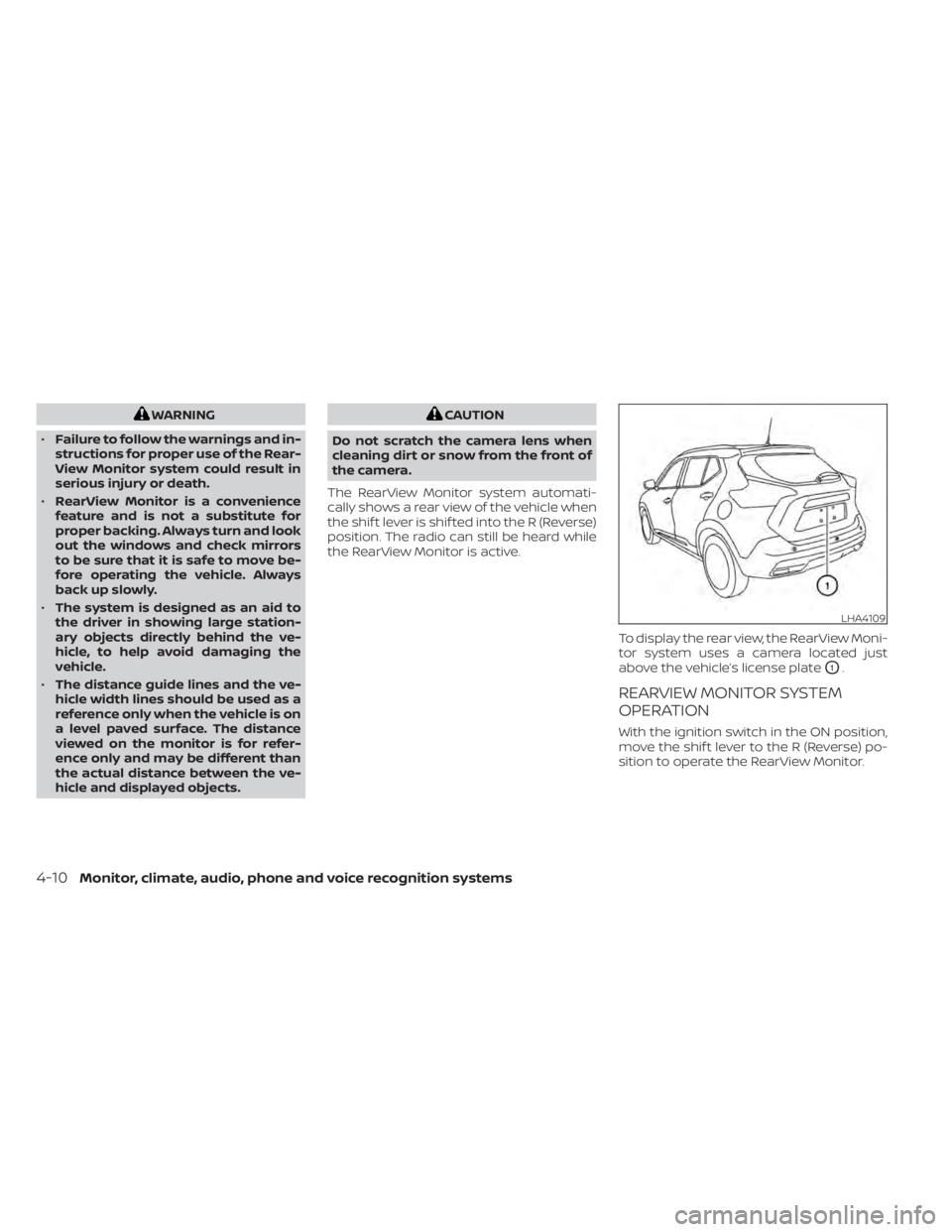
To display the rear view, the RearView Moni-
tor system uses a camera located just
above the vehicle’s license plate
O1.
REARVIEW MONITOR SYSTEM
OPERATION
With the ignition switch in the ON position,
move the shif t lever to the R (Reverse) po-
sition to operate the RearView Monitor.
LHA4109
4-10Monitor, climate, audio, phone and voice recognition systems
Page 199 of 500
HOW TO READ THE DISPLAYED
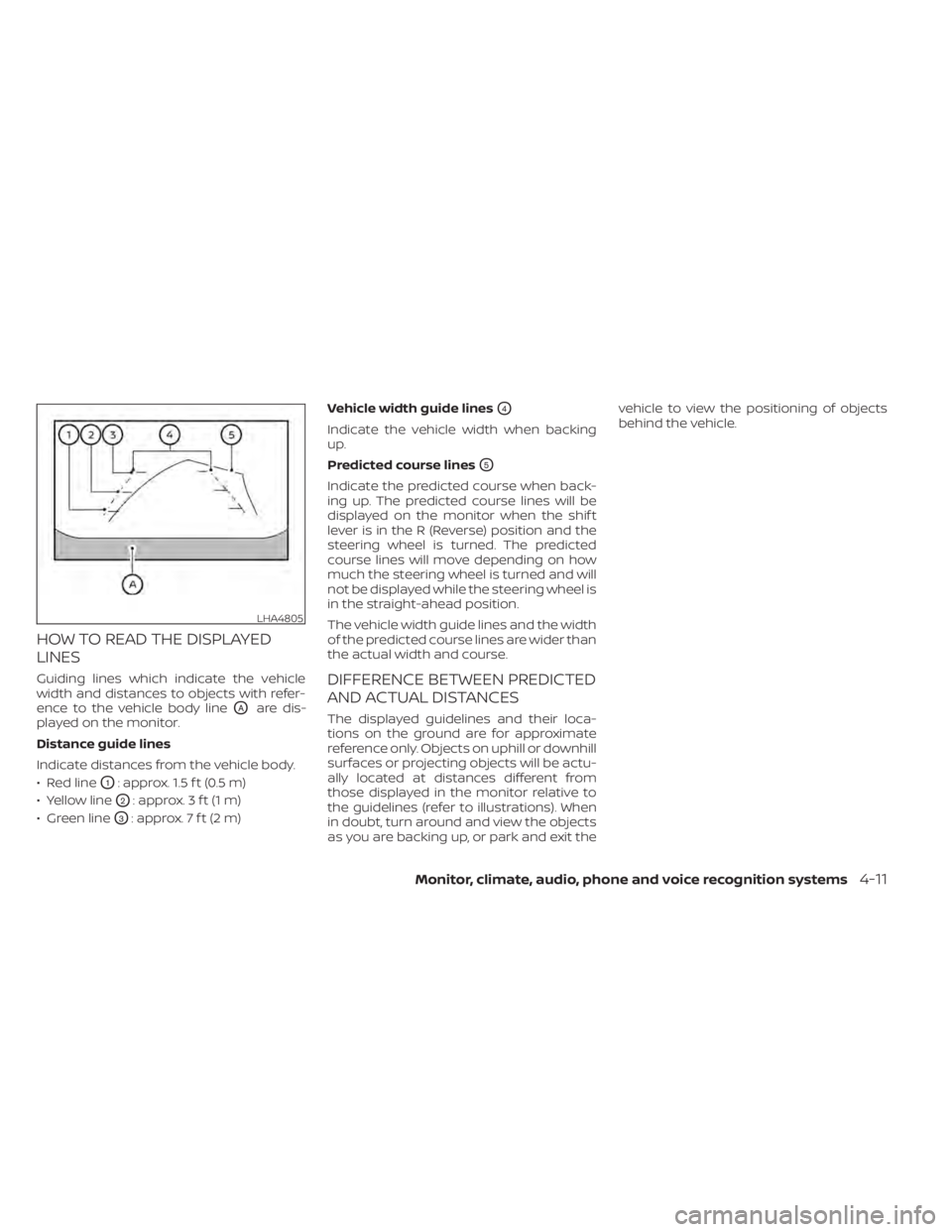
LINES
Guiding lines which indicate the vehicle
width and distances to objects with refer-
ence to the vehicle body line
OAare dis-
played on the monitor.
Distance guide lines
Indicate distances from the vehicle body.
• Red line
O1: approx. 1.5 f t (0.5 m)
• Yellow line
O2: approx. 3 f t (1 m)
• Green line
O3: approx. 7 f t (2 m) Vehicle width guide lines
O4
Indicate the vehicle width when backing
up.
Predicted course lines
O5
Indicate the predicted course when back-
ing up. The predicted course lines will be
displayed on the monitor when the shif t
lever is in the R (Reverse) position and the
steering wheel is turned. The predicted
course lines will move depending on how
much the steering wheel is turned and will
not be displayed while the steering wheel is
in the straight-ahead position.
The vehicle width guide lines and the width
of the predicted course lines are wider than
the actual width and course.
DIFFERENCE BETWEEN PREDICTED
AND ACTUAL DISTANCES
The displayed guidelines and their loca-
tions on the ground are for approximate
reference only. Objects on uphill or downhill
surfaces or projecting objects will be actu-
ally located at distances different from
those displayed in the monitor relative to
the guidelines (refer to illustrations). When
in doubt, turn around and view the objects
as you are backing up, or park and exit the vehicle to view the positioning of objects
behind the vehicle.
LHA4805
Monitor, climate, audio, phone and voice recognition systems4-11