bluetooth NISSAN KICKS 2021 Owner's Manual
[x] Cancel search | Manufacturer: NISSAN, Model Year: 2021, Model line: KICKS, Model: NISSAN KICKS 2021Pages: 500, PDF Size: 3.24 MB
Page 263 of 500
“Select Phone”
Speak this command to access the Con-
nections menu. For additional information,
refer to “Bluetooth® connections screen” in
this section.
“Add Phone”
Speak this command to access the Con-
nections menu. For additional information,
refer to “Bluetooth® connections screen” in
this section.
“Settings”
Speak this command to access the Sys-
tem Voice settings menu. The system will
exit Voice Recognition mode. Touch one of
the following options on the screen to
change the settings.
• Beep Only for Opening PromptBy touching the “ON” key, the indicator
light will illuminate, the system voice will
turn off and only a tone will sound when
the Bluetooth® Hands-Free Phone Sys-
tem is activated. To turn the system voice
back on, touch the “ON” key again, the
indicator light will turn off. • Best Match List
When the system doesn't recognize a
phonebook name or dial number, it will
provide a list of similar sounding results.
To turn this off, touch the “ON” key, the
indicator light will turn off. To turn on,
touch the “ON” key again, the indicator
light will turn on.
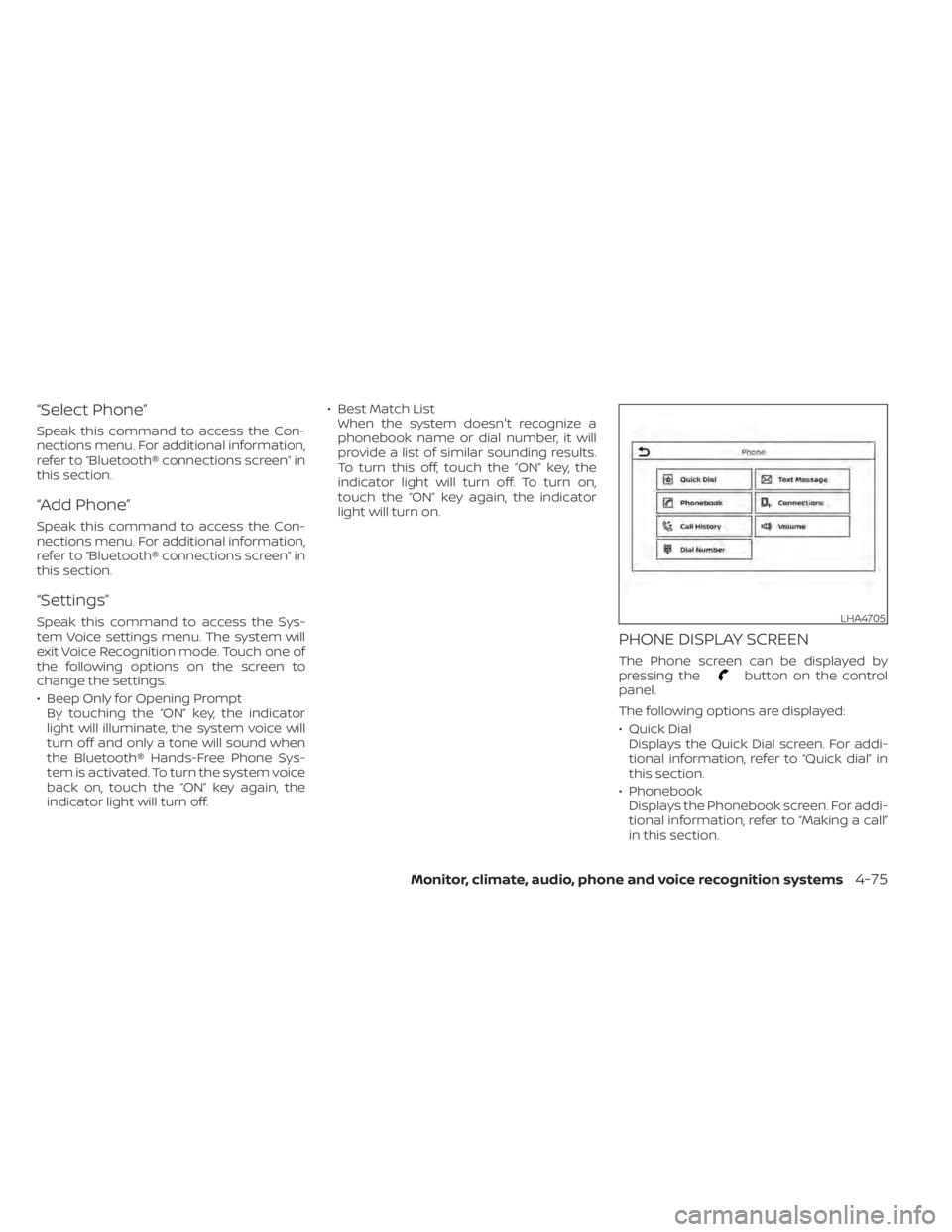
PHONE DISPLAY SCREEN
The Phone screen can be displayed by
pressing thebutton on the control
panel.
The following options are displayed:
• Quick Dial Displays the Quick Dial screen. For addi-
tional information, refer to “Quick dial” in
this section.
• Phonebook Displays the Phonebook screen. For addi-
tional information, refer to “Making a call”
in this section.
LHA4705
Page 264 of 500
• Call HistoryDisplays the Call History screen. For addi-
tional information, refer to “Making a call”
in this section.
• Dial Number Displays the Dial Number screen. For ad-
ditional information, refer to “Making a
call” in this section.
• Text Message Displays the received message screen.
For additional information, refer to “Text
messaging” in this section.
• Connections Displays the Connections screen. For ad-
ditional information, refer to “Bluetooth®
connections screen” in this section.
• Volume Displays the volume adjustment screen.
For additional information, refer to “Vol-
ume & beeps” in this section.MAKING A CALL
To make a call press thebutton on the
control panel. Touch an option from menu
screen:
• Phonebook Select a person and the phone number
you wish to call from the phonebook.
Depending on the device, the phonebook
will be downloaded from the cellular
phone automatically when it is con-
nected. If the automatic download does
not take place, the phone number must
be transferred to the hands-free phone
system from the cellular phone prior to
using this method. For additional infor-
mation, refer to “Phone and text message
settings” in this section.
• Call History Select a phonebook name or phone
number from the recent incoming, out-
going or missed calls tabs. Touch a
phonebook name or phone number
listed to initiate the call.
• Dial Number Enter the phone number manually using
the keypad displayed on the screen.
Touch the “OK” key on the screen to initi-
ate the call.
For additional options to make a call, refer
to “Voice commands” in this section.
Quick Dial
Quick Dial entries can be used to quickly
make a call. The system allows up to 20
entries to be stored. To set up a quick dial
press the
button on the control panel.
Touch the “Quick Dial” key to display a list of
quick dial entries. Touch the “Edit” key to
edit current entries or touch the “Add New”
key to make a new entry. Two methods are
given to create a quick dial entry:
• Touch the “Copy from Call History ” key to save a phone number from the Incoming,
Outgoing or Missed call history lists. Se-
lect the person or phone number from
the menu to be added. A registration
menu will display the Entry #, phone num-
ber, phone number type stored in the cel-
lular phone and Voice Tag. Touch the “OK”
key.
• Touch the “Copy from Phonebook” key to save a number from the phonebook. Use
the scroll keys on the side to move up and
down through the menu. Select a person
to be added. A menu will display the Entry
#, phone number, phone number type
stored in the cellular phone and Voice
Tag. Touch the “OK” key.
4-76Monitor, climate, audio, phone and voice recognition systems
Page 265 of 500
Voice tag
A voice tag can be recorded for each of the
registered Quick Dial numbers and can be
used to dial the number by speaking it. On
the Quick Dial registration screen, touch
the “Voice Tag” key. Select a relationship
from the list or create a new voice tag. To
record a new voice tag touch the “Custom-
ize” key on the screen then touch the “Store”
key. Speak a name af ter the prompt, the
new tag will be stored. To edit or create a
new voice tag touch the “Customize” key
again. Touch the “Play ” key to play the re-
corded voice tag, touch the “Restore” key to
edit the voice tag or “Delete” to delete the
current voice tag.
RECEIVING A CALL
When a call is received by the phone con-
nected to the vehicle’s Bluetooth® Hands-
Free Phone System, the call information is
displayed on the control panel display.
Press the
button on the steering
wheel or touch the “Answer” key on
the screen to accept the call. To reject the
call touch the “
Decline” key on the
screen. If the user is not able to answer the call
right away, touch the “Hold Call” key dis-
played on the screen. A message will be
played for the caller: “I’m not able to take a
call right now.” The user may then accept
the call when available or reject the call.
To reject a call, press and hold the
button on the steering wheel.
DURING A CALL
While a call is active the following options
will appear on the control panel display:
• Mute
Touch this key to mute or unmute the
system.
• Dial Number Touch this key to dial digits during the
phone call.
• Use Handset Touch this key to transfer the call to the
handset. To transfer the call back from
the handset to the Bluetooth® Hands-
Free Phone System, press the
but-
ton on the control panel then select the
“Transfer Hands-free” key on the screen.
• Switch Call This option will only be available when a
second call is active.
If supported by the phone, the
Bluetooth® Hands-Free Phone System
allows for call waiting functionality. If a
call is received while another call is al-
ready active, a message will be displayed
on the screen. Press the
button on
the steering wheel or touch the “
Answer” key on screen to accept the in-
coming call. Touch the “Decline” key
on the screen to reject the second call.
While a call is active, press the
button
on the steering wheel to access additional
options. Speak one of the following com-
mands:
• “Send Digits” Speak this command followed by the dig-
its to enter digits during the phone call.
• “Switch call” Speak this command to hold the second
call and switch back to the original call.
ENDING A CALL
To end an active call, press thebutton
on the steering wheel or touch the “
Hang up” key on the screen.
Monitor, climate, audio, phone and voice recognition systems4-77
Page 269 of 500
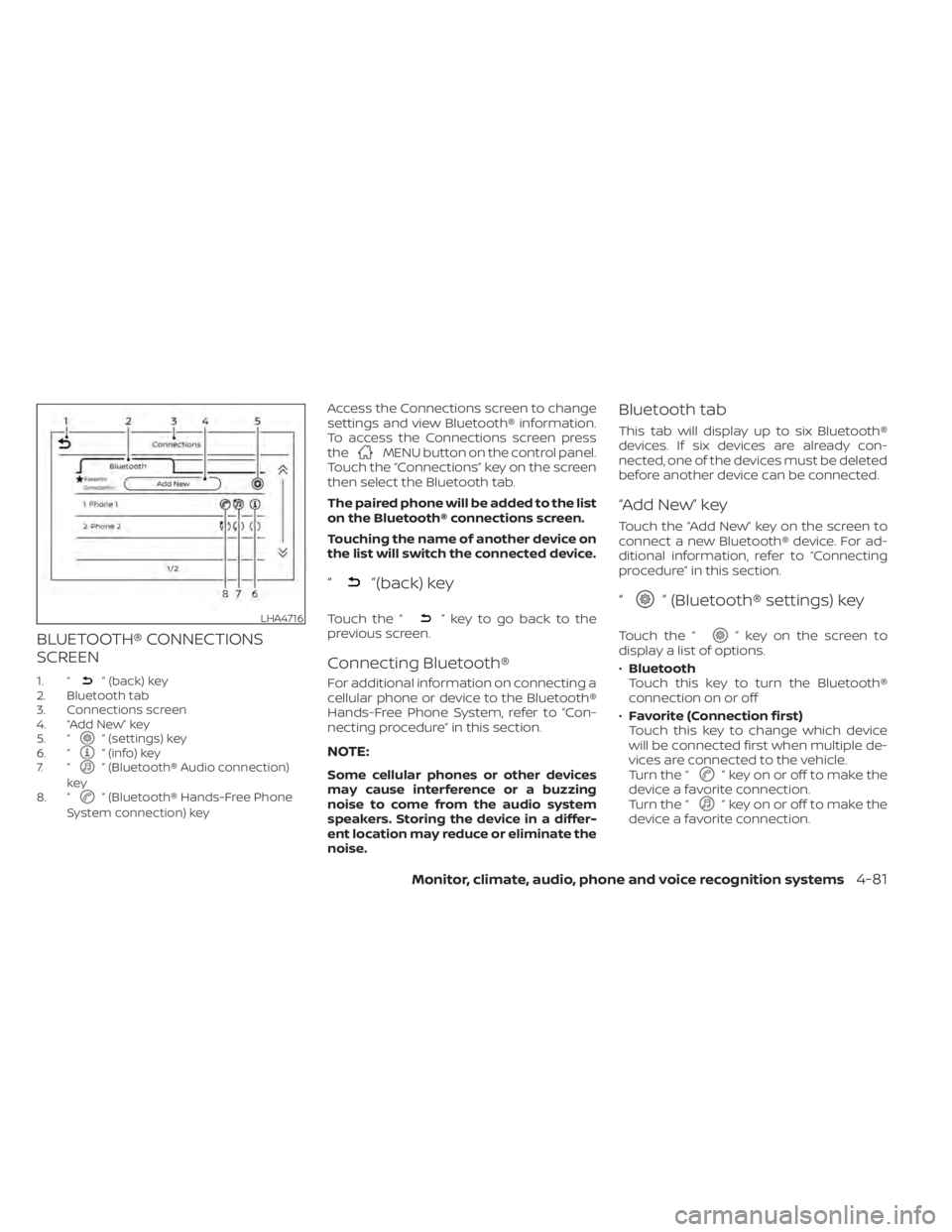
BLUETOOTH® CONNECTIONS
SCREEN
1. “” (back) key
2. Bluetooth tab
3. Connections screen
4. “Add New” key
5. “
” (settings) key
6. “” (info) key
7. “” (Bluetooth® Audio connection)
key
8. “
” (Bluetooth® Hands-Free Phone
System connection) key
Access the Connections screen to change
settings and view Bluetooth® information.
To access the Connections screen press
the
MENU button on the control panel.
Touch the “Connections” key on the screen
then select the Bluetooth tab.
The paired phone will be added to the list
on the Bluetooth® connections screen.
Touching the name of another device on
the list will switch the connected device.
“”(back) key
Touch the “” key to go back to the
previous screen.
Connecting Bluetooth®
For additional information on connecting a
cellular phone or device to the Bluetooth®
Hands-Free Phone System, refer to “Con-
necting procedure” in this section.
NOTE:
Some cellular phones or other devices
may cause interference or a buzzing
noise to come from the audio system
speakers. Storing the device in a differ-
ent location may reduce or eliminate the
noise.
Bluetooth tab
This tab will display up to six Bluetooth®
devices. If six devices are already con-
nected, one of the devices must be deleted
before another device can be connected.
“Add New” key
Touch the “Add New” key on the screen to
connect a new Bluetooth® device. For ad-
ditional information, refer to “Connecting
procedure” in this section.
“” (Bluetooth® settings) key
Touch the “” key on the screen to
display a list of options.
• Bluetooth
Touch this key to turn the Bluetooth®
connection on or off
• Favorite (Connection first)
Touch this key to change which device
will be connected first when multiple de-
vices are connected to the vehicle.
Turn the “
” key on or off to make the
device a favorite connection.
Turn the “
” key on or off to make the
device a favorite connection.
LHA4716
Page 270 of 500
•Pin
Touch this key to customize the PIN code.
Input a four digit number then touch the
“OK” key. The new PIN will be set.
“” (info) key
Touch the “” key on the screen to
display the information of the cellular
phone or to delete the device.
Touch the “Delete” key to remove a paired
device then select “Yes” when a message
appears.
“” (Bluetooth® Hands-Free
Phone System connection) key
A list of connected devices will be displayed
on the screen. Touch the “” key next to
the name to connect a device to the
Hands-Free Phone System. If the phone is
listed as a favorite, a star will appear on the
icon. Touch the key again to disconnect the
device. The device will not be removed
from the list. For additional information on
removing a device, refer to “
” (info) key
in this section.
“” (Bluetooth® Audio
connection) key
A list of connected devices will be displayed
on the screen. Touch the “” key next to
the name to connect a device to
Bluetooth® Audio. If the device is listed as a
favorite, a star will appear on the icon.
Touch the key again to disconnect the de-
vice. The device will not be removed from
the list. For additional information on re-
moving a device, refer to “
” (info) key in
this section.
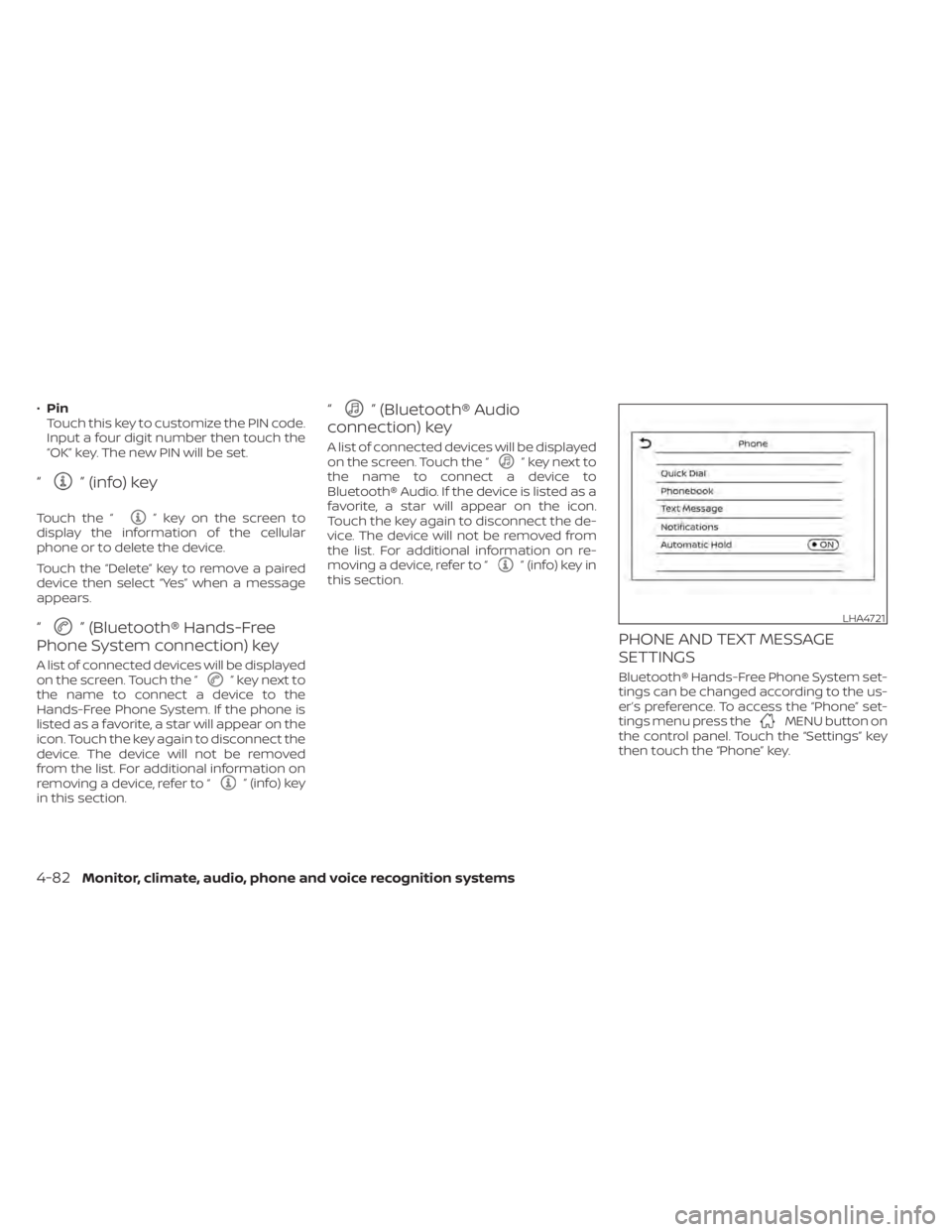
PHONE AND TEXT MESSAGE
SETTINGS
Bluetooth® Hands-Free Phone System set-
tings can be changed according to the us-
er’s preference. To access the “Phone” set-
tings menu press the
MENU button on
the control panel. Touch the “Settings” key
then touch the “Phone” key.
LHA4721
4-82Monitor, climate, audio, phone and voice recognition systems
Page 487 of 500
Event Data recorders............10-20Exhaust gas (Carbon monoxide)......5-4Explanation of maintenance items.....9-2Explanation of scheduled maintenance
items.......................9-5Extended storage switch..........2-58
F
Flashers (See hazard warning flasher
switch)......................6-2Flat tire...................6-3, 6-4Floor mat positioning aid...........7-5Fluid
Brake fluid................. .8-9Capacities and recommended
fuel/lubricants...............10-2Continuously Variable Transmission (CVT)
fluid..................... .8-9Engine coolant................8-4Engine oil...................8-5Windshield-washer fluid.........8-10F.M.V.S.S. certification label.........10-11Fog light switch................2-51Front air bag system (See supplemental
restraint system)...............1-48Front-door pocket..............2-59Front seats....................1-2Fuel
Capacities and recommended
fuel/lubricants
...............10-2Fuel economy...............5-96Fuel-filler door lock opener lever. . . .3-25
Fuel gauge................. .2-8Fuel octane rating.............10-5Fuel recommendation..........10-3Fuel efficient driving tips...........5-95Fuel-filler door.................3-25Fuel gauge................... .2-8Fuses.......................8-19Fusible links..................8-20
G
Gauge
Fuel gauge................. .2-8Speedometer..............2-5, 2-6Tachometer..................2-7Trip odometer.............2-5, 2-6General maintenance.............9-2Glove box................... .2-61Grocery hooks.................2-63
H
Hands-free phone system, Bluetooth®. .4-67Hazard warning flasher switch........6-2Headlight and turn signal switch.....2-44Headlight control switch..........2-44Headlights...................8-24Head restraints.................1-5Heated seat switches............2-52Heater
Heater and air conditioner........4-41Heater and air conditioner controls. .4-42Heater operation..........4-35, 4-42
Hill start assist system...........5-104Hood.......................3-21HookLuggage hook...............2-63Horn...................... .2-52
I
Ignition switch
Push-button ignition switch.......5-11Immobilizer system..........2-40, 5-14Important vehicle information label. . .10-11In-cabin microfilter..............8-16Increasing fuel economy..........5-96IndicatorNISSAN Intelligent Key® battery discharge
indicator
...................5-13Instrument brightness control.......2-50Instrument panel.............0-6, 2-2Instrument panel dimmer switch.....2-50Integrated Dynamics-control Module. .5-103Intelligent Around View Monitor......4-17Intelligent Driver Alertness (I-DA)......5-92Intelligent Engine Brake (I-EB).......5-103Intelligent Forward Collision Warning
(I-FCW)..................... .5-80Intelligent Key system
Key operating range............3-8Mechanical key................3-3Remote keyless entry operation. . . .3-12Troubleshooting guide..........3-16Warning signals...............3-16Intelligent Trace Control (I-TC).......5-103
Index11-3
Page 489 of 500
MirrorOutside mirrors..............3-28Rearview...................3-28Vanity mirror................3-27Mirrors......................3-28Moving Object Detection (MOD)......4-28
N
NISSAN Anti-Thef t System......2-39, 5-14NissanConnect® Owner's Manual......4-2NISSAN Intelligent Key™............3-2NISSAN Intelligent Key®............3-7NISSAN Intelligent Key® battery discharge
indicator.....................5-13NISSAN Vehicle Immobilizer
System................. .2-40, 5-14
O
Octane rating (See fuel octane rating). .10-5Oil
Capacities and recommended
fuel/lubricants
...............10-2Changing engine oil............8-6Changing engine oil filter.........8-6Checking engine oil level.........8-5Engine oil.................. .8-5Engine oil and oil filter
recommendation.............10-6Engine oil viscosity.............10-6Outside mirrors................3-28
Overheat
If your vehicle overheats.........6-11Owner's manual order form........10-21Owner's manual/service manual order
information................. .10-21
P
Parking
Parking brake operation.........5-23Parking/parking on hills.........5-96Personal lights.................2-72Phone, Bluetooth® hands-free system. .4-67PowerPower door locks...........3-5, 3-6Power outlet................2-57Powerrearwindows............2-70Power steering system..........5-97Power windows..............2-68Rear power windows...........2-70Power outlet................. .2-57Power steering................5-97Precautions
Maintenance precautions.........8-2On-pavement and off-road driving
precautions................. .5-9Precautions on booster
seats............1-21,1-27, 1-33, 1-38Precautions on child
restraints.........1-21,1-27,1-33, 1-38Precautions on seat belt usage.....1-10Precautions on supplemental restraint
system................... .1-42
Precautions when starting and
driving.................... .5-4Push starting..................6-11
R
Radio
Car phone or CB radio..........4-67FM/AM radio................4-49Steering wheel audio control switch. .4-63Radio frequency remote controlKey operation................3-9Readiness for inspection maintenance
(I/M) test................... .10-20Rear Automatic Braking (RAB).......5-54Rear Cross Traffic Alert (RCTA).......5-42Rear Door Alert.........2-36, 2-37, 2-56Rear power windows.............2-70Rear seat.................... .1-4Rear sonar system OFF switch.......2-55Rear Sonar System (RSS)..........5-105Rearview mirror................3-28RearView Monitor................4-9Adjusting the screen...........4-24Rear window and outside mirror defroster
switch..................2-44, 4-43Rear window defroster switch. . .2-44, 4-35Rear window wiper and washer
switches................... .2-43Recommended Fluids............10-2Recorders
Event Data................ .10-20Refrigerant recommendation........10-7
Index11-5