display NISSAN KICKS 2023 Service Manual
[x] Cancel search | Manufacturer: NISSAN, Model Year: 2023, Model line: KICKS, Model: NISSAN KICKS 2023Pages: 558, PDF Size: 6.25 MB
Page 173 of 558
NISSAN INTELLIGENT KEY®
OPERATION
You can lock or unlock the doors without
taking the Intelligent Key out of your pocket
or bag.
When you carry the Intelligent Key with you,
you can lock or unlock all doors by pushing
the door handle request switch (if so
equipped) within the range of operation.
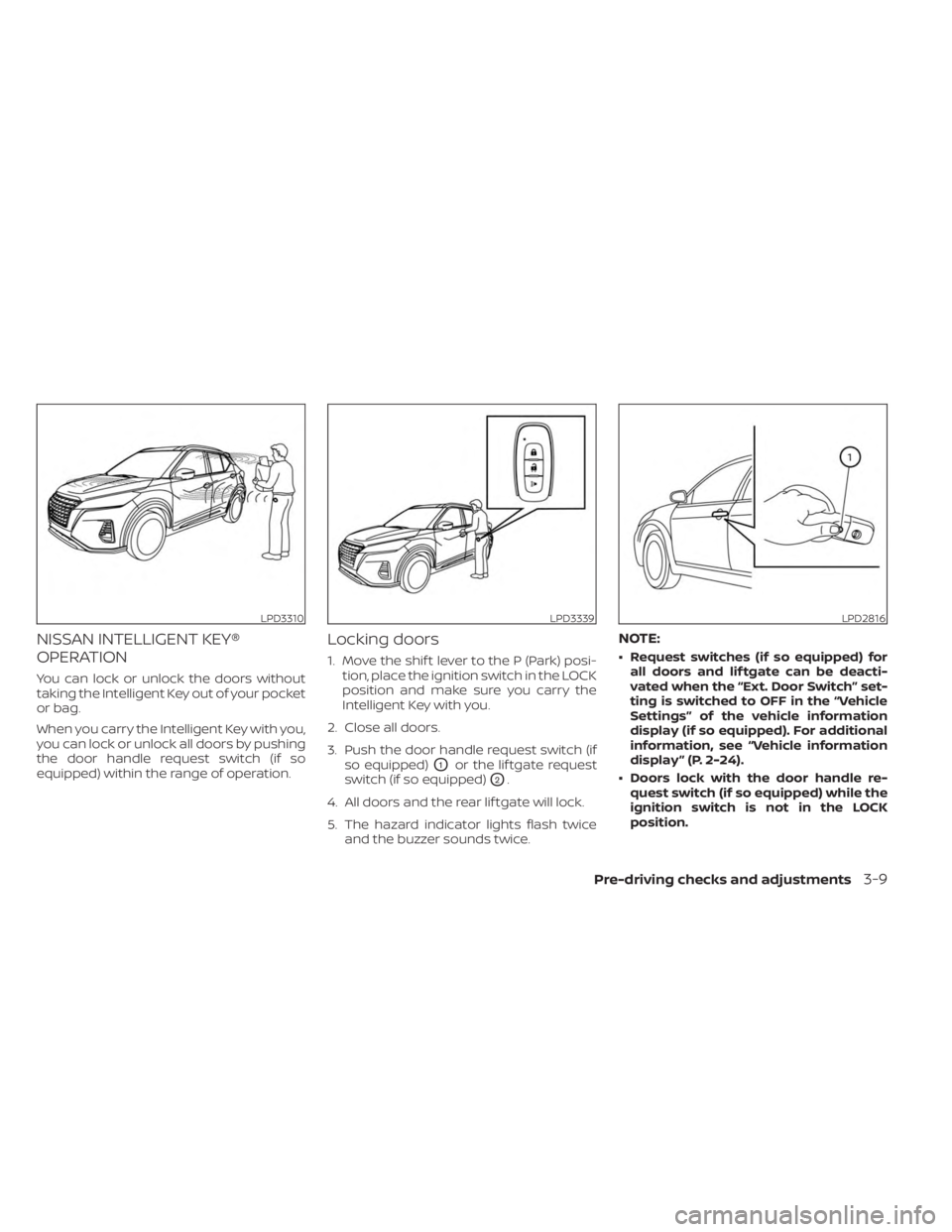
Locking doors
1. Move the shif t lever to the P (Park) posi-tion, place the ignition switch in the LOCK
position and make sure you carry the
Intelligent Key with you.
2. Close all doors.
3. Push the door handle request switch (if so equipped)
O1or the lif tgate request
switch (if so equipped)
O2.
4. All doors and the rear lif tgate will lock.
5. The hazard indicator lights flash twice and the buzzer sounds twice.
NOTE:
• Request switches (if so equipped) forall doors and lif tgate can be deacti-
vated when the “Ext. Door Switch” set-
ting is switched to OFF in the “Vehicle
Settings” of the vehicle information
display (if so equipped). For additional
information, see “Vehicle information
display ” (P. 2-24).
• Doors lock with the door handle re- quest switch (if so equipped) while the
ignition switch is not in the LOCK
position.
LPD3310LPD3339LPD2816
Pre-driving checks and adjustments3-9
Page 175 of 558
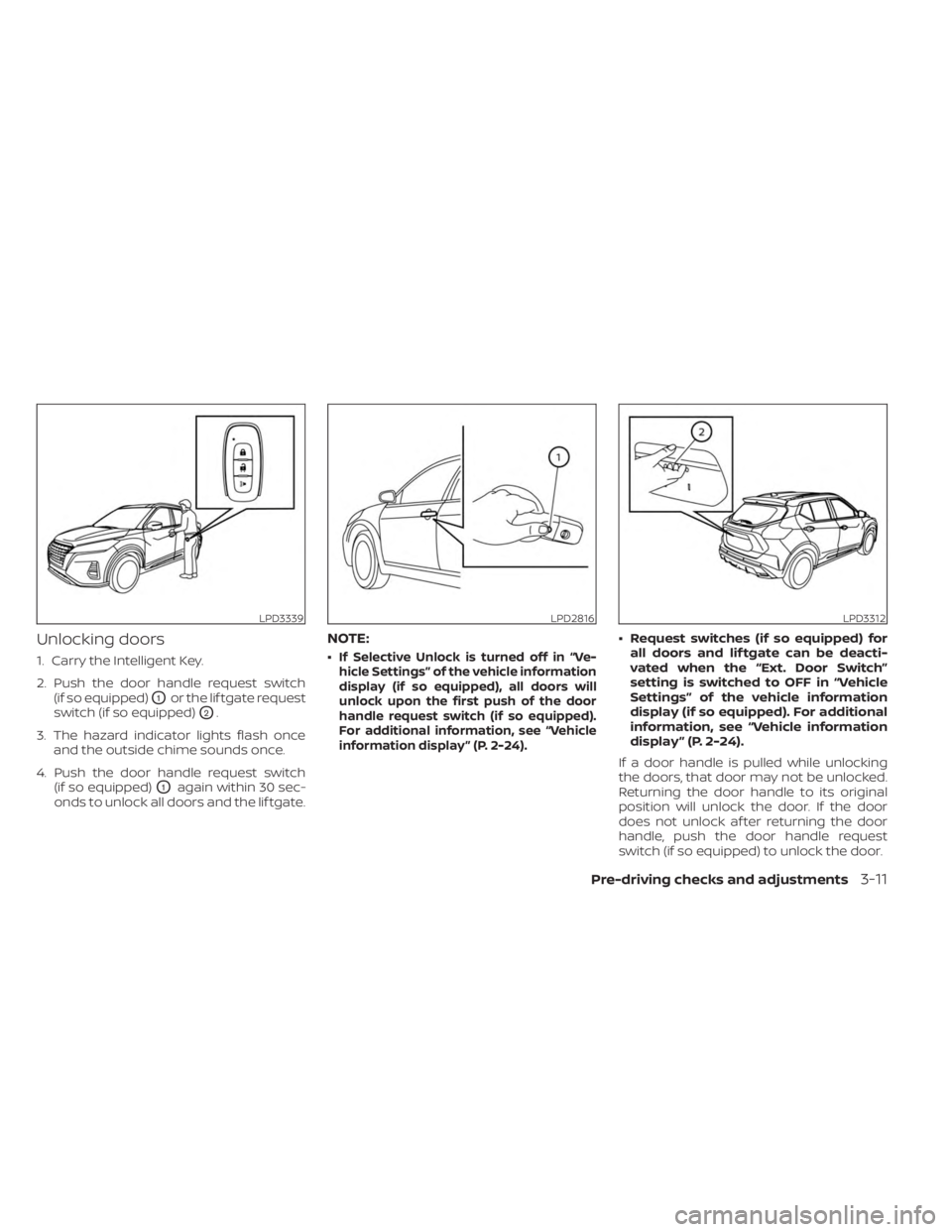
Unlocking doors
1. Carry the Intelligent Key.
2. Push the door handle request switch(if so equipped)
O1or the lif tgate request
switch (if so equipped)
O2.
3. The hazard indicator lights flash once and the outside chime sounds once.
4. Push the door handle request switch (if so equipped)
O1again within 30 sec-
onds to unlock all doors and the lif tgate.
NOTE:
•If Selective Unlock is turned off in “Ve-
hicle Settings” of the vehicle information
display (if so equipped), all doors will
unlock upon the first push of the door
handle request switch (if so equipped).
For additional information, see “Vehicle
information display ” (P. 2-24).
• Request switches (if so equipped) for all doors and lif tgate can be deacti-
vated when the “Ext. Door Switch”
setting is switched to OFF in “Vehicle
Settings” of the vehicle information
display (if so equipped). For additional
information, see “Vehicle information
display ” (P. 2-24).
If a door handle is pulled while unlocking
the doors, that door may not be unlocked.
Returning the door handle to its original
position will unlock the door. If the door
does not unlock af ter returning the door
handle, push the door handle request
switch (if so equipped) to unlock the door.
LPD3339LPD2816LPD3312
Pre-driving checks and adjustments3-11
Page 177 of 558
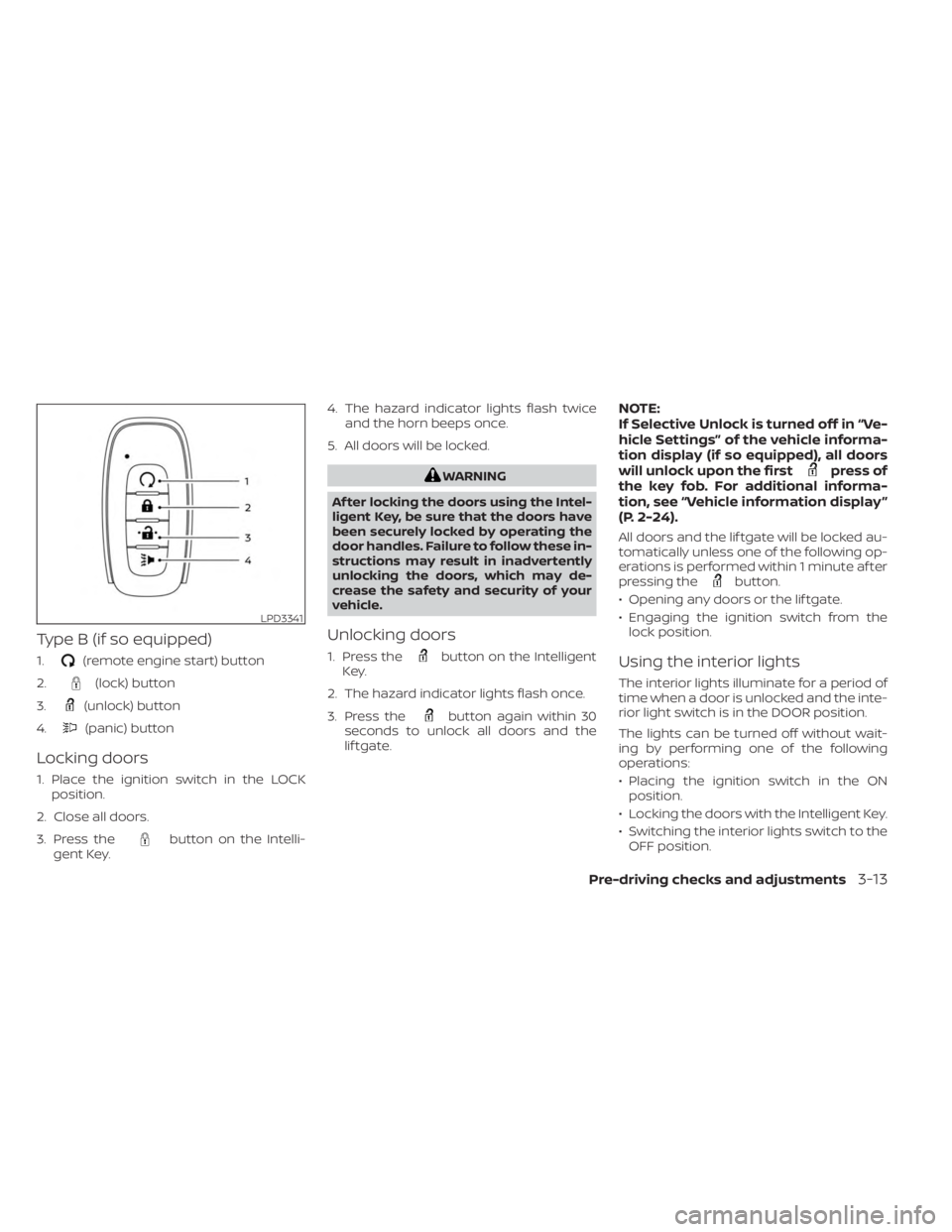
Type B (if so equipped)
1.(remote engine start) button
2.
(lock) button
3.
(unlock) button
4.
(panic) button
Locking doors
1. Place the ignition switch in the LOCK position.
2. Close all doors.
3. Press the
button on the Intelli-
gent Key. 4. The hazard indicator lights flash twice
and the horn beeps once.
5. All doors will be locked.
WARNING
Af ter locking the doors using the Intel-
ligent Key, be sure that the doors have
been securely locked by operating the
door handles. Failure to follow these in-
structions may result in inadvertently
unlocking the doors, which may de-
crease the safety and security of your
vehicle.
Unlocking doors
1. Press thebutton on the Intelligent
Key.
2. The hazard indicator lights flash once.
3. Press the
button again within 30
seconds to unlock all doors and the
lif tgate.
NOTE:
If Selective Unlock is turned off in “Ve-
hicle Settings” of the vehicle informa-
tion display (if so equipped), all doors
will unlock upon the first
press of
the key fob. For additional informa-
tion, see “Vehicle information display ”
(P. 2-24).
All doors and the lif tgate will be locked au-
tomatically unless one of the following op-
erations is performed within 1 minute af ter
pressing the
button.
• Opening any doors or the lif tgate.
• Engaging the ignition switch from the lock position.
Using the interior lights
The interior lights illuminate for a period of
time when a door is unlocked and the inte-
rior light switch is in the DOOR position.
The lights can be turned off without wait-
ing by performing one of the following
operations:
• Placing the ignition switch in the ONposition.
• Locking the doors with the Intelligent Key.
• Switching the interior lights switch to the OFF position.
LPD3341
Pre-driving checks and adjustments3-13
Page 178 of 558
For additional information, see “Interior
lights” (P. 2-74).
Using the panic alarm
If you are near your vehicle and feel threat-
ened, you may activate the panic alarm to
call attention by pressing and holding the
button on the Intelligent Key forlon-
ger than 1 second.
The headlights will flash and the panic
alarm will stay on for a period of time.
The panic alarm stops when:
• It has run for a period of time.
• Any button is pressed on the Intelligent Key.
• The request switch (if so equipped) on the driver or passenger door is pushed and
the Intelligent Key is in range of the door
handle.
• The lif tgate request switch (if so equipped) is pushed with the Intelligent
Key in range of the lif tgate area.
Answer back horn feature
If desired, the answer back horn feature
can be deactivated using the Intelligent
Key. When it is deactivated and the
button is pressed, the hazard indicator
lights flash twice. When thebutton is
pressed, neither the hazard indicator lights
nor the horn operates.
NOTE:
If you change the Answer Back Horn
and light flash feature with the Intelli-
gent Key, the vehicle information dis-
play (if so equipped) will show the cur-
rent mode af ter the ignition switch
has been cycled from the OFF to the
ON position. The vehicle information
display screen can also be used to
change the answer back horn mode.
For additional information, see “Ve-
hicle information display ” (P. 2-24).
To deactivate:
Press and hold theandbut-
tons for at least 4 seconds. The hazard
indicator lights will flash three times to con-
firm that the answer back horn feature has
been deactivated. To activate:
Press and hold the
andbut-
tons for at least 4 seconds once more.
The hazard indicator lights will flash once
and the horn will sound once to confirm
that the horn beep feature has been
reactivated.
Deactivating the horn beep feature does
not silence the horn if the alarm is
triggered.
3-14Pre-driving checks and adjustments
Page 179 of 558
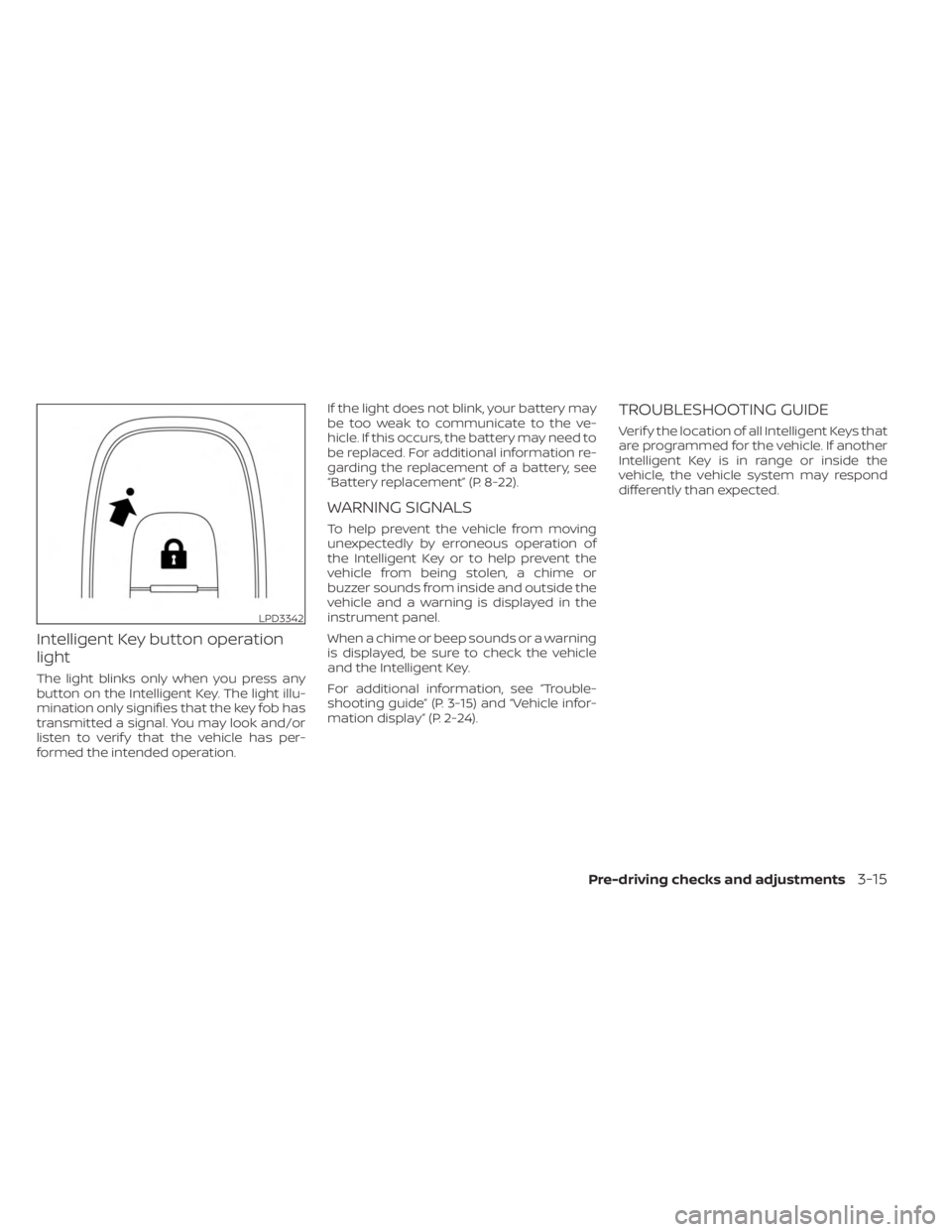
Intelligent Key button operation
light
The light blinks only when you press any
button on the Intelligent Key. The light illu-
mination only signifies that the key fob has
transmitted a signal. You may look and/or
listen to verif y that the vehicle has per-
formed the intended operation.If the light does not blink, your battery may
be too weak to communicate to the ve-
hicle. If this occurs, the battery may need to
be replaced. For additional information re-
garding the replacement of a battery, see
“Battery replacement” (P. 8-22).
WARNING SIGNALS
To help prevent the vehicle from moving
unexpectedly by erroneous operation of
the Intelligent Key or to help prevent the
vehicle from being stolen, a chime or
buzzer sounds from inside and outside the
vehicle and a warning is displayed in the
instrument panel.
When a chime or beep sounds or a warning
is displayed, be sure to check the vehicle
and the Intelligent Key.
For additional information, see “Trouble-
shooting guide” (P. 3-15) and “Vehicle infor-
mation display” (P. 2-24).
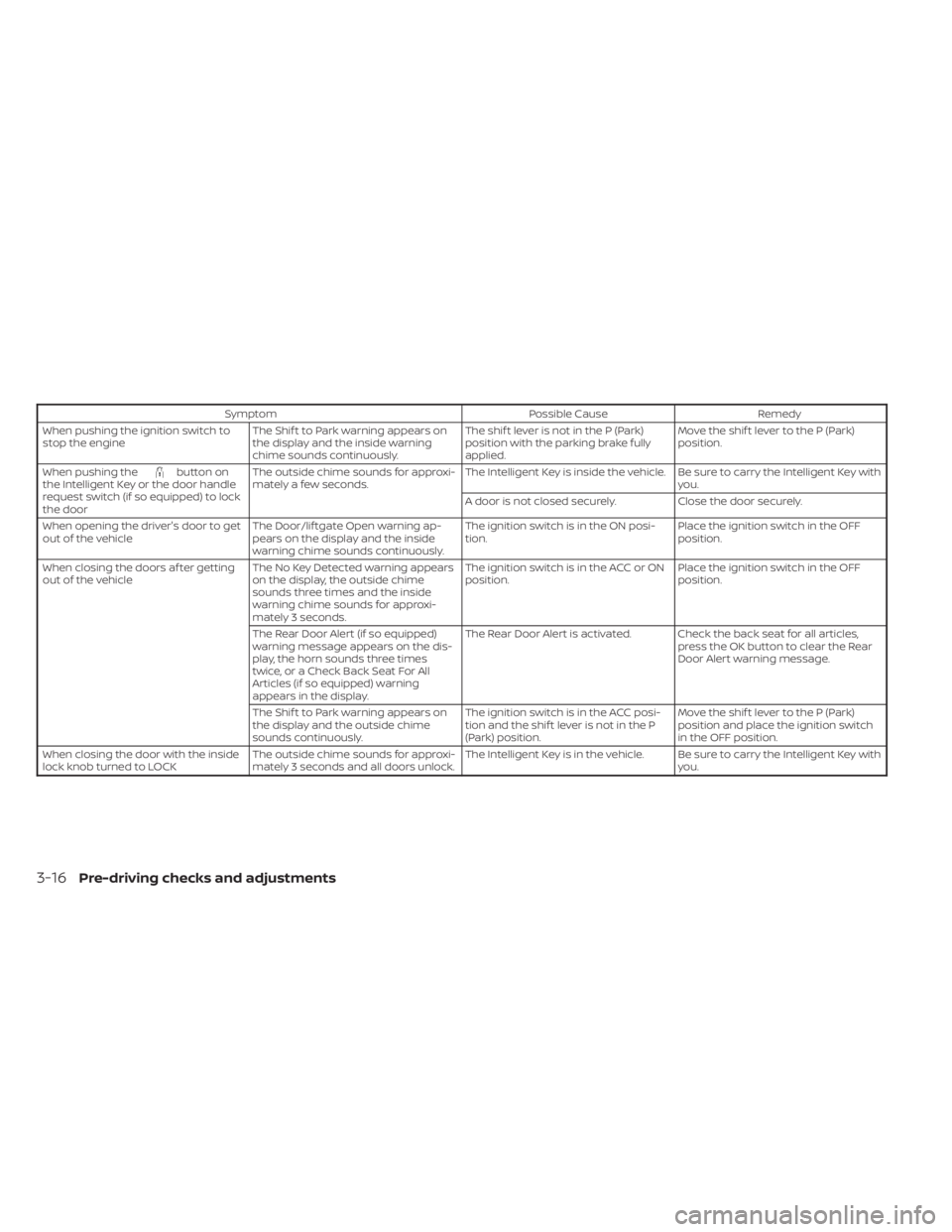
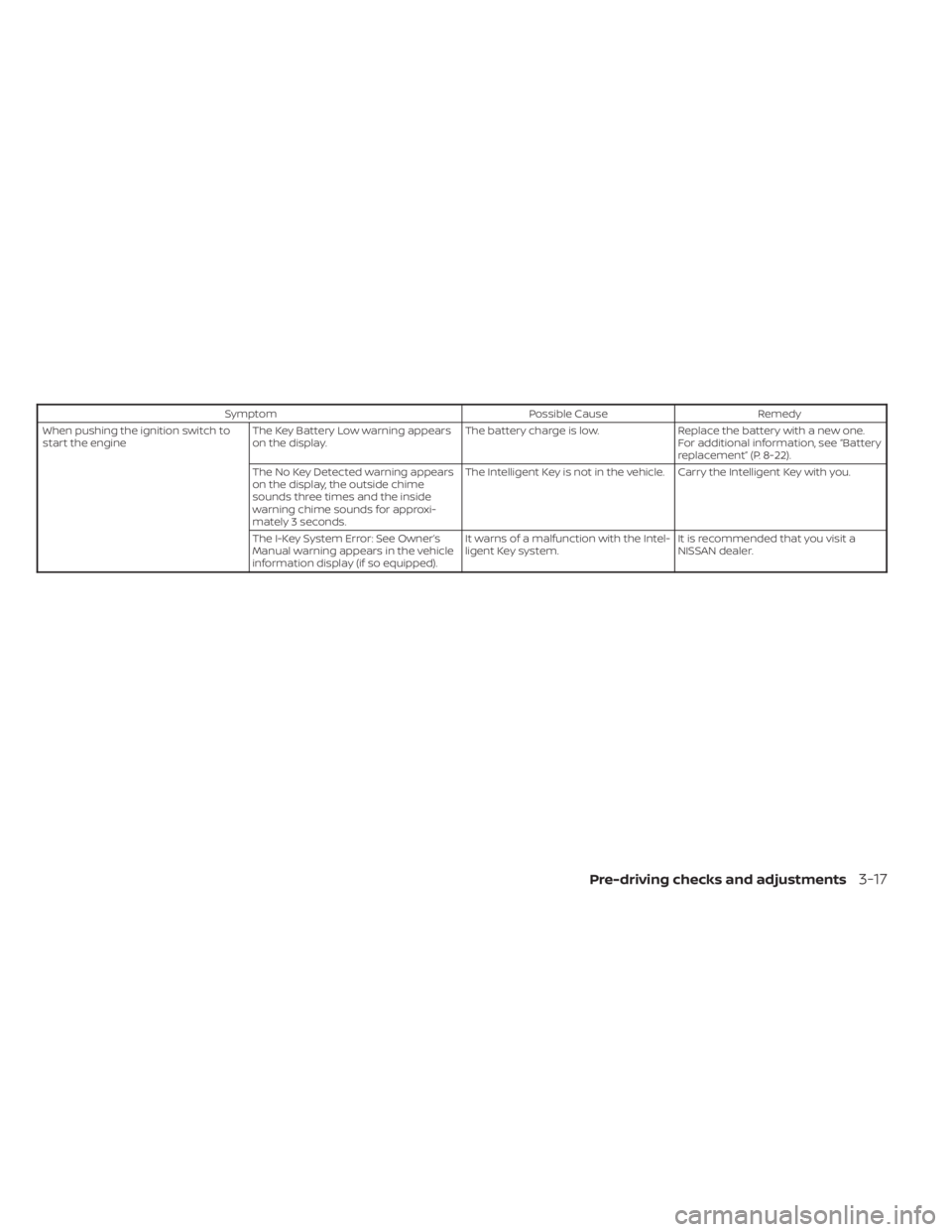
TROUBLESHOOTING GUIDE
Verif y the location of all Intelligent Keys that
are programmed for the vehicle. If another
Intelligent Key is in range or inside the
vehicle, the vehicle system may respond
differently than expected.
LPD3342
Pre-driving checks and adjustments3-15
Page 180 of 558
SymptomPossible CauseRemedy
When pushing the ignition switch to
stop the engine The Shif t to Park warning appears on
the display and the inside warning
chime sounds continuously. The shif t lever is not in the P (Park)
position with the parking brake fully
applied.Move the shif t lever to the P (Park)
position.
When pushing the
button on
the Intelligent Key or the door handle
request switch (if so equipped) to lock
the door The outside chime sounds for approxi-
mately a few seconds.
The Intelligent Key is inside the vehicle. Be sure to carry the Intelligent Key with
you.
A door is not closed securely. Close the door securely.
When opening the driver's door to get
out of the vehicle The Door/lif tgate Open warning ap-
pears on the display and the inside
warning chime sounds continuously. The ignition switch is in the ON posi-
tion.
Place the ignition switch in the OFF
position.
When closing the doors af ter getting
out of the vehicle The No Key Detected warning appears
on the display, the outside chime
sounds three times and the inside
warning chime sounds for approxi-
mately 3 seconds. The ignition switch is in the ACC or ON
position.
Place the ignition switch in the OFF
position.
The Rear Door Alert (if so equipped)
warning message appears on the dis-
play, the horn sounds three times
twice, or a Check Back Seat For All
Articles (if so equipped) warning
appears in the display. The Rear Door Alert is activated. Check the back seat for all articles,
press the OK button to clear the Rear
Door Alert warning message.
The Shif t to Park warning appears on
the display and the outside chime
sounds continuously. The ignition switch is in the ACC posi-
tion and the shif t lever is not in the P
(Park) position.Move the shif t lever to the P (Park)
position and place the ignition switch
in the OFF position.
When closing the door with the inside
lock knob turned to LOCK The outside chime sounds for approxi-
mately 3 seconds and all doors unlock. The Intelligent Key is in the vehicle. Be sure to carry the Intelligent Key with
you.
3-16Pre-driving checks and adjustments
Page 181 of 558
SymptomPossible CauseRemedy
When pushing the ignition switch to
start the engine The Key Battery Low warning appears
on the display. The battery charge is low.
Replace the battery with a new one.
For additional information, see “Battery
replacement” (P. 8-22).
The No Key Detected warning appears
on the display, the outside chime
sounds three times and the inside
warning chime sounds for approxi-
mately 3 seconds. The Intelligent Key is not in the vehicle. Carry the Intelligent Key with you.
The I-Key System Error: See Owner’s
Manual warning appears in the vehicle
information display (if so equipped). It warns of a malfunction with the Intel-
ligent Key system.
It is recommended that you visit a
NISSAN dealer.
Pre-driving checks and adjustments3-17
Page 184 of 558
• The engine hood has been opened.
•
The vehicle is shif ted out of P (Park) position.
• The alarm sounds due to illegal entry intothe vehicle.
• The ignition switch is pushed without an Intelligent Key in the vehicle.
• The ignition switch is pushed with an In- telligent Key in the vehicle but the brake
pedal is not depressed.
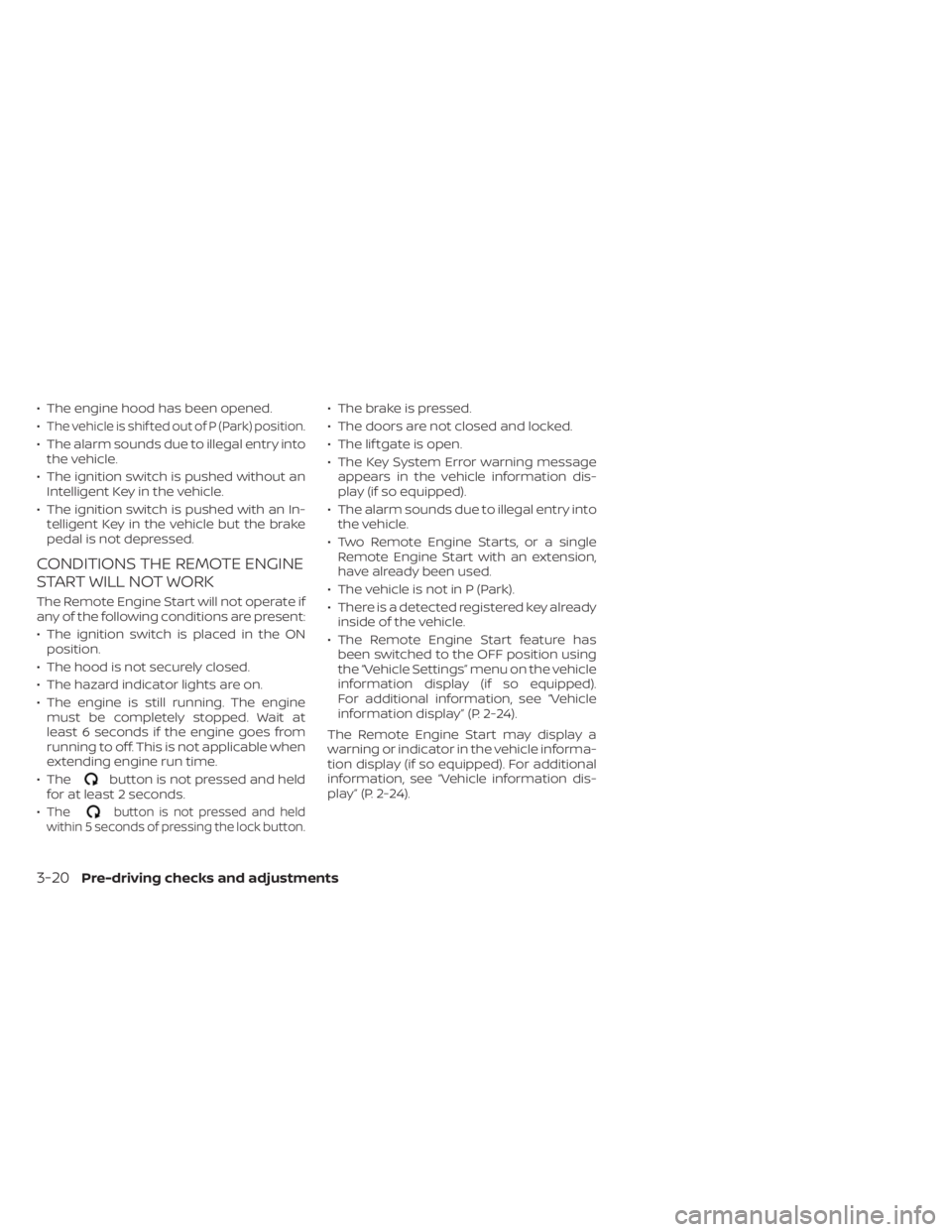
CONDITIONS THE REMOTE ENGINE
START WILL NOT WORK
The Remote Engine Start will not operate if
any of the following conditions are present:
• The ignition switch is placed in the ONposition.
• The hood is not securely closed.
• The hazard indicator lights are on.
• The engine is still running. The engine must be completely stopped. Wait at
least 6 seconds if the engine goes from
running to off. This is not applicable when
extending engine run time.
• The
button is not pressed and held
for at least 2 seconds.
•
Thebutton is not pressed and held
within 5 seconds of pressing the lock button.
• The brake is pressed.
• The doors are not closed and locked.
• The lif tgate is open.
• The Key System Error warning message appears in the vehicle information dis-
play (if so equipped).
• The alarm sounds due to illegal entry into the vehicle.
• Two Remote Engine Starts, or a single Remote Engine Start with an extension,
have already been used.
• The vehicle is not in P (Park).
• There is a detected registered key already inside of the vehicle.
• The Remote Engine Start feature has been switched to the OFF position using
the “Vehicle Settings” menu on the vehicle
information display (if so equipped).
For additional information, see “Vehicle
information display” (P. 2-24).
The Remote Engine Start may display a
warning or indicator in the vehicle informa-
tion display (if so equipped). For additional
information, see “Vehicle information dis-
play” (P. 2-24).
3-20Pre-driving checks and adjustments
Page 196 of 558
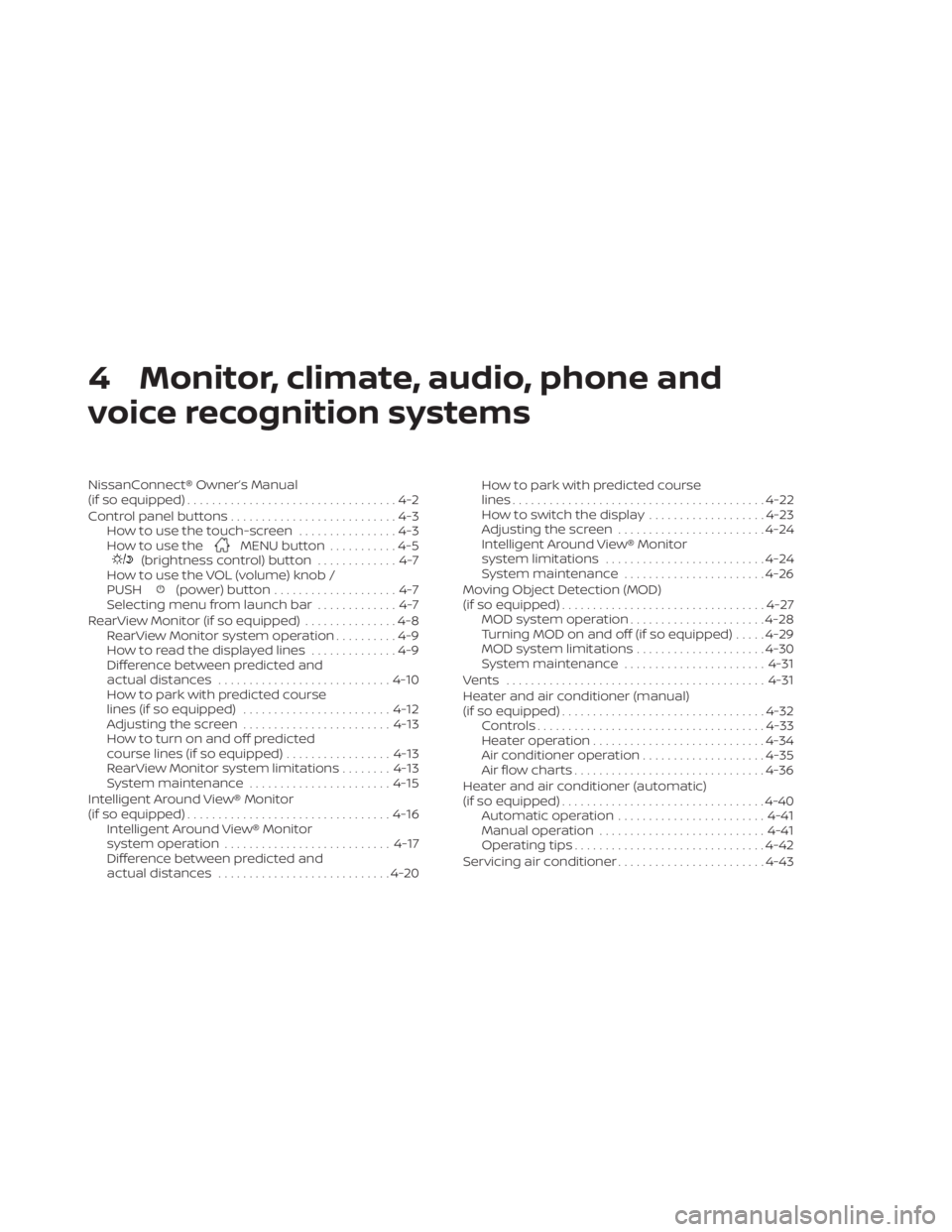
4 Monitor, climate, audio, phone and
voice recognition systems
NissanConnect® Owner’s Manual
(if so equipped)..................................4-2
Control panel buttons ...........................4-3
How to use the touch-screen ................4-3
How to use the
MENU button ...........4-5(brightness control) button .............4-7
How to use the VOL (volume) knob /
PUSH
(power)button....................4-7
Selecting menu from launch bar .............4-7
RearView Monitor (if so equipped) ...............4-8
RearView Monitor system operation ..........4-9
How to read the displayed lines ..............4-9
Difference between predicted and
actual distances ............................ 4-10
How to park with predicted course
lines (if so equipped) ........................ 4-12
Adjusting the screen ........................ 4-13
How to turn on and off predicted
course lines (if so equipped) .................4-13
RearView Monitor system limitations ........4-13
System maintenance ....................... 4-15
Intelligent Around View® Monitor
(if so equipped) ................................. 4-16
Intelligent Around View® Monitor
system operation ........................... 4-17
Difference between predicted and
actual distances ............................ 4-20How to park with predicted course
lines
......................................... 4-22
How to switch the display ...................4-23
Adjusting the screen ........................ 4-24
Intelligent Around View® Monitor
system limitations .......................... 4-24
System maintenance .......................4-26
Moving Object Detection (MOD)
(if so equipped) ................................. 4-27
MOD system operation ......................4-28
Turning MOD on and off (if so equipped) .....4-29
MOD system limitations .....................4-30
System maintenance ....................... 4-31
Vents .......................................... 4-31
Heater and air conditioner (manual)
(if so equipped) ................................. 4-32
Controls ..................................... 4-33
Heater operation ............................ 4-34
Air conditioner operation ....................4-35
Air flow charts ............................... 4-36
Heater and air conditioner (automatic)
(if so equipped) ................................. 4-40
Automatic operation ........................ 4-41
Manual operation ........................... 4-41
Operating tips ............................... 4-42
Servicing air conditioner ........................4-43
Page 197 of 558
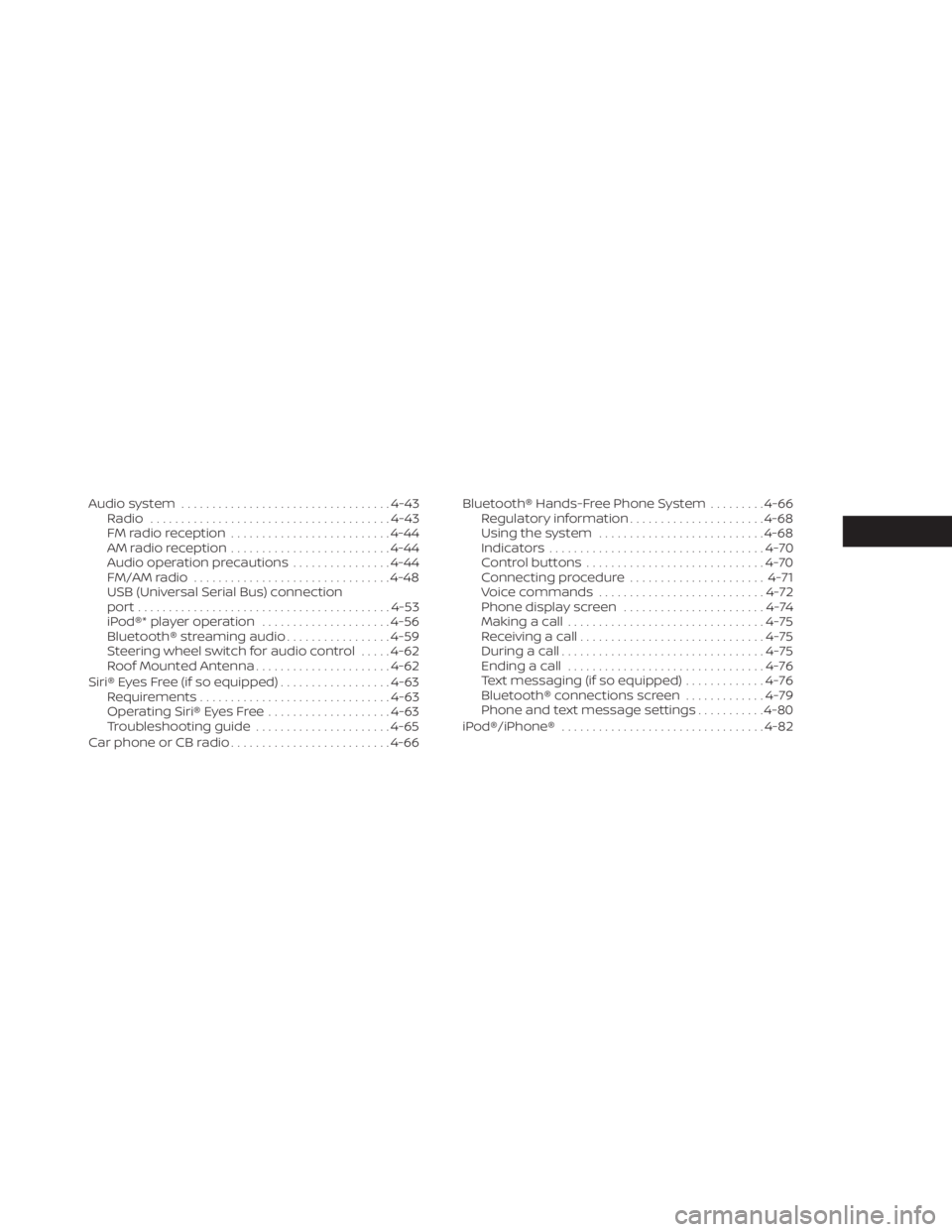
Audio system.................................. 4-43
Radio ....................................... 4-43
FM radio reception .......................... 4-44
AM radio reception .......................... 4-44
Audio operation precautions ................4-44
FM/AM radio ................................ 4-48
USB (Universal Serial Bus) connection
port......................................... 4-53
iPod®* player operation .....................4-56
Bluetooth® streaming audio .................4-59
Steering wheel switch for audio control .....4-62
Roof Mounted Antenna ......................4-62
Siri® Eyes Free (if so equipped) ..................4-63
Requirements ............................... 4-63
Operating Siri® Eyes Free ....................4-63
Troubleshooting guide ......................4-65
Car phone or CB radio .......................... 4-66Bluetooth® Hands-Free Phone System
.........4-66
Regulatory information ......................4-68
Using the system ........................... 4-68
Indicators ................................... 4-70
Control buttons ............................. 4-70
Connecting procedure ......................4-71
Voice commands ........................... 4-72
Phone display screen .......................4-74
Making a call ................................ 4-75
Receiving a call .............................. 4-75
During a call ................................. 4-75
Ending a call ................................ 4-76
Text messaging (if so equipped) .............4-76
Bluetooth® connections screen .............4-79
Phone and text message settings ...........4-80
iPod®/iPhone® ................................. 4-82