display NISSAN KICKS 2023 Manual Online
[x] Cancel search | Manufacturer: NISSAN, Model Year: 2023, Model line: KICKS, Model: NISSAN KICKS 2023Pages: 558, PDF Size: 6.25 MB
Page 244 of 558
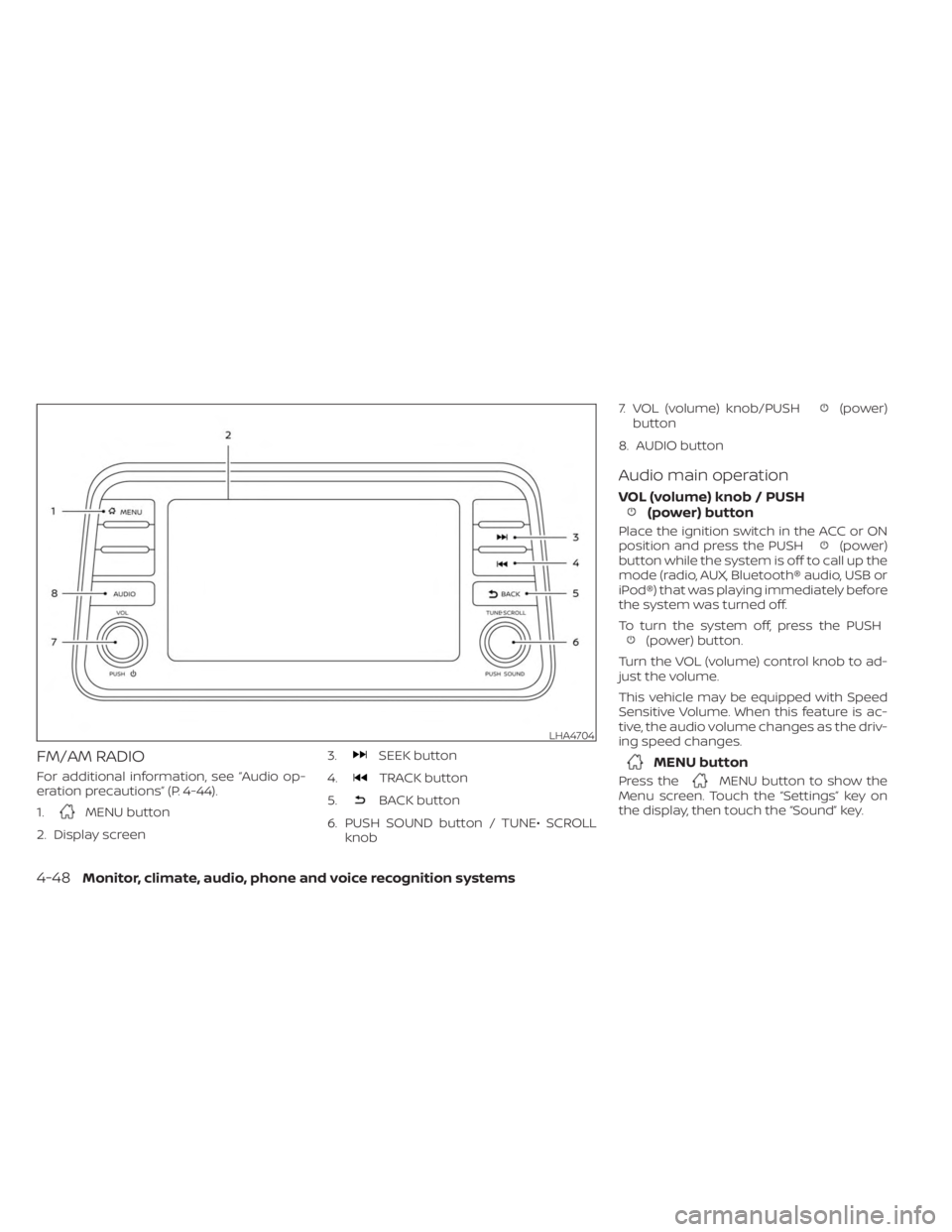
FM/AM RADIO
For additional information, see “Audio op-
eration precautions” (P. 4-44).
1.
MENU button
2. Display screen 3.
SEEK button
4.
TRACK button
5.
BACK button
6. PUSH SOUND button / TUNE• SCROLL knob 7. VOL (volume) knob/PUSH
(power)
button
8. AUDIO button
Audio main operation
VOL (volume) knob / PUSH(power) button
Place the ignition switch in the ACC or ON
position and press the PUSH(power)
button while the system is off to call up the
mode (radio, AUX, Bluetooth® audio, USB or
iPod®) that was playing immediately before
the system was turned off.
To turn the system off, press the PUSH
(power) button.
Turn the VOL (volume) control knob to ad-
just the volume.
This vehicle may be equipped with Speed
Sensitive Volume. When this feature is ac-
tive, the audio volume changes as the driv-
ing speed changes.
MENU button
Press theMENU button to show the
Menu screen. Touch the “Settings” key on
the display, then touch the “Sound” key.
LHA4704
4-48Monitor, climate, audio, phone and voice recognition systems
Page 246 of 558
BACK button
Press theBACK button to return to the
previous menu screen.
AUDIO button
Press to display the audio screen. When
this button is pressed while the audio
screen is not displayed, the last audio
source played will play.
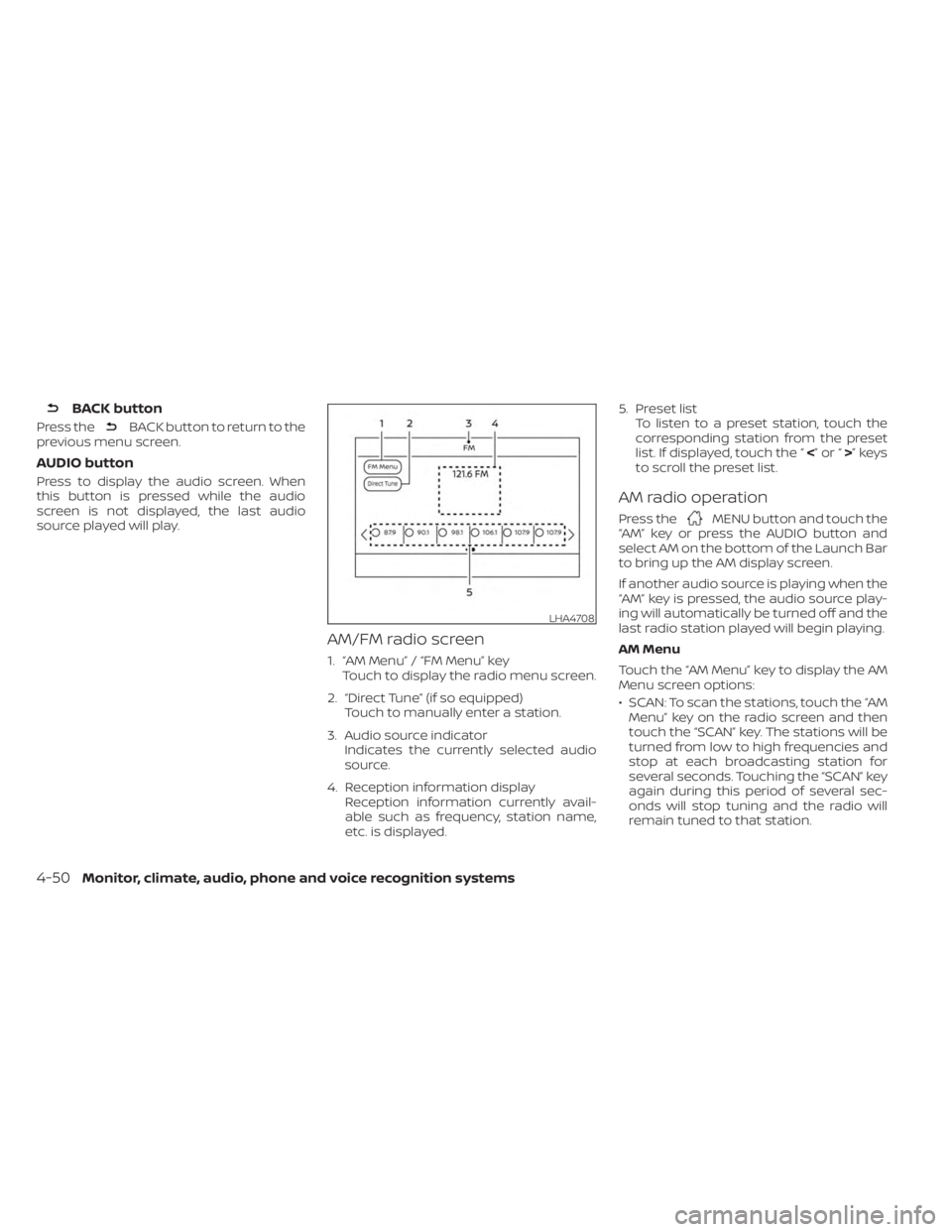
AM/FM radio screen
1. “AM Menu” / “FM Menu” key Touch to display the radio menu screen.
2. “Direct Tune” (if so equipped) Touch to manually enter a station.
3. Audio source indicator Indicates the currently selected audio
source.
4. Reception information display Reception information currently avail-
able such as frequency, station name,
etc. is displayed. 5. Preset list
To listen to a preset station, touch the
corresponding station from the preset
list. If displayed, touch the “ <”or“>”keys
to scroll the preset list.
AM radio operation
Press theMENU button and touch the
“AM” key or press the AUDIO button and
select AM on the bottom of the Launch Bar
to bring up the AM display screen.
If another audio source is playing when the
“AM” key is pressed, the audio source play-
ing will automatically be turned off and the
last radio station played will begin playing.
AM Menu
Touch the “AM Menu” key to display the AM
Menu screen options:
• SCAN: To scan the stations, touch the “AM Menu” key on the radio screen and then
touch the “SCAN” key. The stations will be
turned from low to high frequencies and
stop at each broadcasting station for
several seconds. Touching the “SCAN” key
again during this period of several sec-
onds will stop tuning and the radio will
remain tuned to that station.
LHA4708
4-50Monitor, climate, audio, phone and voice recognition systems
Page 247 of 558
• Refresh: Touch the “Refresh” key to up-date the station list displayed on the right
side of the AM Menu screen.
(SEEK/TRACK) buttons
Press the
orbuttons to tune
from low to high or high to low frequencies
and to stop at the next broadcasting
station.
Direct Tune (if so equipped)
Touch the “Direct Tune” key to display the
Direct Tune menu and manually enter a
station.
1 to 6 station memory operations
Up to six stations can be registered in the
preset list.
1. Select the AM radio band.
2. Tune to the station you wish to store.
3. Touch and hold one of the preset num- bers in the preset list.
The information such as frequency will be
displayed on the preset list.
To select and listen to the preset stations,
press
oron the steering wheel
briefly or touch a preferred station on the
preset list on the radio screen.
FM radio operation
Press theMENU button and touch the
“FM” key or press the AUDIO button and
select FM on the bottom of the Launch Bar
to bring up the FM display screen.
If another audio source is playing when the
“FM” key is pressed, the audio source play-
ing will automatically be turned off and the
last radio station played will begin playing.
The FM stereo indicator (STEREO) is shown
on the screen during FM stereo reception.
When the stereo broadcast signal is weak,
the radio automatically changes from ste-
reo to monaural reception.
FM Menu
Touch the “FM Menu” key to display the FM
Menu screen options:
• SCAN: To scan the stations, touch the “FM Menu” key on the radio screen and then
touch the “SCAN” key. The stations will be
tuned from low to high frequencies and
stop at each broadcasting stations for
several seconds. Touching the “SCAN” key
again during this period of several sec-
onds will stop tuning and the radio will
remain tuned to that station. • Refresh: Touch the “Refresh” key to up-
date the station list displayed on the right
side of the FM Menu screen.
• RDS Info: Radio station and song informa- tion can be displayed on the FM display
screen.
(SEEK/TRACK) buttons
Press the
orbuttons to tune
from low to high or high to low frequencies
and to stop at the next broadcasting
station.
1 to 12 station memory operations
Up to 12 stations can be registered in the
preset list.
1. Select the FM radio band.
2. Tune to the station you wish to store.
3. Touch and hold one of the preset num- bers in the preset list.
The information such as frequency will be
displayed on the preset list.
To select and listen to the preset stations,
press
oron the steering wheel
briefly or touch a preferred station on the
preset list on the radio screen.
Monitor, climate, audio, phone and voice recognition systems4-51
Page 250 of 558
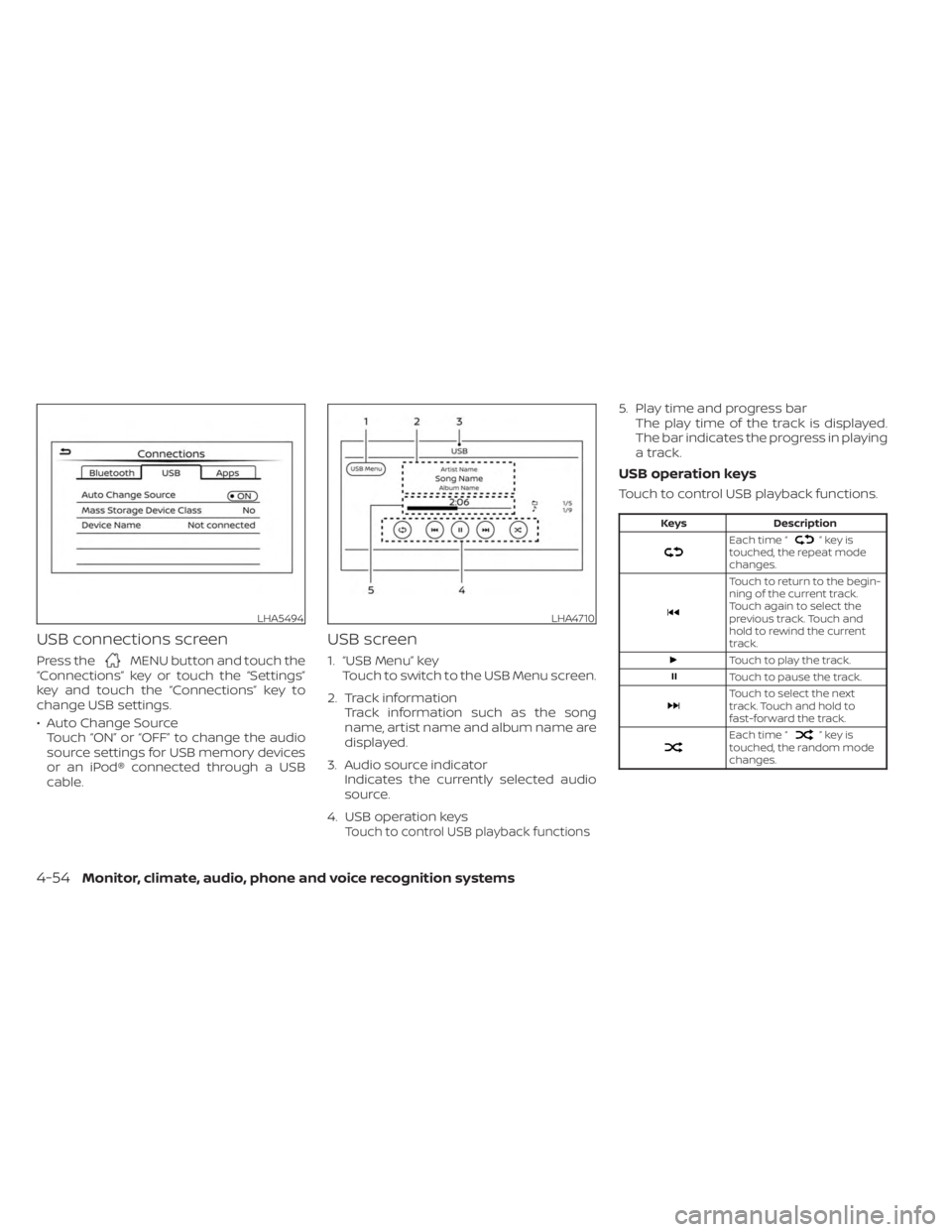
USB connections screen
Press theMENU button and touch the
“Connections” key or touch the “Settings”
key and touch the “Connections” key to
change USB settings.
• Auto Change Source Touch “ON” or “OFF” to change the audio
source settings for USB memory devices
or an iPod® connected through a USB
cable.
USB screen
1. “USB Menu” key Touch to switch to the USB Menu screen.
2. Track information Track information such as the song
name, artist name and album name are
displayed.
3. Audio source indicator Indicates the currently selected audio
source.
4. USB operation keys
Touch to control USB playback functions
5. Play time and progress bar The play time of the track is displayed.
The bar indicates the progress in playing
a track.
USB operation keys
Touch to control USB playback functions.
Keys Description
Each time “”keyis
touched, the repeat mode
changes.
Touch to return to the begin-
ning of the current track.
Touch again to select the
previous track. Touch and
hold to rewind the current
track.
Touch to play the track.
Touch to pause the track.
Touch to select the next
track. Touch and hold to
fast-forward the track.
Each time “”keyis
touched, the random mode
changes.
LHA5494LHA4710
4-54Monitor, climate, audio, phone and voice recognition systems
Page 251 of 558
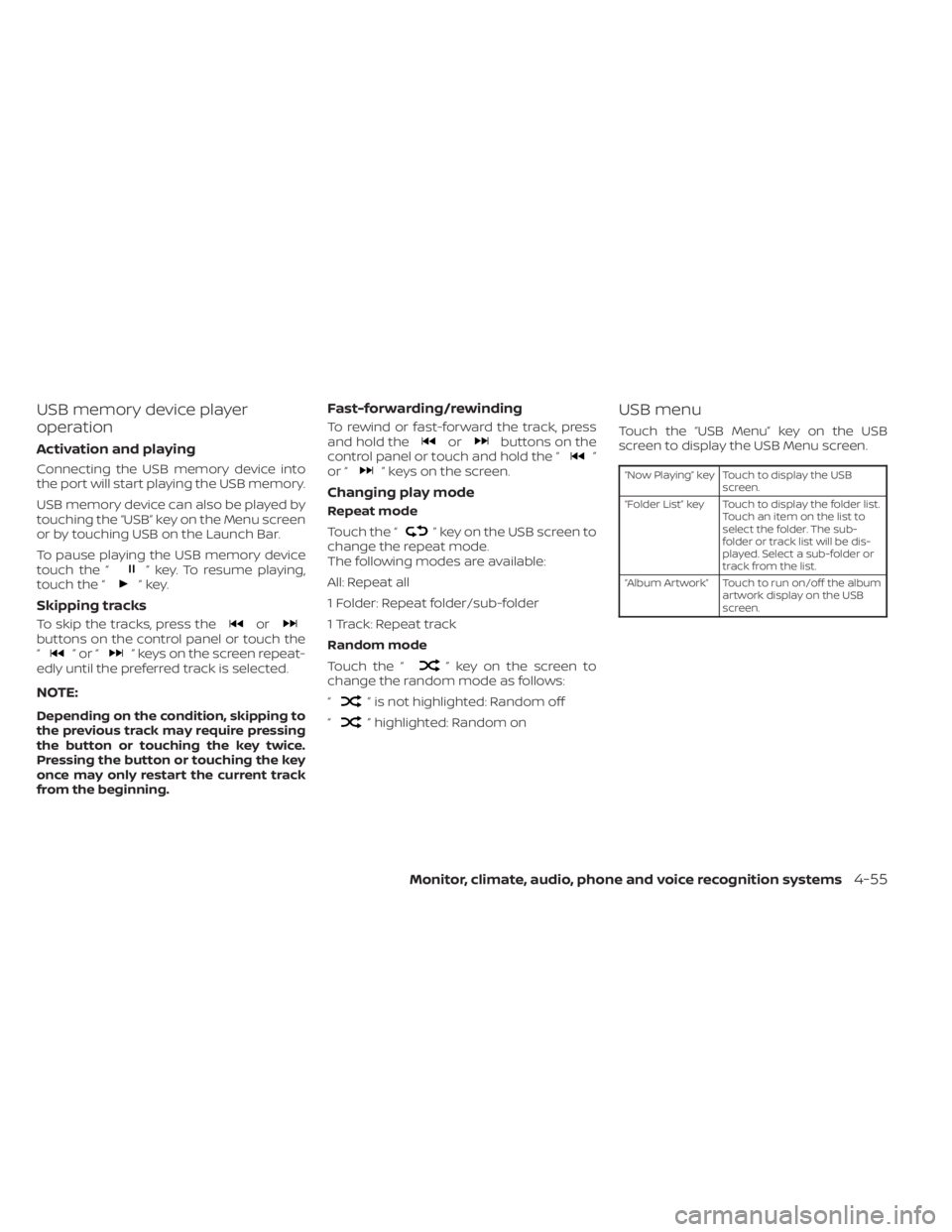
USB memory device player
operation
Activation and playing
Connecting the USB memory device into
the port will start playing the USB memory.
USB memory device can also be played by
touching the “USB” key on the Menu screen
or by touching USB on the Launch Bar.
To pause playing the USB memory device
touch the “
” key. To resume playing,
touch the “”key.
Skipping tracks
To skip the tracks, press theorbuttons on the control panel or touch the
“”or“” keys on the screen repeat-
edly until the preferred track is selected.
NOTE:
Depending on the condition, skipping to
the previous track may require pressing
the button or touching the key twice.
Pressing the button or touching the key
once may only restart the current track
from the beginning.
Fast-forwarding/rewinding
To rewind or fast-forward the track, press
and hold theorbuttons on the
control panel or touch and hold the “”
or “” keys on the screen.
Changing play mode
Repeat mode
Touch the “
” key on the USB screen to
change the repeat mode.
The following modes are available:
All: Repeat all
1 Folder: Repeat folder/sub-folder
1 Track: Repeat track
Random mode
Touch the “
” key on the screen to
change the random mode as follows:
“
” is not highlighted: Random off
“
” highlighted: Random on
USB menu
Touch the “USB Menu” key on the USB
screen to display the USB Menu screen.
“Now Playing” key Touch to display the USB screen.
“Folder List” key Touch to display the folder list. Touch an item on the list to
select the folder. The sub-
folder or track list will be dis-
played. Select a sub-folder or
track from the list.
“Album Artwork” Touch to run on/off the album artwork display on the USB
screen.
Monitor, climate, audio, phone and voice recognition systems4-55
Page 252 of 558
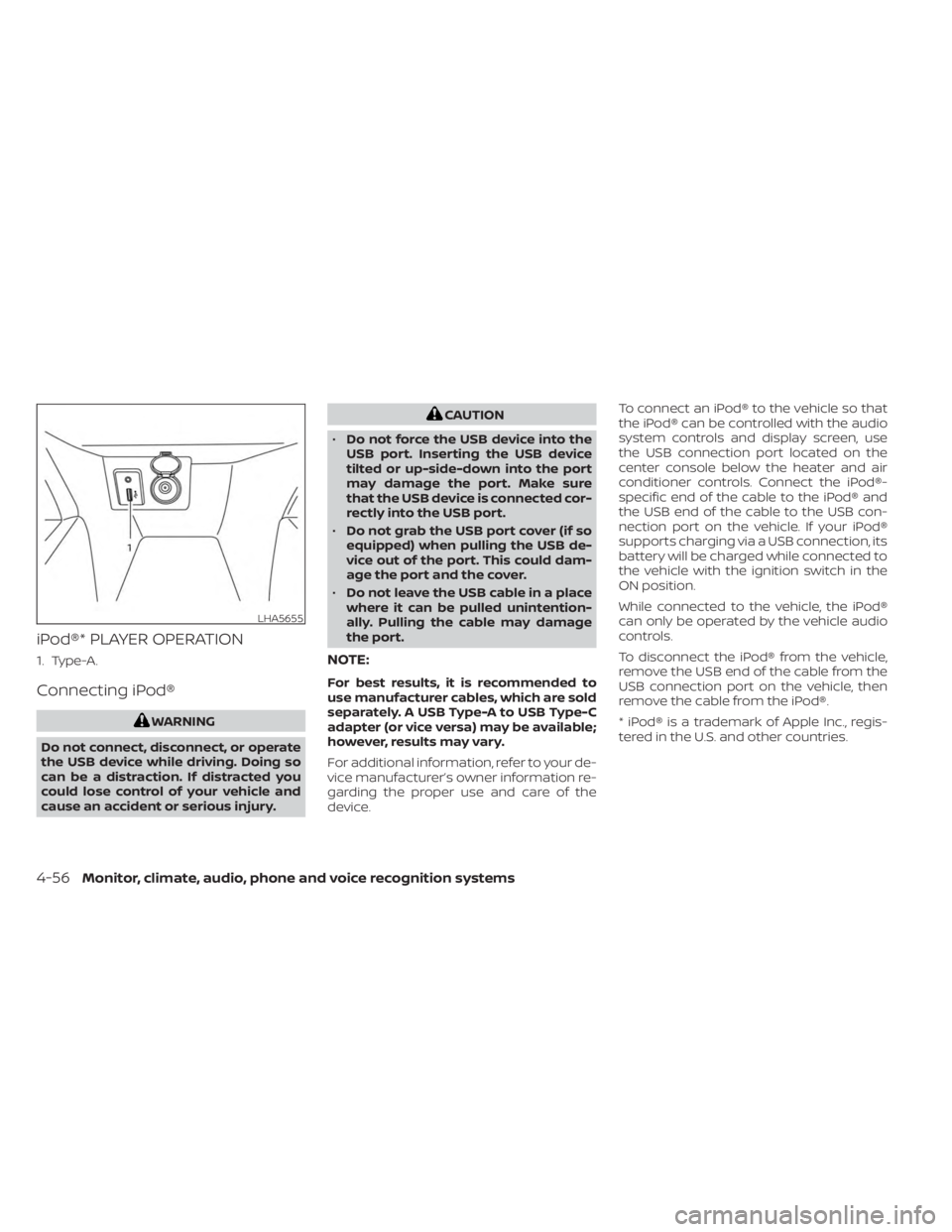
iPod®* PLAYER OPERATION
1. Type-A.
Connecting iPod®
WARNING
Do not connect, disconnect, or operate
the USB device while driving. Doing so
can be a distraction. If distracted you
could lose control of your vehicle and
cause an accident or serious injury.
CAUTION
• Do not force the USB device into the
USB port. Inserting the USB device
tilted or up-side-down into the port
may damage the port. Make sure
that the USB device is connected cor-
rectly into the USB port.
• Do not grab the USB port cover (if so
equipped) when pulling the USB de-
vice out of the port. This could dam-
age the port and the cover.
• Do not leave the USB cable in a place
where it can be pulled unintention-
ally. Pulling the cable may damage
the port.
NOTE:
For best results, it is recommended to
use manufacturer cables, which are sold
separately. A USB Type-A to USB Type-C
adapter (or vice versa) may be available;
however, results may vary.
For additional information, refer to your de-
vice manufacturer’s owner information re-
garding the proper use and care of the
device. To connect an iPod® to the vehicle so that
the iPod® can be controlled with the audio
system controls and display screen, use
the USB connection port located on the
center console below the heater and air
conditioner controls. Connect the iPod®-
specific end of the cable to the iPod® and
the USB end of the cable to the USB con-
nection port on the vehicle. If your iPod®
supports charging via a USB connection, its
battery will be charged while connected to
the vehicle with the ignition switch in the
ON position.
While connected to the vehicle, the iPod®
can only be operated by the vehicle audio
controls.
To disconnect the iPod® from the vehicle,
remove the USB end of the cable from the
USB connection port on the vehicle, then
remove the cable from the iPod®.
* iPod® is a trademark of Apple Inc., regis-
tered in the U.S. and other countries.
LHA5655
4-56Monitor, climate, audio, phone and voice recognition systems
Page 253 of 558
Compatibility
The following models are compatible:
• iPhone® XR
• iPhone® XS Max
• iPhone® XS
• iPhone® X
• iPhone® 8 Plus
• iPhone® 8
• iPhone® 7 Plus
• iPhone® 7
• iPhone® SE
• iPhone® 6s Plus
• iPhone® 6s
• iPhone® 6 Plus
• iPhone® 6
• iPhone® 5s
* Some features of this iPod® may not be
fully functional.
Make sure that your iPod® firmware is up-
dated to the version indicated above.
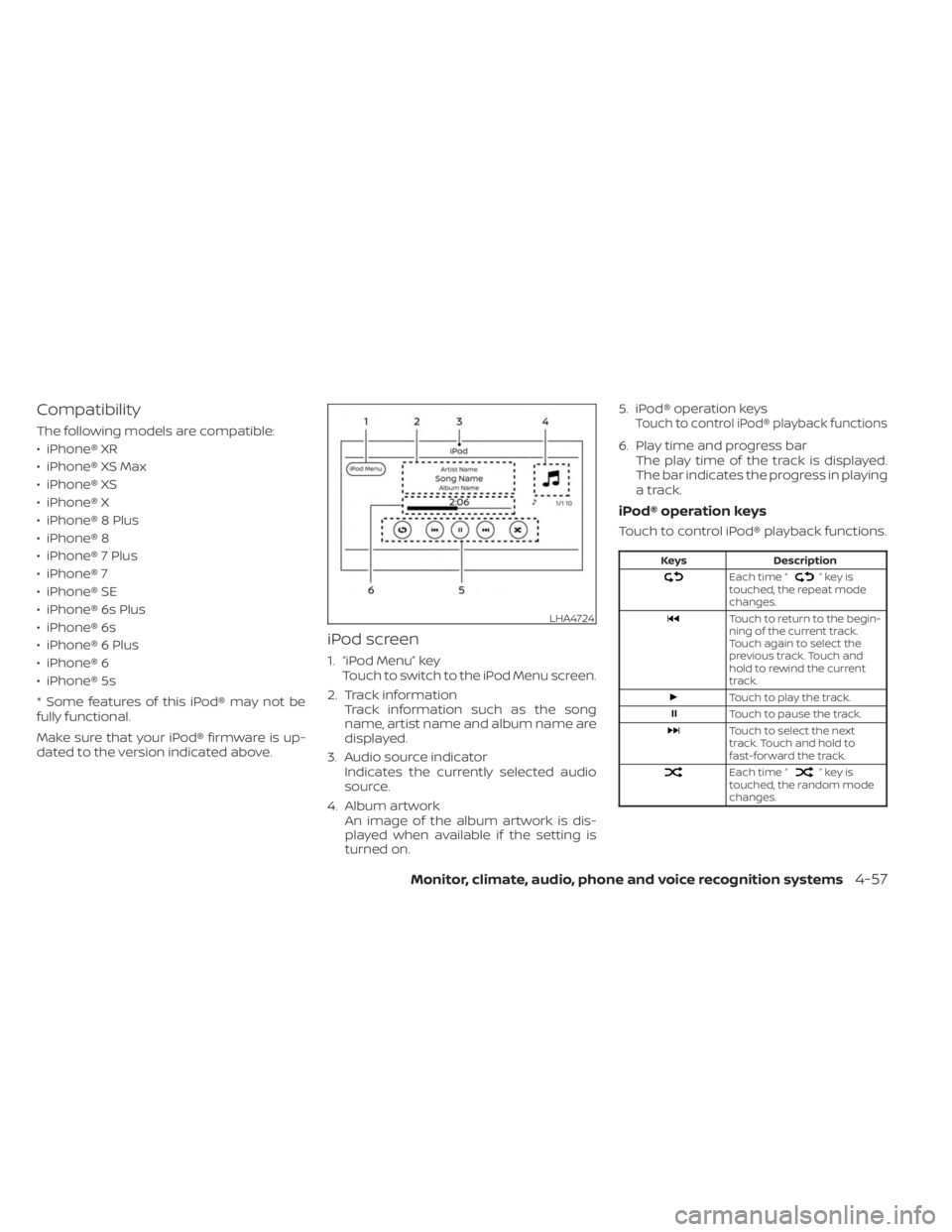
iPod screen
1. “iPod Menu” keyTouch to switch to the iPod Menu screen.
2. Track information Track information such as the song
name, artist name and album name are
displayed.
3. Audio source indicator Indicates the currently selected audio
source.
4. Album artwork An image of the album artwork is dis-
played when available if the setting is
turned on. 5. iPod® operation keys
Touch to control iPod® playback functions
6. Play time and progress bar
The play time of the track is displayed.
The bar indicates the progress in playing
a track.
iPod® operation keys
Touch to control iPod® playback functions.
Keys Description
Each time “”keyis
touched, the repeat mode
changes.
Touch to return to the begin-
ning of the current track.
Touch again to select the
previous track. Touch and
hold to rewind the current
track.
Touch to play the track.
Touch to pause the track.
Touch to select the next
track. Touch and hold to
fast-forward the track.
Each time “”keyis
touched, the random mode
changes.
LHA4724
Monitor, climate, audio, phone and voice recognition systems4-57
Page 254 of 558
iPod® memory device player
operation
Activation and playing
Connecting the iPod® to the vehicle via USB
cable will activate the iPod® mode.
The iPod® can also be played by touching
the “iPod” key on the Menu screen or by
touching iPod on the Launch Bar.
Skipping tracks
To skip the tracks, press theorbuttons on the control panel or touch the
“”or“” keys on the screen repeat-
edly until the preferred track is selected.
NOTE:
Depending on the condition, skipping to
the previous track may require pressing
the button or touching the key twice.
Pressing the button or touching the key
once may only restart the current track
from the beginning.
Fast-forwarding/rewinding
To rewind or fast-forward the track, press
and hold theorbuttons on the
control panel or touch and hold the “”
or “” keys on the screen,
Changing play mode
Repeat mode
Touch the “
” key on the iPod® screen
to change the repeat mode. The following
modes are available.
No text displayed: Repeat off
All: Repeat all
One: Repeat track
Random mode
Touch the “
” key on the screen to
change the random mode as follows.
“
” is not highlighted: Random off
“
” highlighted: Random on
iPod® Menu
Touch the “iPod Menu” key on the iPod®
screen to display the iPod® Menu screen.
“Now Playing” key Touch to display the USB screen.
“Folder List” key
(if so equipped) Touch to display the folder list.
Touch an item on the list to
select the folder. The sub-
folder or track list will be dis-
played. Select a sub-folder or
track from the list.
“Album Artwork”
key Touch to run on/off the album
artwork display on the USB
screen.
“Playlists” key Touch to display the list according to the selected
item.
“Artists” key
“Albums” key
“Songs” key
“Podcasts” key
“Genres” key
“Composers” key
“Audiobooks” key
“iTunes Radio” key
4-58Monitor, climate, audio, phone and voice recognition systems
Page 256 of 558
Automatic Connecting Procedure
If no phone is connected to the system,
press and hold the
button on the
steering wheel for less than 1.5 seconds.
Af ter the prompt, speak “Add Phone”, the
system will announce “transferring to the
add phone settings menu”. The system will
start the pairing procedure. When a com-
patible phone is found, a message with a
PIN appears on the screen. Operate the
Bluetooth® phone to complete the con-
nection process. For additional informa-
tion, see “Bluetooth® connections screen”
(P. 4-79).
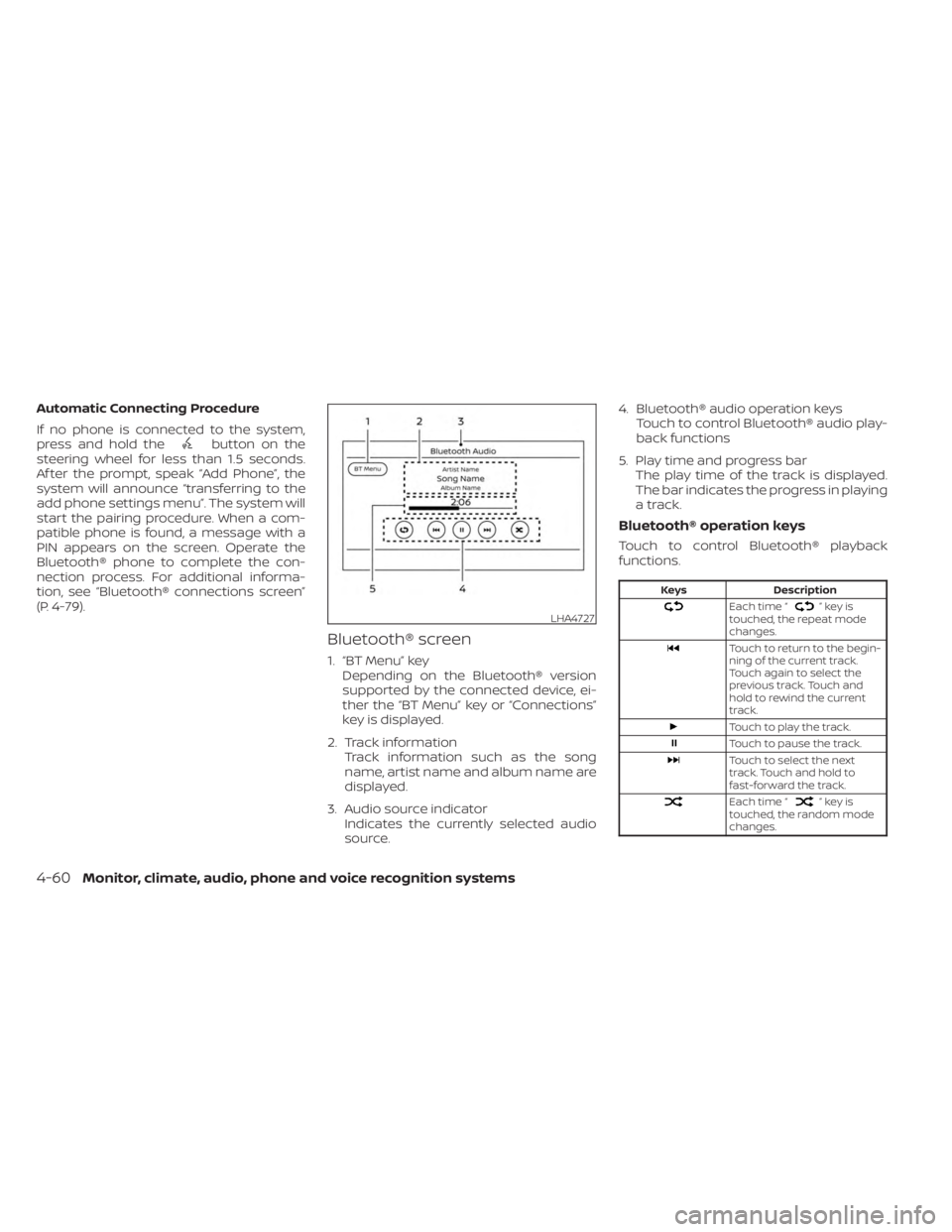
Bluetooth® screen
1. “BT Menu” key Depending on the Bluetooth® version
supported by the connected device, ei-
ther the “BT Menu” key or “Connections”
key is displayed.
2. Track information Track information such as the song
name, artist name and album name are
displayed.
3. Audio source indicator Indicates the currently selected audio
source. 4. Bluetooth® audio operation keys
Touch to control Bluetooth® audio play-
back functions
5. Play time and progress bar The play time of the track is displayed.
The bar indicates the progress in playing
a track.
Bluetooth® operation keys
Touch to control Bluetooth® playback
functions.
Keys Description
Each time “”keyis
touched, the repeat mode
changes.
Touch to return to the begin-
ning of the current track.
Touch again to select the
previous track. Touch and
hold to rewind the current
track.
Touch to play the track.
Touch to pause the track.
Touch to select the next
track. Touch and hold to
fast-forward the track.
Each time “”keyis
touched, the random mode
changes.
LHA4727
4-60Monitor, climate, audio, phone and voice recognition systems
Page 257 of 558
Bluetooth® audio operation
The ability to pause, change tracks, fast
forward, rewind, randomize and repeat
music may be different between devices.
Some or all of these functions may not be
supported on each device.
NOTE:
Depending on the Bluetooth® audio de-
vice that is connected, it may not be pos-
sible to perform audio operations or a
delay may occur before music is played
back.
Activation and playing
A Bluetooth® audio device can be played by
touching the “Bluetooth” key on the Menu
screen or by touching Bluetooth on the
Launch Bar.
To pause playing the Bluetooth® audio,
touch the “
” key. Touch the “”key
to resume playing.
Changing folders
To change folders, touch the “BT Menu” key.
Fast-forwarding/rewinding
To fast-forward or rewind the track, press
and hold theorbuttons on the
control panel or touch the “”or“”
keys on the screen.
Changing play mode
Repeat mode
Touch the “
” key on the screen to
change the repeat mode.
Random mode
Touch the “
” key on the screen to
change the random mode.
NOTE:
Available repeat/random modes change
depending on the connected device.
BT Menu
Touch the “BT Menu” key on the Bluetooth®
audio screen to display the Bluetooth®
audio menu screen.
The following items are available.
“Now Playing” key Touch to display the
Bluetooth® audio screen.
“Current List” key
(if so equipped)* A list of tracks in the cur-
rently selected folder is
displayed.
“Connections” key Touch to display the connections screen.
“Folder List” key* Touch to display the folder list. Touch an item
on the list to select the
folder.
*: displayed only when available.
NOTE:
Depending on the connected device, the
“BT Menu” key may not be displayed.
Monitor, climate, audio, phone and voice recognition systems4-61