battery location NISSAN LEAF 2013 1.G Navigation Manual
[x] Cancel search | Manufacturer: NISSAN, Model Year: 2013, Model line: LEAF, Model: NISSAN LEAF 2013 1.GPages: 275, PDF Size: 6.66 MB
Page 162 of 275
5-2CARWINGSTM
In addition to Event Data Recorders (EDRs)
mentioned in the LEAF Owner’s Manual, this
vehicle is equipped with electronic modules that
monitor, control and record data concerning
various vehicle systems, including the motor,
batteries, braking and electrical systems. Other
electronic modules record information concern-
ing driving conditions, including idling, braking,
acceleration, trip and other related data, in-
formation about your use of the car and its
features such as air conditioner or headlight
usage, diagnostic trouble codes, vehicle char-
ging, vehicle speed, direction and/or location.
Some of this data is stored by the vehicle for use
during vehicle servicing. Other data concerning
your vehicle’s operation and performance is
wirelessly transmitted by cellular connection
through the vehicle onboard telematics system
upon vehicle start-up or at other intervals to
NISSAN. This data may be used by NISSAN for
various purposes, including: to provide you with
CARWINGS
TMservices (refer to the CAR-
WINGSTMsection of this manual for details);
troubleshooting; evaluation of your vehicle’s
quality, functionality and performance; analysis
and research by NISSAN designed to, among
other things, optimize performance of future
electric vehicles including improvements in
future battery life; to offer you new or additional
products or services; and as otherwise may be required by law. Such data may be shared with
NISSAN’s parents, subsidiaries, affiliates, suc-
cessors or assignees; authorized NISSAN certi-
fied LEAF dealers; NISSAN’s marketing
partners; your fleet company, if your vehicle is
a fleet vehicle; your rental company, if your
vehicle is a rental vehicle; and third party service
providers such as cellular, information systems
and data management providers.
State laws allow access and use of data
recorded by vehicle devices with the consent
of the vehicle owner or pursuant to subscription
agreement. While you are not required to allow
such access and use, if you do not so agree
NISSAN may be unable under applicable law to
activate the vehicle telematics system in your
vehicle, and certain features of your vehicle
which are dependent on vehicle telematics will
not operate as intended or designed. These may
include features such as automatic charging
station map updates, remote battery state of
charge check, charging complete notice, remote
plug in reminder, remote charging on, remote
climate control on, drive route planning, driving
tips to improve range, driving history, billing
simulation, ECO ranking, ECO forest, mainte-
nance reminders, etc. Other features that may
be developed and offered by NISSAN in the
future may also not function without telematics
data transmission.CARWINGS
TMtelematics services are provided
by NISSAN pursuant to a subscription services
agreement covering your vehicle. This agree-
ment is necessary for all owners. This agree-
ment, and an explanation of its terms and
conditions, can be found at the NISSAN Own-
er’s Portal webpage. Further, the operator of the
vehicle must also touch [OK] on the Navi screen
to indicate assent each time he or she starts the
car. If you decide at any time that you do not
want your vehicle to transmit data to NISSAN,
you can deactivate the telematics account
associated with this vehicle by canceling the
subscription services agreement by visiting the
NISSAN Owner’s Portal Webpage or calling
NISSAN at 1-877-NOGASEV (1-877-664-
2738) . The service can be reactivated later
upon request if you choose. Simply visit the
same website or call the number above. Alter-
natively, you can turn off the transmission of
certain categories of data through the use of
settings found in the Navigation system under
Menu, CARWINGS
TM, Vehicle Information
Sharing with NISSAN. Note, turning off “Vehicle
Information Sharing with NISSAN” will only
disable the automatic sharing of information at
vehicle start-up. Certain categories of data may
still be transmitted if vehicle telematics features
are accessed either in the vehicle or remotely.
Your agreement to the transmission and use of
TELEMATICS OVERVIEW
Page 166 of 275
5-6CARWINGSTM
—The vehicle must be located in a
cellular phone or smart phone cov-
erage area.
— The internet enabled cellular phone
or smart phone must be located in a
cellular phone or smart phone cov-
erage area.
— The computer must be connected to
the internet.
— A cellular phone must be used to
communicate with the vehicle.
— A cellular phone capable of text
messaging must be used to receive
text message regarding vehicle
charge status.
. When the charge connector is discon-
nected from the vehicle, the heater and
air conditioner operates using vehicle
Li-ion battery electric power.
. If the remote heater and air conditioner
function and Li-ion battery charging are
performed at the same time, Li-ion
battery charging will take longer than
usual due to the power used to heat or
cool the vehicle.
. Certain remote functions require a
compatible smart phone, which is not
included with vehicle. .
CARWINGSTMinformation system fea-
tures are included through a subscrip-
tion service which requires owner
consent to activate. The subscription
must be active to use these features.
. CARWINGS
TMcommunications may be
received at a verified e-mail address or
by SMS/text messaging-enabled cellu-
lar phone.
. Standard text rates and/or data usage
may apply depending on your carrier.
ABOUT SERVICE APPLICATION
Registering for the CARWINGSTMservice is
necessary before using this service. For detailed
information, access the NISSAN Owner’s Portal
Website. Confirm the terms of service and
complete the user registration form. After
registration is completed, a user ID and pass-
word are provided.
“Inputting user ID and password”
(page 1-11)
CAUTION
If the vehicle is sold to another person,
this service must be canceled and all
data stored in the device must be
deleted to avoid having personal data
inadvertently disclosed.
NOTICE FOR USAGE
. The CARWINGSTMservice uses the TCU
(Telematics Communication Unit) . Even if
the signal strength bar of the in-vehicle data
communication module indicates good re-
ception, connection to the NISSAN CARW-
INGS Data Center may be disabled. This
does not indicate a malfunction. Operate the
system again after a few minutes.
. The CARWINGS
TMservice cannot be used
under the following conditions:
— The vehicle moves outside the service area of the TCU (Telematics Commu-
nication Unit) connection to the system.
— The vehicle is in a location with poor signal reception such as a tunnel, under-
ground parking, behind a building or in a
mountainous area.
Page 187 of 275
Location information about the charging stations
near the current vehicle position or the destina-
tion can be checked. The searched charging
stations can be used for the route search
function.
CAUTION
Charging station information may not
be detailed in all areas or reflect current
charging station locations. For up to
date information about charging sta-
tions, such as business hours or char-
ging equipment, NISSAN recommends
that you directly access the information
on your own. Additionally, always check
the Li-ion battery available charge and
set a reasonable driving schedule.
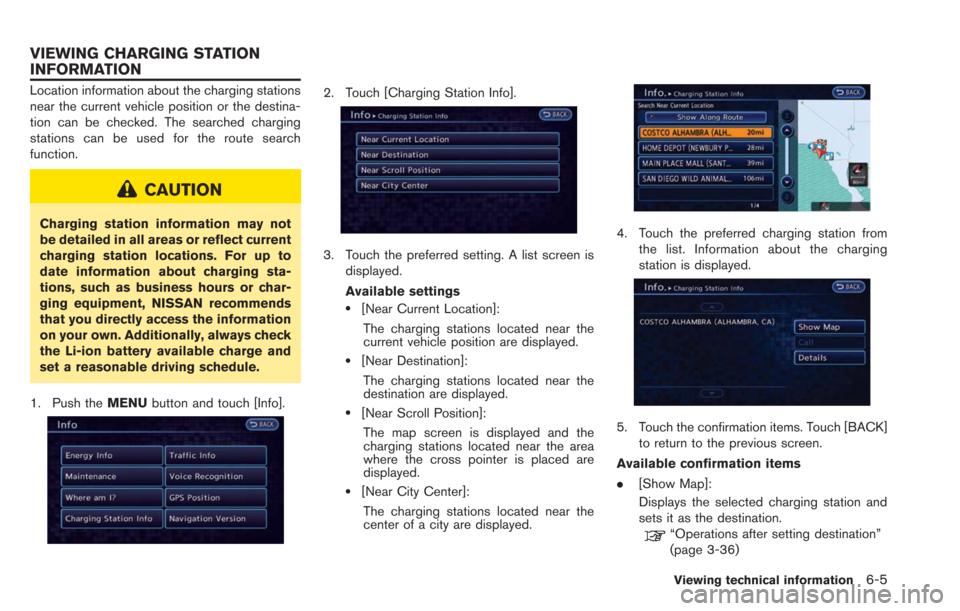
1. Push the MENUbutton and touch [Info].
2. Touch [Charging Station Info].
3. Touch the preferred setting. A list screen is
displayed.
Available settings
.[Near Current Location]:
The charging stations located near the
current vehicle position are displayed.
.[Near Destination]:
The charging stations located near the
destination are displayed.
.[Near Scroll Position]:The map screen is displayed and the
charging stations located near the area
where the cross pointer is placed are
displayed.
.[Near City Center]:The charging stations located near the
center of a city are displayed.
4. Touch the preferred charging station from the list. Information about the charging
station is displayed.
5. Touch the confirmation items. Touch [BACK]to return to the previous screen.
Available confirmation items
. [Show Map]:
Displays the selected charging station and
sets it as the destination.
“Operations after setting destination”
(page 3-36)
Viewing technical information6-5
VIEWING CHARGING STATION
INFORMATION
Page 196 of 275
7-2Bluetooth®Hands-Free Phone System
WARNING
.Use a phone after stopping your
vehicle in a safe location. If you
have to use a phone while driving,
exercise extreme caution at all
times so full attention may be given
to vehicle operation.
. If you find yourself unable to devote
full attention to vehicle operation
while talking on the phone, pull off
the road to a safe location and stop
your vehicle before doing so.
CAUTION
To avoid draining the vehicle battery,
use a phone after the READY to drive
indicator light is ON.
Your vehicle is equipped with Bluetooth
®
Hands-Free Phone System. If you are an owner
of a compatible Bluetooth®enabled cellular
phone, you can set up the wireless connection
between your cellular phone and the in-vehicle
phone module. With Bluetooth
®wireless tech-
nology, you can make or receive a telephone call
with your cellular phone in your pocket. Once a cellular phone is connected to the in-
vehicle phone module, the procedure for con-
necting the phone does not need to be
performed again. Your phone is automatically
selected with the in-vehicle phone module when
the power switch is pushed to the "ON" position
with the selected cellular phone turned on and
carried in the vehicle.
You can register up to 3 different Bluetooth
®
cellular phones in the in-vehicle phone module.
However, you can talk on only one cellular phone
at a time.
The NISSAN Voice Recognition system sup-
ports phone commands, so dialing a phone
number using your voice is possible.
“8. Voice recognition”
Before using the Bluetooth®Hands-Free Phone
System, refer to the following notes.
. Wireless LAN (Wi-Fi) and the Bluetooth
®
functions share the same frequency band
(2.4 GHz) . Using the Bluetooth®and the
wireless LAN functions at the same time may
slow down or disconnect the communica-
tion and cause undesired noise. It is
recommended that you turn off the wireless
LAN (Wi-Fi) when using the Bluetooth
®
functions. .
Set up the wireless connection between a
compatible cellular phone and the in-vehicle
phone module before using the Bluetooth
®
Hands-Free Phone System.
. Some Bluetooth®enabled cellular phones
may not be recognized by the in-vehicle
phone module.
Please visit www.nissanusa.com/bluetooth
for a recommended phone list.
. You will not be able to use a hands-free
phone under the following conditions:
— Your vehicle is outside of the telephone
service area.
— Your vehicle is in an area where it is difficult to receive radio waves; such as in
a tunnel, in an underground parking
garage, behind a tall building or in a
mountainous area.
— Your cellular phone is locked in order to prevent dialing.
. When the radio wave condition is not ideal
or ambient sound is too loud, it may be
difficult to hear the other person’s voice
during a call.
. Immediately after the power switch is
pushed to the "ON" position, it may be
impossible to receive a call for a short period
of time.
BLUETOOTH®HANDS-FREE PHONE
SYSTEM
Page 197 of 275
.Do not place the cellular phone in an area
surrounded by metal or far away from the in-
vehicle phone module to prevent tone quality
degradation and wireless connection dis-
ruption.
. While a cellular phone is connected through
the Bluetooth
®wireless connection, the
battery power of the cellular phone may
discharge quicker than usual.
. If the Bluetooth
®Hands-Free Phone System
seems to be malfunctioning, please visit
www.nissanusa.com/bluetooth for trouble-
shooting help.
. Some cellular phones or other devices may
cause interference or a buzzing noise to
come from the audio system speakers.
Storing the device in a different location
may reduce or eliminate the noise.
. Refer to the cellular phone Owner’s Manual
regarding the telephone pairing procedure
specific to your phone, battery charging,
cellular phone antenna, etc.
. The antenna display on the monitor will not
coincide with the antenna display of some
cellular phones.
. The battery display on the monitor will not
coincide with the battery display of some
cellular phones. .
Keep the interior of the vehicle as quiet as
possible to hear the caller’s voice clearly as
well as to minimize its echoes.
. If reception between callers is unclear,
adjusting the incoming or outgoing call
volume may improve the clarity.
REGULATORY INFORMATION
FCC Regulatory information
.CAUTION: To maintain compliance with
FCC’s RF exposure guidelines, use only
the supplied antenna. Unauthorized antenna,
modification, or attachments could damage
the transmitter and may violate FCC regula-
tions.
. Operation is subject to the following two
conditions:
— this device may not cause interference
and
— this device must accept any interference, including interference that may cause
undesired operation of the device
IC Regulatory information
. Operation is subject to the following two
conditions:
— this device may not cause interference,
and — this device must accept any interference,
including interference that may cause
undesired operation of the device.
. This Class B digital apparatus meets all
requirements of the Canadian Interference-
Causing Equipment Regulations.
Bluetooth
®trademark:
Bluetooth®is a trademark owned
by Bluetooth®SIG, Inc., and
licensed to Clarion.
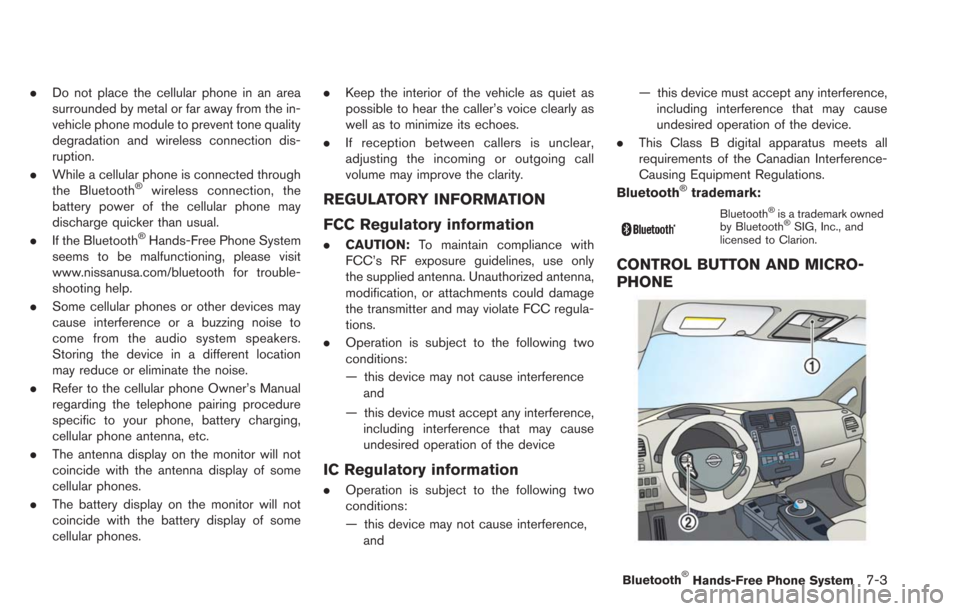
CONTROL BUTTON AND MICRO-
PHONE
Bluetooth®Hands-Free Phone System7-3
Page 231 of 275

Charging stations
SymptomPossible cause Possible solution
The charging station icon display setting is off but icons
are still displayed on the map. The charging station displayed has been set as a stored
location.This is not a malfunction.
I searched for charging stations because charge
recommendation guidance and the low battery warning
were displayed, but I could not find any. In an area where the number of charging stations is low,
it may not be possible to find a charging station located
near the vehicle.This is not a malfunction.
Charging station information is not displayed. Information is not provided for all charging stations, so there may be cases when information is not displayed.This is not a malfunction.
Contact charging stations beforehand by phone to
confirm whether they can be used.
Quick charging stations are not displayed. [Quick Charge] may be set to OFF in the [Charging Port
Types to Include in Station Searches] setting. Set [Quick Charge] to ON.
“Unique EV function settings” (page 2-15)
The charging station information displayed is incorrect. The map data is old. Connect to the NISSAN CARWINGS Data Center and update charging station information.
Alternatively, purchase new map data and update the
system.
I went to the charging station that I searched for but the
information was incorrect and I could not charge the
battery. The map data is old.
Connect to the NISSAN CARWINGS Data Center and
update charging station information.
Alternatively, purchase new map data and update the
system.
Charging station facilities have changed, or the EVSE
(Electric Vehicle Supply Equipment) equipped cannot
be used. Contact the charging station by phone beforehand to
check whether facilities can be used.
Troubleshooting guide/General system information10-5
Page 245 of 275

iPod®player
SymptomPossible cause Possible solution
The system does not recognize an iPod®. A connector cable is not correctly connected, or the
iPod®does not correctly operate. Connect the connector cable again. If the system does
not recognize the iPod®after performing this procedure
above, reset the iPod®.
The iPod®that is to be connected is not compatible
with the system. Check the iPod®model and firmware versions available
for the system.
A USB extension cable is not correctly connected. Do not use a USB extension cable.
The cable is rapidly connected to or disconnected from
the USB connector. Slowly connect or disconnect the USB cable.
An iPod
®cannot be operated. The iPod®is connected to the in-vehicle audio system
while headsets, etc. are connected to the iPod®. Remove all equipment from the iPod
®after discon-
necting the iPod®from the system, and then connect it
to the system again.
The iPod
®is not operating normally. Disconnect the iPod®from the in-vehicle audio system,
and then connect it to the system again.
The system plays back an album/track that includes a
particular album art. Disconnect the iPod
®from the in-vehicle audio system,
and then reset the iPod®. Disable the album art, and
then connect the iPod®to the system.
An iPod®does not respond. There are too many tracks in a category. Decrease the number of tracks in a category (less than
3,000 tracks).
The shuffle function is turned on. Turn off the shuffle function if many tracks are stored on
the iPod
®.
Music cannot be played back. A connector is not connected to the iPod®. Firmly connect the connector until it clicks.
Playback cuts out. The sound cuts due to vibration resulting from unstable
location of the iPod
®. Place the iPod
®on a stable location where it does not
roll over.
Distorted sound occurs. The EQ (equalizer) function of the iPod
®is turned on. Turn off the EQ (equalizer) function.
Battery charge of an iPod®takes longer. Battery charge of the iPod®may take longer while an
iPod®is playing back. If the iPod
®is requires charging, it is recommended to
stop play back.
Battery charge of an iPod
®is unavailable. The cable that is connected to the iPod®may
deteriorate (cable disconnection, etc.). Check the cable currently in use.
Troubleshooting guide/General system information10-19
Page 249 of 275
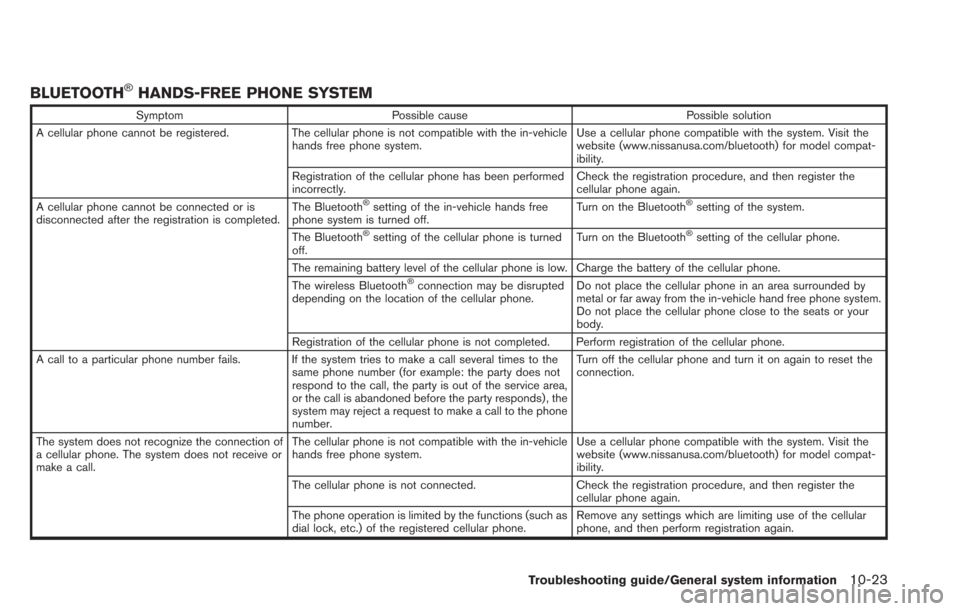
BLUETOOTH®HANDS-FREE PHONE SYSTEM
SymptomPossible cause Possible solution
A cellular phone cannot be registered. The cellular phone is not compatible with the in-vehicle
hands free phone system. Use a cellular phone compatible with the system. Visit the
website (www.nissanusa.com/bluetooth) for model compat-
ibility.
Registration of the cellular phone has been performed
incorrectly. Check the registration procedure, and then register the
cellular phone again.
A cellular phone cannot be connected or is
disconnected after the registration is completed. The Bluetooth
®setting of the in-vehicle hands free
phone system is turned off. Turn on the Bluetooth®setting of the system.
The Bluetooth
®setting of the cellular phone is turned
off. Turn on the Bluetooth®setting of the cellular phone.
The remaining battery level of the cellular phone is low. Charge the battery of the cellular phone.
The wireless Bluetooth
®connection may be disrupted
depending on the location of the cellular phone. Do not place the cellular phone in an area surrounded by
metal or far away from the in-vehicle hand free phone system.
Do not place the cellular phone close to the seats or your
body.
Registration of the cellular phone is not completed. Perform registration of the cellular phone.
A call to a particular phone number fails. If the system tries to make a call several times to the same phone number (for example: the party does not
respond to the call, the party is out of the service area,
or the call is abandoned before the party responds) , the
system may reject a request to make a call to the phone
number. Turn off the cellular phone and turn it on again to reset the
connection.
The system does not recognize the connection of
a cellular phone. The system does not receive or
make a call. The cellular phone is not compatible with the in-vehicle
hands free phone system.
Use a cellular phone compatible with the system. Visit the
website (www.nissanusa.com/bluetooth) for model compat-
ibility.
The cellular phone is not connected. Check the registration procedure, and then register the
cellular phone again.
The phone operation is limited by the functions (such as
dial lock, etc.) of the registered cellular phone. Remove any settings which are limiting use of the cellular
phone, and then perform registration again.
Troubleshooting guide/General system information10-23
Page 250 of 275
10-24Troubleshooting guide/General system information
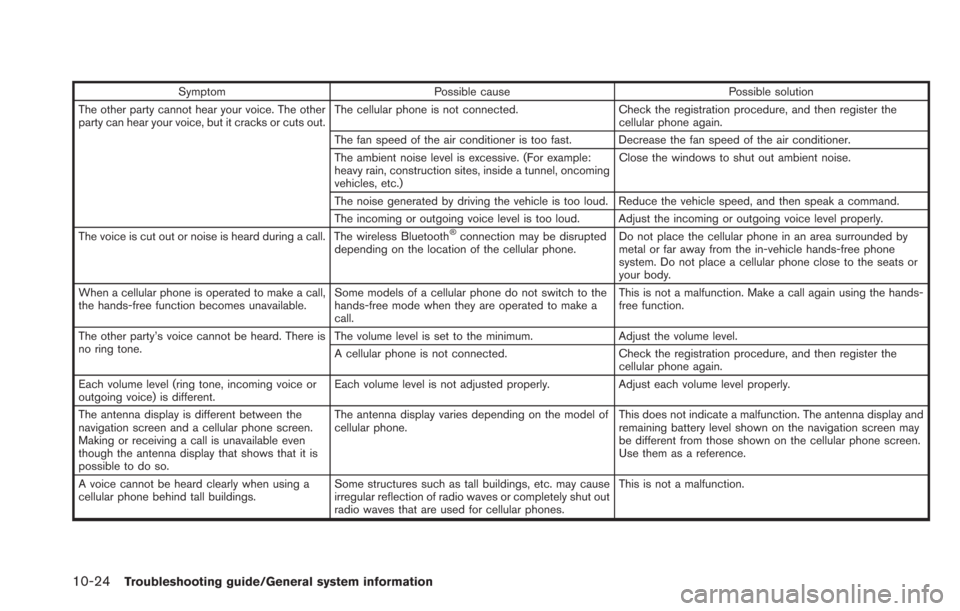
SymptomPossible cause Possible solution
The other party cannot hear your voice. The other
party can hear your voice, but it cracks or cuts out. The cellular phone is not connected.
Check the registration procedure, and then register the
cellular phone again.
The fan speed of the air conditioner is too fast. Decrease the fan speed of the air conditioner.
The ambient noise level is excessive. (For example:
heavy rain, construction sites, inside a tunnel, oncoming
vehicles, etc.) Close the windows to shut out ambient noise.
The noise generated by driving the vehicle is too loud. Reduce the vehicle speed, and then speak a command.
The incoming or outgoing voice level is too loud. Adjust the incoming or outgoing voice level properly.
The voice is cut out or noise is heard during a call. The wireless Bluetooth
®connection may be disrupted
depending on the location of the cellular phone. Do not place the cellular phone in an area surrounded by
metal or far away from the in-vehicle hands-free phone
system. Do not place a cellular phone close to the seats or
your body.
When a cellular phone is operated to make a call,
the hands-free function becomes unavailable. Some models of a cellular phone do not switch to the
hands-free mode when they are operated to make a
call. This is not a malfunction. Make a call again using the hands-
free function.
The other party’s voice cannot be heard. There is
no ring tone. The volume level is set to the minimum.
Adjust the volume level.
A cellular phone is not connected. Check the registration procedure, and then register the
cellular phone again.
Each volume level (ring tone, incoming voice or
outgoing voice) is different. Each volume level is not adjusted properly.
Adjust each volume level properly.
The antenna display is different between the
navigation screen and a cellular phone screen.
Making or receiving a call is unavailable even
though the antenna display that shows that it is
possible to do so. The antenna display varies depending on the model of
cellular phone.
This does not indicate a malfunction. The antenna display and
remaining battery level shown on the navigation screen may
be different from those shown on the cellular phone screen.
Use them as a reference.
A voice cannot be heard clearly when using a
cellular phone behind tall buildings. Some structures such as tall buildings, etc. may cause
irregular reflection of radio waves or completely shut out
radio waves that are used for cellular phones. This is not a malfunction.
Page 271 of 275
11 Index
A
About route guidance ................................................ 3-41
Adjusting volume and others...................................... 1-7
Audio operation precautions...................................... 4-2
Auxiliary input jack....................................................... 4-23
B
Basic operation.............................................................. 1-7
Battery and power information ................................ 2-16
Bluetooth
®Hands-Free Phone System .................. 7-2
Bluetooth®streaming audio ..................................... 4-11
Bluetooth®streaming audio operation .................. 4-20
C
Camera settings ............................................................ 9-9
Canceling/reactivating route .................................... 3-47
Car phone or CB radio ............................................. 7-10
CARWINGS
TMoverview............................................. 5-4
CARWINGSTMsettings............................................. 5-12
CD·AUX screen ........................................................... 1-10
Changing map view...................................................... 3-8
Changing region.......................................................... 3-18
Changing scale of map ............................................... 3-7
Character (letters and numbers) input screen ...... 1-7
Charge recommendation guidance ........................ 2-16
Charging station information...................................... IT-2
Clock settings.............................................................. 1-16
Comfort & convenience settings............................... 6-4
Compact Disc (CD) player......................................... 4-3
Compact Disc (CD) player operation.................... 4-14
Compressed Audio Files (MP3/WMA) ................... 4-7
Confirming route.......................................................... 3-52
Connecting cellular phone........................................ 1-13 Connecting procedure................................................. 7-4
Control button and microphone................................ 7-3
Control buttons and functions................................... 1-2
Control panel.................................................................. 1-2
Current vehicle location.......................................... 10-28
Customer assistance.................................................. 10-2
D
Data communication settings................................... 5-20
Deleting phone information......................................... 7-9
Deleting stored item................................................... 3-68
Destination screen...................................................... 3-17
Display adjustment...................................................... 1-14
Display urgent traffic information .............................. 6-8
Displaying CARWINGS
TMinformation screen...... 5-7
Displaying charging station icons on map ............. 2-5
Displaying command list ............................................. 8-6
Displaying current vehicle location........................... 3-5
Displaying estimated driving range........................... 2-3
Displaying unit ID information .................................. 5-18
Downloading phonebook memory ............................ 7-8
Driving range.................................................................. IT-2
During a call ................................................................... 7-6
E
Editing address book................................................. 3-62
Editing route................................................................. 3-48
Energy information display................................. IT-3, 2-8
Error message on communication.......................... 5-19
F
Features of LEAF Navigation ..................................... IT-2
Finding address........................................................... 3-20
Finding charging station............................................ 3-25
Finding nearby Points of Interest ............................ 3-29
Finding points of interest .......................................... 3-21
FM·AM radio screen................................................... 1-10
FM-AM-SAT radio operation .................................... 4-12
Functions disabled while driving............................... 1-6
G
Giving voice commands.............................................. 8-2
Guidance screen settings......................................... 3-43
H
How to handle CD and USB memory................ 10-42
How to handle display............................................ 10-41
How to handle the Map SD card ........................ 10-37
How to handle the SD card.................................. 10-42
How to set Climate Ctrl. Timer ............................... 2-12
How to set Climate Ctrl. Timer and remote
climate control temperature...................................... 2-14
How to view information screen................................ 5-8
I
Info on route................................................................... 6-7
Information feed setting............................................. 5-15
Information screen ........................................................ 6-2
Inputting user ID and password.............................. 1-11
iPod
®player and iPhone®........................................... 4-6
iPod®player operation............................................... 4-16