ECO mode NISSAN LEAF 2013 1.G Navigation Manual
[x] Cancel search | Manufacturer: NISSAN, Model Year: 2013, Model line: LEAF, Model: NISSAN LEAF 2013 1.GPages: 275, PDF Size: 6.66 MB
Page 245 of 275

iPod®player
SymptomPossible cause Possible solution
The system does not recognize an iPod®. A connector cable is not correctly connected, or the
iPod®does not correctly operate. Connect the connector cable again. If the system does
not recognize the iPod®after performing this procedure
above, reset the iPod®.
The iPod®that is to be connected is not compatible
with the system. Check the iPod®model and firmware versions available
for the system.
A USB extension cable is not correctly connected. Do not use a USB extension cable.
The cable is rapidly connected to or disconnected from
the USB connector. Slowly connect or disconnect the USB cable.
An iPod
®cannot be operated. The iPod®is connected to the in-vehicle audio system
while headsets, etc. are connected to the iPod®. Remove all equipment from the iPod
®after discon-
necting the iPod®from the system, and then connect it
to the system again.
The iPod
®is not operating normally. Disconnect the iPod®from the in-vehicle audio system,
and then connect it to the system again.
The system plays back an album/track that includes a
particular album art. Disconnect the iPod
®from the in-vehicle audio system,
and then reset the iPod®. Disable the album art, and
then connect the iPod®to the system.
An iPod®does not respond. There are too many tracks in a category. Decrease the number of tracks in a category (less than
3,000 tracks).
The shuffle function is turned on. Turn off the shuffle function if many tracks are stored on
the iPod
®.
Music cannot be played back. A connector is not connected to the iPod®. Firmly connect the connector until it clicks.
Playback cuts out. The sound cuts due to vibration resulting from unstable
location of the iPod
®. Place the iPod
®on a stable location where it does not
roll over.
Distorted sound occurs. The EQ (equalizer) function of the iPod
®is turned on. Turn off the EQ (equalizer) function.
Battery charge of an iPod®takes longer. Battery charge of the iPod®may take longer while an
iPod®is playing back. If the iPod
®is requires charging, it is recommended to
stop play back.
Battery charge of an iPod
®is unavailable. The cable that is connected to the iPod®may
deteriorate (cable disconnection, etc.). Check the cable currently in use.
Troubleshooting guide/General system information10-19
Page 249 of 275
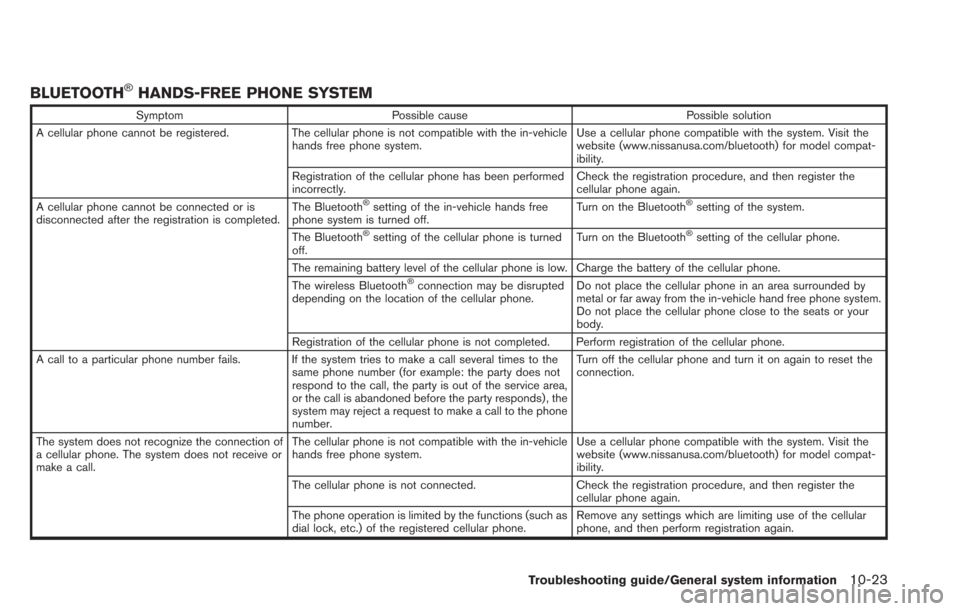
BLUETOOTH®HANDS-FREE PHONE SYSTEM
SymptomPossible cause Possible solution
A cellular phone cannot be registered. The cellular phone is not compatible with the in-vehicle
hands free phone system. Use a cellular phone compatible with the system. Visit the
website (www.nissanusa.com/bluetooth) for model compat-
ibility.
Registration of the cellular phone has been performed
incorrectly. Check the registration procedure, and then register the
cellular phone again.
A cellular phone cannot be connected or is
disconnected after the registration is completed. The Bluetooth
®setting of the in-vehicle hands free
phone system is turned off. Turn on the Bluetooth®setting of the system.
The Bluetooth
®setting of the cellular phone is turned
off. Turn on the Bluetooth®setting of the cellular phone.
The remaining battery level of the cellular phone is low. Charge the battery of the cellular phone.
The wireless Bluetooth
®connection may be disrupted
depending on the location of the cellular phone. Do not place the cellular phone in an area surrounded by
metal or far away from the in-vehicle hand free phone system.
Do not place the cellular phone close to the seats or your
body.
Registration of the cellular phone is not completed. Perform registration of the cellular phone.
A call to a particular phone number fails. If the system tries to make a call several times to the same phone number (for example: the party does not
respond to the call, the party is out of the service area,
or the call is abandoned before the party responds) , the
system may reject a request to make a call to the phone
number. Turn off the cellular phone and turn it on again to reset the
connection.
The system does not recognize the connection of
a cellular phone. The system does not receive or
make a call. The cellular phone is not compatible with the in-vehicle
hands free phone system.
Use a cellular phone compatible with the system. Visit the
website (www.nissanusa.com/bluetooth) for model compat-
ibility.
The cellular phone is not connected. Check the registration procedure, and then register the
cellular phone again.
The phone operation is limited by the functions (such as
dial lock, etc.) of the registered cellular phone. Remove any settings which are limiting use of the cellular
phone, and then perform registration again.
Troubleshooting guide/General system information10-23
Page 250 of 275
10-24Troubleshooting guide/General system information
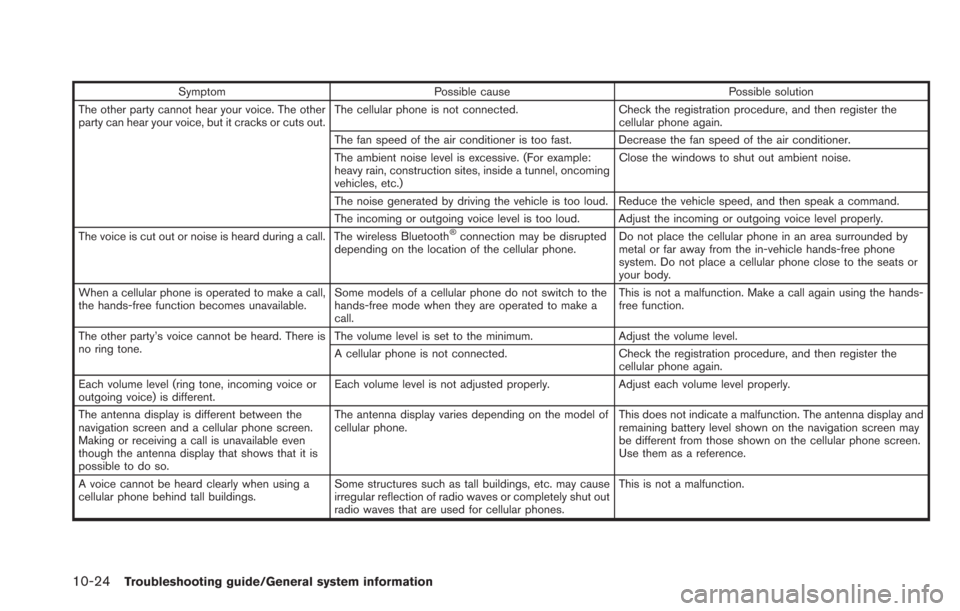
SymptomPossible cause Possible solution
The other party cannot hear your voice. The other
party can hear your voice, but it cracks or cuts out. The cellular phone is not connected.
Check the registration procedure, and then register the
cellular phone again.
The fan speed of the air conditioner is too fast. Decrease the fan speed of the air conditioner.
The ambient noise level is excessive. (For example:
heavy rain, construction sites, inside a tunnel, oncoming
vehicles, etc.) Close the windows to shut out ambient noise.
The noise generated by driving the vehicle is too loud. Reduce the vehicle speed, and then speak a command.
The incoming or outgoing voice level is too loud. Adjust the incoming or outgoing voice level properly.
The voice is cut out or noise is heard during a call. The wireless Bluetooth
®connection may be disrupted
depending on the location of the cellular phone. Do not place the cellular phone in an area surrounded by
metal or far away from the in-vehicle hands-free phone
system. Do not place a cellular phone close to the seats or
your body.
When a cellular phone is operated to make a call,
the hands-free function becomes unavailable. Some models of a cellular phone do not switch to the
hands-free mode when they are operated to make a
call. This is not a malfunction. Make a call again using the hands-
free function.
The other party’s voice cannot be heard. There is
no ring tone. The volume level is set to the minimum.
Adjust the volume level.
A cellular phone is not connected. Check the registration procedure, and then register the
cellular phone again.
Each volume level (ring tone, incoming voice or
outgoing voice) is different. Each volume level is not adjusted properly.
Adjust each volume level properly.
The antenna display is different between the
navigation screen and a cellular phone screen.
Making or receiving a call is unavailable even
though the antenna display that shows that it is
possible to do so. The antenna display varies depending on the model of
cellular phone.
This does not indicate a malfunction. The antenna display and
remaining battery level shown on the navigation screen may
be different from those shown on the cellular phone screen.
Use them as a reference.
A voice cannot be heard clearly when using a
cellular phone behind tall buildings. Some structures such as tall buildings, etc. may cause
irregular reflection of radio waves or completely shut out
radio waves that are used for cellular phones. This is not a malfunction.