ECO mode NISSAN LEAF 2013 1.G Navigation Manual
[x] Cancel search | Manufacturer: NISSAN, Model Year: 2013, Model line: LEAF, Model: NISSAN LEAF 2013 1.GPages: 275, PDF Size: 6.66 MB
Page 151 of 275
Next/Previous Track and Fast For-
ward/Rewind
Push theTUNE SEEK CH button for more than
1.5 seconds while an iPod®is playing to fast
forward or rewind through the current track.
When the button is released, the iPod
®will
return to the normal play speed.
When the TUNE SEEK CH button is pushed for
less than 1.5 seconds while an iPod
®is playing,
the next track or the beginning of the current
track on the iPod
®will be played.
Select play mode
The play mode setting display will appear when
[Mode] is touched.
Select the preferred play mode from the
following items.
. Shuffle
Choose "Off", "Songs" or "Albums".
. Repeat
Choose "One" or "All".
iPod®settings
The following items can be chosen from the
menu list screen. For further information about
each item, see the iPod
®Owner’s Manual.
. Now Playing .
Playlists
. Artists
. Albums
. Songs
. Podcasts
. Genres
. Composers
PANDORA®OPERATION (if so
equipped)
Connecting iPhone
®
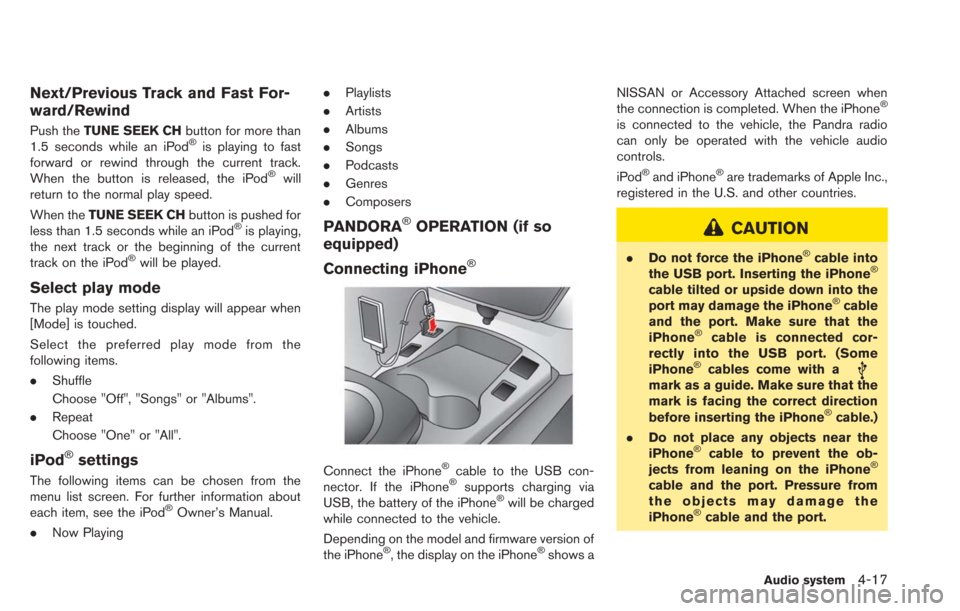
Connect the iPhone®cable to the USB con-
nector. If the iPhone®supports charging via
USB, the battery of the iPhone®will be charged
while connected to the vehicle.
Depending on the model and firmware version of
the iPhone
®, the display on the iPhone®shows a NISSAN or Accessory Attached screen when
the connection is completed. When the iPhone
®
is connected to the vehicle, the Pandra radio
can only be operated with the vehicle audio
controls.
iPod
®and iPhone®are trademarks of Apple Inc.,
registered in the U.S. and other countries.
CAUTION
. Do not force the iPhone®cable into
the USB port. Inserting the iPhone®
cable tilted or upside down into the
port may damage the iPhone®cable
and the port. Make sure that the
iPhone
®cable is connected cor-
rectly into the USB port. (Some
iPhone
®cables come with amark as a guide. Make sure that the
mark is facing the correct direction
before inserting the iPhone
®cable.)
. Do not place any objects near the
iPhone
®cable to prevent the ob-
jects from leaning on the iPhone®
cable and the port. Pressure from
the objects may damage the
iPhone
®cable and the port.
Audio system4-17
Page 153 of 275
USB MEMORY OPERATION
Connecting USB memory
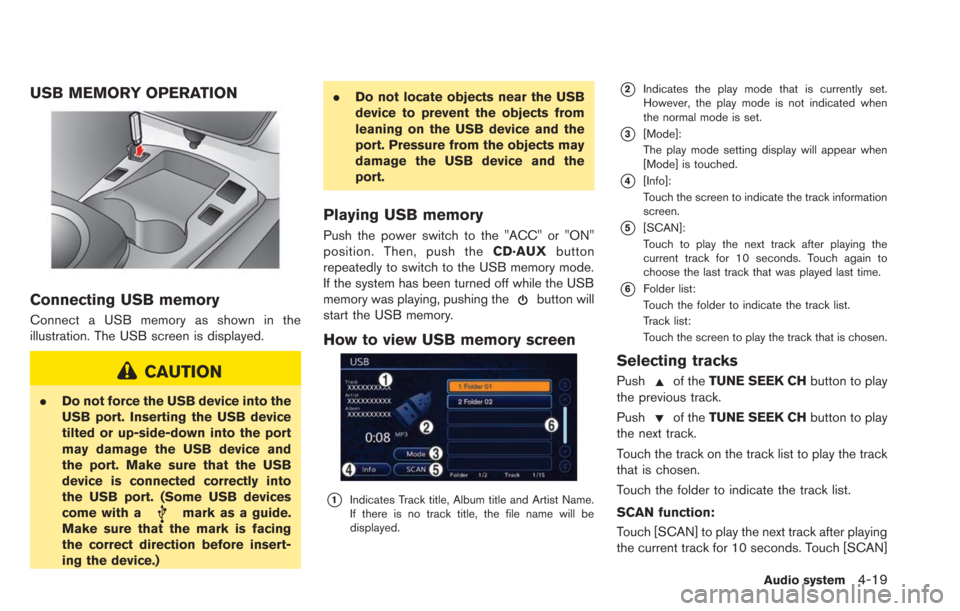
Connect a USB memory as shown in the
illustration. The USB screen is displayed.
CAUTION
.Do not force the USB device into the
USB port. Inserting the USB device
tilted or up-side-down into the port
may damage the USB device and
the port. Make sure that the USB
device is connected correctly into
the USB port. (Some USB devices
come with a
mark as a guide.
Make sure that the mark is facing
the correct direction before insert-
ing the device.) .
Do not locate objects near the USB
device to prevent the objects from
leaning on the USB device and the
port. Pressure from the objects may
damage the USB device and the
port.
Playing USB memory
Push the power switch to the "ACC" or "ON"
position. Then, push the CD·AUXbutton
repeatedly to switch to the USB memory mode.
If the system has been turned off while the USB
memory was playing, pushing the
button will
start the USB memory.
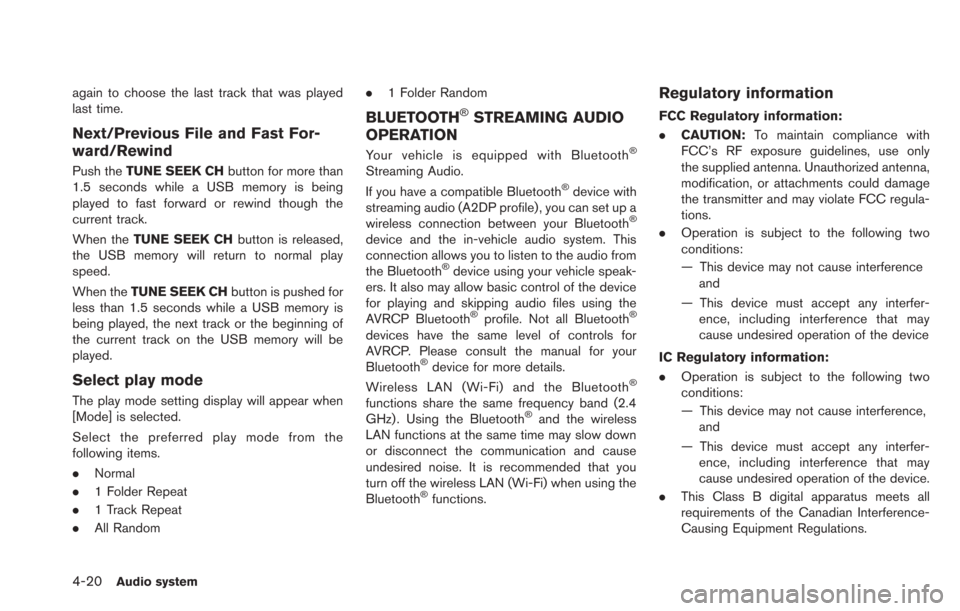
How to view USB memory screen
*1Indicates Track title, Album title and Artist Name.
If there is no track title, the file name will be
displayed.
*2Indicates the play mode that is currently set.
However, the play mode is not indicated when
the normal mode is set.
*3[Mode]:
The play mode setting display will appear when
[Mode] is touched.
*4[Info]:
Touch the screen to indicate the track information
screen.
*5[SCAN]:
Touch to play the next track after playing the
current track for 10 seconds. Touch again to
choose the last track that was played last time.
*6Folder list:
Touch the folder to indicate the track list.
Track list:
Touch the screen to play the track that is chosen.
Selecting tracks
Pushof the TUNE SEEK CH button to play
the previous track.
Push
of the TUNE SEEK CH button to play
the next track.
Touch the track on the track list to play the track
that is chosen.
Touch the folder to indicate the track list.
SCAN function:
Touch [SCAN] to play the next track after playing
the current track for 10 seconds. Touch [SCAN]
Audio system4-19
Page 154 of 275
4-20Audio system
again to choose the last track that was played
last time.
Next/Previous File and Fast For-
ward/Rewind
Push theTUNE SEEK CH button for more than
1.5 seconds while a USB memory is being
played to fast forward or rewind though the
current track.
When the TUNE SEEK CH button is released,
the USB memory will return to normal play
speed.
When the TUNE SEEK CH button is pushed for
less than 1.5 seconds while a USB memory is
being played, the next track or the beginning of
the current track on the USB memory will be
played.
Select play mode
The play mode setting display will appear when
[Mode] is selected.
Select the preferred play mode from the
following items.
. Normal
. 1 Folder Repeat
. 1 Track Repeat
. All Random .
1 Folder Random
BLUETOOTH®STREAMING AUDIO
OPERATION
Your vehicle is equipped with Bluetooth®
Streaming Audio.
If you have a compatible Bluetooth®device with
streaming audio (A2DP profile) , you can set up a
wireless connection between your Bluetooth
®
device and the in-vehicle audio system. This
connection allows you to listen to the audio from
the Bluetooth
®device using your vehicle speak-
ers. It also may allow basic control of the device
for playing and skipping audio files using the
AVRCP Bluetooth
®profile. Not all Bluetooth®
devices have the same level of controls for
AVRCP. Please consult the manual for your
Bluetooth
®device for more details.
Wireless LAN (Wi-Fi) and the Bluetooth®
functions share the same frequency band (2.4
GHz) . Using the Bluetooth®and the wireless
LAN functions at the same time may slow down
or disconnect the communication and cause
undesired noise. It is recommended that you
turn off the wireless LAN (Wi-Fi) when using the
Bluetooth
®functions.
Regulatory information
FCC Regulatory information:
. CAUTION: To maintain compliance with
FCC’s RF exposure guidelines, use only
the supplied antenna. Unauthorized antenna,
modification, or attachments could damage
the transmitter and may violate FCC regula-
tions.
. Operation is subject to the following two
conditions:
— This device may not cause interference
and
— This device must accept any interfer- ence, including interference that may
cause undesired operation of the device
IC Regulatory information:
. Operation is subject to the following two
conditions:
— This device may not cause interference,
and
— This device must accept any interfer- ence, including interference that may
cause undesired operation of the device.
. This Class B digital apparatus meets all
requirements of the Canadian Interference-
Causing Equipment Regulations.
Page 156 of 275
4-22Audio system
Playing Bluetooth®streaming audio
Push the power switch to the "ACC" or "ON"
position. Then, push theCD·AUXbutton
repeatedly to switch to the Bluetooth
®audio
mode. If the system has been turned off while
the Bluetooth
®audio device was playing, push-
ing thebutton will start the Bluetooth®audio
device.
The ability to pause, change tracks, fast forward,
rewind, randomize and repeat music may be
different between devices. Some or all of these
functions may not be supported on each device.
When the CD·AUXbutton is pushed with the
system off and the Bluetooth
®audio device
connected, the system will turn on.
If another audio source is playing and the
Bluetooth
®audio device is connected, push
the CD·AUX button repeatedly until the display
changes to the Bluetooth
®audio mode.
INFO:
. Depending on the Bluetooth
®audio device
that is connected, it may not be possible to
perform audio operations.
. Depending on the Bluetooth
®audio device
that is connected, a time lag may occur
before music is played back.
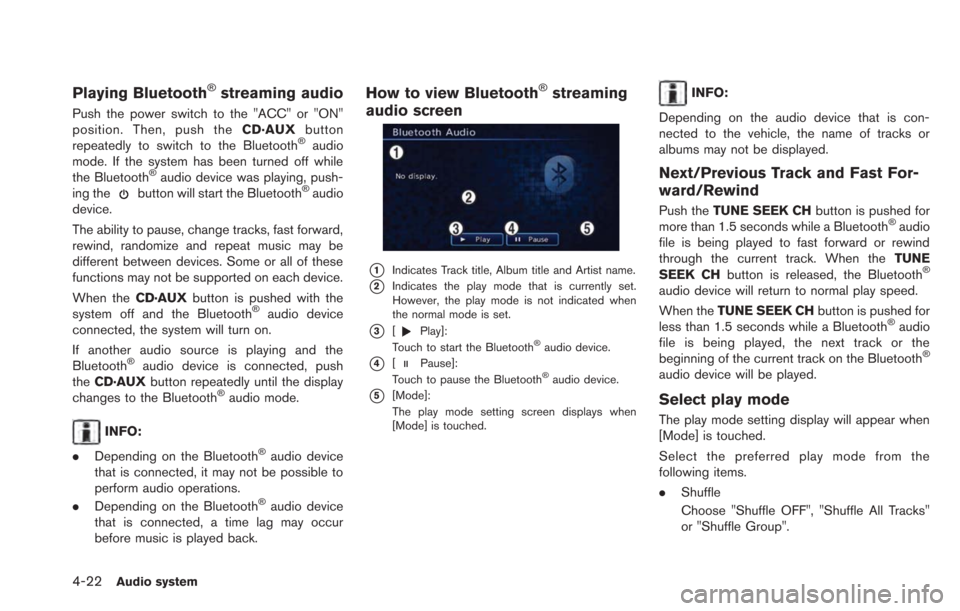
How to view Bluetooth®streaming
audio screen
*1Indicates Track title, Album title and Artist name.
*2Indicates the play mode that is currently set.
However, the play mode is not indicated when
the normal mode is set.
*3[Play]:
Touch to start the Bluetooth®audio device.
*4[Pause]:
Touch to pause the Bluetooth®audio device.
*5[Mode]:
The play mode setting screen displays when
[Mode] is touched.
INFO:
Depending on the audio device that is con-
nected to the vehicle, the name of tracks or
albums may not be displayed.
Next/Previous Track and Fast For-
ward/Rewind
Push the TUNE SEEK CH button is pushed for
more than 1.5 seconds while a Bluetooth®audio
file is being played to fast forward or rewind
through the current track. When the TUNE
SEEK CH button is released, the Bluetooth
®
audio device will return to normal play speed.
When theTUNE SEEK CH button is pushed for
less than 1.5 seconds while a Bluetooth
®audio
file is being played, the next track or the
beginning of the current track on the Bluetooth
®
audio device will be played.
Select play mode
The play mode setting display will appear when
[Mode] is touched.
Select the preferred play mode from the
following items.
. Shuffle
Choose "Shuffle OFF", "Shuffle All Tracks"
or "Shuffle Group".
Page 158 of 275
4-24Audio system
.High
STEERING WHEEL SWITCHES FOR
AUDIO CONTROL
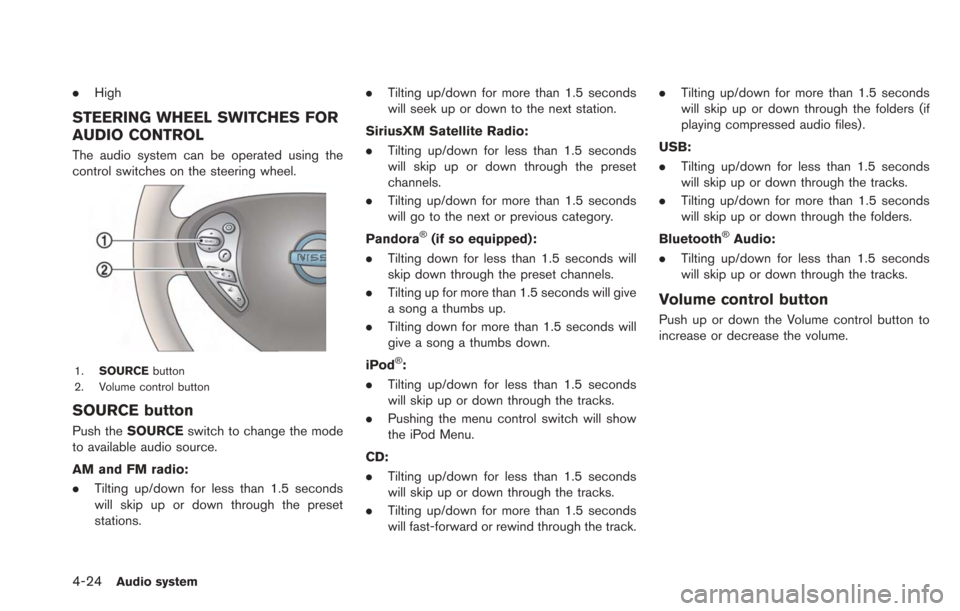
The audio system can be operated using the
control switches on the steering wheel.
1. SOURCE button
2. Volume control button
SOURCE button
Push the SOURCE switch to change the mode
to available audio source.
AM and FM radio:
. Tilting up/down for less than 1.5 seconds
will skip up or down through the preset
stations. .
Tilting up/down for more than 1.5 seconds
will seek up or down to the next station.
SiriusXM Satellite Radio:
. Tilting up/down for less than 1.5 seconds
will skip up or down through the preset
channels.
. Tilting up/down for more than 1.5 seconds
will go to the next or previous category.
Pandora
®(if so equipped):
. Tilting down for less than 1.5 seconds will
skip down through the preset channels.
. Tilting up for more than 1.5 seconds will give
a song a thumbs up.
. Tilting down for more than 1.5 seconds will
give a song a thumbs down.
iPod
®:
. Tilting up/down for less than 1.5 seconds
will skip up or down through the tracks.
. Pushing the menu control switch will show
the iPod Menu.
CD:
. Tilting up/down for less than 1.5 seconds
will skip up or down through the tracks.
. Tilting up/down for more than 1.5 seconds
will fast-forward or rewind through the track. .
Tilting up/down for more than 1.5 seconds
will skip up or down through the folders (if
playing compressed audio files) .
USB:
. Tilting up/down for less than 1.5 seconds
will skip up or down through the tracks.
. Tilting up/down for more than 1.5 seconds
will skip up or down through the folders.
Bluetooth
®Audio:
. Tilting up/down for less than 1.5 seconds
will skip up or down through the tracks.
Volume control button
Push up or down the Volume control button to
increase or decrease the volume.
Page 204 of 275
![NISSAN LEAF 2013 1.G Navigation Manual 7-10Bluetooth®Hands-Free Phone System
6. Confirm the contents of the message, thentouch [Yes].
Phone volume settings
1. Push the MENUbutton and touch [Set-
tings].
2. Touch [Phone & CARWINGS].
3. Tou](/img/5/324/w960_324-203.png "NISSAN LEAF 2013 1.G Navigation Manual 7-10Bluetooth®Hands-Free Phone System
6. Confirm the contents of the message, thentouch [Yes].
Phone volume settings
1. Push the MENUbutton and touch [Set-
tings].
2. Touch [Phone & CARWINGS].
3. Tou")
7-10Bluetooth®Hands-Free Phone System
6. Confirm the contents of the message, thentouch [Yes].
Phone volume settings
1. Push the MENUbutton and touch [Set-
tings].
2. Touch [Phone & CARWINGS].
3. Touch [Phone].
4. Touch [Volume & Ringtone]. 5. Touch the item you would like to set.
Available settings
.
[Ringtone]:
Adjust the volume level of the ringtone by
touching [+] or [-].
. [Incoming Call]:
Adjust the incoming call volume by touching
[+] or [-].
. [Outgoing Call]:
Adjust the outgoing call volume by touching
[+] or [-].
. [Automatic Hold]:
When this function is activated, an incoming
phone call is automatically held.
. [Vehicle Ringtone]:
When this function is activated, a specific
ringtone that is different from that of the
cellular phone will sound when receiving a
call.
When installing a car phone or a CB radio in
your vehicle, be sure to observe the following
cautions, otherwise the new equipment may
adversely affect the electronic control modules
and electronic control system harness.
WARNING
.A cellular phone should not be used
for any purpose while driving so full
attention may be given to vehicle
operation. Some jurisdictions prohi-
bit the use of cellular phones while
driving.
. If you must make a call while your
vehicle is in motion, the hands-free
cellular phone operational mode is
highly recommended. Exercise ex-
treme caution at all times so full
attention may be given to vehicle
operation.
. If a conversation in a moving vehicle
requires you to take notes, pull off
the road to a safe location and stop
your vehicle before doing so.
CAR PHONE or CB RADIO
Page 215 of 275
![NISSAN LEAF 2013 1.G Navigation Manual VOICE RECOGNITION SETTINGS
Detailed settings for use of the voice recognition
function can be performed.
1. Push theMENUbutton and touch [Set-
tings].
2. Touch [Others].
3. Touch [Voice Recognition].](/img/5/324/w960_324-214.png "NISSAN LEAF 2013 1.G Navigation Manual VOICE RECOGNITION SETTINGS
Detailed settings for use of the voice recognition
function can be performed.
1. Push theMENUbutton and touch [Set-
tings].
2. Touch [Others].
3. Touch [Voice Recognition].")
VOICE RECOGNITION SETTINGS
Detailed settings for use of the voice recognition
function can be performed.
1. Push theMENUbutton and touch [Set-
tings].
2. Touch [Others].
3. Touch [Voice Recognition].
4. Touch the item you would like to set.
Available settings
. [Command List]:
Displays the voice command list.
“Displaying command list” (page 8-6)
. [Direct Command Mode]:
Switch the voice command mode from the
Standard Mode to the Direct Command
Mode. The Standard Mode is the factory
default setting.
When [Direct Command Mode] is touched, a confirmation message displays. If [Yes] is
touched, the indicator illuminates and the
Direct Command Mode switches to on.
When the Direct Command Mode is not
selected, the system recognizes only the
commands listed on the screen. When the
Direct Command Mode is selected, the
system recognizes the commands that
should be performed in the following steps,
in addition to the commands listed on the
current screen.
. [Minimise Voice Feedback]:
It is possible to select two modes, long or
short, for the announcement made by the
system.
When [Minimise Voice Feedback] is
touched, the indicator illuminates and the
system announcement mode switches to the
short mode.
. [Confirm Voice Commands]:
After speaking a command, the system
requests the user to confirm that the
recognized command by the system is
correct. The confirmation function is set to
off as the default setting.
When the system recognizes a command, a
confirmation message is displayed on the
screen. If the message correctly matches
your command, say "Yes" and continue the voice command operation. If the message is
incorrect, say "No" and return to the
previous screen.
Voice recognition8-9
Page 228 of 275
10-2Troubleshooting guide/General system information
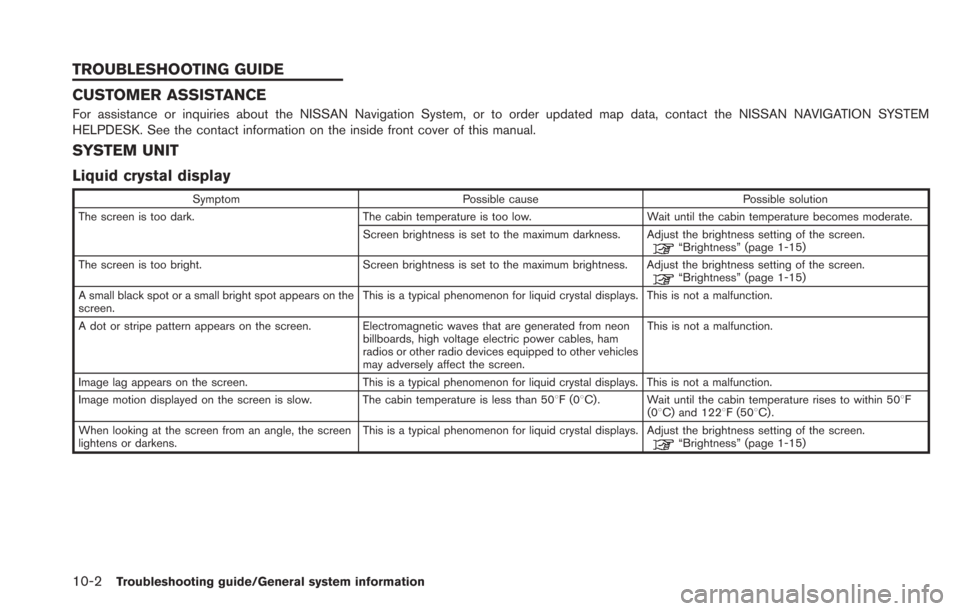
CUSTOMER ASSISTANCE
For assistance or inquiries about the NISSAN Navigation System, or to order updated map data, contact the NISSAN NAVIGATION SYSTEM
HELPDESK. See the contact information on the inside front cover of this manual.
SYSTEM UNIT
Liquid crystal display
SymptomPossible cause Possible solution
The screen is too dark. The cabin temperature is too low.Wait until the cabin temperature becomes moderate.
Screen brightness is set to the maximum darkness. Adjust the brightness setting of the screen.
“Brightness” (page 1-15)
The screen is too bright. Screen brightness is set to the maximum brightness. Adjust the brightness setting of the screen.
“Brightness” (page 1-15)
A small black spot or a small bright spot appears on the
screen. This is a typical phenomenon for liquid crystal displays. This is not a malfunction.
A dot or stripe pattern appears on the screen. Electromagnetic waves that are generated from neon billboards, high voltage electric power cables, ham
radios or other radio devices equipped to other vehicles
may adversely affect the screen.This is not a malfunction.
Image lag appears on the screen. This is a typical phenomenon for liquid crystal displays. This is not a malfunction.
Image motion displayed on the screen is slow. The cabin temperature is less than 508F(0 8C) . Wait until the cabin temperature rises to within 508F
(08C) and 1228F (508C) .
When looking at the screen from an angle, the screen
lightens or darkens. This is a typical phenomenon for liquid crystal displays. Adjust the brightness setting of the screen.
“Brightness” (page 1-15)
TROUBLESHOOTING GUIDE
Page 236 of 275
10-10Troubleshooting guide/General system information
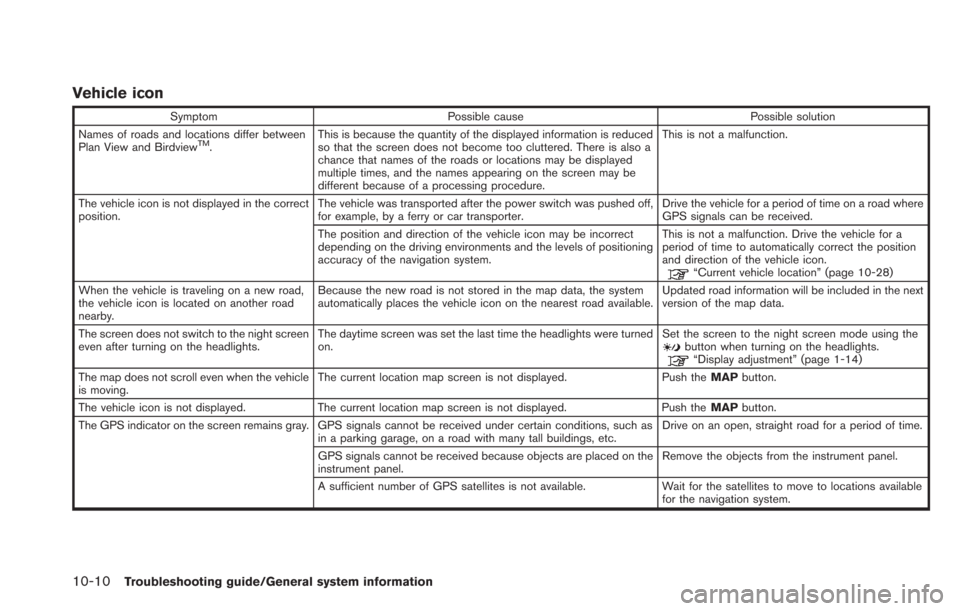
Vehicle icon
SymptomPossible cause Possible solution
Names of roads and locations differ between
Plan View and Birdview
TM. This is because the quantity of the displayed information is reduced
so that the screen does not become too cluttered. There is also a
chance that names of the roads or locations may be displayed
multiple times, and the names appearing on the screen may be
different because of a processing procedure. This is not a malfunction.
The vehicle icon is not displayed in the correct
position. The vehicle was transported after the power switch was pushed off,
for example, by a ferry or car transporter. Drive the vehicle for a period of time on a road where
GPS signals can be received.
The position and direction of the vehicle icon may be incorrect
depending on the driving environments and the levels of positioning
accuracy of the navigation system. This is not a malfunction. Drive the vehicle for a
period of time to automatically correct the position
and direction of the vehicle icon.
“Current vehicle location” (page 10-28)
When the vehicle is traveling on a new road,
the vehicle icon is located on another road
nearby. Because the new road is not stored in the map data, the system
automatically places the vehicle icon on the nearest road available.
Updated road information will be included in the next
version of the map data.
The screen does not switch to the night screen
even after turning on the headlights. The daytime screen was set the last time the headlights were turned
on. Set the screen to the night screen mode using the
button when turning on the headlights.“Display adjustment” (page 1-14)
The map does not scroll even when the vehicle
is moving. The current location map screen is not displayed.
Push theMAPbutton.
The vehicle icon is not displayed. The current location map screen is not displayed. Push the MAPbutton.
The GPS indicator on the screen remains gray. GPS signals cannot be received under certain conditions, such as in a parking garage, on a road with many tall buildings, etc. Drive on an open, straight road for a period of time.
GPS signals cannot be received because objects are placed on the
instrument panel. Remove the objects from the instrument panel.
A sufficient number of GPS satellites is not available. Wait for the satellites to move to locations available for the navigation system.
Page 243 of 275
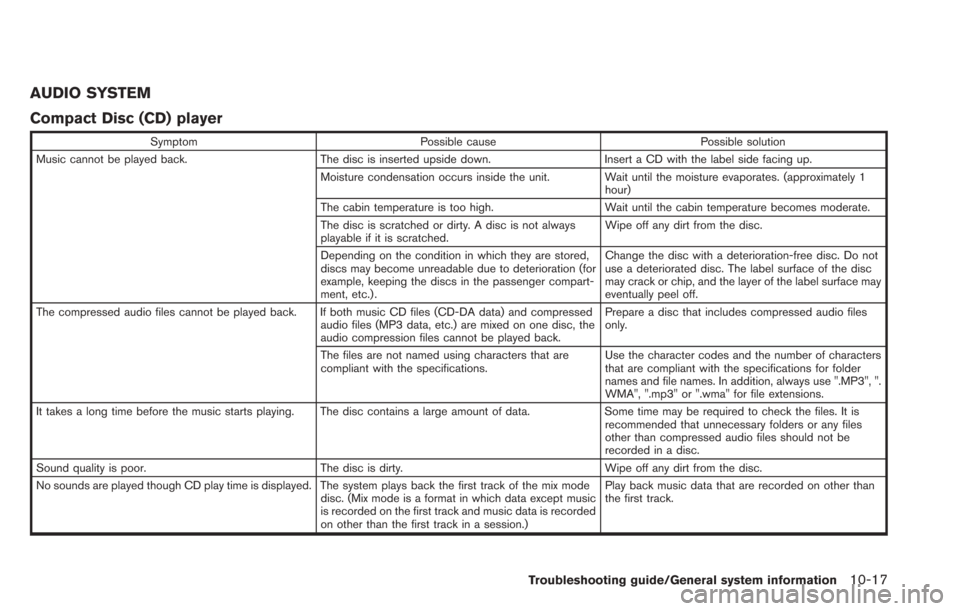
AUDIO SYSTEM
Compact Disc (CD) player
SymptomPossible cause Possible solution
Music cannot be played back. The disc is inserted upside down.Insert a CD with the label side facing up.
Moisture condensation occurs inside the unit. Wait until the moisture evaporates. (approximately 1 hour)
The cabin temperature is too high. Wait until the cabin temperature becomes moderate.
The disc is scratched or dirty. A disc is not always
playable if it is scratched. Wipe off any dirt from the disc.
Depending on the condition in which they are stored,
discs may become unreadable due to deterioration (for
example, keeping the discs in the passenger compart-
ment, etc.) . Change the disc with a deterioration-free disc. Do not
use a deteriorated disc. The label surface of the disc
may crack or chip, and the layer of the label surface may
eventually peel off.
The compressed audio files cannot be played back. If both music CD files (CD-DA data) and compressed audio files (MP3 data, etc.) are mixed on one disc, the
audio compression files cannot be played back.Prepare a disc that includes compressed audio files
only.
The files are not named using characters that are
compliant with the specifications. Use the character codes and the number of characters
that are compliant with the specifications for folder
names and file names. In addition, always use ".MP3", ".
WMA", ".mp3" or ".wma" for file extensions.
It takes a long time before the music starts playing. The disc contains a large amount of data. Some time may be required to check the files. It is
recommended that unnecessary folders or any files
other than compressed audio files should not be
recorded in a disc.
Sound quality is poor. The disc is dirty. Wipe off any dirt from the disc.
No sounds are played though CD play time is displayed. The system plays back the first track of the mix mode disc. (Mix mode is a format in which data except music
is recorded on the first track and music data is recorded
on other than the first track in a session.)Play back music data that are recorded on other than
the first track.
Troubleshooting guide/General system information10-17