radio NISSAN LEAF 2017 1.G Navigation Manual
[x] Cancel search | Manufacturer: NISSAN, Model Year: 2017, Model line: LEAF, Model: NISSAN LEAF 2017 1.GPages: 268, PDF Size: 1.41 MB
Page 133 of 268

*8
Push to open the monitor to access the CD
slot.
*9CD slot:
Insert a CD with the label side facing up.
*10<>:
Push to eject a CD.
STEERING WHEEL MOUNTED
AUDIO CONTROL BUTTONS
*1
Push the switch to change the mode to
available audio source.
*2<>/<>:
Tilting the switch up/down while the audio
system is turned on can operate the audio system such as changing tracks and radio
preset stations or channels.
*3<-+>
(Volume control):
Push + or - side of the switch to adjust the
volume.
AUDIO OPERATIONS
AUDIO MAIN OPERATION
Turning audio system on/off
The power switch must be pushed to the ACC or
ON position to turn on the audio system. Push
<
> to turn on the last audio source that was
playing immediately before the system was
turned off. Touching [Audio] on the Launch Bar
will also turn on the audio system and the
corresponding audio screen will be displayed for
operation. To turn off the audio system, push
<
> again.
INFO:
Even when the audio system is turned off,
operating the buttons/keys for audio may turn
on the audio system.
4-11
4. Audio system
Page 134 of 268
![NISSAN LEAF 2017 1.G Navigation Manual Selecting audio source
1. Touch [Audio] on the Launch Bar when theaudio screen is displayed.
2. Select an item from the audio source menu screens.
INFO:
. Touching [Source] on the upper left corner of](/img/5/531/w960_531-133.png "NISSAN LEAF 2017 1.G Navigation Manual Selecting audio source
1. Touch [Audio] on the Launch Bar when theaudio screen is displayed.
2. Select an item from the audio source menu screens.
INFO:
. Touching [Source] on the upper left corner of")
Selecting audio source
1. Touch [Audio] on the Launch Bar when theaudio screen is displayed.
2. Select an item from the audio source menu screens.
INFO:
. Touching [Source] on the upper left corner of
the audio screen will also display the audio
source menu screen.
. Pushing switches on the control panel and
the steering wheel can also be used to
change audio sources.
“Audio main buttons” (page 4-10)“Steering wheel mounted audio con-
trol buttons” (page 4-11)
RADIO
How to view radio screen
4-12
4. Audio system
Page 135 of 268
![NISSAN LEAF 2017 1.G Navigation Manual The radio screen can be viewed and operated on
the touch screen display.
*1[AM Menu]/[FM Menu]/[SXM Menu]:
Touch to display the radio menu screen.
“Radio Menu” (page 4-15)
*2[Source]:
Touch to dis](/img/5/531/w960_531-134.png "NISSAN LEAF 2017 1.G Navigation Manual The radio screen can be viewed and operated on
the touch screen display.
*1[AM Menu]/[FM Menu]/[SXM Menu]:
Touch to display the radio menu screen.
“Radio Menu” (page 4-15)
*2[Source]:
Touch to dis")
The radio screen can be viewed and operated on
the touch screen display.
*1[AM Menu]/[FM Menu]/[SXM Menu]:
Touch to display the radio menu screen.
“Radio Menu” (page 4-15)
*2[Source]:
Touch to display the audio source screen to
select the other audio source.
“Selecting audio source” (page 4-12)
*3Preset number:
A preset number is displayed if the current
frequency is stored as a preset station or
channel.
*4Audio source indicator:
Indicates the currently selected audio
source.
*5Reception information display:
Reception information currently available
such as frequency, station, or channel name,
etc. are displayed.
*6Turn direction indicator:
When a route to the destination is set,
turning direction and the distance to the
next turn is displayed.
*7TAG indicator (for U.S.):
TAG indicator is displayed if the iTunesŠ
Tagging information exists in the HD broad-
cast receiving.
“Radio Menu” (page 4-15)
*8Preset list:
To listen to a preset station, touch the
corresponding key in the preset list. Touch [
< ] or [ > ] to scroll the preset list. Touch and
hold one of the keys in the preset list to store
the station or channel currently tuned to.
“Presetting” (page 4-14)
*9Mode indicator (for U.S.):
On AM and FM screens, HD Radio icon will
appear when HD mode setting is turned on.
“Radio Menu” (page 4-15)
“Live” will appear when in ballgame mode
during reception of the HD broadcast.
INFO:
. An icon indicating the signal strength ap-
pears on the SXM screen.
. HD Radio (for U.S.) reception needs to be
activated to receive HD Radio broadcasts.
This enables you to receive radio broadcasts
digitally (where available) , providing a better
quality sound with clear reception. When this feature is not activated or HD Radio broad-
casts are not available, you will receive
analog radio (AM/FM) broadcasts.
“Radio Menu” (page 4-15)
Radio operation
Radio activation and band selection:
To listen to the radio, turn on the audio system
and select a preferred radio band by pushing
or
radio on the audio source menu screen.
“Selecting audio source” (page 4-12)
INFO:
When the stereo broadcast signal is weak, the
radio will automatically change from stereo to
monaural reception.
Tuning:
To tune to stations/channels manually, push
repeatedly until the preferred station/channel is
selected. With SXM, when the button is pushed
for 0.5 seconds or more, channels will be
skipped until the button is released.
For SXM radio:
4-13
4. Audio system
Page 136 of 268
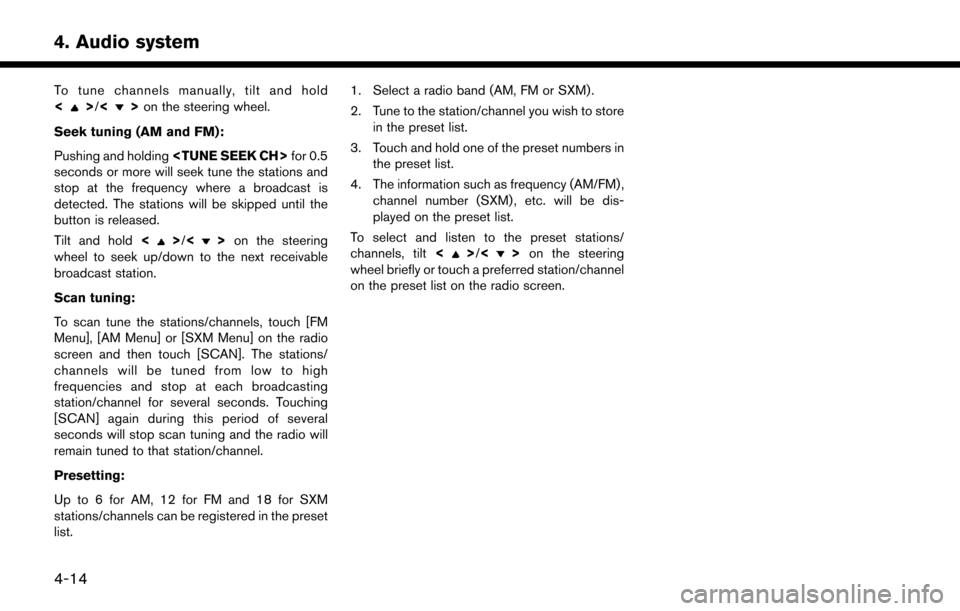
To tune channels manually, tilt and hold
<>/<>on the steering wheel.
Seek tuning (AM and FM):
Pushing and holding
seconds or more will seek tune the stations and
stop at the frequency where a broadcast is
detected. The stations will be skipped until the
button is released.
Tilt and hold <
>/<>on the steering
wheel to seek up/down to the next receivable
broadcast station.
Scan tuning:
To scan tune the stations/channels, touch [FM
Menu], [AM Menu] or [SXM Menu] on the radio
screen and then touch [SCAN]. The stations/
channels will be tuned from low to high
frequencies and stop at each broadcasting
station/channel for several seconds. Touching
[SCAN] again during this period of several
seconds will stop scan tuning and the radio will
remain tuned to that station/channel.
Presetting:
Up to 6 for AM, 12 for FM and 18 for SXM
stations/channels can be registered in the preset
list. 1. Select a radio band (AM, FM or SXM) .
2. Tune to the station/channel you wish to store
in the preset list.
3. Touch and hold one of the preset numbers in the preset list.
4. The information such as frequency (AM/FM) , channel number (SXM) , etc. will be dis-
played on the preset list.
To select and listen to the preset stations/
channels, tilt <>/<> on the steering
wheel briefly or touch a preferred station/channel
on the preset list on the radio screen.
4-14
4. Audio system
Page 137 of 268
![NISSAN LEAF 2017 1.G Navigation Manual Radio Menu
Touch [FM Menu], [AM Menu], and [SXM Menu] on the FM, AM or SXM screen to display the corresponding screen.
The following items are available.
[FM Menu]/[AM Menu]:
[Scan]Touch to scan tune](/img/5/531/w960_531-136.png "NISSAN LEAF 2017 1.G Navigation Manual Radio Menu
Touch [FM Menu], [AM Menu], and [SXM Menu] on the FM, AM or SXM screen to display the corresponding screen.
The following items are available.
[FM Menu]/[AM Menu]:
[Scan]Touch to scan tune")
Radio Menu
Touch [FM Menu], [AM Menu], and [SXM Menu] on the FM, AM or SXM screen to display the corresponding screen.
The following items are available.
[FM Menu]/[AM Menu]:
[Scan]Touch to scan tune the stations.“Radio operation” (page 4-13)
[Tag]
(HD Radio broadcasts only) Touch to register the tag information for iTunesŠTagging. If an iPodŠis plugged in after the
registration, the tag information can be stored in an iPodŠand be used to purchase the songs via
iTunesŠ.
[Station List] Touch to display the available station list.
Touch [Update Station List] to update the station list.
[HD Radio Mode]
(HD Radio broadcasts only) When this item is turned on, the analog and digital reception switches automatically. When this
item is turned off, the reception is fixed in the analog mode.
[SXM Menu]:
[Scan]
Touch to scan tune the channels.“Radio operation” (page 4-13)
[Tag] Touch to register the tag information for iTunesŠTagging. If an iPodŠis plugged in after the
registration, the tag information can be stored in an iPodŠand be used to purchase the songs via
iTunesŠ.
[Replay] Up to 30 minutes of the broadcast of the channel that has been tuned in to can be replayed. Touch
to select from [], [], [], [], [] and [].
[Favorite] Touch to display a pop-up screen to register the content of an active channel. On the registration screen, touch [Artist] to save to a list of favorite artist. Touch [Song] to save to a list of favorite
songs. Touch [Cancel] to close the registration screen.
4-15
4. Audio system
Page 138 of 268
![NISSAN LEAF 2017 1.G Navigation Manual [Categories/Genres]Touch to display the category/genre list.
[Customize Channel List] Touch to customize the channel list. Only the selected channels will be tuned in to when you seek
or scan the chan](/img/5/531/w960_531-137.png "NISSAN LEAF 2017 1.G Navigation Manual [Categories/Genres]Touch to display the category/genre list.
[Customize Channel List] Touch to customize the channel list. Only the selected channels will be tuned in to when you seek
or scan the chan")
[Categories/Genres]Touch to display the category/genre list.
[Customize Channel List] Touch to customize the channel list. Only the selected channels will be tuned in to when you seek
or scan the channels. You can select each item or select [All Select]/[All Clear].
[Favorite Artists] Touch to display a list of saved artists. Up to 8 artists can be stored. To turn on alerts for a favorite
artist, select the artist and touch [Turn all alerts ON]. Touch [Delete All Favorites] to delete all the
registered favorite artists.
[Favorite Songs] Touch to display a list of saved songs. Up to 8 songs can be stored. To turn on alerts for a favorite
song, select the song and touch [Turn all alerts ON]. Touch [Delete All Favorites] to delete all the
registered favorite songs.
[Direct Tune] Touch to display the keypad to enter the frequency and directly tune to the channel. Touch [Now
Playing] to return to the SXM screen.
[Artist Alert History] Touch to display the artist alert history.
[Song Alert History] Touch to display the song alert history. Touch [Now Playing] to return to the SXM screen.
[Alert Settings] [Alerts for Artists]Touch to turn on/off the alert notice.
Favorite artists and songs can be registered to receive an alert notice when a song of the
registered conditions is on the radio. To tune to the respective channel, touch [Tune] on the alert
screen. The alert can be ignored by touching [Cancel].
[Alerts for Songs]
[Alerts on non-Audio
screens]
[Channel Lock Settings]* [Use Channel Lock] Turn this item on to activate the channel lock function. [Passcode Change] Touch to display the keyboard screen to change the passcode.
[Lock Channel Setting] Touch to display the Lock Channel setting screen. Touch and turn on the indicator of the channelson the list you wish to lock out.
*: The default passcode is “1234”.
4-16
4. Audio system
Page 139 of 268
INFO:
. SiriusXM services require a subscription after trial period and are sold separately or as a package. The satellite service is available only in the 48
contiguous USA and DC. SiriusXM satellite service is also available in Canada; see www.siriusxm.ca.
. It may take some time to receive the activation signal after the initiation of the SiriusXM Satellite Radio subscription. After receiving the activation signal,
an available channel list will automatically be updated in the radio. Change the position of the power switch from LOCK to ACC to update the SiriusXM
channel list.
4-17
4. Audio system
Page 155 of 268
5 NissanConnectSMEV
Telematics overview .................................................................. 5-2
NissanConnectSMEV overview .............................................. 5-4
About service application .................................................. 5-6
Notice for usage .................................................................. 5-6
Radio approval number and information ........................ 5-6 NissanConnect
SMEV menu ................................................... 5-7
Viewing information feeds ............................................... 5-8
Storing favorites ................................................................ 5-9
Viewing NissanConnect
SMEV records ....................... 5-9
NissanConnectSMEV settings ........................................... 5-11
Error message on communication ..................................... 5-15
Page 157 of 268
still be transmitted if vehicle telematics features
are accessed either in the vehicle or remotely.
Your agreement to the transmission and use of
data by NISSAN can be provided in various
ways. The vehicle is equipped with a “pop up”
screen on the vehicle navigation system that will
ask for your consent to this data transfer. A
version of the following message will appear:
“Pursuant to subscription agreement, your vehi-
cle wirelessly transmits recorded vehicle data to
NISSAN for various purposes, including Nissan-
Connect
SMEV, product evaluation, research and
development. By touching [OK], you consent to
the transmission and use of your vehicle data.
See Owner’s Manual or NissanConnect
SM
Website for terms and details.” If you touch
[OK], your vehicle will transmit data as designed
in connection with the vehicle telematics system.
If you touch [Decline] your vehicle will not
transmit data. However, the telematics features
referenced above, and perhaps others, will not
be available to you. The vehicle’s static naviga-
tion system will remain operational, and you will
be able to access your radio and climate
controls.
Telematics features are dependent on cellular
data transmission. Some areas may have limited
or no cellular connectivity, resulting in a loss or
interruption of data transmission and, as a result, certain features may be temporarily unavailable.
Even if areas with good signal reception, cellular
connectivity can be adversely affected by things
such as tall buildings, apartments, tunnels,
underground parking, mountainous areas, etc.
Even if the signal strength bar of the in-vehicle
data communication module indicates good
reception, connectivity may be disrupted. This
does not indicate a malfunction. Operate the
system again after a few minutes to restore
connectivity. NissanConnect
SMEV telematics
features are offered as a convenience to the
vehicle owner. NISSAN is not responsible for,
and owner assumes all risk of, interruptions in
service or errors based on incomplete or
inaccurate data. NissanConnect
SMEV commu-
nications may be received at a verified e-mail
address or by SMS/text messaging-enabled
mobile phone. Standard text rates and/or data
usage may apply depending on your carrier.
If your vehicle’s telematics account is active, and
you are not the original owner, please contact
NISSAN at the website or phone number above
as soon as possible to update the telematics
enrollment information. Upon sale of the vehicle,
please contact NISSAN at the website or phone
number above so that NISSAN’s records may be
updated. NissanConnect
SMEV subscription will
automatically terminate at the end of the initial free term if you do not wish to renew your
subscription agreement at the prices then in
effect.
5-3
5. NissanConnectSMEV
Page 160 of 268

—The vehicle must be located in a
cellular phone or smart phone cover-
age area.
— The internet enabled cellular phone
or smart phone must be located in a
cellular phone or smart phone cover-
age area.
— The computer must be connected to
the internet.
— A cellular phone capable of text
messaging must be used to receive
text message regarding vehicle
charge status.
. When the charge connector is discon-
nected from the vehicle, the heater and
air conditioner operates using vehicle
Li-ion battery electric power.
. If the remote heater and air conditioner
function and Li-ion battery charging are
performed at the same time, Li-ion
battery charging will take longer than
usual due to the power used to heat or
cool the vehicle.
. Certain remote functions require a
compatible smart phone, which is not
included with vehicle. .
NissanConnectSMEV information sys-
tem features are included through a
subscription service which requires
owner consent to activate. The sub-
scription must be active to use these
features.
. NissanConnect
SMEV communications
may be received at a verified e-mail
address or by SMS/text messaging-
enabled cellular phone.
. Standard text rates and/or data usage
may apply depending on your carrier.
ABOUT SERVICE APPLICATION
Registration to the NissanConnectSMEV is
necessary before using this service. For detailed
information, contact a NISSAN certified LEAF
dealer.
CAUTION
If the vehicle is sold to another person,
this service must be canceled and all
data stored in the device must be deleted
to avoid having personal data inadver-
tently disclosed.
NOTICE FOR USAGE
. The NissanConnectSMEV use the TCU
(Telematics Control Unit) . Even if the signal
strength bar of the in-vehicle data commu-
nication module indicates good reception,
connection to the Nissan Data Center may
be disabled. This does not indicate a
malfunction. Operate the system again after
a few minutes.
. The NissanConnect
SMEV cannot be used
under the following conditions:
— The vehicle moves outside the service area of the TCU (Telematics Control Unit)
connection to the system.
— The vehicle is in a location with poor signal reception such as a tunnel, under-
ground parking, behind a building or in a
mountainous area.
RADIO APPROVAL NUMBER AND
INFORMATION
WARNING
.The TCU antenna is installed inside
the upper central part of the instru-
ment panel. An occupant should not
get any closer to the antenna than
specified by the pacemaker manu-
5-6
5. NissanConnectSMEV