bluetooth NISSAN LEAF 2017 1.G Owner's Manual
[x] Cancel search | Manufacturer: NISSAN, Model Year: 2017, Model line: LEAF, Model: NISSAN LEAF 2017 1.GPages: 424, PDF Size: 4.51 MB
Page 300 of 424
TEXT MESSAGING (IF SO
EQUIPPED)
WARNING
• Laws in some jurisdictions may restrict the use of “Text-to-Speech”. Check lo-
cal regulations before using this fea-
ture.
• Laws in some jurisdictions may restrict the use of some of the applications
and features, such as social network-
ing and texting. Check local regula-
tions for any requirements.
• Use the text messaging feature after stopping your vehicle in a safe loca-
tion. If you have to use the feature
while driving, exercise extreme caution
at all times so full attention may be
given to vehicle operation.
• If you are unable to devote full atten- tion to vehicle operation while using
the text messaging feature, pull off the
road to a safe location and stop your
vehicle.
NOTE:
Many phones may require special per-
mission to enable text messaging. Check
the phone’s screen during Bluetooth®
pairing. For some phones, you may need
to enable ‘Notifications’ in the phone’s
Bluetooth® menu for text messages to
appear on the headunit. Please consult
your phone’s Owner’s manual. Text mes-
sage integration requires that the phone
support MAP (Message Access Profile)
for both receiving and sending text mes-
sages. Some phones may not support all
text messaging features. For additional
information about compatibility, please
visit www.nissanusa.com/bluetooth or
www.nissan.ca/bluetooth, as well as
your device’s Owner’s manual.
The system allows for the sending and receiving
of text messages through the vehicle interface.
Sending a text message:
1. Press the
button on the steering wheel.
2. Say “Phone” after the tone.
3. Say “Send Text” after the tone.
4. The system will provide a list of available commands in order to determine the recipient of the text message. Choose from the
following:
•(a name)
•Missed Calls
•Incoming Calls
•Outgoing Calls
For additional information, refer to “Voice com-
mands” in this section.
5. Once a recipient is chosen, the system prompts for which message to send. Five
predefined messages are available as well as
three custom messages. To choose one of the
predefined messages, speak one of the fol-
lowing after the tone:
•“Driving, can’t text”
•“Call me”
•“On my way”
•“Running late”
•“Custom message”
To send one of the custom messages, say
“Custom Messages”. If more than one custom
message is stored, the system will prompt for
the number of the desired custom message.
Display screen, heater, air conditioner, audio and phone systems4-71
Page 301 of 424
For additional information on setting and man-
aging custom text messages, refer to
“Bluetooth® settings” in this section.
Reading a received text message:
1. Press the
button on the steering wheel.
2. Say “Messaging” after the tone.
3. Say “Read Text” after the tone.
The text message, sender and delivery time are
shown on the screen. Use the tuning switch to
scroll through all text messages if more than one
are available. Press the
button to exit the
text message screen. Press the
button to
access the following options for replying to the
text message:
• Call Back
Speak this command to call the sender of the
text message using the Bluetooth® Hands-
Free Phone System.
• Send Text Speak this command to send a text message
response to the sender of the text message.
• Read Text Speak this command to read the text message
again. • Previous Text
Speak this command to move to the previous
text message.
• Next Text Speak this command to move to the next text
message.
NOTE:
Text messages are only displayed if
the vehicle speed is less than 5 mph
(8 km/h) .
BLUETOOTH® SETTINGS
To access and adjust the settings for the
Bluetooth® Hands-Free Phone System:
1. Press the ENTER/SETTING button.
2. Use the TUNE/SCROLL knob to select “Bluetooth” and then press the ENTER/
SETTING button:
•Bluetooth
Select “On” or “Off” to turn the vehicle’s
Bluetooth® system on or off.
4-72Display screen, heater, air conditioner, audio and phone systems
Page 302 of 424
•Add Phone or Device
For additional information, refer to “Con-
necting procedure” in this section.
•Delete Phone or Device
Select to delete a phone from the displayed
list. The system will ask to confirm before
deleting the phone.
•Replace Phone
Select to replace a phone from the dis-
played list. When a selection is made, the
system will ask to confirm before proceed-
ing. The recorded phonebook for the phone
being deleted will be saved as long as the
new phone’s phonebook is the same as the
old phone’s phonebook.
•Select Phone or Device
Select to connect to a previously connected
phone from the displayed list.
•Phonebook Download
Select to turn on or off the automatic down-
load of a connected phone’s phonebook.
•Show Incoming Calls
Select “Driver Only” to have incoming call
information displayed only in the vehicle in-
formation display. Select “Both” to have in- coming call information displayed in both
the vehicle information display and the cen-
ter display screen.
•Text Message (if so equipped)
Select to adjust the volume of the sound that
plays when a new text is received by a
phone connected to the Bluetooth®
Hands-Free Phone System. The setting all
the way to the left indicates that the new text
sound will be muted.
•Show Incoming Text
Select “Driver Only” to have incoming text
messages displayed only in the vehicle in-
formation display. Select “Both” to have in-
coming text messages displayed in both the
vehicle information display and the center
display screen. Select “None” to have no
display of incoming text messages.
•Edit Custom Messages
Select to set a custom message that will be
available with the standard options when
sending a text message. To set a custom
message, send a text message to your own
phone number while the phone is con-
nected to the system. Three custom mes- sages can be set. Custom messages can
only be set while the vehicle is stationary.
•Auto Reply
Select to turn on or off the Auto Reply func-
tion. When enabled, the vehicle will auto-
matically send a predefined text message to
the sender when a text message is received
while driving.
•Auto Reply Message
Select to choose the message that is sent
when the Auto Reply function is enabled.
Choose from “I’m Driving” or one of the
three custom messages stored in the sys-
tem.
•Vehicle Signature On/Off
Select to choose whether or not the vehicle
signature is added to outgoing text mes-
sages from the vehicle. This message can-
not be changed or customized.
MANUAL CONTROLS
While using the Voice Recognition system, it is
possible to select menu options by using the
steering wheel controls instead of speaking voice
commands. This can be especially helpful if the
Display screen, heater, air conditioner, audio and phone systems4-73
Page 305 of 424
For additional information, refer to the separate
LEAF Navigation System Owner’s Manual.For additional information, refer to the separate
LEAF Navigation System Owner’s Manual.
BLUETOOTH® HANDS-FREE PHONE
SYSTEM WITH NAVIGATION SYSTEM
(IF SO EQUIPPED)
NISSAN VOICE RECOGNITION
SYSTEM (IF SO EQUIPPED)
4-76Display screen, heater, air conditioner, audio and phone systems
Page 416 of 424
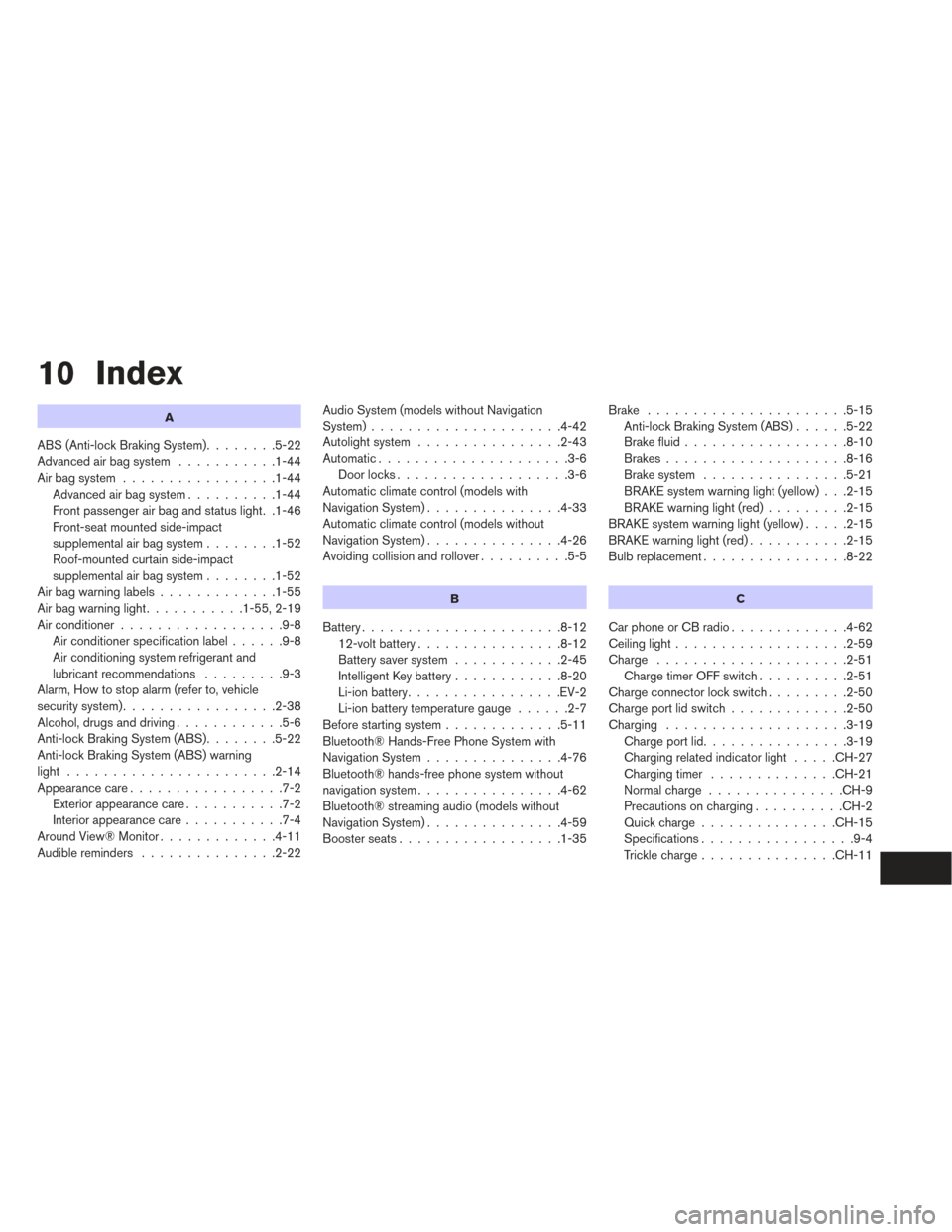
10 Index
A
ABS (Anti-lock Braking System)........5-22
Advanced air bag system ...........1-44
Air bag system .................1-44
Advanced air bag system ..........1-44
Front passenger air bag and status light. .1-46
Front-seat mounted side-impact
supplemental air bag system ........1-52
Roof-mounted curtain side-impact
supplemental air bag system ........1-52
Airbagwarninglabels.............1-55
Airbagwarninglight...........1-55,2-19
Air conditioner ..................9-8
Air conditioner specification label ......9-8
Air conditioning system refrigerant and
lubricant recommendations .........9-3
Alarm, How to stop alarm (refer to, vehicle
security system) .................2-38
Alcohol, drugs and driving ............5-6
Anti-lock Braking System (ABS) ........5-22
Anti-lock Braking System (ABS) warning
light .......................2-14
Appearance care .................7-2
Exterior appearance care ...........7-2
Interior appearance care ...........7-4
AroundView®Monitor.............4-11
Audible reminders ...............2-22 Audio System (models without Navigation
System).....................4-42
Autolight system
................2-43
Automatic.....................3-6 Door locks ...................3-6
Automatic climate control (models with
Navigation System) ...............4-33
Automatic climate control (models without
Navigation System) ...............4-26
Avoiding collision and rollover ..........5-5
B
Battery......................8-12
12-volt battery ................8-12
Battery saver system ............2-45
Intelligent Key battery ............8-20
Li-ion battery .................EV-2
Li-ion battery temperature gauge ......2-7
Before starting system .............5-11
Bluetooth® Hands-Free Phone System with
Navigation System ...............4-76
Bluetooth® hands-free phone system without
navigation system ................4-62
Bluetooth® streaming audio (models without
Navigation System) ...............4-59
Boosterseats..................1-35 Brake
......................5-15
Anti-lock Braking System (ABS) ......5-22
Brake fluid ..................8-10
Brakes ....................8-16
Brake system ................5-21
BRAKE system warning light (yellow) . . .2-15
BRAKE warning light (red) .........2-15
BRAKE system warning light (yellow) .....2-15
BRAKE warning light (red) ...........2-15
Bulbreplacement................8-22
C
CarphoneorCBradio.............4-62
Ceiling light ...................2-59
Charge .....................2-51
Charge timer OFF switch ..........2-51
Charge connector lock switch .........2-50
Charge port lid switch .............2-50
Charging ....................3-19
Chargeportlid................3-19
Charging related indicator light .....CH-27
Chargingtimer ..............CH-21
Normalcharge ...............CH-9
Precautions on charging ..........CH-2
Quickcharge...............CH-15
Specifications .................9-4
Trickle charge ...............CH-11