climate control NISSAN LEAF 2019 Owner´s Manual
[x] Cancel search | Manufacturer: NISSAN, Model Year: 2019, Model line: LEAF, Model: NISSAN LEAF 2019Pages: 610, PDF Size: 7.11 MB
Page 335 of 610
Audio main operation
(Power)/VOL (Volume) control knob
Place the power switch in the ACC or ON
position, and then press the
button
while the system is off to turn on the last
audio source, which was playing immedi-
ately before the system was turned off.
While the system is on, pressing the
button turns the system off.
Turn the VOL control knob to adjust the
volume.
This vehicle may be equipped with speed
sensitive volume. When this feature is ac-
tive, the audio volume changes as the driv-
ing speed changes.
ENTER/SETTING button
When the audio screen is displayed, press
the ENTER/SETTING button to show the
Settings screen on the display. Turn the
TUNE/SCROLL knob to navigate the op-
tions and then press the ENTER/SETTING
button to make a selection.
4-56Monitor, climate, audio, phone and voice recognition systems
Page 336 of 610
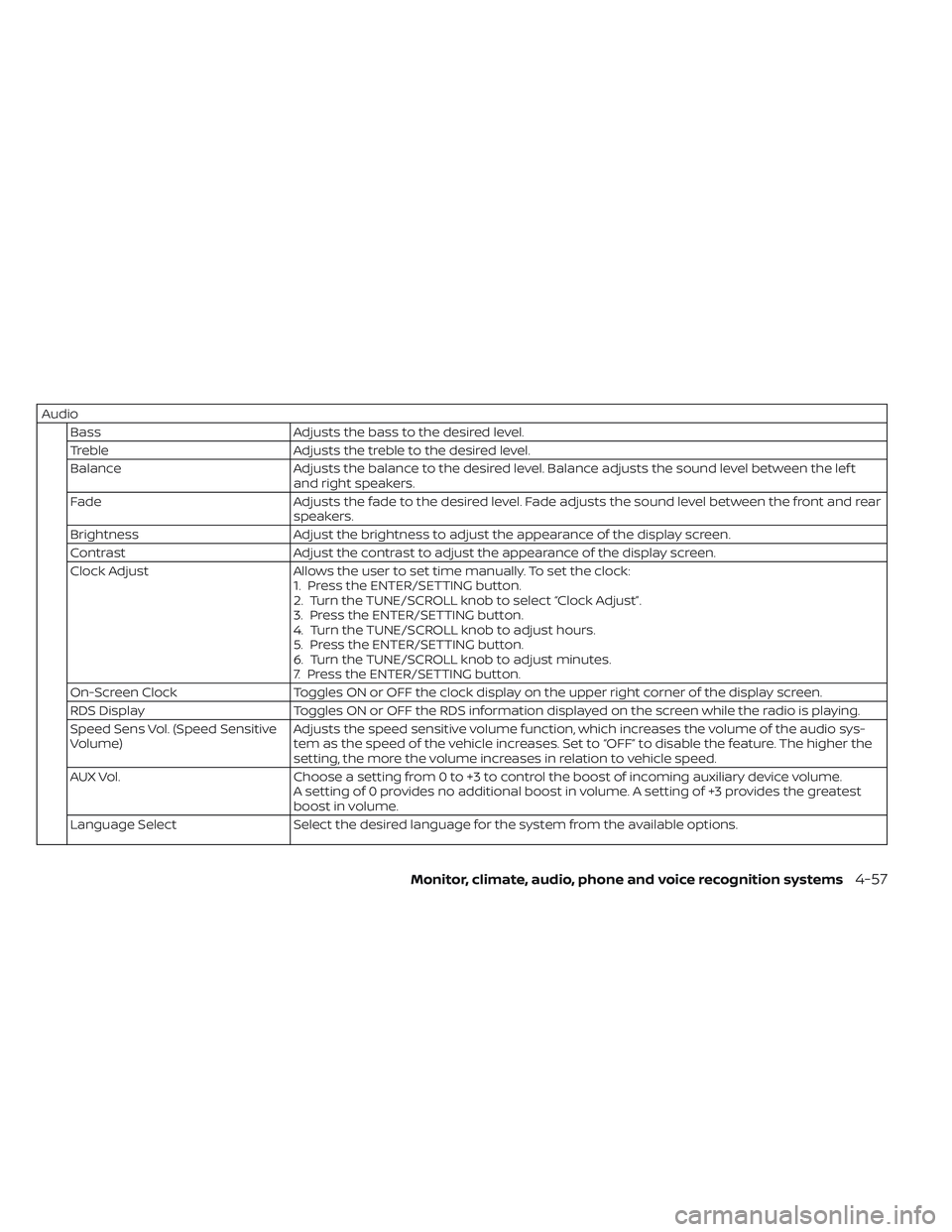
AudioBass Adjusts the bass to the desired level.
Treble Adjusts the treble to the desired level.
Balance Adjusts the balance to the desired level. Balance adjusts the sound level between the lef t
and right speakers.
Fade Adjusts the fade to the desired level. Fade adjusts the sound level between the front and rear
speakers.
Brightness Adjust the brightness to adjust the appearance of the display screen.
Contrast Adjust the contrast to adjust the appearance of the display screen.
Clock Adjust Allows the user to set time manually. To set the clock:
1. Press the ENTER/SETTING button.
2. Turn the TUNE/SCROLL knob to select “Clock Adjust”.
3. Press the ENTER/SETTING button.
4. Turn the TUNE/SCROLL knob to adjust hours.
5. Press the ENTER/SETTING button.
6. Turn the TUNE/SCROLL knob to adjust minutes.
7. Press the ENTER/SETTING button.
On-Screen Clock Toggles ON or OFF the clock display on the upper right corner of the display screen.
RDS Display Toggles ON or OFF the RDS information displayed on the screen while the radio is playing.
Speed Sens Vol. (Speed Sensitive
Volume) Adjusts the speed sensitive volume function, which increases the volume of the audio sys-
tem as the speed of the vehicle increases. Set to “OFF” to disable the feature. The higher the
setting, the more the volume increases in relation to vehicle speed.
AUX Vol. Choose a setting from 0 to +3 to control the boost of incoming auxiliary device volume.
A setting of 0 provides no additional boost in volume. A setting of +3 provides the greatest
boost in volume.
Language Select Select the desired language for the system from the available options.
Monitor, climate, audio, phone and voice recognition systems4-57
Page 339 of 610
CD eject
When the CD eject button is pressed with
a compact disc loaded, the CD will be
ejected.
When this button is pressed while the CD is
being played, the CD will be ejected.
If the CD comes out and is not removed, it
will be pulled back into the slot to protect
it.
AUX IN jack
The AUX IN jack is located beneath the
heater and air conditioner controls. The
AUX IN audio jack accepts any standard
analog audio input such as from a portable
cassette tape/CD player, MP3 player or lap-
top computer.
MEDIA
With a CD loaded, press the MEDIA button
until the CD mode is displayed on the
screen. Pressing the MEDIA button repeat-
edly will maneuver through CD, USB,
Bluetooth® Audio and AUX modes. CD/MP3 display mode
While listening to an MP3/WMA CD, certain
text may be displayed on the screen if the
CD has been encoded with the text infor-
mation. Depending on how the MP3/WMA
CD is encoded, information such as artist,
song and folder will be displayed.
The track number and total number of
tracks in the current folder or on the cur-
rent disc are displayed on the screen as
well.
TUNE/SCROLL knob (MP3/WMA CD only)
If a MP3/WMA CD with multiple folders is
playing, turn the TUNE/SCROLL knob to
change folders. Turn the knob to the lef t to
skip back a folder. Turn the knob to the right
to skip ahead a folder.
Additional features
For additional information about the iPod®
player available with this system, refer to
“iPod® player operation” in this section.
For additional information about the USB
(Universal Serial Bus) connection port avail-
able with this system, refer to “USB (Univer-
sal Serial Bus) connection port” in this sec-
tion.
For additional information about the
Bluetooth® audio interface available with
this system, refer to “Bluetooth® streaming
audio” in this section.
4-60Monitor, climate, audio, phone and voice recognition systems
Page 340 of 610
USB (UNIVERSAL SERIAL BUS)
CONNECTION PORT
Connecting a device to the USB
(Universal Serial Bus) connection
port
WARNING
Do not connect, disconnect or operate
the USB device while driving. Doing so
can be a distraction. If distracted you
could lose control of your vehicle and
cause an accident or serious injury.
CAUTION
• Do not force the USB device into the USB port. Inserting the USB device
tilted or up-side-down into the port
may damage the port. Make sure
that the USB device is connected
correctly into the USB port.
• Do not grab the USB port cover (if so equipped) when pulling the USB de-
vice out of the port. This could dam-
age the port and the cover.
• Do not leave the USB cable in a place where it can be pulled unintention-
ally. Pulling the cable my damage
the port.
For additional information, refer to your de-
vice manufacturer’s owner information re-
garding the proper use and care of the
device.
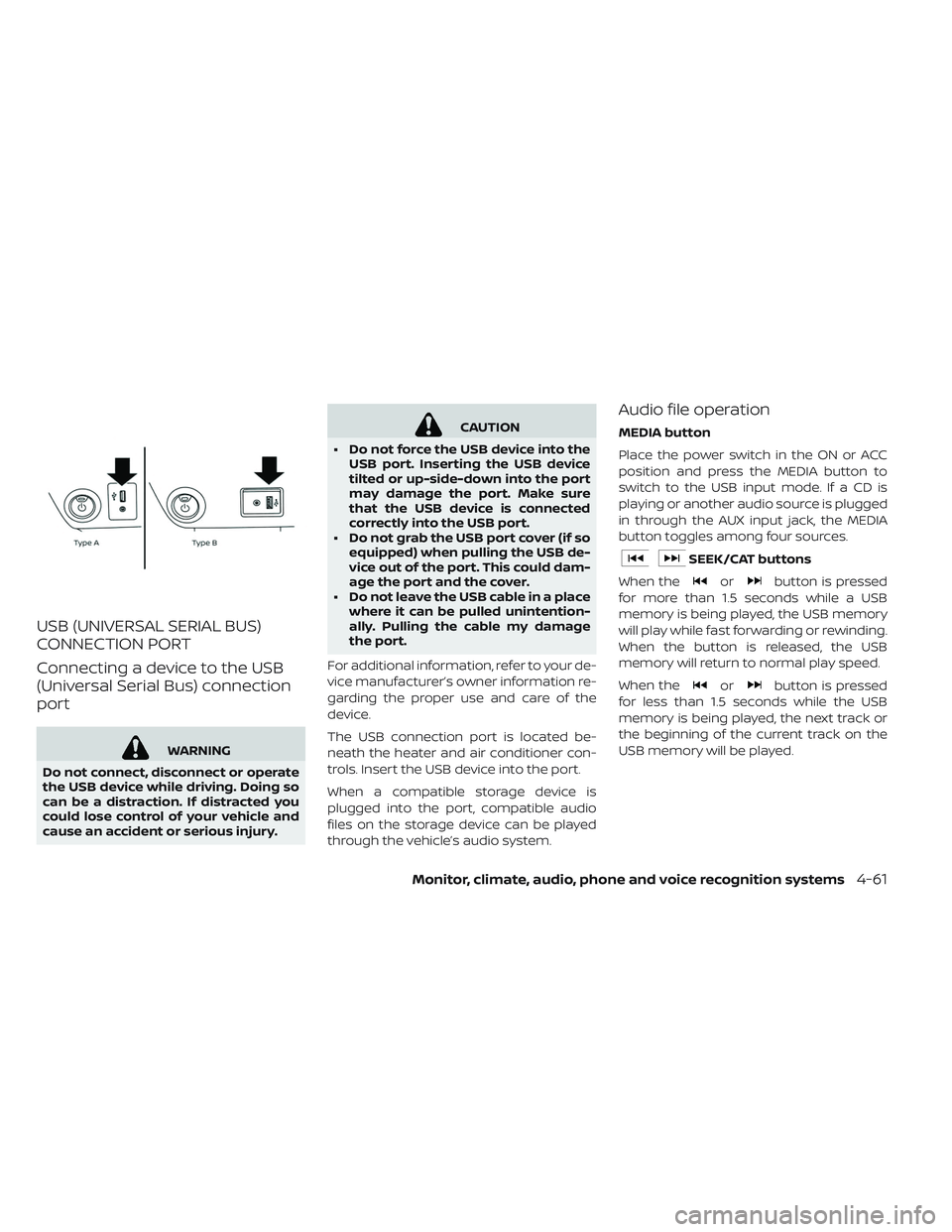
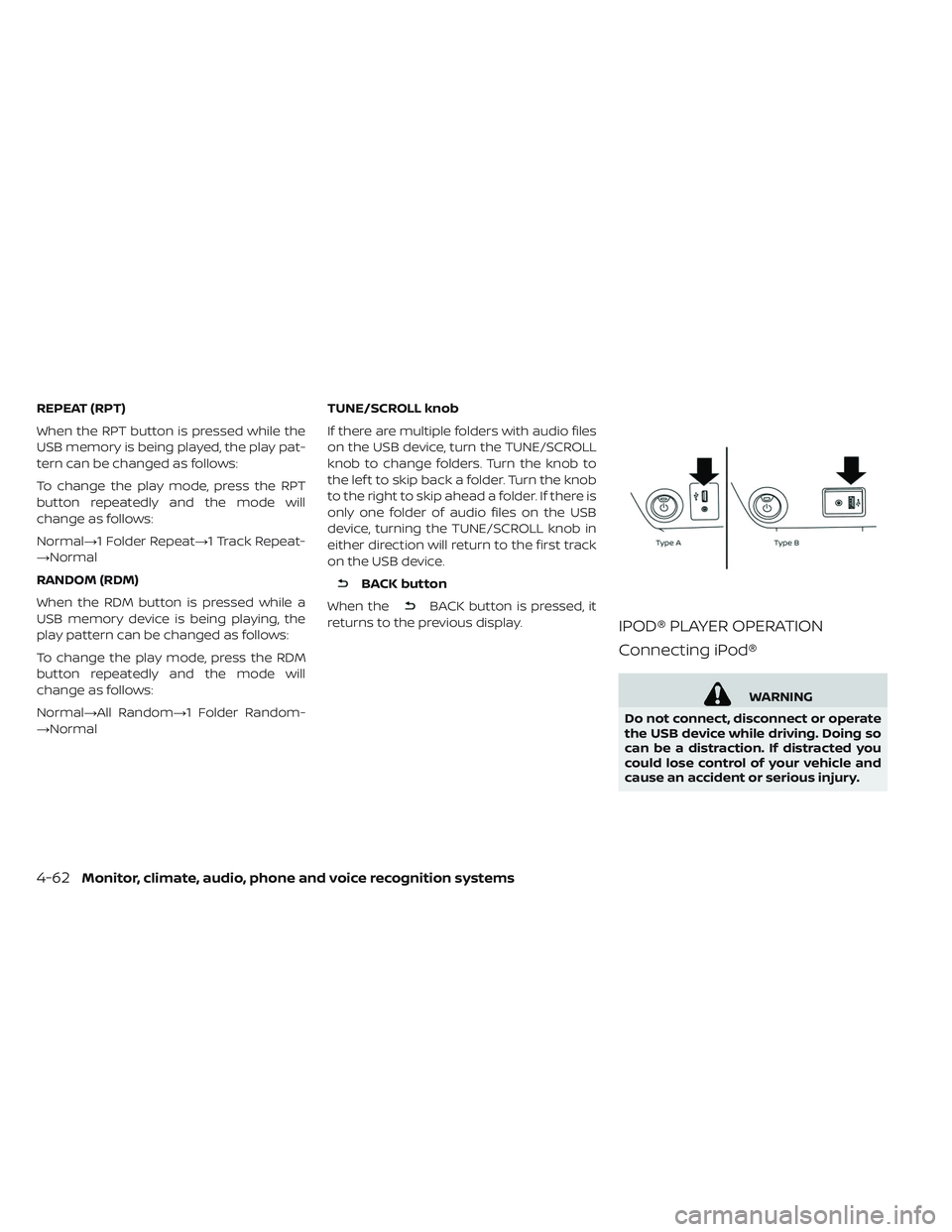
The USB connection port is located be-
neath the heater and air conditioner con-
trols. Insert the USB device into the port.
When a compatible storage device is
plugged into the port, compatible audio
files on the storage device can be played
through the vehicle’s audio system.
Audio file operation
MEDIA button
Place the power switch in the ON or ACC
position and press the MEDIA button to
switch to the USB input mode. If a CD is
playing or another audio source is plugged
in through the AUX input jack, the MEDIA
button toggles among four sources.
SEEK/CAT buttons
When the
orbutton is pressed
for more than 1.5 seconds while a USB
memory is being played, the USB memory
will play while fast forwarding or rewinding.
When the button is released, the USB
memory will return to normal play speed.
When the
orbutton is pressed
for less than 1.5 seconds while the USB
memory is being played, the next track or
the beginning of the current track on the
USB memory will be played.
Monitor, climate, audio, phone and voice recognition systems4-61
Page 341 of 610
REPEAT (RPT)
When the RPT button is pressed while the
USB memory is being played, the play pat-
tern can be changed as follows:
To change the play mode, press the RPT
button repeatedly and the mode will
change as follows:
Normal→1 Folder Repeat→1 Track Repeat-
→Normal
RANDOM (RDM)
When the RDM button is pressed while a
USB memory device is being playing, the
play pattern can be changed as follows:
To change the play mode, press the RDM
button repeatedly and the mode will
change as follows:
Normal→All Random→1 Folder Random-
→NormalTUNE/SCROLL knob
If there are multiple folders with audio files
on the USB device, turn the TUNE/SCROLL
knob to change folders. Turn the knob to
the lef t to skip back a folder. Turn the knob
to the right to skip ahead a folder. If there is
only one folder of audio files on the USB
device, turning the TUNE/SCROLL knob in
either direction will return to the first track
on the USB device.
BACK button
When the
BACK button is pressed, it
returns to the previous display.
IPOD® PLAYER OPERATION
Connecting iPod®
WARNING
Do not connect, disconnect or operate
the USB device while driving. Doing so
can be a distraction. If distracted you
could lose control of your vehicle and
cause an accident or serious injury.
4-62Monitor, climate, audio, phone and voice recognition systems
Page 342 of 610
CAUTION
• Do not force the USB device into the USB port. Inserting the USB device
tilted or up-side-down into the port
may damage the port. Make sure
that the USB device is connected
correctly into the USB port.
• Do not grab the USB port cover (if so equipped) when pulling the USB de-
vice out of the port. This could dam-
age the port and the cover.
• Do not leave the USB cable in a place where it can be pulled unintention-
ally. Pulling the cable my damage
the port.
For additional information, refer to your de-
vice manufacturer’s owner information re-
garding the proper use and care of the
device.
To connect an iPod® to the vehicle so that
the iPod® can be controlled with the audio
system controls and display screen, use the
USB connection port located beneath the
heater and air conditioner controls. Connect
the iPod®-specific end of the cable to the
iPod® and the USB end of the cable to the
USB connection port on the vehicle. If your iPod® supports charging via a USB connec-
tion, its battery will be charged while con-
nected to the vehicle with the power switch
in the ACC or ON position.
To disconnect the iPod® from the vehicle,
remove the USB end of the cable from the
USB connection port on the vehicle, then
remove the cable from the iPod®.
*iPod® is a trademark of Apple Inc., regis-
tered in the U.S. and other countries.
Compatibility
The following models are available:
• Third generation iPhone® (Firmware ver-
sion IOS 2.1–4.2.1)
• Fourth generation iPhone® (Firmware ver- sion IOS 4.0–6.1.3)
• Fif th generation iPhone® (firmware ver- sion IOS6/6.0)
• Fif th generation iPod® (Firmware version iOS 6.0.0–6.1.4)
• First generation iPod Classic® (Firmware version 1.1.1 or 2.0.1)
• Second generation iPod Classic® (Firm- ware version 2.0.1)
• First generation iPod touch® (Firmware version 1.1–2.2.1) • Second generation iPod touch® (Firmware
version IOS 2.1.1–2.2.1)
• Third generation iPod touch® (Firmware version IOS 3.1–3.1.3)
• Fourth generation iPod touch® (Firmware version IOS 4.1–6.1.3)
• Fif th generation iPod touch® (Firmware version IOS 6.0.0–6.1.3)
• First generation iPod nano® (Firmware version 1.3.1)
• Second generation iPod nano® (Firmware version 1.1.3)
• Third generation iPod nano® (Firmware version 1 .0.0–1.1.3)
• Fourth generation iPod nano® (Firmware version 1.0.2–1.0.4)
• Fif th generation iPod nano® (Firmware version 1.0.1–1.0.2)
• Sixth generation iPod nano® (Firmware version 1.0–1.2)
• Seventh generation iPod nano® (Firmware version 1 .0.0–1.0.1)
The iPod touch® may not respond quickly
with the system in some cases.
Make sure that the iPod® firmware is up-
dated.
Monitor, climate, audio, phone and voice recognition systems4-63
Page 344 of 610
BLUETOOTH® STREAMING AUDIO
If you have a compatible Bluetooth® audio
device that is capable of playing audio files,
the device can be connected to the vehi-
cle’s audio system so that the audio files on
the device play through the vehicle’s
speakers. For additional information, refer
to “FM/AM/SAT radio with Compact Disc
(CD) player” in this section.
NOTE:
For additional information regarding
Bluetooth® Streaming Audio, refer to
the cellular phone owner’s manual.
Connecting Bluetooth® audio
To connect your Bluetooth® audio device
to the vehicle, follow the procedure below:
1. Press the ENTER/SETTING button.
2. Select “Bluetooth”.
3. Select “Add Phone”. This same screencan be accessed to remove, replace or
select a different Bluetooth® device. 4.
The system acknowledges the com-
mand and asks you to initiate connecting
from the phone handset. The connecting
procedure of the cellular phone varies ac-
cording to each cellular phone model. For
additional information, refer to the cellular
phone’s owner’s manual. You can also
visit www.nissanusa.com/bluetooth or
www.nissan.ca/bluetooth for instructions
on connecting NISSAN-recommended
cellular phones.
Audio main operation:
To switch to the Bluetooth® audio mode,
press the MEDIA button repeatedly until the
Bluetooth® audio mode is displayed on the
screen. Use the vehicle audio controls or
the Bluetooth® device’s controls to play,
pause, skip or reverse tracks.
AUX DEVICE PLAYER OPERATION
The AUX input jack is located beneath the
heater and air conditioner controls. The
AUX input jack accepts any standard ana-
log audio input such as from a portable
cassette tape/CD player, MP3 player or lap-
top computer.
NISSAN strongly recommends using a ste-
reo mini plug when connecting your music
device to the audio system. Music may not
play properly when monaural cable is used.
To switch the AUX mode, press the MEDIA
button until the AUX mode is selected,
while the power switch is in the “ON” or
“ACC” position.
Monitor, climate, audio, phone and voice recognition systems4-65
Page 345 of 610
CD CARE AND CLEANING
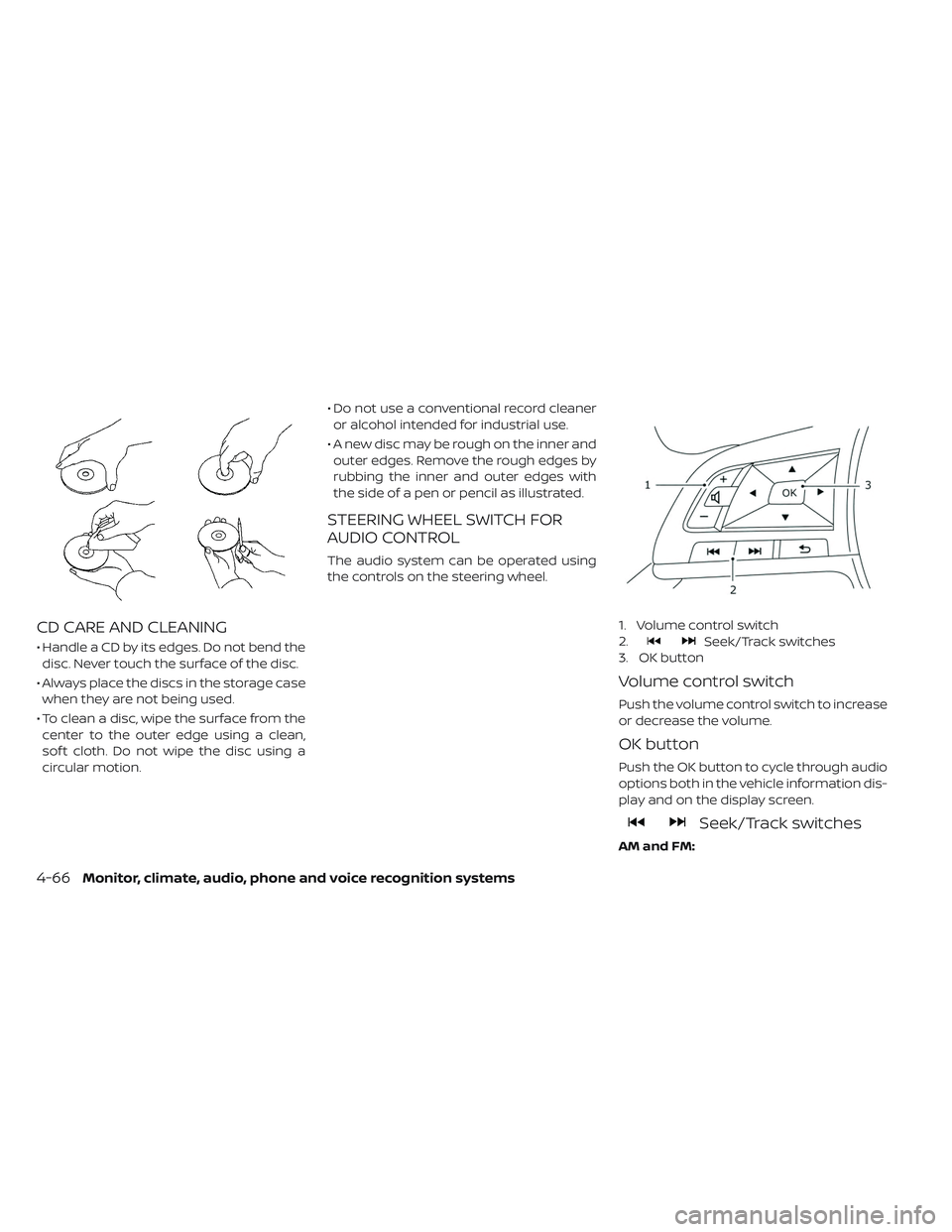
• Handle a CD by its edges. Do not bend thedisc. Never touch the surface of the disc.
• Always place the discs in the storage case when they are not being used.
• To clean a disc, wipe the surface from the center to the outer edge using a clean,
sof t cloth. Do not wipe the disc using a
circular motion. • Do not use a conventional record cleaner
or alcohol intended for industrial use.
• A new disc may be rough on the inner and outer edges. Remove the rough edges by
rubbing the inner and outer edges with
the side of a pen or pencil as illustrated.
STEERING WHEEL SWITCH FOR
AUDIO CONTROL
The audio system can be operated using
the controls on the steering wheel.
1. Volume control switch
2.
Seek/Track switches
3. OK button
Volume control switch
Push the volume control switch to increase
or decrease the volume.
OK button
Push the OK button to cycle through audio
options both in the vehicle information dis-
play and on the display screen.
Seek/Track switches
AM and FM:
4-66Monitor, climate, audio, phone and voice recognition systems
Page 347 of 610
When installing a CB, ham radio or car
phone in your vehicle, be sure to observe
the following precautions; otherwise, the
new equipment may adversely affect the
EV control system and other electronic
parts.
WARNING
• A cellular phone should not be used for any purpose while driving so full
attention may be given to vehicle
operation. Some jurisdictions pro-
hibit the use of cellular phones while
driving.
• If you must make a call while your vehicle is in motion, the hands free
cellular phone operational mode is
highly recommended. Exercise ex-
treme caution at all times so full at-
tention may be given to vehicle op-
eration.
• If you are unable to devote full at- tention to vehicle operation while
talking on the phone, pull off the
road to a safe location and stop your
vehicle.
CAUTION
• Keep the antenna as far away as possible from the electronic control
modules.
• Keep the antenna wire more than 8 in (20 cm) away from the electronic
control system harnesses. Do not
route the antenna wire next to any
harness.
• Adjust the antenna standing-wave ratio as recommended by the manu-
facturer.
• Connect the ground wire from the CB radio chassis to the body.
• For additional information, it is rec- ommended that you visit a NISSAN
certified LEAF dealer.
WARNING
• Use a phone af ter stopping your ve- hicle in a safe location. If you have to
use a phone while driving, exercise
extreme caution at all times so full
attention may be given to vehicle
operation.
• If you are unable to devote full at- tention to vehicle operation while
talking on the phone, pull off the
road to a safe location and stop your
vehicle.
CAUTION
To avoid draining the vehicle battery,
use a phone af ter the READY to drive
indicator light is on.
CAR PHONE OR CB RADIO BLUETOOTH® HANDS-FREE PHONE
SYSTEM WITHOUT NAVIGATION
SYSTEM (FOR MODELS WITHOUT
NISSANCONNECT® SYSTEM)
4-68Monitor, climate, audio, phone and voice recognition systems
Page 350 of 610
Operating tips
To get the best performance out of the
NISSAN Voice Recognition system, observe
the following:
• Keep the interior of the vehicle as quiet aspossible. Point all vents away from the
microphone area and close the windows
to eliminate surrounding noises (traffic
noises, vibration sounds, etc.), which may
prevent the system from recognizing
voice commands correctly.
• Wait until the tone sounds before speak- ing a command. Otherwise, the com-
mand will not be received properly.
• Start speaking a command within 5 sec- onds af ter the tone sounds.
• Speak in a natural voice without pausing between words.
Giving voice commands
To operate NISSAN Voice Recognition,
press and release the
button located
on the steering wheel. Af ter the tone
sounds, speak a command. The command given is picked up by the
microphone, and voice feedback is given
when the command is accepted.
• If you need to hear the available com-
mands for the current menu again, say
“Help” and the system will repeat them.
• If a command is not recognized, the sys- tem announces, “Command not recog-
nized. Please try again.” Make sure the
command is said exactly as prompted by
the system and repeat the command in a
clear voice.
• If you want to go back to the previous command, you can say “Go back” or “Cor-
rection” any time the system is waiting for
a response.
• You can cancel a command when the sys- tem is waiting for a response by saying,
“Cancel” or “Quit.” The system announces
“Cancel” or “Quit” and ends the Voice Rec-
ognition session. You can also press and
hold thebutton on the steering
wheel for 5 seconds at any time to end the
Voice Recognition session. Whenever the
Voice Recognition session is canceled, a
double beep is played to indicate you have
exited the system. • If you want to adjust the volume of the
voice feedback, press the volume control
switches (+ or -) on the steering wheel
while being provided with feedback. You
can also use the radio volume control
knob.
Voice Prompt Interrupt
In most cases you can interrupt the voice
feedback to speak the next command by
pressing the
button on the steering
wheel. Af ter interrupting the system, wait
for a beep before speaking your command.
One Shot Call
To use the system faster, you may speak
the second level commands with the main
menu command on the main menu. For
example, press the
button and af ter
the tone say “Call Redial”.
CONTROL BUTTONS
The control buttons for the Bluetooth®
Hands-Free Phone System are located on
the steering wheel.
Monitor, climate, audio, phone and voice recognition systems4-71