ECO mode NISSAN LEAF 2019 Owner´s Manual
[x] Cancel search | Manufacturer: NISSAN, Model Year: 2019, Model line: LEAF, Model: NISSAN LEAF 2019Pages: 610, PDF Size: 7.11 MB
Page 321 of 610
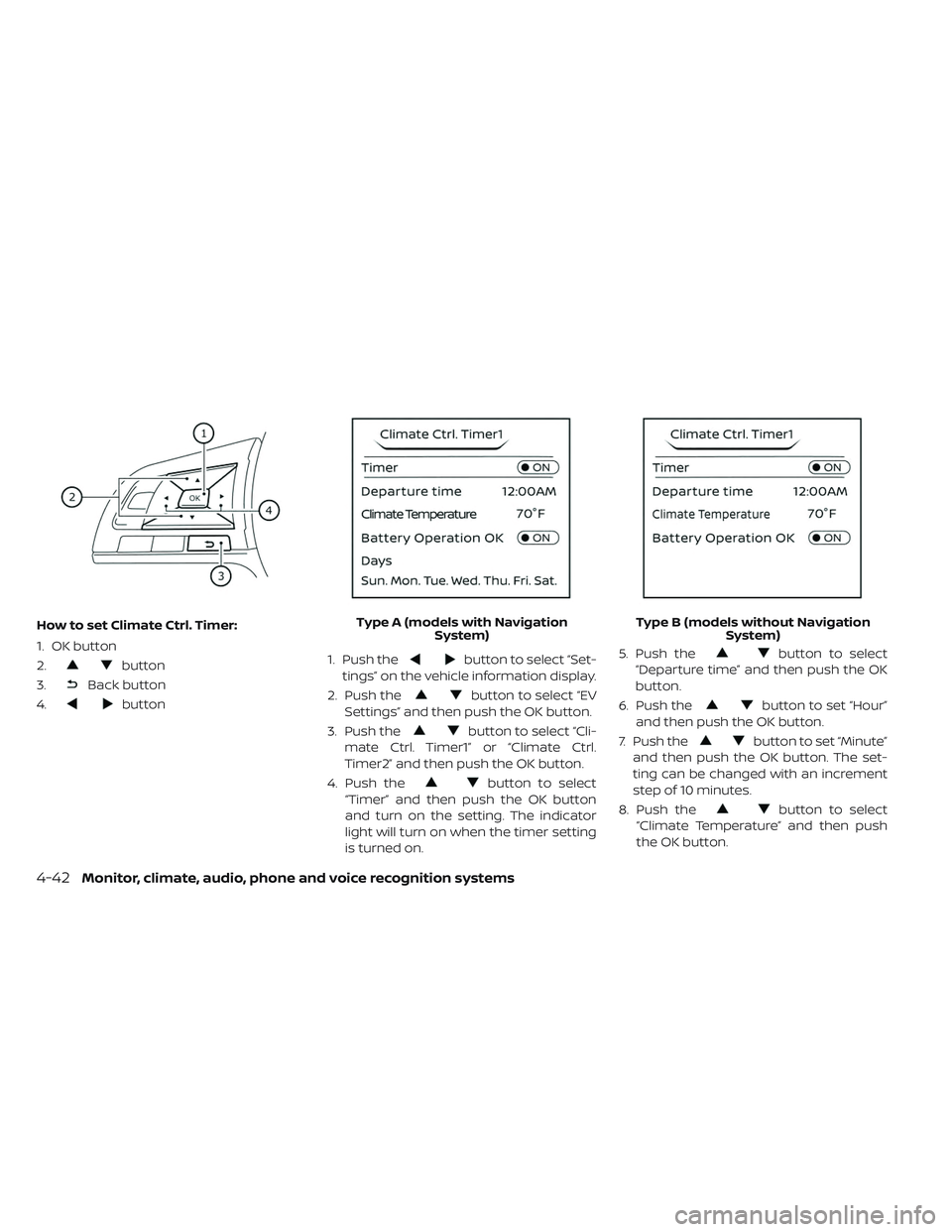
How to set Climate Ctrl. Timer:
1. OK button
2.
button
3.
Back button
4.
button 1. Push the
button to select “Set-
tings” on the vehicle information display.
2. Push the
button to select “EV
Settings” and then push the OK button.
3. Push the
button to select “Cli-
mate Ctrl. Timer1” or “Climate Ctrl.
Timer2” and then push the OK button.
4. Push the
button to select
“Timer” and then push the OK button
and turn on the setting. The indicator
light will turn on when the timer setting
is turned on. 5. Push the
button to select
“Departure time” and then push the OK
button.
6. Push the
button to set “Hour”
and then push the OK button.
7. Push the
button to set “Minute”
and then push the OK button. The set-
ting can be changed with an increment
step of 10 minutes.
8. Push the
button to select
“Climate Temperature” and then push
the OK button.
Type A (models with Navigation
System) Type B (models without Navigation
System)
4-42Monitor, climate, audio, phone and voice recognition systems
Page 322 of 610
9. Push thebutton to set Climate
Temperature and then push the OK
button.
10. * Push the
button to select
"Days" and then push the OK button.
The current day of the week is dis-
played with an underline.
Push the
button to select the
days of the week you wish to activate
the Climate Control system and then
push the OK button. The indicator light
of the selected button will turn on.
11. * Af ter setting the day of the week, push the Back button and return to the pre-
vious screen.
The set day of the week is lit in white.
12. Af ter the setting is complete, place the power switch in the OFF position, and
then connect the charge connector to
the vehicle.
* models with Navigation System Info:
The Climate Ctrl. Timer does not activate if
the charge connector is not connected to
the vehicle. When the “Battery Operation
OK” is turned on and the charging connec-
tor is not connected to the vehicle, the Cli-
mate Ctrl. Timer will activate for 15 minutes.
When the outside temperature is high, the
interior temperature may not reach the set
temperature within the 15 minutes.
Turn "Battery Operation OK" to OFF when it
is not necessary to operate air condition-
ing timer in order to prevent Li-ion battery
from discharging.
For models without Navigation System, the
Climate Ctrl. Timer operates repeatedly ev-
ery day once it is turned on.
Operating tips for using Climate
Ctrl. Timer
• The Climate Ctrl. Timer will only start when
the power switch is in the LOCK/OFF or
ACC position.
• To turn off the Climate Ctrl. Timer function, turn off the “Climate Ctrl. Timer1” and
"Climate Ctrl. Timer2" setting in the video
information display using the
button on the steering wheel. The start
and stop time settings will not be deleted
even if the Climate Ctrl. Timer function is
turned off.
• While the Climate Ctrl. Timer is operating, the Climate Ctrl. Timer indicator and the
charging status indicator lights flash. If the
Climate Ctrl. Timer is set to activate, the
Climate Ctrl. Timer indicator illuminates.*
• If the Climate Ctrl. Timer starts operating while the vehicle is being charged, the
time required for charging will be longer.
• Operating the Climate Ctrl. Timer or re- mote climate control in an environment
where the temperature is low may de-
crease the rate of battery charge.
• Timer setting can also be changed while Climate Ctrl. Timer is operated. When the
power position is switched to OFF, the air
conditioner starts or enters waiting mode
depending on the new timer settings.
• When the difference in temperature be- tween the air conditioner setting tem-
perature and the temperature outside the
vehicle is large, the temperature inside the
vehicle may not be maintained at the set-
ting temperature.
Monitor, climate, audio, phone and voice recognition systems4-43
Page 323 of 610
• The charging status indicator lights illumi-nate in a specific pattern when the Li-ion
battery warmer operates. The charging
status indicator lights use the same pat-
tern to indicate 12–volt battery charging,
Climate Ctrl. Timer operation or Remote
Climate Control operation. The charging
status indicator lights do not change if the
Li-ion battery warmer operates at the
same time as the above features.
•
The temperature in the passenger com-
partment may not be comfortable if enter-
ing the vehicle too soon before or too long
af ter the scheduled time of departure.
• Air conditioning is limited to the capacity of the electric power when the charge
connector is connected. Therefore, the
temperature may not reach the set tem-
perature due to limitations in air condi-
tioning performance, if ambient tempera-
ture is excessively high or low, or if the
charge connector is connected to a 120–
volt plug outlet.
• The Climate Ctrl. Timer operates the cli- mate control function so that a comfort-
able temperature is provided in the pas-
senger compartment at the scheduled time of departure. The climate control is
set to stop at the scheduled time of
departure.
• Depending on the facilities of charging station, there may be time when it is not
available for charging. Confirm the avail-
ability of the charging facility before set-
ting the Climate Ctrl. Timer. Be sure that
the power switch of the charger is turned
on when setting the Climate Ctrl. Timer.
• When the power switch is turned OFF af- ter changing the setting, the new setting
will be applied.
*models with Navigation SystemRemote climate control
This vehicle incorporates a communica-
tion device that is called a TCU (Telematics
Control Unit). The communication connec-
tion between this unit and Nissan Data
Center allows for various remote function
services.
Even when away from the vehicle, climate
control can be started by accessing the
Web Owner Portal using a cellular phone or
a personal computer. When operation is started, or at the set
start time, the Nissan Data Center ac-
cesses the vehicle. When the vehicle re-
ceives a command for remote operation,
the climate control immediately turns ON
and operates for the specified period of
time. Confirmation of the ON/OFF of the
climate control operation can be checked
by accessing the Web Owner Portal, or by
e-mail.
Completing registration for the
NissanConnect® EV and Services is neces-
sary before using the service. For additional
information, refer to the NissanConnect®
Manual (for Leaf ).WARNING
• Radio waves could adversely affect electric medical equipment. For ad-
ditional information, refer to your
electric medical equipment manu-
facturer for the possible effect on
pacemakers before using the re-
mote climate control.
4-44Monitor, climate, audio, phone and voice recognition systems
Page 324 of 610
• Even if the remote climate control isset, the temperature in the passen-
ger room may become high if the
system automatically stops. Do not
leave children or adults who would
normally require the support of oth-
ers alone in your vehicle. Pets should
not be lef t alone either. On hot,
sunny days, temperatures in a
closed vehicle could quickly become
high enough to cause severe or pos-
sibly fatal injuries to people or ani-
mals.
NOTE:
•To check the Li-ion battery charging
status using an internet enabled smart
phone or personal computer.
– The vehicle must be located in a cel- lular phone coverage area.
– The cellular phone must be located in an area with cellular phone cover-
age.
– The computer must be connected to the internet.
• Some cellular phones are not compat-
ible with this system and cannot be
used to check the Li-ion battery charg-
ing status. Confirm this beforehand.
Operating tips
• When the charge connector is connected,
the climate control operates using electric
power. When the charge connector is dis-
connected from the vehicle, the climate
control operates using vehicle battery
electric power.
• The climate control can be operated for a maximum of 2 hours when the charge
connector is connected to the vehicle, or a
maximum of 15 minutes when the charge
connector is disconnected.
• The remote climate control will only start to operate when the power switch is in the
LOCK/OFF or ACC position.
• Remote climate control operation is not available when the vehicle is in an area of
cellular communication range.
• Communication becomes unavailable when the vehicle is not used for two
weeks or more. When the power switch is
placed in the ON position, communication
with the Nissan Data Center can be
restored.
• Air conditioning is limited to the capacity of the electric power when the charge
connector is connected to the vehicle. Therefore, the temperature may not reach
a comfortable level due to performance of
the air conditioning being limited, if the
outside temperature is excessively high or
low, or if the charge connector is con-
nected to a 110 – 120-volt outlet.
• If the power switch is in the ON position or the charge connector is disconnected,
while the remote climate control is being
operated, remote climate control opera-
tion is automatically stopped and an
e-mail is sent.
• If remote climate control operation is started while the vehicle is in normal
charge mode, the climate control oper-
ates in climate control priority mode and
charging is continued.
• If remote climate control operation is started and charging is stopped while the
vehicle is in quick charge mode, climate
control operation is also stopped.
• If the quick charge connector is con- nected and charging is not performed, re-
mote climate control operation starts us-
ing the battery electric power of the
vehicle.
Monitor, climate, audio, phone and voice recognition systems4-45
Page 325 of 610
Servicing climate control
The climate control system in your NISSAN
is charged with a refrigerant designed with
the environment in mind. This refrigerant
will not harm the earth’s ozone layer. Spe-
cial charging equipment and lubricant are
required when servicing your NISSAN cli-
mate control. Using improper refrigerants
or lubricants will cause severe damage to
your climate control system. For additional
information, refer to “Recommended
fluids/lubricants and capacities” in the
“Technical and consumer information” sec-
tion.
It is recommended that you visit a NISSAN
certified LEAF dealer to service your envi-
ronmentally friendly climate control sys-
tem.
RADIO
Push the power switch to the ACC or ON
position and press the
(power) button
to turn on the radio. If you listen to the radio
while the READY to drive indicator light is off,
the power switch should be pushed to the
ACC position.
Radio reception is affected by station sig-
nal strength, distance from radio transmit-
ter, buildings, bridges, mountains and other
external influences. Intermittent changes
in reception quality normally are caused by
these external influences.
Using a cellular phone in or near the
vehicle may influence radio reception
quality.
Radio reception
Your NISSAN radio system is equipped with
state-of-the-art electronic circuits to en-
hance radio reception. These circuits are
designed to extend reception range, and to
enhance the quality of that reception. However, there are some general charac-
teristics of both FM and AM radio signals
that can affect radio reception quality in a
moving vehicle, even when the finest
equipment is used. These characteristics
are completely normal in a given reception
area and do not indicate any malfunction
in your NISSAN radio system.
Reception conditions will constantly
change because of vehicle movement.
Buildings, terrain, signal distance and inter-
ference from other vehicles can work
against ideal reception. Described below
are some of the factors that can affect your
radio reception.
Some cellular phones or other devices may
cause interference or a buzzing noise to
come from the audio system speakers.
Storing the device in a different location
may reduce or eliminate the noise.
AUDIO SYSTEM (MODELS WITHOUT
NISSANCONNECT® SYSTEM)
4-46Monitor, climate, audio, phone and voice recognition systems
Page 332 of 610
USB (Universal Serial Bus)
connection port
WARNING
Do not connect, disconnect or operate
the USB device while driving. Doing so
can be a distraction. If distracted you
could lose control of your vehicle and
cause an accident or serious injury.
CAUTION
• Do not force the USB device into the USB port. Inserting the USB device
tilted or up-side-down into the port
may damage the port. Make sure
that the USB device is connected
correctly into the USB port.
• Do not grab the USB port cover (if so equipped) when pulling the USB de-
vice out of the port. This could dam-
age the port and the cover.
• Do not leave the USB cable in a place where it can be pulled unintention-
ally. Pulling the cable may damage
the port. The vehicle is not equipped with a USB de-
vice. USB devices should be purchased
separately as necessary. This system can-
not be used to format USB devices. To for-
mat a USB device, use a personal com-
puter. In some states/area, the USB device
for the front seats plays only sound without
images for regulatory reasons, even when
the vehicle is parked.
This system supports various USB
memory devices, USB hard drives and
iPod® players. Some USB devices may not
be supported by this system.
Partitioned USB devices may not play cor-
rectly.
Some characters used in other languages
(Chinese, Japanese, etc.) may not appear
properly in the display. Using English lan-
guage characters with a USB device is rec-
ommended.
General notes for USB use:
For additional information refer to your de-
vice manufacturer’s owner information re-
garding the proper use and care of the
device. Notes for iPod® use:
iPod® is a trademark of Apple Inc., regis-
tered in the U.S. and other countries.
• Improperly plugging in the iPod® may
cause a checkmark to be displayed on
and off (flickering). Always make sure that
the iPod® is connected properly.
• An iPod® nano (1st Generation) may re- main in fast forward or rewind mode if it is
connected during a seek operation. In this
case, please manually reset the iPod®.
• An iPod® nano (2nd Generation) will con- tinue to fast-forward or rewind if it is dis-
connected during a seek operation.
• An incorrect song title may appear when the Play Mode is changed while using an
iPod® nano (2nd Generation).
• Audiobooks may not play in the same or- der as they appear on an iPod®.
•
Large video files cause slow responses in an
iPod®. The vehicle center display may mo-
mentarily black out, but will soon recover.
• If an iPod® automatically selects large video files while in the shuffle mode, the
vehicle center display may momentarily
black out, but will soon recover.
Monitor, climate, audio, phone and voice recognition systems4-53
Page 337 of 610
Bass, treble, balance and fade can also be
adjusted by pressing the ENTER/SETTING
button and turning the TUNE/SCROLL con-
trol knob to select the item to adjust.
DISP button
Display of the screen can be canceled by
pressing the DISP button. You can then lis-
ten to music that is being played back. If
you want to display the screen again, either
press the DISP button once more or press
the FM·AM, or XM Satellite Radio button.
MEDIA button
Pressing the MEDIA button will switch the
displays as follows:
iPod®/USB→Bluetooth
Audio→AUX→CD→iPod®/USB
BACK button
When the BACK button is pressed, it returns
to the previous display.
iPod MENU button
Press the iPod MENU button while the
iPod® is connected to show the iPod® op-
eration menu on the audio display. Scroll
through the menu list using the TUNE/ SCROLL knob. Press the ENTER/SETTING
button to select a menu item.
For additional information, refer to the
iPod® Owner’s Manual.
FM/AM/SAT radio operation
FM∙AM band select
Pressing the radio band select button will
change the band as follows:
AM→FM1→FM2→AM
XM band select
Pressing the XM band select button will
change the band as follows:
XM1→XM2→XM3→XM1
When the XM band select button is pressed
while the power switch is in the ACC or ON
position, the radio will come on at the
channel last played.
The last station played will also come on
when the
button is pressed to radio ON.
*When the XM button is pressed, the satel-
lite radio mode will be skipped unless a
SiriusXM® Satellite Radio service subscrip-
tion is active. Satellite radio is not available
in Alaska, Hawaii and Guam.If a compact disc is playing when the XM
button is pressed, the compact disc will
automatically be turned off and the last
radio station played will come on.
TUNE/SCROLL knob (Tuning)
Turn the TUNE/SCROLL knob to the lef t or
right for manual tuning.
SEEK tuning
Press the SEEK/CAT
orbutton to
tune from low to high or high to low fre-
quencies and to stop at the next broad-
casting station.
SCAN tuning
Press the SCAN button to stop at each
broadcasting station for 5 seconds. SCAN
will appear on the screen while the radio is
scan tuning.
Pressing the button again during this
5 second period will stop SCAN tuning and
the radio will remain tuned to that station. If
the SCAN button is not pressed within
5 seconds, SCAN tuning moves to the next
station.
4-58Monitor, climate, audio, phone and voice recognition systems
Page 339 of 610
CD eject
When the CD eject button is pressed with
a compact disc loaded, the CD will be
ejected.
When this button is pressed while the CD is
being played, the CD will be ejected.
If the CD comes out and is not removed, it
will be pulled back into the slot to protect
it.
AUX IN jack
The AUX IN jack is located beneath the
heater and air conditioner controls. The
AUX IN audio jack accepts any standard
analog audio input such as from a portable
cassette tape/CD player, MP3 player or lap-
top computer.
MEDIA
With a CD loaded, press the MEDIA button
until the CD mode is displayed on the
screen. Pressing the MEDIA button repeat-
edly will maneuver through CD, USB,
Bluetooth® Audio and AUX modes. CD/MP3 display mode
While listening to an MP3/WMA CD, certain
text may be displayed on the screen if the
CD has been encoded with the text infor-
mation. Depending on how the MP3/WMA
CD is encoded, information such as artist,
song and folder will be displayed.
The track number and total number of
tracks in the current folder or on the cur-
rent disc are displayed on the screen as
well.
TUNE/SCROLL knob (MP3/WMA CD only)
If a MP3/WMA CD with multiple folders is
playing, turn the TUNE/SCROLL knob to
change folders. Turn the knob to the lef t to
skip back a folder. Turn the knob to the right
to skip ahead a folder.
Additional features
For additional information about the iPod®
player available with this system, refer to
“iPod® player operation” in this section.
For additional information about the USB
(Universal Serial Bus) connection port avail-
able with this system, refer to “USB (Univer-
sal Serial Bus) connection port” in this sec-
tion.
For additional information about the
Bluetooth® audio interface available with
this system, refer to “Bluetooth® streaming
audio” in this section.
4-60Monitor, climate, audio, phone and voice recognition systems
Page 340 of 610
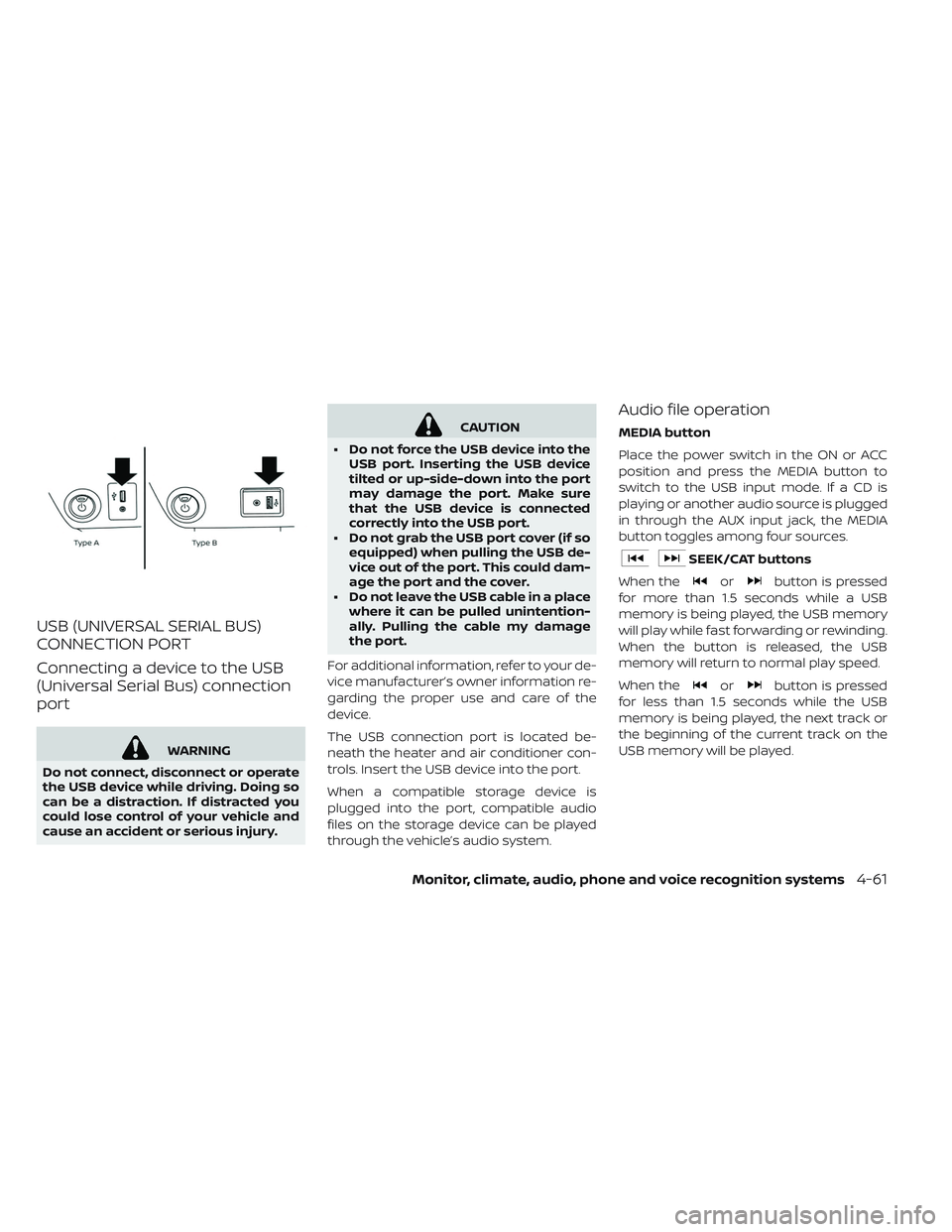
USB (UNIVERSAL SERIAL BUS)
CONNECTION PORT
Connecting a device to the USB
(Universal Serial Bus) connection
port
WARNING
Do not connect, disconnect or operate
the USB device while driving. Doing so
can be a distraction. If distracted you
could lose control of your vehicle and
cause an accident or serious injury.
CAUTION
• Do not force the USB device into the USB port. Inserting the USB device
tilted or up-side-down into the port
may damage the port. Make sure
that the USB device is connected
correctly into the USB port.
• Do not grab the USB port cover (if so equipped) when pulling the USB de-
vice out of the port. This could dam-
age the port and the cover.
• Do not leave the USB cable in a place where it can be pulled unintention-
ally. Pulling the cable my damage
the port.
For additional information, refer to your de-
vice manufacturer’s owner information re-
garding the proper use and care of the
device.
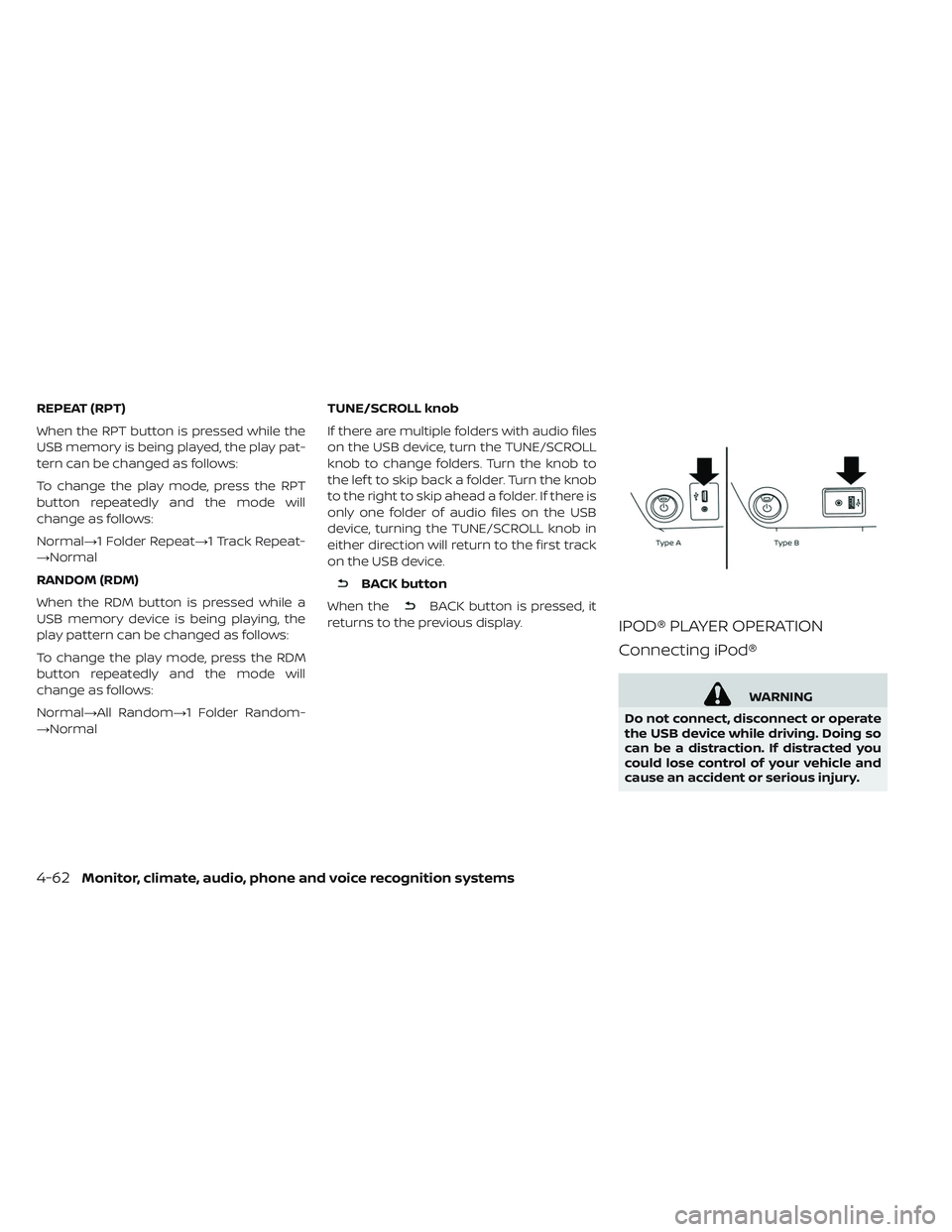
The USB connection port is located be-
neath the heater and air conditioner con-
trols. Insert the USB device into the port.
When a compatible storage device is
plugged into the port, compatible audio
files on the storage device can be played
through the vehicle’s audio system.
Audio file operation
MEDIA button
Place the power switch in the ON or ACC
position and press the MEDIA button to
switch to the USB input mode. If a CD is
playing or another audio source is plugged
in through the AUX input jack, the MEDIA
button toggles among four sources.
SEEK/CAT buttons
When the
orbutton is pressed
for more than 1.5 seconds while a USB
memory is being played, the USB memory
will play while fast forwarding or rewinding.
When the button is released, the USB
memory will return to normal play speed.
When the
orbutton is pressed
for less than 1.5 seconds while the USB
memory is being played, the next track or
the beginning of the current track on the
USB memory will be played.
Monitor, climate, audio, phone and voice recognition systems4-61
Page 341 of 610
REPEAT (RPT)
When the RPT button is pressed while the
USB memory is being played, the play pat-
tern can be changed as follows:
To change the play mode, press the RPT
button repeatedly and the mode will
change as follows:
Normal→1 Folder Repeat→1 Track Repeat-
→Normal
RANDOM (RDM)
When the RDM button is pressed while a
USB memory device is being playing, the
play pattern can be changed as follows:
To change the play mode, press the RDM
button repeatedly and the mode will
change as follows:
Normal→All Random→1 Folder Random-
→NormalTUNE/SCROLL knob
If there are multiple folders with audio files
on the USB device, turn the TUNE/SCROLL
knob to change folders. Turn the knob to
the lef t to skip back a folder. Turn the knob
to the right to skip ahead a folder. If there is
only one folder of audio files on the USB
device, turning the TUNE/SCROLL knob in
either direction will return to the first track
on the USB device.
BACK button
When the
BACK button is pressed, it
returns to the previous display.
IPOD® PLAYER OPERATION
Connecting iPod®
WARNING
Do not connect, disconnect or operate
the USB device while driving. Doing so
can be a distraction. If distracted you
could lose control of your vehicle and
cause an accident or serious injury.
4-62Monitor, climate, audio, phone and voice recognition systems