lane assist NISSAN LEAF 2020 Owner´s Manual
[x] Cancel search | Manufacturer: NISSAN, Model Year: 2020, Model line: LEAF, Model: NISSAN LEAF 2020Pages: 596, PDF Size: 4.33 MB
Page 426 of 596
Setting in the vehicle information dis-
play:
1. Press the
button on the steering
wheel (1) until “Settings” displays in the
vehicle information display (2) and then
press the OK button (1).
2. Use the
button (1) to select “Driver
Assistance.” Then press the OK button
(1).
3. Select “Steering Assist” and press the OK button (1).
NOTE:
• When the Cruise screen is displayed onthe vehicle information display, press
the OK button on the steering wheel to
call up the “Driver Assistance” setting
display.
• When enabling/disabling the system through the vehicle information dis-
play or when pressing the Steering As-
sist switch, the system retains the cur-
rent settings even if the EV system is
restarted.
How to cancel the ProPILOT Assist
system
To cancel the ProPILOT Assist system, use
one of the following methods:
• Push the CANCEL switch.
• Tap the brake pedal (except at a stand-still).
• Push the ProPILOT Assist switch to turn the system off. The ProPILOT Assist status
indicator will go out.
When the ProPILOT Assist system is can-
celed while the vehicle is stopped, the elec-
tronic parking brake is automatically acti-
vated.
WARNING
To prevent the vehicle from moving or
rolling unexpectedly, which could re-
sult in serious personal injury or prop-
erty damage, before exiting the vehicle
make sure to push the ProPILOT Assist
switch to turn the system off, place the
shif t lever in the P (Park) position, and
turn the EV system off.
INTELLIGENT CRUISE CONTROL
(ICC) (for vehicles with ProPILOT
Assist)
WARNING
Failure to follow the warnings and in-
structions for proper use of the ICC sys-
tem could result in serious injury or
death.
• The ICC system is only an aid to assist
the driver and is not a collision warn-
ing or avoidance device. It is recom-
mended for highway use only and it
is not intended for city driving. It is
the driver’s responsibility to stay
alert, drive safely, and be in control of
the vehicle at all times.
• There are limitations to the ICC sys-
tem capability. The ICC system does
not function in all driving, traffic,
weather, and road conditions. It is the
driver’s responsibility to stay alert,
drive safely, keep the vehicle in the
traveling lane, and be in control of the
vehicle at all times.
• Always observe posted speed limits
and do not set the speed over them.
• The ICC system does not react to sta-
tionary and slow moving vehicles.
Starting and driving5-103
Page 433 of 596
• Driving on a bumpy road surface, such asan uneven dirt road
• If dirt, ice, snow or other material is cover- ing the radar sensor area
• A complicated-shaped vehicle such as a car carrier trailer or flatbed truck/trailer is
near the vehicle ahead
• Interference by other radar sources
• When your vehicle is towing a trailer, etc.
• When excessively heavy baggage is loaded in the rear seat or cargo area of
your vehicle
The ICC system is designed to automati-
cally check the radar sensor’s operation
within the limitations of the system.
The detection zone of the radar sensor is
limited. A vehicle ahead must be in the de-
tection zone for the ICC system to maintain
the selected distance from the vehicle
ahead. A vehicle ahead may move outside
of the detection zone due to its position
within the same lane of travel. Motorcycles
may not be detected in the same lane
ahead if they are traveling offset from the
center line of the lane. A vehicle that is en-
tering the lane ahead may not be detected
until the vehicle has completely moved into
the lane. If this occurs, the ICC system may warn you
by blinking the system indicator and
sounding the chime. The driver may have
to manually control the proper distance
away from the vehicle traveling ahead.
The ICC system (with ProPILOT Assist) uses
a multi-sensing front camera. The follow-
ing are some conditions in which the cam-
era may not properly detect a vehicle and
detection of a vehicle ahead may be de-
layed:
• Poor visibility (conditions such as rain,
snow, fog, dust storms, sandstorms, and
road spray from other vehicles)
• The camera area of the windshield is fogged up or covered with dirt, water
drops, ice, snow, etc.
• Strong light (for example, sunlight or high beams from oncoming vehicles) enters
the front camera
• A sudden change in brightness occurs (for example, when the vehicle enters or
exits a tunnel or shaded area or lightning
flashes)
5-110Starting and driving
Page 437 of 596
ICC system malfunction
If the ICC system malfunctions, it will be
turned off automatically, a chime will
sound, and the speed control status warn-
ing (orange) will illuminate.
Action to take:
If the warning light comes on, stop the ve-
hicle in a safe place. Turn the EV system off,
restart the EV system and set the ICC sys-
tem again. If it is not possible to set the ICC
system or the indicator stays on, it may be
a malfunction. Although the normal driving
can be continued, the ICC system should
be inspected. It is recommended that you
visit a NISSAN certified LEAF dealer for this
service.
ICC sensor maintenance
The radar sensor is located on the front of
the vehicle.
To keep the ICC system operating properly,
be sure to observe the following:
• Always keep the sensor area clean.
• Do not strike or damage the areasaround the sensor. • Do not attach a sticker (including trans-
parent material) or install an accessory
near the sensor. This could cause failure
or malfunction.
• Do not attach metallic objects near the sensor area (brush guard, etc.). This could
cause failure or malfunction.
• Do not alter, remove, or paint the front bumper.
Before customizing or restoring the front
bumper, it is recommended that you visit a
NISSAN certified LEAF dealer.
The camera sensor is located above the
inside mirror.
To keep the proper operation of the sys-
tems and prevent a system malfunction,
be sure to observe the following:
• Always keep the windshield clean.
• Do not attach a sticker (including trans- parent material) or install an accessory
near the camera unit.
• Do not place reflective materials, such as white paper or a mirror, on the instru-
ment panel. The reflection of sunlight
may adversely affect the camera unit’s
capability of detecting the lane markers. • Do not strike or damage the areas
around the camera unit. Do not touch the
camera lens or remove the screw located
on the camera unit.
If the camera unit is damaged due to an
accident, it is recommended that you visit a
NISSAN certified LEAF dealer.
STEERING ASSIST
WARNING
Failure to follow the warnings and in-
structions for proper use of the Steer-
ing Assist could result in serious injury
or death.
• The Steering Assist is not a replace-
ment for proper driving procedures
and is not designed to correct care-
less, inattentive or absent-minded
driving. The Steering Assist will not
always steer the vehicle to keep it in
the lane. It is not designed to prevent
loss of control. It is the driver’s re-
sponsibility to stay alert, drive safely,
keep the vehicle in the traveling lane,
and be in control of the vehicle at all
times.
5-114Starting and driving
Page 438 of 596
•As there is a performance limit to the
Steering Assist’s capability, never
rely solely on the system. The Steer-
ing Assist does not function in all
driving, traffic, weather, and road
conditions. Always drive safely, pay
attention to the operation of the ve-
hicle, and manually control your ve-
hicle appropriately.
• The Steering Assist is intended for
use on well-developed freeways or
highways with gentle (moderate)
curves. To avoid risk of an accident,
do not use this system on local or
non-highway roads.
• The Steering Assist only steers the
vehicle to maintain its position in the
center of a lane. The vehicle will not
steer to avoid objects in the road in
front of the vehicle or to avoid a ve-
hicle moving into your lane.
• It is the driver’s responsibility to stay
alert, drive safely, keep the vehicle in
the traveling lane, and be in control of
the vehicle at all times. Never take
your hands off the steering wheel
when driving. Always keep your
hands on the steering wheel and
drive your vehicle safely. •
Always drive carefully and atten-
tively when using the Steering Assist.
Read and understand the Owner’s
Manual thoroughly before using the
Steering Assist. To avoid serious in-
jury or death, do not rely on the sys-
tem to prevent accidents or to con-
trol the vehicle’s speed in emergency
situations. Do not use the Steering
Assist except in appropriate road and
traffic conditions.
Steering Assist operation
The Steering Assist controls the steering
system to help keep your vehicle near the
center of the lane when driving. The Steer-
ing Assist is combined with the Intelligent
Cruise Control (ICC) system. For additional
information, refer to “Intelligent Cruise Con-
trol (ICC) (with ProPILOT Assist)” in this sec-
tion. The Steering Assist can be activated when
the following conditions are met:
• The ICC system is activated.
• Lane markers on both sides are clearly
detected.
• A vehicle ahead is detected (when the vehicle is driven at speeds under 37 mph
[60 km/h]).
• The driver grips the steering wheel.
• The vehicle is driven at the center of the lane.
• The turn signals are not operated.
• The windshield wiper is not operated in the high (HI) speed operation (the steer-
ing assist function is disabled af ter the
wiper operates for approximately 10 sec-
onds).
Starting and driving5-115
Page 439 of 596
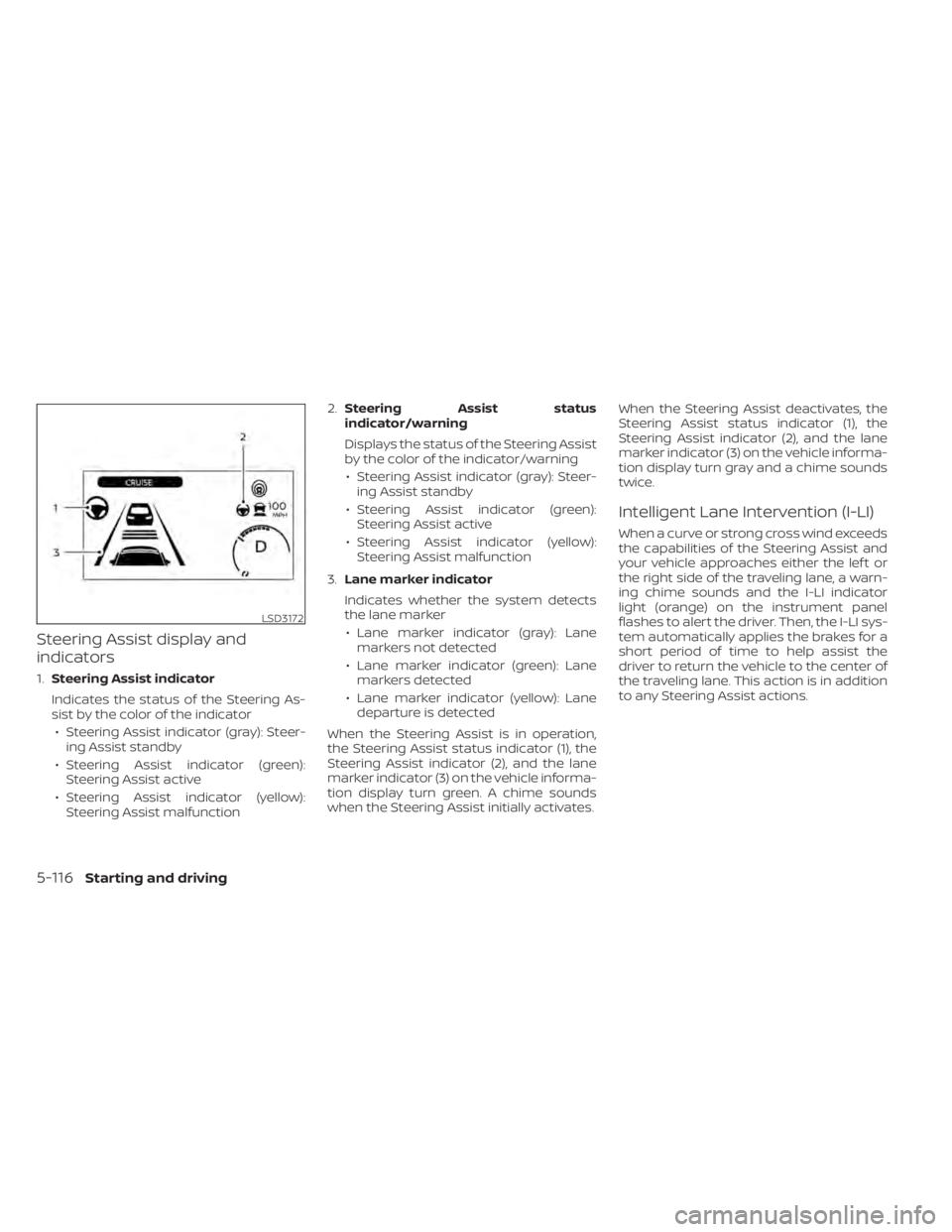
Steering Assist display and
indicators
1.Steering Assist indicator
Indicates the status of the Steering As-
sist by the color of the indicator • Steering Assist indicator (gray): Steer- ing Assist standby
• Steering Assist indicator (green): Steering Assist active
• Steering Assist indicator (yellow): Steering Assist malfunction 2.
Steering Assist status
indicator/warning
Displays the status of the Steering Assist
by the color of the indicator/warning
• Steering Assist indicator (gray): Steer- ing Assist standby
• Steering Assist indicator (green): Steering Assist active
• Steering Assist indicator (yellow): Steering Assist malfunction
3. Lane marker indicator
Indicates whether the system detects
the lane marker • Lane marker indicator (gray): Lane markers not detected
• Lane marker indicator (green): Lane markers detected
• Lane marker indicator (yellow): Lane departure is detected
When the Steering Assist is in operation,
the Steering Assist status indicator (1), the
Steering Assist indicator (2), and the lane
marker indicator (3) on the vehicle informa-
tion display turn green. A chime sounds
when the Steering Assist initially activates. When the Steering Assist deactivates, the
Steering Assist status indicator (1), the
Steering Assist indicator (2), and the lane
marker indicator (3) on the vehicle informa-
tion display turn gray and a chime sounds
twice.
Intelligent Lane Intervention (I-LI)
When a curve or strong cross wind exceeds
the capabilities of the Steering Assist and
your vehicle approaches either the lef t or
the right side of the traveling lane, a warn-
ing chime sounds and the I-LI indicator
light (orange) on the instrument panel
flashes to alert the driver. Then, the I-LI sys-
tem automatically applies the brakes for a
short period of time to help assist the
driver to return the vehicle to the center of
the traveling lane. This action is in addition
to any Steering Assist actions.
LSD3172
5-116Starting and driving
Page 441 of 596
WARNING
Steering Assist is not a system for
hands-free driving. Always keep your
hands on the steering wheel and drive
your vehicle safely. Failure to do so
could cause a collision resulting in seri-
ous personal injury or death.
NOTE:
If the driver lightly touches (instead of
firmly grips) the steering wheel, the
steering torque sensor may not detect
the driver’s hand(s) on the wheel and a
sequence of warnings may occur. When
the driver holds and operates the steer-
ing wheel again, the warnings turn off.
Steering Assist limitations
WARNING
• In the following situations, the cam-
era may not detect lane markers cor-
rectly or may detect lane markers in-
correctly and the Steering Assist may
not operate properly:
–
When driving on roads where thereare multiple parallel lane markers,
lane markers that are faded or not
painted clearly, nonstandard lane
markers, or lane markers covered
with water, dirt, snow, etc.
– When driving on roads with dis-
continued lane markers
– When driving on roads with a wid-
ening or narrowing lane width
– When driving on roads where
there are multiple lanes or unclear
lane markers due to road
construction
– When driving on roads where
there are sharply contrasting ob-
jects, such as shadows, snow, wa-
ter, wheel ruts, seams, or lines re-
maining af ter road repairs (the
Steering Assist could detect these
items as lane markers) –
When driving on roads where the
traveling lane merges or
separates
• Do not use the Steering Assist under
the following conditions because the
system may not properly detect lane
markers. Doing so could cause a loss
of vehicle control and result in an
accident.
– During bad weather (rain, fog,
snow, dust, etc.)
– When rain, snow, sand, etc., is
thrown up by the wheels of other
vehicles
– When dirt, oil, ice, snow, water, or
another object adheres to the
camera unit
– When the lens of the camera unit
is foggy
– When strong light (for example,
sunlight or high beams from on-
coming vehicles) shines on the
camera
– When the headlights are not
bright due to dirt on the lens or
the headlights are off in tunnels or
in darkness
5-118Starting and driving
Page 442 of 596
–When a sudden change in bright-
ness occurs (for example, when
the vehicle enters or exits a tunnel
or is under a bridge)
– When driving on roads where the
traveling lane merges or sepa-
rates or where there are tempo-
rary lane markers because of road
construction
– When there is a lane closure due to
road repairs
– When driving on a bumpy road
surface, such as an uneven dirt
road
– When driving on sharp curves or
winding roads
– When driving on repeated uphill
and downhill roads
• Do not use the Steering Assist under
the following conditions because the
system will not operate properly:
– When driving with a tire that is not
within normal tire conditions (for
example, tire wear, abnormal tire
pressure, installation of a spare
tire, tire chains, nonstandard
wheels) –
When the vehicle is equipped with
non-original brake or suspension
parts
– When an object such as a sticker
or cargo obstructs the camera
– When excessively heavy baggage
is loaded in the rear seat or lug-
gage area of your vehicle
– When the vehicle load capacity is
exceeded
– When towing a trailer or other
vehicle
• Excessive noise will interfere with the
warning chime sound, and the beep
may not be heard.
• For the ProPILOT Assist system to op-
erate properly, the windshield in
front of the camera must be clean.
Replace worn wiper blades. The cor-
rect size wiper blades must be used
to help make sure the windshield is
kept clean. Only use Genuine NISSAN
wiper blades, or equivalent wiper
blades, that are specifically designed
for use on your vehicle model and
model year. It is recommended that
you visit a NISSAN certified LEAF
dealer for the correct parts for your
vehicle.Steering Assist temporary
standby
Automatic standby due to driving opera-
tion:
When the driver activates the turn signal,
the Steering Assist is temporarily placed in
a standby mode. (The Steering Assist re-
starts automatically when the operating
conditions are met again.)
Automatic standby:
In the following cases, a warning message
is displayed along with the chime, and the
Steering Assist is placed in a temporary
standby mode. (The Steering Assist re-
starts automatically when the operating
conditions are met again.)
• When lane markers on both sides are no longer detected
• When a vehicle ahead is no longer de- tected under approximately 37 mph (60
km/h)
Starting and driving5-119
Page 443 of 596
Steering Assist cancel
Under the following conditions, the Steer-
ing Assist cancels, and the Steering Assist
status indicator and the Steering Assist in-
dicator turn off, and the “Not Available Bad
Weather” warning message will appear:
• When unusual lane markers appear inthe traveling lane or when the lane
marker cannot be correctly detected for
some time due to certain conditions (for
example, a snow rut, the reflection of light
on a rainy day, the presence of several
unclear lane markers)
• When the windshield wiper operates in the high (HI) speed operation (the Steer-
ing Assist is disabled when the wiper op-
erates for more than approximately 10
seconds)
Action to take:
Turn the ICC system off using the CANCEL
switch. When the conditions listed above
are no longer present, turn the ICC system
on again.
Steering Assist malfunction
When the system malfunctions, it turns off
automatically. The Steering Assist status
warning illuminates (orange). A chime may
sound depending on the situation.
Action to take:
Stop the vehicle in a safe location, place the
vehicle in the P (Park) position, turn the EV
system off, restart the EV system, resume
driving, and set the Intelligent Cruise Con-
trol system again. If the warning (orange)
continues to illuminate, the Steering Assist
is malfunctioning. Although the vehicle is
still drivable under normal conditions, have
the system checked. It is recommended
that you visit a NISSAN certified LEAF dealer
for this service.
Steering Assist maintenance
The camera sensor is located above the
inside mirror.
To keep the proper operation of the system
and prevent a system malfunction, be sure
to observe the following:
• Always keep the windshield clean.
• Do not attach a sticker (including trans- parent material) or install an accessory
near the camera unit. • Do not place reflective materials, such as
white paper or a mirror, on the instru-
ment panel. The reflection of sunlight
may adversely affect the camera unit’s
capability of detecting the lane markers.
• Do not strike or damage the areas around the camera unit. Do not touch the
camera lens or remove the screw located
on the camera unit.
If the camera unit is damaged due to an
accident, it is recommended that you visit a
NISSAN certified LEAF dealer.
Radio frequency statement
For USA
FCC ID OAYARS4B
This device complies with Part 15 of the FCC
Rules. Operation is subject to the following
two conditions:
1. This device may not cause harmful inter- ference, and
2. This device must accept any interfer- ence received, including interference
that may cause undesired operation.
5-120Starting and driving
Page 448 of 596
To reset at a slower cruising speed, use one
of the following three methods:
1. Lightly tap the brake pedal. When thevehicle attains the desired speed, push
the SET- switch and release it.
2. Push and hold the SET- switch. Release the switch when the vehicle slows down
to the desired speed.
3. Push, then quickly release the SET- switch. Each time you do this, the set
speed will decrease by about 1 mph (1.6
km/h).
To resume the preset speed, push and re-
lease the RES+ switch. The vehicle will re-
sume the last set cruising speed when the
vehicle speed is over 25 mph (40 km/h).WARNING
Failure to follow the warnings and in-
structions for proper use of the AEB
with Pedestrian Detection system
could result in serious injury or death.
• The AEB with Pedestrian Detection
system is a supplemental aid to the
driver. It is not a replacement for the
driver’s attention to traffic condi-
tions or responsibility to drive safely.
It cannot prevent accidents due to
carelessness or dangerous driving
techniques.
• The AEB with Pedestrian Detection
system does not function in all driv-
ing, traffic, weather and road
conditions. The AEB with Pedestrian Detection system
can assist the driver when there is a risk of
a forward collision with the vehicle ahead in
the traveling lane or with a pedestrian
ahead in the traveling lane.
The AEB with Pedestrian Detection system
uses a radar sensor located on the front of
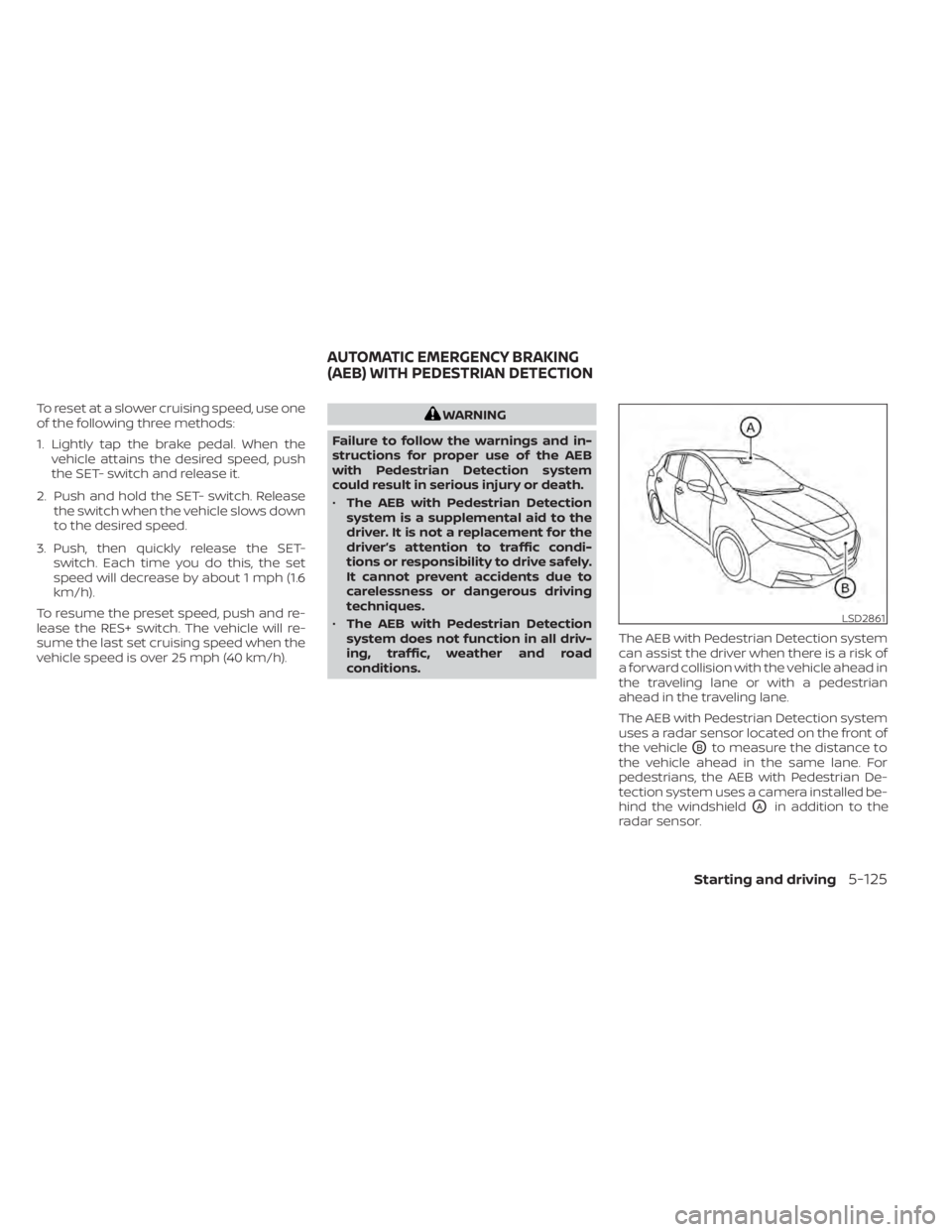
the vehicle
OBto measure the distance to
the vehicle ahead in the same lane. For
pedestrians, the AEB with Pedestrian De-
tection system uses a camera installed be-
hind the windshield
OAin addition to the
radar sensor.
LSD2861
AUTOMATIC EMERGENCY BRAKING
(AEB) WITH PEDESTRIAN DETECTION
Starting and driving5-125
Page 579 of 596
This vehicle is equipped with an Event Data
Recorder (EDR). The main purpose of an
EDR is to record, in certain crash or near
crash-like situations, such as an air bag
deployment or hitting a road obstacle, data
that will assist in understanding how a ve-
hicle’s systems performed. The EDR is de-
signed to record data related to vehicle dy-
namics and safety systems for a short
period of time, typically 30 seconds or less.
The EDR in this vehicle is designed to re-
cord such data as:
• How various systems in your vehicle wereoperating;
• Whether or not the driver and passenger safety belts were buckled/fastened;
• How far (if at all) the driver was depress- ing the accelerator and/or brake pedal;
and,
• How fast the vehicle was traveling.
• Sounds are not recorded.
These data can help provide a better un-
derstanding of the circumstances in which
crashes and injuries occur.NOTE:
• EDR data are recorded by your vehicle only if a nontrivial crash situation oc-
curs; no data are recorded by the EDR
under normal driving conditions and
no personal data (for example, name,
gender, age and crash location) are re-
corded. However, other parties, such as
law enforcement, could combine the
EDR data with the type of personally
identif ying data routinely acquired
during a crash investigation.
• To read data recorded by an EDR, spe- cial equipment is required and access
to the vehicle or the EDR is needed. In
addition to the vehicle manufacturer
and NISSAN certified LEAF dealer, other
parties, such as law enforcement, that
have the special equipment, can read
the information if they have access to
the vehicle or the EDR. EDR data will
only be accessed with the consent of
the vehicle owner or lessee or as other-
wise required or permitted by law.
ADDITIONAL DATA RECORDING (on
vehicles equipped with optional
ProPILOT Assist)
If your vehicle is equipped with the optional
ProPILOT Assist, it will also be equipped
with supplemental data recording function
intended to assist in understanding how
ProPILOT Assist performs in certain non-
trival crash or near-crash scenarios. Spe-
cifically, supplemental recording is de-
signed to capture the following:
• Driver operational status of the accelera-tor, brakes, steering, etc.
• Detection status of a vehicle ahead and lane markers
• Vehicle information including distance to vehicle ahead and lateral position
• Information on the operation of the Pro- PILOT Assist and other crash avoidance
features
• ProPILOT Assist malfunction diagnosis information
• External images from the multi-sensing front camera (Available only when the
SRS air bag or IEB system is activated)
The ProPILOT Assist does not record con-
versations, sounds or images of the inside
of the vehicle.
EVENT DATA RECORDERS (EDR)
9-20Technical and consumer information