reset NISSAN LEAF 2020 Owner´s Manual
[x] Cancel search | Manufacturer: NISSAN, Model Year: 2020, Model line: LEAF, Model: NISSAN LEAF 2020Pages: 596, PDF Size: 4.33 MB
Page 15 of 596
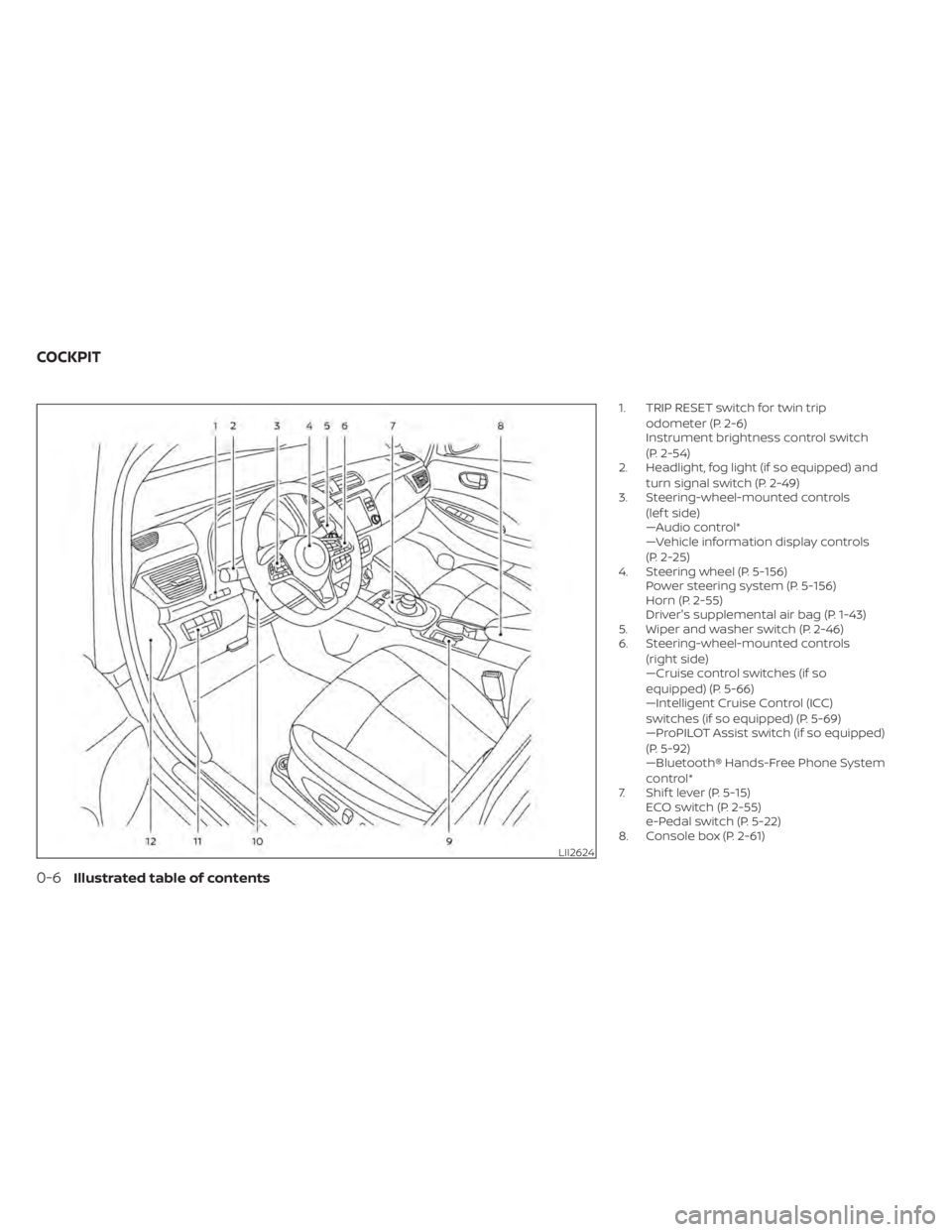
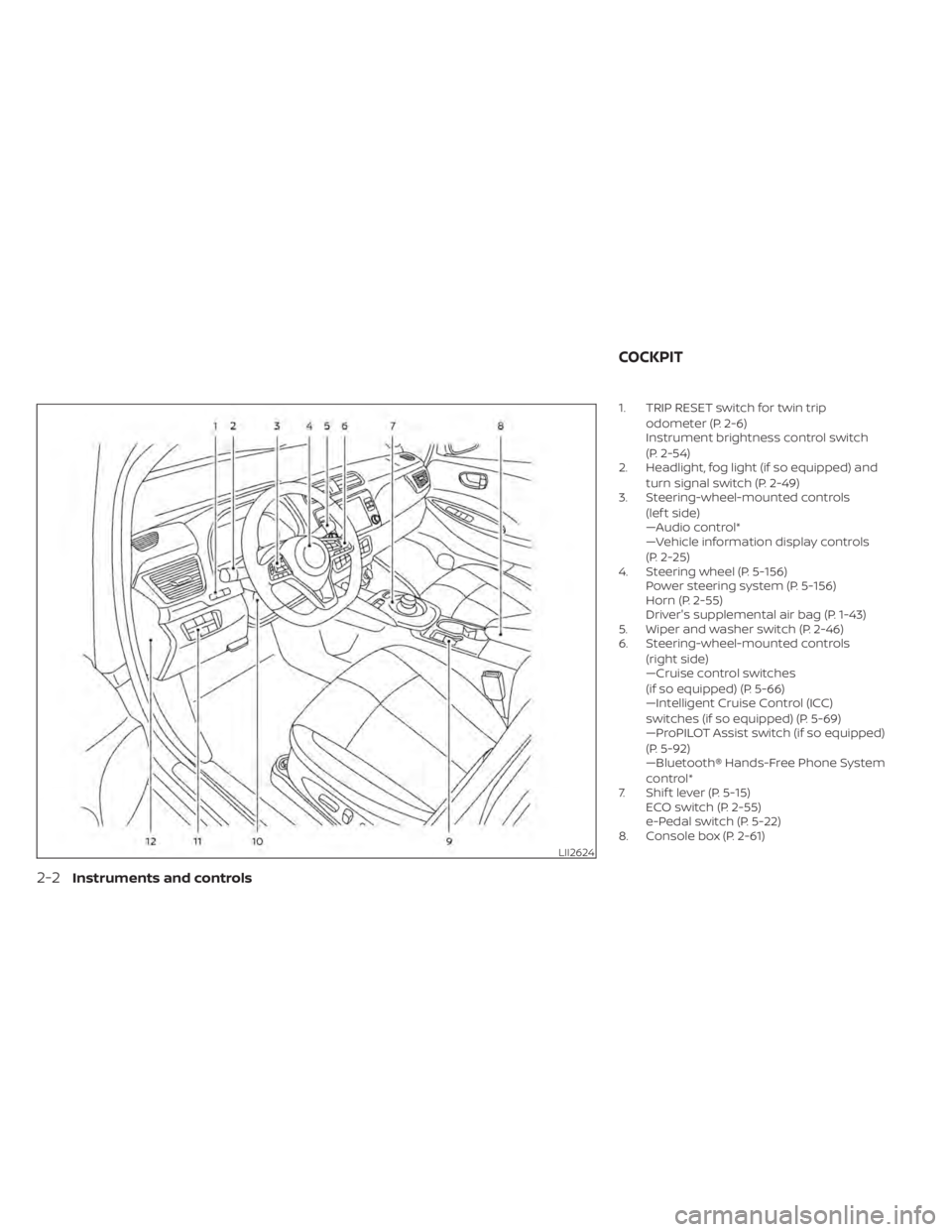
1. TRIP RESET switch for twin tripodometer (P. 2-6)
Instrument brightness control switch
(P. 2-54)
2. Headlight, fog light (if so equipped) and
turn signal switch (P. 2-49)
3. Steering-wheel-mounted controls
(lef t side)
—Audio control*
—Vehicle information display controls
(P. 2-25)
4. Steering wheel (P. 5-156) Power steering system (P. 5-156)
Horn (P. 2-55)
Driver's supplemental air bag (P. 1-43)
5. Wiper and washer switch (P. 2-46)
6. Steering-wheel-mounted controls
(right side)
—Cruise control switches (if so
equipped) (P. 5-66)
—Intelligent Cruise Control (ICC)
switches (if so equipped) (P. 5-69)
—ProPILOT Assist switch (if so equipped)
(P. 5-92)
—Bluetooth® Hands-Free Phone System
control*
7. Shif t lever (P. 5-15) ECO switch (P. 2-55)
e-Pedal switch (P. 5-22)
8. Console box (P. 2-61)
LII2624
COCKPIT
0-6Illustrated table of contents
Page 92 of 596
NOTE:
• Depending on the charging station, thelock mechanism established by local
standards may not be compatible with
your vehicle. It may not be possible for
the charge connector to lock to your
vehicle.
• When the power source is cut off while charging in AUTO mode, the connector
will be continuously locked for 5 min-
utes, then it will be released.
• When timer charging is set with AUTO mode, the connector will not lock until
charging is started.
• When the following system(s) are oper- ated individually or the 12-volt battery
is being charged, the charging connec-
tor lock will not lock:– Climate Ctrl. Timer
– Remote climate control (if so equipped)
– Li-ion battery warmer (if so equipped)
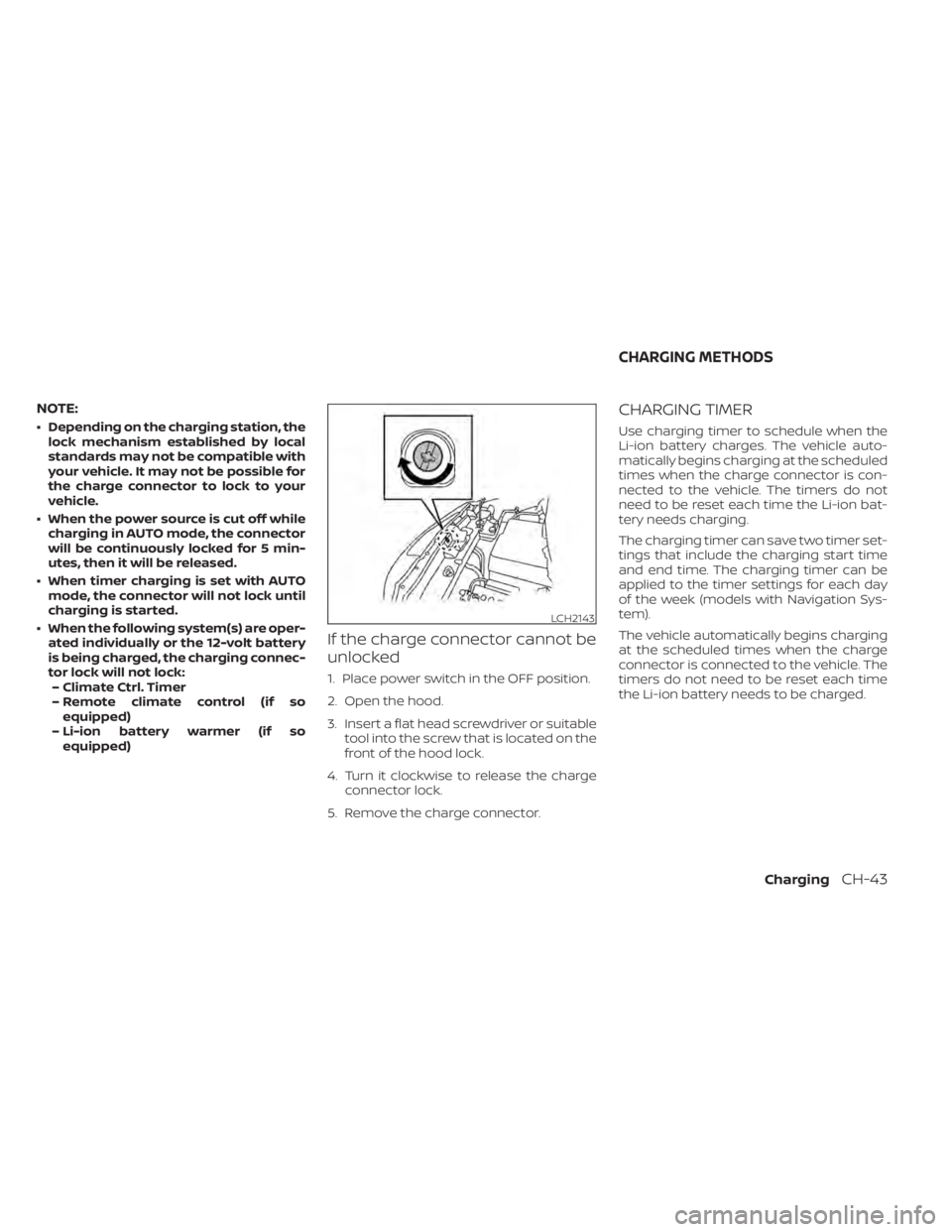
If the charge connector cannot be
unlocked
1. Place power switch in the OFF position.
2. Open the hood.
3. Insert a flat head screwdriver or suitable tool into the screw that is located on the
front of the hood lock.
4. Turn it clockwise to release the charge connector lock.
5. Remove the charge connector.
CHARGING TIMER
Use charging timer to schedule when the
Li-ion battery charges. The vehicle auto-
matically begins charging at the scheduled
times when the charge connector is con-
nected to the vehicle. The timers do not
need to be reset each time the Li-ion bat-
tery needs charging.
The charging timer can save two timer set-
tings that include the charging start time
and end time. The charging timer can be
applied to the timer settings for each day
of the week (models with Navigation Sys-
tem).
The vehicle automatically begins charging
at the scheduled times when the charge
connector is connected to the vehicle. The
timers do not need to be reset each time
the Li-ion battery needs to be charged.
LCH2143
CHARGING METHODS
ChargingCH-43
Page 107 of 596
SymptomPossible cause Possible solution
Normal charge stops in the middle of charging. There is no power coming from the outlet.
There may have been an electrical power failure, or the breaker may have failed. Charg-
ing will resume when the power source is reset.
The charge cable has been disconnected. Check that the charge cable has not been disconnected.
Both the normal charge connector and the
quick charge connector were connected at
the same time. If the normal charge connector and the quick charge connector are connected at the
same time, charging will be stopped.
Charging timer end time has been
reached. When the charging timer is set and the charge end time is reached, charging will be
stopped, even if the Li-ion battery is not fully charged.
The temperature of the Li-ion battery is too
hot or too cold to charge. Confirm the Li-ion battery temperature by checking the Li-ion battery temperature
gauge. If the gauge indicates the Li-ion battery is too hot (red zone) or too cold (blue
zone), charging is not possible. Allow the Li-ion battery to cool or warm up before charg-
ing. For additional information, refer to “Li-ion battery temperature gauge” in the “Instru-
ments and controls” section of this manual.
The electric power supply from the normal
charging station was stopped. Confirm operation procedure of charging station.
Quick charge cannot be performed. Incorrect charge connector connection,
not fully inserted or may not be locked.
Check that the charge connector is connected correctly and that it is locked.
The self-diagnostic function of the quick
charge device returns a negative result. There is a possibility that the vehicle has a malfunction. Stop charging. It is recom-
mended that you visit a NISSAN certified LEAF dealer.
The power switch of the quick charger is
off. Check the power switch of the quick charger.
Quick charge stops in the middle of charging. Charging is stopped by the quick charge
timer.
Charging will stop depending on the timer function setting of the quick charge device. If
you need to charge the Li-ion battery more, start the charging procedure again.
The power supply for the quick charger is
off. Check whether the power supply for the quick charger is off.
CH-58Charging
Page 111 of 596
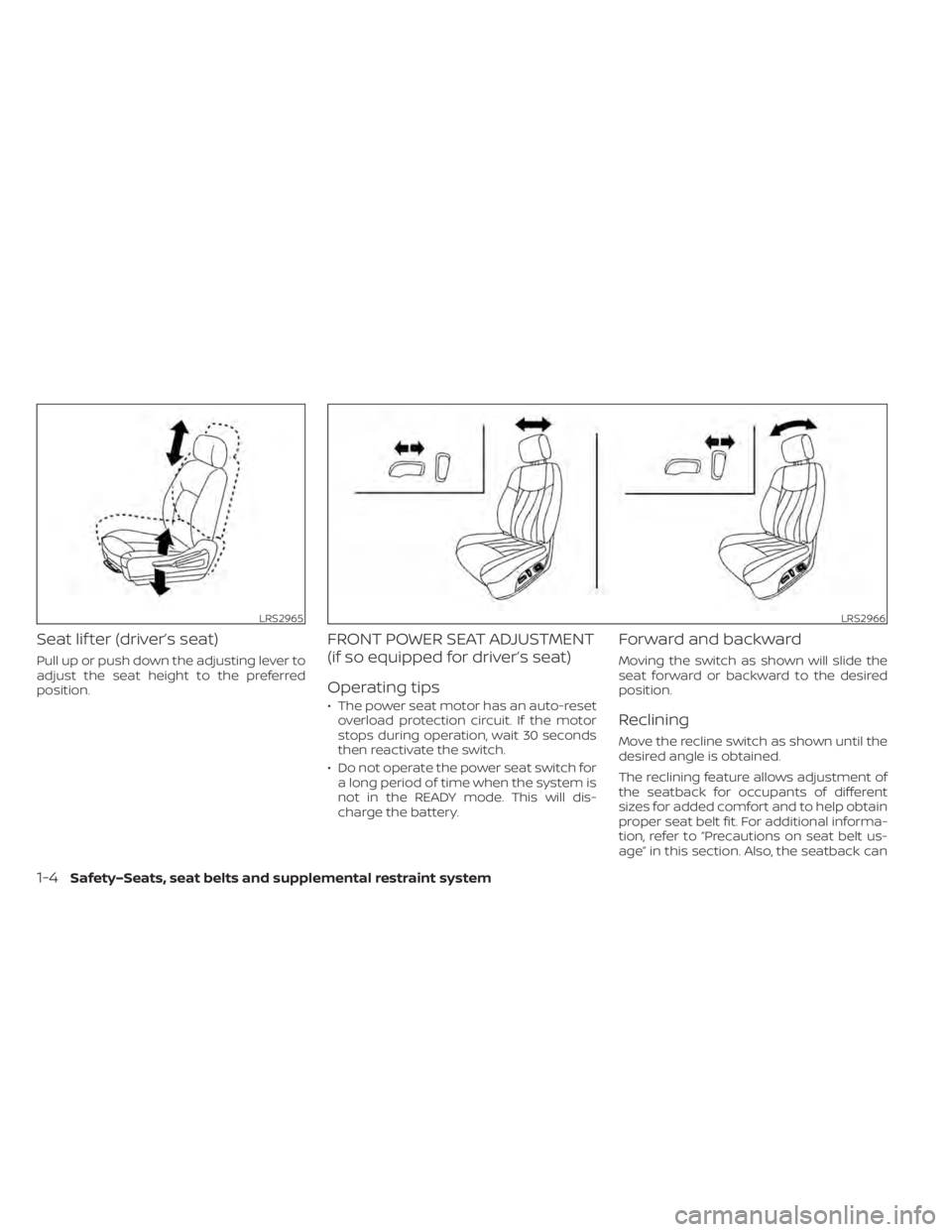
Seat lif ter (driver’s seat)
Pull up or push down the adjusting lever to
adjust the seat height to the preferred
position.
FRONT POWER SEAT ADJUSTMENT
(if so equipped for driver’s seat)
Operating tips
• The power seat motor has an auto-resetoverload protection circuit. If the motor
stops during operation, wait 30 seconds
then reactivate the switch.
• Do not operate the power seat switch for a long period of time when the system is
not in the READY mode. This will dis-
charge the battery.
Forward and backward
Moving the switch as shown will slide the
seat forward or backward to the desired
position.
Reclining
Move the recline switch as shown until the
desired angle is obtained.
The reclining feature allows adjustment of
the seatback for occupants of different
sizes for added comfort and to help obtain
proper seat belt fit. For additional informa-
tion, refer to “Precautions on seat belt us-
age” in this section. Also, the seatback can
LRS2965LRS2966
1-4Safety–Seats, seat belts and supplemental restraint system
Page 175 of 596
1. TRIP RESET switch for twin tripodometer (P. 2-6)
Instrument brightness control switch
(P. 2-54)
2. Headlight, fog light (if so equipped) and
turn signal switch (P. 2-49)
3. Steering-wheel-mounted controls
(lef t side)
—Audio control*
—Vehicle information display controls
(P. 2-25)
4. Steering wheel (P. 5-156) Power steering system (P. 5-156)
Horn (P. 2-55)
Driver's supplemental air bag (P. 1-43)
5. Wiper and washer switch (P. 2-46)
6. Steering-wheel-mounted controls
(right side)
—Cruise control switches
(if so equipped) (P. 5-66)
—Intelligent Cruise Control (ICC)
switches (if so equipped) (P. 5-69)
—ProPILOT Assist switch (if so equipped)
(P. 5-92)
—Bluetooth® Hands-Free Phone System
control*
7. Shif t lever (P. 5-15) ECO switch (P. 2-55)
e-Pedal switch (P. 5-22)
8. Console box (P. 2-61)
LII2624
COCKPIT
2-2Instruments and controls
Page 180 of 596
Changing the display:
Pushing the TRIP RESET switch
O1located
on the lef t side of the instrument panel
changes the display as follows:
Odometer →TRIP A →TRIP B →Odometer
For additional information about the ve-
hicle information display, refer to “Vehicle
information display” in this section.
Resetting the trip odometer:
Pushing the TRIP RESET switch
O1for ap-
proximately 1 second resets the currently
displayed trip odometer to zero.
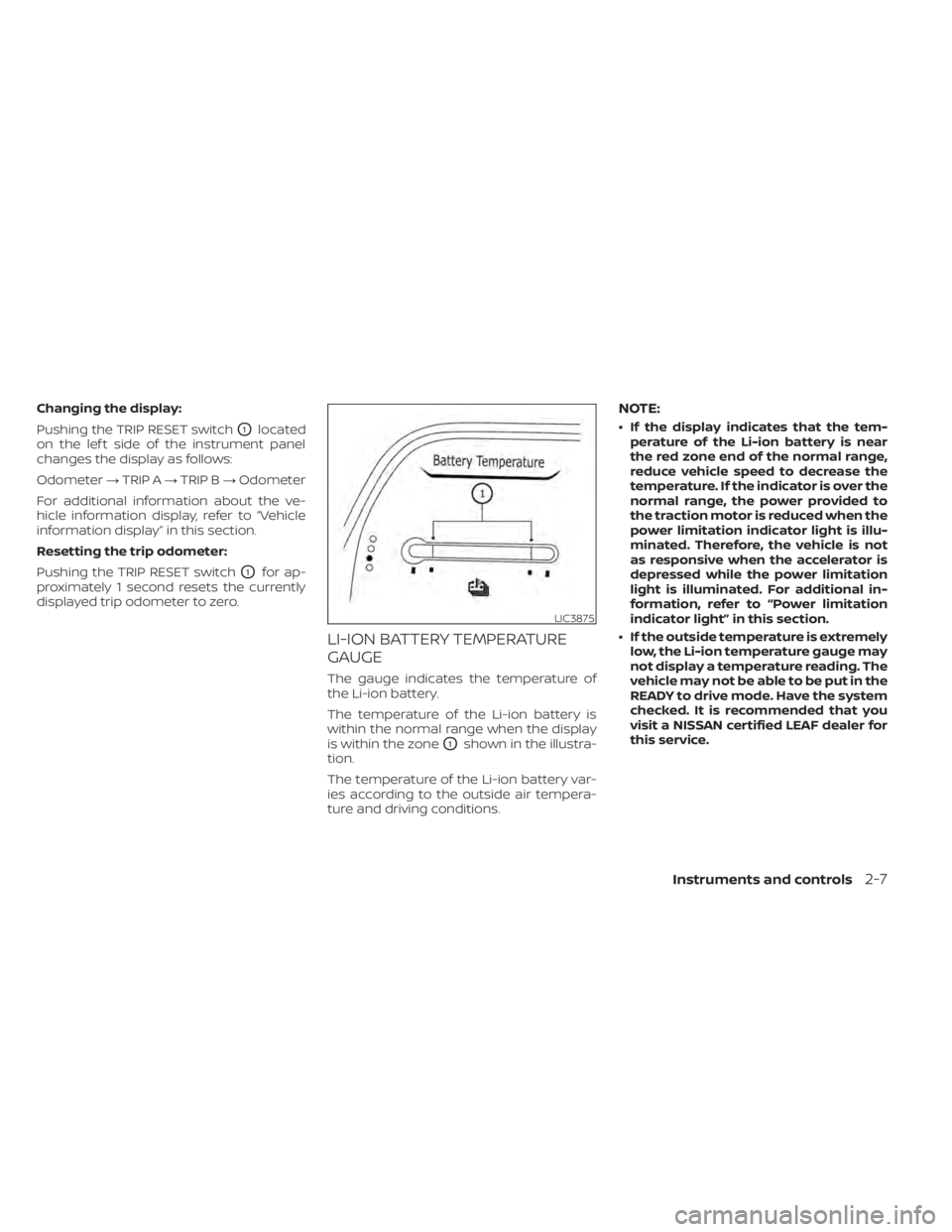
LI-ION BATTERY TEMPERATURE
GAUGE
The gauge indicates the temperature of
the Li-ion battery.
The temperature of the Li-ion battery is
within the normal range when the display
is within the zone
O1shown in the illustra-
tion.
The temperature of the Li-ion battery var-
ies according to the outside air tempera-
ture and driving conditions.
NOTE:
• If the display indicates that the tem- perature of the Li-ion battery is near
the red zone end of the normal range,
reduce vehicle speed to decrease the
temperature. If the indicator is over the
normal range, the power provided to
the traction motor is reduced when the
power limitation indicator light is illu-
minated. Therefore, the vehicle is not
as responsive when the accelerator is
depressed while the power limitation
light is illuminated. For additional in-
formation, refer to “Power limitation
indicator light” in this section.
• If the outside temperature is extremely low, the Li-ion temperature gauge may
not display a temperature reading. The
vehicle may not be able to be put in the
READY to drive mode. Have the system
checked. It is recommended that you
visit a NISSAN certified LEAF dealer for
this service.
LIC3875
Instruments and controls2-7
Page 193 of 596
WARNING
• Radio waves could adversely affect
electric medical equipment. Those
who use a pacemaker should contact
the electric medical equipment
manufacturer for the possible influ-
ences before use.
• If the light does not illuminate when
the power switch is placed in the ON
position, have the vehicle checked. It
is recommended that you visit a
NISSAN certified LEAF dealer as soon
as possible for this service.
• If the light illuminates while driving,
avoid sudden steering maneuvers or
abrupt braking, reduce vehicle
speed, pull off the road to a safe loca-
tion and stop the vehicle as soon as
possible. Driving with under-inflated
tires may permanently damage the
tires and increase the likelihood of
tire failure. Serious vehicle damage
could occur and may lead to an acci-
dent and could result in serious per-
sonal injury or death. Check the tire
pressure for all four tires. Adjust the
tire pressure to the recommended
COLD tire pressure shown on the Tire and Loading Information label to
turn the low tire pressure warning
light OFF. If the light still illuminates
while driving af ter adjusting the tire
pressure, a tire may be flat or the
TPMS may be malfunctioning. If you
have a flat tire, replace it with a re-
placement tire as soon as possible. If
no tire is flat and all tires are properly
inflated, have the vehicle checked. It
is recommended that you visit a
NISSAN certified LEAF dealer for this
service.
• When replacing a wheel without the
TPMS such as a spare tire, the TPMS
will not function and the low tire
pressure warning light will flash for
approximately 1 minute. The light will
remain on af ter 1 minute. Have the
system checked. It is recommended
that you visit a NISSAN certified LEAF
dealer as soon as possible for tire re-
placement and/or system resetting.
• Replacing tires with those not origi-
nally specified by NISSAN could af-
fect the proper operation of the
TPMS.CAUTION
• The TPMS is not a substitute for the
regular tire pressure check. Be sure
to check the tire pressure regularly.
• If the vehicle is being driven at
speeds of less than 16 mph (25 km/h),
the TPMS may not operate correctly.
• Be sure to install the specified size of
tires to the four wheels correctly.
Master warning light
(red/yellow)
There are two types of master warning
lights: yellow and red. These lights illumi-
nate if any warning lights or indicator lights
are illuminated or if various vehicle infor-
mation warnings appear in the vehicle in-
formation display.
Yellow master warning light
This light illuminates when a yellow warn-
ing light within the vehicle information dis-
play is illuminated or when a message is
displayed on the vehicle information dis-
play.
2-20Instruments and controls
Page 199 of 596
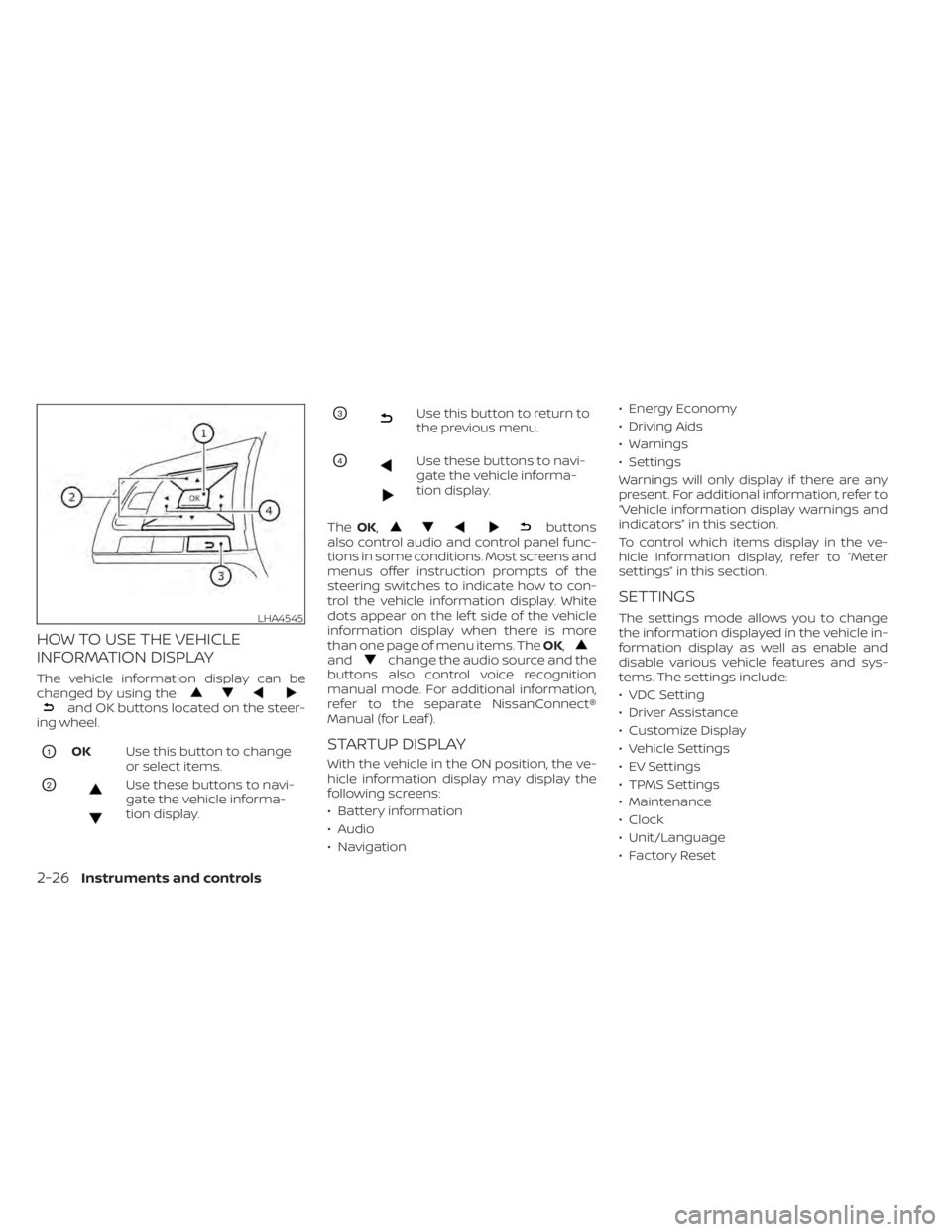
HOW TO USE THE VEHICLE
INFORMATION DISPLAY
The vehicle information display can be
changed by using the
and OK buttons located on the steer-
ing wheel.
O1OK Use this button to change
or select items.
O2Use these buttons to navi-
gate the vehicle informa-
tion display.
O3Use this button to return to
the previous menu.
O4Use these buttons to navi-
gate the vehicle informa-
tion display.
The OK,
buttons
also control audio and control panel func-
tions in some conditions. Most screens and
menus offer instruction prompts of the
steering switches to indicate how to con-
trol the vehicle information display. White
dots appear on the lef t side of the vehicle
information display when there is more
than one page of menu items. The OK,
andchange the audio source and the
buttons also control voice recognition
manual mode. For additional information,
refer to the separate NissanConnect®
Manual (for Leaf ).
STARTUP DISPLAY
With the vehicle in the ON position, the ve-
hicle information display may display the
following screens:
• Battery information
• Audio
• Navigation • Energy Economy
• Driving Aids
• Warnings
• Settings
Warnings will only display if there are any
present. For additional information, refer to
“Vehicle information display warnings and
indicators” in this section.
To control which items display in the ve-
hicle information display, refer to “Meter
settings” in this section.
SETTINGS
The settings mode allows you to change
the information displayed in the vehicle in-
formation display as well as enable and
disable various vehicle features and sys-
tems. The settings include:
• VDC Setting
• Driver Assistance
• Customize Display
• Vehicle Settings
• EV Settings
• TPMS Settings
• Maintenance
• Clock
• Unit/Language
• Factory ResetLHA4545
2-26Instruments and controls
Page 201 of 596
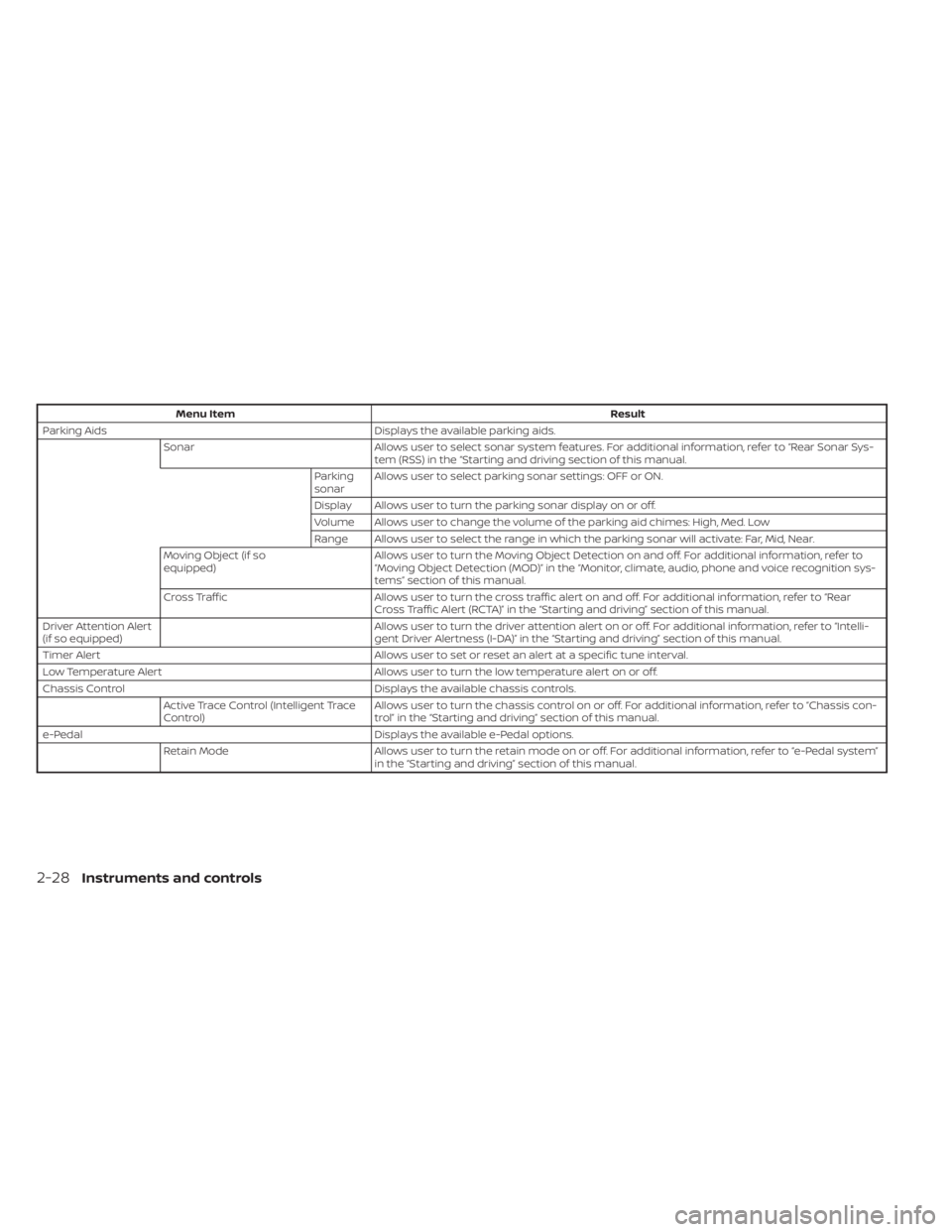
Menu ItemResult
Parking Aids Displays the available parking aids.
Sonar Allows user to select sonar system features. For additional information, refer to “Rear Sonar Sys-
tem (RSS) in the “Starting and driving section of this manual.
Parking
sonar Allows user to select parking sonar settings: OFF or ON.
Display Allows user to turn the parking sonar display on or off.
Volume Allows user to change the volume of the parking aid chimes: High, Med. Low
Range Allows user to select the range in which the parking sonar will activate: Far, Mid, Near.
Moving Object (if so
equipped) Allows user to turn the Moving Object Detection on and off. For additional information, refer to
“Moving Object Detection (MOD)” in the “Monitor, climate, audio, phone and voice recognition sys-
tems” section of this manual.
Cross Traffic Allows user to turn the cross traffic alert on and off. For additional information, refer to “Rear
Cross Traffic Alert (RCTA)” in the “Starting and driving” section of this manual.
Driver Attention Alert
(if so equipped) Allows user to turn the driver attention alert on or off. For additional information, refer to “Intelli-
gent Driver Alertness (I-DA)” in the “Starting and driving” section of this manual.
Timer Alert Allows user to set or reset an alert at a specific tune interval.
Low Temperature Alert Allows user to turn the low temperature alert on or off.
Chassis Control Displays the available chassis controls.
Active Trace Control (Intelligent Trace
Control) Allows user to turn the chassis control on or off. For additional information, refer to “Chassis con-
trol” in the “Starting and driving” section of this manual.
e-Pedal Displays the available e-Pedal options.
Retain Mode Allows user to turn the retain mode on or off. For additional information, refer to “e-Pedal system”
in the “Starting and driving” section of this manual.
2-28Instruments and controls
Page 202 of 596
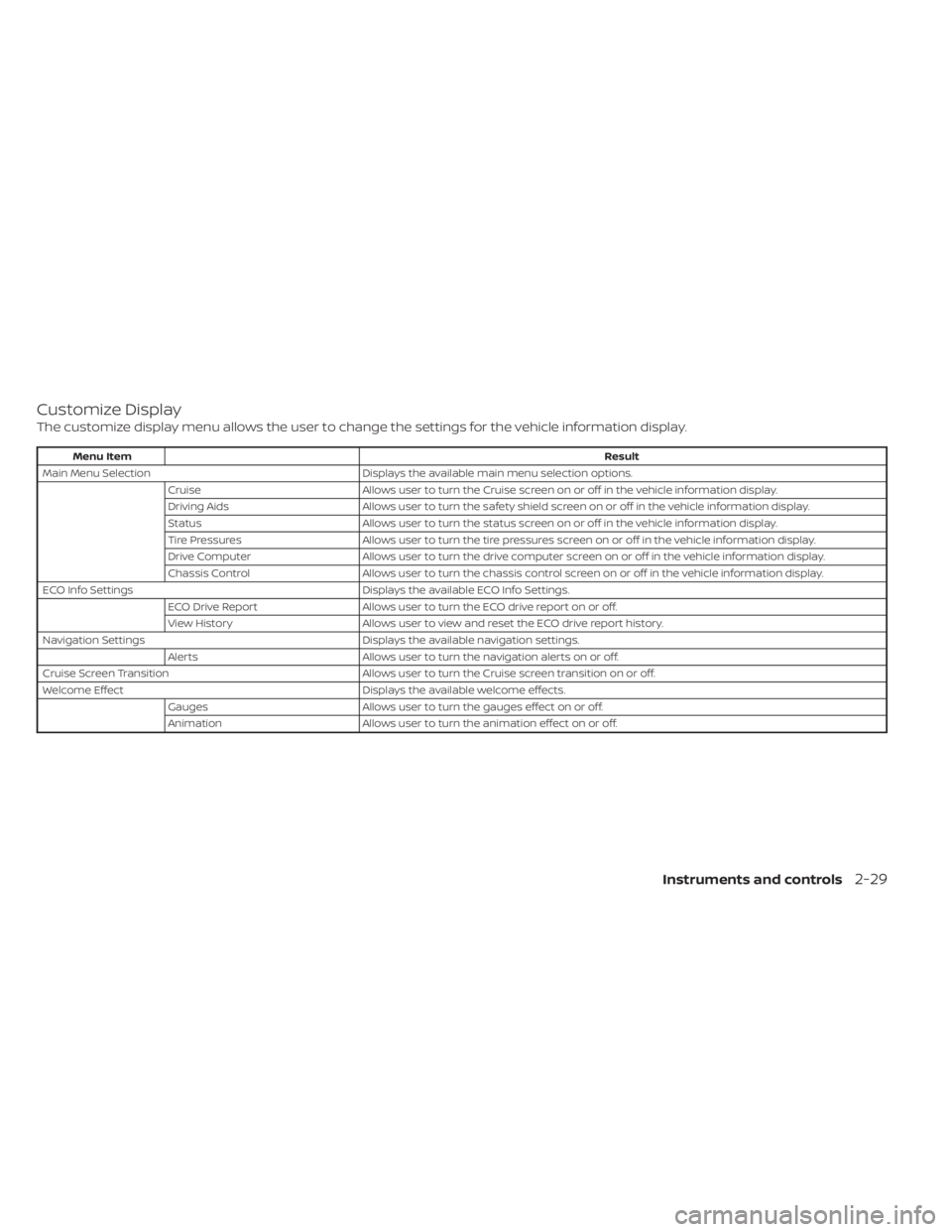
Customize Display
The customize display menu allows the user to change the settings for the vehicle information display.
Menu ItemResult
Main Menu Selection Displays the available main menu selection options.
Cruise Allows user to turn the Cruise screen on or off in the vehicle information display.
Driving Aids Allows user to turn the safety shield screen on or off in the vehicle information display.
Status Allows user to turn the status screen on or off in the vehicle information display.
Tire Pressures Allows user to turn the tire pressures screen on or off in the vehicle information display.
Drive Computer Allows user to turn the drive computer screen on or off in the vehicle information display.
Chassis Control Allows user to turn the chassis control screen on or off in the vehicle information display.
ECO Info Settings Displays the available ECO Info Settings.
ECO Drive Report Allows user to turn the ECO drive report on or off.
View History Allows user to view and reset the ECO drive report history.
Navigation Settings Displays the available navigation settings.
Alerts Allows user to turn the navigation alerts on or off.
Cruise Screen Transition Allows user to turn the Cruise screen transition on or off.
Welcome Effect Displays the available welcome effects.
Gauges Allows user to turn the gauges effect on or off.
Animation Allows user to turn the animation effect on or off.
Instruments and controls2-29