AUX NISSAN MAXIMA 2010 Owner´s Manual
[x] Cancel search | Manufacturer: NISSAN, Model Year: 2010, Model line: MAXIMA, Model: NISSAN MAXIMA 2010Pages: 457, PDF Size: 4.66 MB
Page 244 of 457

DIGITAL VERSATILE DISC (DVD)
PLAYER OPERATION (models with
Navigation System)
Precautions
Start the engine when using the DVD entertain-
ment system.
Movies will not be shown on the front display
while the vehicle is in any drive position to reduce
driver distraction. Audio is available when a movie
is played. To view movies on the front display,
stop the vehicle in a safe location, move the shift
selector to the P (Park) position and apply the
parking brake.
WARNING
cThe driver must not attempt to operate
the DVD system or wear the head-
phones while the vehicle is in motion so
that full attention may be given to ve-
hicle operation.
cDo not attempt to modify the system to
display a movie on the front screen
while the vehicle is being driven. Doing
so may distract the driver and may
cause a collision and serious personal
injury or death.
CAUTION
cOnly operate the DVD while the vehicle
engine is running. Operating the DVD
for extended periods of time with the
engine OFF can discharge the vehicle
battery.
cDo not allow the system to get wet.
Excessive moisture such as spilled liq-
uids may cause the system to
malfunction.
cWhile playing VIDEO-CD media, this
DVD player does not guarantee com-
plete functionality of all VIDEO-CD
formats.
Playing a DVD
DISC-AUX button
Park the vehicle in a safe location for the front
seat occupants to operate the DVD drive while
watching the images.
Press the DISC-AUX button until the DVD mode
is active on the display.
When a DVD is loaded, it will be replayed auto-
matically.
LHA1376
4-84Monitor, climate, audio, phone and voice recognition systems
Page 245 of 457

The operation screen will be turned on when the
DISC-AUX button is pressed while a DVD is
playing. The operation screen will turn off auto-
matically after a period of time. To turn it on again,
press the DISC-AUX button.
DVD operation keys
When the DVD is playing without the operation
screen being shown, you may use the touch-
screen to select items from the displayed video.
You may also use the NISSAN controller to select
an item from the displayed video. When the op-
eration screen is being shown, use the NISSAN
controller or touchscreen to select an item from
the displayed menus.
PAUSE:
Select the
key to pause the DVD. To re-
sume playing the DVD, use the
key.
PLAY:
Select the
key to start playing the DVD or
resume playing the DVD after it has been paused.
STOP:
Select the
key to stop playing the DVD.
NEXT/PREVIOUS
CHAPTER:
Select the
key to skip the chapter(s) of
the disc forward. Select the
key to skip
the chapter(s) of the disc backward. The chap-
ters will advance forward or backward the num-
ber of times the respective key is touched or
selected with the NISSAN controller.
CM SKIP:
This function is only for DVD-VIDEO and DVD-
VR. Select the
orkey to fast forward
or rewind a set interval of time based on the CM
settings. For more information, see “DVD set-
tings” in this section.
Next/Prev:
This function is only for DVD-AUDIO. Select the
“+” or “-” key to advance or rewind the still image.
The still image will advance or rewind the number
of times the key is touched or selected with the
NISSAN controller.
Top Menu:
When the “Top Menu” key is selected while the
DVD is playing, the top menu specific to each
disc will be displayed. For details, see the instruc-
tions attached to the disc.
DVD settings
Select the “Settings” key to adjust the following
settings:
cKey(DVD-VIDEO, DVD-AUDIO)
Displays the operation keys for the specific
DVD menu.
– Select the directional keys to move the
cursor on the DVD menu.
– Select the “Enter” key to fix the selected
menu item.
– Select the “Move” key to move the loca-
tion of the operation keys on the screen.
– Select the “Back” key to return to the
previous menu screen.
– Select the “Hide” key to hide the opera-
tion keys.
cTitle Menu(DVD-VIDEO)
Some menus specific to each disc will be
shown. For details, see the instructions at-
tached to the disc.
cTitle Search(DVD-VIDEO, DVD-VR)
The scene with the specified title will be
displayed the number of times the “+” or “-”
side is selected.
Monitor, climate, audio, phone and voice recognition systems4-85
Page 247 of 457

USB INTERFACE (models without
Navigation System) (if so equipped)
Connecting a device to the USB input
jack
The USB input jack is located in the center con-
sole. Open the protective cover
s1on the USB
jack, then insert the USB device into the jack.
When a compatible storage device is plugged
into the jack, compatible audio files on the stor-
age device can be played through the vehicle’s
audio system.
Audio file operation
AUX button:
Place the ignition switch in the ON or ACC
position and press the AUX button to switch to
the USB input mode. If another audio source is
playing and a USB memory device is inserted,
press the AUX button repeatedly until the center
display changes to the USB memory mode.
If the system has been turned off while the USB
memory was playing, push the ON-OFF/VOL
control knob to restart the USB memory.
SEEK/CAT and TRACK
(Reverse or Fast Forward)
buttons:
Press and hold the SEEK/CAT
(rewind)
button or TRACK
(fast forward) button for
1.5 seconds while an audio file on the USB
device is playing to reverse or fast forward the
track being played. The track plays at an in-
creased speed while reversing or fast forwarding.
When the button is released, the audio file re-
turns to normal play speed.
SEEK/CAT and TRACK
buttons:
Press the SEEK/CAT button
while an au-
dio file on the USB device is playing to return to
the beginning of the current track. Press the
SEEK/CAT button
several times to skip
backward several tracks.
Press the TRACK button
while an audio
file on the USB device is playing to advance one
track. Press the TRACK button
several
times to skip forward several tracks. If the last
track in a folder on the USB device is skipped, the
first track of the next folder is played.
Folder selection:
To change to another folder in the USB memory,
turn the TUNE/FOLDER knob or choose a folder
displayed on the screen using the NISSAN con-
troller.
RPT/RDM button:
When the RPT/RDM button is pressed while the
USB memory is playing, the play pattern can be
changed as follows:
Repeat All!1 Folder Repeat!1 Track Repeat
!All Random!1 Folder Random!Repeat All
WHA1366
Monitor, climate, audio, phone and voice recognition systems4-87
Page 248 of 457
USB INTERFACE (models with
Navigation System)
Connecting a device to the USB input
jack
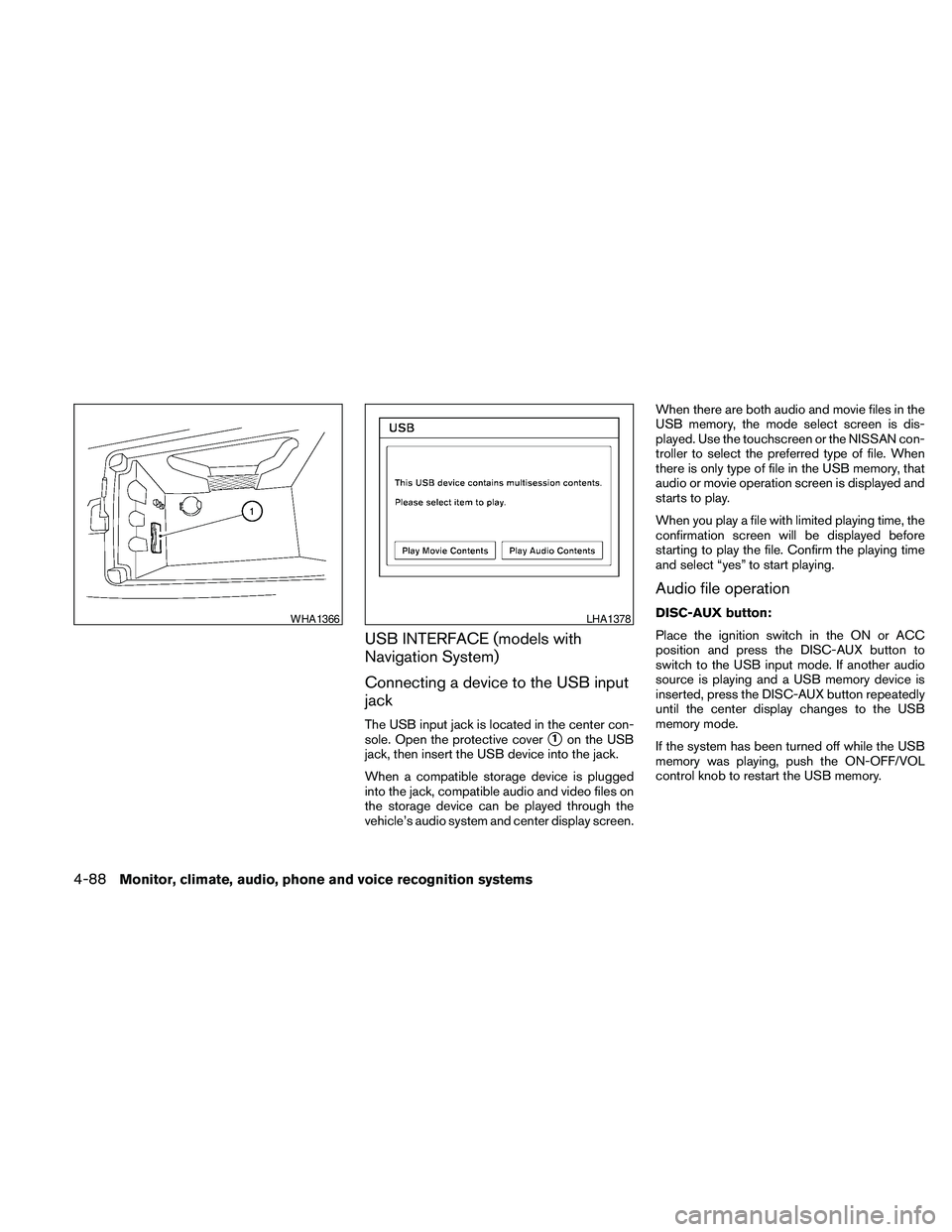
The USB input jack is located in the center con-
sole. Open the protective cover
s1on the USB
jack, then insert the USB device into the jack.
When a compatible storage device is plugged
into the jack, compatible audio and video files on
the storage device can be played through the
vehicle’s audio system and center display screen.When there are both audio and movie files in the
USB memory, the mode select screen is dis-
played. Use the touchscreen or the NISSAN con-
troller to select the preferred type of file. When
there is only type of file in the USB memory, that
audio or movie operation screen is displayed and
starts to play.
When you play a file with limited playing time, the
confirmation screen will be displayed before
starting to play the file. Confirm the playing time
and select “yes” to start playing.
Audio file operation
DISC-AUX button:
Place the ignition switch in the ON or ACC
position and press the DISC-AUX button to
switch to the USB input mode. If another audio
source is playing and a USB memory device is
inserted, press the DISC-AUX button repeatedly
until the center display changes to the USB
memory mode.
If the system has been turned off while the USB
memory was playing, push the ON-OFF/VOL
control knob to restart the USB memory.WHA1366LHA1378
4-88Monitor, climate, audio, phone and voice recognition systems
Page 250 of 457
cPlay Mode
Choose the preferred play mode using the
NISSAN controller or the touchscreen.
Movie file operation
Park the vehicle in a safe location for the
front seat occupants to operate the USB
memory while watching the images.
DISC-AUX button:
When the DISC-AUX button is pushed with the
system off and the USB memory inserted, the
system will turn on. If another audio source is
playing and the USB memory is inserted, press
the DISC-AUX button repeatedly until the center
display changes to the USB memory mode.Operation keys:
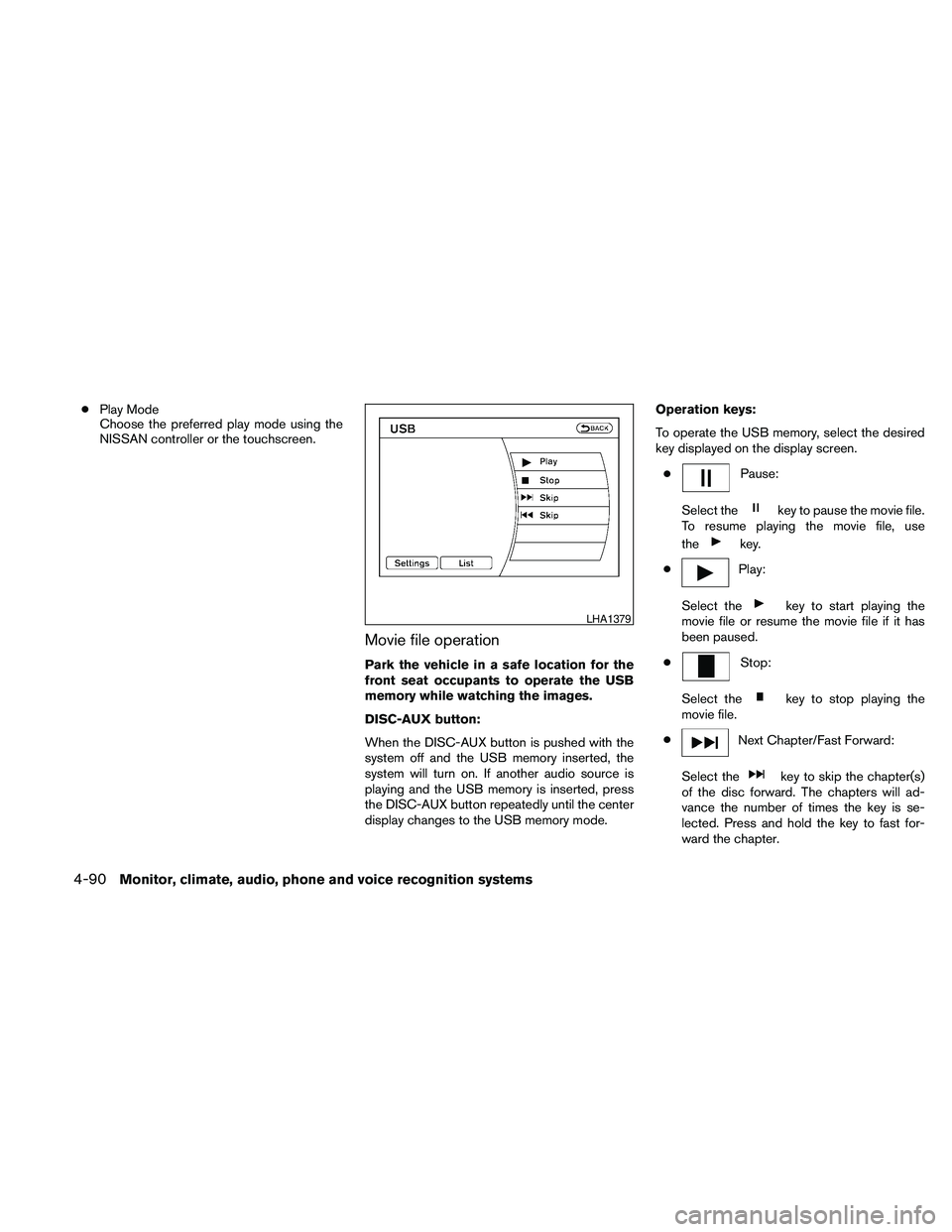
To operate the USB memory, select the desired
key displayed on the display screen.
c
Pause:
Select the
key to pause the movie file.
To resume playing the movie file, use
the
key.
c
Play:
Select the
key to start playing the
movie file or resume the movie file if it has
been paused.
c
Stop:
Select the
key to stop playing the
movie file.
c
Next Chapter/Fast Forward:
Select the
key to skip the chapter(s)
of the disc forward. The chapters will ad-
vance the number of times the key is se-
lected. Press and hold the key to fast for-
ward the chapter.
LHA1379
4-90Monitor, climate, audio, phone and voice recognition systems
Page 252 of 457
iPodT* PLAYER OPERATION
WITHOUT NAVIGATION SYSTEM (if
so equipped)
Connecting iPodT
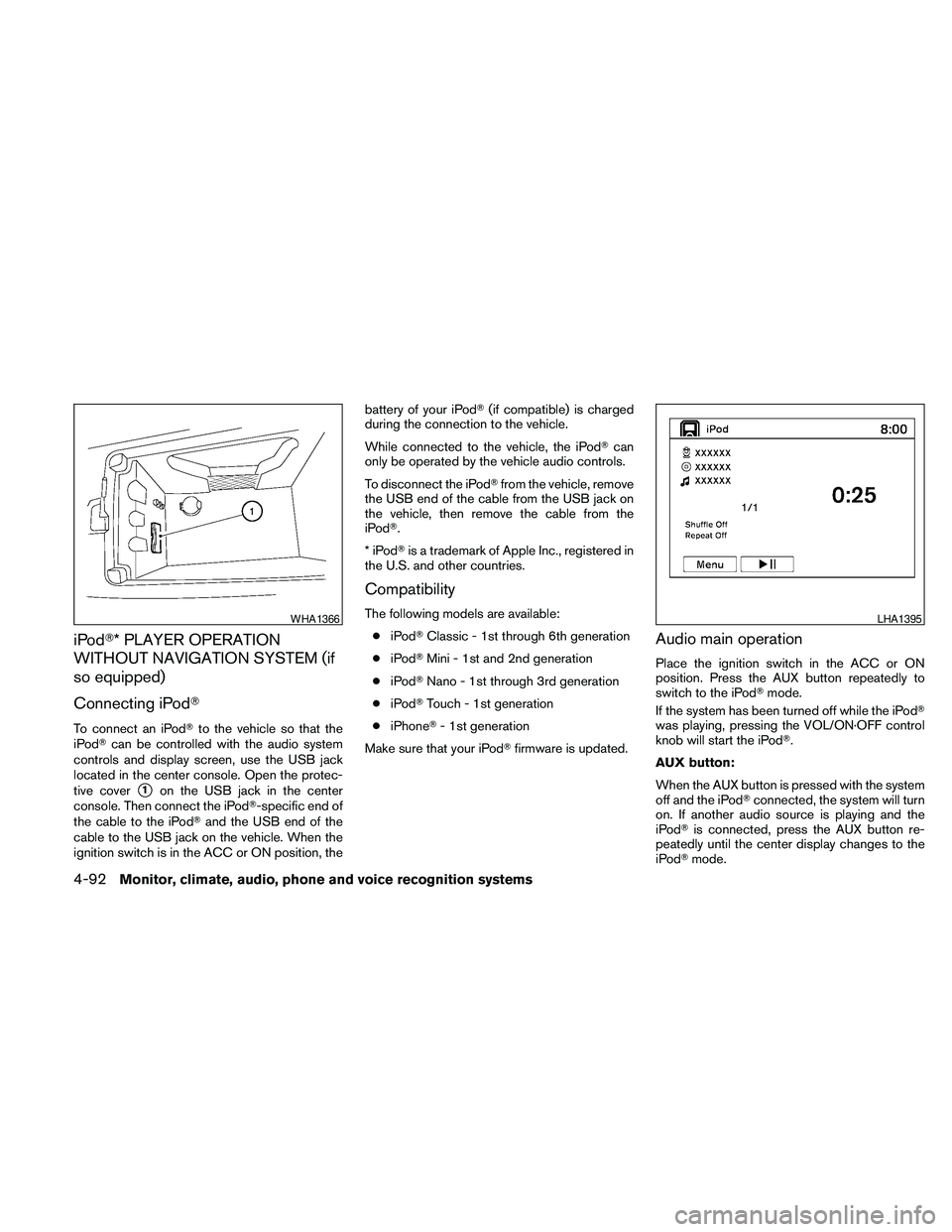
To connect an iPodTto the vehicle so that the
iPodTcan be controlled with the audio system
controls and display screen, use the USB jack
located in the center console. Open the protec-
tive cover
s1on the USB jack in the center
console. Then connect the iPodT-specific end of
the cable to the iPodTand the USB end of the
cable to the USB jack on the vehicle. When the
ignition switch is in the ACC or ON position, thebattery of your iPodT(if compatible) is charged
during the connection to the vehicle.
While connected to the vehicle, the iPodTcan
only be operated by the vehicle audio controls.
To disconnect the iPodTfrom the vehicle, remove
the USB end of the cable from the USB jack on
the vehicle, then remove the cable from the
iPodT.
*iPodTis a trademark of Apple Inc., registered in
the U.S. and other countries.
Compatibility
The following models are available:
ciPodTClassic - 1st through 6th generation
ciPodTMini - 1st and 2nd generation
ciPodTNano - 1st through 3rd generation
ciPodTTouch - 1st generation
ciPhoneT- 1st generation
Make sure that your iPodTfirmware is updated.
Audio main operation
Place the ignition switch in the ACC or ON
position. Press the AUX button repeatedly to
switch to the iPodTmode.
If the system has been turned off while the iPodT
was playing, pressing the VOL/ON·OFF control
knob will start the iPodT.
AUX button:
When the AUX button is pressed with the system
off and the iPodTconnected, the system will turn
on. If another audio source is playing and the
iPodTis connected, press the AUX button re-
peatedly until the center display changes to the
iPodTmode.
WHA1366LHA1395
4-92Monitor, climate, audio, phone and voice recognition systems
Page 254 of 457
battery of your iPodT(if compatible) is charged
during the connection to the vehicle.
While connected to the vehicle, the iPodTcan
only be operated by the vehicle audio controls.
To disconnect the iPodTfrom the vehicle, remove
the USB end of the cable from the USB jack on
the vehicle, then remove the cable from the
iPodT.
*iPodTis a trademark of Apple Inc., registered in
the U.S. and other countries.
Compatibility
The following models are available:
ciPodTClassic - 1st through 6th generation
ciPodTMini - 1st and 2nd generation
ciPodTNano - 1st through 3rd generation
ciPodTTouch - 1st generation
ciPhoneT- 1st generation
Make sure that your iPodTfirmware is updated.
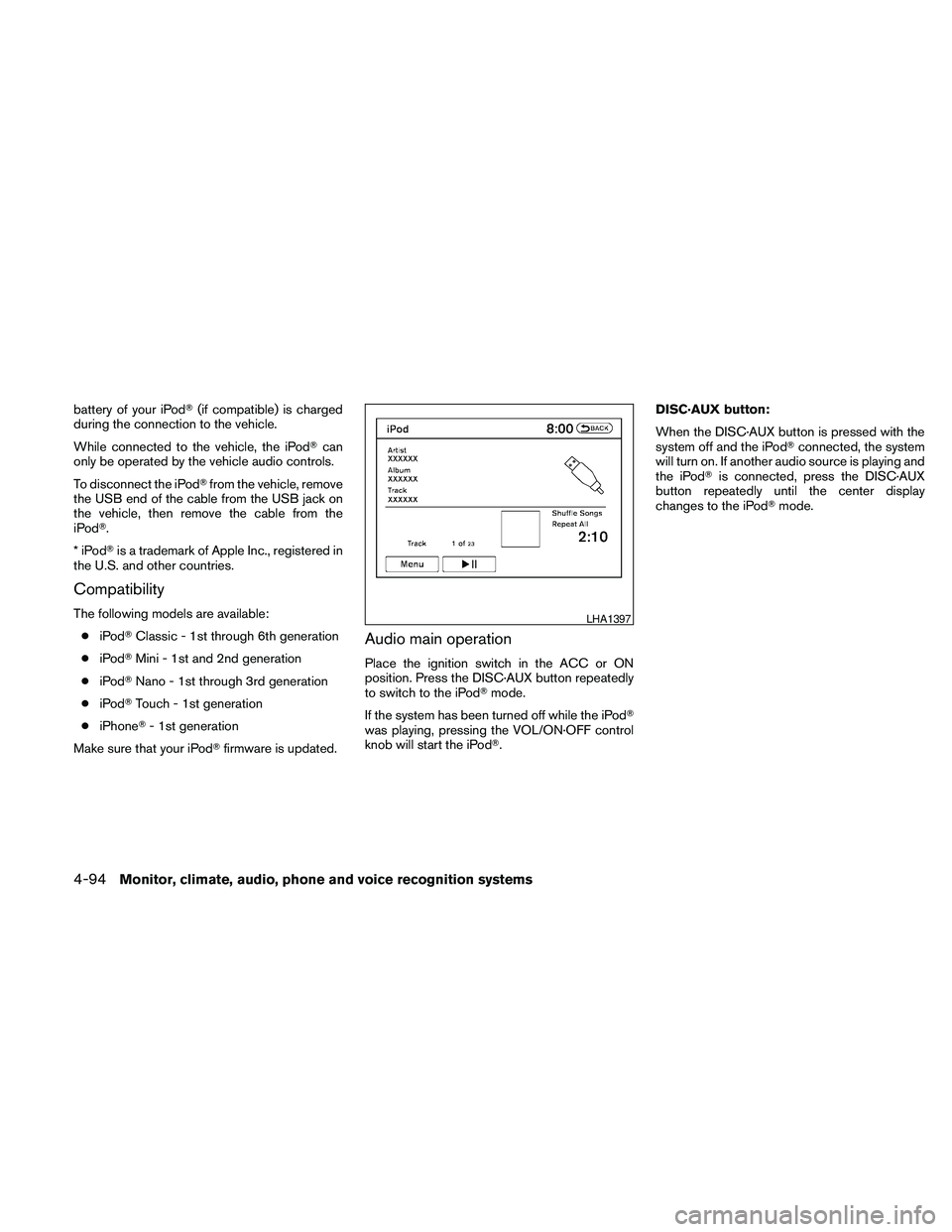
Audio main operation
Place the ignition switch in the ACC or ON
position. Press the DISC·AUX button repeatedly
to switch to the iPodTmode.
If the system has been turned off while the iPodT
was playing, pressing the VOL/ON·OFF control
knob will start the iPodT.DISC·AUX button:
When the DISC·AUX button is pressed with the
system off and the iPodTconnected, the system
will turn on. If another audio source is playing and
the iPodTis connected, press the DISC·AUX
button repeatedly until the center display
changes to the iPodTmode.
LHA1397
4-94Monitor, climate, audio, phone and voice recognition systems
Page 258 of 457
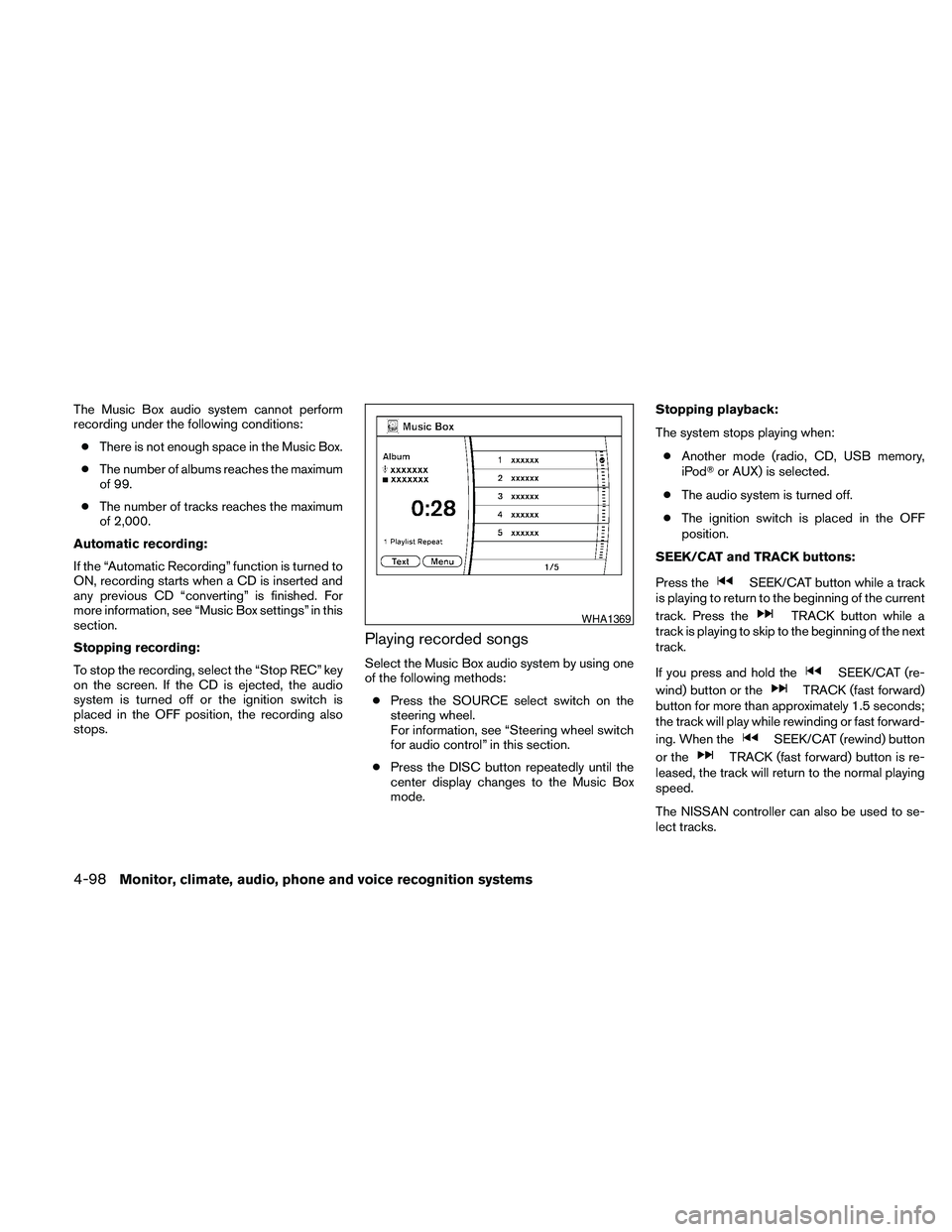
The Music Box audio system cannot perform
recording under the following conditions:
cThere is not enough space in the Music Box.
cThe number of albums reaches the maximum
of 99.
cThe number of tracks reaches the maximum
of 2,000.
Automatic recording:
If the “Automatic Recording” function is turned to
ON, recording starts when a CD is inserted and
any previous CD “converting” is finished. For
more information, see “Music Box settings” in this
section.
Stopping recording:
To stop the recording, select the “Stop REC” key
on the screen. If the CD is ejected, the audio
system is turned off or the ignition switch is
placed in the OFF position, the recording also
stops.
Playing recorded songs
Select the Music Box audio system by using one
of the following methods:
cPress the SOURCE select switch on the
steering wheel.
For information, see “Steering wheel switch
for audio control” in this section.
cPress the DISC button repeatedly until the
center display changes to the Music Box
mode.Stopping playback:
The system stops playing when:
cAnother mode (radio, CD, USB memory,
iPodTor AUX) is selected.
cThe audio system is turned off.
cThe ignition switch is placed in the OFF
position.
SEEK/CAT and TRACK buttons:
Press the
SEEK/CAT button while a track
is playing to return to the beginning of the current
track. Press the
TRACK button while a
track is playing to skip to the beginning of the next
track.
If you press and hold the
SEEK/CAT (re-
wind) button or the
TRACK (fast forward)
button for more than approximately 1.5 seconds;
the track will play while rewinding or fast forward-
ing. When the
SEEK/CAT (rewind) button
or the
TRACK (fast forward) button is re-
leased, the track will return to the normal playing
speed.
The NISSAN controller can also be used to se-
lect tracks.
WHA1369
4-98Monitor, climate, audio, phone and voice recognition systems
Page 264 of 457
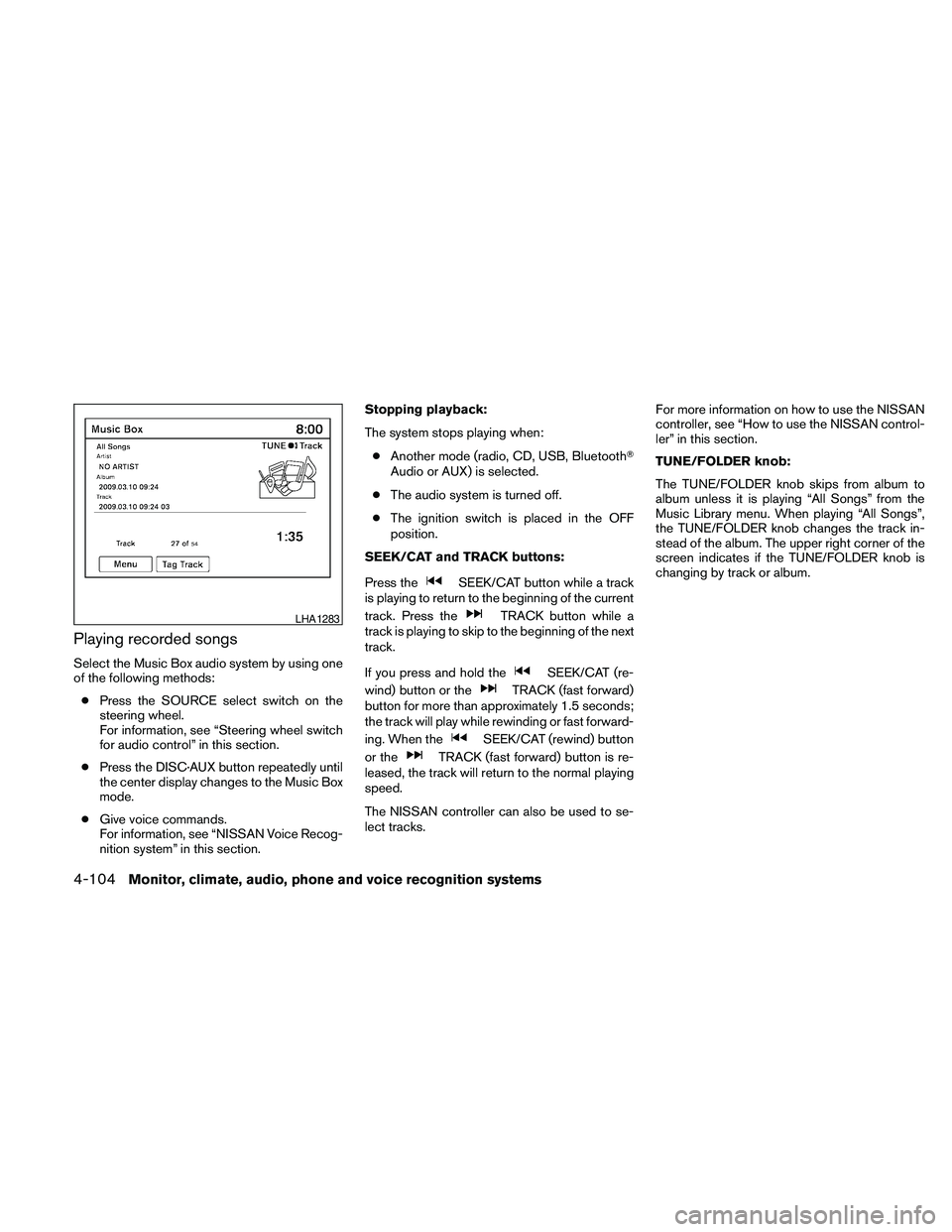
Playing recorded songs
Select the Music Box audio system by using one
of the following methods:
cPress the SOURCE select switch on the
steering wheel.
For information, see “Steering wheel switch
for audio control” in this section.
cPress the DISC·AUX button repeatedly until
the center display changes to the Music Box
mode.
cGive voice commands.
For information, see “NISSAN Voice Recog-
nition system” in this section.Stopping playback:
The system stops playing when:
cAnother mode (radio, CD, USB, BluetoothT
Audio or AUX) is selected.
cThe audio system is turned off.
cThe ignition switch is placed in the OFF
position.
SEEK/CAT and TRACK buttons:
Press the
SEEK/CAT button while a track
is playing to return to the beginning of the current
track. Press the
TRACK button while a
track is playing to skip to the beginning of the next
track.
If you press and hold the
SEEK/CAT (re-
wind) button or the
TRACK (fast forward)
button for more than approximately 1.5 seconds;
the track will play while rewinding or fast forward-
ing. When the
SEEK/CAT (rewind) button
or the
TRACK (fast forward) button is re-
leased, the track will return to the normal playing
speed.
The NISSAN controller can also be used to se-
lect tracks.For more information on how to use the NISSAN
controller, see “How to use the NISSAN control-
ler” in this section.
TUNE/FOLDER knob:
The TUNE/FOLDER knob skips from album to
album unless it is playing “All Songs” from the
Music Library menu. When playing “All Songs”,
the TUNE/FOLDER knob changes the track in-
stead of the album. The upper right corner of the
screen indicates if the TUNE/FOLDER knob is
changing by track or album.
LHA1283
4-104Monitor, climate, audio, phone and voice recognition systems
Page 271 of 457
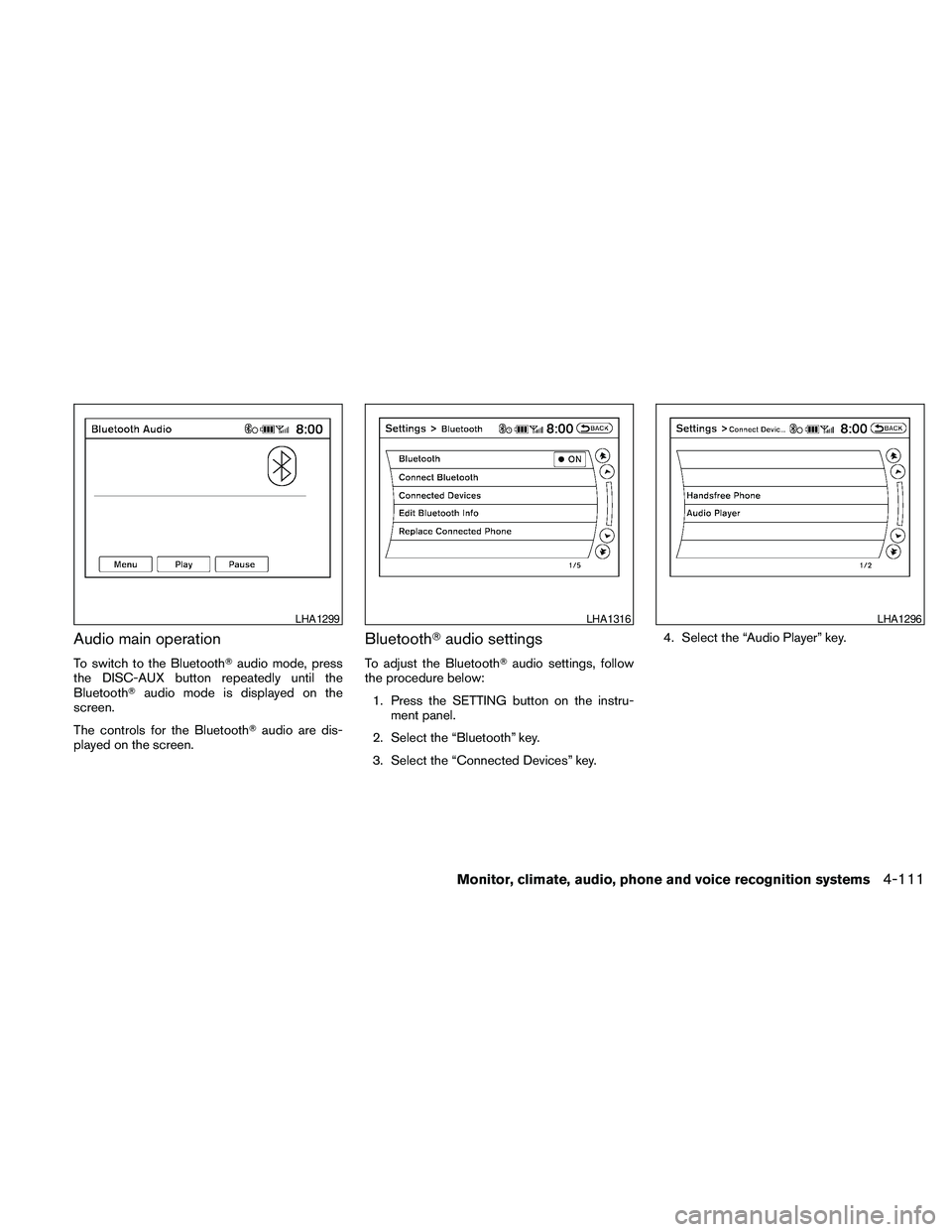
Audio main operation
To switch to the BluetoothTaudio mode, press
the DISC-AUX button repeatedly until the
BluetoothTaudio mode is displayed on the
screen.
The controls for the BluetoothTaudio are dis-
played on the screen.
BluetoothTaudio settings
To adjust the BluetoothTaudio settings, follow
the procedure below:
1. Press the SETTING button on the instru-
ment panel.
2. Select the “Bluetooth” key.
3. Select the “Connected Devices” key.4. Select the “Audio Player” key.
LHA1299LHA1316LHA1296
Monitor, climate, audio, phone and voice recognition systems4-111