CD player NISSAN MAXIMA 2010 Owner´s Manual
[x] Cancel search | Manufacturer: NISSAN, Model Year: 2010, Model line: MAXIMA, Model: NISSAN MAXIMA 2010Pages: 457, PDF Size: 4.66 MB
Page 234 of 457
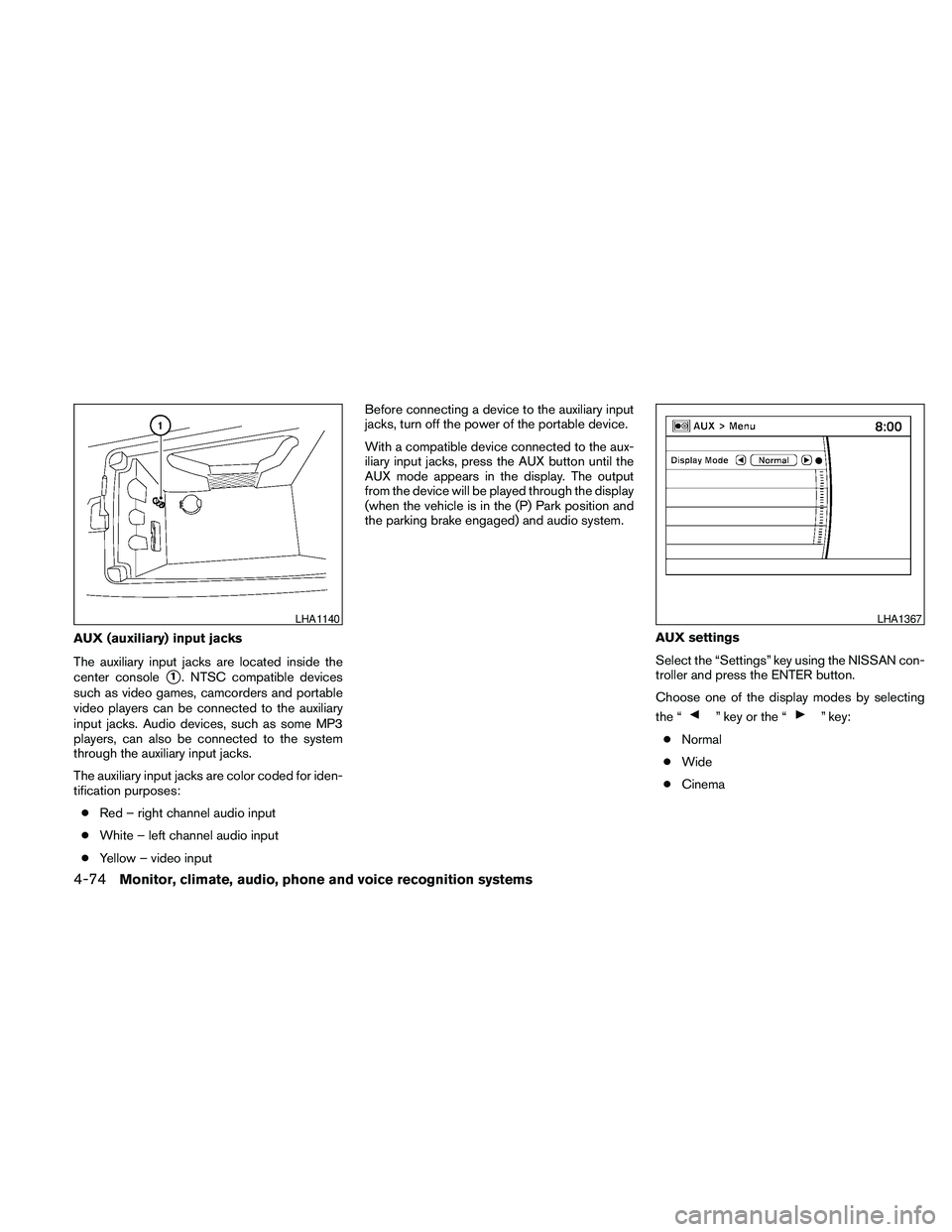
AUX (auxiliary) input jacks
The auxiliary input jacks are located inside the
center console
s1. NTSC compatible devices
such as video games, camcorders and portable
video players can be connected to the auxiliary
input jacks. Audio devices, such as some MP3
players, can also be connected to the system
through the auxiliary input jacks.
The auxiliary input jacks are color coded for iden-
tification purposes:
cRed – right channel audio input
cWhite – left channel audio input
cYellow – video inputBefore connecting a device to the auxiliary input
jacks, turn off the power of the portable device.
With a compatible device connected to the aux-
iliary input jacks, press the AUX button until the
AUX mode appears in the display. The output
from the device will be played through the display
(when the vehicle is in the (P) Park position and
the parking brake engaged) and audio system.
AUX settings
Select the “Settings” key using the NISSAN con-
troller and press the ENTER button.
Choose one of the display modes by selecting
the “
” key or the “” key:
cNormal
cWide
cCinema
LHA1140LHA1367
4-74Monitor, climate, audio, phone and voice recognition systems
Page 235 of 457
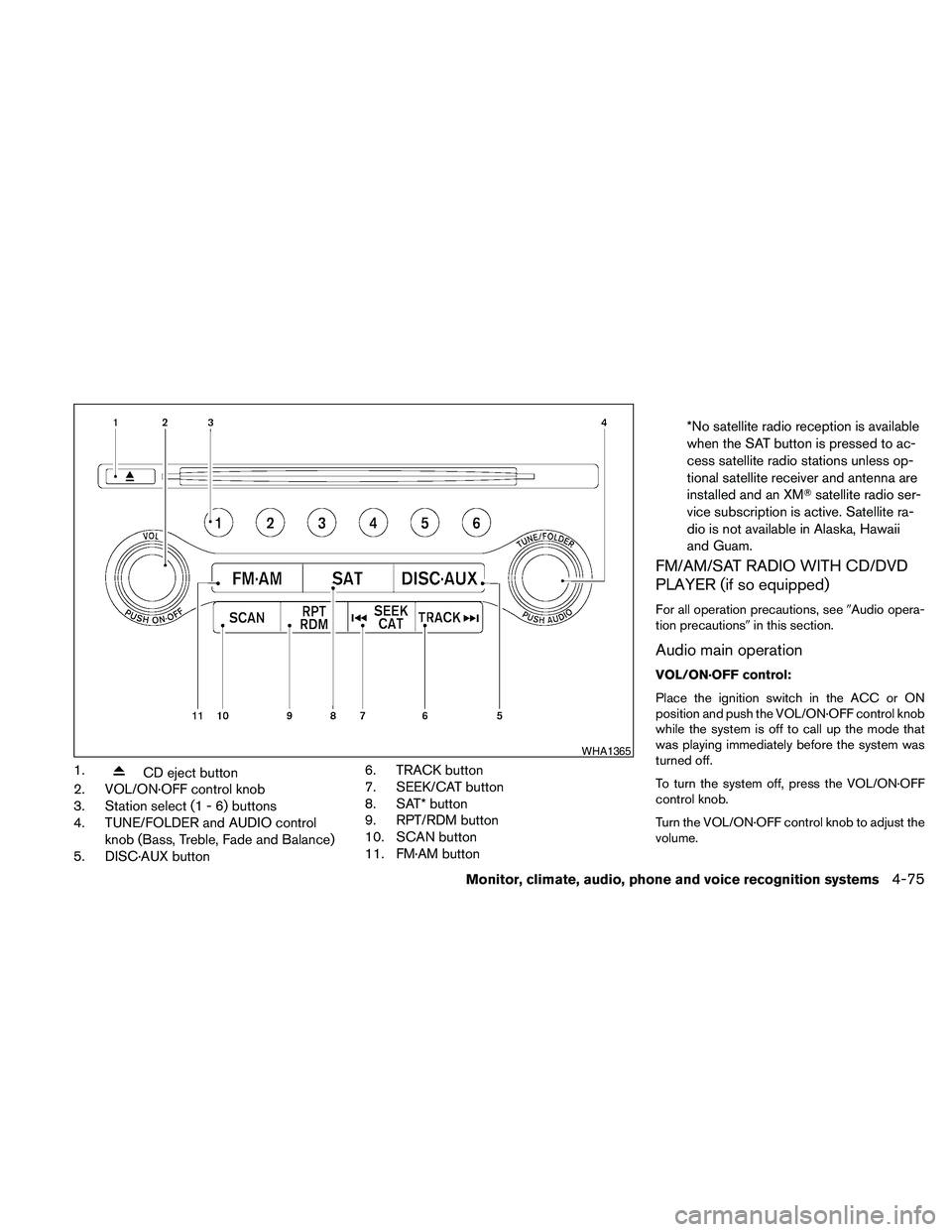
1.CD eject button
2. VOL/ON·OFF control knob
3. Station select (1 - 6) buttons
4. TUNE/FOLDER and AUDIO control
knob (Bass, Treble, Fade and Balance)
5. DISC·AUX button6. TRACK button
7. SEEK/CAT button
8. SAT* button
9. RPT/RDM button
10. SCAN button
11. FM·AM button*No satellite radio reception is available
when the SAT button is pressed to ac-
cess satellite radio stations unless op-
tional satellite receiver and antenna are
installed and an XMTsatellite radio ser-
vice subscription is active. Satellite ra-
dio is not available in Alaska, Hawaii
and Guam.
FM/AM/SAT RADIO WITH CD/DVD
PLAYER (if so equipped)
For all operation precautions, see9Audio opera-
tion precautions9in this section.
Audio main operation
VOL/ON·OFF control:
Place the ignition switch in the ACC or ON
position and push the VOL/ON·OFF control knob
while the system is off to call up the mode that
was playing immediately before the system was
turned off.
To turn the system off, press the VOL/ON·OFF
control knob.
Turn the VOL/ON·OFF control knob to adjust the
volume.
WHA1365
Monitor, climate, audio, phone and voice recognition systems4-75
Page 239 of 457
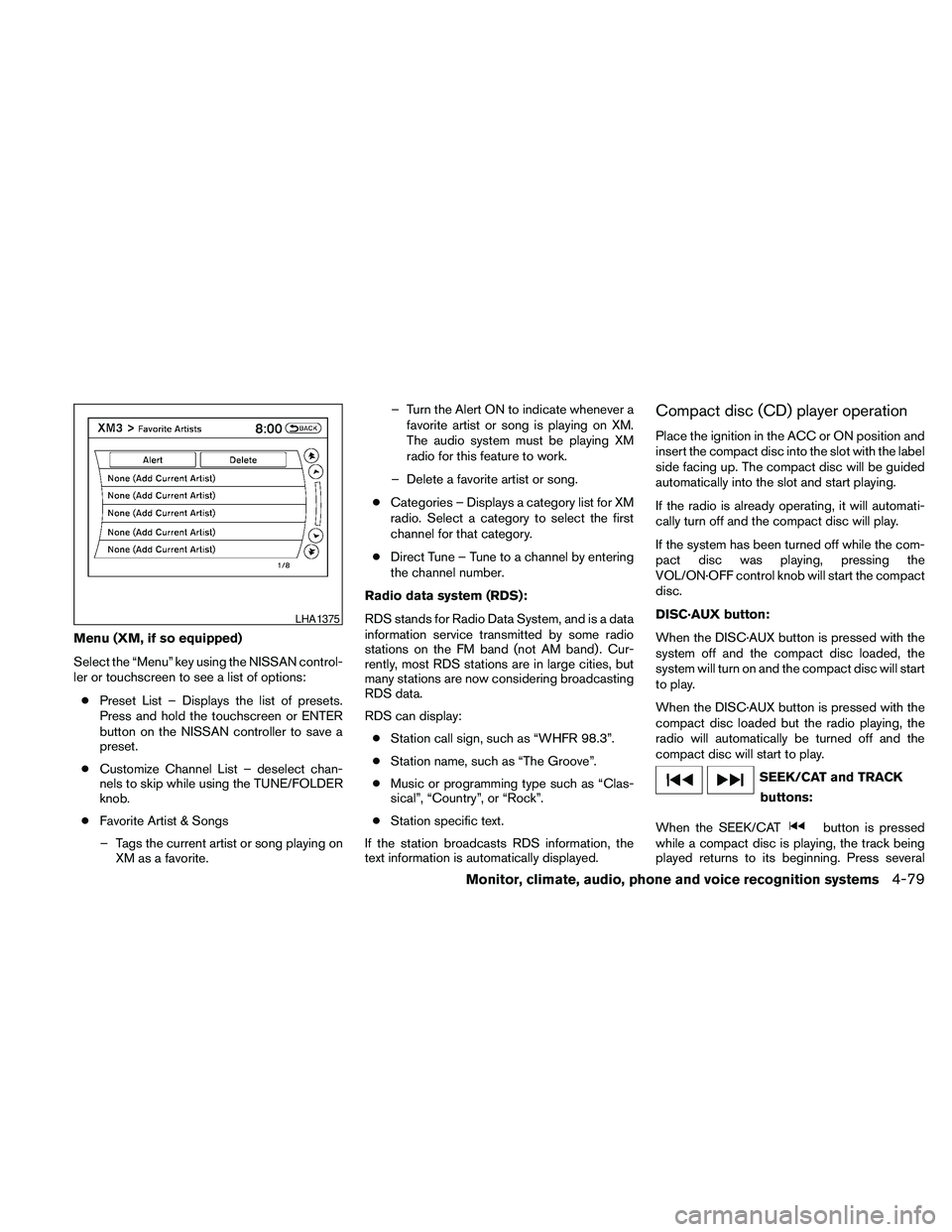
Menu (XM, if so equipped)
Select the “Menu” key using the NISSAN control-
ler or touchscreen to see a list of options:
cPreset List – Displays the list of presets.
Press and hold the touchscreen or ENTER
button on the NISSAN controller to save a
preset.
cCustomize Channel List – deselect chan-
nels to skip while using the TUNE/FOLDER
knob.
cFavorite Artist & Songs
– Tags the current artist or song playing on
XM as a favorite.– Turn the Alert ON to indicate whenever a
favorite artist or song is playing on XM.
The audio system must be playing XM
radio for this feature to work.
– Delete a favorite artist or song.
cCategories – Displays a category list for XM
radio. Select a category to select the first
channel for that category.
cDirect Tune – Tune to a channel by entering
the channel number.
Radio data system (RDS):
RDS stands for Radio Data System, and is a data
information service transmitted by some radio
stations on the FM band (not AM band) . Cur-
rently, most RDS stations are in large cities, but
many stations are now considering broadcasting
RDS data.
RDS can display:
cStation call sign, such as “WHFR 98.3”.
cStation name, such as “The Groove”.
cMusic or programming type such as “Clas-
sical”, “Country”, or “Rock”.
cStation specific text.
If the station broadcasts RDS information, the
text information is automatically displayed.
Compact disc (CD) player operation
Place the ignition in the ACC or ON position and
insert the compact disc into the slot with the label
side facing up. The compact disc will be guided
automatically into the slot and start playing.
If the radio is already operating, it will automati-
cally turn off and the compact disc will play.
If the system has been turned off while the com-
pact disc was playing, pressing the
VOL/ON·OFF control knob will start the compact
disc.
DISC·AUX button:
When the DISC·AUX button is pressed with the
system off and the compact disc loaded, the
system will turn on and the compact disc will start
to play.
When the DISC·AUX button is pressed with the
compact disc loaded but the radio playing, the
radio will automatically be turned off and the
compact disc will start to play.
SEEK/CAT and TRACK
buttons:
When the SEEK/CAT
button is pressed
while a compact disc is playing, the track being
played returns to its beginning. Press several
LHA1375
Monitor, climate, audio, phone and voice recognition systems4-79
Page 242 of 457
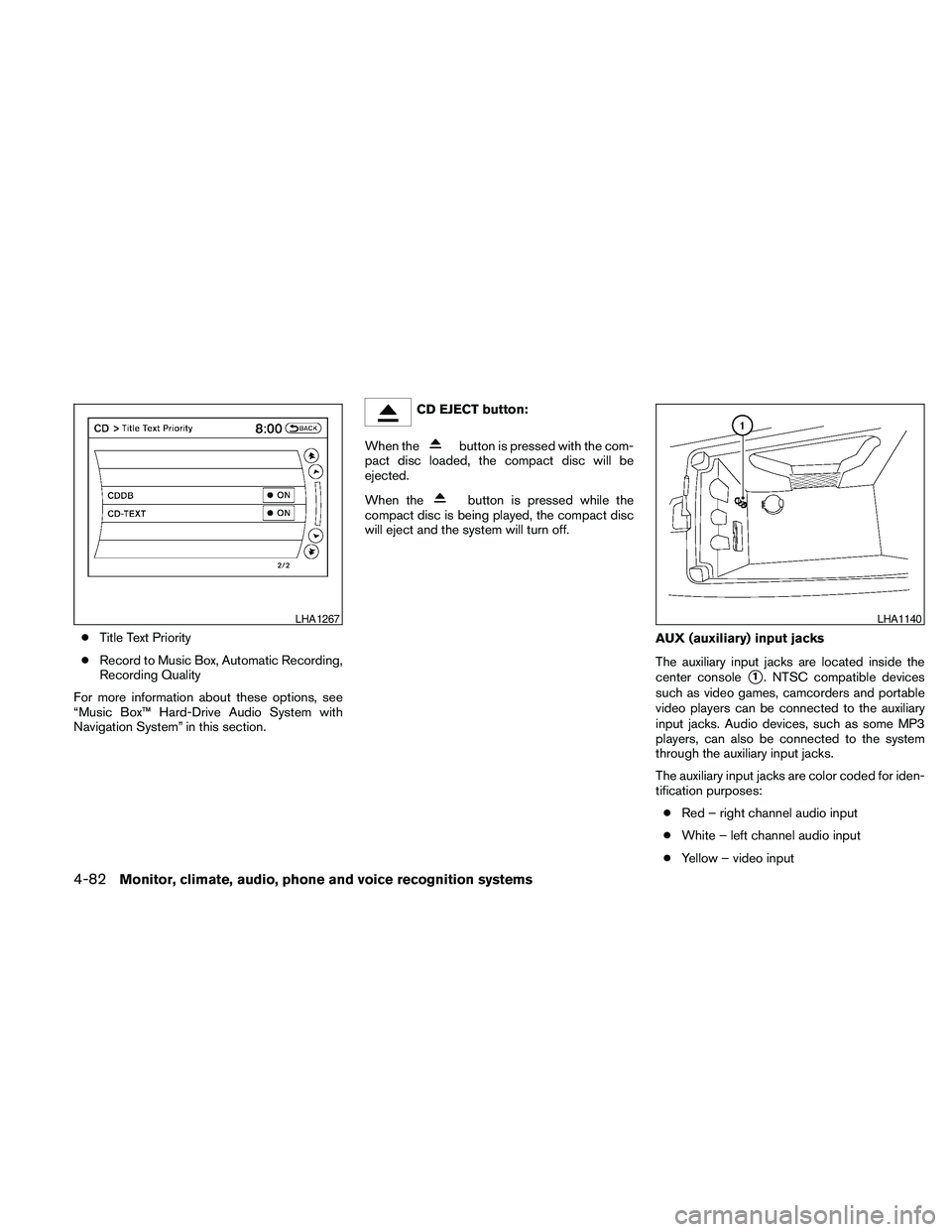
cTitle Text Priority
cRecord to Music Box, Automatic Recording,
Recording Quality
For more information about these options, see
“Music Box™ Hard-Drive Audio System with
Navigation System” in this section.
CD EJECT button:
When the
button is pressed with the com-
pact disc loaded, the compact disc will be
ejected.
When the
button is pressed while the
compact disc is being played, the compact disc
will eject and the system will turn off.
AUX (auxiliary) input jacks
The auxiliary input jacks are located inside the
center console
s1. NTSC compatible devices
such as video games, camcorders and portable
video players can be connected to the auxiliary
input jacks. Audio devices, such as some MP3
players, can also be connected to the system
through the auxiliary input jacks.
The auxiliary input jacks are color coded for iden-
tification purposes:
cRed – right channel audio input
cWhite – left channel audio input
cYellow – video input
LHA1267LHA1140
4-82Monitor, climate, audio, phone and voice recognition systems
Page 244 of 457

DIGITAL VERSATILE DISC (DVD)
PLAYER OPERATION (models with
Navigation System)
Precautions
Start the engine when using the DVD entertain-
ment system.
Movies will not be shown on the front display
while the vehicle is in any drive position to reduce
driver distraction. Audio is available when a movie
is played. To view movies on the front display,
stop the vehicle in a safe location, move the shift
selector to the P (Park) position and apply the
parking brake.
WARNING
cThe driver must not attempt to operate
the DVD system or wear the head-
phones while the vehicle is in motion so
that full attention may be given to ve-
hicle operation.
cDo not attempt to modify the system to
display a movie on the front screen
while the vehicle is being driven. Doing
so may distract the driver and may
cause a collision and serious personal
injury or death.
CAUTION
cOnly operate the DVD while the vehicle
engine is running. Operating the DVD
for extended periods of time with the
engine OFF can discharge the vehicle
battery.
cDo not allow the system to get wet.
Excessive moisture such as spilled liq-
uids may cause the system to
malfunction.
cWhile playing VIDEO-CD media, this
DVD player does not guarantee com-
plete functionality of all VIDEO-CD
formats.
Playing a DVD
DISC-AUX button
Park the vehicle in a safe location for the front
seat occupants to operate the DVD drive while
watching the images.
Press the DISC-AUX button until the DVD mode
is active on the display.
When a DVD is loaded, it will be replayed auto-
matically.
LHA1376
4-84Monitor, climate, audio, phone and voice recognition systems
Page 252 of 457
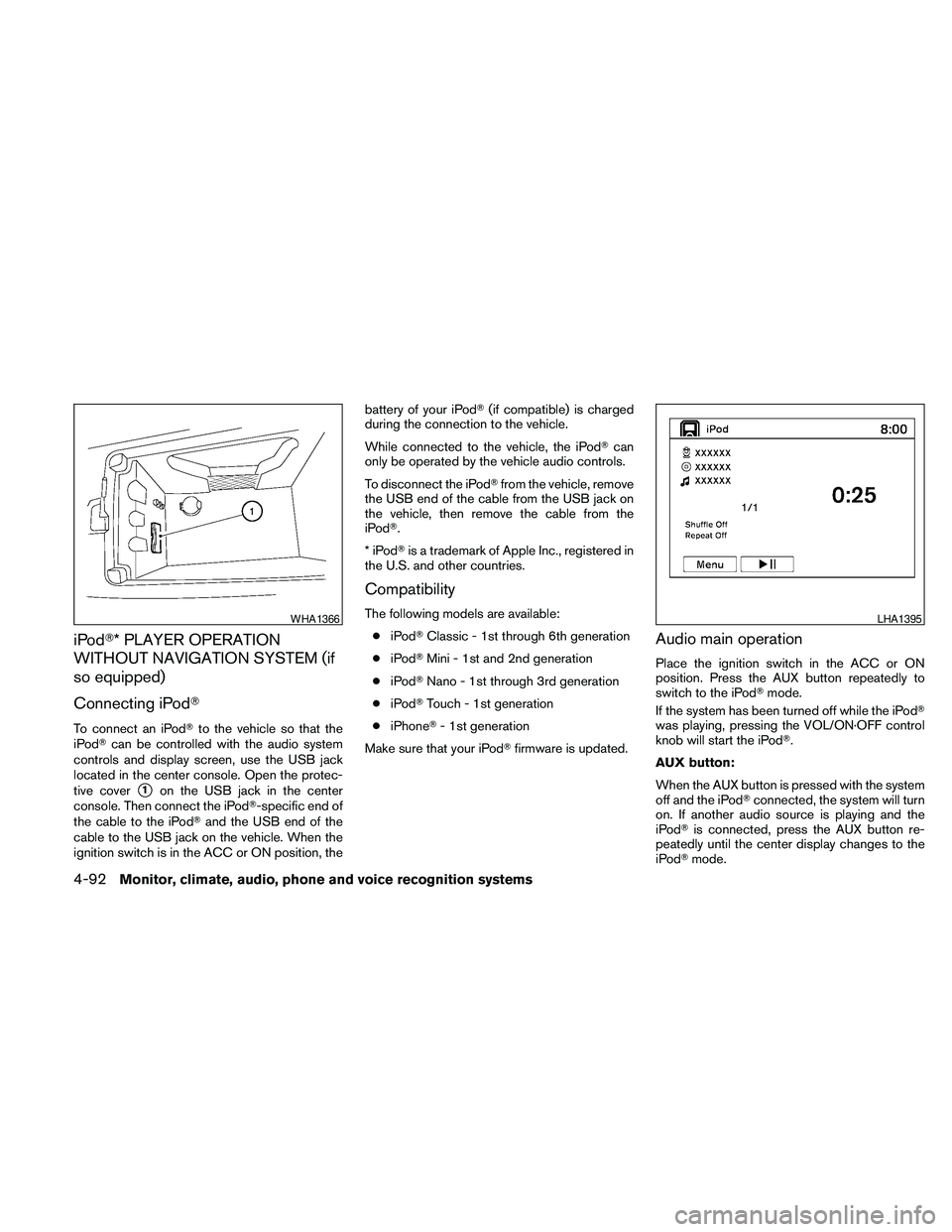
iPodT* PLAYER OPERATION
WITHOUT NAVIGATION SYSTEM (if
so equipped)
Connecting iPodT
To connect an iPodTto the vehicle so that the
iPodTcan be controlled with the audio system
controls and display screen, use the USB jack
located in the center console. Open the protec-
tive cover
s1on the USB jack in the center
console. Then connect the iPodT-specific end of
the cable to the iPodTand the USB end of the
cable to the USB jack on the vehicle. When the
ignition switch is in the ACC or ON position, thebattery of your iPodT(if compatible) is charged
during the connection to the vehicle.
While connected to the vehicle, the iPodTcan
only be operated by the vehicle audio controls.
To disconnect the iPodTfrom the vehicle, remove
the USB end of the cable from the USB jack on
the vehicle, then remove the cable from the
iPodT.
*iPodTis a trademark of Apple Inc., registered in
the U.S. and other countries.
Compatibility
The following models are available:
ciPodTClassic - 1st through 6th generation
ciPodTMini - 1st and 2nd generation
ciPodTNano - 1st through 3rd generation
ciPodTTouch - 1st generation
ciPhoneT- 1st generation
Make sure that your iPodTfirmware is updated.
Audio main operation
Place the ignition switch in the ACC or ON
position. Press the AUX button repeatedly to
switch to the iPodTmode.
If the system has been turned off while the iPodT
was playing, pressing the VOL/ON·OFF control
knob will start the iPodT.
AUX button:
When the AUX button is pressed with the system
off and the iPodTconnected, the system will turn
on. If another audio source is playing and the
iPodTis connected, press the AUX button re-
peatedly until the center display changes to the
iPodTmode.
WHA1366LHA1395
4-92Monitor, climate, audio, phone and voice recognition systems
Page 253 of 457
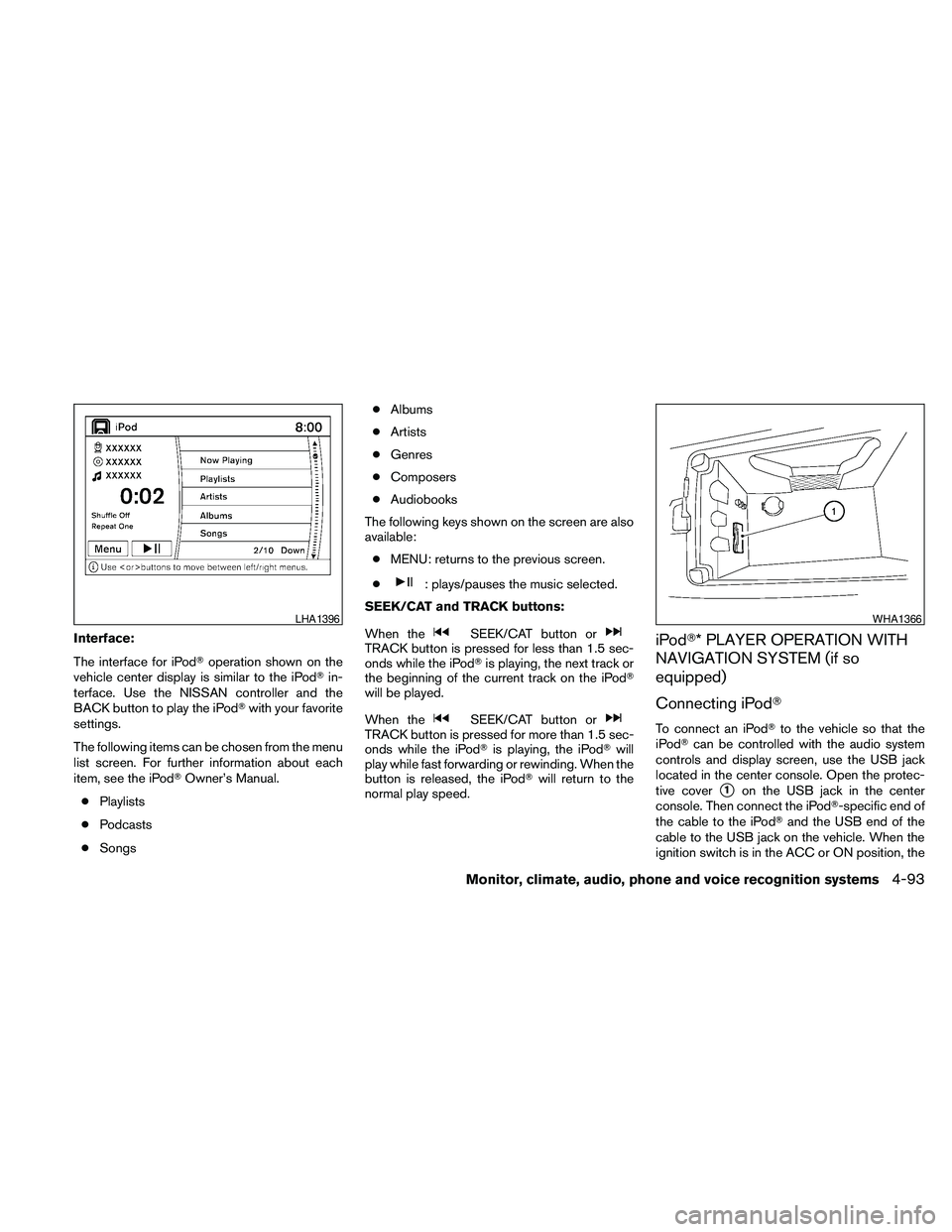
Interface:
The interface for iPodToperation shown on the
vehicle center display is similar to the iPodTin-
terface. Use the NISSAN controller and the
BACK button to play the iPodTwith your favorite
settings.
The following items can be chosen from the menu
list screen. For further information about each
item, see the iPodTOwner’s Manual.
cPlaylists
cPodcasts
cSongscAlbums
cArtists
cGenres
cComposers
cAudiobooks
The following keys shown on the screen are also
available:
cMENU: returns to the previous screen.
c
: plays/pauses the music selected.
SEEK/CAT and TRACK buttons:
When the
SEEK/CAT button orTRACK button is pressed for less than 1.5 sec-
onds while the iPodTis playing, the next track or
the beginning of the current track on the iPodT
will be played.
When the
SEEK/CAT button orTRACK button is pressed for more than 1.5 sec-
onds while the iPodTis playing, the iPodTwill
play while fast forwarding or rewinding. When the
button is released, the iPodTwill return to the
normal play speed.
iPodT* PLAYER OPERATION WITH
NAVIGATION SYSTEM (if so
equipped)
Connecting iPodT
To connect an iPodTto the vehicle so that the
iPodTcan be controlled with the audio system
controls and display screen, use the USB jack
located in the center console. Open the protec-
tive cover
s1on the USB jack in the center
console. Then connect the iPodT-specific end of
the cable to the iPodTand the USB end of the
cable to the USB jack on the vehicle. When the
ignition switch is in the ACC or ON position, the
LHA1396WHA1366
Monitor, climate, audio, phone and voice recognition systems4-93
Page 257 of 457
![NISSAN MAXIMA 2010 Owner´s Manual Extreme temperature conditions [below24°F
(220°C) and above 158°F (70°C)] could affect
the performance of the hard drive.
NOTE:
If the hard drive needs to be replaced due
to a malfunction, all sto](/img/5/40350/w960_40350-256.png "NISSAN MAXIMA 2010 Owner´s Manual Extreme temperature conditions [below24°F
(220°C) and above 158°F (70°C)] could affect
the performance of the hard drive.
NOTE:
If the hard drive needs to be replaced due
to a malfunction, all sto")
Extreme temperature conditions [below24°F
(220°C) and above 158°F (70°C)] could affect
the performance of the hard drive.
NOTE:
If the hard drive needs to be replaced due
to a malfunction, all stored music data will
be erased.
Recording CDs
1. Operate the audio system to play a CD.
For information on playing CDs, see “Com-
pact Disc (CD) player operation” in this sec-
tion.
2. Select the “REC” key with the NISSAN con-
troller. “REC Track” appears on the screen.
NOTE:
cThe system starts playing and recording the
1st track on the CD when the “REC” key is
selected.cThe recording process can be stopped at
any time. All tracks that were played before
the CD was stopped are stored.
cIndividual tracks can be deleted from the
Music Box after the CD is recorded.
If the title information of the track being recorded
is stored either in the hard drive or in the CD, the
title is automatically displayed on the screen. For
title acquisition from the hard-disk drive, music
recognition technology and related data are pro-
vided by GracenoteT.
If a track is not recorded successfully due to
skipping sounds, the
symbol is displayed
behind the track number.
WHA1368WHA0956
Monitor, climate, audio, phone and voice recognition systems4-97
Page 262 of 457
This product and service may practice one or
more of the following U.S. Patents: #5,987,525;
#6,061,680; #6,154,773, #6,161,132,
#6,230,192, #6,230,207, #6,240,459,
#6,330,593, and other patents issued or pend-
ing. Some services supplied under license from
Open Globe, Inc. for U.S. Patent: #6,304,523.
Gracenote and CDDB are registered trademarks
of Gracenote. The Gracenote logo and logotype,
and the “Powered by Gracenote” logo are trade-
marks of Gracenote.
MUSIC BOX™ HARD DRIVE AUDIO
SYSTEM WITH NAVIGATION
SYSTEM (if so equipped)
The Music Box Hard Drive audio system can
store songs from CDs being played. The system
has a 9.3 gigabyte (GB) storage capacity and
can record up to 200 hours (approximately 2,900
songs) .
The following CDs can be recorded in the Music
Box Hard Drive audio system:
cCDs without compressed audio files.
cHybrid Compact Disc Digital Audio (Hybrid
CD-DA) specification in Super Audio CDs.
cCompact Disc Digital Audio (CD-DA) speci-
fication in CD-Extras.
cFirst session of multisession disc.Extreme temperature conditions [below24°F
(220°C) and above 158°F (70°C)] could affect
the performance of the hard drive.
NOTE:
If the hard drive needs to be replaced due
to a malfunction, all stored music data will
be erased.Recording CDs
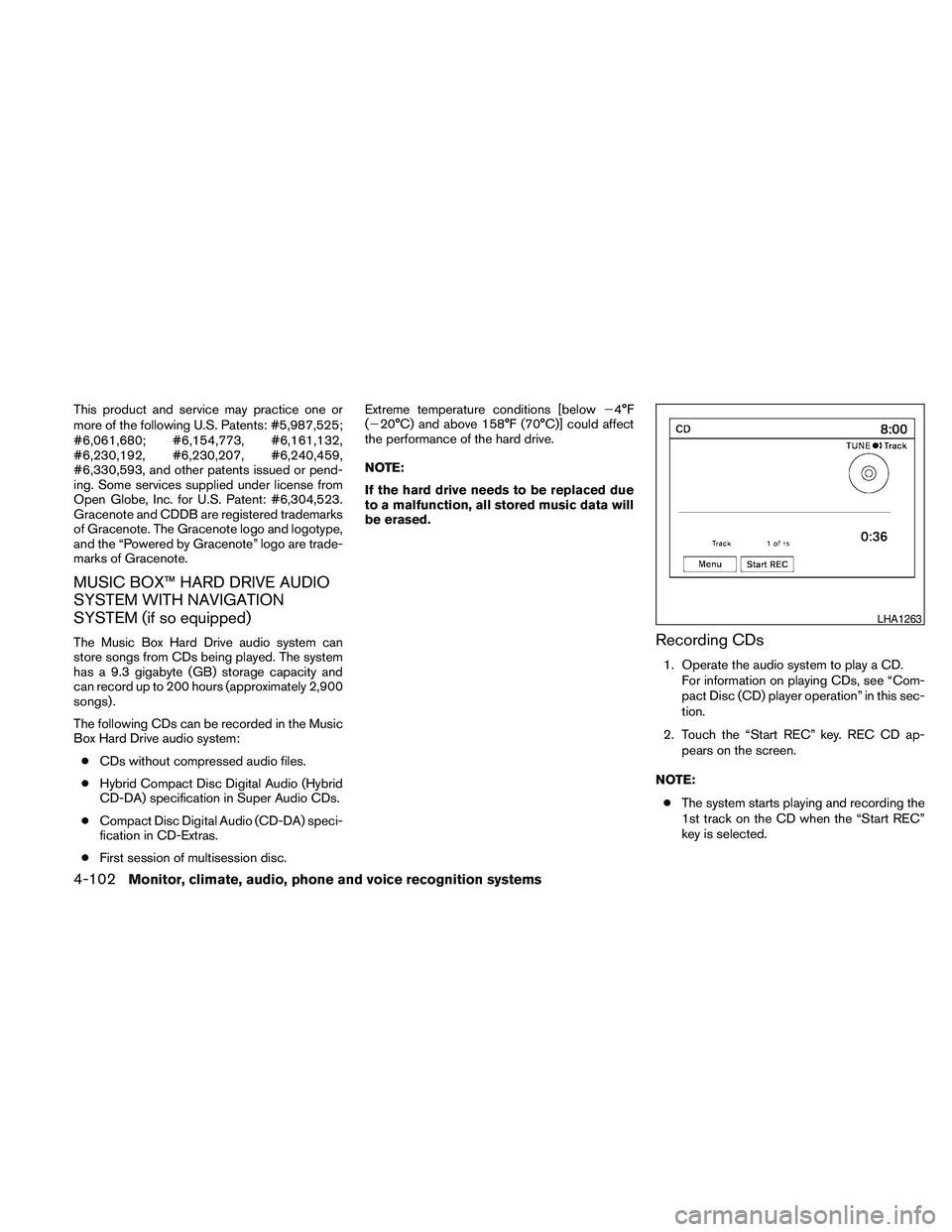
1. Operate the audio system to play a CD.
For information on playing CDs, see “Com-
pact Disc (CD) player operation” in this sec-
tion.
2. Touch the “Start REC” key. REC CD ap-
pears on the screen.
NOTE:
cThe system starts playing and recording the
1st track on the CD when the “Start REC”
key is selected.
LHA1263
4-102Monitor, climate, audio, phone and voice recognition systems
Page 271 of 457
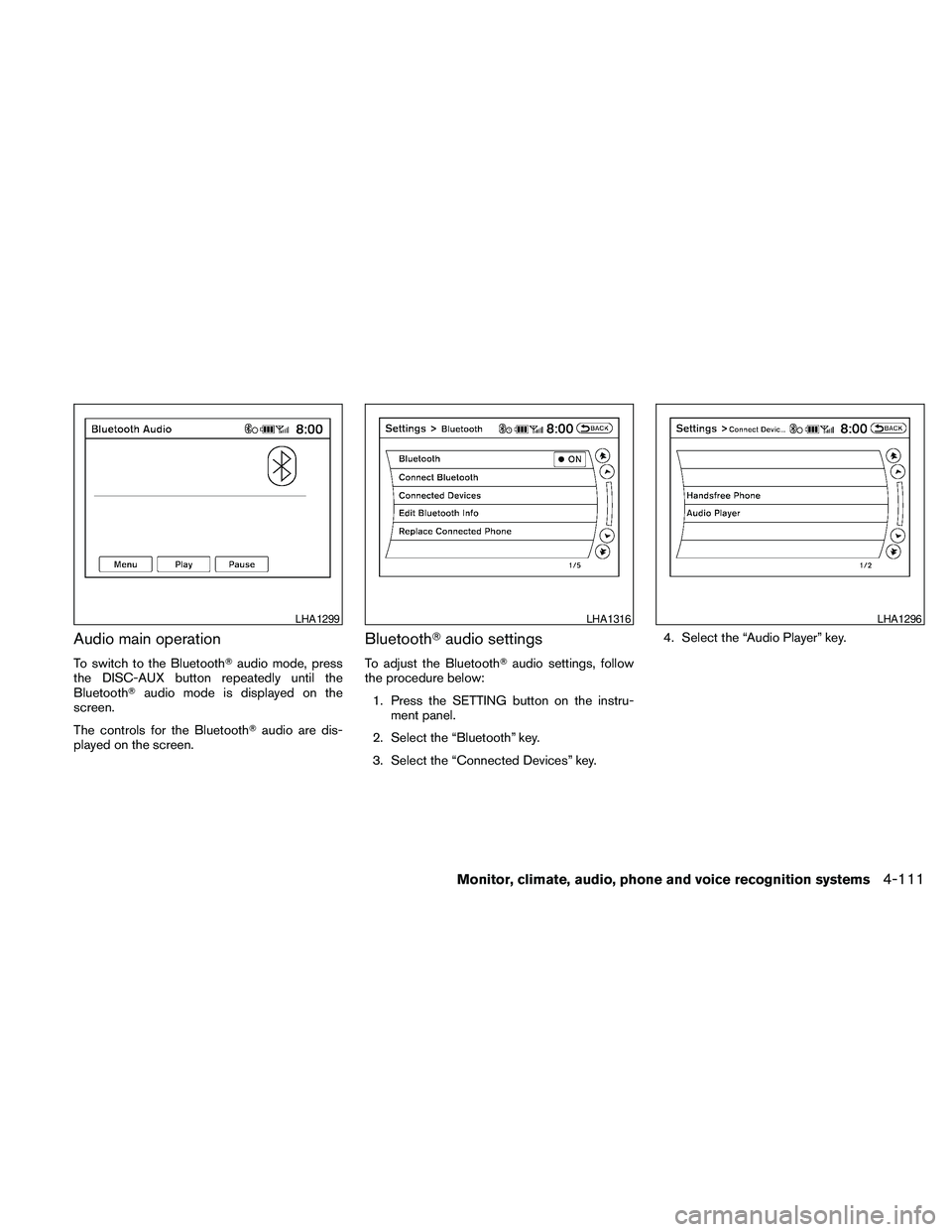
Audio main operation
To switch to the BluetoothTaudio mode, press
the DISC-AUX button repeatedly until the
BluetoothTaudio mode is displayed on the
screen.
The controls for the BluetoothTaudio are dis-
played on the screen.
BluetoothTaudio settings
To adjust the BluetoothTaudio settings, follow
the procedure below:
1. Press the SETTING button on the instru-
ment panel.
2. Select the “Bluetooth” key.
3. Select the “Connected Devices” key.4. Select the “Audio Player” key.
LHA1299LHA1316LHA1296
Monitor, climate, audio, phone and voice recognition systems4-111