maintenance NISSAN MAXIMA 2010 Owner´s Manual
[x] Cancel search | Manufacturer: NISSAN, Model Year: 2010, Model line: MAXIMA, Model: NISSAN MAXIMA 2010Pages: 457, PDF Size: 4.66 MB
Page 96 of 457
NISSAN Intelligent Key™ insertion indica-
tor
This indicator illuminates when the Intelligent Key
needs to be inserted into the Intelligent Key port.
(For example, the Intelligent Key battery is dis-
charged.)
If this indicator illuminates, insert the Intelligent
Key into the Intelligent Key port in the correct
direction. See “Push-button ignition switch” in
the “Starting and driving” section.
NISSAN Intelligent Key™ removal indicator
This indicator illuminates when the driver’s door
is opened with the ignition switch placed in the
OFF position and the Intelligent Key placed in the
Intelligent Key port. A key reminder chime also
sounds.
If this indicator illuminates, remove the Intelligent
Key from the Intelligent Key port and take it with
you when leaving the vehicle.
NISSAN Intelligent Key™ battery discharge
indicator
This indicator illuminates when the Intelligent Key
battery is running out of power.
If this indicator illuminates, replace the battery
with a new one. See “NISSAN Intelligent Key™” in
the “Maintenance and do-it-yourself” section.Steering lock release malfunction indica-
tor (if so equipped)
This indicator illuminates when the steering
wheel cannot be released from the LOCK posi-
tion.
If this indicator illuminates, push the ignition
switch while lightly turning the steering wheel
right and left.
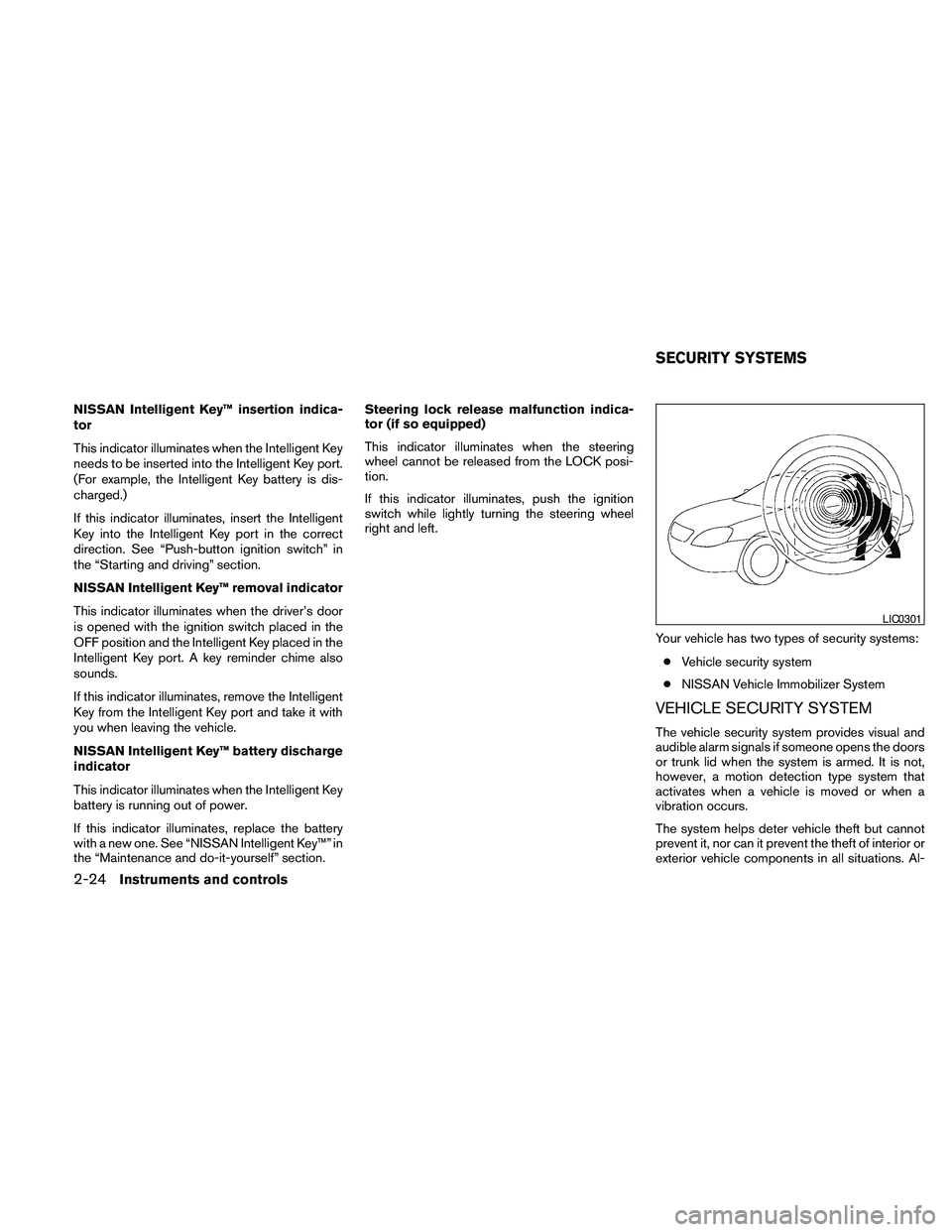
Your vehicle has two types of security systems:
cVehicle security system
cNISSAN Vehicle Immobilizer System
VEHICLE SECURITY SYSTEM
The vehicle security system provides visual and
audible alarm signals if someone opens the doors
or trunk lid when the system is armed. It is not,
however, a motion detection type system that
activates when a vehicle is moved or when a
vibration occurs.
The system helps deter vehicle theft but cannot
prevent it, nor can it prevent the theft of interior or
exterior vehicle components in all situations. Al-
LIC0301
SECURITY SYSTEMS
2-24Instruments and controls
Page 124 of 457
The light illuminates when the trunk lid is opened.
When the trunk lid is closed, the light goes off.
The light will go off after about 30 minutes if the
trunk lid is left open, unless the ignition switch is
in the ON position.
For bulb replacement procedures, refer to “Exte-
rior and interior lights” in the “Maintenance and
do-it-yourself” section of this manual.The HomeLinkTUniversal Transceiver provides a
convenient way to consolidate the functions of up
to three individual hand-held transmitters into
one built-in device.
HomeLinkTUniversal Transceiver:
cWill operate most Radio Frequency (RF)
devices such as garage doors, gates, home
and office lighting, entry door locks and se-
curity systems.
cIs powered by your vehicle’s battery. No
separate batteries are required. If the vehi-
cle’s battery is discharged or is discon-
nected, HomeLinkTwill retain all program-
ming.
Once the HomeLinkTUniversal Transceiver
is programmed, retain the original trans-
mitter for future programming procedures
(Example: new vehicle purchases) . Upon
sale of the vehicle, the programmed
HomeLinkTUniversal Transceiver buttons
should be erased for security purposes. For
additional information, refer to “Program-
ming HomeLinkT” later in this section.WARNING
cDo not use the HomeLinkTUniversal
Transceiver with any garage door
opener that lacks safety stop and re-
verse features as required by federal
safety standards. (These standards be-
came effective for opener models
manufactured after April 1, 1982) . A ga-
rage door opener which cannot detect
an object in the path of a closing garage
door and then automatically stop and
reverse, does not meet current federal
safety standards. Using a garage door
opener without these features in-
creases the risk of serious injury or
death.
cDuring the programming procedure
your garage door or security gate will
open and close (if the transmitter is
within range) . Make sure that people or
objects are clear of the garage door,
gate, etc. that you are programming.
cYour vehicle’s engine should be turned
off while programming the HomeLinkT
Universal Transceiver.
TRUNK LIGHT HOMELINKTUNIVERSAL
TRANSCEIVER (if so equipped)
2-52Instruments and controls
Page 168 of 457
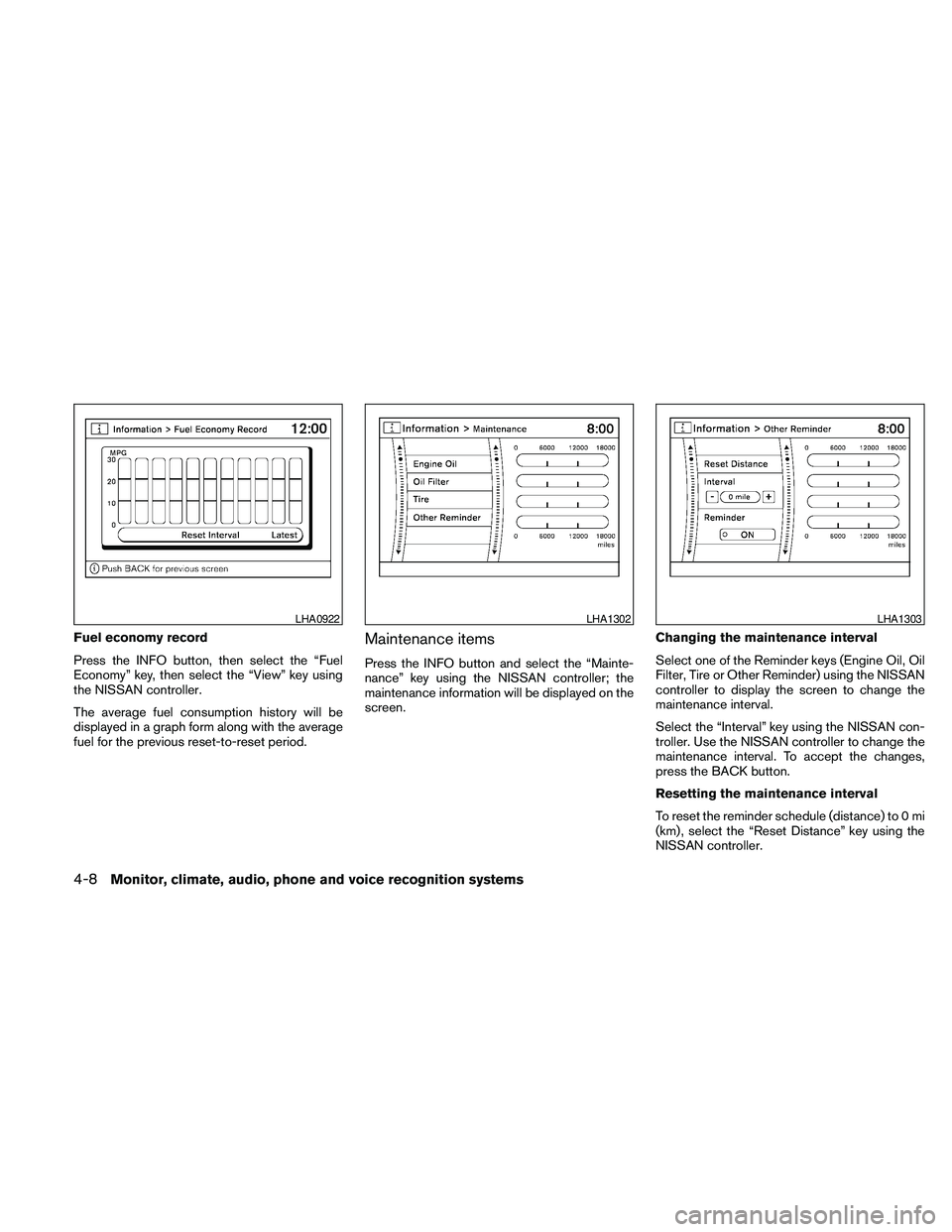
Fuel economy record
Press the INFO button, then select the “Fuel
Economy” key, then select the “View” key using
the NISSAN controller.
The average fuel consumption history will be
displayed in a graph form along with the average
fuel for the previous reset-to-reset period.Maintenance items
Press the INFO button and select the “Mainte-
nance” key using the NISSAN controller; the
maintenance information will be displayed on the
screen.Changing the maintenance interval
Select one of the Reminder keys (Engine Oil, Oil
Filter, Tire or Other Reminder) using the NISSAN
controller to display the screen to change the
maintenance interval.
Select the “Interval” key using the NISSAN con-
troller. Use the NISSAN controller to change the
maintenance interval. To accept the changes,
press the BACK button.
Resetting the maintenance interval
To reset the reminder schedule (distance) to 0 mi
(km) , select the “Reset Distance” key using the
NISSAN controller.
LHA0922LHA1302LHA1303
4-8Monitor, climate, audio, phone and voice recognition systems
Page 169 of 457
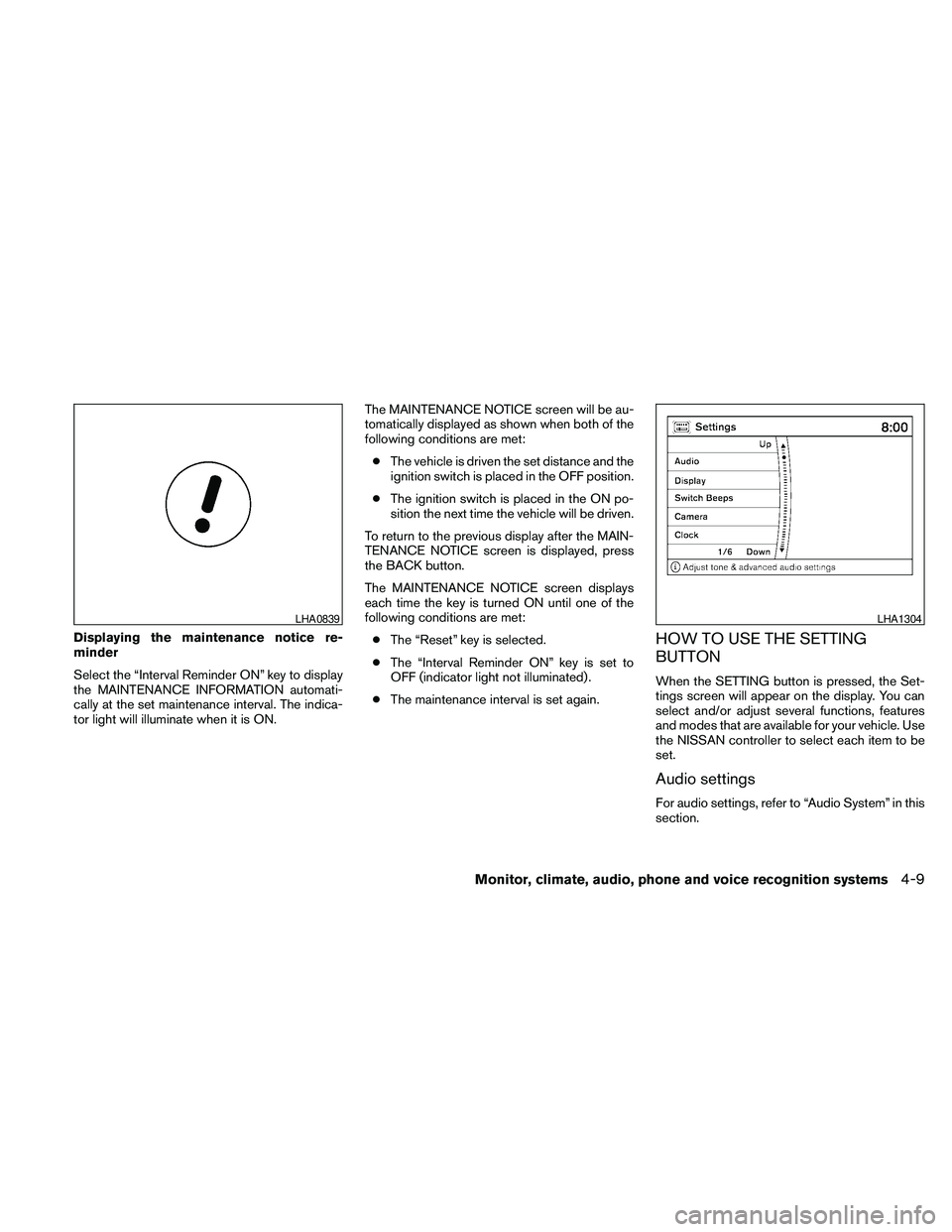
Displaying the maintenance notice re-
minder
Select the “Interval Reminder ON” key to display
the MAINTENANCE INFORMATION automati-
cally at the set maintenance interval. The indica-
tor light will illuminate when it is ON.The MAINTENANCE NOTICE screen will be au-
tomatically displayed as shown when both of the
following conditions are met:
cThe vehicle is driven the set distance and the
ignition switch is placed in the OFF position.
cThe ignition switch is placed in the ON po-
sition the next time the vehicle will be driven.
To return to the previous display after the MAIN-
TENANCE NOTICE screen is displayed, press
the BACK button.
The MAINTENANCE NOTICE screen displays
each time the key is turned ON until one of the
following conditions are met:
cThe “Reset” key is selected.
cThe “Interval Reminder ON” key is set to
OFF (indicator light not illuminated) .
cThe maintenance interval is set again.HOW TO USE THE SETTING
BUTTON
When the SETTING button is pressed, the Set-
tings screen will appear on the display. You can
select and/or adjust several functions, features
and modes that are available for your vehicle. Use
the NISSAN controller to select each item to be
set.
Audio settings
For audio settings, refer to “Audio System” in this
section.
LHA0839LHA1304
Monitor, climate, audio, phone and voice recognition systems4-9
Page 179 of 457
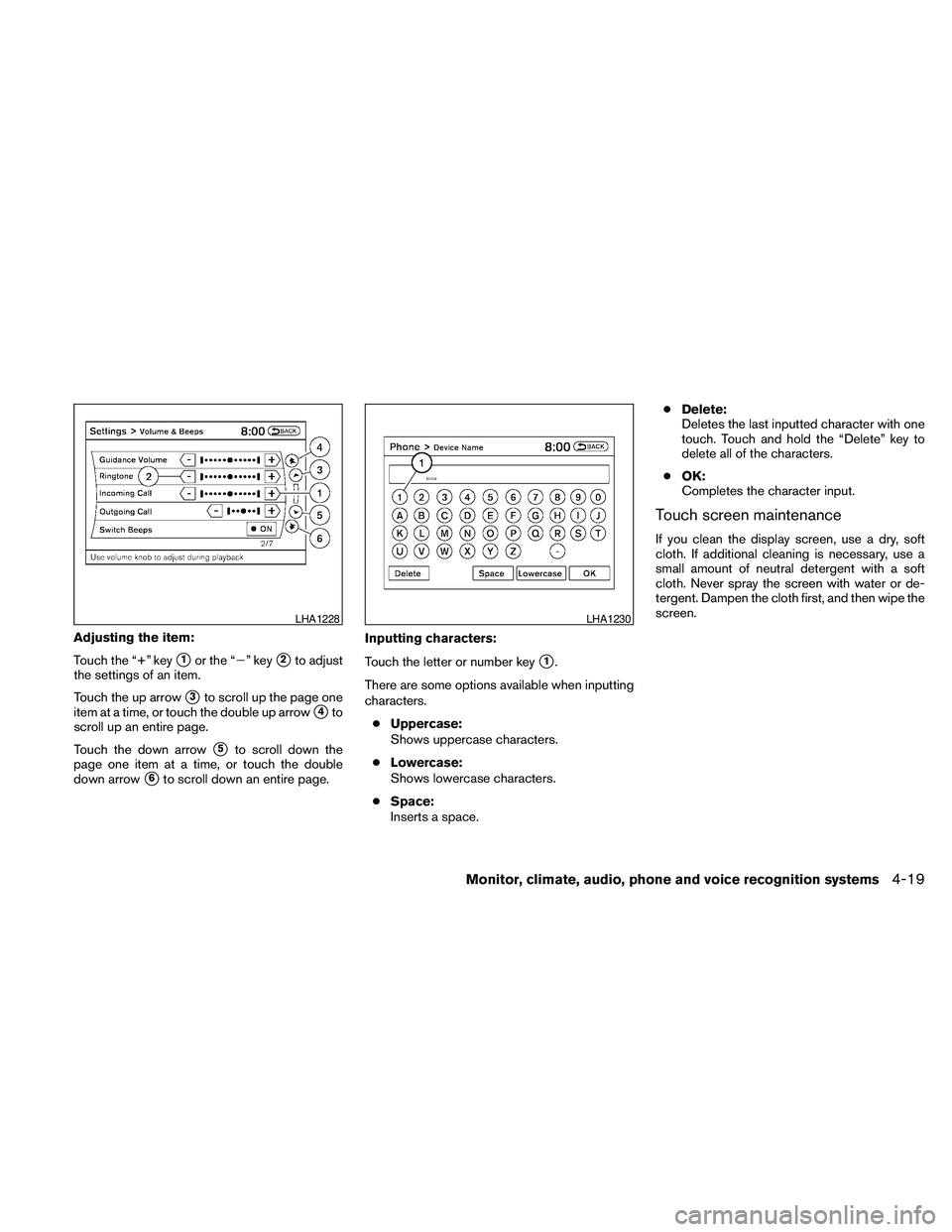
Adjusting the item:
Touch the “+” key
s1or the “2” keys2to adjust
the settings of an item.
Touch the up arrow
s3to scroll up the page one
item at a time, or touch the double up arrow
s4to
scroll up an entire page.
Touch the down arrow
s5to scroll down the
page one item at a time, or touch the double
down arrow
s6to scroll down an entire page.Inputting characters:
Touch the letter or number key
s1.
There are some options available when inputting
characters.
cUppercase:
Shows uppercase characters.
cLowercase:
Shows lowercase characters.
cSpace:
Inserts a space.cDelete:
Deletes the last inputted character with one
touch. Touch and hold the “Delete” key to
delete all of the characters.
cOK:
Completes the character input.
Touch screen maintenance
If you clean the display screen, use a dry, soft
cloth. If additional cleaning is necessary, use a
small amount of neutral detergent with a soft
cloth. Never spray the screen with water or de-
tergent. Dampen the cloth first, and then wipe the
screen.
LHA1228LHA1230
Monitor, climate, audio, phone and voice recognition systems4-19
Page 182 of 457
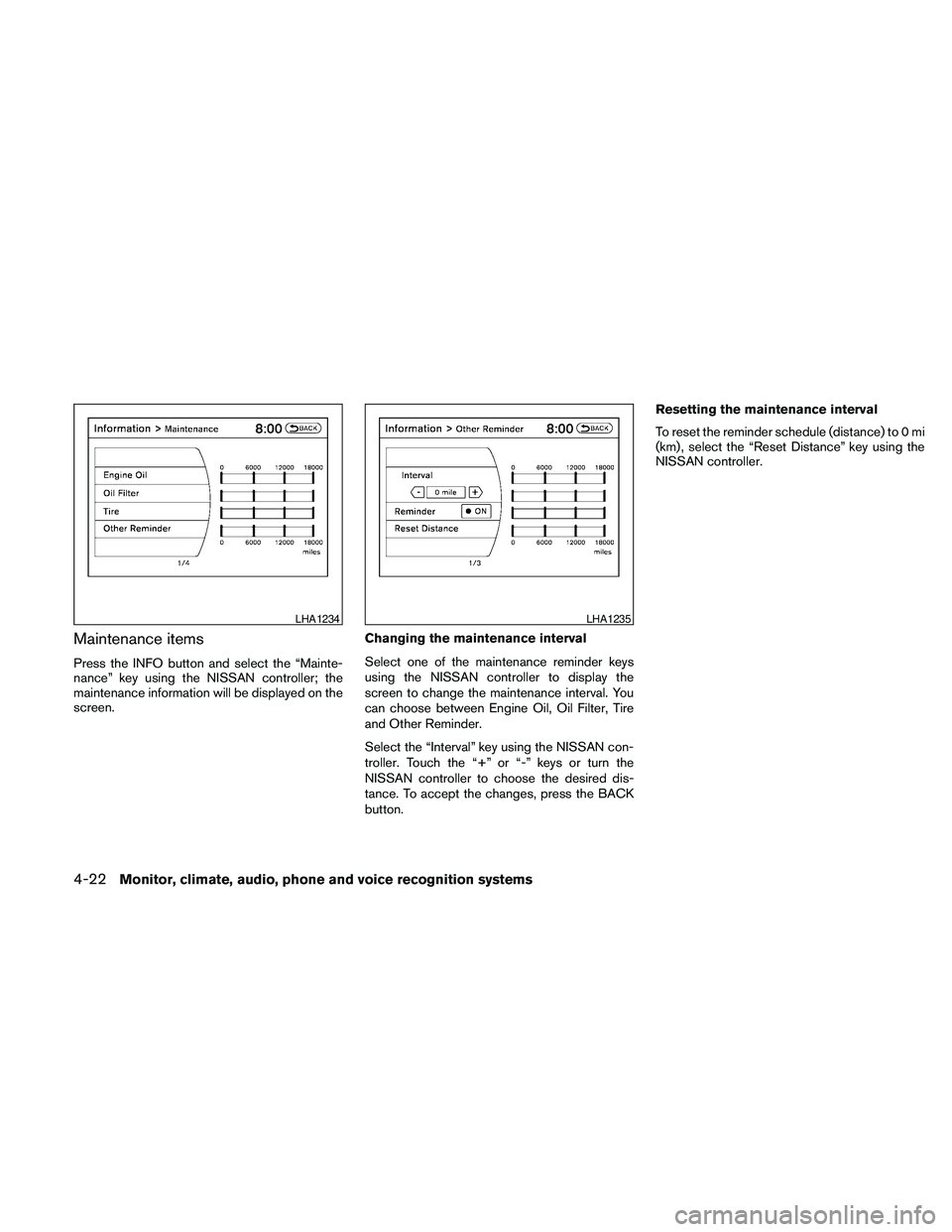
Maintenance items
Press the INFO button and select the “Mainte-
nance” key using the NISSAN controller; the
maintenance information will be displayed on the
screen.Changing the maintenance interval
Select one of the maintenance reminder keys
using the NISSAN controller to display the
screen to change the maintenance interval. You
can choose between Engine Oil, Oil Filter, Tire
and Other Reminder.
Select the “Interval” key using the NISSAN con-
troller. Touch the “+” or “-” keys or turn the
NISSAN controller to choose the desired dis-
tance. To accept the changes, press the BACK
button.Resetting the maintenance interval
To reset the reminder schedule (distance) to 0 mi
(km) , select the “Reset Distance” key using the
NISSAN controller.
LHA1234LHA1235
4-22Monitor, climate, audio, phone and voice recognition systems
Page 183 of 457
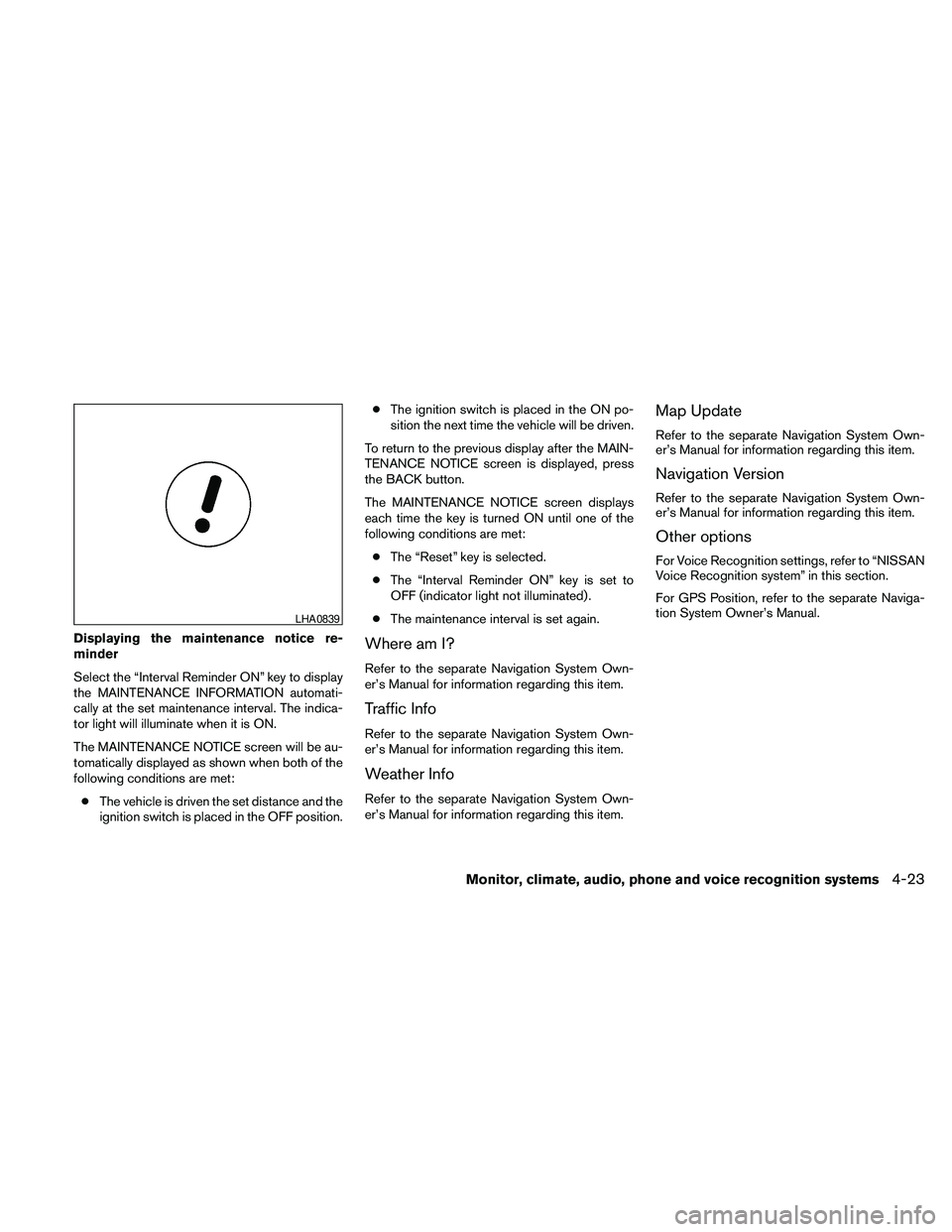
Displaying the maintenance notice re-
minder
Select the “Interval Reminder ON” key to display
the MAINTENANCE INFORMATION automati-
cally at the set maintenance interval. The indica-
tor light will illuminate when it is ON.
The MAINTENANCE NOTICE screen will be au-
tomatically displayed as shown when both of the
following conditions are met:
cThe vehicle is driven the set distance and the
ignition switch is placed in the OFF position.cThe ignition switch is placed in the ON po-
sition the next time the vehicle will be driven.
To return to the previous display after the MAIN-
TENANCE NOTICE screen is displayed, press
the BACK button.
The MAINTENANCE NOTICE screen displays
each time the key is turned ON until one of the
following conditions are met:
cThe “Reset” key is selected.
cThe “Interval Reminder ON” key is set to
OFF (indicator light not illuminated) .
cThe maintenance interval is set again.Where am I?
Refer to the separate Navigation System Own-
er’s Manual for information regarding this item.
Traffic Info
Refer to the separate Navigation System Own-
er’s Manual for information regarding this item.
Weather Info
Refer to the separate Navigation System Own-
er’s Manual for information regarding this item.
Map Update
Refer to the separate Navigation System Own-
er’s Manual for information regarding this item.
Navigation Version
Refer to the separate Navigation System Own-
er’s Manual for information regarding this item.
Other options
For Voice Recognition settings, refer to “NISSAN
Voice Recognition system” in this section.
For GPS Position, refer to the separate Naviga-
tion System Owner’s Manual.
LHA0839
Monitor, climate, audio, phone and voice recognition systems4-23
Page 260 of 457
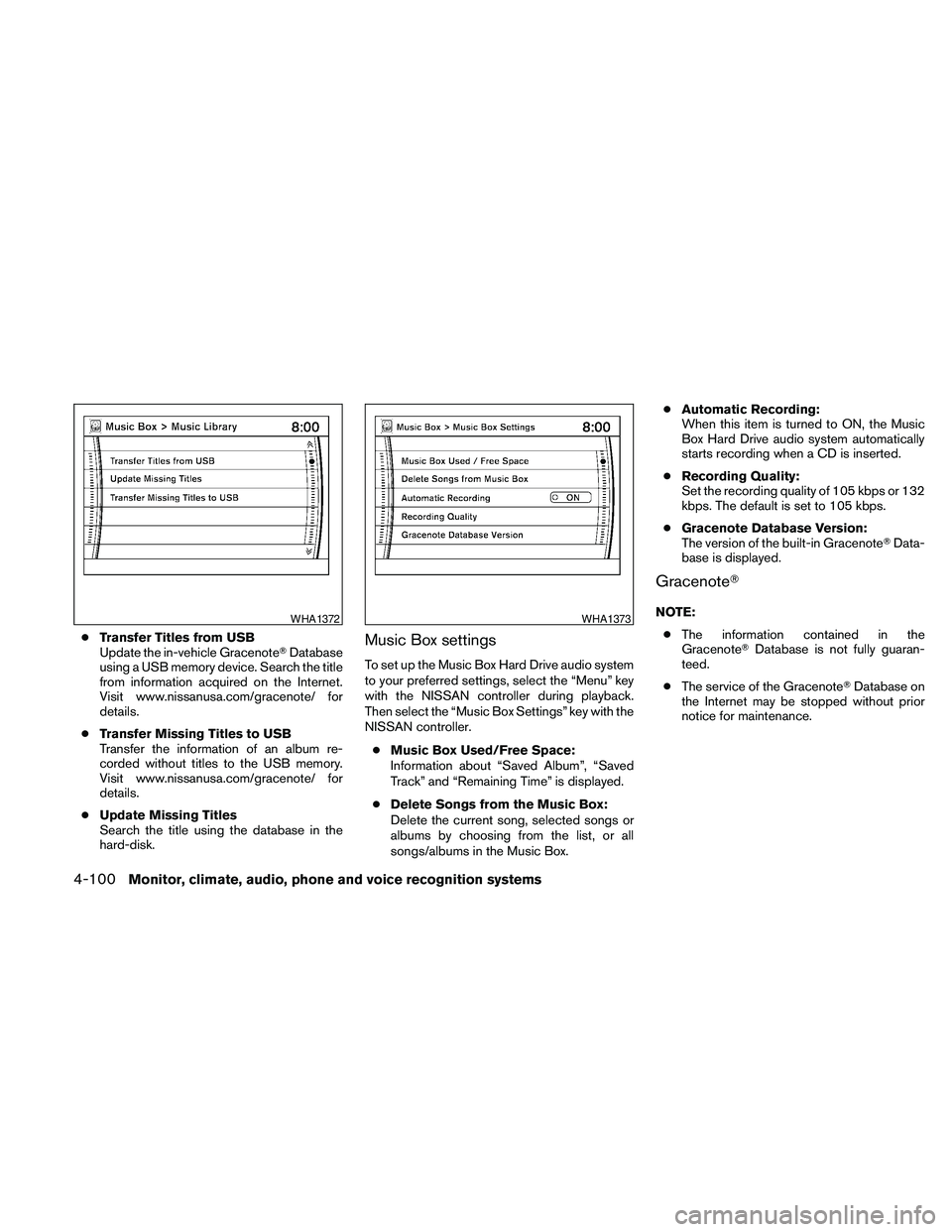
cTransfer Titles from USB
Update the in-vehicle GracenoteTDatabase
using a USB memory device. Search the title
from information acquired on the Internet.
Visit www.nissanusa.com/gracenote/ for
details.
cTransfer Missing Titles to USB
Transfer the information of an album re-
corded without titles to the USB memory.
Visit www.nissanusa.com/gracenote/ for
details.
cUpdate Missing Titles
Search the title using the database in the
hard-disk.Music Box settings
To set up the Music Box Hard Drive audio system
to your preferred settings, select the “Menu” key
with the NISSAN controller during playback.
Then select the “Music Box Settings” key with the
NISSAN controller.
cMusic Box Used/Free Space:
Information about “Saved Album”, “Saved
Track” and “Remaining Time” is displayed.
cDelete Songs from the Music Box:
Delete the current song, selected songs or
albums by choosing from the list, or all
songs/albums in the Music Box.cAutomatic Recording:
When this item is turned to ON, the Music
Box Hard Drive audio system automatically
starts recording when a CD is inserted.
cRecording Quality:
Set the recording quality of 105 kbps or 132
kbps. The default is set to 105 kbps.
cGracenote Database Version:
The version of the built-in GracenoteTData-
base is displayed.
GracenoteT
NOTE:
cThe information contained in the
GracenoteTDatabase is not fully guaran-
teed.
cThe service of the GracenoteTDatabase on
the Internet may be stopped without prior
notice for maintenance.WHA1372WHA1373
4-100Monitor, climate, audio, phone and voice recognition systems
Page 268 of 457
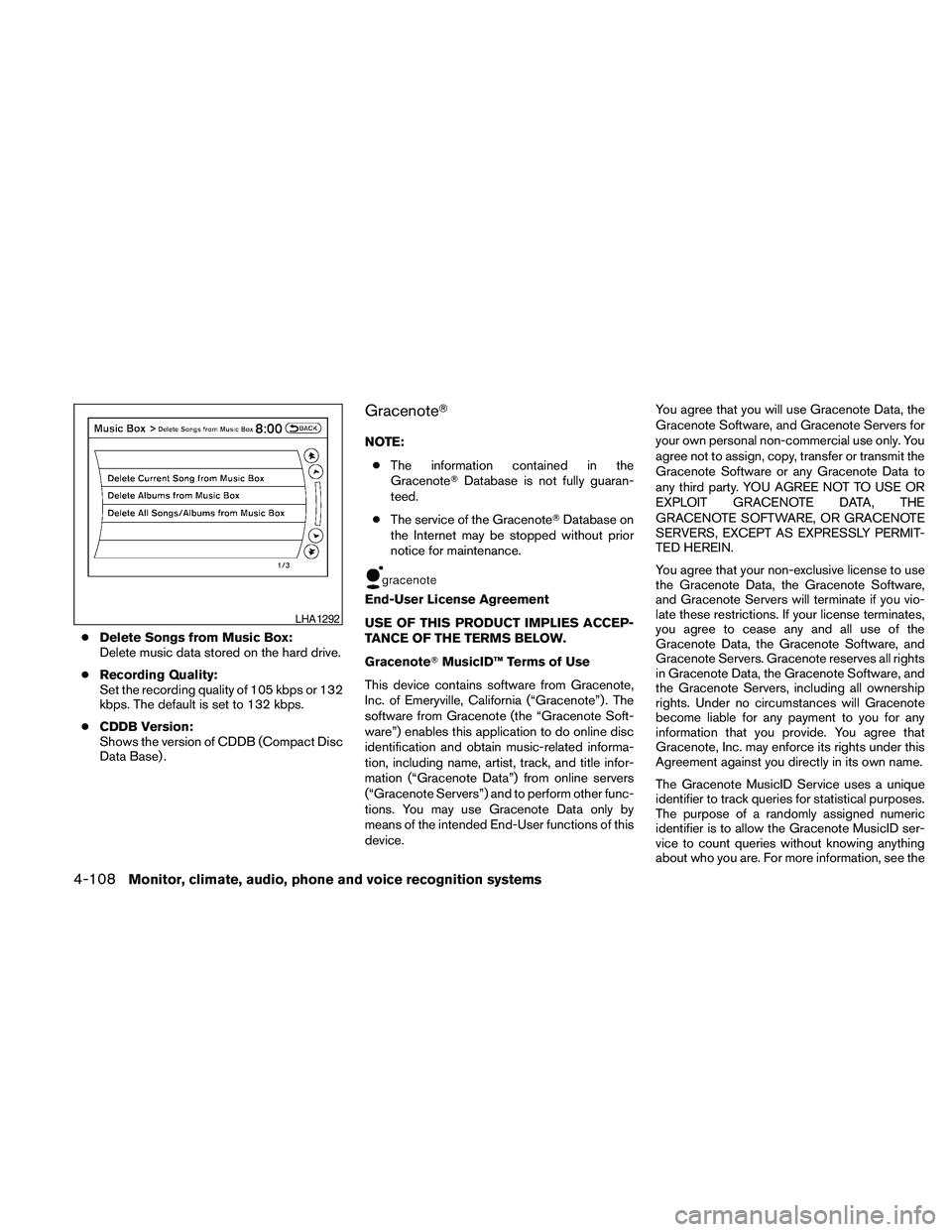
cDelete Songs from Music Box:
Delete music data stored on the hard drive.
cRecording Quality:
Set the recording quality of 105 kbps or 132
kbps. The default is set to 132 kbps.
cCDDB Version:
Shows the version of CDDB (Compact Disc
Data Base) .
GracenoteT
NOTE:
cThe information contained in the
GracenoteTDatabase is not fully guaran-
teed.
cThe service of the GracenoteTDatabase on
the Internet may be stopped without prior
notice for maintenance.
End-User License Agreement
USE OF THIS PRODUCT IMPLIES ACCEP-
TANCE OF THE TERMS BELOW.
GracenoteTMusicID™ Terms of Use
This device contains software from Gracenote,
Inc. of Emeryville, California (“Gracenote”) . The
software from Gracenote (the “Gracenote Soft-
ware”) enables this application to do online disc
identification and obtain music-related informa-
tion, including name, artist, track, and title infor-
mation (“Gracenote Data”) from online servers
(“Gracenote Servers”) and to perform other func-
tions. You may use Gracenote Data only by
means of the intended End-User functions of this
device.You agree that you will use Gracenote Data, the
Gracenote Software, and Gracenote Servers for
your own personal non-commercial use only. You
agree not to assign, copy, transfer or transmit the
Gracenote Software or any Gracenote Data to
any third party. YOU AGREE NOT TO USE OR
EXPLOIT GRACENOTE DATA, THE
GRACENOTE SOFTWARE, OR GRACENOTE
SERVERS, EXCEPT AS EXPRESSLY PERMIT-
TED HEREIN.
You agree that your non-exclusive license to use
the Gracenote Data, the Gracenote Software,
and Gracenote Servers will terminate if you vio-
late these restrictions. If your license terminates,
you agree to cease any and all use of the
Gracenote Data, the Gracenote Software, and
Gracenote Servers. Gracenote reserves all rights
in Gracenote Data, the Gracenote Software, and
the Gracenote Servers, including all ownership
rights. Under no circumstances will Gracenote
become liable for any payment to you for any
information that you provide. You agree that
Gracenote, Inc. may enforce its rights under this
Agreement against you directly in its own name.
The Gracenote MusicID Service uses a unique
identifier to track queries for statistical purposes.
The purpose of a randomly assigned numeric
identifier is to allow the Gracenote MusicID ser-
vice to count queries without knowing anything
about who you are. For more information, see the
LHA1292
4-108Monitor, climate, audio, phone and voice recognition systems
Page 311 of 457
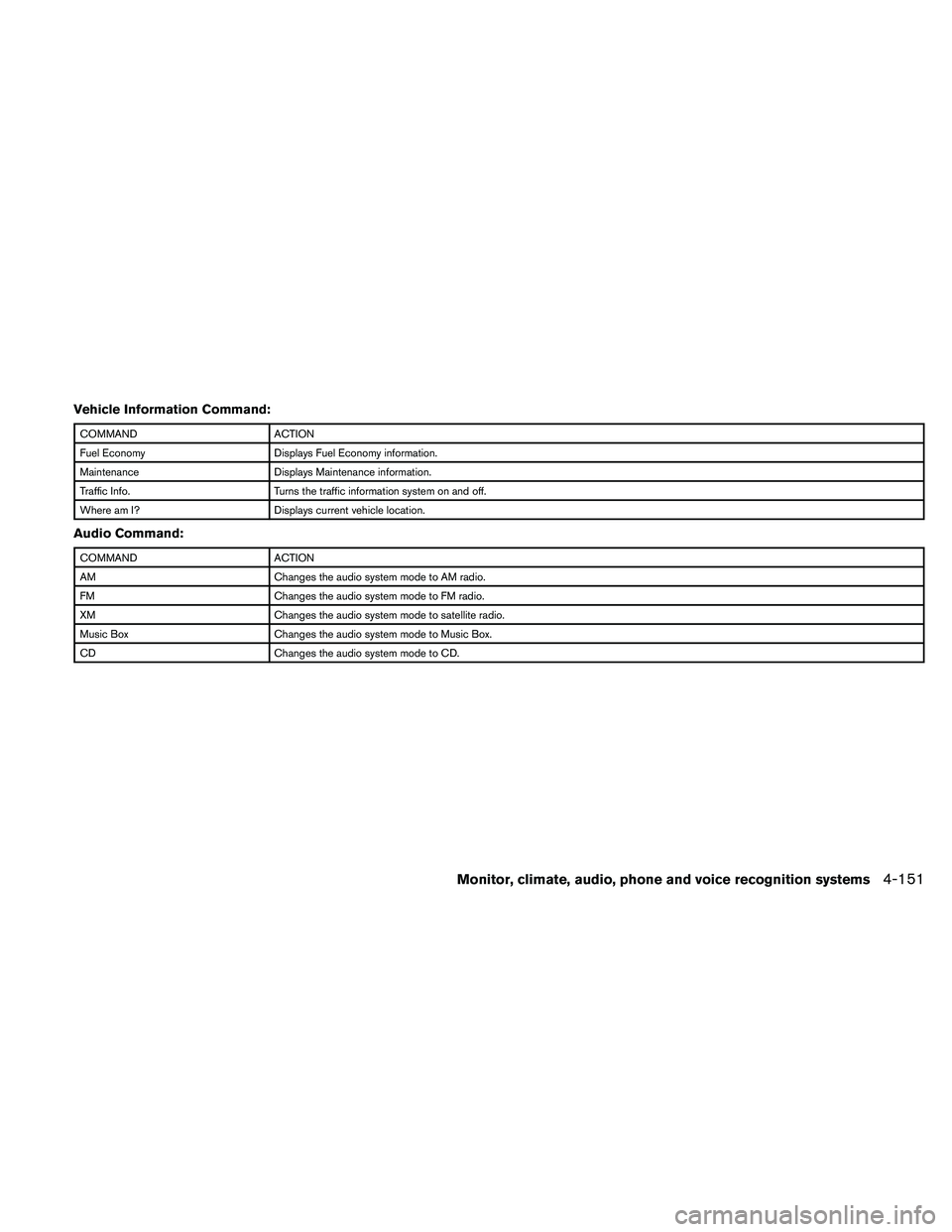
Vehicle Information Command:
COMMAND ACTION
Fuel Economy Displays Fuel Economy information.
Maintenance Displays Maintenance information.
Traffic Info. Turns the traffic information system on and off.
Where am I? Displays current vehicle location.
Audio Command:
COMMAND ACTION
AM Changes the audio system mode to AM radio.
FM Changes the audio system mode to FM radio.
XM Changes the audio system mode to satellite radio.
Music Box Changes the audio system mode to Music Box.
CD Changes the audio system mode to CD.
Monitor, climate, audio, phone and voice recognition systems4-151