reset NISSAN MAXIMA 2010 Owner´s Manual
[x] Cancel search | Manufacturer: NISSAN, Model Year: 2010, Model line: MAXIMA, Model: NISSAN MAXIMA 2010Pages: 457, PDF Size: 4.66 MB
Page 182 of 457
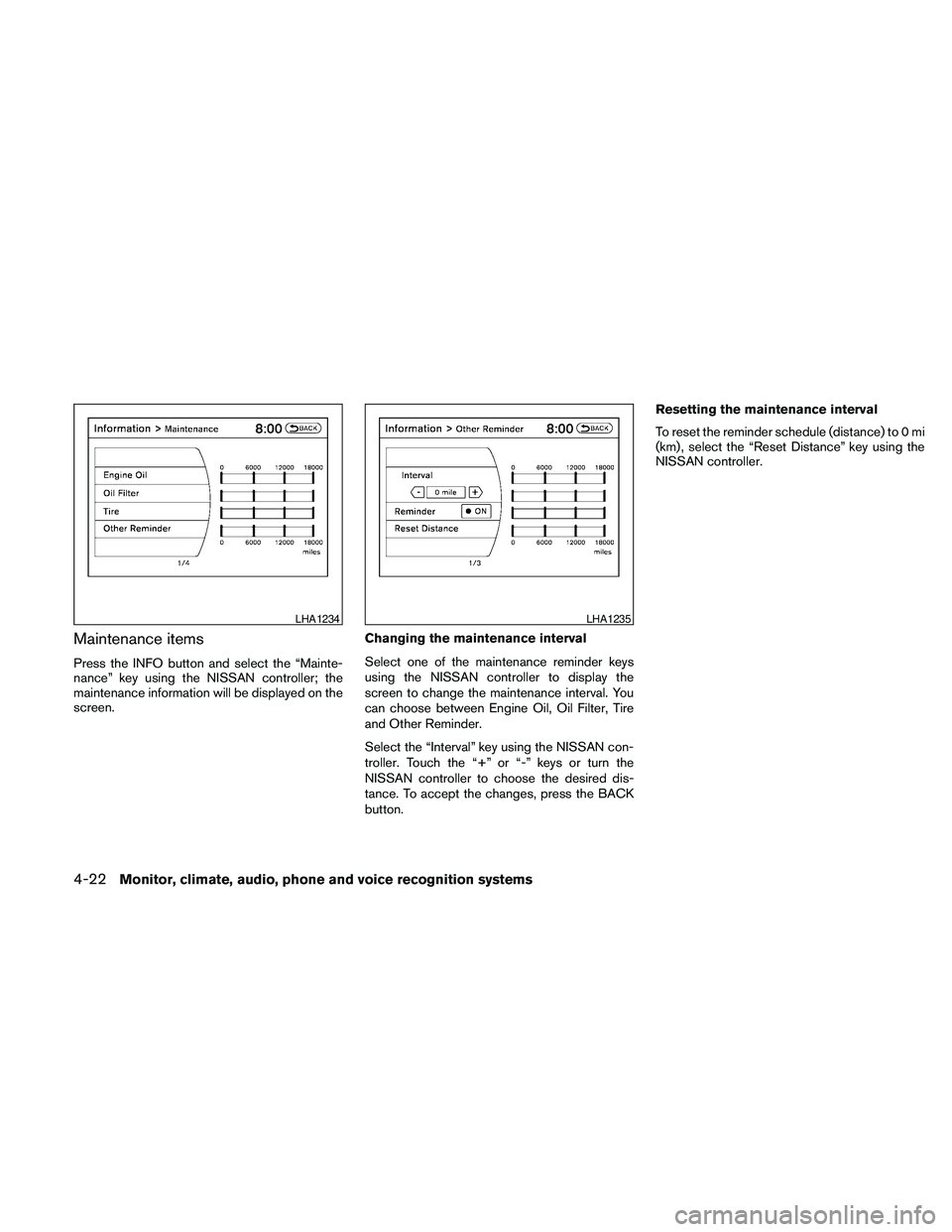
Maintenance items
Press the INFO button and select the “Mainte-
nance” key using the NISSAN controller; the
maintenance information will be displayed on the
screen.Changing the maintenance interval
Select one of the maintenance reminder keys
using the NISSAN controller to display the
screen to change the maintenance interval. You
can choose between Engine Oil, Oil Filter, Tire
and Other Reminder.
Select the “Interval” key using the NISSAN con-
troller. Touch the “+” or “-” keys or turn the
NISSAN controller to choose the desired dis-
tance. To accept the changes, press the BACK
button.Resetting the maintenance interval
To reset the reminder schedule (distance) to 0 mi
(km) , select the “Reset Distance” key using the
NISSAN controller.
LHA1234LHA1235
4-22Monitor, climate, audio, phone and voice recognition systems
Page 183 of 457
Displaying the maintenance notice re-
minder
Select the “Interval Reminder ON” key to display
the MAINTENANCE INFORMATION automati-
cally at the set maintenance interval. The indica-
tor light will illuminate when it is ON.
The MAINTENANCE NOTICE screen will be au-
tomatically displayed as shown when both of the
following conditions are met:
cThe vehicle is driven the set distance and the
ignition switch is placed in the OFF position.cThe ignition switch is placed in the ON po-
sition the next time the vehicle will be driven.
To return to the previous display after the MAIN-
TENANCE NOTICE screen is displayed, press
the BACK button.
The MAINTENANCE NOTICE screen displays
each time the key is turned ON until one of the
following conditions are met:
cThe “Reset” key is selected.
cThe “Interval Reminder ON” key is set to
OFF (indicator light not illuminated) .
cThe maintenance interval is set again.Where am I?
Refer to the separate Navigation System Own-
er’s Manual for information regarding this item.
Traffic Info
Refer to the separate Navigation System Own-
er’s Manual for information regarding this item.
Weather Info
Refer to the separate Navigation System Own-
er’s Manual for information regarding this item.
Map Update
Refer to the separate Navigation System Own-
er’s Manual for information regarding this item.
Navigation Version
Refer to the separate Navigation System Own-
er’s Manual for information regarding this item.
Other options
For Voice Recognition settings, refer to “NISSAN
Voice Recognition system” in this section.
For GPS Position, refer to the separate Naviga-
tion System Owner’s Manual.
LHA0839
Monitor, climate, audio, phone and voice recognition systems4-23
Page 213 of 457
cDuring cold weather or rainy days, the player
may malfunction due to the humidity. If this
occurs, remove the USB memory stick and
dehumidify or ventilate the player com-
pletely.
cThe player sometimes cannot function when
the passenger compartment temperature is
extremely high. Decrease the temperature
before use.
cDo not leave the USB memory in a place
prone to static electricity or where the air
conditioner blows directly. The data in the
USB memory may be damaged.
cPrepare the USB device by yourself be-
cause it is not equipped with the vehicle.
cThe USB device cannot be formatted with
this system. If you want to format the USB
memory, use your personal computer.
cPartitioned USB devices may not be played
correctly.
cSome characters used in other languages
(Chinese, Japanese, etc.) are not displayed
properly on the vehicle center screen.
NISSAN recommends using English lan-
guage characters with USB devices.cDo not connect the USB device if the con-
nector or cable is wet. Allow the cable
and/or connectors to dry completely before
connecting the USB device.
cLarge video podcast files cause slow re-
sponses in the iPodT. The vehicle center
display may momentarily black out, but it will
soon recover.
cIf the iPodTautomatically selects large video
podcast files while in the shuffle mode, the
vehicle center display may momentarily
black out, but it will soon recover.
cAudiobooks may not play in the same order
as they appear on the iPodT.
cThe iPodTnano (1st Generation) may re-
main in fast forward or rewind mode if it is
connected during a seek operation. In this
case, please manually reset the iPodT.
cThe iPodTnano (2nd Generation) will con-
tinue to fast forward or rewind if it is discon-
nected during a seek operation.
cAn incorrect song title may appear when the
Play Mode is changed while using the iPodT
nano (2nd generation) .cIf you are using an iPodT(3rd Generation
with Dock connector) , do not use very long
names for the song title, album name or artist
name to avoid the iPodTresetting itself.
iPodTis a trademark of Apple Inc., registered in
the U.S. and other countries.
BluetoothTaudio player (if so
equipped)
cSome BluetoothTaudio devices may not be
recognized by the in-vehicle audio system.
Contact a NISSAN dealer for the compatible
device.
cIt is necessary to set up the wireless con-
nection between a compatible BluetoothT
audio device and the in-vehicle BluetoothT
module before using the BluetoothTaudio.
cOperating procedure of the BluetoothTau-
dio will vary depending on the devices. Make
sure how to operate your audio device be-
fore using it with this system.
cThe BluetoothTaudio may be stopped under
the following conditions:
cReceiving a call on the Hands-Free
Phone System.
cChecking the connection to the hands-
free phone.
Monitor, climate, audio, phone and voice recognition systems4-53
Page 226 of 457
cArtist name displays the name of the artist of
the song playing.
cAlbum title displays the title of the album of
the song playing.
FM/AM radio operation
FM/AM band select:
Pressing the AM·FM button will change the band
as follows:
AM!FM1!FM2!AM
When the AM·FM button is pressed while the
ignition switch is in the ACC or ON position, the
radio will come on at the station last played.
The last station played will also come on when
the VOL/ON·OFF control knob is pressed ON.
If a compact disc is playing when the AM·FM
button is pressed, the compact disc will auto-
matically be turned off and the last radio station
played will come on.
The FM stereo indicator ST will illuminate during
FM stereo reception. When the stereo broadcast
signal is weak, the radio will automatically change
from stereo to monaural reception.
TUNE/FOLDER (Tuning) knob:
To manually tune the radio, turn the
TUNE/FOLDER knob to the right or left.
SEEK/CAT and TRACK
tuning buttons:
Press the SEEK/CAT
button or the
TRACK
button to tune from high to low or
low to high frequencies and stop at the next
broadcasting station.
SCAN tuning:
Press the SCAN button to stop at each broad-
casting station for 5 seconds. Pressing the
SCAN button again during this 5-second period
will stop scan tuning and the radio will remain
tuned to that station. If the SCAN button is not
pressed within 5 seconds, scan tuning moves to
the next station.
1 to 6 Station memory operations:
Twelve stations can be set for the FM band (6 for
FM1, 6 for FM2) and six stations can be set for
the AM band.
1. Choose the radio band AM, FM1 or FM2
using the AM·FM select button.
2. Tune to the desired station using manual,
SEEK or SCAN tuning. Press and hold any
of the desired station memory buttons (1 –
6) until a beep sound is heard.3. The channel indicator will then come on and
the sound will resume. Programming is now
complete.
4. Other buttons can be set in the same man-
ner.
If the battery cable is disconnected or if the fuse
opens, the radio memory will be canceled. In that
case, reset the desired stations.
Compact disc (CD) changer operation
Place the ignition switch in the ACC or ON
position and press the LOAD button, then press
one of the CD insert (1 – 6) slots. Insert the
compact disc into the slot with the label side
facing up. The compact disc will be guided auto-
matically into the slot and start playing.
If the radio is already operating, it will automati-
cally turn off and the compact disc will play.
If the system has been turned off while a compact
disc was playing, pressing the VOL/ON·OFF
control knob will start the compact disc.
LOAD button:
To insert a CD in the CD changer, press the
LOAD button for less than 1.5 seconds. Select
the loading slot by pressing the CD insert select
button (1 – 6) , then insert the CD.
4-66Monitor, climate, audio, phone and voice recognition systems
Page 232 of 457
When the AUX button is pressed while the igni-
tion switch is in the ACC or ON position, the
radio will come on at the station last played.
The last station played will also come on when
the VOL/ON·OFF control knob is pressed ON.
*When the AUX button is pressed, the satellite
radio mode will be skipped unless an optional
satellite receiver and antenna are installed and an
XMTsatellite radio service subscription is active.
Satellite radio is not available in Alaska, Hawaii
and Guam.
If a compact disc is playing when the AUX button
is pressed, the compact disc will automatically be
turned off and the last radio station played will
come on.
TUNE/FOLDER (Tuning) knob:
To manually tune the radio, turn the
TUNE/FOLDER knob to the right or left.
SEEK/CAT and TRACK
tuning buttons:
Press the SEEK/CAT
button or the
TRACK
button to tune from high to low or
low to high frequencies and stop at the next
broadcasting station.SCAN tuning:
Press the SCAN button to stop at each broad-
casting station for 5 seconds. Pressing the
SCAN button again during this five second pe-
riod will stop scan tuning and the radio will remain
tuned to that station. If the SCAN button is not
pressed within 5 seconds, scan tuning moves to
the next station.
1 to 6 Station memory operations:
Six stations can be set for the AM band. Twelve
stations can be set for the FM band (6 for FM1, 6
for FM2) . Eighteen stations can be set for the XM
band (6 for XM1, 6 for XM2, 6 for XM3) .
1. Choose the radio band AM, FM1 or FM2
using the FM·AM select button. Or choose
the satellite band SAT1 or SAT2 using the
AUX button.
2. Tune to the desired station using manual,
SEEK or SCAN tuning. Press and hold any
of the desired station memory buttons (1 –
6) until a beep sound is heard.
3. The channel indicator will then come on and
the sound will resume. Programming is now
complete.
4. Other buttons can be set in the same man-
ner.If the battery cable is disconnected, or if the fuse
opens, the radio memory will be canceled. In that
case, reset the desired stations.
Radio data system (RDS):
RDS stands for Radio Data System, and is a data
information service transmitted by some radio
stations on the FM band (not AM band) . Cur-
rently, most RDS stations are in large cities, but
many stations are now considering broadcasting
RDS data.
RDS can display:
cStation call sign, such as “WHFR 98.3”.
cStation name, such as “The Groove”.
cMusic or programming type such as “Clas-
sical”, “Country”, or “Rock”.
When the “Text” key is selected with the NISSAN
controller on the display while the radio is playing,
additional information is displayed on the screen.
If the station broadcasts RDS information, the
RDS icon is displayed.Compact disc (CD) player operation
Place the ignition in the ACC or ON position and
insert the compact disc into the slot with the label
side facing up. The compact disc will be guided
automatically into the slot and start playing.
4-72Monitor, climate, audio, phone and voice recognition systems
Page 238 of 457
The FM stereo indicator STEREO will illuminate
during FM stereo reception. When the stereo
broadcast signal is weak, the radio will automati-
cally change from stereo to monaural reception.
SAT band select:
Pressing the SAT button will change the band as
follows:
XM1*!XM2*!XM3*!XM1 (satellite, if so
equipped)
When the SAT button is pressed while the igni-
tion switch is in the ACC or ON position, the
radio will come on at the station last played.
The last station played will also come on when
the VOL/ON·OFF control knob is pressed ON.
*When the SAT button is pressed, the satellite
radio reception will not be available unless an
optional satellite receiver and antenna are in-
stalled and an XMTsatellite radio service sub-
scription is active. Satellite radio is not available
in Alaska, Hawaii and Guam.
If a compact disc is playing when the SAT button
is pressed, the compact disc will automatically be
turned off and the last radio station played will
come on.TUNE/FOLDER (Tuning) knob:
To manually tune the radio, turn the
TUNE/FOLDER knob to the right or left.
SEEK/CAT and TRACK
tuning buttons:
For AM or FM:
Press the SEEK/CAT
button or the
TRACK
button to tune from high to low or
low to high frequencies and stop at the next
broadcasting station.
For XM:
Press the SEEK/CAT
button or the
TRACK
button to go to the first channel of
the previous or next category.
SCAN tuning:
Press the SCAN button to stop at each broad-
casting station for 5 seconds. Pressing the
SCAN button again during this five second pe-
riod will stop scan tuning and the radio will remain
tuned to that station. If the SCAN button is not
pressed within 5 seconds, scan tuning moves to
the next station.
1 to 6 Station memory operations:
Six stations can be set for the AM band. Twelve
stations can be set for the FM band (6 for FM1, 6for FM2) . Eighteen channels can be set for the
SAT radio (6 for XM1, 6 for XM2, 6 for XM3 – if so
equipped) .
1. Choose the radio band AM, FM1 or FM2
using the FM·AM select button, or choose
the satellite band XM1, XM2 or XM3 using
the SAT button.
2. Tune to the desired station using manual,
SEEK or SCAN tuning. Press and hold any
of the desired station memory buttons (1 –
6) until the preset number is updated on the
display and the sound is briefly muted.
3. The channel indicator will then come on and
the sound will resume. Programming is now
complete.
4. Other buttons can be set in the same man-
ner.
If the battery cable is disconnected, or if the fuse
opens, the radio memory will be canceled. In that
case, reset the desired stations.
List (AM and FM)
Select the “List” key using the NISSAN controller
or touchscreen to see a list of the presets in the
AM, FM1 or FM2 preset banks.
4-78Monitor, climate, audio, phone and voice recognition systems
Page 239 of 457
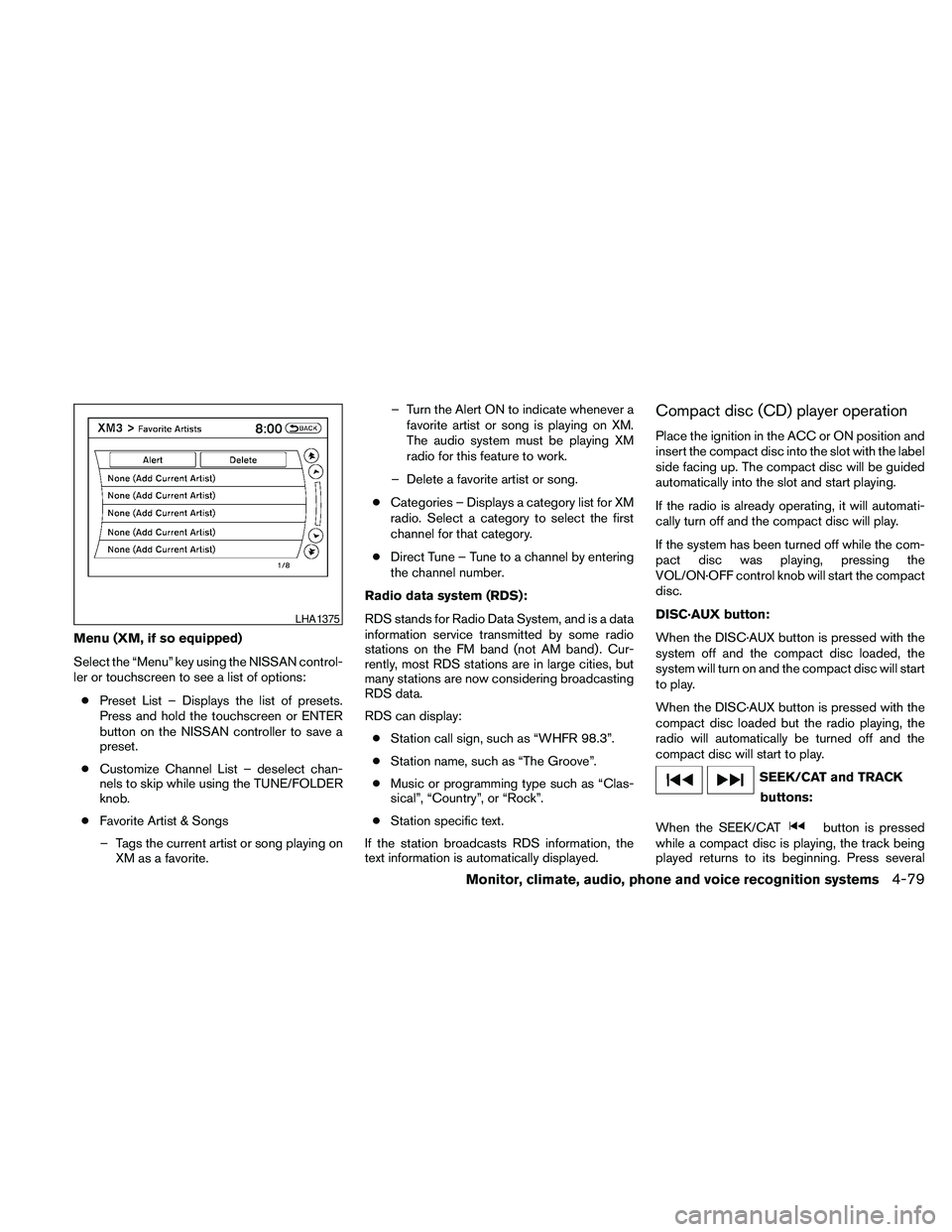
Menu (XM, if so equipped)
Select the “Menu” key using the NISSAN control-
ler or touchscreen to see a list of options:
cPreset List – Displays the list of presets.
Press and hold the touchscreen or ENTER
button on the NISSAN controller to save a
preset.
cCustomize Channel List – deselect chan-
nels to skip while using the TUNE/FOLDER
knob.
cFavorite Artist & Songs
– Tags the current artist or song playing on
XM as a favorite.– Turn the Alert ON to indicate whenever a
favorite artist or song is playing on XM.
The audio system must be playing XM
radio for this feature to work.
– Delete a favorite artist or song.
cCategories – Displays a category list for XM
radio. Select a category to select the first
channel for that category.
cDirect Tune – Tune to a channel by entering
the channel number.
Radio data system (RDS):
RDS stands for Radio Data System, and is a data
information service transmitted by some radio
stations on the FM band (not AM band) . Cur-
rently, most RDS stations are in large cities, but
many stations are now considering broadcasting
RDS data.
RDS can display:
cStation call sign, such as “WHFR 98.3”.
cStation name, such as “The Groove”.
cMusic or programming type such as “Clas-
sical”, “Country”, or “Rock”.
cStation specific text.
If the station broadcasts RDS information, the
text information is automatically displayed.
Compact disc (CD) player operation
Place the ignition in the ACC or ON position and
insert the compact disc into the slot with the label
side facing up. The compact disc will be guided
automatically into the slot and start playing.
If the radio is already operating, it will automati-
cally turn off and the compact disc will play.
If the system has been turned off while the com-
pact disc was playing, pressing the
VOL/ON·OFF control knob will start the compact
disc.
DISC·AUX button:
When the DISC·AUX button is pressed with the
system off and the compact disc loaded, the
system will turn on and the compact disc will start
to play.
When the DISC·AUX button is pressed with the
compact disc loaded but the radio playing, the
radio will automatically be turned off and the
compact disc will start to play.
SEEK/CAT and TRACK
buttons:
When the SEEK/CAT
button is pressed
while a compact disc is playing, the track being
played returns to its beginning. Press several
LHA1375
Monitor, climate, audio, phone and voice recognition systems4-79
Page 274 of 457
SOURCE select switch
Push the source select switch to change the
mode in the following sequence:
Models without Navigation System:
AM!FM1!FM2!XM1!XM2!XM3
(satellite radio, if so equipped)!USB* (if so
equipped)!CD/DVD*!Music Box** (if so
equipped)!AUX*!AM.
Models with Navigation System:
AM!FM1!FM2!XM1!XM2!XM3
(satellite radio, if so equipped)!CD/DVD*!
Music Box**!USB/iPodT*!BluetoothTAu-
dio*!AUX*!AM.
* These modes are only available when compat-
ible media storage is inserted into the device.
** This mode is only available when music has
been downloaded into the Music Box system.
Volume control switch
Push the volume control switch to increase or
decrease the volume.
Menu control
switch/ENTER button
While the display is showing a MAP, STATUS or
Audio screen, tilt the Menu Control switch up-
ward or downward to select a station, track, CDor folder. For most audio sources, tilting the
switch up/down for more than 1.5 seconds pro-
vides a different function than a tilting up/down
for less than 1.5 seconds.
AM and FM:
cTilt up/down for less than 1.5 seconds to
increase or decrease the preset station.
cTilt up/down for more than 1.5 seconds to
seek up or down to the next station.
cPress the ENTER button to show the list of
preset stations.
XM (if so equipped):
cTilt up/down for less than 1.5 seconds to
increase or decrease the preset station.
cTilt up/down for more than 1.5 seconds to
go to the next or previous category.
cPress the ENTER button to show the XM
Menu.
iPodT(if so equipped):
cTilt up/down for less than 1.5 seconds to
increase or decrease the track number.
cPress the ENTER button to show the iPod
Menu.CD:
cTilt up/down for less than 1.5 seconds to
increase or decrease the track number.
cTilt up/down for more than 1.5 seconds to
increase or decrease the folder number (if
playing compressed audio files) .
cPress the ENTER button to show the CD
Menu.
DVD (if so equipped):
cTilt up/down for less than 1.5 seconds to
increase or decrease the track number.
cTilt up/down for more than 1.5 seconds to
increase or decrease the title number.
cPress the ENTER button to select an item
from the DVD display.
cWhen the transparent operation menu ap-
pears, the switch will control the menu.
USB (if so equipped):
cTilt up/down for less than 1.5 seconds to
increase or decrease the track number.
cTilt up/down for more than 1.5 seconds to
increase or decrease the folder number.
cPress the ENTER button to show the USB
Menu.
4-114Monitor, climate, audio, phone and voice recognition systems
Page 276 of 457
Models with Navigation System:
AM!FM1!FM2!XM1!XM2!XM3!
CD/DVD*!Music Box**!USB/iPodT*!
BluetoothTAudio!AUX*!AM.
* These modes are only available when compat-
ible media storage is inserted into the device.
** This mode is only available when music has
been downloaded into the Music Box system.
TUNE/TRACK control switch:
AM/FM:
cPush the
orside of the switch
to select the next or previous preset station.
cPush and hold the
orside of
the switch to select the next or previous
station.
XM:
cPush the
orside of the switch
to select the next or previous preset station.
cPush and hold the
orside of
the switch to select the next or previous
category.CD:
cPush the
orside of the switch
to select the next track or the beginning of
the current track.
CD/USB (if so equipped) with MP3/WMA:
cPush the
orside of the switch
to select the next track or the beginning of
the current track.
cPush and hold the
orside of
the switch to change folders.
CD/DVD/USB (if so equipped) with com-
pressed audio files:
cPush the
orside of the switch
to select the next track or the beginning of
the current track.
cPush and hold the
orside of
the switch to change folders.
iPodT(if so equipped):
cPush the
orside of the switch
to select the next or previous track.Music Box hard-disk drive audio system (if
so equipped):
cPush the
orside of the switch
to select the next or the beginning of the
current track.
cPush and hold the
orside of
the switch to change the playlist.
BluetoothTAudio (if so equipped):
cPush the
orside of the switch
to select the next track or beginning of the
current track.
ANTENNA
Window antenna
The antenna pattern is printed inside the rear
window.
CAUTION
cDo not place metalized film near the
rear window glass or attach any metal
parts to it. This may cause poor recep-
tion or noise.
cWhen cleaning the inside of the rear
window, be careful not to scratch or
damage the rear window antenna.
Lightly wipe along the antenna with a
dampened soft cloth.
4-116Monitor, climate, audio, phone and voice recognition systems
Page 285 of 457
“Call back”sE
Use the Call Back command to dial the number of
the last incoming call within the vehicle.
The system acknowledges the command, re-
peats the number and begins dialing.
If a call back number does not exist, the system
announces, “There is no number to call back” and
ends the VR session.
During a call
During a call there are several command options
available. Press the
button on the steering
wheel to mute the receiving voice and enter com-
mands.
c“Help” — The system announces the avail-
able commands.
c“Go back/Correction” — The system an-
nounces “Go back,” ends the VR session
and returns to the call.
c“Cancel/Quit” — The system announces
“Cancel,” ends the VR session and returns
to the call.
c“Send/Enter/Call/Dial” — Use the Send
command to enter numbers, “*” or “#” during
a call. For example, if you were directed to
dial an extension by an automated system:
Say: “Send one two three four.”The system acknowledges the command
and sends the tones associated with the
numbers. The system then ends the VR ses-
sion and returns to the call. Say “star” for “*”,
Say “pound” for “#”.
c“Transfer call” — Use the Transfer Call com-
mand to transfer the call from the BluetoothT
Hands-Free Phone System to the cellular
phone when privacy is desired.
The system announces, “Transfer call. Call
transferred to privacy mode.” The system
then ends the VR session.
To reconnect the call from the cellular phone
to the Bluetooth Hands-Free System, press
the
button.
c“Mute” — Use the Mute command to mute
your voice so the other party cannot hear it.
Use the mute command again to unmute
your voice.
NOTE:
If a call is ended or the cellular phone
network connection is lost while the Mute
feature is on, the Mute feature will be reset
to “off” for the next call so the other party
can hear your voice.
“Phonebook” (phones without
automatic phonebook download
function)
NOTE:
The “Transfer Entry” command is not avail-
able when the vehicle is moving.
Main Menu
“Phonebook”
“Transfer Entry”
sA
“Delete Entry”sB
“List Names”sC
For phones that do not support automatic down-
load of the phonebook (PBAP BluetoothTpro-
file) , the “Phonebook” command is used to manu-
ally add entries to the vehicle phonebook.
The phonebook stores up to 40 names for each
phone paired with the system.
Monitor, climate, audio, phone and voice recognition systems4-125