brake NISSAN MAXIMA 2023 User Guide
[x] Cancel search | Manufacturer: NISSAN, Model Year: 2023, Model line: MAXIMA, Model: NISSAN MAXIMA 2023Pages: 494, PDF Size: 5.7 MB
Page 116 of 494
Tire Pressure Low - Add Air
This warning appears when the low tire
pressure warning light in the meter illumi-
nates and low tire pressure is detected. The
warning appears each time the ignition
switch is placed in the ON position as long
as the low tire pressure warning light re-
mains illuminated. If this warning appears,
stop the vehicle and adjust the tire pres-
sures of all four tires to the recommended
COLD tire pressure shown on the Tire and
Loading Information label. For additional
information, see “Low tire pressure warning
light” (P. 2-12) and “Tire Pressure Monitoring
System (TPMS)” (P. 5-5).
Transmission Shif t Position
indicator
This indicator shows the transmission shif t
position.
CVT Error: See Owner's
Manual
This warning appears when there is a prob-
lem with the CVT system. If this warning ap-
pears, have the system checked. It is recom-
mended that you visit a NISSAN dealer for
this service.
Automatic Emergency
Braking (AEB) with
Pedestrian Detection
emergency warning
indicator
This indicator appears along, with an au-
dible warning, when the system detects
the possibility of a forward collision.
For additional information, see “Automatic
Emergency Braking (AEB) with Pedestrian
Detection” (P. 5-85).
Blind Spot Warning (BSW)
and Rear Cross Traffic Alert
(RCTA) indicator
This indicator appears when the BSW and
RCTA systems are engaged.
For additional information, see “Blind Spot
Warning (BSW)” (P. 5-37) and “Rear Cross
Traffic Alert (RCTA)” (P. 5-47).
Chassis Control System Error: See
Owner’s Manual
This warning appears if the Integrated
Dynamics-control Module detects an error
in the Intelligent Trace Control, Intelligent
Engine Brake, or the Active Ride Control
systems. Have the system checked. It is
recommended that you visit a NISSANdealer for this service. For additional infor-
mation, see “Integrated Dynamics-control
Module” (P. 5-118).
Cruise control indicator
This indicator shows the cruise control sys-
tem status.
When cruise control is activated, a green
circle will appear to indicate it is set. The
vehicle information display will also display
the speed the cruise control was set at. If
you accelerate past the set speed, the
speed will blink until you either cancel
cruise control or go back to the set speed. If
cruise control is on and canceled, the
speed will be displayed to show the speed
the vehicle will return to if the resume but-
ton is activated.
Cruise ON
This message appears if thecruise
control switch on the steering wheel is
pressed and Cruise Control Alerts are en-
abled in the vehicle information display.
For additional information, see “Cruise con-
trol” (P. 5-76).
2-30Instruments and controls
Page 137 of 494
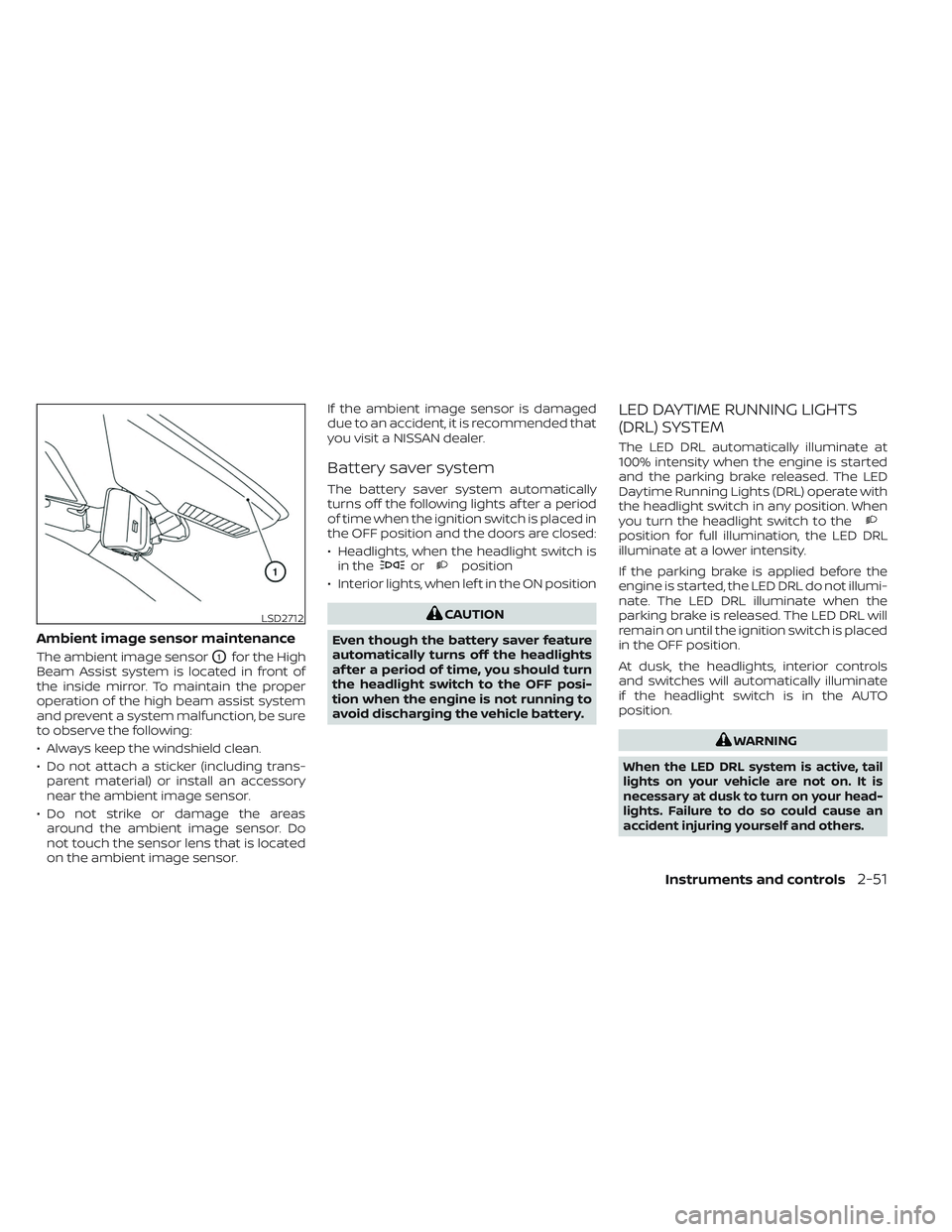
Ambient image sensor maintenance
The ambient image sensorO1for the High
Beam Assist system is located in front of
the inside mirror. To maintain the proper
operation of the high beam assist system
and prevent a system malfunction, be sure
to observe the following:
• Always keep the windshield clean.
• Do not attach a sticker (including trans- parent material) or install an accessory
near the ambient image sensor.
• Do not strike or damage the areas around the ambient image sensor. Do
not touch the sensor lens that is located
on the ambient image sensor. If the ambient image sensor is damaged
due to an accident, it is recommended that
you visit a NISSAN dealer.
Battery saver system
The battery saver system automatically
turns off the following lights af ter a period
of time when the ignition switch is placed in
the OFF position and the doors are closed:
• Headlights, when the headlight switch is
in the
orposition
• Interior lights, when lef t in the ON position
CAUTION
Even though the battery saver feature
automatically turns off the headlights
af ter a period of time, you should turn
the headlight switch to the OFF posi-
tion when the engine is not running to
avoid discharging the vehicle battery.
LED DAYTIME RUNNING LIGHTS
(DRL) SYSTEM
The LED DRL automatically illuminate at
100% intensity when the engine is started
and the parking brake released. The LED
Daytime Running Lights (DRL) operate with
the headlight switch in any position. When
you turn the headlight switch to the
position for full illumination, the LED DRL
illuminate at a lower intensity.
If the parking brake is applied before the
engine is started, the LED DRL do not illumi-
nate. The LED DRL illuminate when the
parking brake is released. The LED DRL will
remain on until the ignition switch is placed
in the OFF position.
At dusk, the headlights, interior controls
and switches will automatically illuminate
if the headlight switch is in the AUTO
position.
WARNING
When the LED DRL system is active, tail
lights on your vehicle are not on. It is
necessary at dusk to turn on your head-
lights. Failure to do so could cause an
accident injuring yourself and others.
LSD2712
Instruments and controls2-51
Page 144 of 494
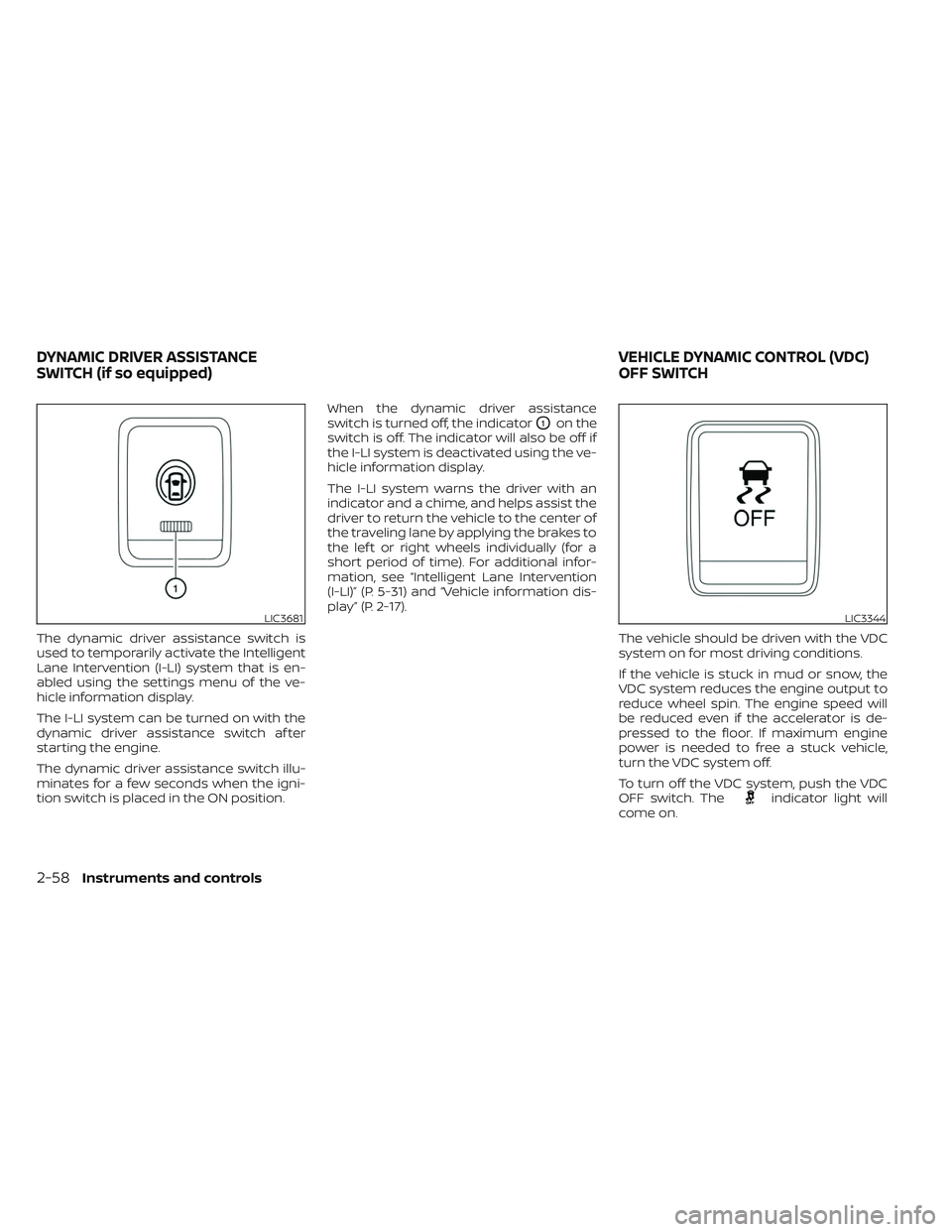
The dynamic driver assistance switch is
used to temporarily activate the Intelligent
Lane Intervention (I-LI) system that is en-
abled using the settings menu of the ve-
hicle information display.
The I-LI system can be turned on with the
dynamic driver assistance switch af ter
starting the engine.
The dynamic driver assistance switch illu-
minates for a few seconds when the igni-
tion switch is placed in the ON position.When the dynamic driver assistance
switch is turned off, the indicator
O1on the
switch is off. The indicator will also be off if
the I-LI system is deactivated using the ve-
hicle information display.
The I-LI system warns the driver with an
indicator and a chime, and helps assist the
driver to return the vehicle to the center of
the traveling lane by applying the brakes to
the lef t or right wheels individually (for a
short period of time). For additional infor-
mation, see “Intelligent Lane Intervention
(I-LI)” (P. 5-31) and “Vehicle information dis-
play” (P. 2-17).
The vehicle should be driven with the VDC
system on for most driving conditions.
If the vehicle is stuck in mud or snow, the
VDC system reduces the engine output to
reduce wheel spin. The engine speed will
be reduced even if the accelerator is de-
pressed to the floor. If maximum engine
power is needed to free a stuck vehicle,
turn the VDC system off.
To turn off the VDC system, push the VDC
OFF switch. The
indicator light will
come on.
LIC3681LIC3344
DYNAMIC DRIVER ASSISTANCE
SWITCH (if so equipped) VEHICLE DYNAMIC CONTROL (VDC)
OFF SWITCH
2-58Instruments and controls
Page 146 of 494
– It may not be possible to make anemergency call depending on the
severity of a collision and/or
emergency.
• Park the vehicle in a safe location and
set the parking brake before operat-
ing the Emergency Call (SOS) button.
• Only use this service in case of an
emergency. There may be a penalty
for inappropriate use of the service.
• Radio waves could adversely affect
electric medical equipment. Indi-
viduals who use a pacemaker should
contact the device manufacturer re-
garding any possible effects before
using the system.
• The TCU (Telematics Control Unit) an-
tenna is installed inside the upper
central part of the instrument panel.
An occupant should not get any
closer to the antenna than specified
by the pacemaker manufacturer. The
radio waves from the TCU antenna
may adversely affect the operation
of the pacemaker while using the
NissanConnect® Services.
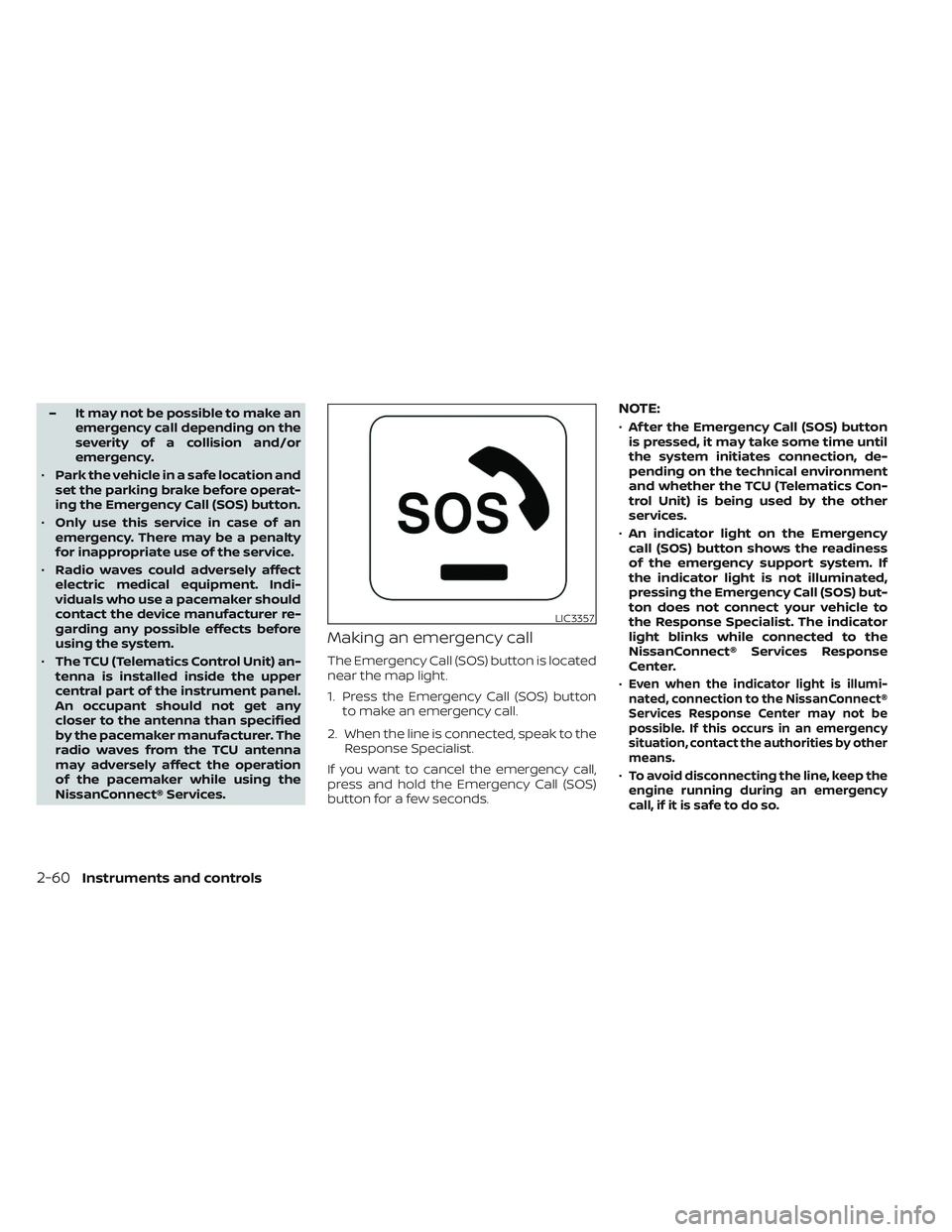
Making an emergency call
The Emergency Call (SOS) button is located
near the map light.
1. Press the Emergency Call (SOS) button to make an emergency call.
2. When the line is connected, speak to the Response Specialist.
If you want to cancel the emergency call,
press and hold the Emergency Call (SOS)
button for a few seconds.
NOTE:
• Af ter the Emergency Call (SOS) button
is pressed, it may take some time until
the system initiates connection, de-
pending on the technical environment
and whether the TCU (Telematics Con-
trol Unit) is being used by the other
services.
• An indicator light on the Emergency
call (SOS) button shows the readiness
of the emergency support system. If
the indicator light is not illuminated,
pressing the Emergency Call (SOS) but-
ton does not connect your vehicle to
the Response Specialist. The indicator
light blinks while connected to the
NissanConnect® Services Response
Center.
•
Even when the indicator light is illumi-
nated, connection to the NissanConnect®
Services Response Center may not be
possible. If this occurs in an emergency
situation, contact the authorities by other
means.
•To avoid disconnecting the line, keep the
engine running during an emergency
call,ifitissafetodoso.
LIC3357
2-60Instruments and controls
Page 186 of 494
REMOTE STARTING THE VEHICLE
To use the Remote Engine Start feature
perform the following:
1. Aim the Intelligent Key at the vehicle.
2. Press the
button to lock all doors.
3. Within 5 seconds press and hold the
button until the turn signal lights
flash and the tail lamps turn on. If the
vehicle is not within view press and hold
the
button for at least 2 seconds.
The following events will occur when the
engine starts:
• The parking lights will turn on and remain on as long as the engine is running.
• The doors will be locked and the climate control system may come on.
• The engine will continue to run for 10 min- utes. Repeat the steps to extend the time
for an additional 10 minutes. For addi-
tional information, see “Extending engine
run time” (P. 3-18).
Press and hold the brake pedal while
switching the ignition to the ON position
before driving. For additional information,
see “Driving the vehicle” (P. 5-16).
EXTENDING ENGINE RUN TIME
The Remote Engine Start feature can be
extended one time by performing the
steps listed in “Remote starting the vehicle”
in this section. Run time will be calculated
as follows:
• The first 10 minute run time will start when the Remote Engine Start function is
performed.
• The second 10 minutes will start immedi- ately when the Remote Engine Start
function is performed again. For example,
if the engine has been running for 5 min-
utes, and 10 minutes are added, the en-
gine will run for a total of 15 minutes.
• Extending engine run time will bring you to the two Remote Engine Start limit.
A maximum of two Remote Engine Starts,
or a single Remote Engine Start with an
extension, are allowed between ignition
cycles. The ignition switch must be cycled
to the ON position and then back to the
OFF position before the Remote Engine
Start procedure can be used again.
CANCELING A REMOTE ENGINE
START
To cancel a Remote Engine Start, perform
one of the following:
• Aim the Intelligent Key at the vehicle and press
until the parking lights turn off.
• Turn on the hazard warning flashers.
• Cycle the ignition switch on and then off.
• The extended engine run time has expired.
• The first 10 minute timer has expired.
• Opening the engine hood.
• Shif ting the vehicle out of P (Park).
• The alarm sounds due to illegal entry into the vehicle.
• Pushing the ignition switch without the Intelligent Key in the vehicle.
• Not pressing the brake pedal while press- ing the ignition switch with the Intelligent
Key in the vehicle.
3-18Pre-driving checks and adjustments
Page 187 of 494

CONDITIONS THE REMOTE ENGINE
START WILL NOT WORK
The Remote Engine Start will not operate if
any of the following conditions are present:
• The ignition switch is placed in the ONposition.
• The hood is not securely closed.
• The hazard indicator lights are on.
• The engine is still running. The engine must be completely stopped. Wait at
least 6 seconds if the engine goes from
running to off. This is not applicable when
extending engine run time.
• The
button is not pressed and held
for at least 2 seconds.
• The
button is not pressed and held
within 5 seconds of pressing the lock
button.
• The brake is pressed.
• The doors are not closed and locked.
• The trunk is open.
• The Key System Fault warning message appears in the vehicle information
display. • The alarm sounds due to illegal entry into
the vehicle.
• Two Remote Engine Starts, or a single Remote Engine Start with an extension,
have already been used.
• The vehicle is not in P (Park).
• There is a detected registered key already inside of the vehicle.
• The Remote Engine Start feature has been switched to the OFF position using
the “Vehicle Settings” menu on the vehicle
information display. For additional infor-
mation, see “Vehicle information display”
(P. 2-17).
The Remote Engine Start may display a
warning or indicator in the vehicle informa-
tion display. For additional information, see
“Vehicle information display” (P. 2-17).
Pre-driving checks and adjustments3-19
Page 208 of 494
4. Maneuver the steering wheel to makethe vehicle width guide lines
ODparallel
to the parking space
OCwhile referring
to the predicted course lines.
5. When the vehicle is parked in the space completely, move the shif t lever to the P
(Park) position and apply the parking
brake.
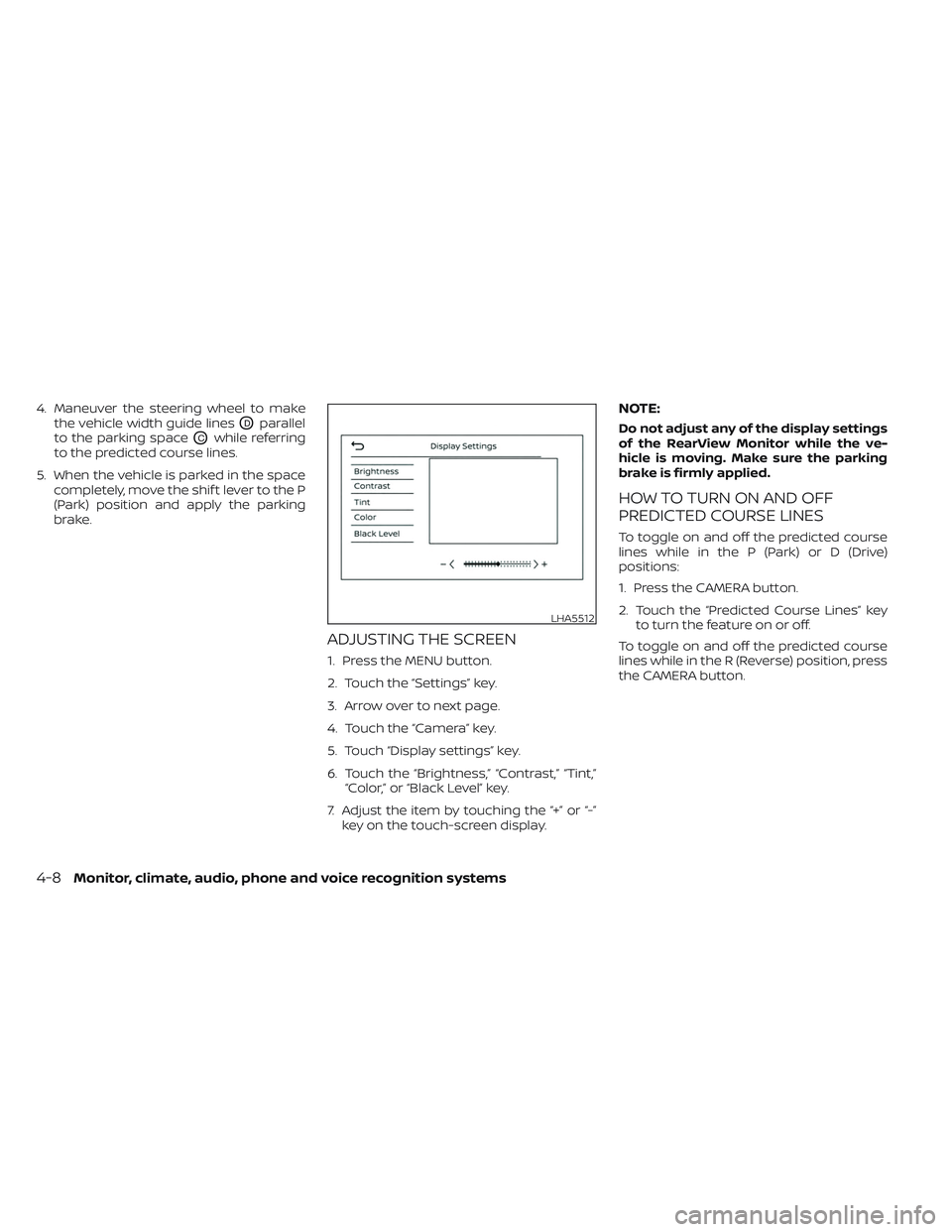
ADJUSTING THE SCREEN
1. Press the MENU button.
2. Touch the “Settings” key.
3. Arrow over to next page.
4. Touch the “Camera” key.
5. Touch “Display settings” key.
6. Touch the “Brightness,” “Contrast,” “Tint,” “Color,” or “Black Level” key.
7. Adjust the item by touching the “+” or “-” key on the touch-screen display.
NOTE:
Do not adjust any of the display settings
of the RearView Monitor while the ve-
hicle is moving. Make sure the parking
brake is firmly applied.
HOW TO TURN ON AND OFF
PREDICTED COURSE LINES
To toggle on and off the predicted course
lines while in the P (Park) or D (Drive)
positions:
1. Press the CAMERA button.
2. Touch the “Predicted Course Lines” key to turn the feature on or off.
To toggle on and off the predicted course
lines while in the R (Reverse) position, press
the CAMERA button.
LHA5512
4-8Monitor, climate, audio, phone and voice recognition systems
Page 219 of 494
4. Maneuver the steering wheel to makethe vehicle width guide lines
ODparallel
to the parking space
OCwhile referring
to the predicted course lines.
5. When the vehicle is parked in the space completely, move the shif t lever to the P
(Park) position and apply the parking
brake.
HOW TO SWITCH THE DISPLAY
With the ignition switch in the ON position,
press the CAMERA button or move the shif t
lever to the R (Reverse) position to operate
the Intelligent Around View® Monitor.
The Intelligent Around View® Monitor dis-
plays different split screen views depend-
ing on the position of the shif t lever. Press
the CAMERA button to switch between the
available views.
If the shif t lever is in the R (Reverse) position,
the available views are:
• Rear view/bird’s-eye view split screen
• Rear view/front-side view split screen
• Rear-wide view If the shif t lever is in the P (Park) or D (Drive)
position, the available views are:
• Front view/bird’s-eye view split screen
• Front view/front-side view split screen
The display will switch from the Intelligent
Around View® Monitor screen when:
• The shif t lever is in the D (Drive) position
and the vehicle speed increases above
approximately 5 mph (8 km/h)
• A different screen is selected.
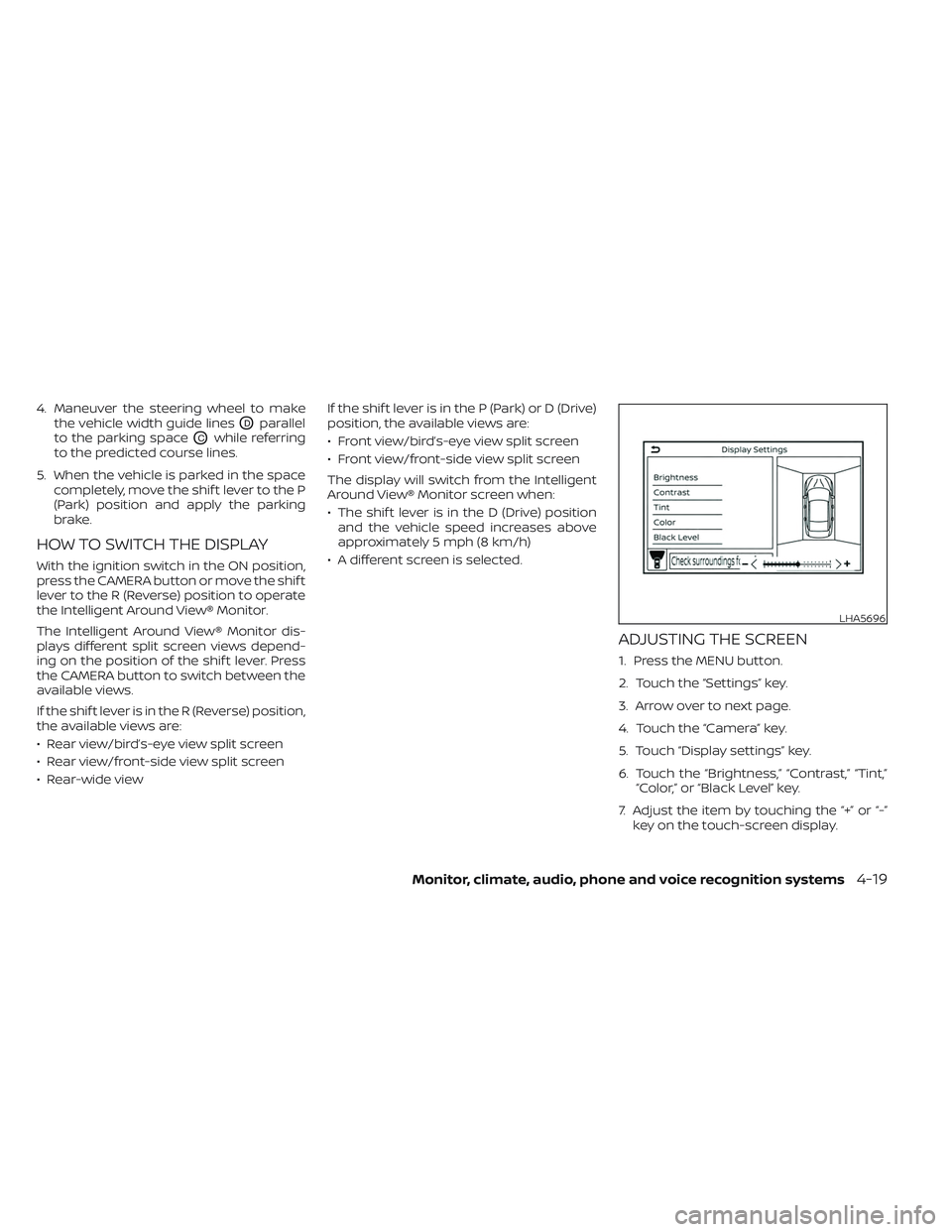
ADJUSTING THE SCREEN
1. Press the MENU button.
2. Touch the “Settings” key.
3. Arrow over to next page.
4. Touch the “Camera” key.
5. Touch “Display settings” key.
6. Touch the “Brightness,” “Contrast,” “Tint,” “Color,” or “Black Level” key.
7. Adjust the item by touching the “+” or “-” key on the touch-screen display.
LHA5696
Monitor, climate, audio, phone and voice recognition systems4-19
Page 220 of 494
NOTE:
Do not adjust any of the display settings
of the Intelligent Around View® Monitor
while the vehicle is moving. Make sure
the parking brake is firmly applied.
INTELLIGENT AROUND VIEW®
MONITOR SYSTEM LIMITATIONS
WARNING
Listed below are the system limitations
for Intelligent Around View® Monitor.
Failure to operate the vehicle in accor-
dance with these system limitations
could result in serious injury or death.
• Do not use the Intelligent Around
View® Monitor with the outside mir-
rors in the stored position, and make
sure that the trunk is securely closed
when operating the vehicle using the
Intelligent Around View® Monitor.
•
The apparent distance between ob-
jects viewed on the Intelligent Around
View® Monitor differs from the actual
distance.
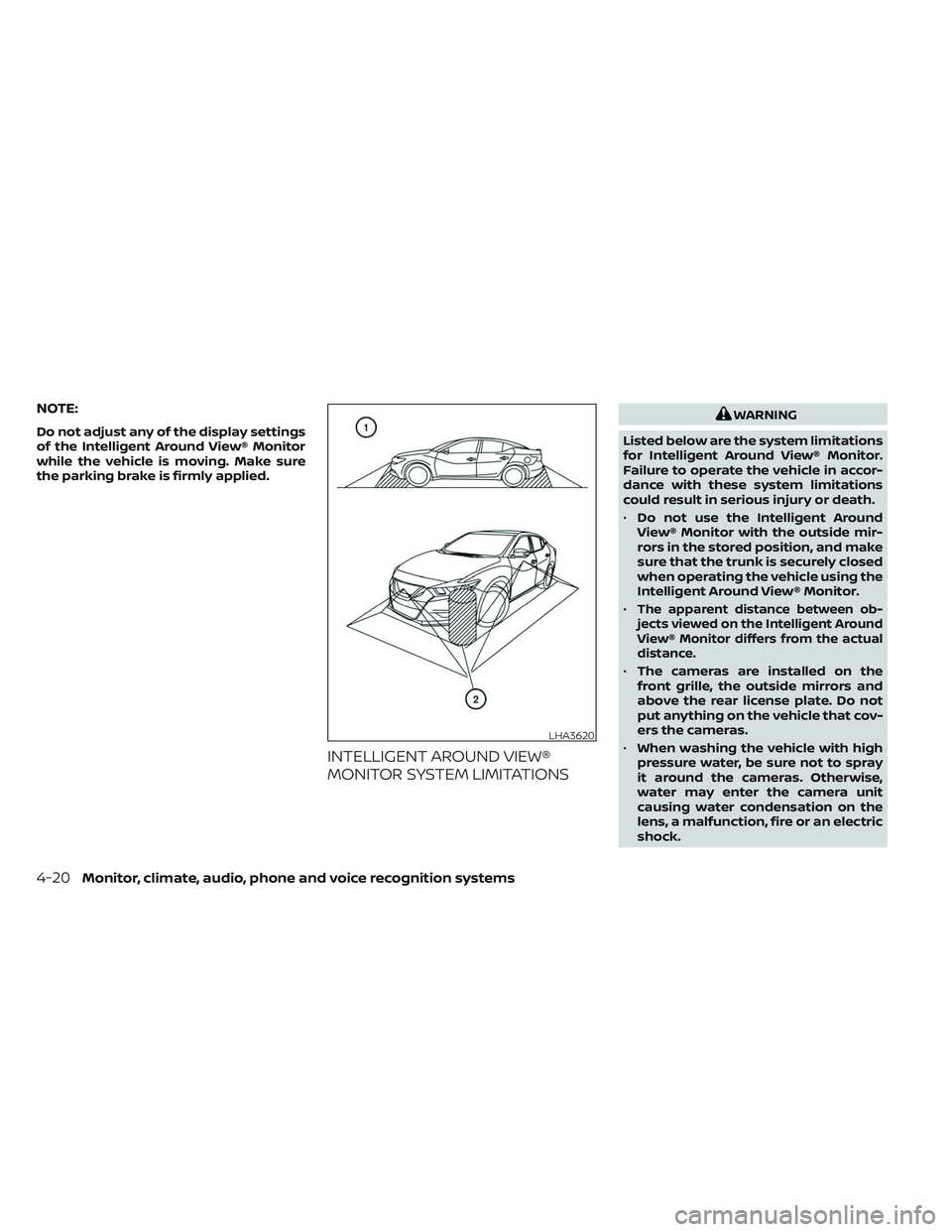
• The cameras are installed on the
front grille, the outside mirrors and
above the rear license plate. Do not
put anything on the vehicle that cov-
ers the cameras.
• When washing the vehicle with high
pressure water, be sure not to spray
it around the cameras. Otherwise,
water may enter the camera unit
causing water condensation on the
lens, a malfunction, fire or an electric
shock.
LHA3620
4-20Monitor, climate, audio, phone and voice recognition systems
Page 235 of 494

5 Starting and driving
Precautions when starting and driving..........5-4
Exhaust gas (carbon monoxide) ..............5-4
Three-way catalyst ...........................5-4
Tire Pressure Monitoring System
(TPMS) .......................................5-5
Avoiding collision and rollover ................5-8
Off-roadrecovery ............................5-9
Rapid air pressure loss .......................5-9
Drinking alcohol/drugs and driving ..........5-10
Push-button ignition switch ....................5-10
Operating range ............................. 5-11
Push-button ignition switch positions .......5-12
Emergency engine shut off ..................5-13
NISSAN Intelligent Key® battery
discharge ................................... 5-13
NISSAN Vehicle Immobilizer System .........5-14
Before starting the engine .....................5-14
Starting the engine ............................. 5-14
Remote Engine Start ........................ 5-15
Driving the vehicle .............................. 5-16
Continuously Variable Transmission (CVT) .....5-16
Parking brake .................................. 5-22
Drive Mode Selector ............................ 5-22
Normal mode ............................... 5-23
Sport mode ................................. 5-23Traffic Sign Recognition (TSR)
...................5-23
System operation ........................... 5-24
Turning the Traffic Sign Recognition
(TSR) system on and off .....................5-25
System temporarily unavailable .............5-25
System malfunction ......................... 5-25
System maintenance .......................5-25
Lane Departure Warning (LDW) .................5-26
LDW system operation ......................5-27
How to enable/disable the LDW system .....5-28
LDW system limitations .....................5-29
System temporarily unavailable .............5-30
System malfunction ......................... 5-30
System maintenance .......................5-30
Intelligent Lane Intervention (I-LI) (if so
equipped) ...................................... 5-31
I-LI system operation ........................ 5-32
How to enable/disable the I-LI system ......5-33
I-LI system limitations .......................5-34
System temporarily unavailable .............5-35
System malfunction ......................... 5-36
System maintenance .......................5-36
Blind Spot Warning (BSW) .......................5-37
BSW system operation ......................5-38
How to enable/disable the BSW system .....5-39