ESP NISSAN MURANO 2008 User Guide
[x] Cancel search | Manufacturer: NISSAN, Model Year: 2008, Model line: MURANO, Model: NISSAN MURANO 2008Pages: 444, PDF Size: 6.09 MB
Page 185 of 444
Black plate (181,1)
Model "Z51-D" EDITED: 2008/ 6/ 26
SAA1092
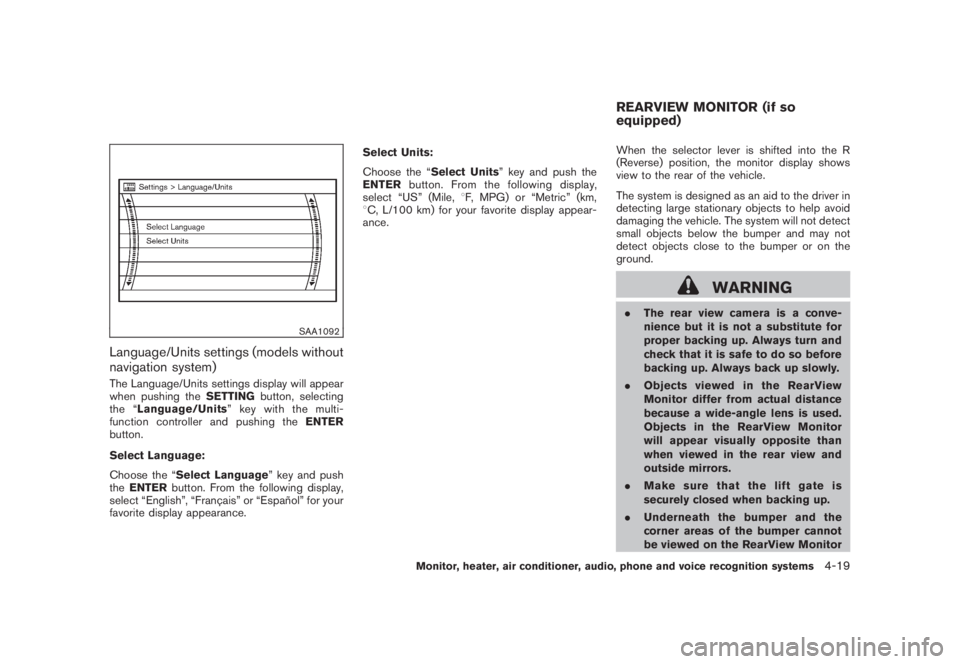
Language/Units settings (models without
navigation system)The Language/Units settings display will appear
when pushing theSETTINGbutton, selecting
the “Language/Units”keywiththemulti-
function controller and pushing theENTER
button.
Select Language:
Choose the “Select Language” key and push
theENTERbutton. From the following display,
select “English”, “Franc¸ ais” or “Espan˜
ol” for your
favorite display appearance.Select Units:
Choose the “Select Units” key and push the
ENTERbutton. From the following display,
select “US” (Mile,8F, MPG) or “Metric” (km,
8C, L/100 km) for your favorite display appear-
ance.When the selector lever is shifted into the R
(Reverse) position, the monitor display shows
view to the rear of the vehicle.
The system is designed as an aid to the driver in
detecting large stationary objects to help avoid
damaging the vehicle. The system will not detect
small objects below the bumper and may not
detect objects close to the bumper or on the
ground.
WARNING
.The rear view camera is a conve-
nience but it is not a substitute for
proper backing up. Always turn and
check that it is safe to do so before
backing up. Always back up slowly.
.Objects viewed in the RearView
Monitor differ from actual distance
because a wide-angle lens is used.
Objects in the RearView Monitor
will appear visually opposite than
when viewed in the rear view and
outside mirrors.
.Make sure that the lift gate is
securely closed when backing up.
.Underneath the bumper and the
corner areas of the bumper cannot
be viewed on the RearView MonitorREARVIEW MONITOR (if so
equipped)
Monitor, heater, air conditioner, audio, phone and voice recognition systems
4-19
Page 198 of 444
Black plate (194,1)
Model "Z51-D" EDITED: 2008/ 6/ 26
Static and flutter: During signal interference from
buildings, large hills or due to antenna position,
usually in conjunction with increased distance
from the station transmitter, static or flutter can
be heard. This can be reduced by lowering the
treble setting to reduce the treble response.
Multipath reception: Because of the reflective
characteristics of FM signals, direct and re-
flected signals reach the receiver at the same
time. The signals may cancel each other,
resulting in momentary flutter or loss of sound.
AM radio reception:
AM signals, because of their low frequency, can
bend around objects and skip along the ground.
In addition, the signals can be bounced off the
ionosphere and bent back to earth. Because of
these characteristics. AM signals are also
subject to interference as they travel from
transmitter to receiver.
Fading: Occurs while the vehicle is passing
through freeway underpasses or in areas with
many tall buildings. It can also occur for several
seconds during ionospheric turbulence even in
areas where no obstacles exist.
Static: Caused by thunderstorms, electrical
power lines, electric signs and even traffic lights.Satellite radio reception:
When the satellite radio is first installed or the
battery has been replaced, the satellite radio
may not work properly. This is not a malfunction.
Wait more than 10 minutes with satellite radio
ON for satellite radio to receive all of the
necessary data.
The satellite radio mode requires an active XM
®
satellite radio service subscription. Satellite
radio is not available in Alaska, Hawaii and
Guam.
Satellite radio performance may be affected if
cargo carried on the roof blocks the satellite
radio signal.
If possible, do not put cargo near the satellite
antenna.
A build up of ice on the satellite radio antenna
can affect satellite radio performance. Remove
the ice to restore satellite radio reception.
SAA0480
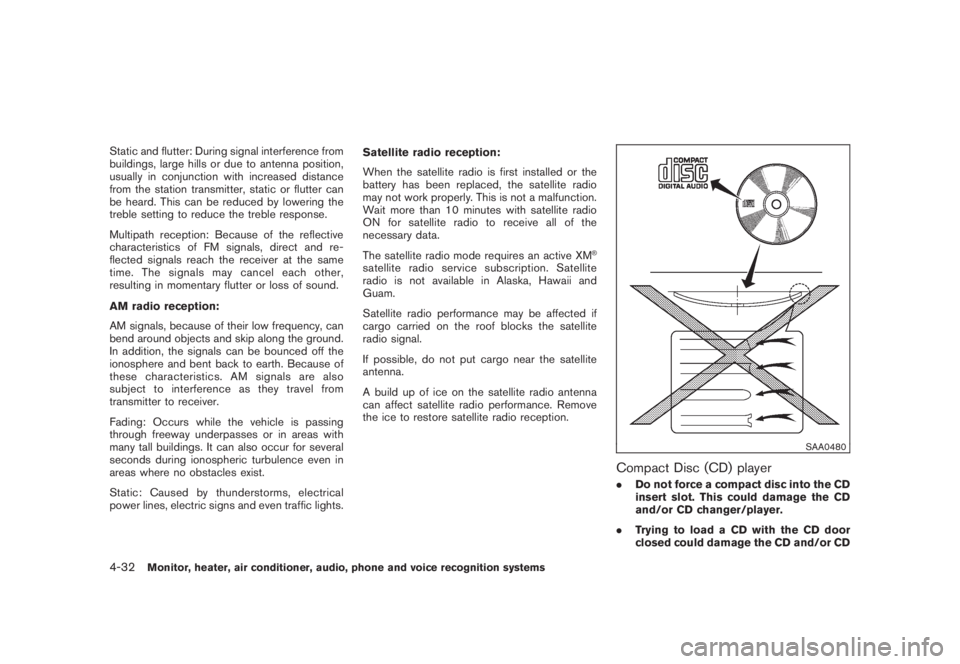
Compact Disc (CD) player.Do not force a compact disc into the CD
insert slot. This could damage the CD
and/or CD changer/player.
.Trying to load a CD with the CD door
closed could damage the CD and/or CD
4-32
Monitor, heater, air conditioner, audio, phone and voice recognition systems
Page 200 of 444
Black plate (196,1)
Model "Z51-D" EDITED: 2008/ 6/ 26
iPod
®player (if so equipped)
.Some characters used in other lan-
guages (Chinese, Japanese, etc.) are
not displayed properly on the vehicle
center screen. We recommend using
English language characters with an
iPod
®.
.Large video podcast files cause slow
responses in the iPod
®. The vehicle
center display may momentarily black
out, but it will soon recover.
.If the iPod
®automatically selects large
video podcast files while in the shuffle
mode, the vehicle center display may
momentarily black out, but it will soon
recover.
.Improperly plugging in the iPod
®may
cause a checkmark to be displayed on
and off (flickering) . Always make sure
that the iPod
®is connected properly.
.The iPod
®nano (2nd Generation) will
continue to fast forward or rewind if it
is disconnected during a seek opera-
tion.
.An incorrect song title may appear
when the Play Mode is changed while
using the iPod
®nano (2nd Generation) .
.Audiobooks may not play in the sameorder as they appear on the iPod
®.
.The iPod
®nano (1st Generation) may
remain in fast forward or rewind mode
if it is connected during a seek opera-
tion. In this case, please manually reset
the iPod
®.
.If you are using an iPod
®(3rd Genera-
tion with Dock connector) , do not use
very long names for the song title,
album name or artist name to avoid
the iPod
®from resetting itself.
.Be careful not to do the following, or
the cable could be damaged and a loss
of function may occur.
—Bend the cable excessively (1.6 in (40
mm) radius minimum) .
—Twist the cable excessively (more
than 180 degrees) .
—Pull or drop the cable.
—Close the center console lid on the
cable or connectors.
—Store objects with sharp edges in the
storage where the cable is stored.
—Spill liquids on the cable and con-
nectors.
.Do not connect the cable to the iPod
®ifthe cable and/or connectors are wet. It
may damage the iPod
®.
.If the cable and connectors are ex-
posed to water, allow the cable and/or
connectors to dry completely before
connecting the cable to the iPod
®(wait
24 hours for it to dry) .
.If the connector is exposed to fluids
other than water, evaporative residue
may cause a short between the con-
nector pins. In this case, replace the
cable, otherwise damage to the iPod
®
and a loss of function may occur.
.If the cable is damaged (insulation cut,
connectors cracked, contamination
such as liquids, dust, dirt, etc. in the
connectors) , do not use the cable and
contact a NISSAN dealer to replace the
cable with a new one.
.When not in use for extended periods
of time, store the cable in a clean, dust
free environment at room temperature
and without direct sun exposure.
.Do not use the cable for any other
purposes other than its intended use in
the vehicle.
*iPod®is a trademark of Apple Inc., registered in
the U.S. and other countries.
4-34
Monitor, heater, air conditioner, audio, phone and voice recognition systems
Page 227 of 444
Black plate (223,1)
Model "Z51-D" EDITED: 2008/ 6/ 26
CD:
.Pushing DOWN “
”/UP “
” shorter
Next track or the beginning of the current
track
.Pushing DOWN “
”/UP “
” longer
Disc change (When only one disc is loaded,
the 1st track of the disc will be selected.)
CD/CF with MP3/WMA:
.Pushing DOWN “
”/UP “
” shorter
Next track or the beginning of the current
track
.Pushing DOWN “
”/UP “
” longer
Folder change (When the last folder on a
disc is playing, the next disc will be
selected.)
iPod
®:
.Pushing DOWN “
”/UP “
” shorter
Previous or next track (Start/Pause or Menu
can be selected when the ENTER button is
pushed.)
.Pushing DOWN “
”/UP “
” longer
Rewind or fast forward searchMusic Box hard drive:
.Pushing DOWN “
”/UP “
” shorter
Next track or the beginning of the current
track
.Pushing DOWN “
”/UP “
” longer
Playlist change (When the last playlist is
playing, the next playlist will be selected.)
BACK switch
Push this switch to go back to the previous
screen or cancel the selection if it is not
completed.Volume control switchesPush the upper (+) or lower () side switch to
increase or decrease the volume.SOURCE select switch.Models with color display screen
AM?FM?SAT?iPod
®*?Music Box*?
CD?CompactFlash*?DVD*
.Models without color display screen
AM?FM?AUX*?CD
*: if so equipped
ANTENNA
Window antennaThe antenna pattern is printed inside the rear
window.
CAUTION
.Do not place metalized film near the
rear window glass or attach any
metal parts to it. This may cause
poor reception or noise.
.When cleaning the inside of the rear
window, be careful not to scratch or
damage the rear window antenna.
Lightly wipe along the antenna with
a dampened soft cloth.
Monitor, heater, air conditioner, audio, phone and voice recognition systems
4-61
Page 238 of 444
Black plate (234,1)
Model "Z51-D" EDITED: 2008/ 6/ 26
Select No.* (VIDEO-CD) :
Select the “Select No.” key and push the
ENTERbutton to open the number entry screen.
Input the number you wish to search for and
select the “OK” key with the multi-function
controller, and then push theENTERbutton.
The specified scene will be played.
Menu Skip (DVD-VIDEO):
DVD menus are automatically configured and
the contents will be played directly when the
“Menu Skip” key is turned on. Note that some
discs may not be played directly even if this item
is turned on.
DVD Language (DVD-VIDEO, VIDEO-CD):
Select the “DVD Language” key and push the
ENTERbutton to open the number entry screen.
Input the number corresponding to the preferred
language and select the “OK” key with the multi-
function controller. Then push theENTER
button. The DVD top menu language will be
changed to the one specified.
DRC (DVD-VIDEO) :
DRC (Dynamic Range Compression) allows you
to tune the dynamic range of the sound
recorded in the Dolby Digital format.
Remote controller operationUse the remote controller to adjust the following
items.
Rear display open/close:
To open or close the flip-down rear display, push
the “
” button on the remote controller.
Joystick:
Use the joystick “
” to select the items
displayed on the rear screen.
ENTER button:
Push theENTER“” button to make the
selected item complete on the rear screen.
BACK button:
Press to go back to the previous screen or
cancel the selection.
Display tilt:
Adjust the display angle by pushing the “DIS-
PLAY TILT” buttonor
.
DVD mode:
To select the DVD mode, push the DVD button.
AUX mode:
To select the AUX (Auxiliary input jacks) mode,
push the AUX button.Volume:
To control the volume level, push the “VOL”
button
or
.
Display:
Press to adjust the rear display screen bright-
ness, tint, contrast, etc.
Aspect:
To change the display size, push the “ASPECT”
button. Each time the button is pushed, the
display size will change to “Cinema”, “Wide”,
“Full” or “Normal”.
Sound:
To change the language, push the “SOUND”
button. Each time the button is pushed, the
language will change to each language stored in
the DVD.
Headphones:
The DVD sound can be heard through the
headphones.
Push the “
” button. Each time the button is
pushed the mode will switch to ON or OFF.
To control the volume of sound from the
headphones, use the VOLUME CONTROL
knob attached to the headphones.
4-72
Monitor, heater, air conditioner, audio, phone and voice recognition systems
Page 250 of 444
Black plate (246,1)
Model "Z51-D" EDITED: 2008/ 6/ 26
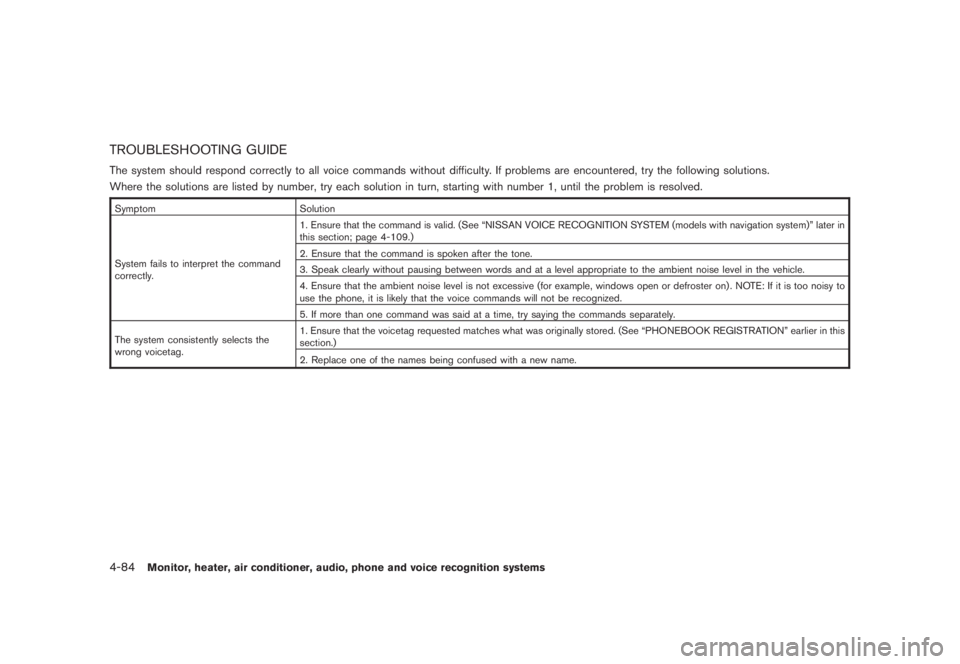
TROUBLESHOOTING GUIDEThe system should respond correctly to all voice commands without difficulty. If problems are encountered, try the following solutions.
Where the solutions are listed by number, try each solution in turn, starting with number 1, until the problem is resolved.Symptom Solution
System fails to interpret the command
correctly.1. Ensure that the command is valid. (See “NISSAN VOICE RECOGNITION SYSTEM (models with navigation system)” later in
this section; page 4-109.)
2. Ensure that the command is spoken after the tone.
3. Speak clearly without pausing between words and at a level appropriate to the ambient noise level in the vehicle.
4. Ensure that the ambient noise level is not excessive (for example, windows open or defroster on) . NOTE: If it is too noisy to
use the phone, it is likely that the voice commands will not be recognized.
5. If more than one command was said at a time, try saying the commands separately.
The system consistently selects the
wrong voicetag.1. Ensure that the voicetag requested matches what was originally stored. (See “PHONEBOOK REGISTRATION” earlier in this
section.)
2. Replace one of the names being confused with a new name.4-84
Monitor, heater, air conditioner, audio, phone and voice recognition systems
Page 260 of 444
Black plate (256,1)
Model "Z51-D" EDITED: 2008/ 6/ 26
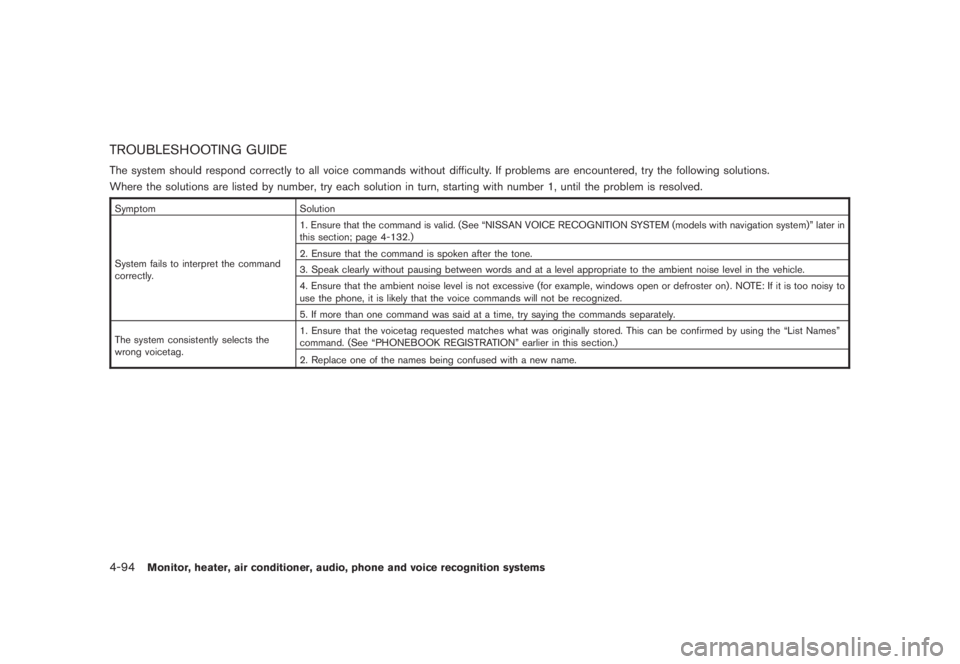
TROUBLESHOOTING GUIDEThe system should respond correctly to all voice commands without difficulty. If problems are encountered, try the following solutions.
Where the solutions are listed by number, try each solution in turn, starting with number 1, until the problem is resolved.Symptom Solution
System fails to interpret the command
correctly.1. Ensure that the command is valid. (See “NISSAN VOICE RECOGNITION SYSTEM (models with navigation system)” later in
this section; page 4-132.)
2. Ensure that the command is spoken after the tone.
3. Speak clearly without pausing between words and at a level appropriate to the ambient noise level in the vehicle.
4. Ensure that the ambient noise level is not excessive (for example, windows open or defroster on) . NOTE: If it is too noisy to
use the phone, it is likely that the voice commands will not be recognized.
5. If more than one command was said at a time, try saying the commands separately.
The system consistently selects the
wrong voicetag.1. Ensure that the voicetag requested matches what was originally stored. This can be confirmed by using the “List Names”
command. (See “PHONEBOOK REGISTRATION” earlier in this section.)
2. Replace one of the names being confused with a new name.4-94
Monitor, heater, air conditioner, audio, phone and voice recognition systems
Page 263 of 444
Black plate (259,1)
Model "Z51-D" EDITED: 2008/ 6/ 26
.If a command is not recognized, the system
announces, “Command not recognized.
Please try again.” Repeat the command in
a clear voice.
.If you want to go back to the previous
command, you can say “Go back” or
“Correction” any time the system is waiting
for a response.
.You can cancel a command when the
system is waiting for a response by saying,
“Cancel” or “Quit.” The system announces
“Cancel” and ends the voice recognition
(VR) session. You can also push the
button on the steering wheel at any time.
Whenever the VR session is canceled, a
double beep is played to indicate you have
exited the system.
.If you want to adjust the volume of the voice
feedback, push the volume control switches
(+ or) on the steering wheel while being
provided with feedback. You can also use
the radio volume control knob.
NOTE:
The voice command “Help” is available at
any time. Please say “Help” to obtain the
information about how to use the NISSAN
Voice Recognition system.
How to say numbersNISSAN Voice Recognition requires a certain
way to speak numbers in voice commands.
Refer to the rules and examples below.
.Either “zero” or “oh” can be used for “0”.
Example: 1-800-662-6200
—“One eight oh oh six six two six two oh
oh”, or
—“One eight zero zero six six two six two oh
oh”
.Words can be used for the first 4 digits
places only.
Example: 1-800-662-6200
—“One eight hundred six six two six two oh
oh”,
—NOT “One eight hundred six six two sixty
two hundred, and
—NOT “One eight oh oh six six two sixty two
hundred.
.Numbers can be spoken in small groups.
The system will prompt you to continuing
entering digits, if desired.
Example: 1-800-662-6200
—“One eight zero zero”The system repeats the numbers and
prompts you to enter more.
—“six six two”
The system repeats the numbers and
prompts you to enter more.
—“six two zero zero”
.You can say “Star” for * and “Pound” for # at
anytime in any position of the phone number
in the “international” input mode. For the
international command, please see “CALL”
later in this section.
Example: 1-555-1212 *123
—“One five five five one two one two star
one two three”
NOTE:
For best results, say phone numbers as
single digits.
Monitor, heater, air conditioner, audio, phone and voice recognition systems
4-97
Page 266 of 444
Black plate (262,1)
Model "Z51-D" EDITED: 2008/ 6/ 26
SAA1926
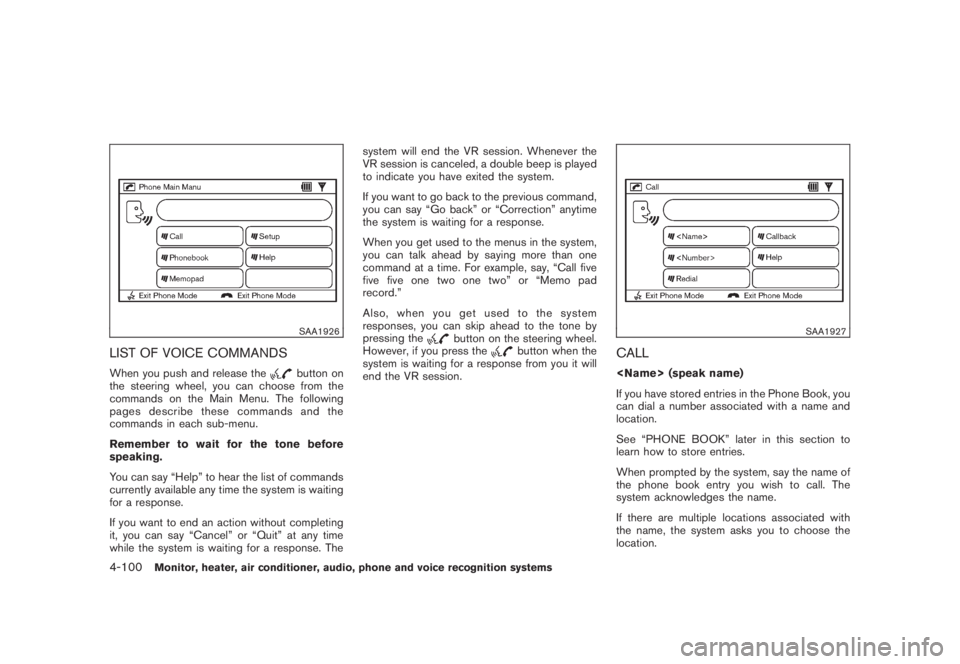
LIST OF VOICE COMMANDSWhen you push and release the
button on
the steering wheel, you can choose from the
commands on the Main Menu. The following
pages describe these commands and the
commands in each sub-menu.
Remember to wait for the tone before
speaking.
You can say “Help” to hear the list of commands
currently available any time the system is waiting
for a response.
If you want to end an action without completing
it, you can say “Cancel” or “Quit” at any time
while the system is waiting for a response. Thesystem will end the VR session. Whenever the
VR session is canceled, a double beep is played
to indicate you have exited the system.
If you want to go back to the previous command,
you can say “Go back” or “Correction” anytime
the system is waiting for a response.
When you get used to the menus in the system,
you can talk ahead by saying more than one
command at a time. For example, say, “Call five
five five one two one two” or “Memo pad
record.”
Also, when you get used to the system
responses, you can skip ahead to the tone by
pressing the
button on the steering wheel.
However, if you press the
button when the
system is waiting for a response from you it will
end the VR session.
SAA1927
CALL
If you have stored entries in the Phone Book, you
can dial a number associated with a name and
location.
See “PHONE BOOK” later in this section to
learn how to store entries.
When prompted by the system, say the name of
the phone book entry you wish to call. The
system acknowledges the name.
If there are multiple locations associated with
the name, the system asks you to choose the
location.
4-100
Monitor, heater, air conditioner, audio, phone and voice recognition systems
Page 272 of 444
Black plate (268,1)
Model "Z51-D" EDITED: 2008/ 6/ 26
“Select Ring tone”
Use the Select Ring tone command to select the
tone heard in the vehicle when an incoming call
is received.
The system announces the name of the active
phoneandasksyoutochoosefromthe
following commands:
.“Ringtone” — The system plays a ringtone
and asks if you would like to select that tone.
If you say no, the system plays the next
ringtone available and continues to cycle
through the ringtones until you select one or
quit.
.“Silent” — The system asks you to confirm
your wish to disable the ringtone.SPEAKER ADAPTATION (SA) MODESpeaker Adaptation allows up to two out-of
dialect users to train the system to improve
recognition accuracy. By repeating a number of
commands, the users can create a voice model
of their own voice that is stored in the system.
The system is capable of storing a different
speaker adaptation model for memory A and
memory B.
If memory A is available, the system will use
memory A to store the model. If memory A is in
use and memory B is available, the system will
use memory B to store the model. If both of thememory locations are in use, the system will ask
the user to select which memory location should
be overwritten.
Training procedureThe procedure for training a voice is as follows.
1. Position the vehicle in a reasonably quiet
outdoor location.
2. Sit in the driver’s seat with the engine
running, the parking brake on, and the
transmission in the P (Park) position.
3. Press and hold the
button for more
than 5 seconds.
4. The system announces: “Press the PHONE/
SEND (
) button for the hands-free
phone system to enter the speaker adapta-
tion mode.
5. Press thebutton.
6. Voice memory A or memory B is selected
automatically. If both memory locations are
already in use, the system will prompt you to
overwrite one. Follow the instructions pro-
vided by the system.
7. When preparation is complete and you are
ready to begin, the press the
button.
8. The SA mode will be explained. Follow the
instructions provided by the system.9. When training is finished, the system will tell
you an adequate number of phrases have
been recorded.
10. The system will ask you to say your name.
Follow the instructions to register your
name.
11. The system will announce that speaker
adaptation has been completed and the
system is ready.
The SA mode will stop if:
.The
button is pressed for more than 5
seconds in SA mode.
.The vehicle is driven during SA mode.
.The ignition switch is pushed to the OFF or
LOCK position.
Training phrasesDuring the SA mode, the system instructs you to
say the following phrases.
(The system will prompt you for each phrase.)
.phone book new entry
.dial three oh four two nine
.delete call back number
.setup pair phone
.memo pad play
4-106
Monitor, heater, air conditioner, audio, phone and voice recognition systems