English NISSAN MURANO 2008 Owners Manual
[x] Cancel search | Manufacturer: NISSAN, Model Year: 2008, Model line: MURANO, Model: NISSAN MURANO 2008Pages: 444, PDF Size: 6.09 MB
Page 96 of 444
Black plate (92,1)
Model "Z51-D" EDITED: 2008/ 6/ 26
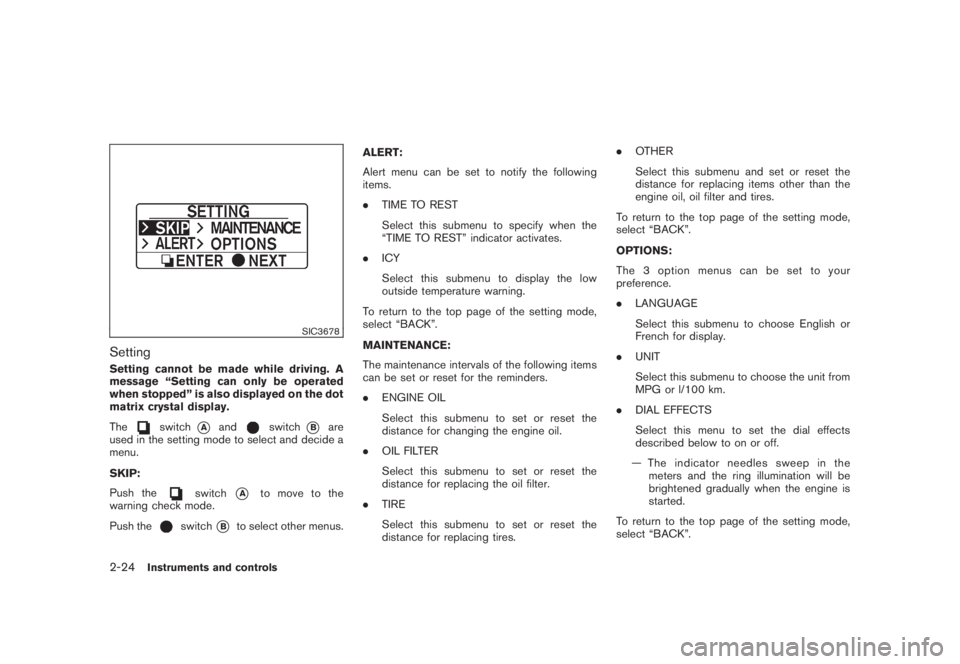
SIC3678
SettingSetting cannot be made while driving. A
message “Setting can only be operated
when stopped” is also displayed on the dot
matrix crystal display.
The
switch
*A
and
switch
*B
are
used in the setting mode to select and decide a
menu.
SKIP:
Push the
switch
*A
to move to the
warning check mode.
Push the
switch
*B
to select other menus.ALERT:
Alert menu can be set to notify the following
items.
.TIME TO REST
Select this submenu to specify when the
“TIME TO REST” indicator activates.
.ICY
Select this submenu to display the low
outside temperature warning.
To return to the top page of the setting mode,
select “BACK”.
MAINTENANCE:
The maintenance intervals of the following items
can be set or reset for the reminders.
.ENGINE OIL
Select this submenu to set or reset the
distance for changing the engine oil.
.OIL FILTER
Select this submenu to set or reset the
distance for replacing the oil filter.
.TIRE
Select this submenu to set or reset the
distance for replacing tires..OTHER
Select this submenu and set or reset the
distance for replacing items other than the
engine oil, oil filter and tires.
To return to the top page of the setting mode,
select “BACK”.
OPTIONS:
The 3 option menus can be set to your
preference.
.LANGUAGE
Select this submenu to choose English or
French for display.
.UNIT
Select this submenu to choose the unit from
MPG or l/100 km.
.DIAL EFFECTS
Select this menu to set the dial effects
described below to on or off.
— The indicator needles sweep in the
meters and the ring illumination will be
brightened gradually when the engine is
started.
To return to the top page of the setting mode,
select “BACK”.
2-24
Instruments and controls
Page 184 of 444
Black plate (180,1)
Model "Z51-D" EDITED: 2008/ 6/ 26
Return All Settings to Default:
Select this item, push theENTERbutton and
choose “YES” if you want to return all settings to
the default.
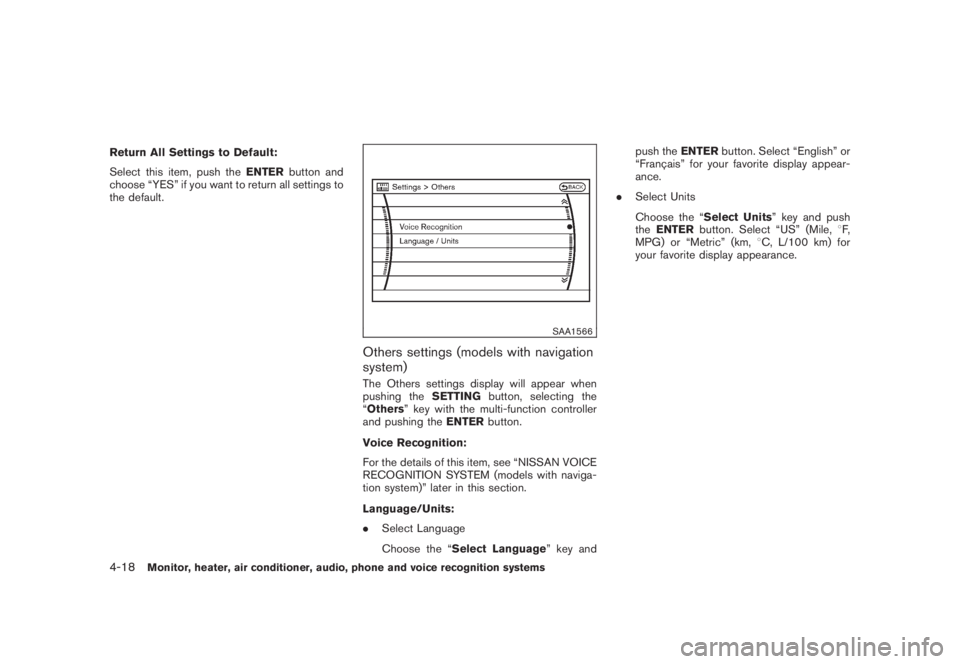
SAA1566
Others settings (models with navigation
system)The Others settings display will appear when
pushing theSETTINGbutton, selecting the
“Others” key with the multi-function controller
and pushing theENTERbutton.
Voice Recognition:
For the details of this item, see “NISSAN VOICE
RECOGNITION SYSTEM (models with naviga-
tion system)” later in this section.
Language/Units:
.Select Language
Choose the “Select Language” key andpush theENTERbutton. Select “English” or
“Franc¸ ais” for your favorite display appear-
ance.
.Select Units
Choose the “Select Units” key and push
theENTERbutton. Select “US” (Mile,8F,
MPG) or “Metric” (km,8C, L/100 km) for
your favorite display appearance.
4-18
Monitor, heater, air conditioner, audio, phone and voice recognition systems
Page 185 of 444
Black plate (181,1)
Model "Z51-D" EDITED: 2008/ 6/ 26
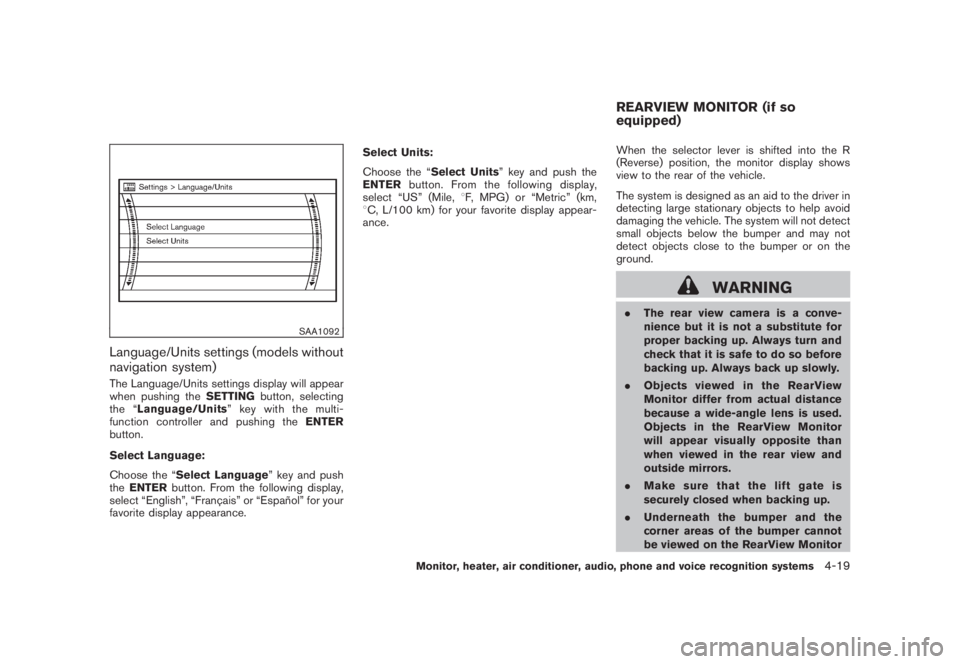
SAA1092
Language/Units settings (models without
navigation system)The Language/Units settings display will appear
when pushing theSETTINGbutton, selecting
the “Language/Units”keywiththemulti-
function controller and pushing theENTER
button.
Select Language:
Choose the “Select Language” key and push
theENTERbutton. From the following display,
select “English”, “Franc¸ ais” or “Espan˜
ol” for your
favorite display appearance.Select Units:
Choose the “Select Units” key and push the
ENTERbutton. From the following display,
select “US” (Mile,8F, MPG) or “Metric” (km,
8C, L/100 km) for your favorite display appear-
ance.When the selector lever is shifted into the R
(Reverse) position, the monitor display shows
view to the rear of the vehicle.
The system is designed as an aid to the driver in
detecting large stationary objects to help avoid
damaging the vehicle. The system will not detect
small objects below the bumper and may not
detect objects close to the bumper or on the
ground.
WARNING
.The rear view camera is a conve-
nience but it is not a substitute for
proper backing up. Always turn and
check that it is safe to do so before
backing up. Always back up slowly.
.Objects viewed in the RearView
Monitor differ from actual distance
because a wide-angle lens is used.
Objects in the RearView Monitor
will appear visually opposite than
when viewed in the rear view and
outside mirrors.
.Make sure that the lift gate is
securely closed when backing up.
.Underneath the bumper and the
corner areas of the bumper cannot
be viewed on the RearView MonitorREARVIEW MONITOR (if so
equipped)
Monitor, heater, air conditioner, audio, phone and voice recognition systems
4-19
Page 200 of 444
Black plate (196,1)
Model "Z51-D" EDITED: 2008/ 6/ 26
iPod
®player (if so equipped)
.Some characters used in other lan-
guages (Chinese, Japanese, etc.) are
not displayed properly on the vehicle
center screen. We recommend using
English language characters with an
iPod
®.
.Large video podcast files cause slow
responses in the iPod
®. The vehicle
center display may momentarily black
out, but it will soon recover.
.If the iPod
®automatically selects large
video podcast files while in the shuffle
mode, the vehicle center display may
momentarily black out, but it will soon
recover.
.Improperly plugging in the iPod
®may
cause a checkmark to be displayed on
and off (flickering) . Always make sure
that the iPod
®is connected properly.
.The iPod
®nano (2nd Generation) will
continue to fast forward or rewind if it
is disconnected during a seek opera-
tion.
.An incorrect song title may appear
when the Play Mode is changed while
using the iPod
®nano (2nd Generation) .
.Audiobooks may not play in the sameorder as they appear on the iPod
®.
.The iPod
®nano (1st Generation) may
remain in fast forward or rewind mode
if it is connected during a seek opera-
tion. In this case, please manually reset
the iPod
®.
.If you are using an iPod
®(3rd Genera-
tion with Dock connector) , do not use
very long names for the song title,
album name or artist name to avoid
the iPod
®from resetting itself.
.Be careful not to do the following, or
the cable could be damaged and a loss
of function may occur.
—Bend the cable excessively (1.6 in (40
mm) radius minimum) .
—Twist the cable excessively (more
than 180 degrees) .
—Pull or drop the cable.
—Close the center console lid on the
cable or connectors.
—Store objects with sharp edges in the
storage where the cable is stored.
—Spill liquids on the cable and con-
nectors.
.Do not connect the cable to the iPod
®ifthe cable and/or connectors are wet. It
may damage the iPod
®.
.If the cable and connectors are ex-
posed to water, allow the cable and/or
connectors to dry completely before
connecting the cable to the iPod
®(wait
24 hours for it to dry) .
.If the connector is exposed to fluids
other than water, evaporative residue
may cause a short between the con-
nector pins. In this case, replace the
cable, otherwise damage to the iPod
®
and a loss of function may occur.
.If the cable is damaged (insulation cut,
connectors cracked, contamination
such as liquids, dust, dirt, etc. in the
connectors) , do not use the cable and
contact a NISSAN dealer to replace the
cable with a new one.
.When not in use for extended periods
of time, store the cable in a clean, dust
free environment at room temperature
and without direct sun exposure.
.Do not use the cable for any other
purposes other than its intended use in
the vehicle.
*iPod®is a trademark of Apple Inc., registered in
the U.S. and other countries.
4-34
Monitor, heater, air conditioner, audio, phone and voice recognition systems
Page 264 of 444
Black plate (260,1)
Model "Z51-D" EDITED: 2008/ 6/ 26
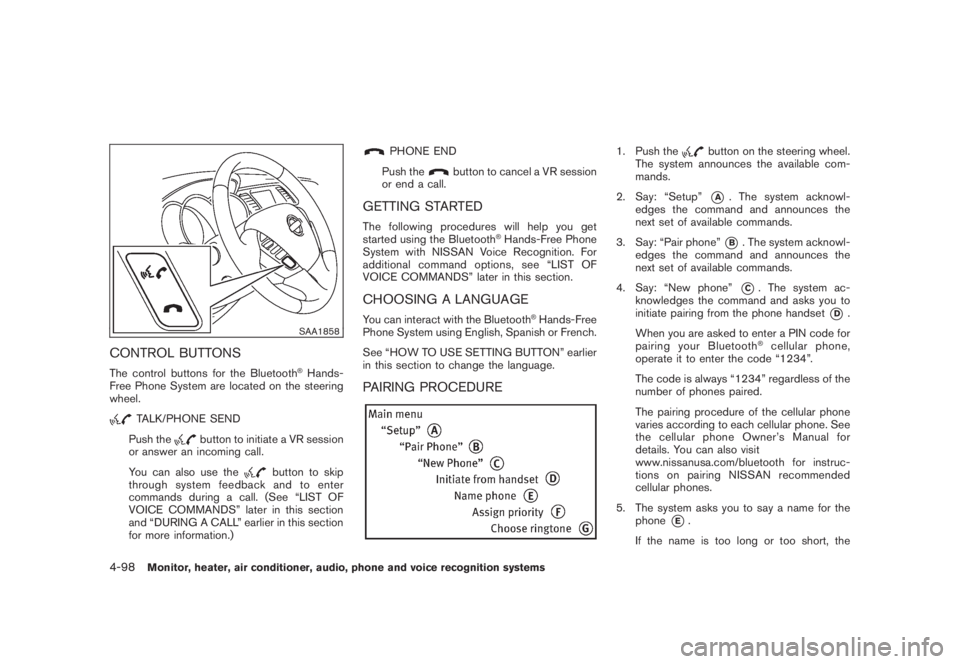
SAA1858
CONTROL BUTTONSThe control buttons for the Bluetooth
®Hands-
Free Phone System are located on the steering
wheel.
TALK/PHONE SEND
Push the
button to initiate a VR session
or answer an incoming call.
You can also use the
button to skip
through system feedback and to enter
commands during a call. (See “LIST OF
VOICE COMMANDS” later in this section
and “DURING A CALL” earlier in this section
for more information.)
PHONE END
Push the
button to cancel a VR session
or end a call.
GETTING STARTEDThe following procedures will help you get
started using the Bluetooth
®Hands-Free Phone
System with NISSAN Voice Recognition. For
additional command options, see “LIST OF
VOICE COMMANDS” later in this section.
CHOOSING A LANGUAGEYou can interact with the Bluetooth
®Hands-Free
Phone System using English, Spanish or French.
See “HOW TO USE SETTING BUTTON” earlier
in this section to change the language.
PAIRING PROCEDURE
1. Push the
button on the steering wheel.
The system announces the available com-
mands.
2. Say: “Setup”*A
. The system acknowl-
edges the command and announces the
next set of available commands.
3. Say: “Pair phone”*B. The system acknowl-
edges the command and announces the
next set of available commands.
4. Say: “New phone”*C. The system ac-
knowledges the command and asks you to
initiate pairing from the phone handset
*D
.
When you are asked to enter a PIN code for
pairing your Bluetooth
®cellular phone,
operate it to enter the code “1234”.
The code is always “1234” regardless of the
number of phones paired.
The pairing procedure of the cellular phone
varies according to each cellular phone. See
the cellular phone Owner’s Manual for
details. You can also visit
www.nissanusa.com/bluetooth for instruc-
tions on pairing NISSAN recommended
cellular phones.
5. The system asks you to say a name for the
phone
*E.
If the name is too long or too short, the
4-98
Monitor, heater, air conditioner, audio, phone and voice recognition systems