pairing phone NISSAN MURANO 2008 Owners Manual
[x] Cancel search | Manufacturer: NISSAN, Model Year: 2008, Model line: MURANO, Model: NISSAN MURANO 2008Pages: 444, PDF Size: 6.09 MB
Page 166 of 444
Black plate (14,1)
Model "Z51-D" EDITED: 2008/ 6/ 23
Playing a Digital Versatile Disc (DVD)............... 4-69
Care and maintenance.................................. 4-73
Car phone or CB radio...................................... 4-74
Bluetooth
®Hands-Free Phone System with
navigation system (for U.S.)................................ 4-75
Regulatory information................................... 4-76
Voice commands.......................................... 4-76
Control buttons........................................... 4-77
Pairing procedure......................................... 4-77
Phonebook registration.................................. 4-78
Making a call............................................... 4-80
Receiving a call........................................... 4-80
During a call............................................... 4-81
Phone setting.............................................. 4-82
Troubleshooting guide................................... 4-84
Bluetooth®Hands-Free Phone System with
navigation system (for Canada)............................ 4-85
Regulatory information................................... 4-86
Voice commands.......................................... 4-86
Control buttons........................................... 4-87
Pairing procedure......................................... 4-87
Phonebook registration.................................. 4-88
Making a call............................................... 4-90
Receiving a call........................................... 4-91
During a call............................................... 4-91
Phone setting.............................................. 4-92Troubleshooting guide................................... 4-94
Bluetooth
®Hands-Free Phone System without
navigation system (if so equipped)....................... 4-95
Regulatory information................................... 4-96
Initialization................................................. 4-96
Operating tips............................................. 4-96
Giving voice commands................................. 4-96
Control buttons........................................... 4-98
Getting started............................................ 4-98
Choosing a language.................................... 4-98
Pairing procedure......................................... 4-98
Making a call by entering a phone number......... 4-99
Receiving a call........................................... 4-99
List of voice commands............................... 4-100
Call......................................................... 4-100
Phone book.............................................. 4-102
Memo pad................................................ 4-104
Setup...................................................... 4-104
Speaker Adaptation (SA) mode..................... 4-106
Troubleshooting guide................................. 4-108
NISSAN voice recognition system
(models with navigation system) (for U.S.)............ 4-109
NISSAN voice recognition standard mode........ 4-109
Using the system....................................... 4-111
Before starting........................................... 4-112
Giving voice commands............................... 4-112
Page 242 of 444
Black plate (238,1)
Model "Z51-D" EDITED: 2008/ 6/ 26
www.nissanusa.com/bluetooth for trouble-
shooting help.
.Some cellular phones or other devices may
cause interference or a buzzing noise to
come from the audio system speakers.
Storing the device in a different location
may reduce or eliminate the noise.
.Refer to the cellular phone Owner’s Manual
regarding the telephone pairing procedure
specific to your phone, battery charging,
cellular phone antenna, etc.
.The antenna display on the monitor will not
coincide with the antenna display of some
cellular phones.
.Keep the interior of the vehicle as quiet as
possible to hear the caller’s voice clearly as
well as to minimize its echoes.
.If reception between callers is unclear,
adjusting the incoming or outgoing call
volume may improve the clarity.
REGULATORY INFORMATION
FCC Regulatory information— CAUTION: To maintain compliance with
FCC’s RF exposure guidelines, use only
the supplied antenna. Unauthorized antenna,
modification, or attachments could damage
the transmitter and may violate FCC regula-
tions.
— Operation is subject to the following two
conditions:
1) this device may not cause interference and
2) this device must accept any interference,
including interference that may cause un-
desired operation of the deviceIC Regulatory information— Operation is subject to the following two
conditions: (1) this device may not cause
interference, and (2) this device must accept
any interference, including interference that
may cause undesired operation of the
device.
— This Class B digital apparatus meets all
requirements of the Canadian Interference-
Causing Equipment Regulations.Bluetooth trademark:
BLUETOOTH
®is a trademark
owned by Bluetooth SIG, Inc.,
U.S.A.
VOICE COMMANDSYou can use voice commands to operate various
Bluetooth
®Hands-Free Phone System features
using the NISSAN Voice Recognition system.
For more details, see “NISSAN VOICE RE-
COGNITION SYSTEM (models with navigation
system)” later in this section; page 4-109.
4-76
Monitor, heater, air conditioner, audio, phone and voice recognition systems
Page 243 of 444
Black plate (239,1)
Model "Z51-D" EDITED: 2008/ 6/ 26
SAA1857
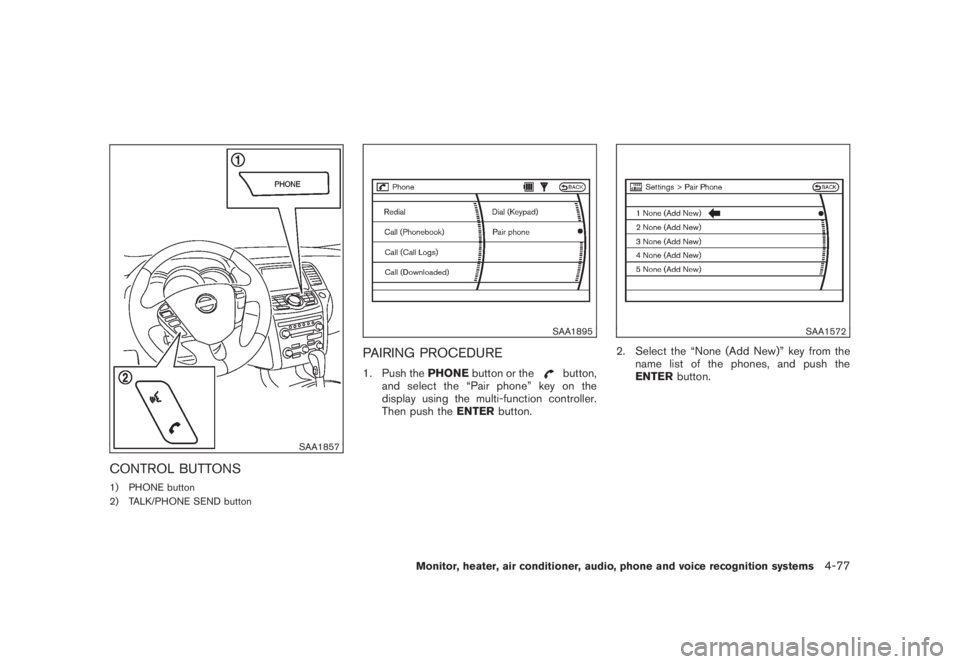
CONTROL BUTTONS1) PHONE button
2) TALK/PHONE SEND button
SAA1895
PAIRING PROCEDURE1. Push thePHONEbutton or the
button,
and select the “Pair phone” key on the
display using the multi-function controller.
Then push theENTERbutton.
SAA1572
2. Select the “None (Add New)” key from the
name list of the phones, and push the
ENTERbutton.
Monitor, heater, air conditioner, audio, phone and voice recognition systems
4-77
Page 244 of 444
Black plate (240,1)
Model "Z51-D" EDITED: 2008/ 6/ 26
SAA1925
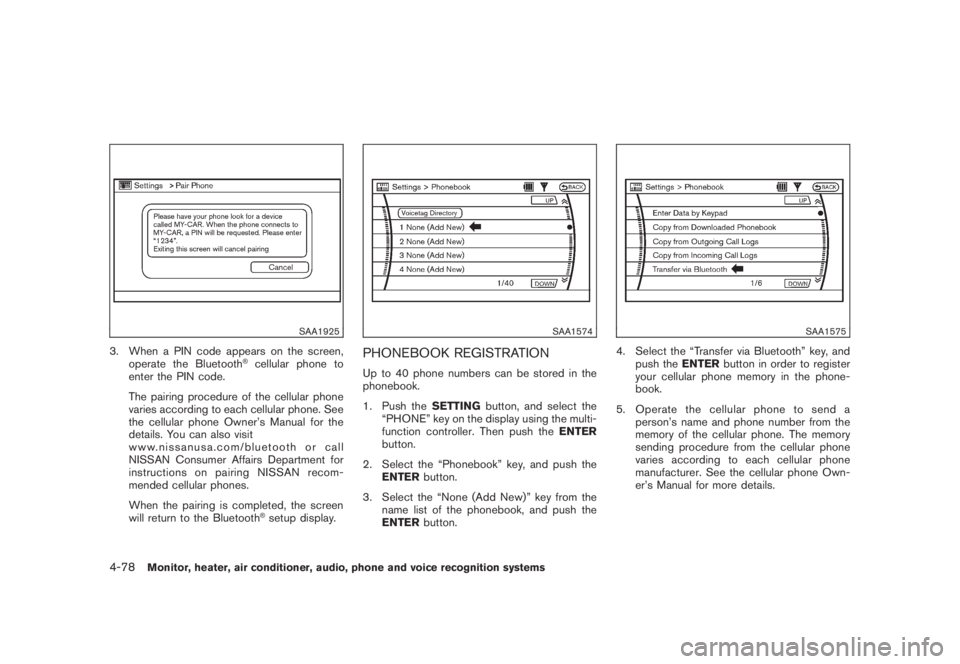
3. When a PIN code appears on the screen,
operate the Bluetooth
®cellular phone to
enter the PIN code.
The pairing procedure of the cellular phone
varies according to each cellular phone. See
the cellular phone Owner’s Manual for the
details. You can also visit
www.nissanusa.com/bluetooth or call
NISSAN Consumer Affairs Department for
instructions on pairing NISSAN recom-
mended cellular phones.
When the pairing is completed, the screen
will return to the Bluetooth®setup display.
SAA1574
PHONEBOOK REGISTRATIONUp to 40 phone numbers can be stored in the
phonebook.
1. Push theSETTINGbutton, and select the
“PHONE” key on the display using the multi-
function controller. Then push theENTER
button.
2. Select the “Phonebook” key, and push the
ENTERbutton.
3. Select the “None (Add New)” key from the
name list of the phonebook, and push the
ENTERbutton.
SAA1575
4. Select the “Transfer via Bluetooth” key, and
push theENTERbutton in order to register
your cellular phone memory in the phone-
book.
5. Operate the cellular phone to send a
person’s name and phone number from the
memory of the cellular phone. The memory
sending procedure from the cellular phone
varies according to each cellular phone
manufacturer. See the cellular phone Own-
er’s Manual for more details.
4-78
Monitor, heater, air conditioner, audio, phone and voice recognition systems
Page 249 of 444
Black plate (245,1)
Model "Z51-D" EDITED: 2008/ 6/ 26
.Pair Phone
See “PAIRING PROCEDURE” later in this
section.
.Priority Change
Use this command to change the priority
level of the active phone.
The priority level determines which phone
will be connected to the system when more
than one paired Bluetooth
®phone is in the
vehicle.
The system states the priority level of the
active phone and asks for a new priority level
(1, 2, 3, 4, 5) .
If the new priority level is already being used
for another phone, the two phones will swap
priority levels.
For example, if the current priority levels are:
Priority Level 1 = Phone A
Priority Level 2 = Phone B
Priority Level 3 = Phone C
and you change the priority level of Phone C
to Level 1, then:
Priority Level 1 = Phone C
Priority Level 2 = Phone B
Priority Level 3 = Phone A.Remove Paired Phone
Delete a registered cellular phone from the
paired list.
.Paired Phone List
Up to 5 registered cellular phones are
shown on the list. If you select a cellular
phone that is different from the one currently
being connected, the newly selected phone
will be connected to the system.
.Edit Phone Name
Rename the registered cellular phones using
the keypad displayed on the screen. (See
“HOW TO USE TOUCH SCREEN (models
with navigation system)” earlier in this
section.)
Monitor, heater, air conditioner, audio, phone and voice recognition systems
4-83
Page 253 of 444
Black plate (249,1)
Model "Z51-D" EDITED: 2008/ 6/ 26
SAA1857
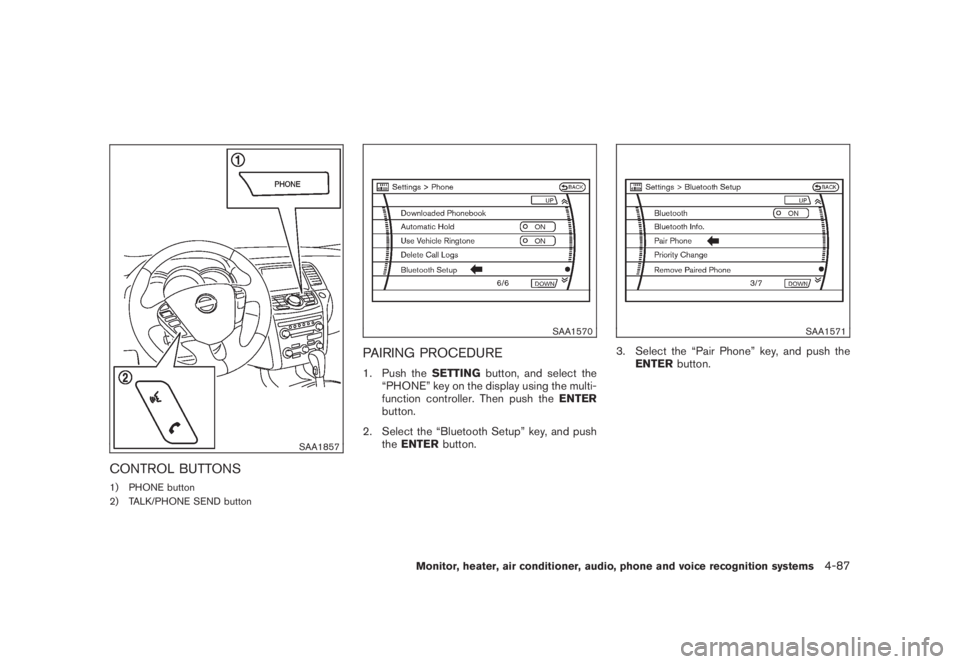
CONTROL BUTTONS1) PHONE button
2) TALK/PHONE SEND button
SAA1570
PAIRING PROCEDURE1. Push theSETTINGbutton, and select the
“PHONE” key on the display using the multi-
function controller. Then push theENTER
button.
2. Select the “Bluetooth Setup” key, and push
theENTERbutton.
SAA1571
3. Select the “Pair Phone” key, and push the
ENTERbutton.
Monitor, heater, air conditioner, audio, phone and voice recognition systems
4-87
Page 254 of 444

Black plate (250,1)
Model "Z51-D" EDITED: 2008/ 6/ 26
SAA1572
4. Select the “None (Add New)” key from the
name list of the phones, and push the
ENTERbutton.
SAA1573
5. When a PIN code appears on the screen,
operate the Bluetooth
®cellular phone to
enter the PIN code.
The pairing procedure of the cellular phone
varies according to each cellular phone. See
the cellular phone Owner’s Manual for the
details. You can also visit
www.nissanusa.com/bluetooth or call
NISSAN Consumer Affairs Department for
instructions on pairing NISSAN recom-
mended cellular phones.
6. When the pairing is completed, the screen
will return to the Bluetooth®setup display.
SAA1574
PHONEBOOK REGISTRATIONUp to 40 phone numbers can be stored in the
phonebook.
1. Push theSETTINGbutton, and select the
“PHONE” key on the display using the multi-
function controller. Then push theENTER
button.
2. Select the “Phonebook” key, and push the
ENTERbutton.
3. Select the “None (Add New)” key from the
name list of the phonebook, and push the
ENTERbutton.
4-88
Monitor, heater, air conditioner, audio, phone and voice recognition systems
Page 259 of 444
Black plate (255,1)
Model "Z51-D" EDITED: 2008/ 6/ 26
.Delete Downloaded Phonebook
Delete a downloaded phonebook.
.Delete an Entry of Downloaded Phone-
book
Delete an entry from the downloaded
phonebook.Automatic HoldIf this item is turned on, an incoming call will be
placed on hold automatically after several rings.Use Vehicle RingtoneIf this item is turned on, a specific ringtone that is
different from the cellular phone’s will sound
when receiving a call.Delete Call LogsDelete all of the incoming or outgoing call logs
from the list.Bluetooth SetupSee the following information for each item.
.Bluetooth
If this setting is turned off, the connection
between the cellular phone and the in-
vehicle phone module will be canceled.
.Bluetooth Info
Check information about the device name,device PIN and connection status.
.Pair Phone
See “PAIRING PROCEDURE” later in this
section.
.Priority Change
Use this command to change the priority
level of the active phone.
The priority level determines which phone
will be connected to the system when more
than one paired Bluetooth
®phone is in the
vehicle.
The system states the priority level of the
active phone and asks for a new priority level
(1, 2, 3, 4, 5) .
If the new priority level is already being used
for another phone, the two phones will swap
priority levels.
For example, if the current priority levels are:
Priority Level 1 = Phone A
Priority Level 2 = Phone B
Priority Level 3 = Phone C
and you change the priority level of Phone C
to Level 1, then:
Priority Level 1 = Phone C
Priority Level 2 = Phone B
Priority Level 3 = Phone A.Remove Paired Phone
Delete a registered cellular phone from the
paired list.
.Paired Phone List
Up to 5 registered cellular phones are
shown on the list. If you select a cellular
phone that is different from the one currently
being connected, the newly selected phone
will be connected to the system.
.Edit Phone Name
Rename the registered cellular phones using
the keypad displayed on the screen. (See
“HOW TO USE TOUCH SCREEN (models
with navigation system)” earlier in this
section.)
Monitor, heater, air conditioner, audio, phone and voice recognition systems
4-93
Page 262 of 444
Black plate (258,1)
Model "Z51-D" EDITED: 2008/ 6/ 26
.Some cellular phones or other devices may
cause interference or a buzzing noise to
come from the audio system speakers.
Storing the device in a different location
may reduce or eliminate the noise.
.Refer to the cellular phone Owner’s Manual
regarding the telephone pairing procedure
specific to your phone, battery charging,
cellular phone antenna, etc.
.The antenna display on the monitor will not
coincide with the antenna display of some
cellular phones.
.Keep the interior of the vehicle as quiet as
possible to hear the caller’s voice clearly as
well as to minimize its echoes.
.If reception between callers is unclear,
adjusting the incoming or outgoing call
volume may improve the clarity.REGULATORY INFORMATION
FCC Regulatory information— CAUTION: To maintain compliance with
FCC’s RF exposure guidelines, use only
the supplied antenna. Unauthorized antenna,
modification, or attachments could damage
the transmitter and may violate FCC regula-
tions.
— Operation is subject to the following two
conditions:1) this device may not cause interference and
2) this device must accept any interference,
including interference that may cause un-
desired operation of the device
IC Regulatory information— Operation is subject to the following two
conditions: (1) this device may not cause
interference, and (2) this device must accept
any interference, including interference that
may cause undesired operation of the
device.
— This Class B digital apparatus meets all
requirements of the Canadian Interference-
Causing Equipment Regulations.
Bluetooth trademark:
BLUETOOTH
®is a trademark
owned by Bluetooth SIG, Inc.,
U.S.A.
INITIALIZATIONWhen the ignition switch is pushed to the ON
position, NISSAN Voice Recognition is initia-
lized, which takes a few seconds. If thebutton is pushed before the initialization com-
pletes, the system will announce “Hands-free
phone system not ready” and will not react to
voice commands.
OPERATING TIPSTo get the best performance out of the NISSAN
Voice Recognition system, observe the follow-
ing:
.Keep the interior of the vehicle as quiet as
possible. Close the windows to eliminate
surrounding noises (traffic noises, vibration
sounds, etc.) , which may prevent the system
from recognizing voice commands correctly.
.Wait until the tone sounds before speaking a
command. Otherwise, the command will not
be received properly.
.Start speaking a command within 5 seconds
after the tone sounds.
.Speak in a natural voice without pausing
between words.GIVING VOICE COMMANDSTo operate NISSAN Voice Recognition, push
and release the
button located on the
steering wheel. After the tone sounds, speak a
command.
Thecommandgivenispickedupbythe
microphone, and voice feedback is given when
the command is accepted.
.If you need to hear the available commands
for the current menu again, say “Help” and
the system will repeat them.
4-96
Monitor, heater, air conditioner, audio, phone and voice recognition systems
Page 264 of 444
Black plate (260,1)
Model "Z51-D" EDITED: 2008/ 6/ 26
SAA1858
CONTROL BUTTONSThe control buttons for the Bluetooth
®Hands-
Free Phone System are located on the steering
wheel.
TALK/PHONE SEND
Push the
button to initiate a VR session
or answer an incoming call.
You can also use the
button to skip
through system feedback and to enter
commands during a call. (See “LIST OF
VOICE COMMANDS” later in this section
and “DURING A CALL” earlier in this section
for more information.)
PHONE END
Push the
button to cancel a VR session
or end a call.
GETTING STARTEDThe following procedures will help you get
started using the Bluetooth
®Hands-Free Phone
System with NISSAN Voice Recognition. For
additional command options, see “LIST OF
VOICE COMMANDS” later in this section.
CHOOSING A LANGUAGEYou can interact with the Bluetooth
®Hands-Free
Phone System using English, Spanish or French.
See “HOW TO USE SETTING BUTTON” earlier
in this section to change the language.
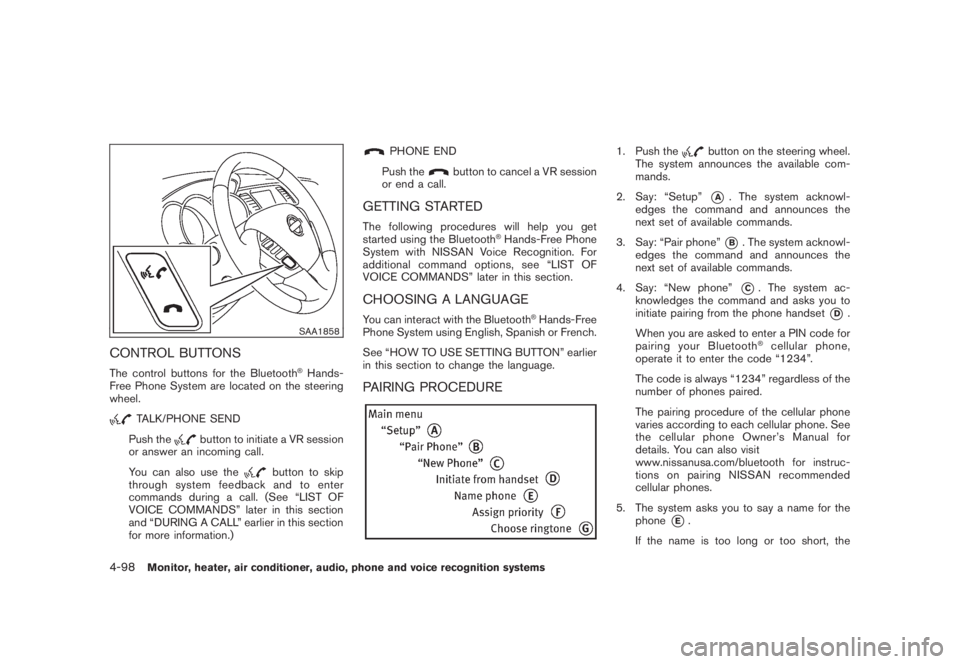
PAIRING PROCEDURE
1. Push the
button on the steering wheel.
The system announces the available com-
mands.
2. Say: “Setup”*A
. The system acknowl-
edges the command and announces the
next set of available commands.
3. Say: “Pair phone”*B. The system acknowl-
edges the command and announces the
next set of available commands.
4. Say: “New phone”*C. The system ac-
knowledges the command and asks you to
initiate pairing from the phone handset
*D
.
When you are asked to enter a PIN code for
pairing your Bluetooth
®cellular phone,
operate it to enter the code “1234”.
The code is always “1234” regardless of the
number of phones paired.
The pairing procedure of the cellular phone
varies according to each cellular phone. See
the cellular phone Owner’s Manual for
details. You can also visit
www.nissanusa.com/bluetooth for instruc-
tions on pairing NISSAN recommended
cellular phones.
5. The system asks you to say a name for the
phone
*E.
If the name is too long or too short, the
4-98
Monitor, heater, air conditioner, audio, phone and voice recognition systems