AUX NISSAN MURANO 2009 Owner´s Manual
[x] Cancel search | Manufacturer: NISSAN, Model Year: 2009, Model line: MURANO, Model: NISSAN MURANO 2009Pages: 443, PDF Size: 3.95 MB
Page 215 of 443
Black plate (213,1)
Model "Z51-D" EDITED: 2007/ 10/ 2
iPod®PLAYER OPERATION (if so
equipped)
Connecting iPod
®
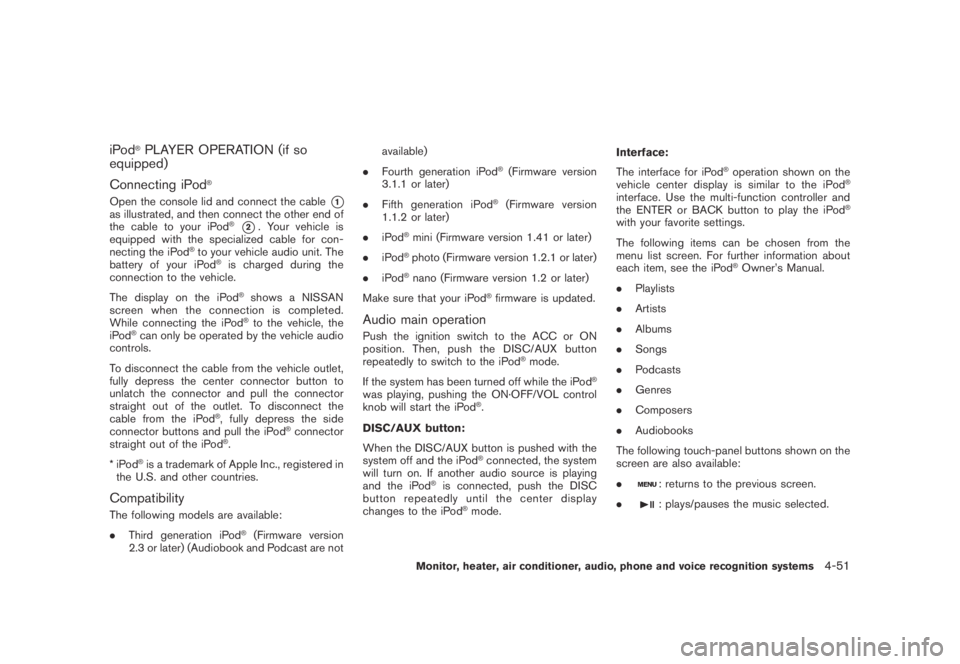
Open the console lid and connect the cable*1as illustrated, and then connect the other end of
the cable to your iPod®*2. Your vehicle is
equipped with the specialized cable for con-
necting the iPod
®to your vehicle audio unit. The
battery of your iPod®is charged during the
connection to the vehicle.
The display on the iPod
®shows a NISSAN
screen when the connection is completed.
While connecting the iPod
®to the vehicle, the
iPod®can only be operated by the vehicle audio
controls.
To disconnect the cable from the vehicle outlet,
fully depress the center connector button to
unlatch the connector and pull the connector
straight out of the outlet. To disconnect the
cable from the iPod
®, fully depress the side
connector buttons and pull the iPod®connector
straight out of the iPod®.
*iPod
®is a trademark of Apple Inc., registered in
the U.S. and other countries.
Compatibility
The following models are available:
.Third generation iPod
®(Firmware version
2.3 or later) (Audiobook and Podcast are notavailable)
.Fourth generation iPod
®(Firmware version
3.1.1 or later)
.Fifth generation iPod
®(Firmware version
1.1.2 or later)
.iPod
®mini (Firmware version 1.41 or later)
.iPod
®photo (Firmware version 1.2.1 or later)
.iPod
®nano (Firmware version 1.2 or later)
Make sure that your iPod
®firmware is updated.
Audio main operation
Push the ignition switch to the ACC or ON
position. Then, push the DISC/AUX button
repeatedly to switch to the iPod
®mode.
If the system has been turned off while the iPod
®
was playing, pushing the ON·OFF/VOL control
knob will start the iPod®.
DISC/AUX button:
When the DISC/AUX button is pushed with the
system off and the iPod
®connected, the system
will turn on. If another audio source is playing
and the iPod
®is connected, push the DISC
button repeatedly until the center display
changes to the iPod
®mode.Interface:
The interface for iPod
®operation shown on the
vehicle center display is similar to the iPod®
interface. Use the multi-function controller and
the ENTER or BACK button to play the iPod®
with your favorite settings.
The following items can be chosen from the
menu list screen. For further information about
each item, see the iPod
®Owner’s Manual.
.Playlists
.Artists
.Albums
.Songs
.Podcasts
.Genres
.Composers
.Audiobooks
The following touch-panel buttons shown on the
screen are also available:
.
: returns to the previous screen.
.
: plays/pauses the music selected.
Monitor, heater, air conditioner, audio, phone and voice recognition systems4-51
Page 218 of 443
Black plate (216,1)
Model "Z51-D" EDITED: 2007/ 10/ 2
tion.)
Stopping playback:
The system stops playing when:
a. another mode (radio, CD, CompactFlash or
AUX) is selected.
b. the audio system is turned off.
c. the ignition switch is pushed to the OFF
position.
FF (Fast Forward) , REW (Re-
wind)/APS (Automatic Pro-
gram Search) FF, APS REW:
When the
(fast forward) or(rewind)
button is pushed for more than 1.5 seconds
while a track is being played, the track will play
while fast forwarding or rewinding. When the
button is released, the track will return to the
normal play speed.
When the
orbutton is pushed for less
than 1.5 seconds while a track is being played,
the next track or the beginning of the current
track will be played.
The multi-function controller can also be used to
select tracks when a track is being played.
Play mode selection:
To change to another album or artist, turn theMP3/WMA folder selector.
REPEAT (RPT) , RANDOM (RDM):
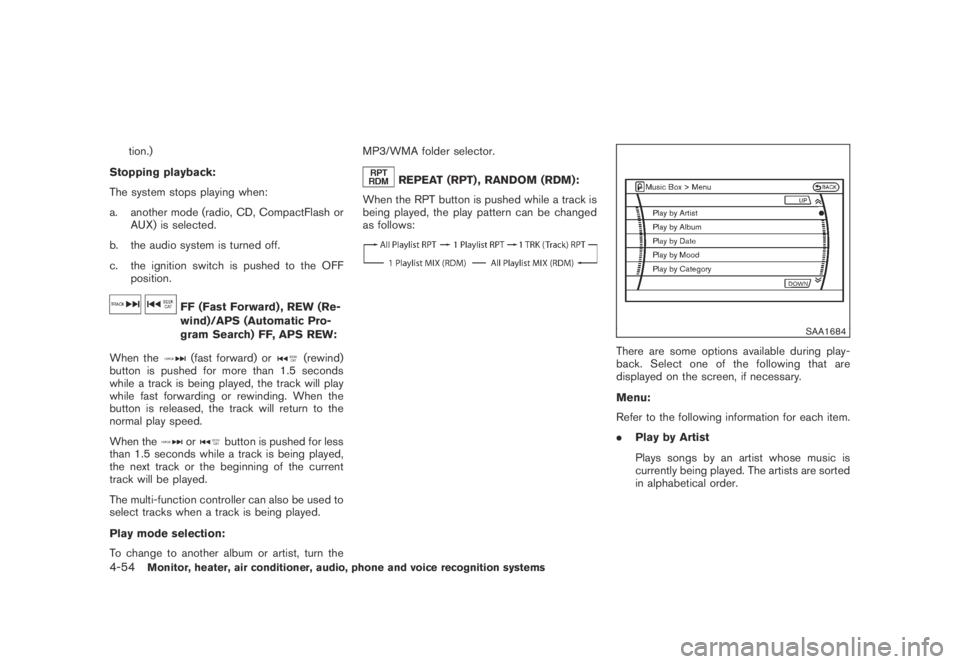
When the RPT button is pushed while a track is
being played, the play pattern can be changed
as follows:
SAA1684
There are some options available during play-
back. Select one of the following that are
displayed on the screen, if necessary.
Menu:
Refer to the following information for each item.
.Play by Artist
Plays songs by an artist whose music is
currently being played. The artists are sorted
in alphabetical order.
4-54Monitor, heater, air conditioner, audio, phone and voice recognition systems
Page 225 of 443
Black plate (223,1)
Model "Z51-D" EDITED: 2007/ 10/ 2
CD:
.Pushing DOWN “
”/UP “” shorter
Next track or the beginning of the current
track
.Pushing DOWN “
”/UP “” longer
Disc change (When only one disc is loaded,
the 1st track of the disc will be selected.)
CD/CF with MP3/WMA:
.Pushing DOWN “
”/UP “” shorter
Next track or the beginning of the current
track
.Pushing DOWN “
”/UP “” longer
Folder change (When the last folder on a
disc is playing, the next disc will be
selected.)
iPod
®:
.Pushing DOWN “
”/UP “” shorter
Previous or next track (Start/Pause or Menu
can be selected when the ENTER button is
pushed.)
.Pushing DOWN “
”/UP “” longer
Rewind or fast forward searchMusic Box hard drive:
.Pushing DOWN “
”/UP “” shorter
Next track or the beginning of the current
track
.Pushing DOWN “
”/UP “” longer
Playlist change (When the last playlist is
playing, the next playlist will be selected.)
BACK switch
Push this switch to go back to the previous
screen or cancel the selection if it is not
completed.
Volume control switches
Push the upper (+) or lower (−) side switch to
increase or decrease the volume.
SOURCE select switch
Push the source select switch to change the
mode in the sequence of Preset A, Preset B,
Preset C, “iPod
®” (if so equipped) , “Music Box”
(if so equipped) , CD, CompactFlash (if so
equipped) and “AUX”. If they are not ready to
function, those modes will be skipped.
ANTENNA
Window antenna
The antenna pattern is printed inside the rear
window.
CAUTION
.Do not place metalized film near the
rear window glass or attach any
metal parts to it. This may cause
poor reception or noise.
.When cleaning the inside of the rear
window, be careful not to scratch or
damage the rear window antenna.
Lightly wipe along the antenna with
a dampened soft cloth.
Monitor, heater, air conditioner, audio, phone and voice recognition systems4-61
Page 228 of 443
Black plate (226,1)
Model "Z51-D" EDITED: 2007/ 10/ 2
SAA1863
DIGITAL VERSATILE DISC (DVD) SYS-
TEM COMPONENTS
DVD drive
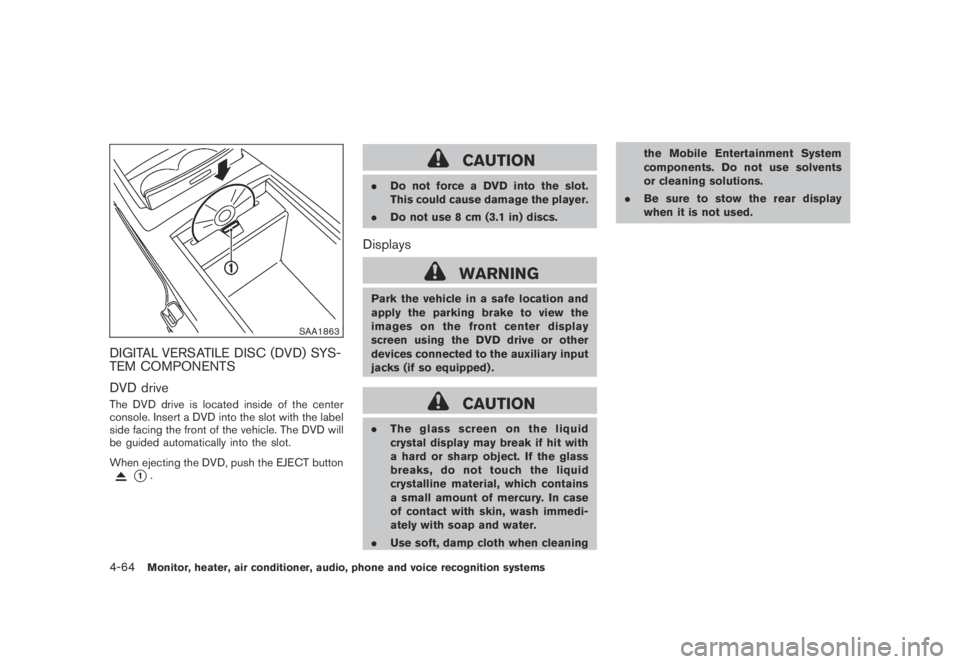
The DVD drive is located inside of the center
console. Insert a DVD into the slot with the label
side facing the front of the vehicle. The DVD will
be guided automatically into the slot.
When ejecting the DVD, push the EJECT button
*1.
CAUTION
.Do not force a DVD into the slot.
This could cause damage the player.
.Do not use 8 cm (3.1 in) discs.
Displays
WARNING
Park the vehicle in a safe location and
apply the parking brake to view the
images on the front center display
screen using the DVD drive or other
devices connected to the auxiliary input
jacks (if so equipped) .
CAUTION
.The glass screen on the liquid
crystal display may break if hit with
a hard or sharp object. If the glass
breaks, do not touch the liquid
crystalline material, which contains
a small amount of mercury. In case
of contact with skin, wash immedi-
ately with soap and water.
.Use soft, damp cloth when cleaningthe Mobile Entertainment System
components. Do not use solvents
or cleaning solutions.
.Be sure to stow the rear display
when it is not used.
4-64Monitor, heater, air conditioner, audio, phone and voice recognition systems
Page 229 of 443
Black plate (227,1)
Model "Z51-D" EDITED: 2007/ 10/ 2
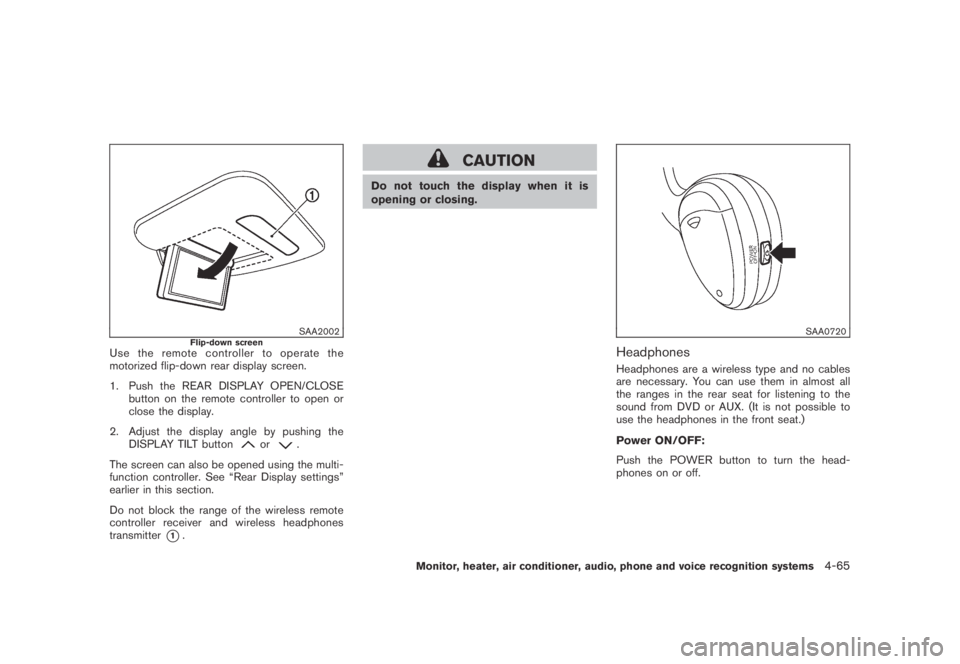
SAA2002Flip-down screenUse the remote controller to operate the
motorized flip-down rear display screen.
1. Push the REAR DISPLAY OPEN/CLOSE
button on the remote controller to open or
close the display.
2. Adjust the display angle by pushing the
DISPLAY TILT button
or.
The screen can also be opened using the multi-
function controller. See “Rear Display settings”
earlier in this section.
Do not block the range of the wireless remote
controller receiver and wireless headphones
transmitter
*1.
CAUTION
Do not touch the display when it is
opening or closing.
SAA0720
Headphones
Headphones are a wireless type and no cables
are necessary. You can use them in almost all
the ranges in the rear seat for listening to the
sound from DVD or AUX. (It is not possible to
use the headphones in the front seat.)
Power ON/OFF:
Push the POWER button to turn the head-
phones on or off.
Monitor, heater, air conditioner, audio, phone and voice recognition systems4-65
Page 231 of 443
Black plate (229,1)
Model "Z51-D" EDITED: 2007/ 10/ 2
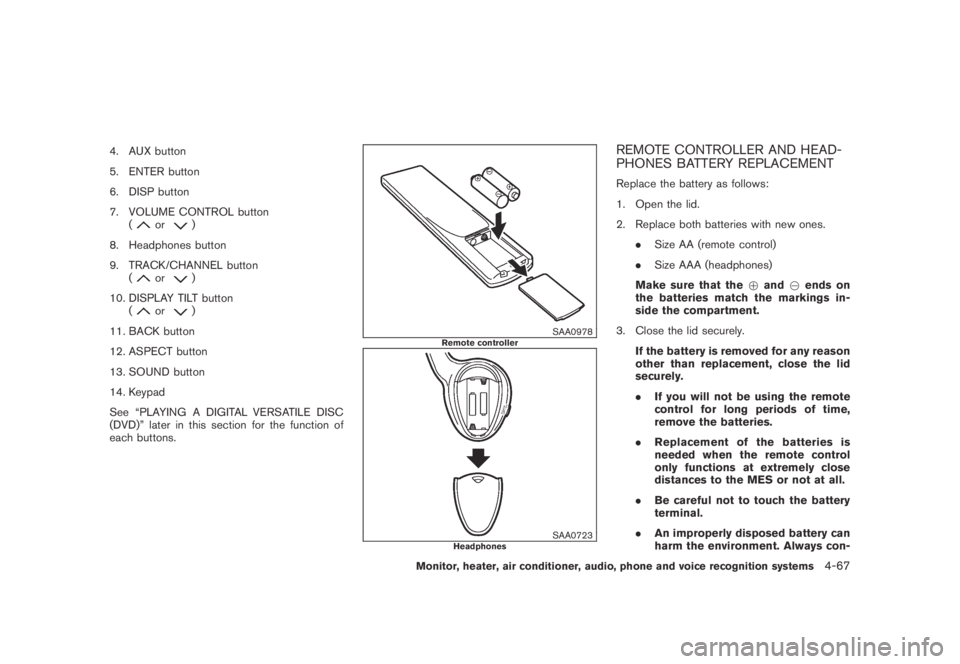
4. AUX button
5. ENTER button
6. DISP button
7. VOLUME CONTROL button
(
or)
8. Headphones button
9. TRACK/CHANNEL button
(
or)
10. DISPLAY TILT button
(
or)
11. BACK button
12. ASPECT button
13. SOUND button
14. Keypad
See “PLAYING A DIGITAL VERSATILE DISC
(DVD)” later in this section for the function of
each buttons.
SAA0978Remote controller
SAA0723Headphones
REMOTE CONTROLLER AND HEAD-
PHONES BATTERY REPLACEMENT
Replace the battery as follows:
1. Open the lid.
2. Replace both batteries with new ones.
.Size AA (remote control)
.Size AAA (headphones)
Make sure that the+and7ends on
the batteries match the markings in-
side the compartment.
3. Close the lid securely.
If the battery is removed for any reason
other than replacement, close the lid
securely.
.If you will not be using the remote
control for long periods of time,
remove the batteries.
.Replacement of the batteries is
needed when the remote control
only functions at extremely close
distances to the MES or not at all.
.Be careful not to touch the battery
terminal.
.An improperly disposed battery can
harm the environment. Always con-
Monitor, heater, air conditioner, audio, phone and voice recognition systems4-67
Page 236 of 443
Black plate (234,1)
Model "Z51-D" EDITED: 2007/ 10/ 2
Select No.* (VIDEO-CD) :
Select the “Select No.” key and push the
ENTERbutton to open the number entry screen.
Input the number you wish to search for and
select the “OK” key with the multi-function
controller, and then push theENTERbutton.
The specified scene will be played.
Menu Skip (DVD-VIDEO):
DVD menus are automatically configured and
the contents will be played directly when the
“Menu Skip” key is turned on. Note that some
discs may not be played directly even if this item
is turned on.
DVD Language (DVD-VIDEO, VIDEO-CD):
Select the “DVD Language” key and push the
ENTERbutton to open the number entry screen.
Input the number corresponding to the preferred
language and select the “OK” key with the multi-
function controller. Then push theENTER
button. The DVD top menu language will be
changed to the one specified.
DRC (DVD-VIDEO) :
DRC (Dynamic Range Compression) allows you
to tune the dynamic range of the sound
recorded in the Dolby Digital format.Remote controller operation
Use the remote controller to adjust the following
items.
Rear display open/close:
To open or close the flip-down rear display, push
the “
” button on the remote controller.
Joystick:
Use the joystick “
” to select the items
displayed on the rear screen.
ENTER button:
Push theENTER“
” button to make the
selected item complete on the rear screen.
BACK button:
Press to go back to the previous screen or
cancel the selection.
Display tilt:
Adjust the display angle by pushing the “DIS-
PLAY TILT” button
or.
DVD mode:
To select the DVD mode, push the DVD button.
AUX mode:
To select the AUX (Auxiliary input jacks) mode,
push the AUX button.Volume:
To control the volume level, push the “VOL”
button
or.
Display:
Press to adjust the rear display screen bright-
ness, tint, contrast, etc.
Aspect:
To change the display size, push the “ASPECT”
button. Each time the button is pushed, the
display size will change to “Cinema”, “Wide”,
“Full” or “Normal”.
Sound:
To change the language, push the “SOUND”
button. Each time the button is pushed, the
language will change to each language stored in
the DVD.
Headphones:
The DVD sound can be heard through the
headphones.
Push the “
” button. Each time the button is
pushed the mode will switch to ON or OFF.
To control the volume of sound from the
headphones, use the VOLUME CONTROL
knob attached to the headphones.
4-72Monitor, heater, air conditioner, audio, phone and voice recognition systems