buttons NISSAN MURANO 2009 Owner´s Manual
[x] Cancel search | Manufacturer: NISSAN, Model Year: 2009, Model line: MURANO, Model: NISSAN MURANO 2009Pages: 443, PDF Size: 3.95 MB
Page 147 of 443
Black plate (147,1)
Model "Z51-D" EDITED: 2007/ 10/ 2
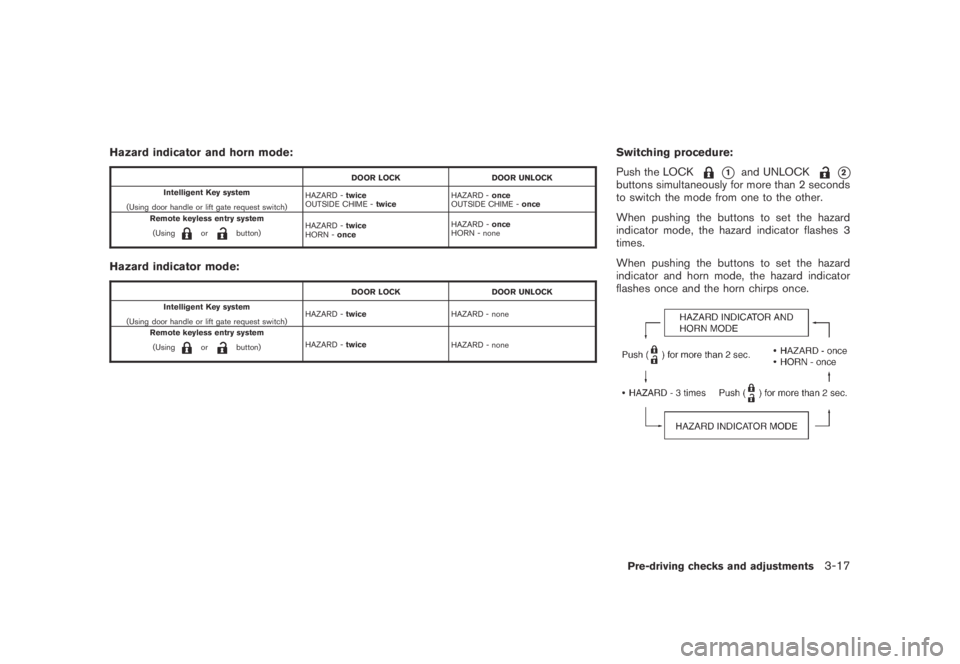
Hazard indicator and horn mode:
DOOR LOCK DOOR UNLOCK
Intelligent Key system
(Using door handle or lift gate request switch)HAZARD -twice
OUTSIDE CHIME -twiceHAZARD -once
OUTSIDE CHIME -once
Remote keyless entry system
(Using
orbutton)HAZARD -twice
HORN -onceHAZARD -once
HORN - none
Hazard indicator mode:
DOOR LOCK DOOR UNLOCK
Intelligent Key system
(Using door handle or lift gate request switch)HAZARD -twiceHAZARD - none
Remote keyless entry system
(Using
orbutton)HAZARD -twice
HAZARD - none
Switching procedure:
Push the LOCK
*1and UNLOCK*2buttons simultaneously for more than 2 seconds
to switch the mode from one to the other.
When pushing the buttons to set the hazard
indicator mode, the hazard indicator flashes 3
times.
When pushing the buttons to set the hazard
indicator and horn mode, the hazard indicator
flashes once and the horn chirps once.
Pre-driving checks and adjustments3-17
Page 164 of 443
Black plate (14,1)
Model "Z51-D" EDITED: 2007/ 10/ 2
Playing a Digital Versatile Disc (DVD)...............4-69
Care and maintenance..................................4-73
Car phone or CB radio......................................4-74
Bluetooth
®Hands-Free Phone System with
navigation system (for U.S.)................................4-75
Regulatory information...................................4-76
Voice commands..........................................4-76
Control buttons...........................................4-77
Pairing procedure.........................................4-77
Phonebook registration..................................4-78
Making a call...............................................4-80
Receiving a call...........................................4-80
During a call...............................................4-81
Phone setting..............................................4-82
Troubleshooting guide...................................4-84
Bluetooth
®Hands-Free Phone System with
navigation system (for Canada)............................4-85
Regulatory information...................................4-86
Voice commands..........................................4-86
Control buttons...........................................4-87
Pairing procedure.........................................4-87
Phonebook registration..................................4-88
Making a call...............................................4-90
Receiving a call...........................................4-91
During a call...............................................4-91
Phone setting..............................................4-92Troubleshooting guide...................................4-94
Bluetooth
®Hands-Free Phone System without
navigation system (if so equipped).......................4-95
Regulatory information...................................4-96
Initialization.................................................4-96
Operating tips.............................................4-96
Giving voice commands.................................4-96
Control buttons...........................................4-98
Getting started............................................4-98
Choosing a language....................................4-98
Pairing procedure.........................................4-98
Making a call by entering a phone number.........4-99
Receiving a call...........................................4-99
List of voice commands............................... 4-100
Call......................................................... 4-100
Phone book.............................................. 4-102
Memo pad................................................ 4-104
Setup...................................................... 4-104
Speaker Adaptation (SA) mode..................... 4-106
Troubleshooting guide................................. 4-108
NISSAN voice recognition system
(models with navigation system) (for U.S.)............ 4-109
NISSAN voice recognition standard mode........ 4-109
Using the system....................................... 4-111
Before starting........................................... 4-112
Giving voice commands............................... 4-112
Page 166 of 443
Black plate (164,1)
Model "Z51-D" EDITED: 2007/ 10/ 2
WARNING
.Do not disassemble or modify this
system. If you do, it may result in
accidents, fire, or electric shock.
.Do not use this system if you notice
any abnormality, such as a frozen
screen or lack of sound. Continued
use of the system may result in
accident, fire or electric shock.
.In case you notice any foreign
object in the system hardware, spill
liquid on it, or notice smoke or smell
coming from it, stop using the
system immediately and contact
your nearest NISSAN dealer. Ignor-
ing such conditions may lead to
accidents, fire, or electric shock.
.Park the vehicle in a safe location
and apply the parking brake to view
the images on the front center dis-
play screen using devices connected
to the auxiliary input jacks.
Do not attempt to operate the system in
extreme temperature conditions [below
−48F(−208C) and above 1588F(708C)].
Operating this system under these condi-
tions may result in system malfunctions.
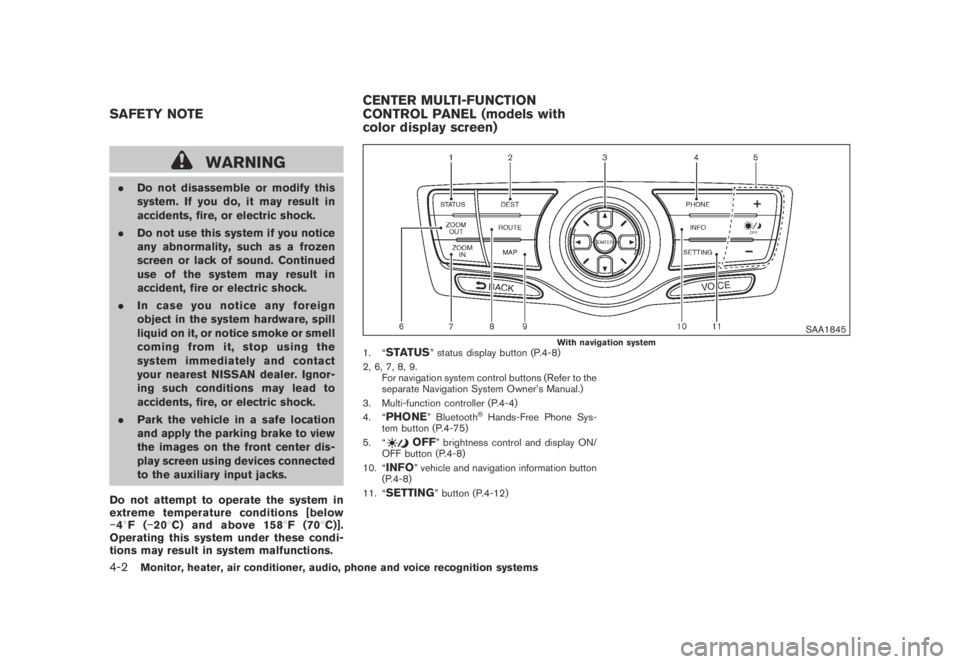
SAA1845With navigation system1. “STATUS” status display button (P.4-8)
2, 6, 7, 8, 9.
For navigation system control buttons (Refer to the
separate Navigation System Owner’s Manual.)
3. Multi-function controller (P.4-4)
4. “
PHONE” Bluetooth®Hands-Free Phone Sys-
tem button (P.4-75)
5. “
OFF” brightness control and display ON/
OFF button (P.4-8)
10. “
INFO” vehicle and navigation information button
(P.4-8)
11. “
SETTING” button (P.4-12)
SAFETY NOTECENTER MULTI-FUNCTION
CONTROL PANEL (models with
color display screen)
4-2Monitor, heater, air conditioner, audio, phone and voice recognition systems
Page 168 of 443
Black plate (166,1)
Model "Z51-D" EDITED: 2007/ 10/ 2
HOW TO USE MULTI-FUNCTION
CONTROLLER
Choose an item on the display using the main
directional buttons
*2(or additional directional
buttons
*6with navigation system) or center
dial
*3, and push theENTERbutton*1for
operation.
If you push theBACKbutton
*4before the
setup is completed, the setup will be canceled
and/or the display will return to the previous
screen. This button can also be used to delete
characters that have been input.
After the setup is completed, push theBACK
button
*4and return to the previous screen.
For theVOICEbutton
*5functions, refer to the
separate Navigation System Owner’s Manual.
HOW TO USE TOUCH SCREEN
(models with navigation system)
CAUTION
.The glass screen on the liquid
crystal display may break if it is hit
with a hard or sharp object. If the
glass breaks, do not touch the liquid
crystalline material, which contains
a small amount of mercury. In case
of contact with skin, wash immedi-ately with soap and water.
.To clean the display, use a soft, dry
cloth. If additional cleaning is ne-
cessary, use a small amount of
neutral detergent with a soft cloth.
Never use a rough cloth, alcohol,
benzine, thinner or any kind of
solvent or paper towel with a che-
mical cleaning agent. They will
scratch or deteriorate the panel.
.Do not splash any liquid such as
water or car fragrance on the dis-
play. Contact with liquid will cause
the system to malfunction.
To ensure safe driving, some functions cannot
be operated while driving.
The on-screen functions that are not available
while driving will be “grayed out” or muted.
Park the vehicle in a safe location and then
operate the navigation system.
SAA1542
Touch screen operation
With this system, the same operations as those
for the multi-function controller are possible
using the touch screen operation.
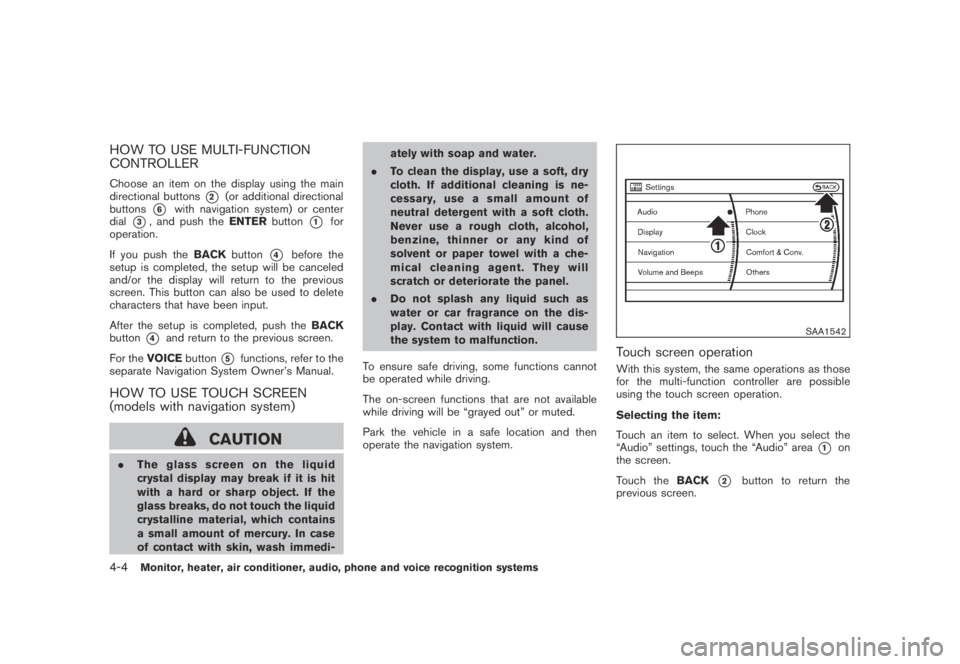
Selecting the item:
Touch an item to select. When you select the
“Audio” settings, touch the “Audio” area
*1on
the screen.
Touch theBACK
*2button to return the
previous screen.
4-4Monitor, heater, air conditioner, audio, phone and voice recognition systems
Page 192 of 443
Black plate (190,1)
Model "Z51-D" EDITED: 2007/ 10/ 2
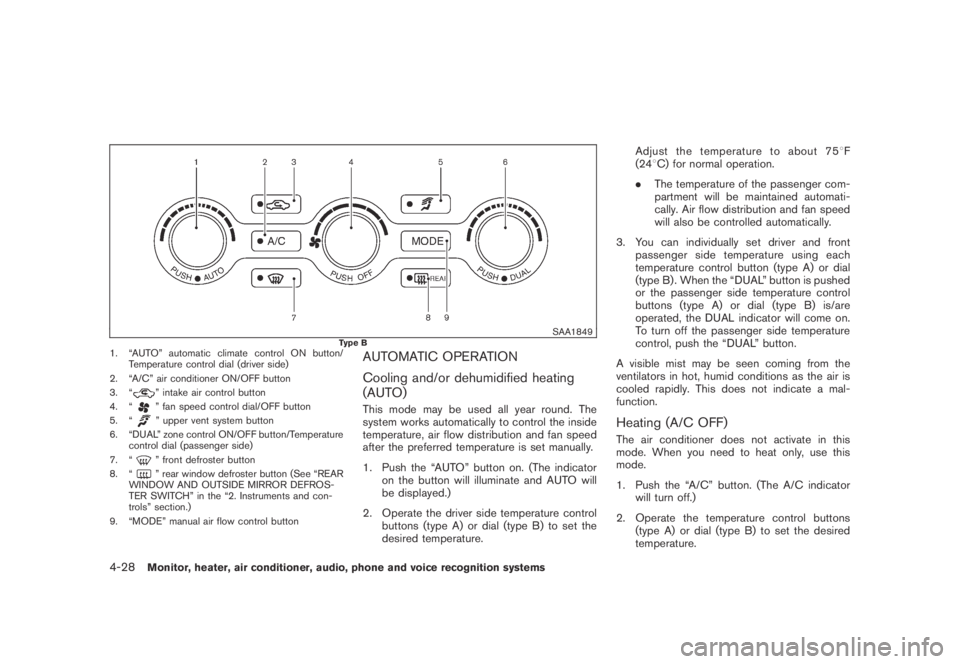
SAA1849Type B1. “AUTO” automatic climate control ON button/
Temperature control dial (driver side)
2. “A/C” air conditioner ON/OFF button
3. “
” intake air control button
4. “
” fan speed control dial/OFF button
5. “
” upper vent system button
6. “DUAL” zone control ON/OFF button/Temperature
control dial (passenger side)
7. “
” front defroster button
8. “
” rear window defroster button (See “REAR
WINDOW AND OUTSIDE MIRROR DEFROS-
TER SWITCH” in the “2. Instruments and con-
trols” section.)
9. “MODE” manual air flow control button
AUTOMATIC OPERATION
Cooling and/or dehumidified heating
(AUTO)
This mode may be used all year round. The
system works automatically to control the inside
temperature, air flow distribution and fan speed
after the preferred temperature is set manually.
1. Push the “AUTO” button on. (The indicator
on the button will illuminate and AUTO will
be displayed.)
2. Operate the driver side temperature control
buttons (type A) or dial (type B) to set the
desired temperature.Adjust the temperature to about 758F
(248C) for normal operation.
.The temperature of the passenger com-
partment will be maintained automati-
cally. Air flow distribution and fan speed
will also be controlled automatically.
3. You can individually set driver and front
passenger side temperature using each
temperature control button (type A) or dial
(type B) . When the “DUAL” button is pushed
or the passenger side temperature control
buttons (type A) or dial (type B) is/are
operated, the DUAL indicator will come on.
To turn off the passenger side temperature
control, push the “DUAL” button.
A visible mist may be seen coming from the
ventilators in hot, humid conditions as the air is
cooled rapidly. This does not indicate a mal-
function.
Heating (A/C OFF)
The air conditioner does not activate in this
mode. When you need to heat only, use this
mode.
1. Push the “A/C” button. (The A/C indicator
will turn off.)
2. Operate the temperature control buttons
(type A) or dial (type B) to set the desired
temperature.
4-28Monitor, heater, air conditioner, audio, phone and voice recognition systems
Page 193 of 443
Black plate (191,1)
Model "Z51-D" EDITED: 2007/ 10/ 2
.The temperature of the passenger compart-
ment will be maintained automatically. Air
flow distribution and fan speed are also
controlled automatically.
.Do not set the temperature lower than the
outside air temperature. Otherwise the
system may not work properly.
.Not recommended if windows fog up.
Dehumidified defrosting or defogging
1. Push the “” front defroster button. (The
indicator light on the button will come on.)
2. Operate the temperature control buttons
(type A) dial (type B) to set the desired
temperature.
.To quickly remove ice from the outside of the
windows, turn the “
” fan speed control
dial and set it to the maximum position.
.As soon as possible after the windshield is
clean, push the “AUTO” button to return to
the auto mode.
.When the “
” front defroster button is
pushed, the air conditioner will automatically
be turned on at outside temperatures above
238F(−58C) to defog the windshield, and
the air recirculate mode will automatically be
turned off.
Outside air is drawn into the passengercompartment to improve the defogging
performance.
MANUAL OPERATION
Fan speed control
Tu r n t h e “” fan speed control dial to
manually control the fan speed.
Push the “AUTO” button to return to automatic
control of the fan speed.
Air recirculation
Push the intake air control button “”to
recirculate interior air inside the vehicle. The
indicator light “
” will come on.
The air recirculation mode cannot be activated
when the air conditioner is in the front defrosting
mode “
”.
Outside air circulation
Push the intake air control button “”to
change the air circulation from the intake air to
the outside air. The indicator light “
” will turn
off.
Automatic air intake control
In the AUTO mode, the intake air will be
controlled automatically. To manually control
the intake air, push the intake air control button
“
”. To return to the automatic control mode,
push the intake air control button “” forabout 2 seconds. The indicator lights will flash
twice, and then the intake air will be controlled
automatically.
Air flow control
Pushing the “MODE” manual air flow control
button selects the air outlet to:
: Air flows from center and side ventila-
tors.
: Air flows from center and side ventila-
tors and foot outlets.
: Air flows mainly from foot outlets.
: Air flows from defroster and foot out-
lets.
Upper vent system
When the “” upper vent button is pushed,
the air flow against the driver’s or passenger’s
upper body becomes gentle. The indicator light
on the button will come on.
In this mode, air from the center ventilators flows
both straight and upward in order to control the
cabin temperature without blowing air directly
on the occupants.
If you want strong air flow against your upper
body, push the “
” button to turn the
indicator light off.
Monitor, heater, air conditioner, audio, phone and voice recognition systems4-29
Page 203 of 443
Black plate (201,1)
Model "Z51-D" EDITED: 2007/ 10/ 2
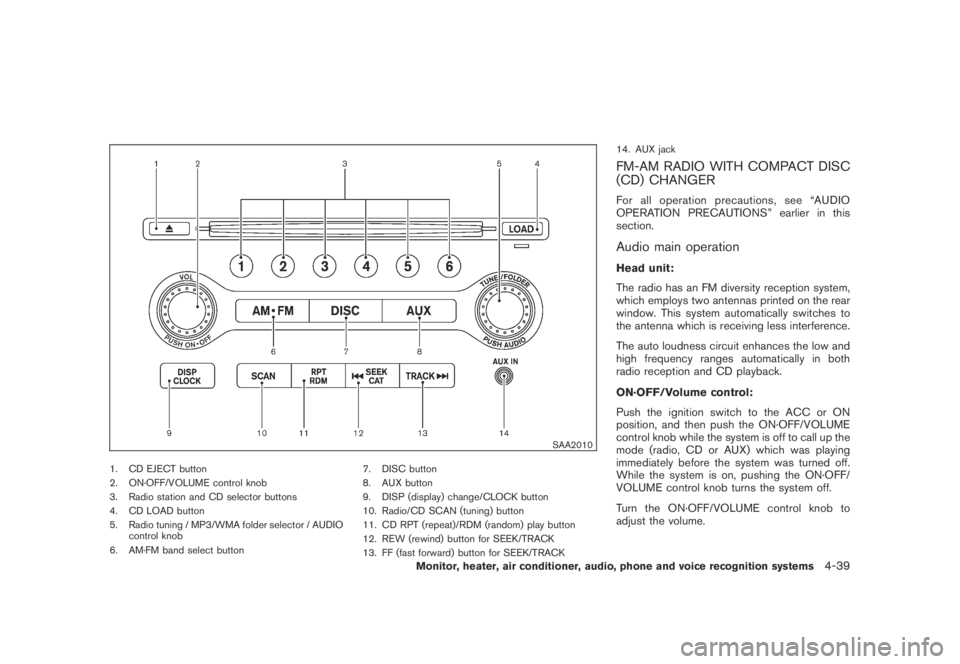
SAA2010
1. CD EJECT button
2. ON·OFF/VOLUME control knob
3. Radio station and CD selector buttons
4. CD LOAD button
5. Radio tuning / MP3/WMA folder selector / AUDIO
control knob
6. AM·FM band select button7. DISC button
8. AUX button
9. DISP (display) change/CLOCK button
10. Radio/CD SCAN (tuning) button
11. CD RPT (repeat)/RDM (random) play button
12. REW (rewind) button for SEEK/TRACK
13. FF (fast forward) button for SEEK/TRACK14. AUX jack
FM-AM RADIO WITH COMPACT DISC
(CD) CHANGER
For all operation precautions, see “AUDIO
OPERATION PRECAUTIONS” earlier in this
section.
Audio main operation
Head unit:
The radio has an FM diversity reception system,
which employs two antennas printed on the rear
window. This system automatically switches to
the antenna which is receiving less interference.
The auto loudness circuit enhances the low and
high frequency ranges automatically in both
radio reception and CD playback.
ON·OFF/Volume control:
Push the ignition switch to the ACC or ON
position, and then push the ON·OFF/VOLUME
control knob while the system is off to call up the
mode (radio, CD or AUX) which was playing
immediately before the system was turned off.
While the system is on, pushing the ON·OFF/
VOLUME control knob turns the system off.
Turn the ON·OFF/VOLUME control knob to
adjust the volume.
Monitor, heater, air conditioner, audio, phone and voice recognition systems4-39
Page 204 of 443
Black plate (202,1)
Model "Z51-D" EDITED: 2007/ 10/ 2
Adjusting sound quality:
Push the Audio control knob to change the
selecting mode as follows.
Bass?Treble?Fade?Balance?Beep
Rotate the Audio control knob to adjust Bass,
Treble, Fade and Balance to the desired level.
Fade adjusts the sound level between the front
and rear speakers and Balance adjusts the
sound between the right and left speakers.
To turn the beep sound off or on, rotate the
Audio control knob until the desired mode is
displayed. This turns on or off the beep sound
when audio buttons are pushed.
Once you have adjusted the sound quality to the
desired level, push the Audio control knob
repeatedly until the radio or CD display re-
appears. Otherwise, the radio or CD display will
automatically reappear after about 5 seconds.
CLOCK adjust:
Push the CLOCK adjust button for more than
1.5 seconds to turn on the CLOCK display.
See “CLOCK” in the “2. Instruments and
controls” section for the detailed clock adjust-
ment operation.
FM-AM radio operation
radio (FM/AM) band select:
Pushing the radio band select button will
change the band as follows:
AM?FM1?FM2?AM
When the radio band select button is pushed
while the ignition switch is in the ACC or ON
position, the radio will come on at the station last
played.
The last station/channel played will also come
on when the ON·OFF/VOL control knob is
pushed to ON.
If another audio source is playing when the radio
band select button is turned to ON, the audio
source will automatically be turned off and the
last radio station played will come on.
When the stereo broadcast signal is weak, the
radio will automatically change from stereo to
monaural reception.
TUNE (Tuning):
Turn the TUNE/FOLDER knob for manual tuning.
SEEK tuning:
Push the SEEK·CAT or TRACK button
orto tune from low to high or high to low
frequencies and to stop at the next broadcasting
station.
SCAN tuning:
Push the SCAN tuning button to tune from low
to high frequencies and stops at each broad-
casting station for 5 seconds. Pushing the
button again during this 5 seconds period will
stop SCAN tuning and the radio will remain
tuned to that station.
If the SCAN tuning button is not pushed within 5
seconds, SCAN tuning moves to the next
station.
*1to*6Station memory operations:
Twelve stations/channels can be set for the FM
band (6 for FM1, 6 for FM2) and 6 stations can
be set for the AM band.
1. Choose the radio band AM, FM1 or FM2
using the radio band select button.
2. Tune to the desired station using the SEEK,
SCAN or TUNE button.
3. Select the desired station/channel and keep
pushing any of the desired station preset
4-40Monitor, heater, air conditioner, audio, phone and voice recognition systems
Page 205 of 443
Black plate (203,1)
Model "Z51-D" EDITED: 2007/ 10/ 2
buttons*1to*6until a beep sound is
heard. (The radio mutes when the select
button is pushed.)
4. The channel indicator will then come on and
the sound will resume. Memorizing is now
complete.
5. Other buttons can be set in the same
manner.
If the battery cable is disconnected, or if the fuse
blows, the radio memory will be erased. In that
case, reset the desired stations.
Compact Disc (CD) changer operation
Push the ignition switch to the ACC or ON
position, push the LOAD button and insert the
compact disc into the slot with the label side
facing up. The compact disc will be guided
automatically into the slot and start playing.
After loading the disc, the number of tracks on
the disc and the play time will appear on the
display.
If the radio is already operating, it will auto-
matically turn off and the compact disc will play.
If the system has been turned off while the
compact disc was playing, pushing the ON·-
OFF/VOL control knob will start the compact
disc.
CD LOAD:
To insert a CD in the CD changer, push the
LOAD button for less than 1.5 seconds. Select
the loading position by pushing the CD insert
select button
*1to*6, then insert the CD.
To insert 6 CDs to the CD changer in
succession, push the LOAD button for more
than 1.5 seconds.
The inserted slot numbers will illuminate on the
display.
PLAY:
When the DISC (CD play) button is pushed with
the system off and the compact disc loaded, the
system will turn on and the compact disc will
start to play.
When the DISC button is pushed with the
compact disc loaded and the radio playing, the
radio will automatically be turned off and the
compact disc will start to play.
When the DISC button is pushed while a CD is
loaded and a medium is played using the
auxiliary input jacks, you can toggle back and
forth between CD and medium.
CD PLAY INFORMATION:
When the DISP button is pushed for less than
1.5 seconds while the CD is being played, the
disc information display will change as follows:
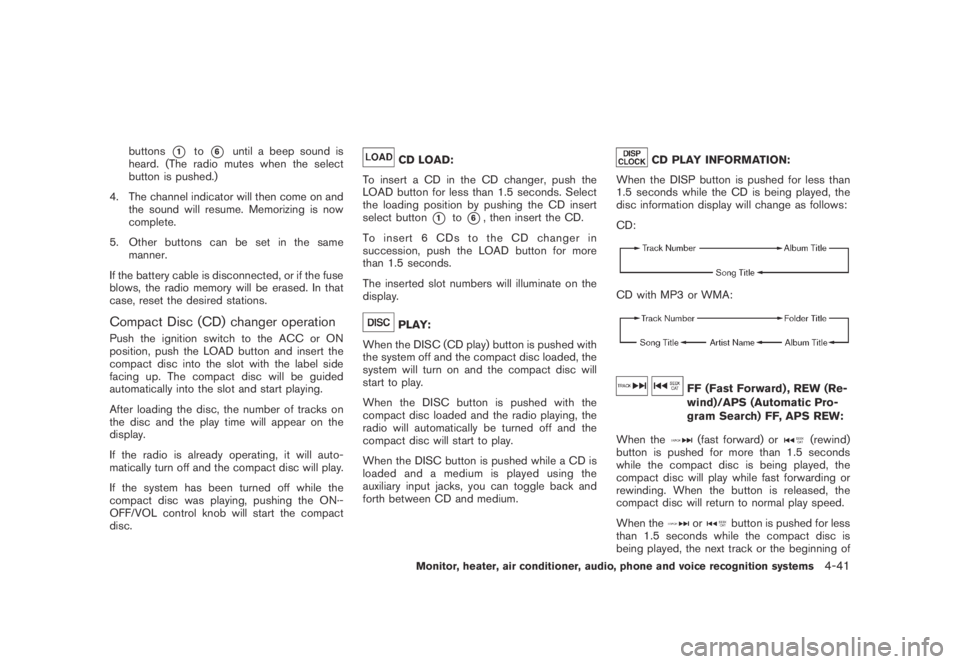
CD:
CD with MP3 or WMA:
FF (Fast Forward) , REW (Re-
wind)/APS (Automatic Pro-
gram Search) FF, APS REW:
When the
(fast forward) or(rewind)
button is pushed for more than 1.5 seconds
while the compact disc is being played, the
compact disc will play while fast forwarding or
rewinding. When the button is released, the
compact disc will return to normal play speed.
When the
orbutton is pushed for less
than 1.5 seconds while the compact disc is
being played, the next track or the beginning of
Monitor, heater, air conditioner, audio, phone and voice recognition systems4-41
Page 206 of 443
Black plate (204,1)
Model "Z51-D" EDITED: 2007/ 10/ 2
the current track on the CD will be played.
CD PLAY selection:
To change to another CD already loaded into the
player, push the CD play select buttons
*1to
*6.
REPEAT (RPT) , RANDOM (RDM):
When the RPT button is pushed while the
compact disc is played, the play pattern can be
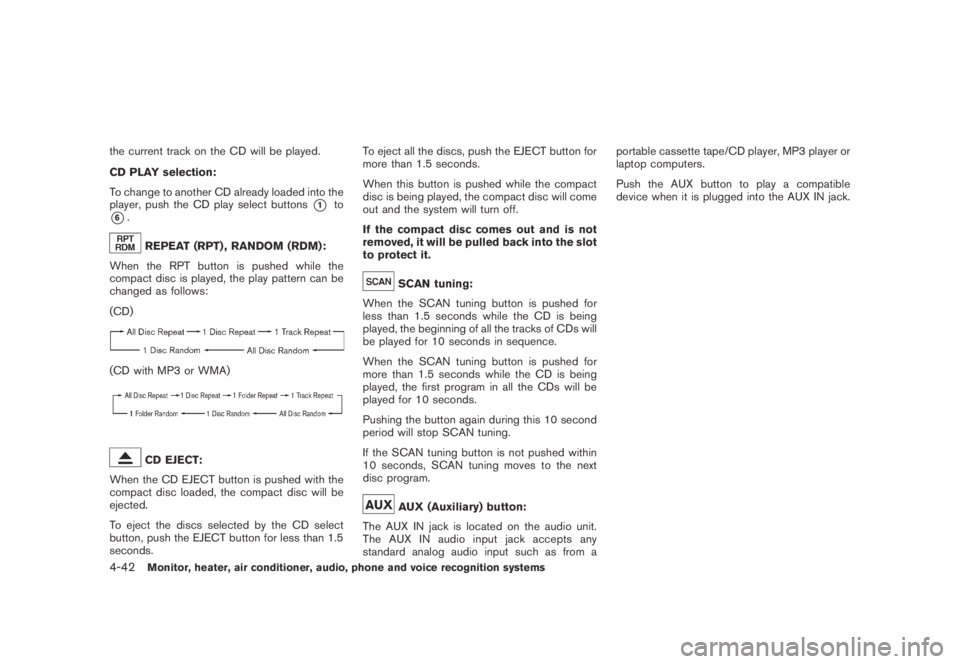
changed as follows:
(CD)
(CD with MP3 or WMA)
CD EJECT:
When the CD EJECT button is pushed with the
compact disc loaded, the compact disc will be
ejected.
To eject the discs selected by the CD select
button, push the EJECT button for less than 1.5
seconds.To eject all the discs, push the EJECT button for
more than 1.5 seconds.
When this button is pushed while the compact
disc is being played, the compact disc will come
out and the system will turn off.
If the compact disc comes out and is not
removed, it will be pulled back into the slot
to protect it.
SCAN tuning:
When the SCAN tuning button is pushed for
less than 1.5 seconds while the CD is being
played, the beginning of all the tracks of CDs will
be played for 10 seconds in sequence.
When the SCAN tuning button is pushed for
more than 1.5 seconds while the CD is being
played, the first program in all the CDs will be
played for 10 seconds.
Pushing the button again during this 10 second
period will stop SCAN tuning.
If the SCAN tuning button is not pushed within
10 seconds, SCAN tuning moves to the next
disc program.
AUX (Auxiliary) button:
The AUX IN jack is located on the audio unit.
The AUX IN audio input jack accepts any
standard analog audio input such as from aportable cassette tape/CD player, MP3 player or
laptop computers.
Push the AUX button to play a compatible
device when it is plugged into the AUX IN jack.
4-42Monitor, heater, air conditioner, audio, phone and voice recognition systems