steering wheel NISSAN MURANO 2009 Owner´s Manual
[x] Cancel search | Manufacturer: NISSAN, Model Year: 2009, Model line: MURANO, Model: NISSAN MURANO 2009Pages: 443, PDF Size: 3.95 MB
Page 186 of 443
Black plate (184,1)
Model "Z51-D" EDITED: 2007/ 10/ 2
SAA1898
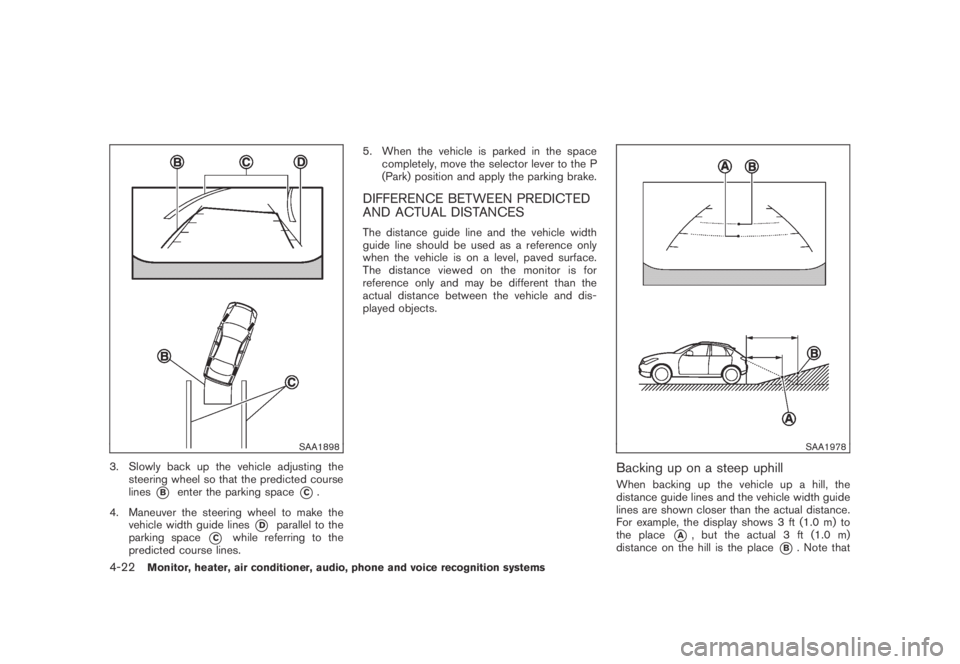
3. Slowly back up the vehicle adjusting the
steering wheel so that the predicted course
lines
*Benter the parking space*C.
4. Maneuver the steering wheel to make the
vehicle width guide lines
*Dparallel to the
parking space
*Cwhile referring to the
predicted course lines.5. When the vehicle is parked in the space
completely, move the selector lever to the P
(Park) position and apply the parking brake.
DIFFERENCE BETWEEN PREDICTED
AND ACTUAL DISTANCES
The distance guide line and the vehicle width
guide line should be used as a reference only
when the vehicle is on a level, paved surface.
The distance viewed on the monitor is for
reference only and may be different than the
actual distance between the vehicle and dis-
played objects.
SAA1978
Backing up on a steep uphill
When backing up the vehicle up a hill, the
distance guide lines and the vehicle width guide
lines are shown closer than the actual distance.
For example, the display shows 3 ft (1.0 m) to
the place
*A, but the actual 3 ft (1.0 m)
distance on the hill is the place
*B. Note that
4-22Monitor, heater, air conditioner, audio, phone and voice recognition systems
Page 217 of 443
Black plate (215,1)
Model "Z51-D" EDITED: 2007/ 10/ 2
SAA1614
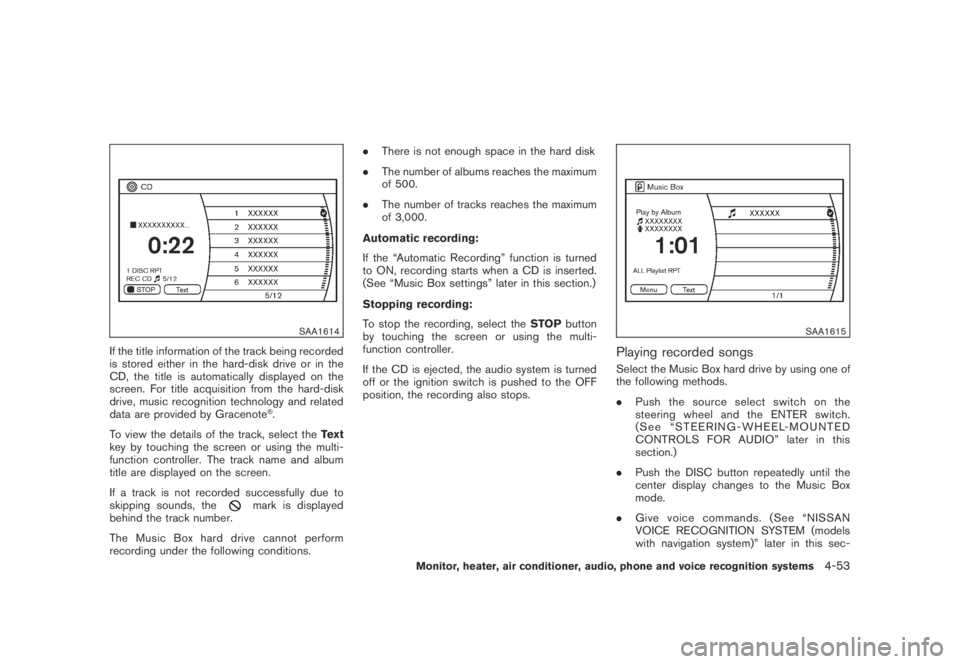
If the title information of the track being recorded
is stored either in the hard-disk drive or in the
CD, the title is automatically displayed on the
screen. For title acquisition from the hard-disk
drive, music recognition technology and related
data are provided by Gracenote
®.
To view the details of the track, select theText
key by touching the screen or using the multi-
function controller. The track name and album
title are displayed on the screen.
If a track is not recorded successfully due to
skipping sounds, the
mark is displayed
behind the track number.
The Music Box hard drive cannot perform
recording under the following conditions..There is not enough space in the hard disk
.The number of albums reaches the maximum
of 500.
.The number of tracks reaches the maximum
of 3,000.
Automatic recording:
If the “Automatic Recording” function is turned
to ON, recording starts when a CD is inserted.
(See “Music Box settings” later in this section.)
Stopping recording:
To stop the recording, select theSTOPbutton
by touching the screen or using the multi-
function controller.
If the CD is ejected, the audio system is turned
off or the ignition switch is pushed to the OFF
position, the recording also stops.
SAA1615
Playing recorded songs
Select the Music Box hard drive by using one of
the following methods.
.Push the source select switch on the
steering wheel and the ENTER switch.
(See “STEERING-WHEEL-MOUNTED
CONTROLS FOR AUDIO” later in this
section.)
.Push the DISC button repeatedly until the
center display changes to the Music Box
mode.
.Give voice commands. (See “NISSAN
VOICE RECOGNITION SYSTEM (models
with navigation system)” later in this sec-
Monitor, heater, air conditioner, audio, phone and voice recognition systems4-53
Page 224 of 443
Black plate (222,1)
Model "Z51-D" EDITED: 2007/ 10/ 2
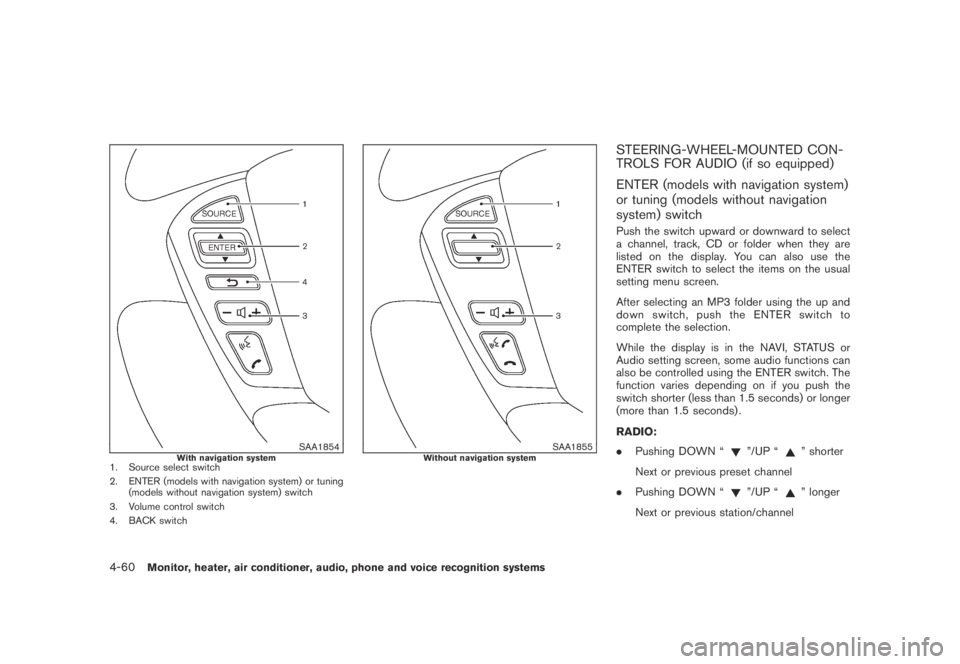
SAA1854With navigation system1. Source select switch
2. ENTER (models with navigation system) or tuning
(models without navigation system) switch
3. Volume control switch
4. BACK switch
SAA1855Without navigation system
STEERING-WHEEL-MOUNTED CON-
TROLS FOR AUDIO (if so equipped)
ENTER (models with navigation system)
or tuning (models without navigation
system) switch
Push the switch upward or downward to select
a channel, track, CD or folder when they are
listed on the display. You can also use the
ENTER switch to select the items on the usual
setting menu screen.
After selecting an MP3 folder using the up and
down switch, push the ENTER switch to
complete the selection.
While the display is in the NAVI, STATUS or
Audio setting screen, some audio functions can
also be controlled using the ENTER switch. The
function varies depending on if you push the
switch shorter (less than 1.5 seconds) or longer
(more than 1.5 seconds) .
RADIO:
.Pushing DOWN “
”/UP “” shorter
Next or previous preset channel
.Pushing DOWN “
”/UP “” longer
Next or previous station/channel
4-60Monitor, heater, air conditioner, audio, phone and voice recognition systems
Page 244 of 443
Black plate (242,1)
Model "Z51-D" EDITED: 2007/ 10/ 2
SAA1895
MAKING A CALL
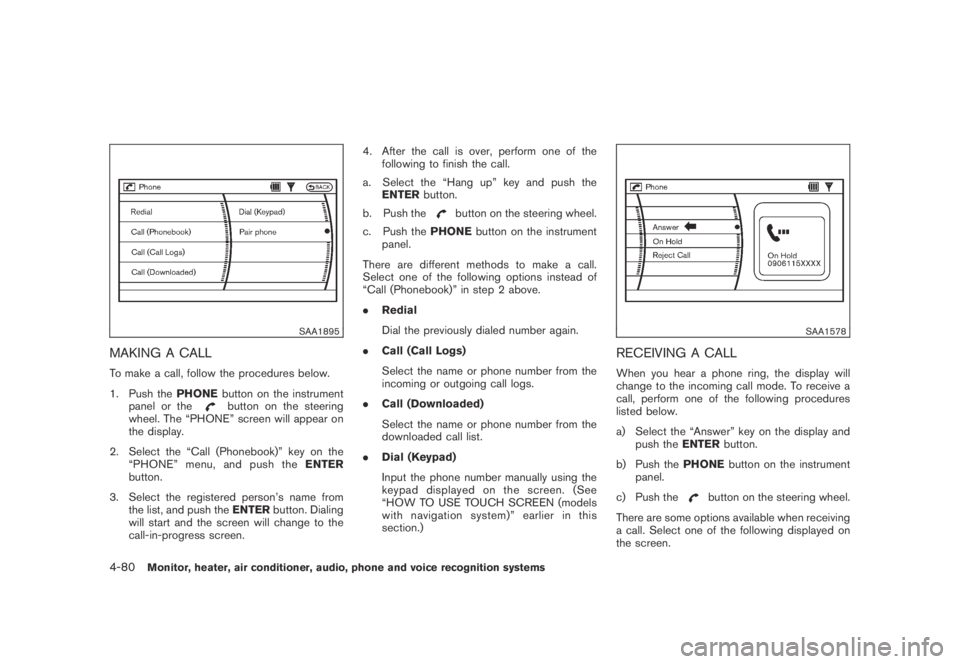
To make a call, follow the procedures below.
1. Push thePHONEbutton on the instrument
panel or the
button on the steering
wheel. The “PHONE” screen will appear on
the display.
2. Select the “Call (Phonebook)” key on the
“PHONE” menu, and push theENTER
button.
3. Select the registered person’s name from
the list, and push theENTERbutton. Dialing
will start and the screen will change to the
call-in-progress screen.4. After the call is over, perform one of the
following to finish the call.
a. Select the “Hang up” key and push the
ENTERbutton.
b. Push the
button on the steering wheel.
c. Push thePHONEbutton on the instrument
panel.
There are different methods to make a call.
Select one of the following options instead of
“Call (Phonebook)” in step 2 above.
.Redial
Dial the previously dialed number again.
.Call (Call Logs)
Select the name or phone number from the
incoming or outgoing call logs.
.Call (Downloaded)
Select the name or phone number from the
downloaded call list.
.Dial (Keypad)
Input the phone number manually using the
keypad displayed on the screen. (See
“HOW TO USE TOUCH SCREEN (models
with navigation system)” earlier in this
section.)
SAA1578
RECEIVING A CALL
When you hear a phone ring, the display will
change to the incoming call mode. To receive a
call, perform one of the following procedures
listed below.
a) Select the “Answer” key on the display and
push theENTERbutton.
b) Push thePHONEbutton on the instrument
panel.
c) Push the
button on the steering wheel.
There are some options available when receiving
a call. Select one of the following displayed on
the screen.
4-80Monitor, heater, air conditioner, audio, phone and voice recognition systems
Page 245 of 443
Black plate (243,1)
Model "Z51-D" EDITED: 2007/ 10/ 2
.Answer
Accept an incoming call to talk.
.On Hold
Put an incoming call on hold.
.Reject Call
Reject an incoming call.
To finish the call, perform one of the
following procedures listed below.
a) Select the “Hang up” key on the display and
push theENTERbutton.
b) Push thePHONEbutton on the instrument
panel.
c) Push the
button on the steering wheel.
SAA1579
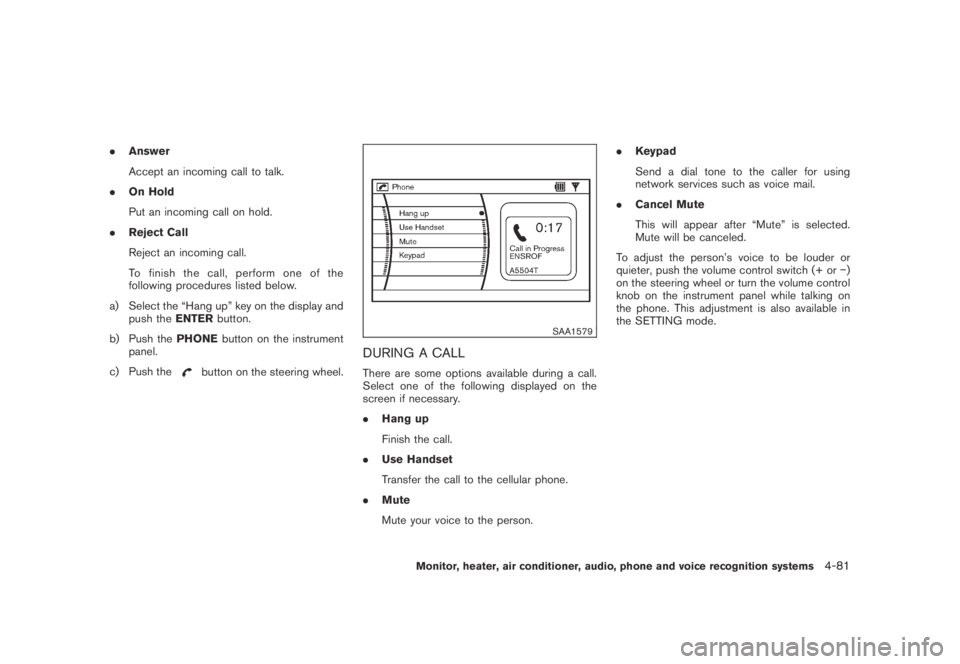
DURING A CALL
There are some options available during a call.
Select one of the following displayed on the
screen if necessary.
.Hang up
Finish the call.
.Use Handset
Transfer the call to the cellular phone.
.Mute
Mute your voice to the person..Keypad
Send a dial tone to the caller for using
network services such as voice mail.
.Cancel Mute
This will appear after “Mute” is selected.
Mute will be canceled.
To adjust the person’s voice to be louder or
quieter, push the volume control switch (+ or−)
on the steering wheel or turn the volume control
knob on the instrument panel while talking on
the phone. This adjustment is also available in
the SETTING mode.
Monitor, heater, air conditioner, audio, phone and voice recognition systems4-81
Page 254 of 443
Black plate (252,1)
Model "Z51-D" EDITED: 2007/ 10/ 2
incoming call list.
—Delete
Delete a contact that is registered in the
phonebook.
SAA1577
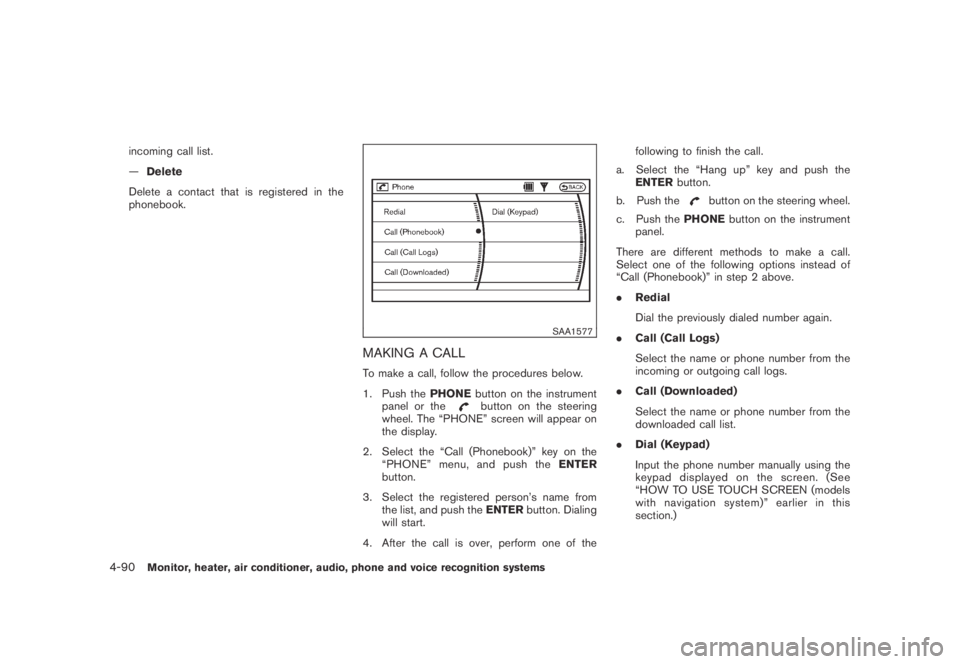
MAKING A CALL
To make a call, follow the procedures below.
1. Push thePHONEbutton on the instrument
panel or the
button on the steering
wheel. The “PHONE” screen will appear on
the display.
2. Select the “Call (Phonebook)” key on the
“PHONE” menu, and push theENTER
button.
3. Select the registered person’s name from
the list, and push theENTERbutton. Dialing
will start.
4. After the call is over, perform one of thefollowing to finish the call.
a. Select the “Hang up” key and push the
ENTERbutton.
b. Push the
button on the steering wheel.
c. Push thePHONEbutton on the instrument
panel.
There are different methods to make a call.
Select one of the following options instead of
“Call (Phonebook)” in step 2 above.
.Redial
Dial the previously dialed number again.
.Call (Call Logs)
Select the name or phone number from the
incoming or outgoing call logs.
.Call (Downloaded)
Select the name or phone number from the
downloaded call list.
.Dial (Keypad)
Input the phone number manually using the
keypad displayed on the screen. (See
“HOW TO USE TOUCH SCREEN (models
with navigation system)” earlier in this
section.)
4-90Monitor, heater, air conditioner, audio, phone and voice recognition systems
Page 255 of 443
Black plate (253,1)
Model "Z51-D" EDITED: 2007/ 10/ 2
SAA1578
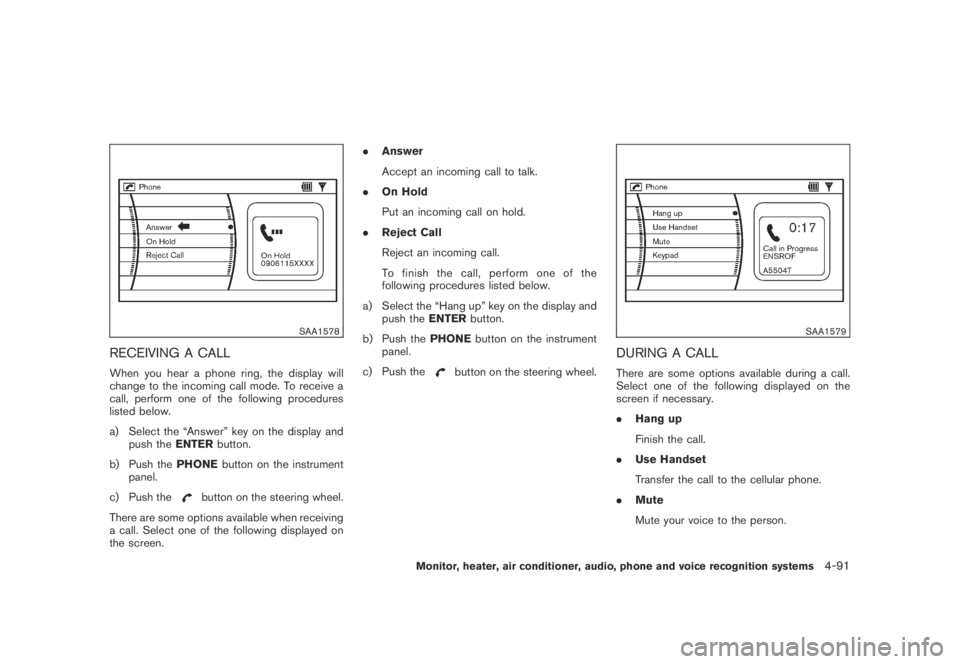
RECEIVING A CALL
When you hear a phone ring, the display will
change to the incoming call mode. To receive a
call, perform one of the following procedures
listed below.
a) Select the “Answer” key on the display and
push theENTERbutton.
b) Push thePHONEbutton on the instrument
panel.
c) Push the
button on the steering wheel.
There are some options available when receiving
a call. Select one of the following displayed on
the screen..Answer
Accept an incoming call to talk.
.On Hold
Put an incoming call on hold.
.Reject Call
Reject an incoming call.
To finish the call, perform one of the
following procedures listed below.
a) Select the “Hang up” key on the display and
push theENTERbutton.
b) Push thePHONEbutton on the instrument
panel.
c) Push the
button on the steering wheel.
SAA1579
DURING A CALL
There are some options available during a call.
Select one of the following displayed on the
screen if necessary.
.Hang up
Finish the call.
.Use Handset
Transfer the call to the cellular phone.
.Mute
Mute your voice to the person.
Monitor, heater, air conditioner, audio, phone and voice recognition systems4-91
Page 256 of 443
Black plate (254,1)
Model "Z51-D" EDITED: 2007/ 10/ 2
.Keypad
Send a dial tone to the caller for using
network services such as voice mail.
.Cancel Mute
This will appear after “Mute” is selected.
Mute will be canceled.
To adjust the person’s voice to be louder or
quieter, push the volume control switch (+ or−)
on the steering wheel or turn the volume control
knob on the instrument panel while talking on
the phone. This adjustment is also available in
the SETTING mode.
SAA1580
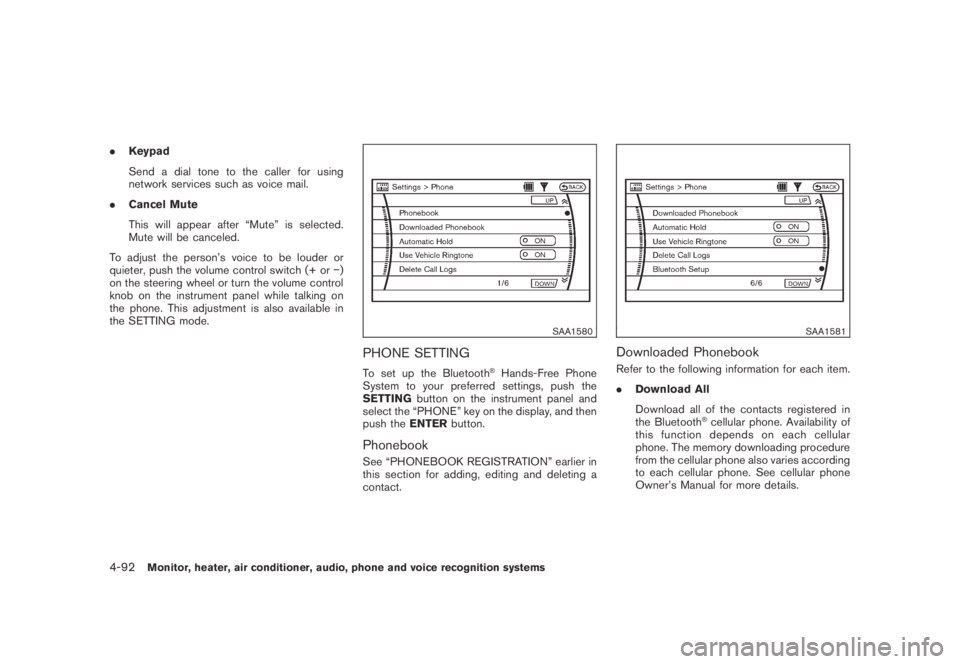
PHONE SETTING
To set up the Bluetooth®Hands-Free Phone
System to your preferred settings, push the
SETTINGbutton on the instrument panel and
select the “PHONE” key on the display, and then
push theENTERbutton.
Phonebook
See “PHONEBOOK REGISTRATION” earlier in
this section for adding, editing and deleting a
contact.
SAA1581
Downloaded Phonebook
Refer to the following information for each item.
.Download All
Download all of the contacts registered in
the Bluetooth
®cellular phone. Availability of
this function depends on each cellular
phone. The memory downloading procedure
from the cellular phone also varies according
to each cellular phone. See cellular phone
Owner’s Manual for more details.
4-92Monitor, heater, air conditioner, audio, phone and voice recognition systems
Page 260 of 443
Black plate (258,1)
Model "Z51-D" EDITED: 2007/ 10/ 2
.Some cellular phones or other devices may
cause interference or a buzzing noise to
come from the audio system speakers.
Storing the device in a different location
may reduce or eliminate the noise.
.Refer to the cellular phone Owner’s Manual
regarding the telephone pairing procedure
specific to your phone, battery charging,
cellular phone antenna, etc.
.The antenna display on the monitor will not
coincide with the antenna display of some
cellular phones.
.Keep the interior of the vehicle as quiet as
possible to hear the caller’s voice clearly as
well as to minimize its echoes.
.If reception between callers is unclear,
adjusting the incoming or outgoing call
volume may improve the clarity.
REGULATORY INFORMATION
FCC Regulatory information
— CAUTION: To maintain compliance with
FCC’s RF exposure guidelines, use only
the supplied antenna. Unauthorized antenna,
modification, or attachments could damage
the transmitter and may violate FCC regula-
tions.
— Operation is subject to the following two
conditions:1) this device may not cause interference and
2) this device must accept any interference,
including interference that may cause un-
desired operation of the device
IC Regulatory information
— Operation is subject to the following two
conditions: (1) this device may not cause
interference, and (2) this device must accept
any interference, including interference that
may cause undesired operation of the
device.
— This Class B digital apparatus meets all
requirements of the Canadian Interference-
Causing Equipment Regulations.
Bluetooth trademark:
BLUETOOTH®is a trademark
owned by Bluetooth SIG, Inc.,
U.S.A.
INITIALIZATION
When the ignition switch is pushed to the ON
position, NISSAN Voice Recognition is initia-
lized, which takes a few seconds. If the
button is pushed before the initialization com-
pletes, the system will announce “Hands-free
phone system not ready” and will not react to
voice commands.
OPERATING TIPS
To get the best performance out of the NISSAN
Voice Recognition system, observe the follow-
ing:
.Keep the interior of the vehicle as quiet as
possible. Close the windows to eliminate
surrounding noises (traffic noises, vibration
sounds, etc.) , which may prevent the system
from recognizing voice commands correctly.
.Wait until the tone sounds before speaking a
command. Otherwise, the command will not
be received properly.
.Start speaking a command within 5 seconds
after the tone sounds.
.Speak in a natural voice without pausing
between words.
GIVING VOICE COMMANDS
To operate NISSAN Voice Recognition, push
and release thebutton located on the
steering wheel. After the tone sounds, speak a
command.
Thecommandgivenispickedupbythe
microphone, and voice feedback is given when
the command is accepted.
.If you need to hear the available commands
for the current menu again, say “Help” and
the system will repeat them.
4-96Monitor, heater, air conditioner, audio, phone and voice recognition systems
Page 261 of 443
Black plate (259,1)
Model "Z51-D" EDITED: 2007/ 10/ 2
.If a command is not recognized, the system
announces, “Command not recognized.
Please try again.” Repeat the command in
a clear voice.
.If you want to go back to the previous
command, you can say “Go back” or
“Correction” any time the system is waiting
for a response.
.You can cancel a command when the
system is waiting for a response by saying,
“Cancel” or “Quit.” The system announces
“Cancel” and ends the voice recognition
(VR) session. You can also push the
button on the steering wheel at any time.
Whenever the VR session is canceled, a
double beep is played to indicate you have
exited the system.
.If you want to adjust the volume of the voice
feedback, push the volume control switches
(+ or−) on the steering wheel while being
provided with feedback. You can also use
the radio volume control knob.
NOTE:
The voice command “Help” is available at
any time. Please say “Help” to obtain the
information about how to use the NISSAN
Voice Recognition system.
How to say numbers
NISSAN Voice Recognition requires a certain
way to speak numbers in voice commands.
Refer to the rules and examples below.
.Either “zero” or “oh” can be used for “0”.
Example: 1-800-662-6200
—“One eight oh oh six six two six two oh
oh”, or
—“One eight zero zero six six two six two oh
oh”
.Words can be used for the first 4 digits
places only.
Example: 1-800-662-6200
—“One eight hundred six six two six two oh
oh”,
—NOT “One eight hundred six six two sixty
two hundred, and
—NOT “One eight oh oh six six two sixty two
hundred.
.Numbers can be spoken in small groups.
The system will prompt you to continuing
entering digits, if desired.
Example: 1-800-662-6200
—“One eight zero zero”The system repeats the numbers and
prompts you to enter more.
—“six six two”
The system repeats the numbers and
prompts you to enter more.
—“six two zero zero”
.You can say “Star” for * and “Pound” for # at
anytime in any position of the phone number
in the “international” input mode. For the
international command, please see “CALL”
later in this section.
Example: 1-555-1212 *123
—“One five five five one two one two star
one two three”
NOTE:
For best results, say phone numbers as
single digits.
Monitor, heater, air conditioner, audio, phone and voice recognition systems4-97