audio NISSAN MURANO 2010 Owner´s Manual
[x] Cancel search | Manufacturer: NISSAN, Model Year: 2010, Model line: MURANO, Model: NISSAN MURANO 2010Pages: 425, PDF Size: 3.62 MB
Page 143 of 425
Black plate (139,1)
Model "Z51-D" EDITED: 2009/ 8/ 3
SPA2432
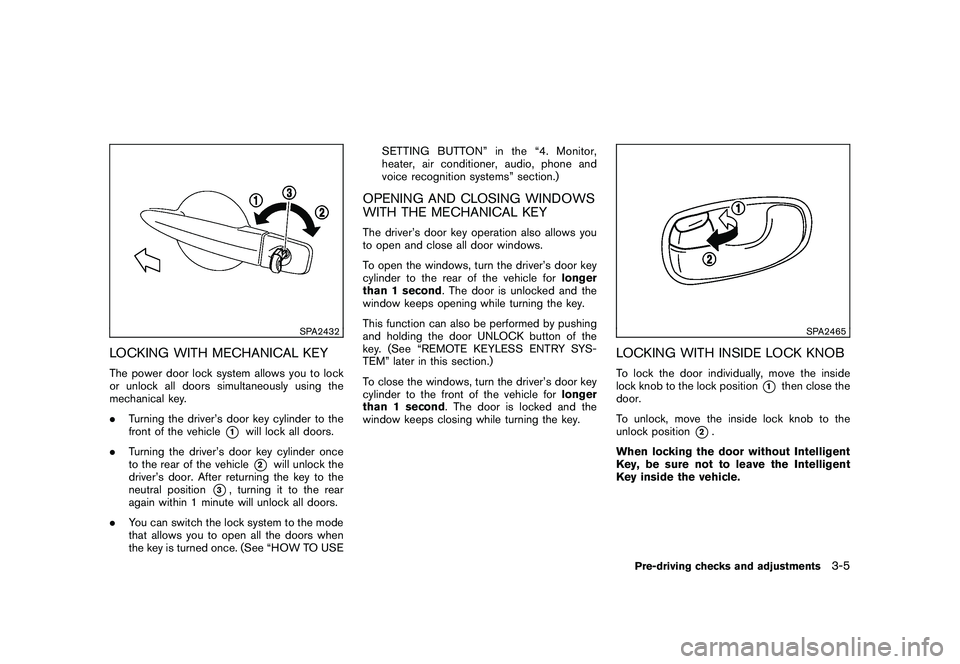
LOCKING WITH MECHANICAL KEYThe power door lock system allows you to lock
or unlock all doors simultaneously using the
mechanical key.
.Turning the driver’s door key cylinder to the
front of the vehicle
*1
will lock all doors.
. Turning the driver’s door key cylinder once
to the rear of the vehicle*2
will unlock the
driver’s door. After returning the key to the
neutral position
*3, turning it to the rear
again within 1 minute will unlock all doors.
. You can switch the lock system to the mode
that allows you to open all the doors when
the key is turned once. (See “HOW TO USE SETTING BUTTON” in the “4. Monitor,
heater, air conditioner, audio, phone and
voice recognition systems” section.)
OPENING AND CLOSING WINDOWS
WITH THE MECHANICAL KEYThe driver’s door key operation also allows you
to open and close all door windows.
To open the windows, turn the driver’s door key
cylinder to the rear of the vehicle for
longer
than 1 second . The door is unlocked and the
window keeps opening while turning the key.
This function can also be performed by pushing
and holding the door UNLOCK button of the
key. (See “REMOTE KEYLESS ENTRY SYS-
TEM” later in this section.)
To close the windows, turn the driver’s door key
cylinder to the front of the vehicle for longer
than 1 second . The door is locked and the
window keeps closing while turning the key.
SPA2465
LOCKING WITH INSIDE LOCK KNOBTo lock the door individually, move the inside
lock knob to the lock position
*1
then close the
door.
To unlock, move the inside lock knob to the
unlock position
*2.
When locking the door without Intelligent
Key, be sure not to leave the Intelligent
Key inside the vehicle.
Pre-driving checks and adjustments
3-5
Page 146 of 425
Black plate (142,1)
Model "Z51-D" EDITED: 2009/ 8/ 3
computer.
. When the vehicle is parked near a parking
meter.
In such cases, correct the operating conditions
before using the Intelligent Key function or use
the mechanical key.
Although the life of the battery varies depending
on the operating conditions, the battery’s life is
approximately 2 years. If the battery is dis-
charged, replace it with a new one.
Since the Intelligent Key is continuously receiv-
ing radio waves, if the key is left near equipment
which transmits strong radio waves, such as
signals from a TV and personal computer, the
battery life may become shorter.
For information regarding replacement of a
battery, see “BATTERY REPLACEMENT” in
the “8. Maintenance and do-it-yourself” section.
For models with a steering wheel lock mechan-
ism: Because the steering wheel is locked
electrically, unlocking the steering wheel with
the ignition switch in the LOCK position is
impossible when the vehicle battery is comple-
tely discharged. Pay special attention that the
vehicle battery is not completely discharged.
As many as 4 Intelligent Keys can be registered
and used with one vehicle. For information about
the purchase and use of additional Intelligent Keys, contact a NISSAN dealer.
CAUTION
.
Do not allow the Intelligent Key,
which contains electrical compo-
nents, to come into contact with
water or salt water. This could affect
the system function.
. Do not drop the Intelligent Key.
. Do not strike the Intelligent Key
sharply against another object.
. Do not change or modify the Intel-
ligent Key.
. Wetting may damage the Intelligent
Key. If the Intelligent Key gets wet,
immediately wipe until it is comple-
tely dry.
. Do not place the Intelligent Key for
an extended period in an area where
temperatures exceed 140 8F (60 8C) .
. Do not attach the Intelligent Key
with a key holder that contains a
magnet.
. Do not place the Intelligent Key near
equipment that produces a mag-
netic field, such as a TV, audio
equipment, personal computer or cellular phone.
If an Intelligent Key is lost or stolen, NISSAN
recommends erasing the ID code of that
Intelligent Key from the vehicle. This may prevent
the unauthorized use of the Intelligent Key to
operate the vehicle. For information regarding
the erasing procedure, contact a NISSAN deal-
er.
3-8
Pre-driving checks and adjustments
Page 148 of 425
Black plate (144,1)
Model "Z51-D" EDITED: 2009/ 8/ 3
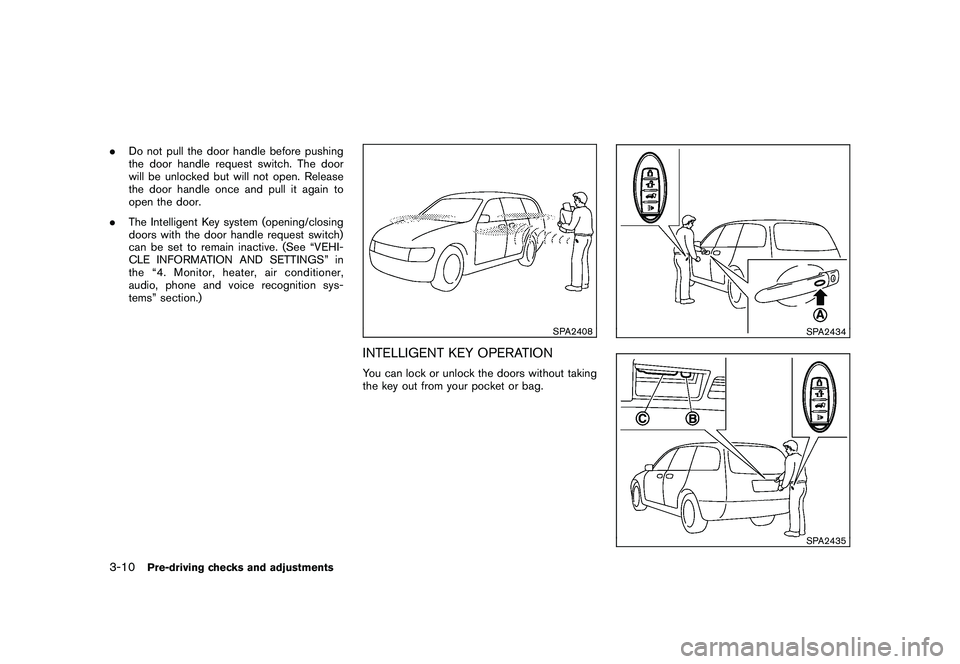
.Do not pull the door handle before pushing
the door handle request switch. The door
will be unlocked but will not open. Release
the door handle once and pull it again to
open the door.
. The Intelligent Key system (opening/closing
doors with the door handle request switch)
can be set to remain inactive. (See “VEHI-
CLE INFORMATION AND SETTINGS” in
the “4. Monitor, heater, air conditioner,
audio, phone and voice recognition sys-
tems” section.)
SPA2408
INTELLIGENT KEY OPERATIONYou can lock or unlock the doors without taking
the key out from your pocket or bag.
SPA2434SPA2435
3-10
Pre-driving checks and adjustments
Page 168 of 425
Black plate (164,1)
Model "Z51-D" EDITED: 2009/ 8/ 3
SIC2064
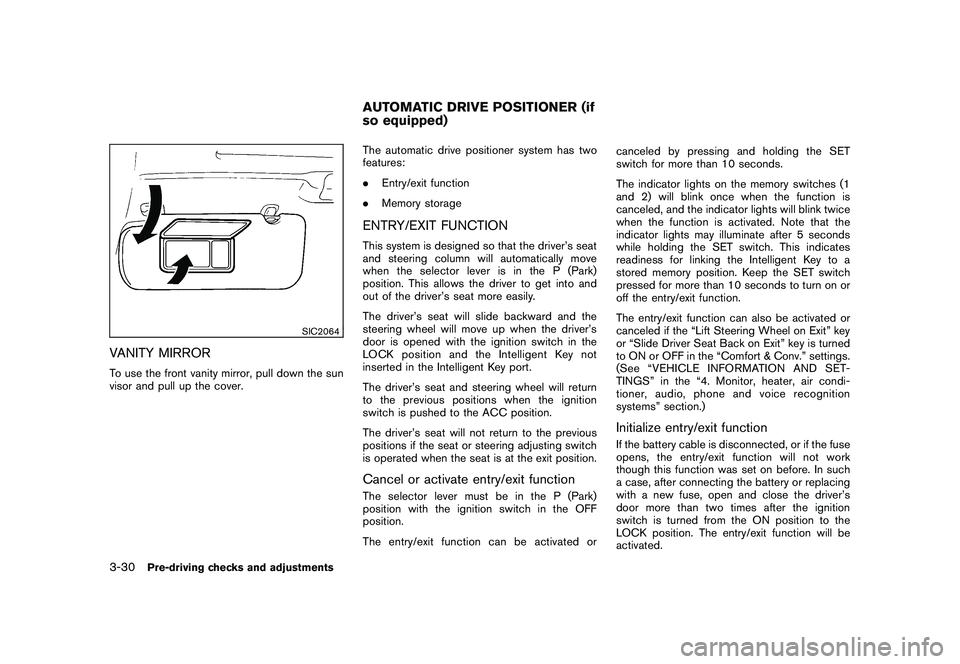
VANITY MIRRORTo use the front vanity mirror, pull down the sun
visor and pull up the cover.The automatic drive positioner system has two
features:
.
Entry/exit function
. Memory storage
ENTRY/EXIT FUNCTIONThis system is designed so that the driver’s seat
and steering column will automatically move
when the selector lever is in the P (Park)
position. This allows the driver to get into and
out of the driver’s seat more easily.
The driver’s seat will slide backward and the
steering wheel will move up when the driver’s
door is opened with the ignition switch in the
LOCK position and the Intelligent Key not
inserted in the Intelligent Key port.
The driver’s seat and steering wheel will return
to the previous positions when the ignition
switch is pushed to the ACC position.
The driver’s seat will not return to the previous
positions if the seat or steering adjusting switch
is operated when the seat is at the exit position.Cancel or activate entry/exit functionThe selector lever must be in the P (Park)
position with the ignition switch in the OFF
position.
The entry/exit function can be activated or canceled by pressing and holding the SET
switch for more than 10 seconds.
The indicator lights on the memory switches (1
and 2) will blink once when the function is
canceled, and the indicator lights will blink twice
when the function is activated. Note that the
indicator lights may illuminate after 5 seconds
while holding the SET switch. This indicates
readiness for linking the Intelligent Key to a
stored memory position. Keep the SET switch
pressed for more than 10 seconds to turn on or
off the entry/exit function.
The entry/exit function can also be activated or
canceled if the “Lift Steering Wheel on Exit” key
or “Slide Driver Seat Back on Exit” key is turned
to ON or OFF in the “Comfort & Conv.” settings.
(See “VEHICLE INFORMATION AND SET-
TINGS” in the “4. Monitor, heater, air condi-
tioner, audio, phone and voice recognition
systems” section.)
Initialize entry/exit functionIf the battery cable is disconnected, or if the fuse
opens, the entry/exit function will not work
though this function was set on before. In such
a case, after connecting the battery or replacing
with a new fuse, open and close the driver’s
door more than two times after the ignition
switch is turned from the ON position to the
LOCK position. The entry/exit function will be
activated.
AUTOMATIC DRIVE POSITIONER (if
so equipped)
3-30
Pre-driving checks and adjustments
Page 172 of 425
Black plate (13,1)
4 Monitor, heater, air conditioner, audio,phone and voice recognition systems
Model "Z51-D" EDITED: 2009/ 8/ 3
Safety note ....................................................... 4-2
Center multi-function control panel
(models with color display screen) ......................... 4-2
How to use multi-function controller ................... 4-4
How to use touch screen
(models with navigation system) ........................ 4-4
Start-up screen (models with navigation system) . . . 4-6
Start menu (models with navigation system) ......... 4-6
How to select menus on the screen ................... 4-7
Vehicle information and settings ............................. 4-8
How to use STATUS button .............................. 4-8
How to use brightness control and display ON/
OFF button ................................................... 4-8
How to use INFO button. ................................. 4-8
How to use SETTING button .......................... 4-12
Rearview monitor (if so equipped) ........................ 4-19
How to read the displayed lines ....................... 4-20
How to park with predicted course lines ............ 4-20
Difference between predicted and actual
distances ................................................... 4-22
How to adjust the screen ............................... 4-24
Operating tips ............................................. 4-24
Ventilators ...................................................... 4-25
Heater and air conditioner .................................. 4-26
Automatic operation ...................................... 4-28
Manual operation ......................................... 4-29
To turn the system ON/OFF ........................... 4-30 Operating tips
............................................. 4-30
In-cabin microfilter ........................................ 4-30
Servicing air conditioner ................................ 4-30
Audio system .................................................. 4-31
Audio operation precautions ........................... 4-31
FM-AM radio with Compact Disc (CD)
changer ..................................................... 4-39
FM-AM-SAT radio with Compact Disc (CD)
changer ..................................................... 4-44
CompactFlash (CF) player operation
(models with navigation system) ...................... 4-49
iPod
®player operation (if so equipped) .............. 4-51
“MUSIC BOX” hard-disk drive
(models with navigation system) ...................... 4-52
CD/CF (CompactFlash) care and cleaning ......... 4-59
Steering-wheel-mounted controls for audio ........ 4-61
Antenna ..................................................... 4-62
NISSAN Mobile Entertainment System (MES)
(if so equipped) ............................................... 4-63
DVD player operation precautions .................... 4-63
Digital Versatile Disc (DVD) system
components ................................................ 4-64
Remote controller and headphones battery
replacement ................................................ 4-68
Before operating the DVD entertainment
system ....................................................... 4-68
Playing a Digital Versatile Disc (DVD) ............... 4-69
Page 174 of 425
Black plate (170,1)
Model "Z51-D" EDITED: 2009/ 8/ 3
WARNING
.Do not disassemble or modify this
system. If you do, it may result in
accidents, fire, or electric shock.
. Do not use this system if you notice
any abnormality, such as a frozen
screen or lack of sound. Continued
use of the system may result in
accident, fire or electric shock.
. In case you notice any foreign
object in the system hardware, spill
liquid on it, or notice smoke or smell
coming from it, stop using the
system immediately and contact
your nearest NISSAN dealer. Ignor-
ing such conditions may lead to
accidents, fire, or electric shock.
. Park the vehicle in a safe location
and apply the parking brake to view
the images on the front center dis-
play screen using devices connected
to the auxiliary input jacks.
Do not attempt to operate the system in
extreme temperature conditions [below
48F( 208 C) and above 158 8F(70 8C)].
Operating this system under these condi-
tions may result in system malfunctions.
SAA1845
With navigation system
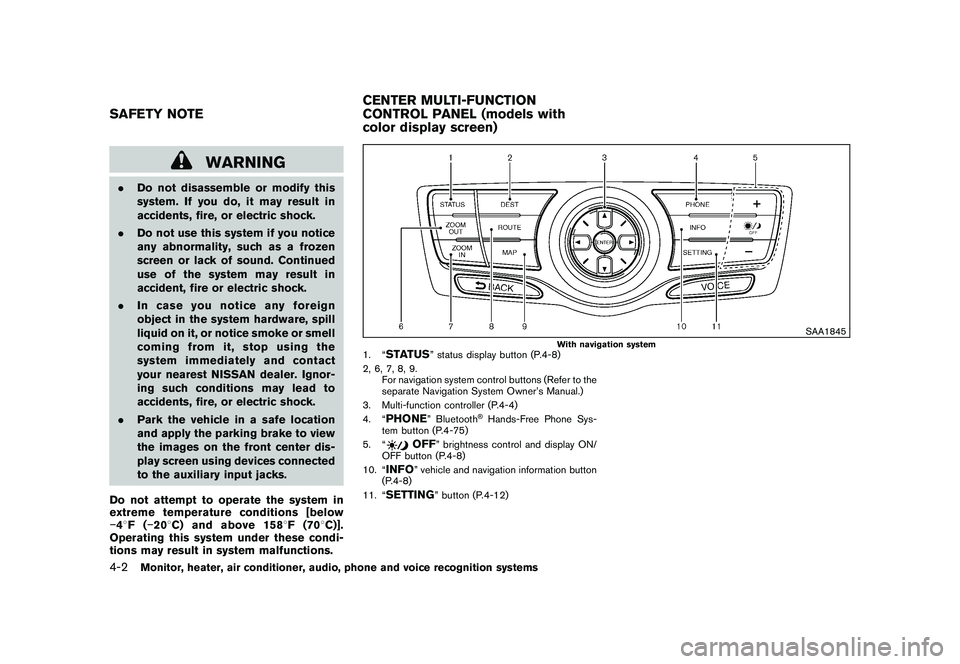
1. “
STATUS
” status display button (P.4-8)
2, 6, 7, 8, 9. For navigation system control buttons (Refer to the
separate Navigation System Owner’s Manual.)
3. Multi-function controller (P.4-4)
4. “
PHONE
” Bluetooth
®Hands-Free Phone Sys-
tem button (P.4-75)
5. “
OFF
” brightness control and display ON/
OFF button (P.4-8)
10. “
INFO
” vehicle and navigation information button
(P.4-8)
11. “
SETTING
” button (P.4-12)
SAFETY NOTE CENTER MULTI-FUNCTION
CONTROL PANEL (models with
color display screen)4-2
Monitor, heater, air conditioner, audio, phone and voice recognition systems
Page 175 of 425
Black plate (171,1)
Model "Z51-D" EDITED: 2009/ 8/ 3
SAA1846
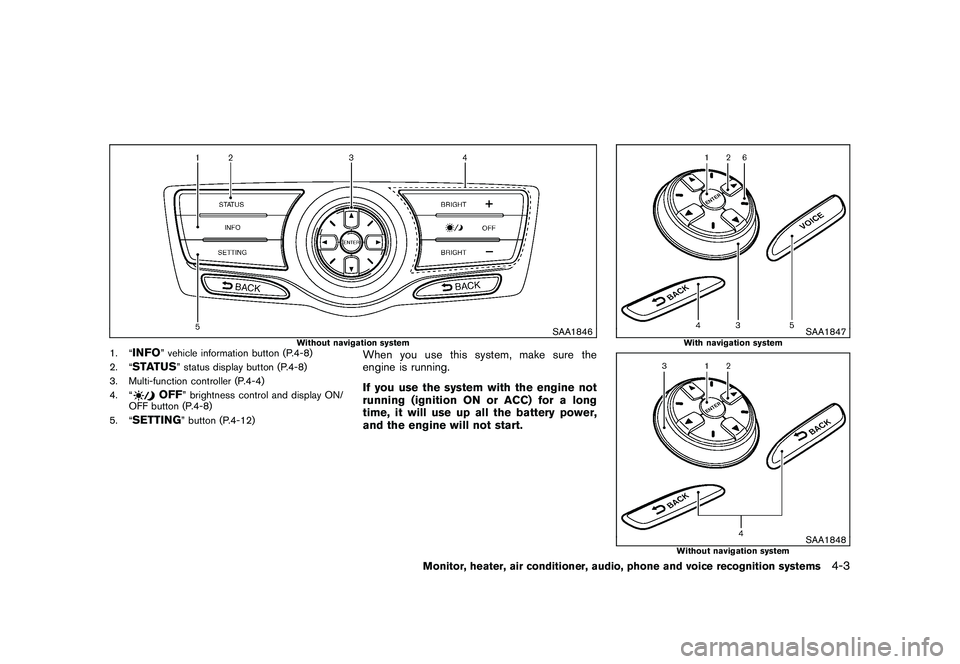
Without navigation system
1. “
INFO
” vehicle information button (P.4-8)
2. “
STATUS
” status display button (P.4-8)
3. Multi-function controller (P.4-4)
4. “
OFF
” brightness control and display ON/
OFF button (P.4-8)
5. “
SETTING
” button (P.4-12)
When you use this system, make sure the
engine is running.
If you use the system with the engine not
running (ignition ON or ACC) for a long
time, it will use up all the battery power,
and the engine will not start.
SAA1847
With navigation system
SAA1848
Without navigation system
Monitor, heater, air conditioner, audio, phone and voice recognition systems
4-3
Page 176 of 425
Black plate (172,1)
Model "Z51-D" EDITED: 2009/ 8/ 3
HOW TO USE MULTI-FUNCTION
CONTROLLERChoose an item on the display using the main
directional buttons
*2
(or additional directional
buttons
*6
with navigation system) or center
dial
*3, and push the ENTERbutton
*1
for
operation.
If you push the BACKbutton
*4
before the
setup is completed, the setup will be canceled
and/or the display will return to the previous
screen. This button can also be used to delete
characters that have been input.
After the setup is completed, push the BACK
button
*4
and return to the previous screen.
For the VOICE button
*5
functions, refer to the
separate Navigation System Owner’s Manual.
HOW TO USE TOUCH SCREEN
(models with navigation system)
CAUTION
. The glass screen on the liquid
crystal display may break if it is hit
with a hard or sharp object. If the
glass breaks, do not touch the liquid
crystalline material, which contains
a small amount of mercury. In case
of contact with skin, wash immedi- ately with soap and water.
. To clean the display, use a soft, dry
cloth. If additional cleaning is ne-
cessary, use a small amount of
neutral detergent with a soft cloth.
Never use a rough cloth, alcohol,
benzine, thinner or any kind of
solvent or paper towel with a che-
mical cleaning agent. They will
scratch or deteriorate the panel.
. Do not splash any liquid such as
water or car fragrance on the dis-
play. Contact with liquid will cause
the system to malfunction.
To ensure safe driving, some functions cannot
be operated while driving.
The on-screen functions that are not available
while driving will be “grayed out” or muted.
Park the vehicle in a safe location and then
operate the navigation system.
SAA1542
Touch screen operationWith this system, the same operations as those
for the multi-function controller are possible
using the touch screen operation.
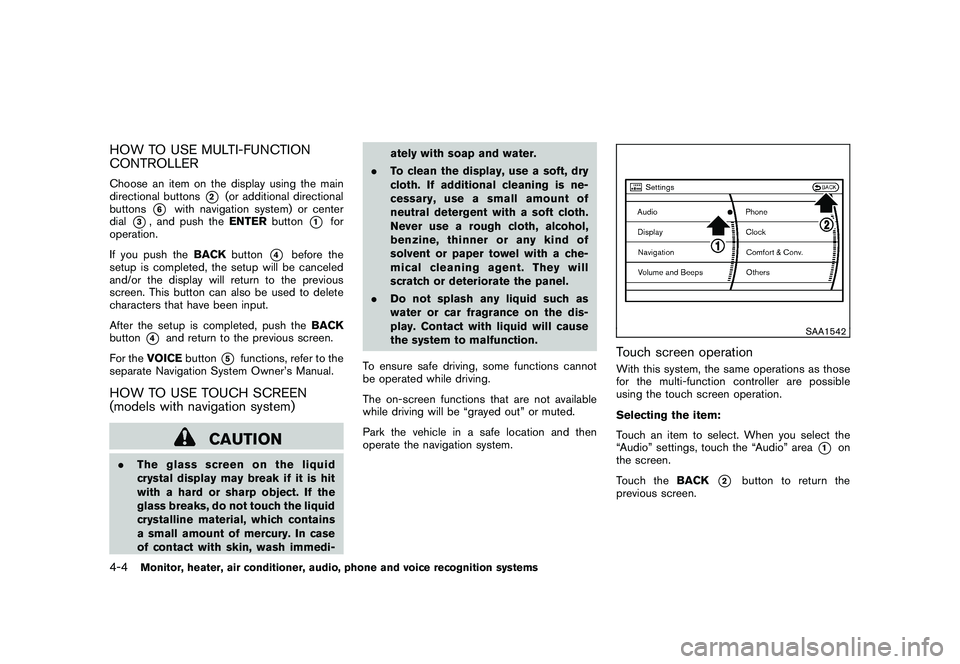
Selecting the item:
Touch an item to select. When you select the
“Audio” settings, touch the “Audio” area
*1
on
the screen.
Touch the BACK
*2
button to return the
previous screen.
4-4
Monitor, heater, air conditioner, audio, phone and voice recognition systems
Page 177 of 425
Black plate (173,1)
Model "Z51-D" EDITED: 2009/ 8/ 3
SAA1543
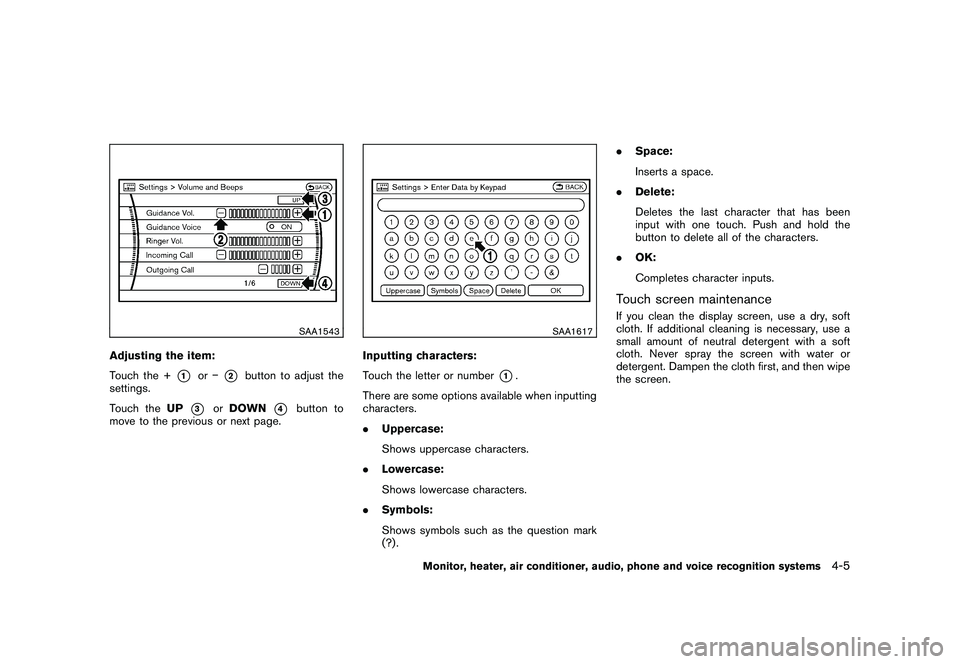
Adjusting the item:
Touch the +
*1
or
*2
button to adjust the
settings.
Touch the UP
*3
orDOWN
*4
button to
move to the previous or next page.
SAA1617
Inputting characters:
Touch the letter or number
*1.
There are some options available when inputting
characters.
. Uppercase:
Shows uppercase characters.
. Lowercase:
Shows lowercase characters.
. Symbols:
Shows symbols such as the question mark
(?) . .
Space:
Inserts a space.
. Delete:
Deletes the last character that has been
input with one touch. Push and hold the
button to delete all of the characters.
. OK:
Completes character inputs.
Touch screen maintenanceIf you clean the display screen, use a dry, soft
cloth. If additional cleaning is necessary, use a
small amount of neutral detergent with a soft
cloth. Never spray the screen with water or
detergent. Dampen the cloth first, and then wipe
the screen.
Monitor, heater, air conditioner, audio, phone and voice recognition systems
4-5
Page 178 of 425
Black plate (174,1)
Model "Z51-D" EDITED: 2009/ 8/ 3
SAA1454
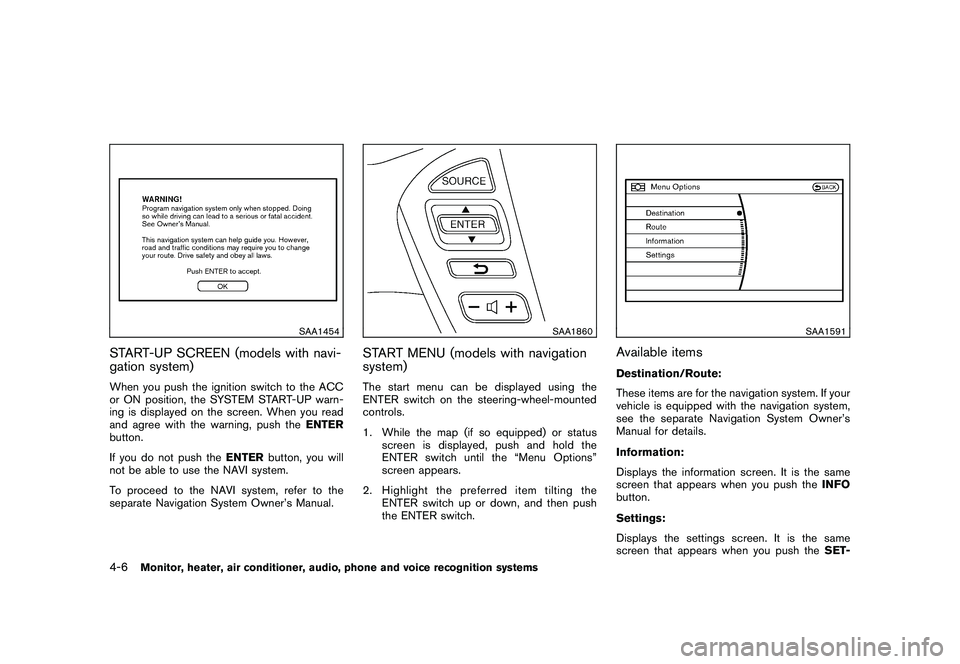
START-UP SCREEN (models with navi-
gation system)When you push the ignition switch to the ACC
or ON position, the SYSTEM START-UP warn-
ing is displayed on the screen. When you read
and agree with the warning, push theENTER
button.
If you do not push the ENTERbutton, you will
not be able to use the NAVI system.
To proceed to the NAVI system, refer to the
separate Navigation System Owner’s Manual.
SAA1860
START MENU (models with navigation
system)The start menu can be displayed using the
ENTER switch on the steering-wheel-mounted
controls.
1. While the map (if so equipped) or status
screen is displayed, push and hold the
ENTER switch until the “Menu Options”
screen appears.
2. Highlight the preferred item tilting the ENTER switch up or down, and then push
the ENTER switch.
SAA1591
Available itemsDestination/Route:
These items are for the navigation system. If your
vehicle is equipped with the navigation system,
see the separate Navigation System Owner’s
Manual for details.
Information:
Displays the information screen. It is the same
screen that appears when you push the INFO
button.
Settings:
Displays the settings screen. It is the same
screen that appears when you push the SET-
4-6
Monitor, heater, air conditioner, audio, phone and voice recognition systems