key NISSAN MURANO 2010 Owner´s Manual
[x] Cancel search | Manufacturer: NISSAN, Model Year: 2010, Model line: MURANO, Model: NISSAN MURANO 2010Pages: 425, PDF Size: 3.62 MB
Page 260 of 425
Black plate (256,1)
Model "Z51-D" EDITED: 2009/ 8/ 3
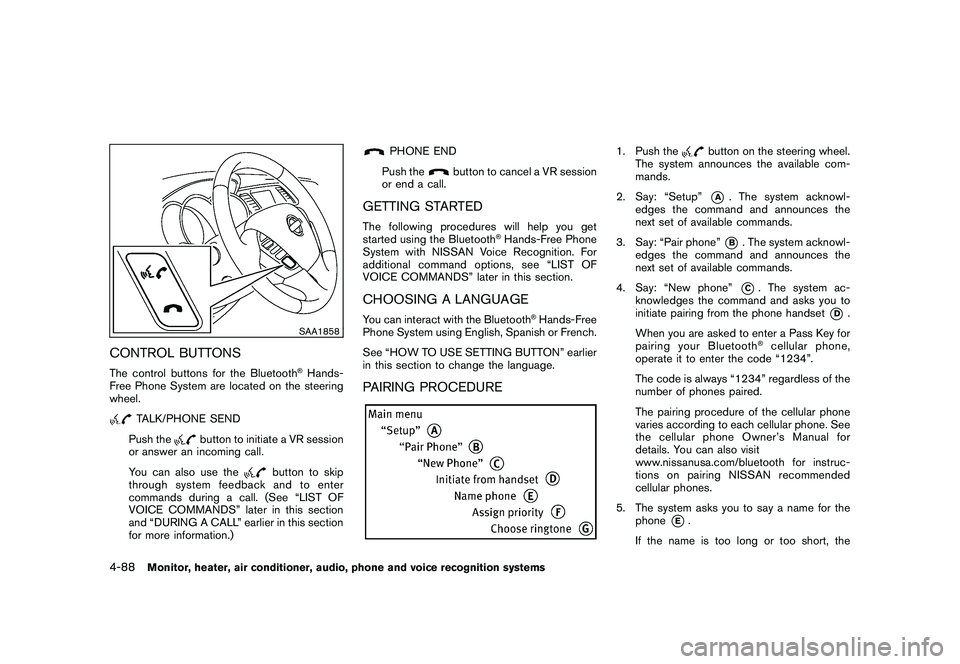
SAA1858
CONTROL BUTTONSThe control buttons for the Bluetooth
®Hands-
Free Phone System are located on the steering
wheel.
TALK/PHONE SEND
Push the
button to initiate a VR session
or answer an incoming call.
You can also use the
button to skip
through system feedback and to enter
commands during a call. (See “LIST OF
VOICE COMMANDS” later in this section
and “DURING A CALL” earlier in this section
for more information.)
PHONE END
Push the
button to cancel a VR session
or end a call.
GETTING STARTEDThe following procedures will help you get
started using the Bluetooth
®Hands-Free Phone
System with NISSAN Voice Recognition. For
additional command options, see “LIST OF
VOICE COMMANDS” later in this section.
CHOOSING A LANGUAGEYou can interact with the Bluetooth
®Hands-Free
Phone System using English, Spanish or French.
See “HOW TO USE SETTING BUTTON” earlier
in this section to change the language.
PAIRING PROCEDURE
1. Push the
button on the steering wheel.
The system announces the available com-
mands.
2. Say: “Setup”*A
. The system acknowl-
edges the command and announces the
next set of available commands.
3. Say: “Pair phone”*B. The system acknowl-
edges the command and announces the
next set of available commands.
4. Say: “New phone”*C. The system ac-
knowledges the command and asks you to
initiate pairing from the phone handset
*D
.
When you are asked to enter a Pass Key for
pairing your Bluetooth
®cellular phone,
operate it to enter the code “1234”.
The code is always “1234” regardless of the
number of phones paired.
The pairing procedure of the cellular phone
varies according to each cellular phone. See
the cellular phone Owner’s Manual for
details. You can also visit
www.nissanusa.com/bluetooth for instruc-
tions on pairing NISSAN recommended
cellular phones.
5. The system asks you to say a name for the phone
*E.
If the name is too long or too short, the
4-88
Monitor, heater, air conditioner, audio, phone and voice recognition systems
Page 263 of 425
Black plate (259,1)
Model "Z51-D" EDITED: 2009/ 8/ 3
Onceyouhaveconfirmedthenameand
location, the system begins the call.
When prompted by the system, say the number
you wish to call. (See “How to say numbers”
earlier in this section and “MAKING A CALL BY
ENTERING A PHONE NUMBER” earlier in this
section for more details.)
“Redial”
Use the Redial command to call the last number
that was dialed within the vehicle.
NOTE:
The system will not redial the last number
dialed by the handset keypad.
The system acknowledges the command, re-
peats the number and begins dialing.
If a redial number does not exist, the system
announces, “There is no number to redial” and
ends the VR session.
“Callback”
Use the Call Back command to dial the number
of the last incoming call within the vehicle.
The system acknowledges the command, re-
peats the number and begins dialing. If a call
back number does not exist, the system
announces, “There is no number to call back”and ends the VR session.
International
For dialing more than 10 digits or any special
characters, please say “Call International”.
When the system acknowledges the command,
the system will prompt you to speak the number.
During a call
During a call there are several command options
available. Press the
button on the steering
wheel to mute the receiving voice and enter
commands.
. “Help” — The system announces the avail-
able commands.
. “Go back/Correction” — The system an-
nounces “Go back,” ends the VR session
and returns to the call.
. “Cancel/Quit” — The system announces
“Cancel,” ends the VR session and returns
to the call.
. “Send/Enter/Call/Dial” — Use the Send
command to enter numbers during a call.
For example, if you were directed to dial an
extension by an automated system:
Say: “Send one two three four.”
The system acknowledges the command
and sends the tones associated with the numbers. The system then ends the VR
session and returns to the call.
. “Transfer Call” — Use the Transfer Call
command to transfer the call from the
Bluetooth
®Hands-Free Phone System to
the cellular phone when privacy is desired.
The system announces, “Transfer call. Call
transferred to privacy mode.” The system
then ends the VR session.
You can also issue the Transfer Call
command again to return to a hands-free
call through the vehicle.
. “Mute” — Use the Mute command to mute
your voice so the other party cannot hear it.
Use the mute command again to unmute
your voice.
NOTE:
If the other party ends the call or the
cellular phone network connection is lost
while the Mute feature is on, the Mute
feature may need to be reset to “off.”
Monitor, heater, air conditioner, audio, phone and voice recognition systems
4-91
Page 271 of 425
Black plate (267,1)
Model "Z51-D" EDITED: 2009/ 8/ 3
NISSAN Voice Recognition allows hands-free
operation of the systems equipped on this
vehicle in one of two modes, Standard Mode
or Alternate Command Mode.
In Standard Mode, commands that are available
are always shown on the display and announced
by the system. You can complete your desired
operation by simply following the prompts given
by the system. (See “NISSAN VOICE RECOG-
NITION STANDARD MODE” later in this section
for details.) In this mode, hands-free operation of
Audio, Air Conditioner and Display is not
available through NISSAN Voice Recognition.
For advanced operation, you can use the
Alternate Command Mode that enables the
operation of the display, audio, and air condi-
tioner through NISSAN Voice Recognition. (See
“NISSAN VOICE RECOGNITION ALTERNATE
COMMAND MODE” later in this section for
details.) When this mode is active, an expanded
list of commands can be spoken after pushing
the TALK
switch, and the voice command
menu prompts are turned off. Note that in this
mode the recognition success rate may be
affected as the number of available commands
and the ways of speaking each command are
increased.
For U.S. customers, the Standard Mode is
selected by default. For Canadian customers,
the Alternate Command Mode is the default
mode. To switch one mode to another, see each mode description later in this section.
To improve the recognition success rate when
Alternate Command Mode is active, try using the
Speaker Adaptation Function available in that
mode. Otherwise, it is recommended that
Alternate Command Mode be turned off and
Standard Mode be used for the best recognition
performance.
For the voice commands for the navigation
system, refer to the Navigation System Owner’s
Manual of your vehicle.
NISSAN VOICE RECOGNITION
STANDARD MODEThe following section is applicable when the
Standard Mode is activated. (This mode is
selected by default for U.S. customers.)
The Standard Mode enables you to complete
the desired operation by simply following the
prompts that appear on the display and also are
announced by the system. Hands-free operation
of Audio, Air Conditioner and Display systems is
not available in this mode.
SAA1566
Activating Standard ModeWhen the Alternate Command Mode is active,
perform the following steps to switch to the
Standard Mode.
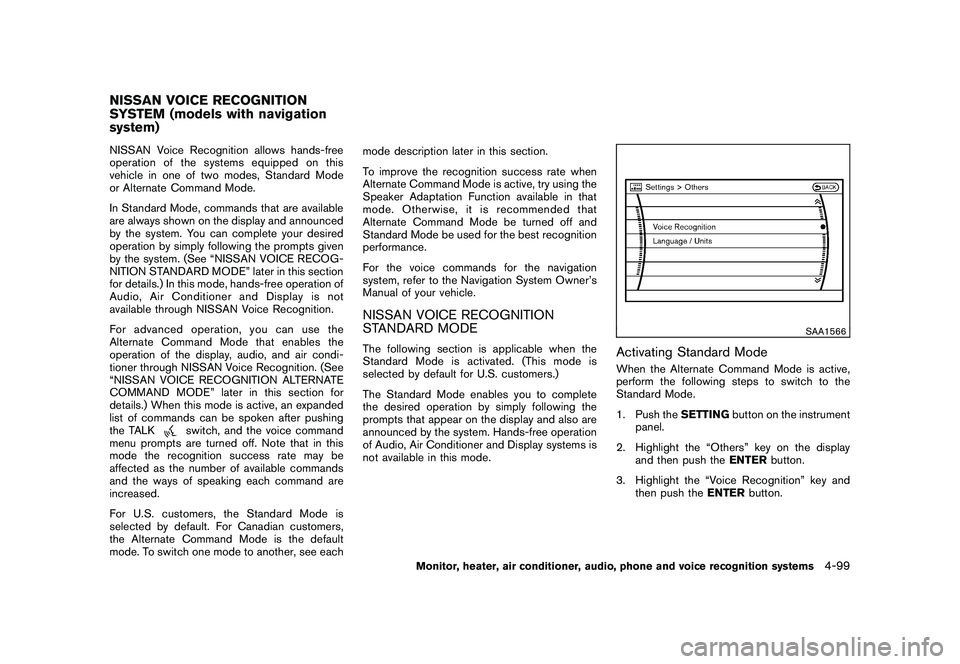
1. Push the
SETTINGbutton on the instrument
panel.
2. Highlight the “Others” key on the display and then push the ENTERbutton.
3. Highlight the “Voice Recognition” key and then push the ENTERbutton.
NISSAN VOICE RECOGNITION
SYSTEM (models with navigation
system)
Monitor, heater, air conditioner, audio, phone and voice recognition systems
4-99
Page 272 of 425
Black plate (268,1)
Model "Z51-D" EDITED: 2009/ 8/ 3
SAA1917
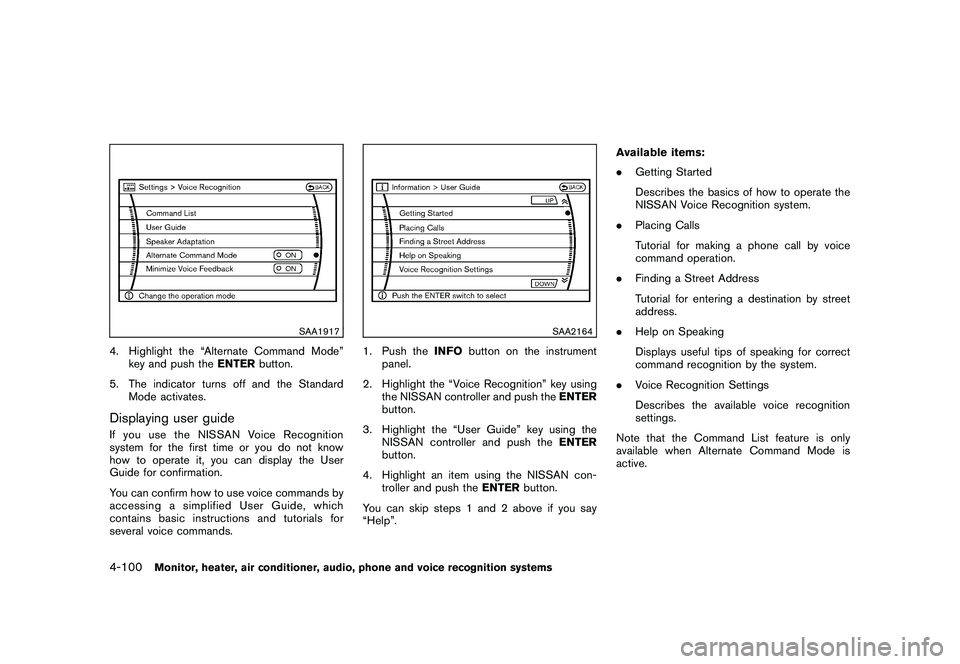
4. Highlight the “Alternate Command Mode”key and push the ENTERbutton.
5. The indicator turns off and the Standard Mode activates.Displaying user guideIfyouusetheNISSANVoiceRecognition
system for the first time or you do not know
how to operate it, you can display the User
Guide for confirmation.
You can confirm how to use voice commands by
accessing a simplified User Guide, which
contains basic instructions and tutorials for
several voice commands.
SAA2164
1. Push the INFObutton on the instrument
panel.
2. Highlight the “Voice Recognition” key using the NISSAN controller and push the ENTER
button.
3. Highlight the “User Guide” key using the NISSAN controller and push the ENTER
button.
4. Highlight an item using the NISSAN con- troller and push the ENTERbutton.
You can skip steps 1 and 2 above if you say
“Help”. Available items:
.
Getting Started
Describes the basics of how to operate the
NISSAN Voice Recognition system.
. Placing Calls
Tutorial for making a phone call by voice
command operation.
. Finding a Street Address
Tutorial for entering a destination by street
address.
. Help on Speaking
Displays useful tips of speaking for correct
command recognition by the system.
. Voice Recognition Settings
Describes the available voice recognition
settings.
Note that the Command List feature is only
available when Alternate Command Mode is
active.
4-100
Monitor, heater, air conditioner, audio, phone and voice recognition systems
Page 282 of 425
Black plate (278,1)
Model "Z51-D" EDITED: 2009/ 8/ 3
SAA1566
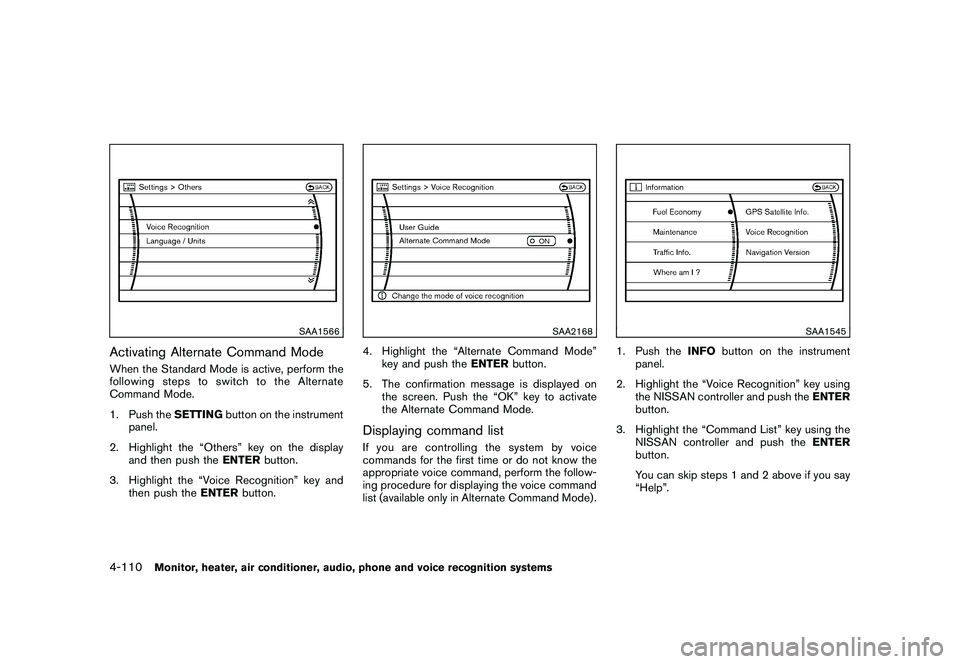
Activating Alternate Command ModeWhen the Standard Mode is active, perform the
following steps to switch to the Alternate
Command Mode.
1. Push theSETTINGbutton on the instrument
panel.
2. Highlight the “Others” key on the display and then push the ENTERbutton.
3. Highlight the “Voice Recognition” key and then push the ENTERbutton.
SAA2168
4. Highlight the “Alternate Command Mode”
key and push the ENTERbutton.
5. The confirmation message is displayed on the screen. Push the “OK” key to activate
the Alternate Command Mode.Displaying command listIf you are controlling the system by voice
commands for the first time or do not know the
appropriate voice command, perform the follow-
ing procedure for displaying the voice command
list (available only in Alternate Command Mode) .
SAA1545
1. Push the INFObutton on the instrument
panel.
2. Highlight the “Voice Recognition” key using the NISSAN controller and push the ENTER
button.
3. Highlight the “Command List” key using the NISSAN controller and push the ENTER
button.
You can skip steps 1 and 2 above if you say
“Help”.
4-110
Monitor, heater, air conditioner, audio, phone and voice recognition systems
Page 287 of 425
Black plate (283,1)
Model "Z51-D" EDITED: 2009/ 8/ 3
SAA1783
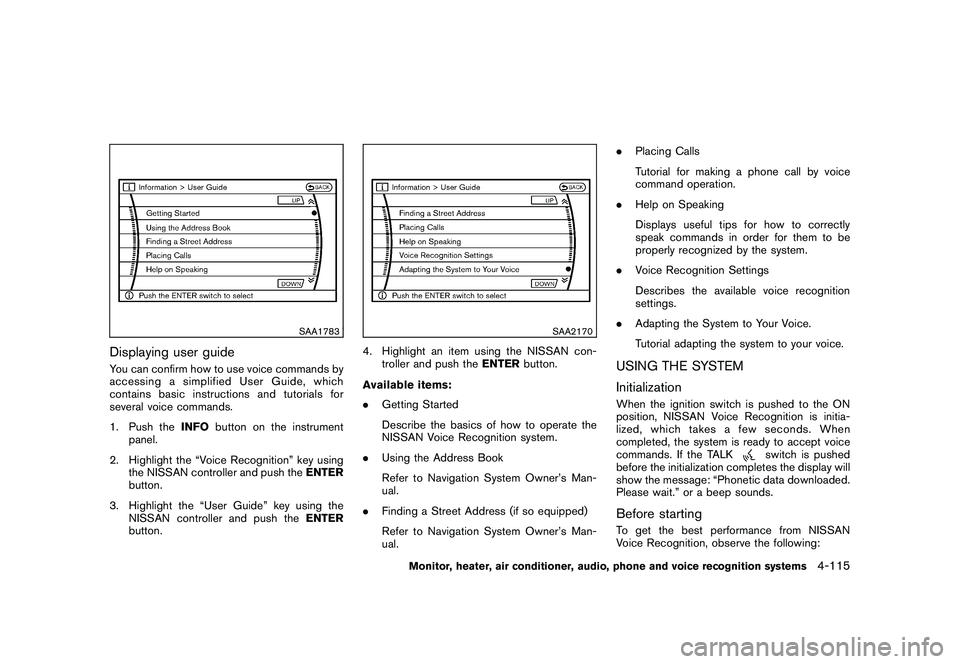
Displaying user guideYou can confirm how to use voice commands by
accessing a simplified User Guide, which
contains basic instructions and tutorials for
several voice commands.
1. Push theINFObutton on the instrument
panel.
2. Highlight the “Voice Recognition” key using the NISSAN controller and push the ENTER
button.
3. Highlight the “User Guide” key using the NISSAN controller and push the ENTER
button.
SAA2170
4. Highlight an item using the NISSAN con- troller and push the ENTERbutton.
Available items:
. Getting Started
Describe the basics of how to operate the
NISSAN Voice Recognition system.
. Using the Address Book
Refer to Navigation System Owner’s Man-
ual.
. Finding a Street Address (if so equipped)
Refer to Navigation System Owner’s Man-
ual. .
Placing Calls
Tutorial for making a phone call by voice
command operation.
. Help on Speaking
Displays useful tips for how to correctly
speak commands in order for them to be
properly recognized by the system.
. Voice Recognition Settings
Describes the available voice recognition
settings.
. Adapting the System to Your Voice.
Tutorial adapting the system to your voice.
USING THE SYSTEM
InitializationWhen the ignition switch is pushed to the ON
position, NISSAN Voice Recognition is initia-
lized, which takes a few seconds. When
completed, the system is ready to accept voice
commands. If the TALK
switch is pushed
before the initialization completes the display will
show the message: “Phonetic data downloaded.
Please wait.” or a beep sounds.
Before startingTo get the best performance from NISSAN
Voice Recognition, observe the following:
Monitor, heater, air conditioner, audio, phone and voice recognition systems
4-115
Page 289 of 425
Black plate (285,1)
Model "Z51-D" EDITED: 2009/ 8/ 3
Repeat the command in a clear voice.
. Push the BACKbutton once to return to the
previous screen.
. If you want to cancel the command, push
and hold the TALK
switch for 1 second.
The message “Voice canceled” will be
announced.
. Push the TALKswitch again to pause
the operation. Push the TALK
switch to
restart the operation.
. If you want to adjust the volume of the
system feedback, push the volume control
buttons (+ or ) on the steering wheel or
use the audio system volume knob while the
system is making an announcement.
How to speak numbers:
NISSAN Voice Recognition requires a certain
way to speak numbers when giving voice
commands. Refer to the following examples.
General rule
Only single digits 0 (zero) to 9 can be used. (For
example, if you would like to say 500, “five zero
zero” can be used, but “five hundred” cannot.) Phone numbers
Speak phone numbers according to the follow-
ing examples:
.
1-800-662-6200
— “Dial one eight zero zero six six two zero zero.”
Note 1: For the best voice recognition phone
dialing results, say phone numbers as single
digits.
Note 2: You cannot say 555-6000 as “five five
five six thousands”.
Note 3: When speaking a house number, speak
the number “0” as “zero”. If the letter “o (Oh)” is
included in the house number, it will not be
recognized as the number “0 (zero)” even if you
speak “oh” instead of “zero”. You can only say
“zero” for “0 (Zero)”.
SAA1907
Speaker adaptation function (for Alter-
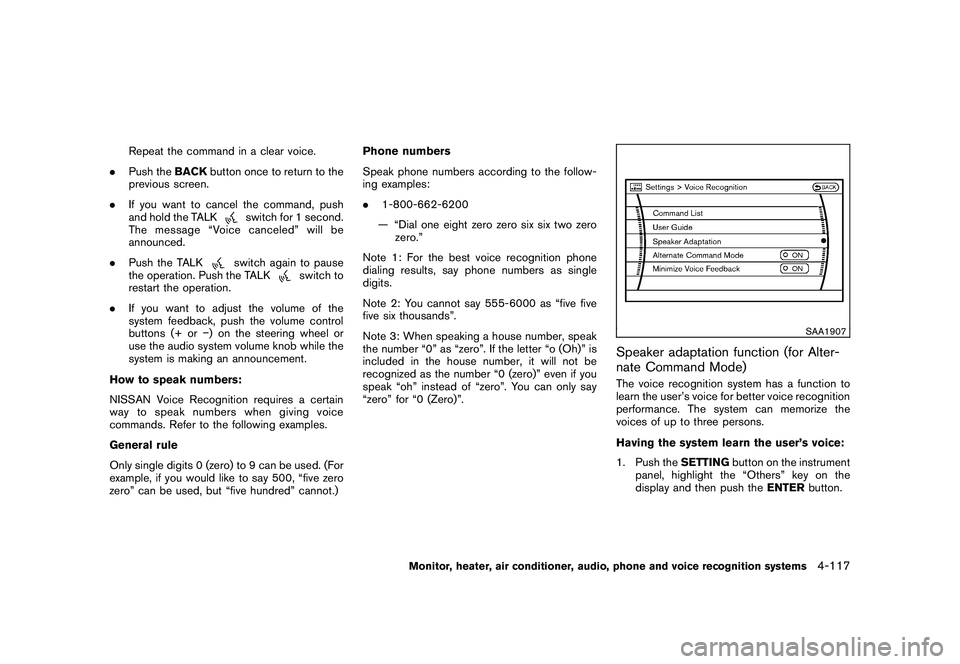
nate Command Mode)The voice recognition system has a function to
learn the user’s voice for better voice recognition
performance. The system can memorize the
voices of up to three persons.
Having the system learn the user’s voice:
1. Push the SETTINGbutton on the instrument
panel, highlight the “Others” key on the
display and then push the ENTERbutton.
Monitor, heater, air conditioner, audio, phone and voice recognition systems
4-117
Page 290 of 425
Black plate (286,1)
Model "Z51-D" EDITED: 2009/ 8/ 3
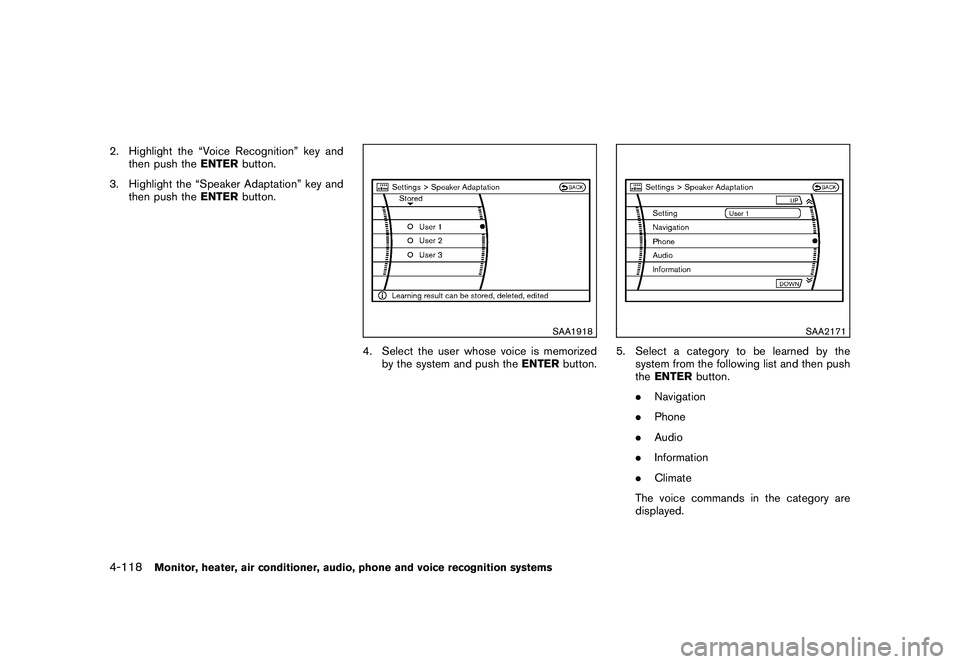
2. Highlight the “Voice Recognition” key andthen push the ENTERbutton.
3. Highlight the “Speaker Adaptation” key and then push the ENTERbutton.
SAA1918
4. Select the user whose voice is memorized
by the system and push the ENTERbutton.
SAA2171
5. Select a category to be learned by the
system from the following list and then push
theENTER button.
. Navigation
. Phone
. Audio
. Information
. Climate
The voice commands in the category are
displayed.
4-118
Monitor, heater, air conditioner, audio, phone and voice recognition systems
Page 291 of 425
Black plate (287,1)
Model "Z51-D" EDITED: 2009/ 8/ 3
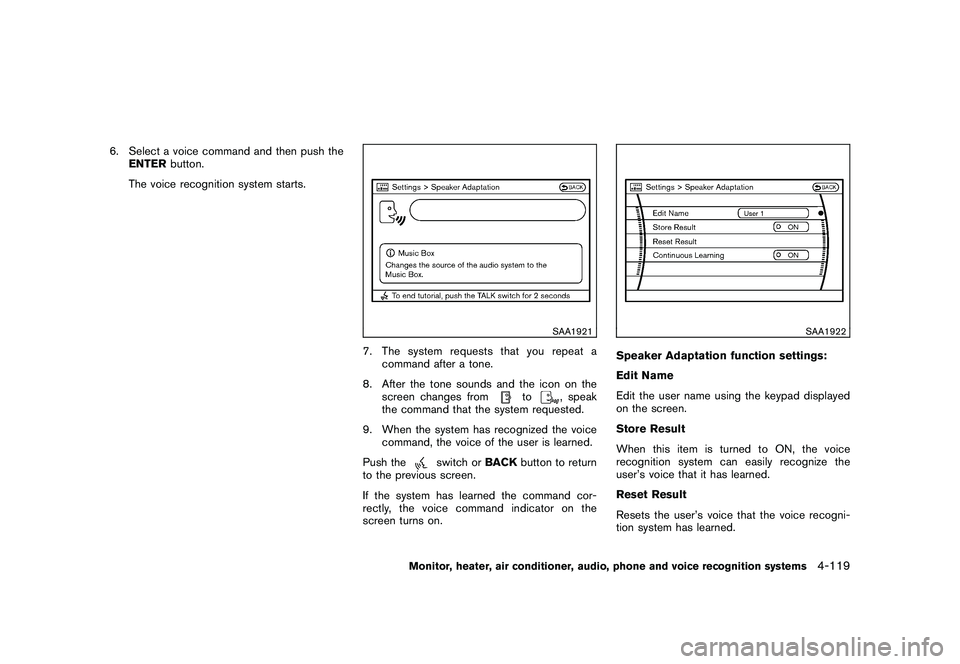
6. Select a voice command and then push theENTER button.
The voice recognition system starts.
SAA1921
7. The system requests that you repeat a command after a tone.
8. After the tone sounds and the icon on the screen changes from
to
, speak
the command that the system requested.
9. When the system has recognized the voice command, the voice of the user is learned.
Push the
switch or BACKbutton to return
to the previous screen.
If the system has learned the command cor-
rectly, the voice command indicator on the
screen turns on.
SAA1922
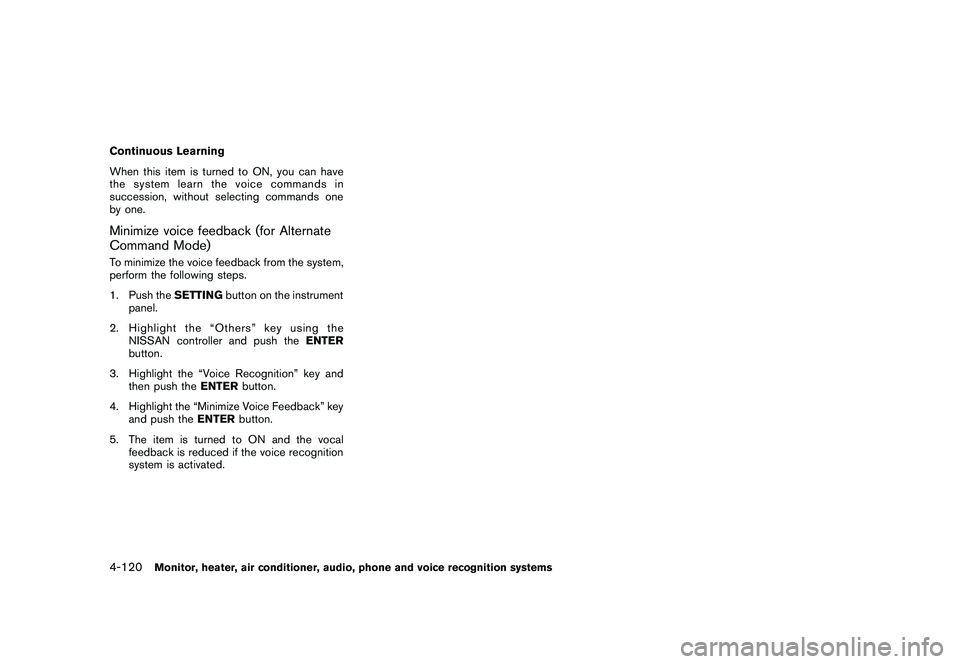
Speaker Adaptation function settings:
Edit Name
Edit the user name using the keypad displayed
on the screen.
Store Result
When this item is turned to ON, the voice
recognition system can easily recognize the
user’s voice that it has learned.
Reset Result
Resets the user’s voice that the voice recogni-
tion system has learned.
Monitor, heater, air conditioner, audio, phone and voice recognition systems
4-119
Page 292 of 425
Black plate (288,1)
Model "Z51-D" EDITED: 2009/ 8/ 3
Continuous Learning
When this item is turned to ON, you can have
the system learn the voice commands in
succession, without selecting commands one
by one.Minimize voice feedback (for Alternate
Command Mode)To minimize the voice feedback from the system,
perform the following steps.
1. Push theSETTINGbutton on the instrument
panel.
2. Highlight the “Others” key using the NISSAN controller and push the ENTER
button.
3. Highlight the “Voice Recognition” key and then push the ENTERbutton.
4. Highlight the “Minimize Voice Feedback” key and push the ENTERbutton.
5. The item is turned to ON and the vocal feedback is reduced if the voice recognition
system is activated.4-120
Monitor, heater, air conditioner, audio, phone and voice recognition systems