reset NISSAN MURANO 2011 Owner´s Manual
[x] Cancel search | Manufacturer: NISSAN, Model Year: 2011, Model line: MURANO, Model: NISSAN MURANO 2011Pages: 433, PDF Size: 3.7 MB
Page 162 of 433
Black plate (160,1)
Model "Z51-D" EDITED: 2010/ 7/ 23
SPA2833
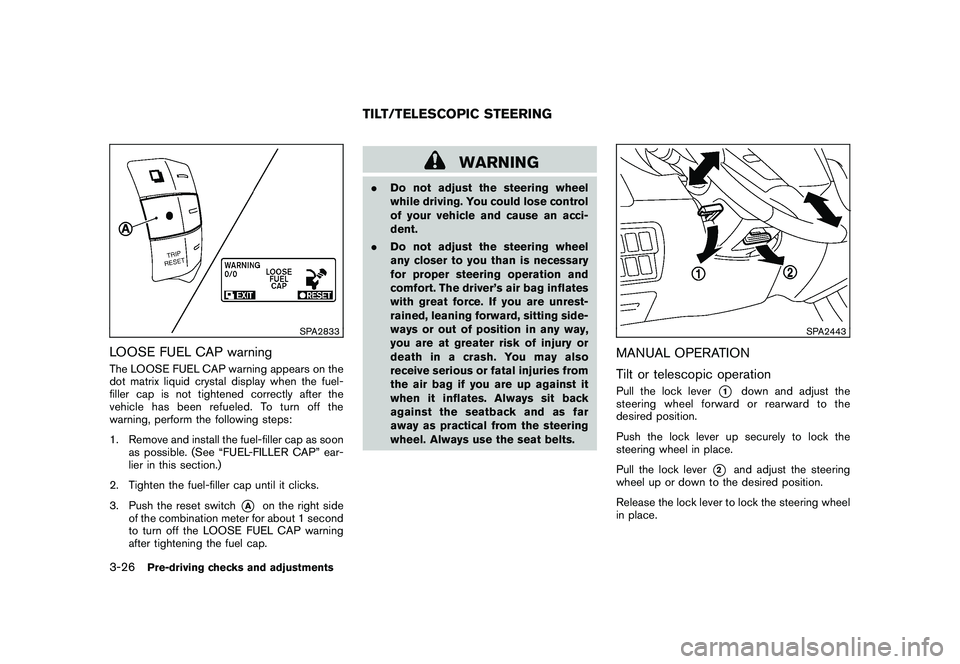
LOOSE FUEL CAP warningThe LOOSE FUEL CAP warning appears on the
dot matrix liquid crystal display when the fuel-
filler cap is not tightened correctly after the
vehicle has been refueled. To turn off the
warning, perform the following steps:
1. Remove and install the fuel-filler cap as soonas possible. (See “FUEL-FILLER CAP” ear-
lier in this section.)
2. Tighten the fuel-filler cap until it clicks.
3. Push the reset switch
*A
on the right side
of the combination meter for about 1 second
to turn off the LOOSE FUEL CAP warning
after tightening the fuel cap.
WARNING
. Do not adjust the steering wheel
while driving. You could lose control
of your vehicle and cause an acci-
dent.
. Do not adjust the steering wheel
any closer to you than is necessary
for proper steering operation and
comfort. The driver’s air bag inflates
with great force. If you are unrest-
rained, leaning forward, sitting side-
ways or out of position in any way,
you are at greater risk of injury or
death in a crash. You may also
receive serious or fatal injuries from
the air bag if you are up against it
when it inflates. Always sit back
against the seatback and as far
away as practical from the steering
wheel. Always use the seat belts.
SPA2443
MANUAL OPERATION
Tilt or telescopic operationPull the lock lever
*1
down and adjust the
steering wheel forward or rearward to the
desired position.
Push the lock lever up securely to lock the
steering wheel in place.
Pull the lock lever
*2
and adjust the steering
wheel up or down to the desired position.
Release the lock lever to lock the steering wheel
in place.
TILT/TELESCOPIC STEERING
3-26
Pre-driving checks and adjustments
Page 168 of 433
Black plate (166,1)
Model "Z51-D" EDITED: 2010/ 7/ 23
SPA2445
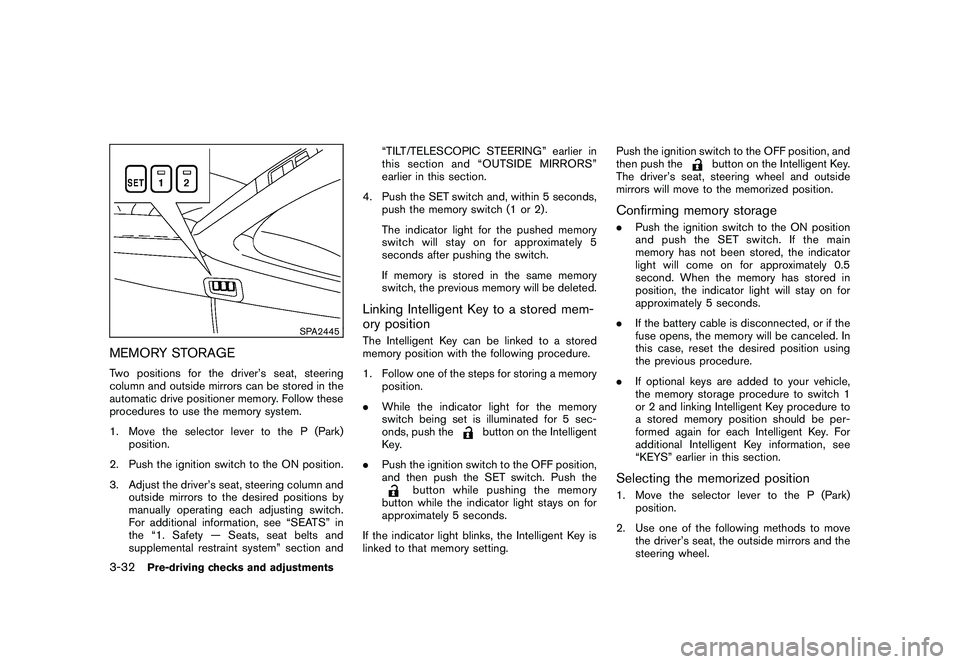
MEMORY STORAGETwo positions for the driver’s seat, steering
column and outside mirrors can be stored in the
automatic drive positioner memory. Follow these
procedures to use the memory system.
1. Move the selector lever to the P (Park)position.
2. Push the ignition switch to the ON position.
3. Adjust the driver’s seat, steering column and outside mirrors to the desired positions by
manually operating each adjusting switch.
For additional information, see “SEATS” in
the “1. Safety — Seats, seat belts and
supplemental restraint system” section and “TILT/TELESCOPIC STEERING” earlier in
this section and “OUTSIDE MIRRORS”
earlier in this section.
4. Push the SET switch and, within 5 seconds, push the memory switch (1 or 2) .
The indicator light for the pushed memory
switch will stay on for approximately 5
seconds after pushing the switch.
If memory is stored in the same memory
switch, the previous memory will be deleted.
Linking Intelligent Key to a stored mem-
ory positionThe Intelligent Key can be linked to a stored
memory position with the following procedure.
1. Follow one of the steps for storing a memoryposition.
. While the indicator light for the memory
switch being set is illuminated for 5 sec-
onds, push the
button on the Intelligent
Key.
. Push the ignition switch to the OFF position,
and then push the SET switch. Push the
button while pushing the memory
button while the indicator light stays on for
approximately 5 seconds.
If the indicator light blinks, the Intelligent Key is
linked to that memory setting. Push the ignition switch to the OFF position, and
then push the
button on the Intelligent Key.
The driver’s seat, steering wheel and outside
mirrors will move to the memorized position.
Confirming memory storage. Push the ignition switch to the ON position
and push the SET switch. If the main
memory has not been stored, the indicator
light will come on for approximately 0.5
second. When the memory has stored in
position, the indicator light will stay on for
approximately 5 seconds.
. If the battery cable is disconnected, or if the
fuse opens, the memory will be canceled. In
this case, reset the desired position using
the previous procedure.
. If optional keys are added to your vehicle,
the memory storage procedure to switch 1
or 2 and linking Intelligent Key procedure to
a stored memory position should be per-
formed again for each Intelligent Key. For
additional Intelligent Key information, see
“KEYS” earlier in this section.Selecting the memorized position1. Move the selector lever to the P (Park)
position.
2. Use one of the following methods to move the driver’s seat, the outside mirrors and the
steering wheel.
3-32
Pre-driving checks and adjustments
Page 179 of 433
Black plate (177,1)
Model "Z51-D" EDITED: 2010/ 7/ 23
SAA2479SAA2480
Models with navigation system
SAA2720SAA2721
Models without navigation system
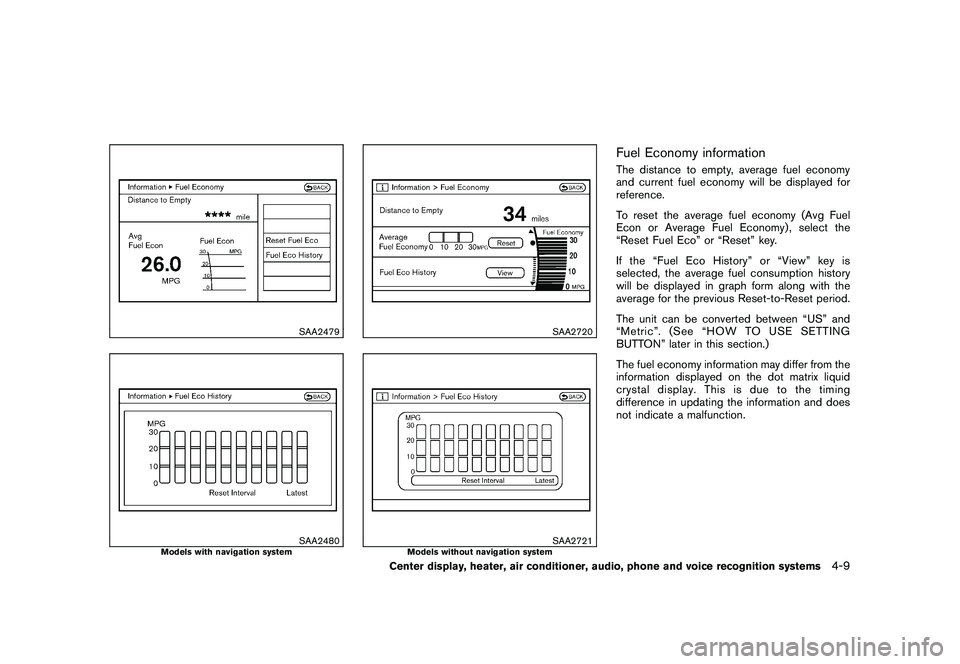
Fuel Economy informationThe distance to empty, average fuel economy
and current fuel economy will be displayed for
reference.
To reset the average fuel economy (Avg Fuel
Econ or Average Fuel Economy) , select the
“Reset Fuel Eco” or “Reset” key.
If the “Fuel Eco History” or “View” key is
selected, the average fuel consumption history
will be displayed in graph form along with the
average for the previous Reset-to-Reset period.
The unit can be converted between “US” and
“Metric”. (See “HOW TO USE SETTING
BUTTON” later in this section.)
The fuel economy information may differ from the
information displayed on the dot matrix liquid
crystal display. This is due to the timing
difference in updating the information and does
not indicate a malfunction.
Center display, heater, air conditioner, audio, phone and voice recognition systems
4-9
Page 181 of 433
Black plate (179,1)
Model "Z51-D" EDITED: 2010/ 7/ 23
1. Set the interval (mileage) of the maintenanceschedule. To determine the recommended
maintenance interval, refer to your “NISSAN
Service and Maintenance Guide”.
2. To display the reminder automatically when the desired distance is reached, select the
“Reminder” key.
3. Reset the driving distance to the new maintenance schedule.
4. To return to the previous screen, push the BACK button.
The unit can be converted between “US” and
“Metric”. (See “HOW TO USE SETTING
BUTTON” later in this section.)
SAA3003
Example
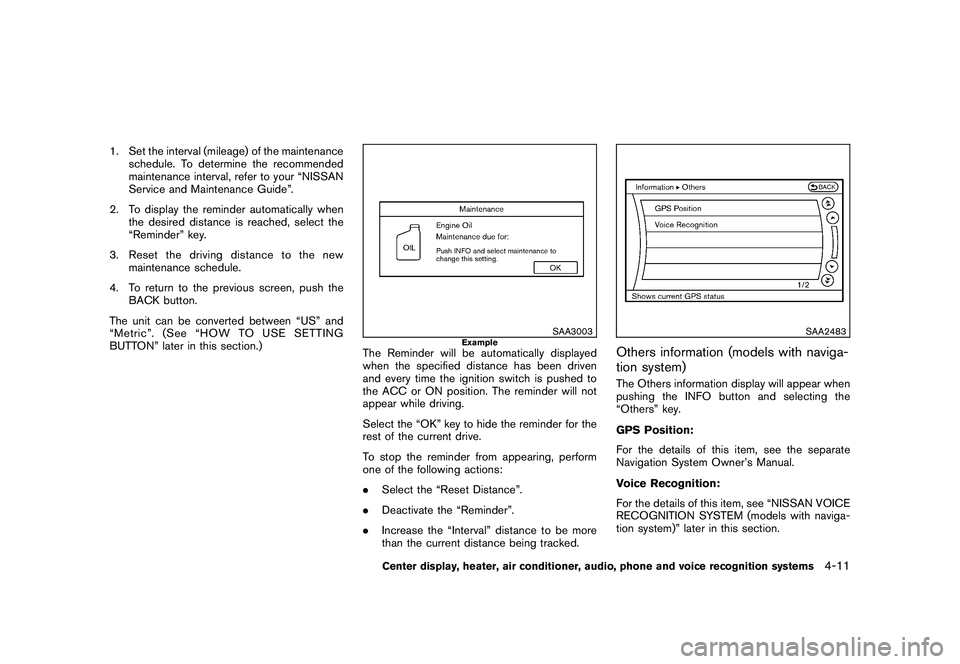
The Reminder will be automatically displayed
when the specified distance has been driven
and every time the ignition switch is pushed to
the ACC or ON position. The reminder will not
appear while driving.
Select the “OK” key to hide the reminder for the
rest of the current drive.
To stop the reminder from appearing, perform
one of the following actions:
. Select the “Reset Distance”.
. Deactivate the “Reminder”.
. Increase the “Interval” distance to be more
than the current distance being tracked.
SAA2483
Others information (models with naviga-
tion system)The Others information display will appear when
pushing the INFO button and selecting the
“Others” key.
GPS Position:
For the details of this item, see the separate
Navigation System Owner’s Manual.
Voice Recognition:
For the details of this item, see “NISSAN VOICE
RECOGNITION SYSTEM (models with naviga-
tion system)” later in this section.
Center display, heater, air conditioner, audio, phone and voice recognition systems
4-11
Page 207 of 433
Black plate (205,1)
Model "Z51-D" EDITED: 2010/ 7/ 23
.Modifying or disassembling is prohibited.
. Dolby digital is manufactured under license
from Dolby Laboratories, Inc.
. Dolby and the double D mark “
” are
trademarks of Dolby Laboratories, Inc.
. DTS and DTS 2.0 “
” are registered
trademarks of DTS, Inc.
Parental level (parental control):
DVDs with the parental control setting can be
played with this system. Please use your own
judgement to set the parental control with the
system.
Disc selection:
The following disc formats can be played with
the DVD drive.
. DVD-VIDEO
. VIDEO-CD
. CD-DA (Conventional Compact Disc)
. DTS-CD
USB (Universal Serial Bus) (if so
equipped)This system supports various USB memory
sticks, USB hard drives and iPod
®players.
There are some USB devices which may not be supported with this system.
.
Make sure that the USB device is connected
correctly into the USB connector.
. Do not force the memory stick or USB cable
into the USB connector. This could damage
the connector.
. During cold weather or rainy days, the player
may malfunction due to humidity. If this
occurs, remove the USB device and dehu-
midify or ventilate the USB player comple-
tely.
. The USB player sometimes cannot function
when the passenger compartment tempera-
ture is extremely high. Decrease the tem-
perature before use.
. Do not leave USB memory in a place prone
to static electricity or where the air condi-
tioner blows directly. The data in the USB
memory may be damaged.
. The vehicle is not equipped with a USB
memory stick.
. A USB device cannot be formatted with this
system. To format a USB device, use a
personal computer.
. Partitioned USB devices may not be played
correctly.
. Some characters used in other languages (Chinese, Japanese, etc.) are not displayed
properly on the vehicle center screen. Using
English language characters with a USB
device is recommended.
. Do not connect a USB device if a connector
or cable is wet. Allow the cable and/or
connectors to dry completely before con-
necting the USB device. If the connector is
exposed to fluids other than water, evapora-
tive residue may cause a short between the
connector pins.
. Large video podcast files cause slow
responses in an iPod
®. The vehicle center
display may momentarily black out, but it will
soon recover.
. If an iPod
®automatically selects large video
podcast files while in the shuffle mode, the
vehicle center display may momentarily
black out, but it will soon recover.
. Audiobooks may not play in the same order
as they appear on an iPod
®.
. An iPod nano
®(1st generation) may remain
in fast forward or rewind mode if it is
connected during a seek operation. In this
case, please manually reset the iPod
®.
. An iPod nano
®(2nd generation) will con-
tinue to fast forward or rewind if it is
disconnected during a seek operation.
Center display, heater, air conditioner, audio, phone and voice recognition systems
4-37
Page 218 of 433
Black plate (216,1)
Model "Z51-D" EDITED: 2010/ 7/ 23
3. Select the desired station/channel and keeppushing any of the desired station preset
buttons
*1
to
*6
until a beep sound is
heard. (The radio mutes when the select
button is pushed.)
4. The channel indicator will then come on and the sound will resume. Memorizing is now
complete.
5. Other buttons can be set in the same manner.
If the battery cable is disconnected, or if the fuse
blows, the radio memory will be erased. In that
case, reset the desired stations.
Compact Disc (CD) changer operationPush the ignition switch to the ACC or ON
position, push the LOAD button and insert the
compact disc into the slot with the label side
facing up. The compact disc will be guided
automatically into the slot and start playing.
After loading the disc, the number of tracks on
the disc and the play time will appear on the
display.
If the radio is already operating, it will auto-
matically turn off and the compact disc will play.
If the system has been turned off while the
compact disc was playing, pushing the
ON·OFF/VOL control knob will start the com-
pact disc.
CD LOAD:
To insert a CD in the CD changer, push the
LOAD button for less than 1.5 seconds. Select
the loading position by pushing the CD insert
select button
*1
to*6, then insert the CD.
To insert 6 CDs to the CD changer in
succession, push the LOAD button for more
than 1.5 seconds.
The inserted slot numbers will illuminate on the
display.
PLAY:
When the DISC (CD play) button is pushed with
the system off and the compact disc loaded, the
system will turn on and the compact disc will
start to play.
When the DISC button is pushed with the
compact disc loaded and the radio playing, the
radio will automatically be turned off and the
compact disc will start to play.CD PLAY INFORMATION:
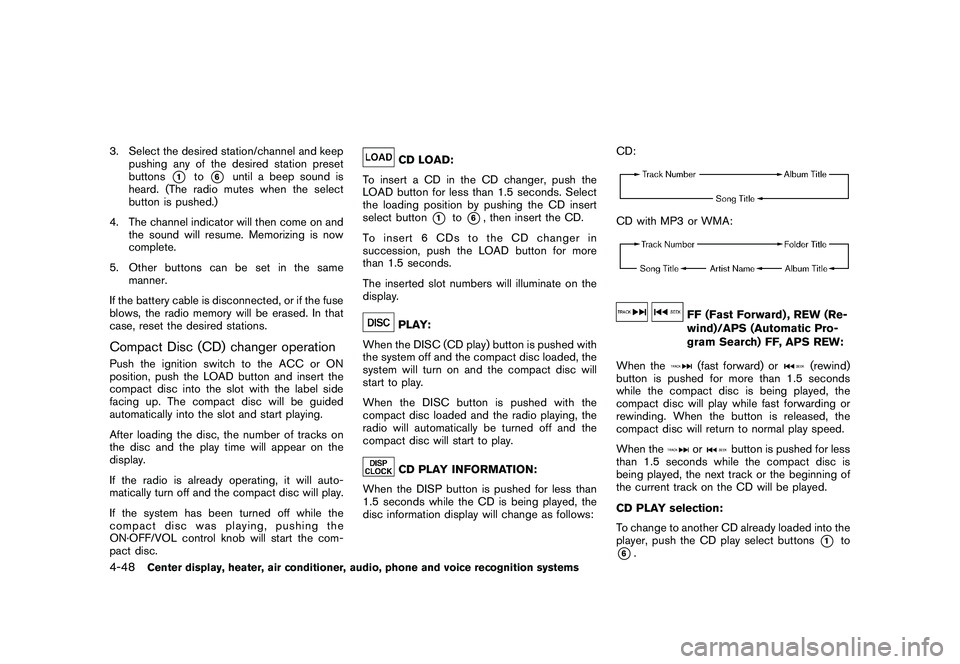
When the DISP button is pushed for less than
1.5 seconds while the CD is being played, the
disc information display will change as follows: CD:
CD with MP3 or WMA:
FF (Fast Forward) , REW (Re-
wind)/APS (Automatic Pro-
gram Search) FF, APS REW:
When the(fast forward) or
(rewind)
button is pushed for more than 1.5 seconds
while the compact disc is being played, the
compact disc will play while fast forwarding or
rewinding. When the button is released, the
compact disc will return to normal play speed.
When the
or
button is pushed for less
than 1.5 seconds while the compact disc is
being played, the next track or the beginning of
the current track on the CD will be played.
CD PLAY selection:
To change to another CD already loaded into the
player, push the CD play select buttons
*1
to
*6.
4-48
Center display, heater, air conditioner, audio, phone and voice recognition systems
Page 223 of 433
Black plate (221,1)
Model "Z51-D" EDITED: 2010/ 7/ 23
.CHECK ANTENNA (Antenna connection
error)
. LOADING (When the initial setting is
performed)
. UPDATING (When the satellite radio sub-
scription is not active)
SCAN tuning:
Push the SCAN tuning button to tune from low
to high frequencies and stop at each broad-
casting station/channel for 5 seconds. Pushing
the button again during this 5 seconds period
will stop SCAN tuning and the radio will remain
tuned to that station/channel.
If the SCAN tuning button is not pushed within 5
seconds, SCAN tuning moves to the next
station/channel.
*1
to
*6
Station memory operations:
12 stations/channels can be set for the FM band
(6 each for FM1 and FM2) , 18 for XM radio (6
each for XM1, XM2 and XM3) and 6 stations
can be set for the AM band.
1. Choose the radio band using the radio band select button.
2. Tune to the desired station/channel using the SEEK/TRACK, SCAN button or the
radio TUNE knob. 3. Push and hold the desired station preset
button
*1
to*6
until the radio mutes.
4. The station indicator will then come on and the sound will resume. Memorizing is now
complete.
5. Other buttons can be set in the same manner.
If the battery cable is disconnected, or if the fuse
opens, the radio memory will be erased. In that
case, reset the desired stations/channels.
List (AM and FM radio) (models with
navigation system):
When the “List” key on the display is selected
while the FM or AM radio is being played, the
preset station list will be displayed.
If 1 of the 6 preset stations listed is touched and
held, the current station will be stored as the
new preset.
Menu (XM Satellite Radio) (models with
navigation system):
When the “Menu” key on the display is selected
while the XM Satellite Radio is being played, the
menu list will be displayed.
The following items are available.
. Preset List Displays the preset channel list. If 1 of the 6
preset stations listed is touched and held,
the current station will be stored as the new
preset.
. Customize Channel List
Selects specific channels to skip while using
the TUNE, SEEK/CATEGORY or Menu-
Categories feature.
. Favorite Artists & Songs
Stores the current artist or song that is being
played. Touch the “Alert” key to be reminded
when the stored artist or song is playing on a
station while listening to XM.
. Categories
Selecting a category will go to the first
channel in that category as defined by XM
Radio.
. Direct Tune
Inputs the channel number by using a
keypad.
Text (models without navigation system):
When the “Text” key is selected with the multi-
function controller on the display and then the
ENTER button is pushed while the satellite radio
is being played, the text information listed below
will be displayed on the screen.
Center display, heater, air conditioner, audio, phone and voice recognition systems
4-53
Page 249 of 433
Black plate (247,1)
Model "Z51-D" EDITED: 2010/ 7/ 23
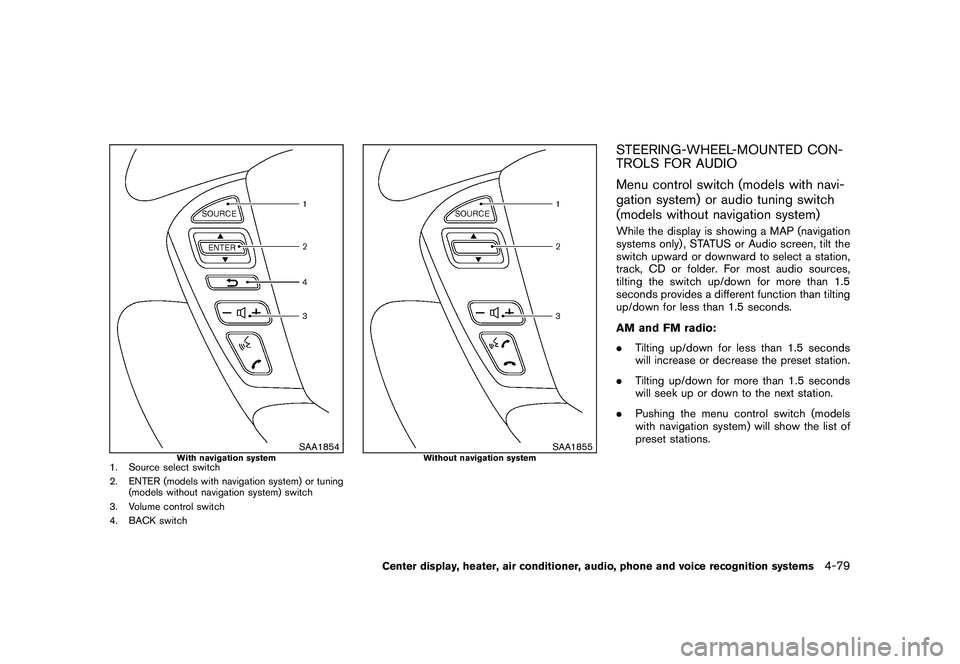
SAA1854
With navigation system
1. Source select switch
2. ENTER (models with navigation system) or tuning(models without navigation system) switch
3. Volume control switch
4. BACK switch
SAA1855
Without navigation system
STEERING-WHEEL-MOUNTED CON-
TROLS FOR AUDIO
Menu control switch (models with navi-
gation system) or audio tuning switch
(models without navigation system)While the display is showing a MAP (navigation
systems only) , STATUS or Audio screen, tilt the
switch upward or downward to select a station,
track, CD or folder. For most audio sources,
tilting the switch up/down for more than 1.5
seconds provides a different function than tilting
up/down for less than 1.5 seconds.
AM and FM radio:
. Tilting up/down for less than 1.5 seconds
will increase or decrease the preset station.
. Tilting up/down for more than 1.5 seconds
will seek up or down to the next station.
. Pushing the menu control switch (models
with navigation system) will show the list of
preset stations.
Center display, heater, air conditioner, audio, phone and voice recognition systems
4-79
Page 250 of 433
Black plate (248,1)
Model "Z51-D" EDITED: 2010/ 7/ 23
XM Satellite Radio:
.Tilting up/down for less than 1.5 seconds
will increase or decrease the preset channel.
. Tilting up/down for more than 1.5 seconds
will go to the next or previous category.
. Pushing the menu control switch (models
with navigation system) will show the XM
Menu.
iPod
®:
. Tilting up/down for less than 1.5 seconds
will increase or decrease the track number.
. Tilting up/down for more than 1.5 seconds
will skip to the next or previous index.
. Pushing the menu control switch will show
the iPod Menu.
CD:
. Tilting up/down for less than 1.5 seconds
will increase or decrease the track number.
. Tilting up/down for more than 1.5 seconds
will increase/decrease the folder number (if
playing compressed audio files) .
. Pushing the menu control switch (models
with navigation system) will show the CD
Menu. DVD (models with navigation system):
.
Tilting up/down for less than 1.5 seconds
will increase or decrease the track number.
. Tilting up/down for more than 1.5 seconds
will increase or decrease the title number.
. Pushing the menu control switch will select
an item from the DVD display.
. When the transparent operation menu ap-
pears, the switch will control the menu.
USB:
. Tilting up/down for less than 1.5 seconds
will increase or decrease the track number.
. Tilting up/down for more than 1.5 seconds
will increase/decrease the folder number
. Pushing the menu control switch will show
the USB Menu.
Music Box
®:
. Tilting up/down for less than 1.5 seconds
will increase or decrease the track number.
. Tilting up/down for more than 1.5 seconds
will increase/decrease the album (folder)
number (if playing compressed audio files) .
. Pushing the menu control switch will show
the Music Box
®Menu. Bluetooth
®Audio (models with navigation
system):
. Tilting up/down for less than 1.5 seconds
will increase or decrease the track number.
BACK switch (models with navi-
gation system)
Push this switch to go back to the previous
screen or cancel the selection if it is not
completed.Volume control switchesPush the upper (+) or lower ( ) side switch to
increase or decrease the volume.Source select switchPush the audio source switch to change the
mode as follows.
. Models with navigation system
AM ?FM ?SAT ?CD/DVD ?Music
Box
®? USB/iPod
®? Bluetooth
®Audio
. Models without navigation system
AM ?FM ?CD ?Music Box®?USB/
iPod
®? SAT
4-80
Center display, heater, air conditioner, audio, phone and voice recognition systems
Page 271 of 433
Black plate (269,1)
Model "Z51-D" EDITED: 2010/ 7/ 23
5. Once the call has ended, press the
button on the steering wheel.
RECEIVING A CALLWhen the ring tone is heard, press the button on
the steering wheel.
Once the call has ended, press the button on
the steering wheel.
NOTE:
To reject a call when the ring tone is heard,
press the button on the steering wheel.
SAA2581
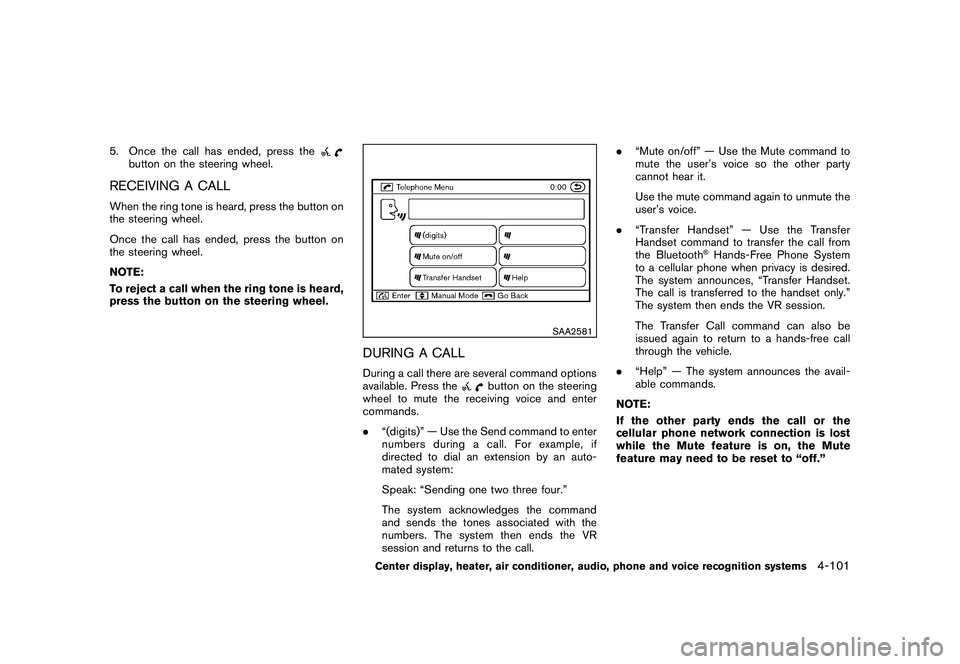
DURING A CALLDuring a call there are several command options
available. Press the
button on the steering
wheel to mute the receiving voice and enter
commands.
. “(digits)” — Use the Send command to enter
numbers during a call. For example, if
directed to dial an extension by an auto-
mated system:
Speak: “Sending one two three four.”
The system acknowledges the command
and sends the tones associated with the
numbers. The system then ends the VR
session and returns to the call. .
“Mute on/off” — Use the Mute command to
mute the user’s voice so the other party
cannot hear it.
Use the mute command again to unmute the
user’s voice.
. “Transfer Handset” — Use the Transfer
Handset command to transfer the call from
the Bluetooth
®Hands-Free Phone System
to a cellular phone when privacy is desired.
The system announces, “Transfer Handset.
The call is transferred to the handset only.”
The system then ends the VR session.
The Transfer Call command can also be
issued again to return to a hands-free call
through the vehicle.
. “Help” — The system announces the avail-
able commands.
NOTE:
If the other party ends the call or the
cellular phone network connection is lost
while the Mute feature is on, the Mute
feature may need to be reset to “off.”
Center display, heater, air conditioner, audio, phone and voice recognition systems
4-101