buttons NISSAN MURANO 2016 3.G User Guide
[x] Cancel search | Manufacturer: NISSAN, Model Year: 2016, Model line: MURANO, Model: NISSAN MURANO 2016 3.GPages: 465, PDF Size: 6.59 MB
Page 217 of 465
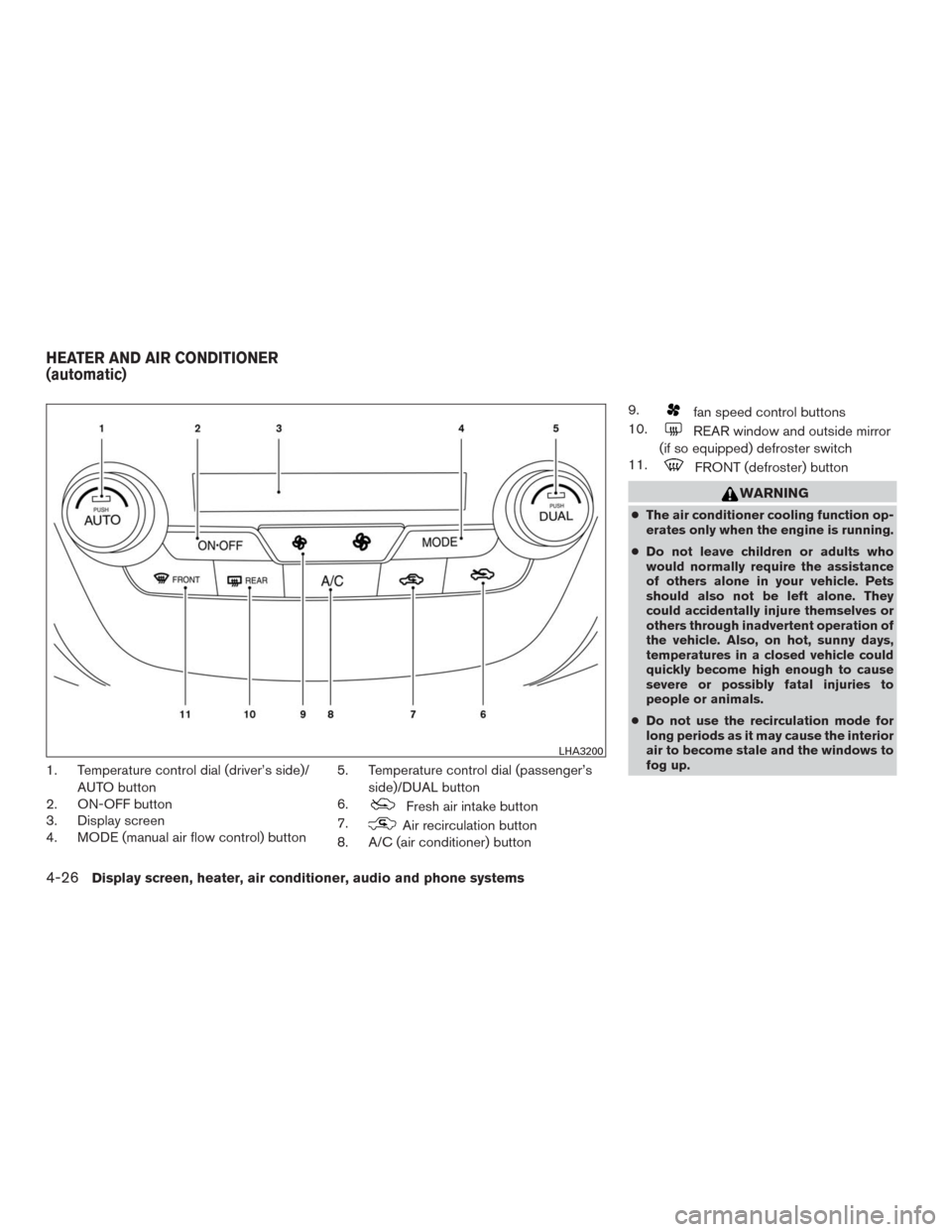
1. Temperature control dial (driver’s side)/
AUTO button
2. ON-OFF button
3. Display screen
4. MODE (manual air flow control) button5. Temperature control dial (passenger’s
side)/DUAL button
6.
Fresh air intake button
7.
Air recirculation button
8. A/C (air conditioner) button9.
fan speed control buttons
10.
REAR window and outside mirror
(if so equipped) defroster switch
11.
FRONT (defroster) button
WARNING
●The air conditioner cooling function op-
erates only when the engine is running.
●Do not leave children or adults who
would normally require the assistance
of others alone in your vehicle. Pets
should also not be left alone. They
could accidentally injure themselves or
others through inadvertent operation of
the vehicle. Also, on hot, sunny days,
temperatures in a closed vehicle could
quickly become high enough to cause
severe or possibly fatal injuries to
people or animals.
●Do not use the recirculation mode for
long periods as it may cause the interior
air to become stale and the windows to
fog up.
LHA3200
HEATER AND AIR CONDITIONER
(automatic)
4-26Display screen, heater, air conditioner, audio and phone systems
Page 218 of 465
NOTE:
●Odors from inside and outside the ve-
hicle can build up in the air conditioner
unit. Odor can enter the passenger
compartment through the vents.
●When parking, set the heater and air
conditioner controls to turn off air re-
circulation to allow fresh air into the
passenger compartment. This should
help reduce odors inside the vehicle.
AUTOMATIC OPERATION
Cooling and/or dehumidified heating
(AUTO)
This mode may be used all year round as the
system automatically works to keep a constant
temperature. Air flow distribution and fan speed
are also controlled automatically.
1. Press the AUTO button on. The indicator on
the button will illuminate.
2. Turn the temperature control dial to the left
or right to set the desired temperature.
●The temperature of the passenger compart-
ment will be maintained automatically. Air
flow distribution and fan speed are also con-
trolled automatically.●A visible mist may be seen coming from the
vents in hot, humid conditions as the air is
cooled rapidly. This does not indicate a mal-
function.
3.
You can individually set driver’s and front pas-
senger’s side temperature using each tem-
perature control dial. When the DUAL button
is pressed or passenger’s side temperature
dial is turned, the DUAL indicator will come
on. To turn off the passenger’s side tempera-
ture control, press the DUAL button.
Heating (A/C OFF)
The air conditioner does not activate. When you
need to heat only, use this mode.
1. Press the AUTO button.
2. Turn the temperature control dial to set the
desired temperature.
●The temperature of the passenger compart-
ment will be maintained automatically. Air
flow distribution and fan speed are also con-
trolled automatically.
●Do not set the temperature lower than the
outside air temperature. Otherwise, the sys-
tem may not work properly.
●Not recommended if windows fog up.
Dehumidified defrosting or defogging
1. Press thefront defroster button on.
The indicator light on the button will come
on.
2. Turn the temperature control dial to set the
maximum temperature to aid in defrosting or
defogging.
●To quickly remove ice from the outside of the
windows, use the
fan speed control
buttons to set the fan speed to maximum.
●As soon as possible after the windshield is
clean, press the AUTO button to return to
the automatic mode.
●When the
front defroster button is
pressed, the air conditioner will automati-
cally be turned on at outside temperatures
above 36°F (2°C) . The air recirculate mode
automatically turns off, allowing outside air
to be drawn into the passenger compart-
ment to further improve the defogging per-
formance. When the air recirculate mode
automatically turns off, the air fresh mode will
automatically turn on.
Display screen, heater, air conditioner, audio and phone systems4-27
Page 219 of 465
Remote engine start logic (if so
equipped)
Vehicles equipped with automatic climate con-
trols and remote start function may go into auto-
matic heating or cooling mode when remote start
is activated depending on outside and cabin tem-
peratures. Automatic temperature depends on
outside and cabin temperatures. During this pe-
riod, the climate control display and buttons will
be inoperable until the ignition switch is turned
on.
MANUAL OPERATION
Fan speed control
Press thefan speed control buttons to
manually control the fan speed.
Press the AUTO button to return to automatic
control of the fan speed.
Air recirculation
Press theair recirculation button to recir-
culate interior air inside the vehicle. The
indicator light on the button will come on.
The air recirculation cannot be activated when
the air conditioner is in the
front defrosting
mode.
Fresh air intake
Press thefresh air intake button to draw
outside air into the passenger compartment.
Air flow control
Pressing the MODE button manually controls air
flow and selects the air outlet:
— Air flows mainly from center and
side vents.
— Air flows mainly from center and
side vents and foot outlets.
— Air flows mainly from foot outlets
and partly from defroster.
— Air flows mainly from defroster
and foot outlets.
To turn system off
Press the ON-OFF button.
Rear window and outside mirror (if so
equipped) defroster switch
For additional information, refer to “Rear window
and outside mirror (if so equipped) defroster
switch” in the “Instruments and controls” section
of this manual.
OPERATING TIPS
●When the engine coolant temperature and
outside air temperature are low, the air flow
from the foot outlets may not operate for a
maximum of 150 seconds. However, this is
not a malfunction. After the coolant tempera-
ture warms up, air flow from the foot outlets
will operate normally.
●Keep the moonroof (if so equipped) closed
while the air conditioner is in operation.
●If you feel that the air flow mode you have
selected and the outlets the air is coming out
do not match, select the
mode.
●When you change the air flow mode, you
may feel air flow from the feet vents for just a
moment. This is not a malfunction.
4-28Display screen, heater, air conditioner, audio and phone systems
Page 229 of 465
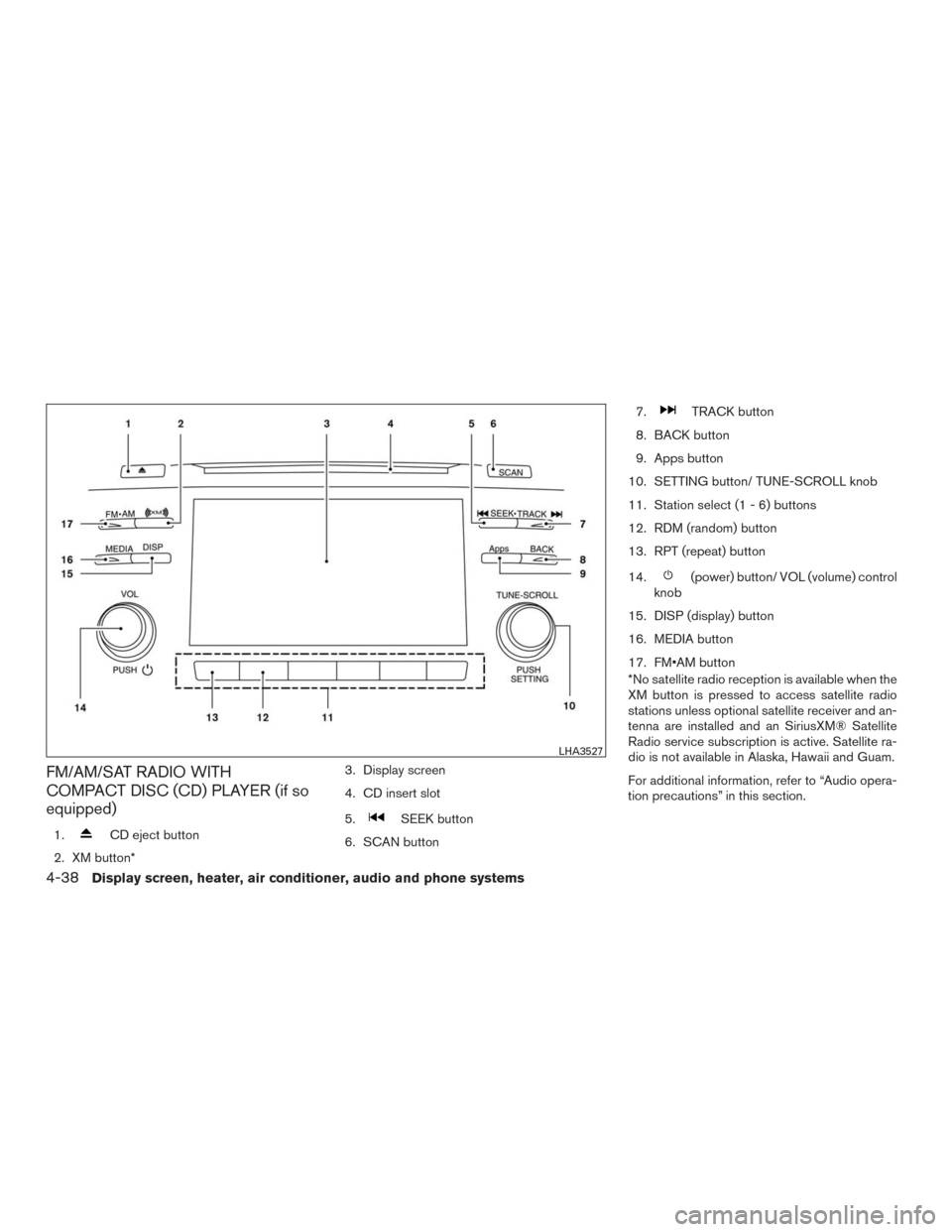
FM/AM/SAT RADIO WITH
COMPACT DISC (CD) PLAYER (if so
equipped)
1.CD eject button
2. XM button*3. Display screen
4. CD insert slot
5.
SEEK button
6. SCAN button7.
TRACK button
8. BACK button
9. Apps button
10. SETTING button/ TUNE-SCROLL knob
11. Station select (1 - 6) buttons
12. RDM (random) button
13. RPT (repeat) button
14.
(power) button/ VOL (volume) control
knob
15. DISP (display) button
16. MEDIA button
17. FM•AM button
*No satellite radio reception is available when the
XM button is pressed to access satellite radio
stations unless optional satellite receiver and an-
tenna are installed and an SiriusXM® Satellite
Radio service subscription is active. Satellite ra-
dio is not available in Alaska, Hawaii and Guam.
For additional information, refer to “Audio opera-
tion precautions” in this section.
LHA3527
4-38Display screen, heater, air conditioner, audio and phone systems
Page 231 of 465
Bass, treble, balance and fade can also be ad-
justed by pressing the SETTING button and turn-
ing the TUNE-SCROLL knob to select the item to
adjust. When the desired item is shown on the
display, turn the tuning to adjust and then press
the SETTING button until the display returns to
the main audio screen. If the button is not
pressed for approximately 10 seconds, the radio
or CD display will automatically reappear.
Apps button
Press the Apps button to launch the Smartphone
Integration Mode. For additional information, re-
fer to “NissanConnect
SMMobile Apps” in this
section regarding this feature.
For additional information, refer to “Bluetooth®
Hands-Free Phone system without Navigation” in
this section regarding connecting your phone.
BACK button
Press the BACK button to return to the previous
menu screen.
DISP (display) button
The DISP (display) button turns the display
screen on or off.
FM/AM/SAT radio operation
FM·AM button
Press the FM·AM button to change the band as
follows:
AM→FM1→FM2→AM
If another audio source is playing when the
FM·AM button is pressed, the audio source play-
ing will automatically be turned off and the last
radio station played will begin playing.
The FM stereo indicator (STEREO) is shown on
the screen during FM stereo reception. When the
stereo broadcast signal is weak, the radio auto-
matically changes from stereo to monaural re-
ception.
XM band select
Press the XM button to change the band as
follows:
XM1*→XM2*→XM3*→XM1
When the XM button is pressed while the ignition
switch is in the ACC or ON position, the radio will
come on at the station last played.
The last station played will also come on when
the
(power) button is pressed on.
*When the XM button is pressed, the satellite
radio reception will not be available unless an
optional satellite receiver and antenna are in-stalled and a SiriusXM® Satellite Radio service
subscription is active. Satellite radio is not avail-
able in Alaska, Hawaii and Guam.
If a compact disc is playing when the XM button
is pressed, the compact disc will automatically be
turned off and the last radio station played will
come on.
TUNE-SCROLL knob (Tuning)
Turn the TUNE-SCROLL knob to the left or right
for manual tuning.
SEEK tuning
Press the
orSEEK buttons to tune
from low to high or high to low frequencies and to
stop at the next broadcasting station.
SCAN tuning
Press the SCAN button to stop at each broad-
casting station for 5 seconds. SCAN will appear
on the screen while the radio is scan tuning.
Pressing the button again during this 5 second
period will stop SCAN tuning and the radio will
remain tuned to that station. If the SCAN button is
not pressed within 5 seconds, SCAN tuning
moves to the next station.
4-40Display screen, heater, air conditioner, audio and phone systems
Page 232 of 465
1 to 6 Station memory operations
Six stations can be set for the AM band. Twelve
stations can be set for the FM band (six for FM1,
six for FM2) .
1. Choose the radio band AM, FM1 or FM2
using the FM·AM button.
2. Tune to the desired station using the
SEEK button or theTRACK button.
Press and hold any of the desired station
memory buttons (1 – 6) until the preset
number is updated on the display and a
beep is heard.
3. Programming is now complete.
4. Other buttons can be set in the same man-
ner.
If the battery cable is disconnected, or if the fuse
opens, the radio memory will be canceled. In that
case, reset the desired stations.
Compact disc (CD) player operation
If the radio is already operating, it automatically
turns off and the compact disc begins to play.
MEDIA button
With a CD loaded, press the MEDIA button until
the CD mode is displayed on the screen.CD/MP3 display mode
While listening to an MP3/WMA CD, certain text
may be displayed on the screen if the CD has
been encoded with text information. Depending
on how the MP3/WMA CD is encoded, informa-
tion such as Artist, Song and Folder will be dis-
played.
The track number and the total number of tracks
in the current folder or on the current disc are
displayed on the screen as well.
SEEK/TRACK (Reverse or
Fast Forward) button
Press and hold the
orSEEK/TRACK button for 1.5 seconds while the
compact disc is playing to reverse or fast forward
the track being played. The compact disc plays at
an increased speed while reversing or fast for-
warding. When the button is released, the com-
pact disc returns to normal play speed.
SEEK/TRACK button
Press the
SEEK/TRACK button while a CD
or MP3/WMA CD is playing to return to the
beginning of the current track. Press
the
SEEK/TRACK button several times to
skip backward several tracks.Press the
SEEK/TRACK button while a CD
or MP3/WMA CD is playing to advance one
track. Press the
SEEK/TRACK button sev-
eral times to skip forward several tracks. If the last
track on a CD is skipped, the first track on the
disc is played. If the last track in a folder of an
MP3/WMA CD is skipped, the first track of the
next folder is played.
TUNE-SCROLL knob (MP3/WMA CD only)
If an MP3/WMA CD with multiple folders is play-
ing, turn the TUNE-SCROLL knob to change
folders. Turn the knob to the left to skip back a
folder. Turn the knob to the right to skip ahead a
folder.
RPT (repeat) button
When the RPT (repeat) button is pressed while a
compact disc is playing, the play pattern can be
changed as follows:
CD:
1 Track Repeat←→OFF
CD with MP3 or WMA:
1 Folder Repeat→1 Track Repeat→OFF
1 Track Repeat: the current track will be re-
peated.
1 Folder Repeat: the current folder will be re-
peated.
Display screen, heater, air conditioner, audio and phone systems4-41
Page 235 of 465
the track being played. The track plays at an
increased speed while reversing or fast forward-
ing. When the button is released, the audio file
returns to normal play speed.
SEEK and TRACK buttons
Press the SEEK button
while an audio file
on the USB device is playing to return to the
beginning of the current track. Press the SEEK
button
several times to skip backward sev-
eral tracks.
Press the TRACK button
while an audio
file on the USB device is playing to advance one
track. Press the TRACK button
several
times to skip forward several tracks. If the last
track in a folder on the USB device is skipped, the
first track of the next folder is played.
RDM (random) button
When the RDM (random) button is pressed while
an audio file on the USB device is playing, the
play pattern can be changed as follows:
All Random→1 Folder Random→OFF
All Random: all tracks on the USB device will be
played randomly.
1 Folder Random: all tracks in the current folder
will be played randomly.OFF: No random play pattern is applied. The
indicator on the display will turn off.
The current play pattern of the USB device is
displayed on the screen unless no pattern is
applied.
RPT (repeat) button
When the RPT (repeat) button is pressed while
an audio file on the USB device is playing, the
play pattern can be changed as follows:
1 Folder Repeat→1 Track Repeat→OFF
1 Track Repeat: the current track will be re-
peated.
1 Folder Repeat: the current folder will be re-
peated.
OFF: No repeat play pattern is applied. The indi-
cator on the display will turn off.
The current play pattern of the USB device is
displayed on the screen unless no pattern is
applied.
TUNE-SCROLL knob
If there are multiple folders with audio files on the
USB device, turn the TUNE-SCROLL knob to
change folders. Turn the knob to the left to skip
back a folder. Turn the knob to the right to skip
ahead a folder. If there is only one folder of audio
files on the USB device, turning the TUNE-SCROLL knob in either direction will return to the
first track on the USB device.
4-44Display screen, heater, air conditioner, audio and phone systems
Page 237 of 465
Compatibility
The following models are compatible:
●iPod® Classic - 5th Generation (firmware
version 1.3.0 or later)
●iPod® Classic - 6th Generation (firmware
version 2.0.1 or later)
●iPod® Classic - 7th Generation (firmware
version 2.0.4 or later)
●iPod® nano - 1st generation (firmware ver-
sion 1.3.1 or later)
●iPod® nano - 2nd generation (firmware ver-
sion 1.1.3 or later)
●iPod® nano - 3rd generation (firmware ver-
sion 1.1.3 or later)
●iPod® nano - 4th generation (firmware ver-
sion 1.0.4 or later)
●iPod® nano - 5th generation (firmware ver-
sion 1.0.2 or later)
●iPod® nano - 6th generation (firmware ver-
sion 1.1 or later)
●iPod® Touch - 2nd generation (firmware
version 4.2.1 or later)●iPod® Touch - 3rd generation (firmware ver-
sion 5.1 or later) (minimum iOS 5.0 required
for smartphone integration)
●iPod® Touch - 4th generation (firmware ver-
sion 5.1 or later) (minimum iOS 5.0 required
for smartphone integration)
●iPhone® 3G (firmware version 4.2.1 or later)
●iPhone® 3GS (firmware version 5.1 or later)
(minimum iOS 5.0 required for smartphone
integration)
●iPhone® 4 (firmware version 5.1 or later)
(minimum iOS 5.0 required for smartphone
integration)
●iPhone® 4S (firmware version 5.1 or later)
(minimum iOS 5.0 required for smartphone
integration)
●iPhone®5 (firmware version 5.1 or later)
(minimum iOS 5.0 required for smartphone
integration)
Make sure that your iPod® firmware is updated to
the version indicated above.
NOTE:
Apple certified USB cables are supported.
Some aftermarket cables may not be sup-
ported.
Audio main operation
Place the ignition switch in the ACC or ON
position. Press the MEDIA button repeatedly to
switch to the iPod® mode.
If the system has been turned off while the iPod®
was playing, pressing the
button will start
the iPod®.
SEEK/TRACK buttons
Press the
SEEK button orTRACK
button to skip backward or forward one track.
Press and hold the
SEEK button orTRACK button for 1.5 seconds while a track is
playing to reverse or fast forward the track being
played. The track plays at an increased speed
while reversing or fast forwarding. When the but-
ton is released, the track returns to normal play
speed.
REPEAT (RPT)
When the RPT button is pressed while a track is
being played, the play pattern can be changed as
follows:
Repeat Off→1 Track Repeat→All Repeat→
Repeat Off
1 Track Repeat: the current track will be re-
peated.
4-46Display screen, heater, air conditioner, audio and phone systems
Page 240 of 465
* These modes are only available when compat-
ible media storage is inserted into the device or
connected to the system.
Volume control buttons
Push the volume control buttons to increase or
decrease the volume.
Menu control
switch/OK button
While the display is showing a map or audio
screen, tilt the Menu Control switch upward or
downward to select a station, track, CD or folder.
For most audio sources, tilting the switch
up/down for more than 1.5 seconds provides a
different function than a tilting up/down for less
than 1.5 seconds.
AM and FM
●Tilt up/down for less than 1.5 seconds to
increase or decrease the preset station.
●Tilt up/down for more than 1.5 seconds to
seek up or down to the next station.
●Press the OK button to show the list of
preset stations.XM
●Tilt up/down for less than 1.5 seconds to
increase or decrease the preset station.
●Tilt up/down for more than 1.5 seconds to
go to the next or previous channel.
●Press the OK button to show the XM Menu.
iPod®
●Tilt up/down for less than 1.5 seconds to
increase or decrease the track number.
●Press the OK button to show the iPod Menu.
CD
●Tilt up/down for less than 1.5 seconds to
increase or decrease the track number.
●Tilt up/down for more than 1.5 seconds to
increase or decrease the folder number (if
playing compressed audio files) .
●Press the OK button to show the CD Menu.
USB
●Tilt up/down for less than 1.5 seconds to
increase or decrease the track number.
●Tilt up/down for more than 1.5 seconds to
increase or decrease the folder number.
●Press the OK button to show the USB Menu.Bluetooth® Audio
●Tilt up/down for less than 1.5 seconds to
skip ahead or back to the next song.
●Tilt up/down for more than 1.5 seconds to
reverse or fast forward the current song.
AUX
●Press the OK button to show the AUX Menu.
ANTENNA
The vehicle is equipped with a shark fin antenna
and an antenna pattern is printed inside the rear
window.
CAUTION
●Do not place metalized film near the
rear window glass or attach any metal
parts to it. This may cause poor recep-
tion or noise.
●When cleaning the inside of the rear
window, be careful not to scratch or
damage the rear window antenna.
Lightly wipe along the antenna with a
dampened soft cloth.
Display screen, heater, air conditioner, audio and phone systems4-49
Page 246 of 465

CONTROL BUTTONS
The control buttons for the Bluetooth® Hands-
Free Phone System are located on the steering
wheel.
PHONE/SEND
Press the
button to initiate
a Voice Recognition session or
answer an incoming call.You can also use the
button
to interrupt the system feedback
and give a command at once. For
additional information, refer to
“Voice commands” and “During a
call” in this section.
PHONE/END
While the voice recognition sys-
tem is active, press and hold
the
button for 5 seconds to
quit the voice recognition system
at any time.
Tuning switch
While using the voice recognition
system, tilt the tuning switch up or
down to manually control the
phone system.CONNECTING PROCEDURE
NOTE:
The connecting procedure must be per-
formed when the vehicle is stationary. If the
vehicle starts moving during the procedure,
the procedure will be cancelled.
LHA3194LHA2775
Display screen, heater, air conditioner, audio and phone systems4-55