navigation system NISSAN MURANO 2016 3.G User Guide
[x] Cancel search | Manufacturer: NISSAN, Model Year: 2016, Model line: MURANO, Model: NISSAN MURANO 2016 3.GPages: 465, PDF Size: 6.59 MB
Page 230 of 465
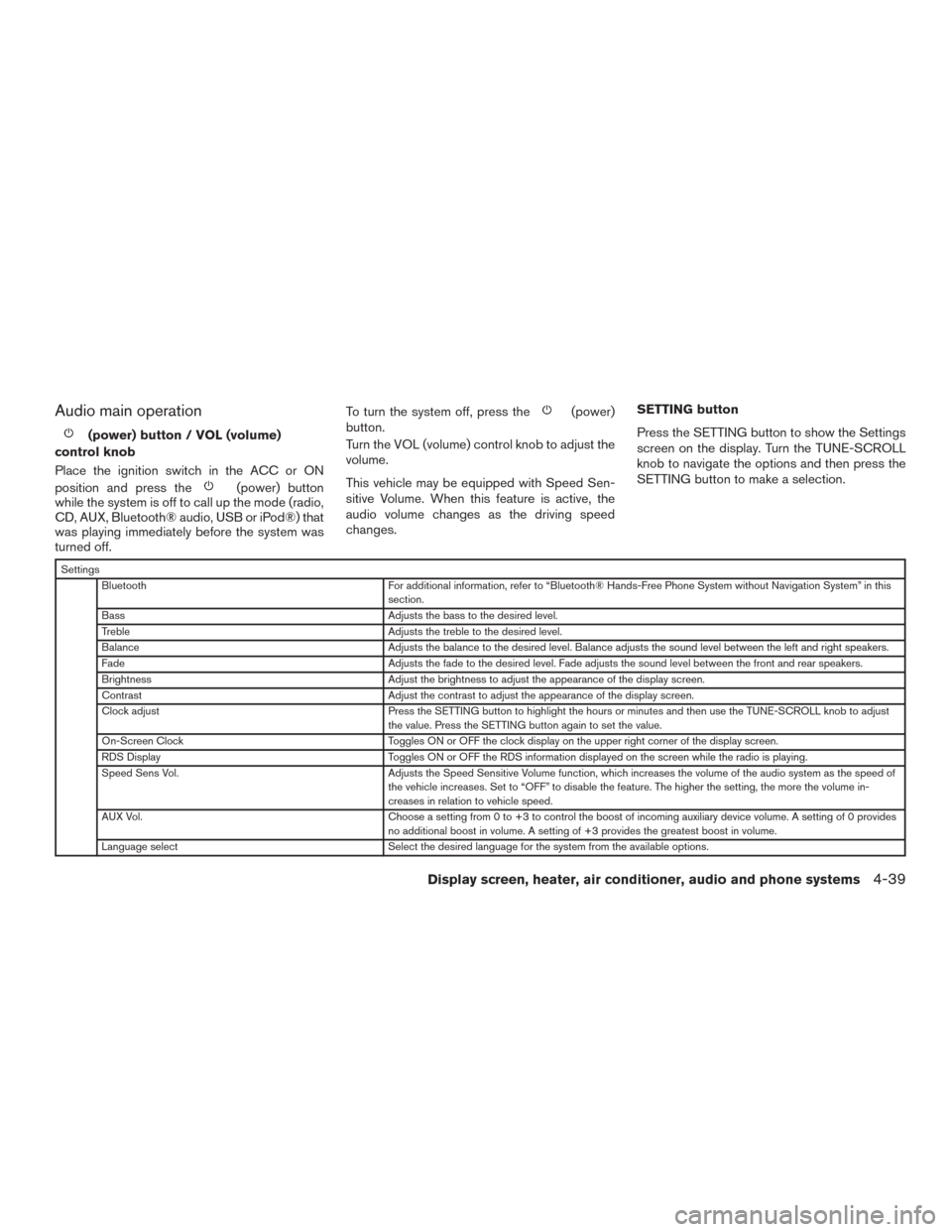
Audio main operation
(power) button / VOL (volume)
control knob
Place the ignition switch in the ACC or ON
position and press the
(power) button
while the system is off to call up the mode (radio,
CD, AUX, Bluetooth® audio, USB or iPod®) that
was playing immediately before the system was
turned off.To turn the system off, press the
(power)
button.
Turn the VOL (volume) control knob to adjust the
volume.
This vehicle may be equipped with Speed Sen-
sitive Volume. When this feature is active, the
audio volume changes as the driving speed
changes.SETTING button
Press the SETTING button to show the Settings
screen on the display. Turn the TUNE-SCROLL
knob to navigate the options and then press the
SETTING button to make a selection.
Settings
Bluetooth For additional information, refer to “Bluetooth® Hands-Free Phone System without Navigation System” in this
section.
Bass Adjusts the bass to the desired level.
Treble Adjusts the treble to the desired level.
Balance Adjusts the balance to the desired level. Balance adjusts the sound level between the left and right speakers.
Fade Adjusts the fade to the desired level. Fade adjusts the sound level between the front and rear speakers.
Brightness Adjust the brightness to adjust the appearance of the display screen.
Contrast Adjust the contrast to adjust the appearance of the display screen.
Clock adjust Press the SETTING button to highlight the hours or minutes and then use the TUNE-SCROLL knob to adjust
the value. Press the SETTING button again to set the value.
On-Screen Clock Toggles ON or OFF the clock display on the upper right corner of the display screen.
RDS Display Toggles ON or OFF the RDS information displayed on the screen while the radio is playing.
Speed Sens Vol. Adjusts the Speed Sensitive Volume function, which increases the volume of the audio system as the speed of
the vehicle increases. Set to “OFF” to disable the feature. The higher the setting, the more the volume in-
creases in relation to vehicle speed.
AUX Vol. Choose a setting from 0 to +3 to control the boost of incoming auxiliary device volume. A setting of 0 provides
no additional boost in volume. A setting of +3 provides the greatest boost in volume.
Language select Select the desired language for the system from the available options.
Display screen, heater, air conditioner, audio and phone systems4-39
Page 231 of 465
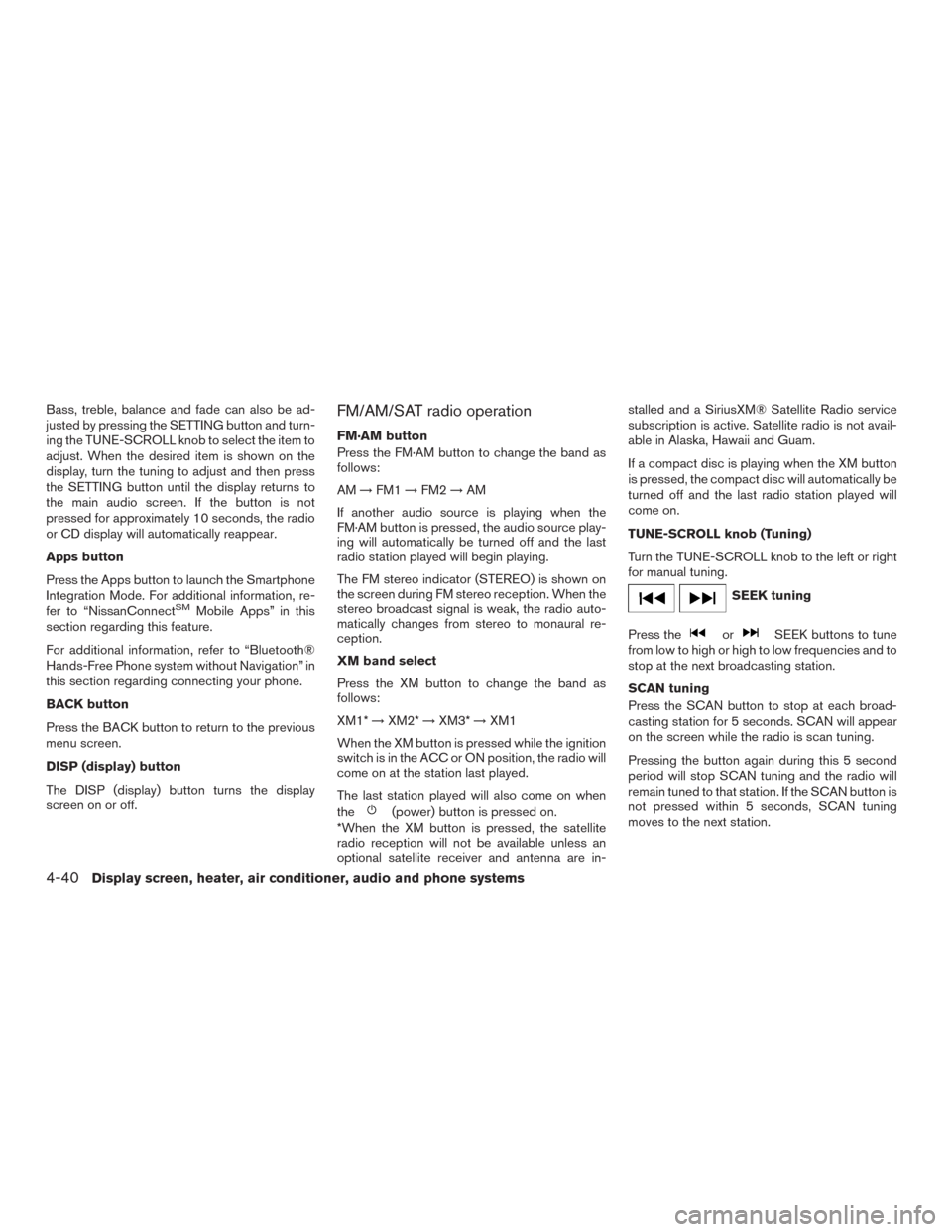
Bass, treble, balance and fade can also be ad-
justed by pressing the SETTING button and turn-
ing the TUNE-SCROLL knob to select the item to
adjust. When the desired item is shown on the
display, turn the tuning to adjust and then press
the SETTING button until the display returns to
the main audio screen. If the button is not
pressed for approximately 10 seconds, the radio
or CD display will automatically reappear.
Apps button
Press the Apps button to launch the Smartphone
Integration Mode. For additional information, re-
fer to “NissanConnect
SMMobile Apps” in this
section regarding this feature.
For additional information, refer to “Bluetooth®
Hands-Free Phone system without Navigation” in
this section regarding connecting your phone.
BACK button
Press the BACK button to return to the previous
menu screen.
DISP (display) button
The DISP (display) button turns the display
screen on or off.
FM/AM/SAT radio operation
FM·AM button
Press the FM·AM button to change the band as
follows:
AM→FM1→FM2→AM
If another audio source is playing when the
FM·AM button is pressed, the audio source play-
ing will automatically be turned off and the last
radio station played will begin playing.
The FM stereo indicator (STEREO) is shown on
the screen during FM stereo reception. When the
stereo broadcast signal is weak, the radio auto-
matically changes from stereo to monaural re-
ception.
XM band select
Press the XM button to change the band as
follows:
XM1*→XM2*→XM3*→XM1
When the XM button is pressed while the ignition
switch is in the ACC or ON position, the radio will
come on at the station last played.
The last station played will also come on when
the
(power) button is pressed on.
*When the XM button is pressed, the satellite
radio reception will not be available unless an
optional satellite receiver and antenna are in-stalled and a SiriusXM® Satellite Radio service
subscription is active. Satellite radio is not avail-
able in Alaska, Hawaii and Guam.
If a compact disc is playing when the XM button
is pressed, the compact disc will automatically be
turned off and the last radio station played will
come on.
TUNE-SCROLL knob (Tuning)
Turn the TUNE-SCROLL knob to the left or right
for manual tuning.
SEEK tuning
Press the
orSEEK buttons to tune
from low to high or high to low frequencies and to
stop at the next broadcasting station.
SCAN tuning
Press the SCAN button to stop at each broad-
casting station for 5 seconds. SCAN will appear
on the screen while the radio is scan tuning.
Pressing the button again during this 5 second
period will stop SCAN tuning and the radio will
remain tuned to that station. If the SCAN button is
not pressed within 5 seconds, SCAN tuning
moves to the next station.
4-40Display screen, heater, air conditioner, audio and phone systems
Page 233 of 465
‘OFF: No repeat play pattern is applied. The
indicator on the display will turn off.
The current play pattern of the CD is displayed on
the screen unless no pattern is applied.
RDM (random) button
When the RDM (random) button is pressed while
a compact disc is playing, the play pattern can be
changed as follows:
CD:
1 Disc Random←→OFF
CD with MP3 or WMA:
1 Disc Random→1 Folder Random→OFF
1 Disc Random: all tracks on the disc will be
played randomly.
1 Folder Random: all tracks in the current folder
will be played randomly.
OFF: No random play pattern is applied. The
indicator on the display will turn off.
The current play pattern of the CD is displayed on
the screen unless no pattern is applied.
CD EJECT button
When the
CD EJECT button is pressed
with a compact disc loaded, the compact disc
will eject and the last source will be played.When the
CD EJECT button is pressed
twice with a compact disc loaded, the compact
disc will be ejected further for easier CD removal.
If the disc is not removed within 20 seconds, the
disc will reload.
Additional features
For additional information, refer to “iPod® player
operation without Navigation System” regarding
the iPod® player available with this system in this
section.
For additional information, refer to “USB (Univer-
sal Serial Bus) Connection Port (models without
Navigation System)” regarding the USB connec-
tion port available with this system in this section.
For additional information, refer to “Bluetooth®
streaming audio without Navigation System”
about the Bluetooth® audio interface available
with this system in this section.
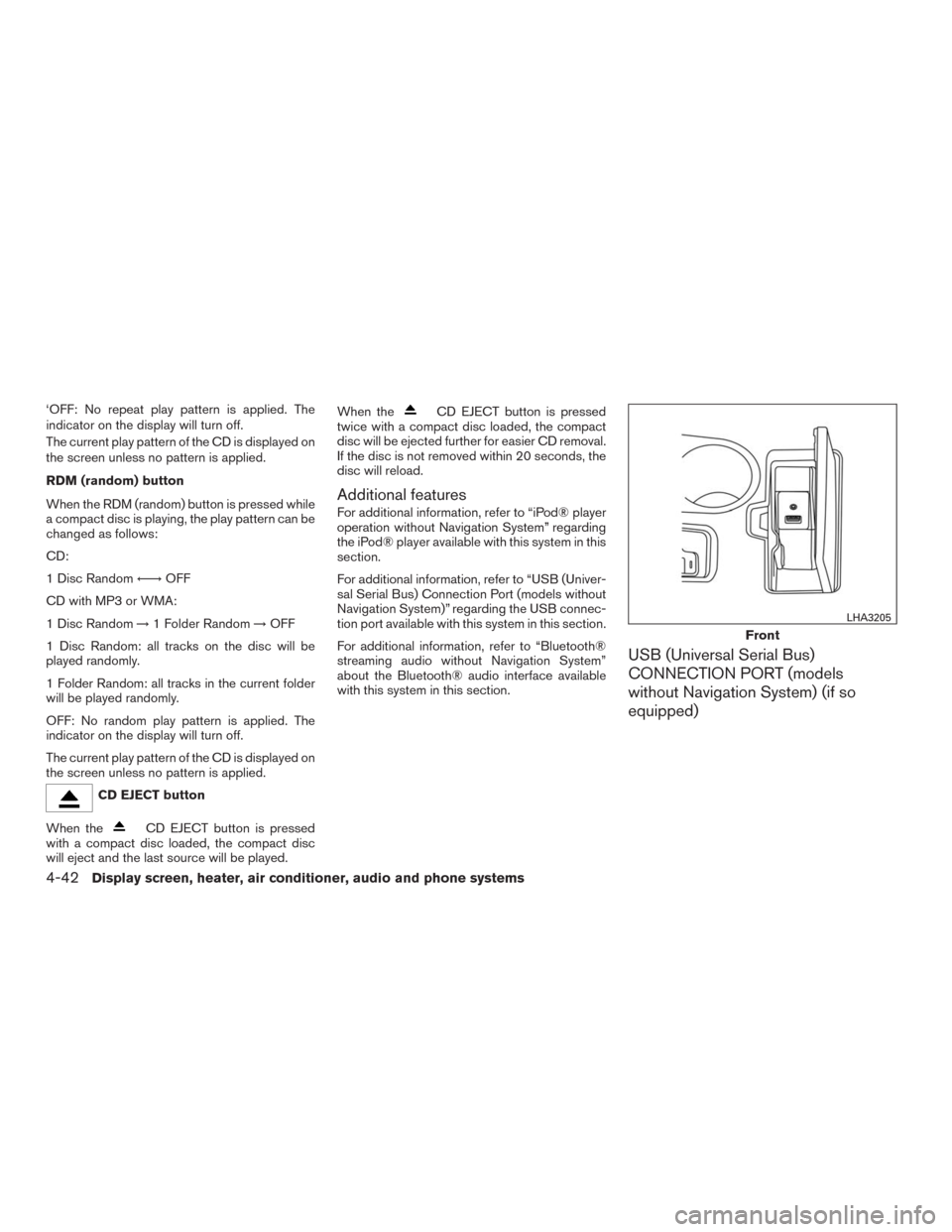
USB (Universal Serial Bus)
CONNECTION PORT (models
without Navigation System) (if so
equipped)
Front
LHA3205
4-42Display screen, heater, air conditioner, audio and phone systems
Page 236 of 465
iPod®* PLAYER OPERATION
WITHOUT NAVIGATION SYSTEM (if
so equipped)
Connecting iPod®
WARNING
Do not connect, disconnect, or operate the
USB device while driving. Doing so can be
a distraction. If distracted you could lose
control of your vehicle and cause an acci-
dent or serious injury.
CAUTION
●Do not force the USB device into the
USB port. Inserting the USB device
tilted or up-side-down into the port may
damage the port. Make sure that the
USB device is connected correctly into
the USB port.
●Do not grab the USB port cover (if so
equipped) when pulling the USB device
out of the port. This could damage the
port and the cover.●Do not leave the USB cable in a place
where it can be pulled unintentionally.
Pulling the cable may damage the port.
Refer to your device manufacturer’s owner infor-
mation regarding the proper use and care of the
device.
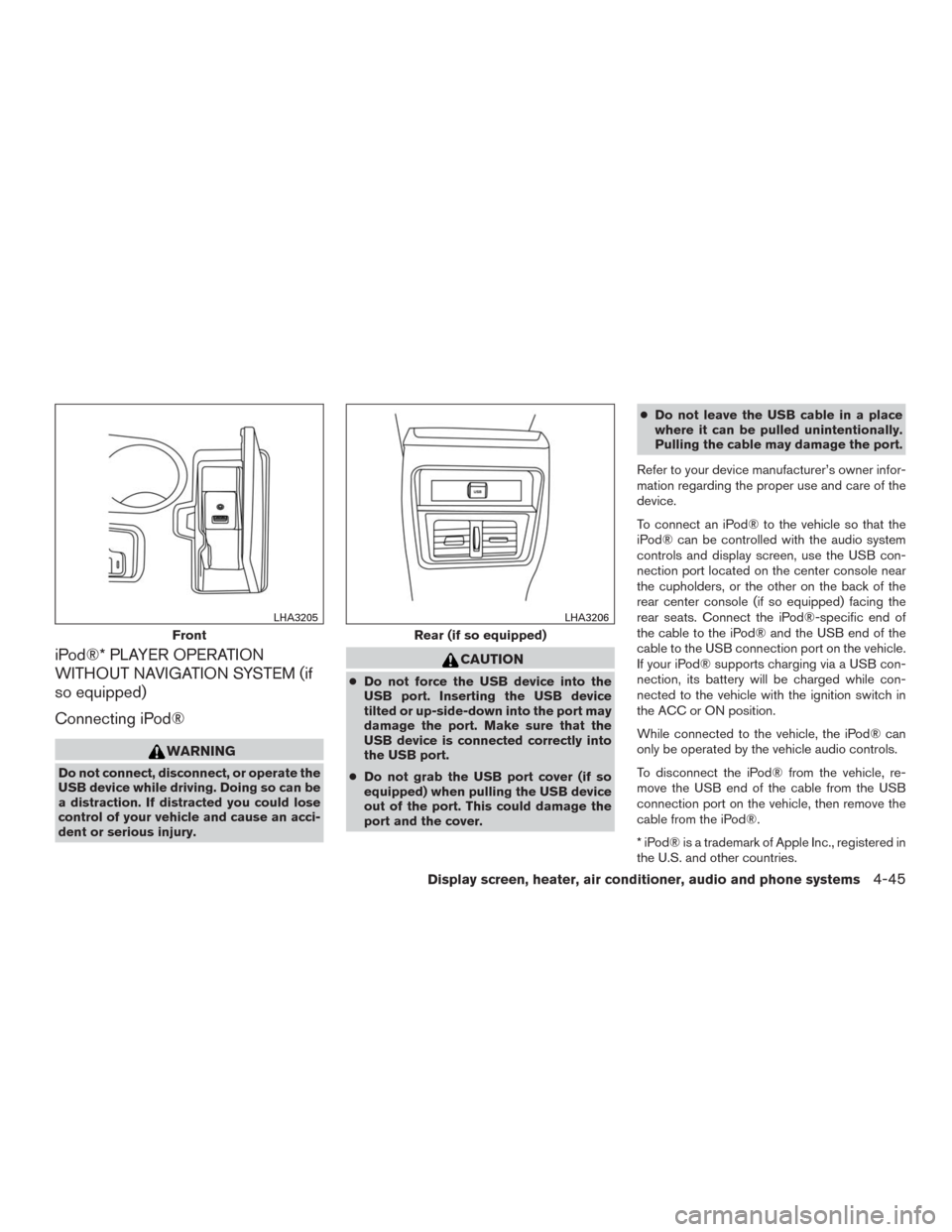
To connect an iPod® to the vehicle so that the
iPod® can be controlled with the audio system
controls and display screen, use the USB con-
nection port located on the center console near
the cupholders, or the other on the back of the
rear center console (if so equipped) facing the
rear seats. Connect the iPod®-specific end of
the cable to the iPod® and the USB end of the
cable to the USB connection port on the vehicle.
If your iPod® supports charging via a USB con-
nection, its battery will be charged while con-
nected to the vehicle with the ignition switch in
the ACC or ON position.
While connected to the vehicle, the iPod® can
only be operated by the vehicle audio controls.
To disconnect the iPod® from the vehicle, re-
move the USB end of the cable from the USB
connection port on the vehicle, then remove the
cable from the iPod®.
* iPod® is a trademark of Apple Inc., registered in
the U.S. and other countries.
Front
LHA3205
Rear (if so equipped)
LHA3206
Display screen, heater, air conditioner, audio and phone systems4-45
Page 238 of 465
All Repeat: all songs in the current list are re-
peated.
Repeat Off: no repeat play pattern is applied.
RANDOM (RDM)
When the RDM button is pressed while a track is
being played, the play pattern can be changed as
follows:
Shuffle Off→Track Shuffle→Album Shuffle→
Shuffle Off
Track Shuffle: the tracks in the current list will be
played randomly.
Album Shuffle: the albums in the current list will
be played randomly.
Shuffle Off: no random play pattern is applied.
BACK button
When the BACK button is pressed, it returns to
the previous menu.
BLUETOOTH® STREAMING AUDIO
WITHOUT NAVIGATION SYSTEM
If you have a compatible Bluetooth® audio de-
vice that is capable of playing audio files, the
device can be connected to the vehicle’s audio
system so that the audio files on the device play
through the vehicle’s speakers.
Connecting Bluetooth® audio
To connect your Bluetooth® audio device to the
vehicle, follow the procedure below:
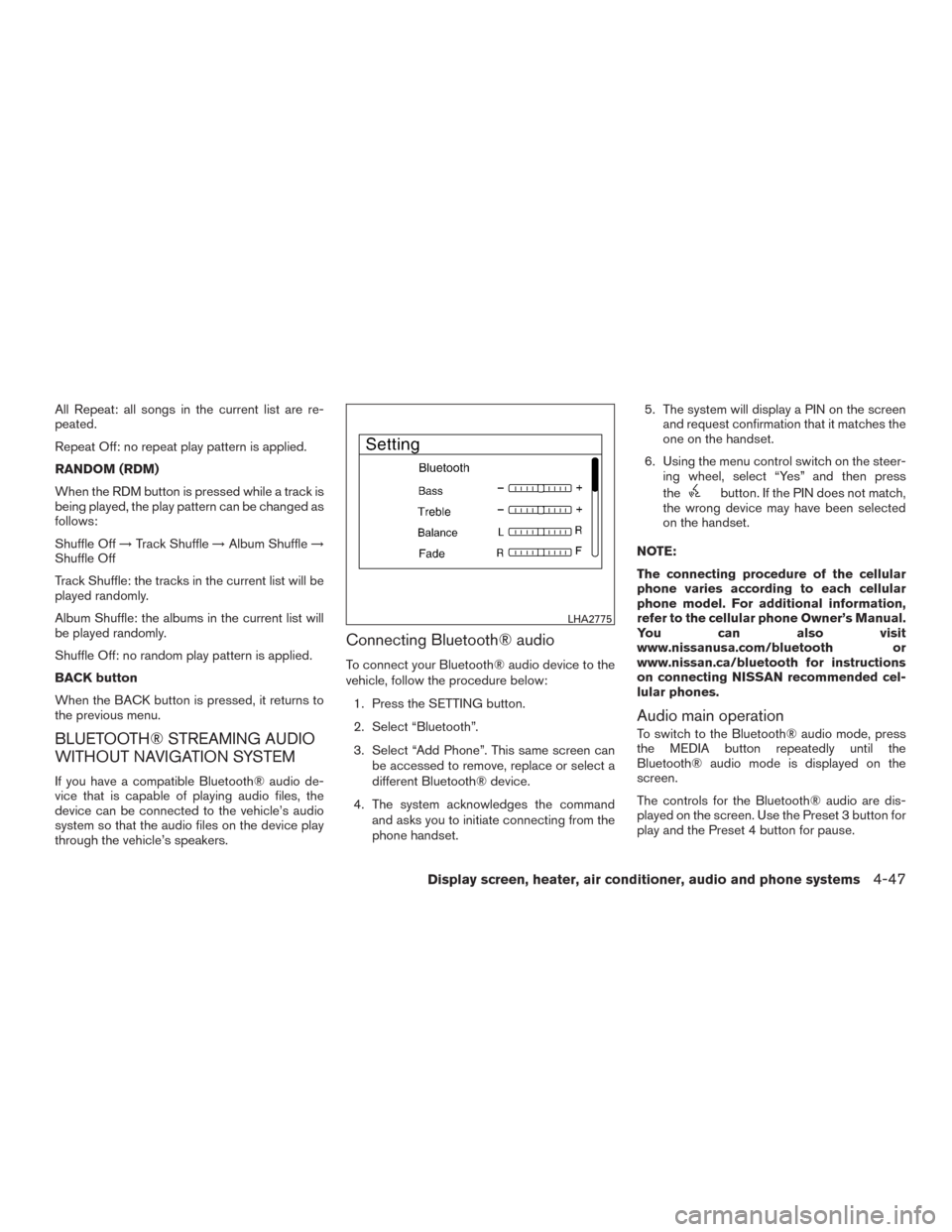
1. Press the SETTING button.
2. Select “Bluetooth”.
3. Select “Add Phone”. This same screen can
be accessed to remove, replace or select a
different Bluetooth® device.
4. The system acknowledges the command
and asks you to initiate connecting from the
phone handset.5. The system will display a PIN on the screen
and request confirmation that it matches the
one on the handset.
6. Using the menu control switch on the steer-
ing wheel, select “Yes” and then press
the
button. If the PIN does not match,
the wrong device may have been selected
on the handset.
NOTE:
The connecting procedure of the cellular
phone varies according to each cellular
phone model. For additional information,
refer to the cellular phone Owner’s Manual.
You can also visit
www.nissanusa.com/bluetooth or
www.nissan.ca/bluetooth for instructions
on connecting NISSAN recommended cel-
lular phones.
Audio main operation
To switch to the Bluetooth® audio mode, press
the MEDIA button repeatedly until the
Bluetooth® audio mode is displayed on the
screen.
The controls for the Bluetooth® audio are dis-
played on the screen. Use the Preset 3 button for
play and the Preset 4 button for pause.
LHA2775
Display screen, heater, air conditioner, audio and phone systems4-47
Page 241 of 465
This vehicle is equipped with NissanConnectSM
Mobile Apps. This allows many compatible
Smartphone applications to be displayed and
easily controlled through the vehicle’s audio sys-
tem.
NOTE:
A compatible smartphone and registration
is required to use mobile applications or to
access connected features of certain ve-
hicle applications.
REGISTERING NISSANCONNECTSM
MOBILE APPS
To use the Smartphone Integration feature, it is
necessary for the user to register. In order to
register, visit the NissanConnect
SM
website, www.nissanusa.com/connect/ or
www.canada.nissanconnect.com (For Canada)
and sign up or create an account through the
prompts on the NissanConnect Mobile App.
Once registered, download the NissanConnect
App from your compatible phone’s application
download source and then log into the applica-
tion. If you already have an account created
through the App, please log in.
CONNECT PHONE
To use this feature, a compatible smartphone
must be connected via Bluetooth® or USB to the
vehicle. For additional information, refer to
“Bluetooth® Hands-Free Phone System without
Navigation System” regarding connecting your
phone in this section.
NOTE:
Apple iPhone® can be paired via
Bluetooth® for NissanConnect Mobile
Apps to function.
NOTE:
Apple certified cables are supported and
some aftermarket cables may not function
correctly with the USB port.
APPLICATION DOWNLOAD
Once connected, the NissanConnect App will
search your phone to determine which compat-
ible applications are currently installed. The user
will then choose which apps they want to bring
into their vehicle from the list of apps within the
“Manage My Apps” section of the NissanCon-
nect App on their smartphone. The vehicle will
then download the in-vehicle interface for each of
these compatible applications. Once down-
loaded, the user can access their selected smart-phone applications through the vehicle interface.
For additional information on application avail-
ability visit www.nissanusa.com/connect/ or
www.canada.nissanconnect.com
NISSANCONNECTSMMOBILE APPS
4-50Display screen, heater, air conditioner, audio and phone systems
Page 242 of 465
When installing a CB, ham radio or car phone in
your vehicle, be sure to observe the following
precautions; otherwise, the new equipment may
adversely affect the engine control system and
other electronic parts.
WARNING
●A cellular phone should not be used for
any purpose while driving so full atten-
tion may be given to vehicle operation.
Some jurisdictions prohibit the use of
cellular phones while driving.
●If you must make a call while your ve-
hicle is in motion, the hands free cellu-
lar phone operational mode is highly
recommended. Exercise extreme cau-
tion at all times so full attention may be
given to vehicle operation.
●If you are unable to devote full attention
to vehicle operation while talking on
the phone, pull off the road to a safe
location and stop your vehicle.
CAUTION
●Keep the antenna as far away as pos-
sible from the electronic control
modules.
●Keep the antenna wire more than 8 in
(20 cm) away from the electronic control
system harnesses. Do not route the an-
tenna wire next to any harness.
●Adjust the antenna standing-wave ratio
as recommended by the manufacturer.
●Connect the ground wire from the CB
radio chassis to the body.
●For details, it is recommended that you
visit a NISSAN dealer for servicing.
WARNING
●Use a phone after stopping your vehicle
in a safe location. If you have to use a
phone while driving, exercise extreme
caution at all times so full attention may
be given to vehicle operation.
●If you are unable to devote full attention
to vehicle operation while talking on
the phone, pull off the road to a safe
location and stop your vehicle.
CAUTION
To avoid discharging the vehicle battery,
use a phone after starting the engine.
CAR PHONE OR CB RADIO BLUETOOTH® HANDS-FREE PHONE
SYSTEM WITHOUT NAVIGATION
SYSTEM (if so equipped)
Display screen, heater, air conditioner, audio and phone systems4-51
Page 332 of 465
Follow these easy-to-use Fuel Efficient Driving
Tips to help you achieve the most fuel economy
from your vehicle.
1.Use Smooth Accelerator and Brake
Pedal Application
●Avoid rapid starts and stops.
●Use smooth, gentle accelerator and
brake application whenever possible.
●Maintain constant speed while commut-
ing and coast whenever possible.
2.Maintain Constant Speed
●Look ahead to try and anticipate and mini-
mize stops.
●Synchronizing your speed with traffic
lights allows you to reduce your number
of stops.
●Maintaining a steady speed can minimize
red light stops and improve fuel effi-
ciency.
3.Use Air Conditioning (A/C) at Higher
Vehicle Speeds
●Below 40 mph (64 km/h), it is more effi-
cient to open windows to cool the vehicle
due to reduced engine load.●Above 40 mph (64 km/h), it is more effi-
cient to use A/C to cool the vehicle due to
increased aerodynamic drag.
●Recirculating the cool air in the cabin
when the A/C is on reduces cooling load.
4.Drive at Economical Speeds and Dis-
tances
●Observing the speed limit and not ex-
ceeding 60 mph (97 km/h) (where legally
allowed) can improve fuel efficiency due
to reduced aerodynamic drag.
●Maintaining a safe following distance be-
hind other vehicles reduces unnecessary
braking.
●Safely monitoring traffic to anticipate
changes in speed permits reduced brak-
ing and smooth acceleration changes.
●Select a gear range suitable to road con-
ditions.
5.Use Cruise Control
●Using cruise control during highway driv-
ing helps maintain a steady speed.
●Cruise control is particularly effective in
providing fuel savings when driving on flat
terrains.6.Plan for the Shortest Route
●Utilize a map or navigation system to de-
termine the best route to save time.
7.Avoid Idling
●Shutting off your engine when safe for
stops exceeding 30–60 seconds saves
fuel and reduces emissions.
8.Buy an Automated Pass for Toll Roads
●Automated passes permit drivers to use
special lanes to maintain cruising speed
through the toll and avoid stopping and
starting.
9.Winter Warm Up
●Limit idling time to minimize impact to fuel
economy.
●Vehicles typically need no more than
30 seconds of idling at start-up to effec-
tively circulate the engine oil before driv-
ing.
●Your vehicle will reach its ideal operating
temperature more quickly while driving
versus idling.
FUEL EFFICIENT DRIVING TIPS
Starting and driving5-77
Page 442 of 465
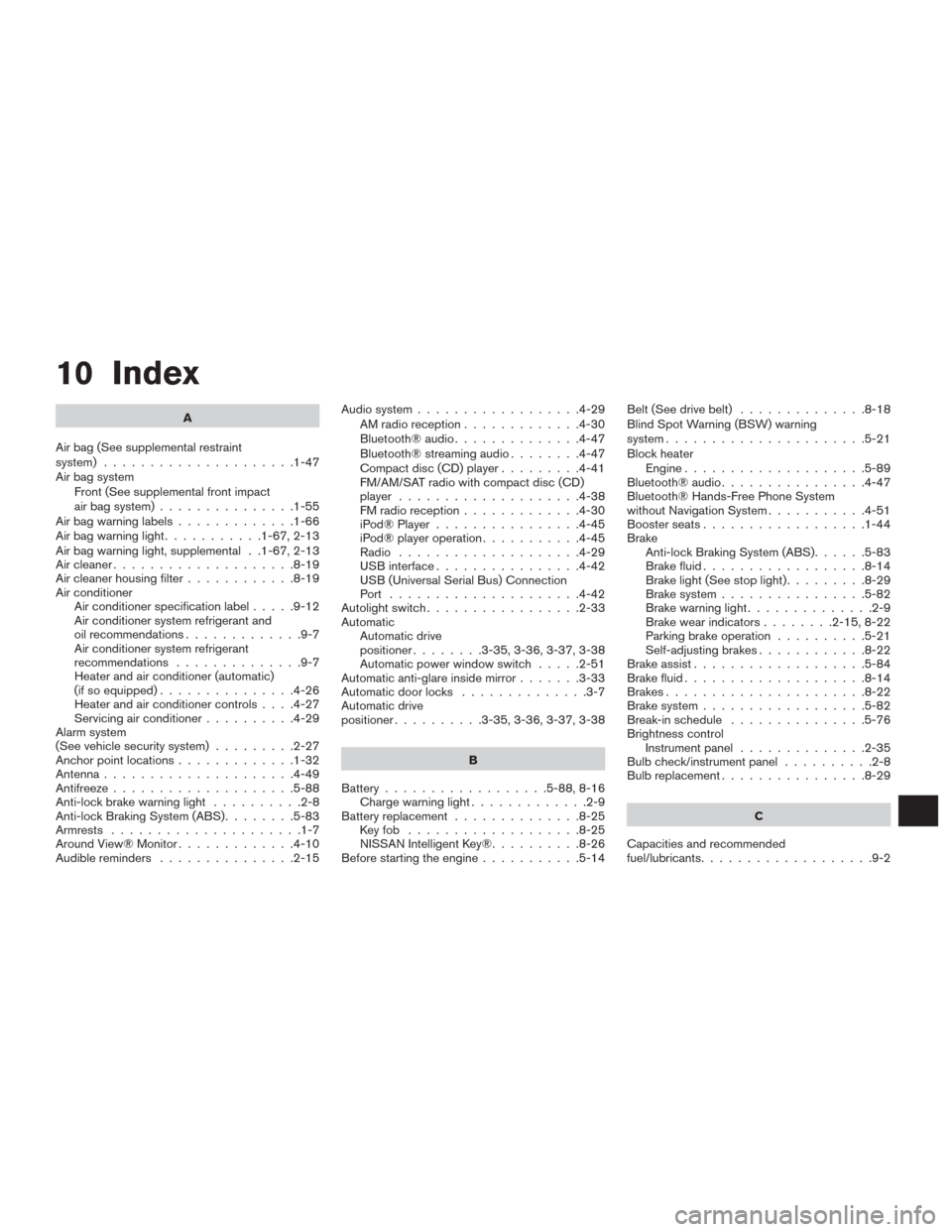
10 Index
A
Air bag (See supplemental restraint
system) .....................1-47
Air bag system
Front (See supplemental front impact
air bag system)...............1-55
Airbagwarninglabels.............1-66
Airbagwarninglight...........1-67,2-13
Air bag warning light, supplemental . .1-67, 2-13
Aircleaner....................8-19
Air cleaner housing filter............8-19
Air conditioner
Air conditioner specification label.....9-12
Air conditioner system refrigerant and
oil recommendations.............9-7
Air conditioner system refrigerant
recommendations..............9-7
Heater and air conditioner (automatic)
(if so equipped)...............4-26
Heater and air conditioner controls....4-27
Servicing air conditioner..........4-29
Alarm system
(See vehicle security system).........2-27
Anchor point locations.............1-32
Antenna.....................4-49
Antifreeze....................5-88
Anti-lock brake warning light..........2-8
Anti-lock Braking System (ABS)........5-83
Armrests .....................1-7
Around View® Monitor.............4-10
Audible reminders...............2-15Audio system..................4-29
AMradioreception.............4-30
Bluetooth®audio..............4-47
Bluetooth® streaming audio........4-47
Compact disc (CD) player.........4-41
FM/AM/SAT radio with compact disc (CD)
player ....................4-38
FMradioreception.............4-30
iPod® Player................4-45
iPod® player operation...........4-45
Radio ....................4-29
USB interface................4-42
USB (Universal Serial Bus) Connection
Port .....................4-42
Autolight switch.................2-33
Automatic
Automatic drive
positioner........3-35,3-36,3-37,3-38
Automatic power window switch.....2-51
Automatic anti-glare inside mirror.......3-33
Automatic door locks..............3-7
Automatic drive
positioner..........3-35,3-36,3-37,3-38
B
Battery..................5-88,8-16
Chargewarninglight.............2-9
Battery replacement..............8-25
Keyfob ...................8-25
NISSAN Intelligent Key®..........8-26
Before starting the engine...........5-14Belt (See drive belt)..............8-18
Blind Spot Warning (BSW) warning
system......................5-21
Block heater
Engine....................5-89
Bluetooth® audio................4-47
Bluetooth® Hands-Free Phone System
without Navigation System...........4-51
Boosterseats..................1-44
Brake
Anti-lock Braking System (ABS)......5-83
Brake fluid..................8-14
Brakelight(Seestoplight).........8-29
Brake system................5-82
Brakewarninglight..............2-9
Brakewearindicators........2-15,8-22
Parking brake operation..........5-21
Self-adjusting brakes............8-22
Brake assist...................5-84
Brake fluid....................8-14
Brakes......................8-22
Brake system..................5-82
Break-inschedule ...............5-76
Brightness control
Instrument panel..............2-35
Bulb check/instrument panel..........2-8
Bulbreplacement................8-29
C
Capacities and recommended
fuel/lubricants...................9-2
Page 443 of 465
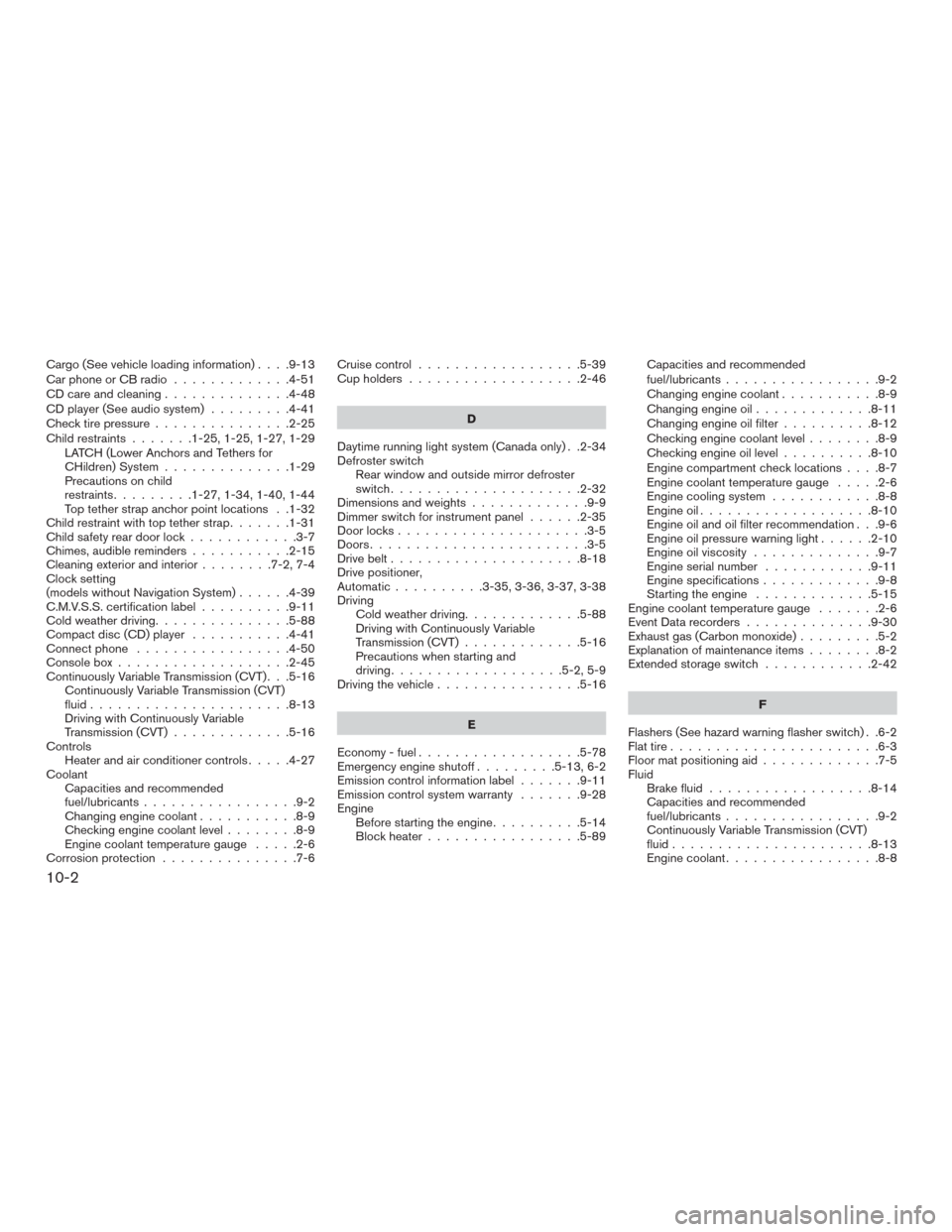
Cargo(Seevehicleloadinginformation)....9-13
Car phone or CB radio.............4-51
CD care and cleaning..............4-48
CD player (See audio system).........4-41
Check tire pressure...............2-25
Child restraints.......1-25,1-25,1-27,1-29
LATCH (Lower Anchors and Tethers for
CHildren) System..............1-29
Precautions on child
restraints.........1-27,1-34,1-40,1-44
Top tether strap anchor point locations . .1-32
Child restraint with top tether strap.......1-31
Child safety rear door lock............3-7
Chimes, audible reminders...........2-15
Cleaningexteriorandinterior........7-2,7-4
Clock setting
(models without Navigation System)......4-39
C.M.V.S.S. certification label..........9-11
Cold weather driving...............5-88
Compact disc (CD) player...........4-41
Connect phone.................4-50
Consolebox...................2-45
Continuously Variable Transmission (CVT) . . .5-16
Continuously Variable Transmission (CVT)
fluid......................8-13
Driving with Continuously Variable
Transmission (CVT).............5-16
Controls
Heater and air conditioner controls.....4-27
Coolant
Capacities and recommended
fuel/lubricants.................9-2
Changing engine coolant...........8-9
Checking engine coolant level........8-9
Engine coolant temperature gauge.....2-6
Corrosionprotection ...............7-6Cruisecontrol..................5-39
Cupholders...................2-46
D
Daytime running light system (Canada only) . .2-34
Defroster switch
Rear window and outside mirror defroster
switch.....................2-32
Dimensionsandweights.............9-9
Dimmer switch for instrument panel......2-35
Door locks.....................3-5
Doors........................3-5
Drive belt.....................8-18
Drive positioner,
Automatic..........3-35,3-36,3-37,3-38
Driving
Cold weather driving.............5-88
Driving with Continuously Variable
Transmission (CVT).............5-16
Precautions when starting and
driving...................5-2,5-9
Driving the vehicle................5-16
E
Economy - fuel..................5-78
Emergency engine shutoff.........5-13,6-2
Emission control information label.......9-11
Emission control system warranty.......9-28
Engine
Before starting the engine..........5-14
Block heater.................5-89Capacities and recommended
fuel/lubricants.................9-2
Changing engine coolant...........8-9
Changingengineoil.............8-11
Changing engine oil filter..........8-12
Checking engine coolant level........8-9
Checking engine oil level..........8-10
Engine compartment check locations....8-7
Engine coolant temperature gauge.....2-6
Engine cooling system............8-8
Engineoil...................8-10
Engine oil and oil filter recommendation . . .9-6
Engine oil pressure warning light......2-10
Engine oil viscosity..............9-7
Engine serial number............9-11
Engine specifications.............9-8
Starting the engine.............5-15
Engine coolant temperature gauge.......2-6
Event Data recorders..............9-30
Exhaust gas (Carbon monoxide).........5-2
Explanation of maintenance items........8-2
Extended storage switch............2-42
F
Flashers (See hazard warning flasher switch) . .6-2
Flat tire.......................6-3
Floor mat positioning aid.............7-5
Fluid
Brake fluid..................8-14
Capacities and recommended
fuel/lubricants.................9-2
Continuously Variable Transmission (CVT)
fluid......................8-13
Enginecoolant.................8-8
10-2