audio NISSAN MURANO 2019 Owner´s Manual
[x] Cancel search | Manufacturer: NISSAN, Model Year: 2019, Model line: MURANO, Model: NISSAN MURANO 2019Pages: 507, PDF Size: 6.1 MB
Page 9 of 507
Table of
ContentsIllustrated table of contents
Safety—Seats, seat belts and supplemental restraint system
Instruments and controls
Pre-driving checks and adjustments
Monitor, climate, audio, phone and voice recognition systems
Starting and driving
In case of emergency
Appearance and care
Do-it-yourself
Maintenance and schedules
Technical and consumer information
Index
0
1
2
3
4
5
6
7
8
9
10
11
Page 16 of 507
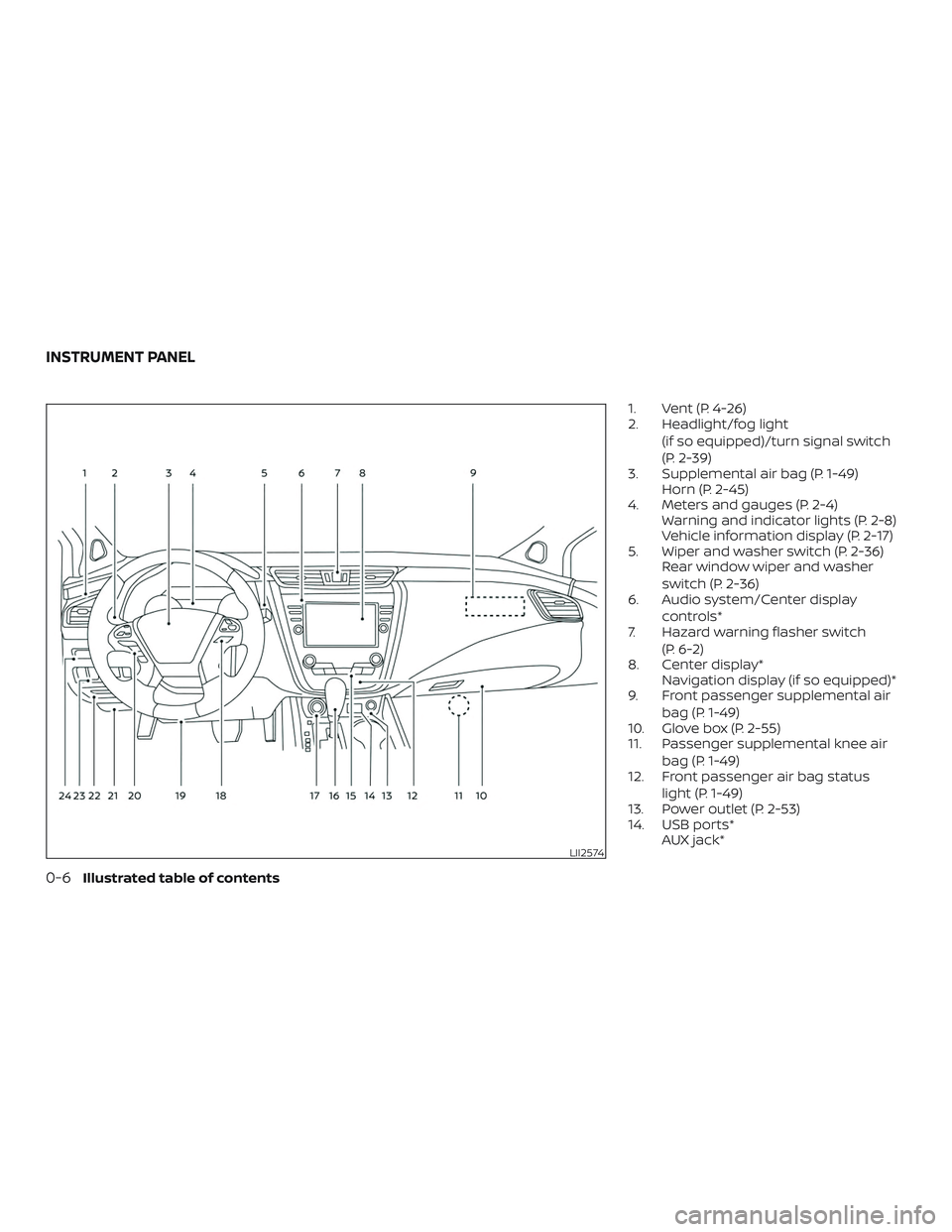
1. Vent (P. 4-26)
2. Headlight/fog light(if so equipped)/turn signal switch
(P. 2-39)
3. Supplemental air bag (P. 1-49) Horn (P. 2-45)
4. Meters and gauges (P. 2-4) Warning and indicator lights (P. 2-8)
Vehicle information display (P. 2-17)
5. Wiper and washer switch (P. 2-36) Rear window wiper and washer
switch (P. 2-36)
6. Audio system/Center display
controls*
7. Hazard warning flasher switch
(P. 6-2)
8. Center display* Navigation display (if so equipped)*
9. Front passenger supplemental air
bag (P. 1-49)
10. Glove box (P. 2-55)
11. Passenger supplemental knee air
bag (P. 1-49)
12. Front passenger air bag status
light (P. 1-49)
13. Power outlet (P. 2-53)
14. USB ports* AUX jack*
LII2574
INSTRUMENT PANEL
0-6Illustrated table of contents
Page 17 of 507
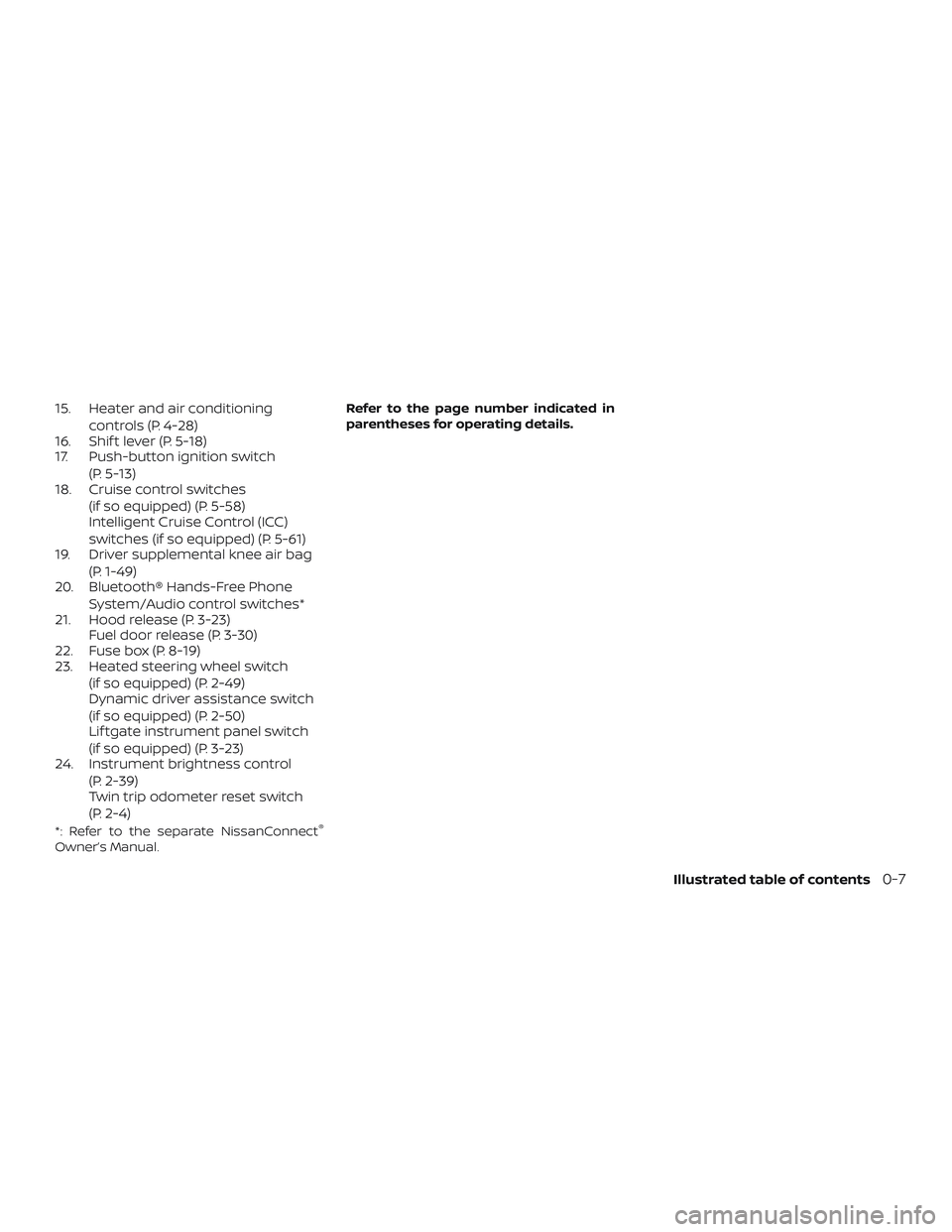
15. Heater and air conditioningcontrols (P. 4-28)
16. Shif t lever (P. 5-18)
17. Push-button ignition switch
(P. 5-13)
18. Cruise control switches
(if so equipped) (P. 5-58)
Intelligent Cruise Control (ICC)
switches (if so equipped) (P. 5-61)
19. Driver supplemental knee air bag
(P. 1-49)
20. Bluetooth® Hands-Free Phone
System/Audio control switches*
21. Hood release (P. 3-23) Fuel door release (P. 3-30)
22. Fuse box (P. 8-19)
23. Heated steering wheel switch
(if so equipped) (P. 2-49)
Dynamic driver assistance switch
(if so equipped) (P. 2-50)
Lif tgate instrument panel switch
(if so equipped) (P. 3-23)
24. Instrument brightness control
(P. 2-39)
Twin trip odometer reset switch
(P. 2-4)
*: Refer to the separate NissanConnect®
Owner’s Manual. Refer to the page number indicated in
parentheses for operating details.
Illustrated table of contents0-7
Page 96 of 507
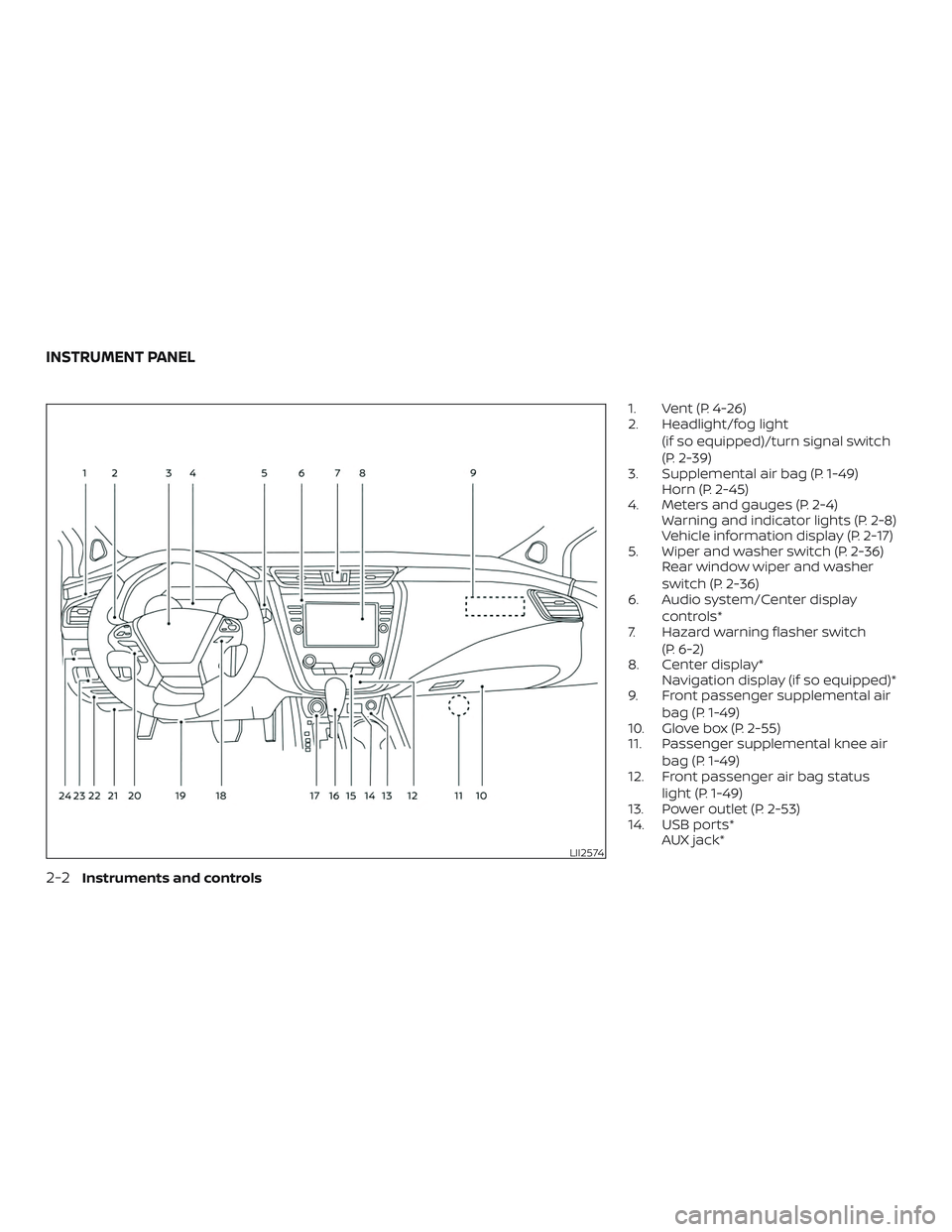
1. Vent (P. 4-26)
2. Headlight/fog light(if so equipped)/turn signal switch
(P. 2-39)
3. Supplemental air bag (P. 1-49) Horn (P. 2-45)
4. Meters and gauges (P. 2-4) Warning and indicator lights (P. 2-8)
Vehicle information display (P. 2-17)
5. Wiper and washer switch (P. 2-36) Rear window wiper and washer
switch (P. 2-36)
6. Audio system/Center display
controls*
7. Hazard warning flasher switch
(P. 6-2)
8. Center display* Navigation display (if so equipped)*
9. Front passenger supplemental air
bag (P. 1-49)
10. Glove box (P. 2-55)
11. Passenger supplemental knee air
bag (P. 1-49)
12. Front passenger air bag status
light (P. 1-49)
13. Power outlet (P. 2-53)
14. USB ports* AUX jack*
LII2574
INSTRUMENT PANEL
2-2Instruments and controls
Page 97 of 507
15. Heater and air conditioningcontrols (P. 4-28)
16. Shif t lever (P. 5-18)
17. Push-button ignition switch
(P. 5-13)
18. Cruise control switches
(if so equipped) (P. 5-58)
Intelligent Cruise Control (ICC)
switches (if so equipped) (P. 5-61)
19. Driver supplemental knee air bag
(P. 1-49)
20. Bluetooth® Hands-Free Phone
System/Audio control switches*
21. Hood release (P. 3-23) Fuel door release (P. 3-30)
22. Fuse box (P. 8-19)
23. Heated steering wheel switch
(if so equipped) (P. 2-49)
Dynamic driver assistance switch
(if so equipped) (P. 2-50)
Lif tgate instrument panel switch
(if so equipped) (P. 3-23)
24. Instrument brightness control
(P. 2-39)
Twin trip odometer reset switch
(P. 2-4)
*: Refer to the separate NissanConnect®
Owner’s Manual. Refer to the page number indicated in
parentheses for operating details.
Instruments and controls2-3
Page 111 of 507
NISSAN Intelligent Key® Lock-in
Prevention
The Intelligent Key buzzer sounds if the In-
telligent Key is lef t inside the vehicle when
the doors are closed and locked. When the
buzzer sounds, be sure to take the Intelli-
gent Key with you when leaving the vehicle.
For additional information, refer to “NISSAN
Intelligent Key®” in the “Pre-driving checks
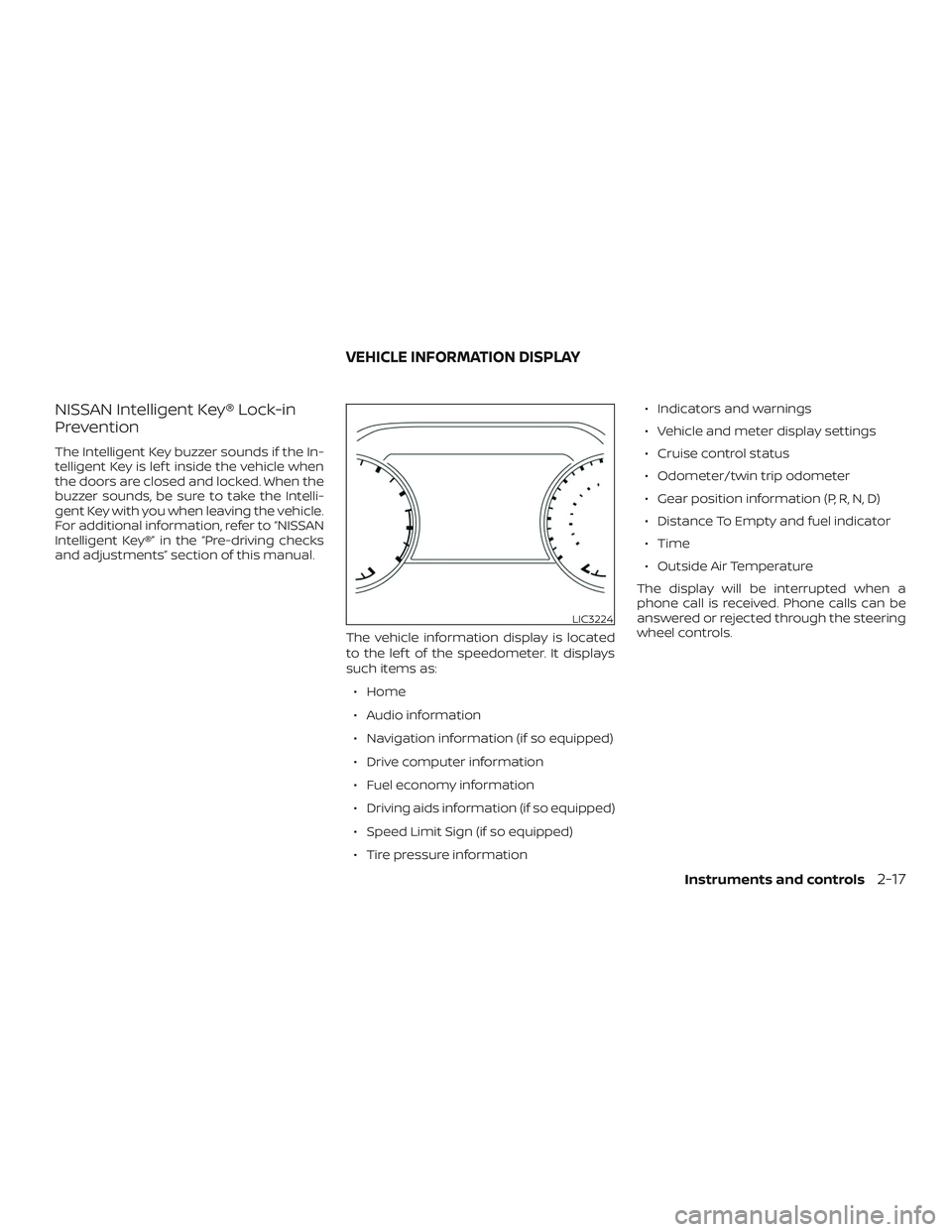
and adjustments” section of this manual.The vehicle information display is located
to the lef t of the speedometer. It displays
such items as:∙ Home
∙ Audio information
∙ Navigation information (if so equipped)
∙ Drive computer information
∙ Fuel economy information
∙ Driving aids information (if so equipped)
∙ Speed Limit Sign (if so equipped)
∙ Tire pressure information ∙ Indicators and warnings
∙ Vehicle and meter display settings
∙ Cruise control status
∙ Odometer/twin trip odometer
∙ Gear position information (P, R, N, D)
∙ Distance To Empty and fuel indicator
∙ Time
∙ Outside Air Temperature
The display will be interrupted when a
phone call is received. Phone calls can be
answered or rejected through the steering
wheel controls.
LIC3224
VEHICLE INFORMATION DISPLAY
Instruments and controls2-17
Page 112 of 507
HOW TO USE THE VEHICLE
INFORMATION DISPLAY
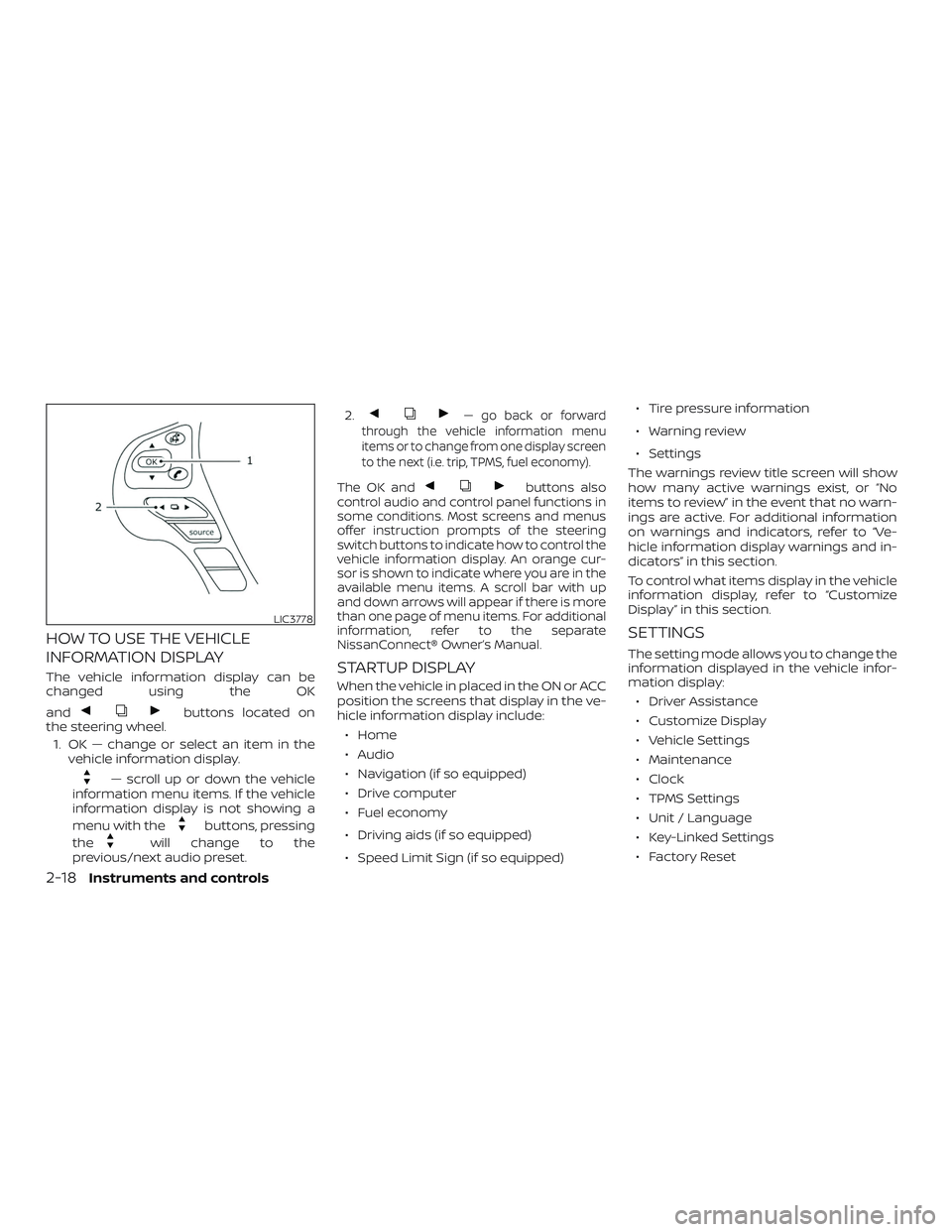
The vehicle information display can be
changed using the OK
and
buttons located on
the steering wheel.
1. OK — change or select an item in the vehicle information display.
— scroll up or down the vehicle
information menu items. If the vehicle
information display is not showing a
menu with the
buttons, pressing
the
will change to the
previous/next audio preset. 2.
— go back or forward
through the vehicle information menu
items or to change from one display screen
to the next (i.e. trip, TPMS, fuel economy).
The OK andbuttons also
control audio and control panel functions in
some conditions. Most screens and menus
offer instruction prompts of the steering
switch buttons to indicate how to control the
vehicle information display. An orange cur-
sor is shown to indicate where you are in the
available menu items. A scroll bar with up
and down arrows will appear if there is more
than one page of menu items. For additional
information, refer to the separate
NissanConnect® Owner’s Manual.
STARTUP DISPLAY
When the vehicle in placed in the ON or ACC
position the screens that display in the ve-
hicle information display include:
∙ Home
∙ Audio
∙ Navigation (if so equipped)
∙ Drive computer
∙ Fuel economy
∙ Driving aids (if so equipped)
∙ Speed Limit Sign (if so equipped) ∙ Tire pressure information
∙ Warning review
∙ Settings
The warnings review title screen will show
how many active warnings exist, or “No
items to review” in the event that no warn-
ings are active. For additional information
on warnings and indicators, refer to “Ve-
hicle information display warnings and in-
dicators” in this section.
To control what items display in the vehicle
information display, refer to “Customize
Display” in this section.
SETTINGS
The setting mode allows you to change the
information displayed in the vehicle infor-
mation display: ∙ Driver Assistance
∙ Customize Display
∙ Vehicle Settings
∙ Maintenance
∙ Clock
∙ TPMS Settings
∙ Unit / Language
∙ Key-Linked Settings
∙ Factory Reset
LIC3778
2-18Instruments and controls
Page 114 of 507
Menu itemResult
Driver Attention Alert Allows user to turn the Intelligent Driver Alertness (I-DA) on or off. For additional information, refer to “Intelligent
Driver Alertness (I-DA)” in the “Starting and driving” section of this manual.
Timer Alert Allows user to set or reset the timer alert. The timer alert is based on when the ignition is placed in the ON
position.
Low Temperature Alert Allows user to turn the low temperature alert on or off.
Cruise Control Alerts Allows user to turn the cruise control alerts on or off.
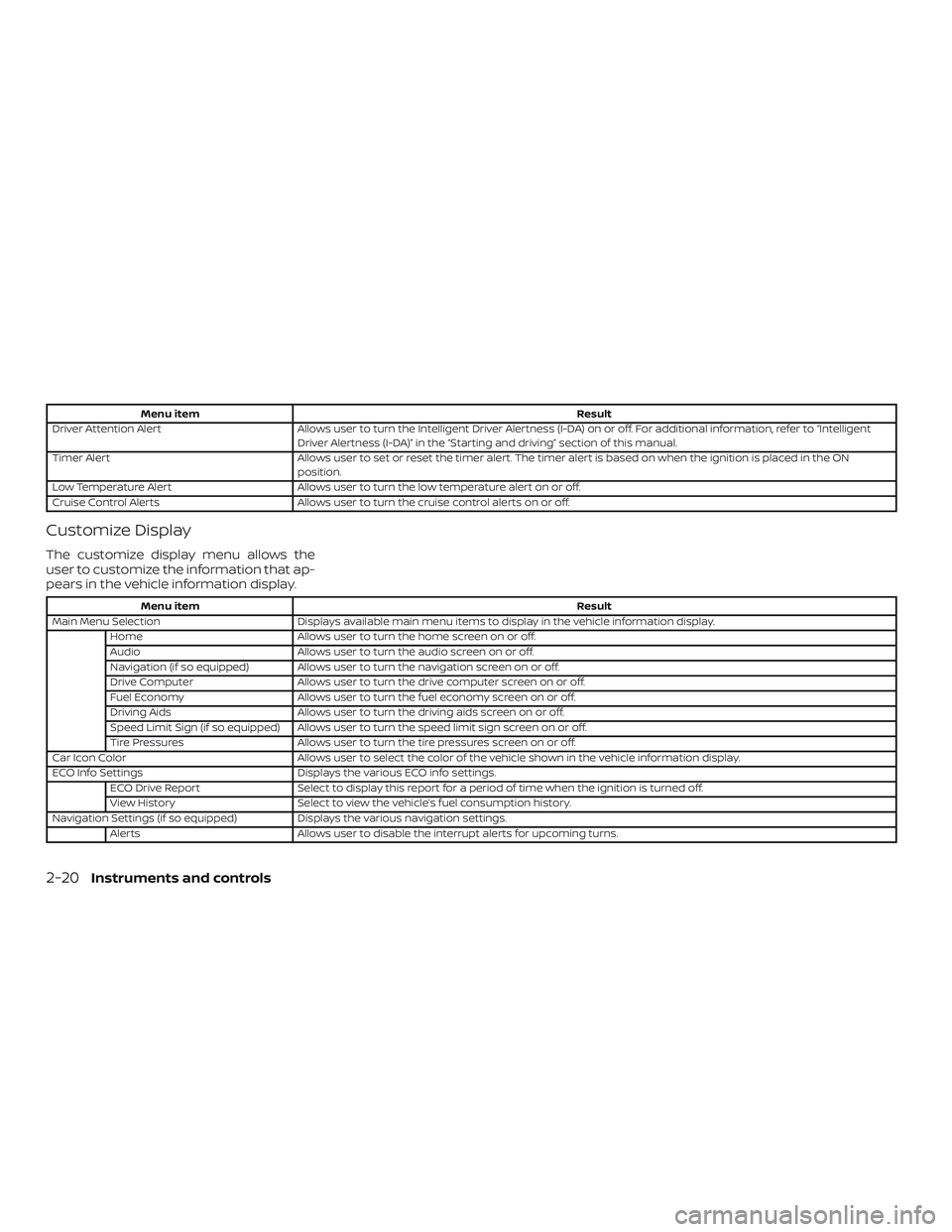
Customize Display
The customize display menu allows the
user to customize the information that ap-
pears in the vehicle information display.
Menu item Result
Main Menu Selection Displays available main menu items to display in the vehicle information display.
Home Allows user to turn the home screen on or off.
Audio Allows user to turn the audio screen on or off.
Navigation (if so equipped) Allows user to turn the navigation screen on or off.
Drive Computer Allows user to turn the drive computer screen on or off.
Fuel Economy Allows user to turn the fuel economy screen on or off.
Driving Aids Allows user to turn the driving aids screen on or off.
Speed Limit Sign (if so equipped) Allows user to turn the speed limit sign screen on or off.
Tire Pressures Allows user to turn the tire pressures screen on or off.
Car Icon Color Allows user to select the color of the vehicle shown in the vehicle information display.
ECO Info Settings Displays the various ECO info settings.
ECO Drive Report Select to display this report for a period of time when the ignition is turned off.
View History Select to view the vehicle’s fuel consumption history.
Navigation Settings (if so equipped) Displays the various navigation settings.
Alerts Allows user to disable the interrupt alerts for upcoming turns.
2-20Instruments and controls
Page 118 of 507
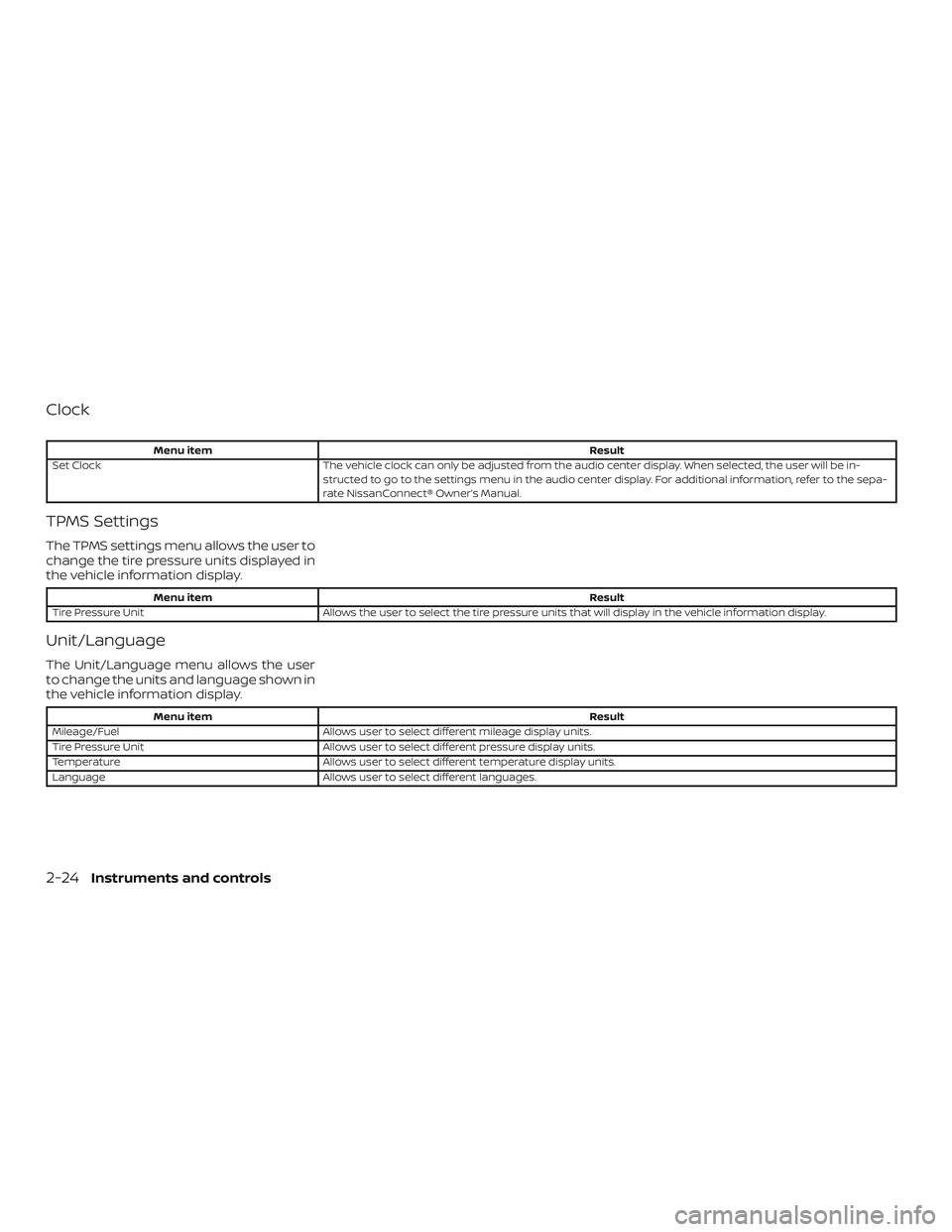
Clock
Menu itemResult
Set Clock The vehicle clock can only be adjusted from the audio center display. When selected, the user will be in-
structed to go to the settings menu in the audio center display. For additional information, refer to the sepa-
rate NissanConnect® Owner’s Manual.
TPMS Settings
The TPMS settings menu allows the user to
change the tire pressure units displayed in
the vehicle information display.
Menu item Result
Tire Pressure Unit Allows the user to select the tire pressure units that will display in the vehicle information display.
Unit/Language
The Unit/Language menu allows the user
to change the units and language shown in
the vehicle information display.
Menu item Result
Mileage/Fuel Allows user to select different mileage display units.
Tire Pressure Unit Allows user to select different pressure display units.
Temperature Allows user to select different temperature display units.
Language Allows user to select different languages.
2-24Instruments and controls
Page 132 of 507
∙ Pre-mix windshield-washer fluid con-centrates with water to the manufac-
turer’s recommended levels before
pouring the fluid into the windshield-
washer fluid reservoir. Do not use the
windshield-washer fluid reservoir to
mix the windshield-washer fluid con-
centrate and water.
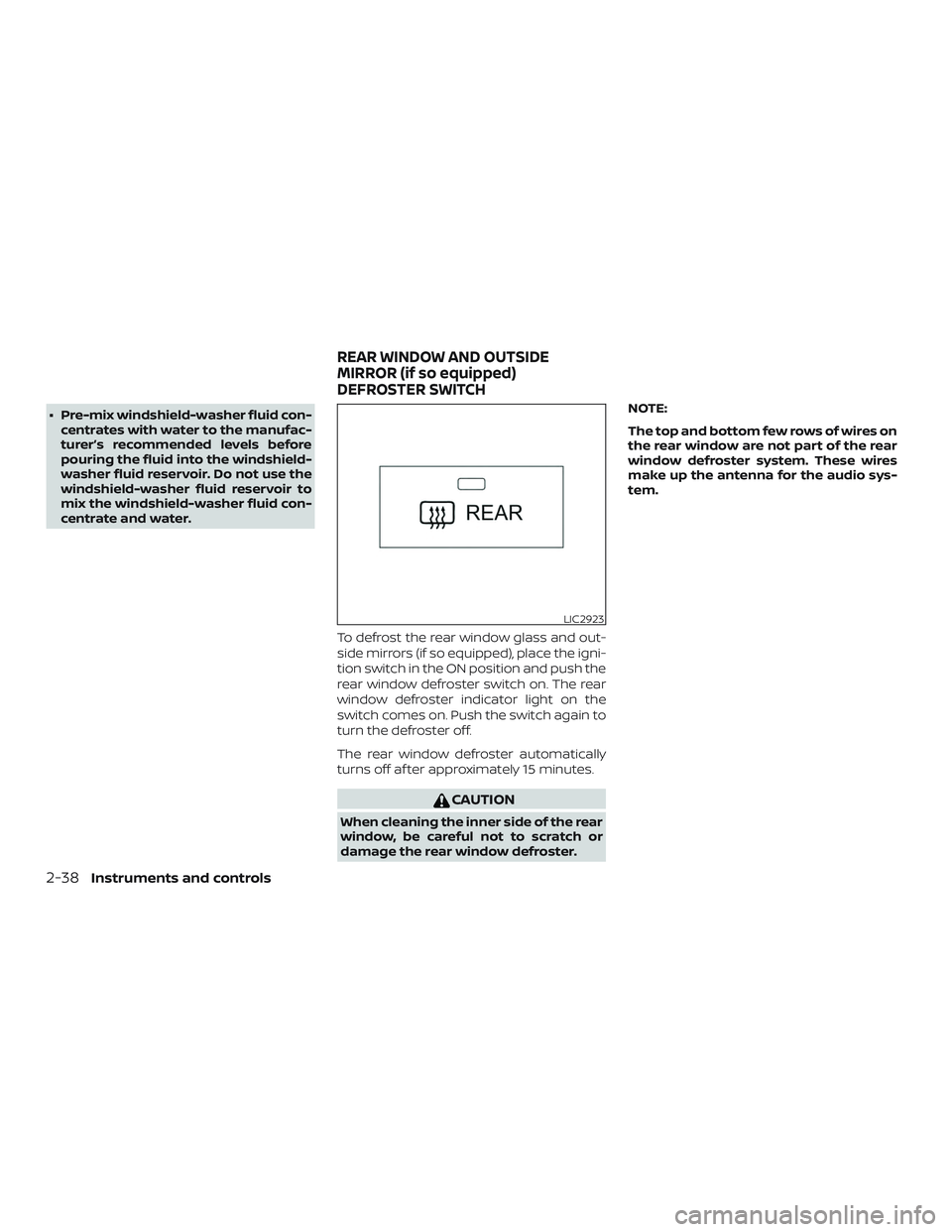
To defrost the rear window glass and out-
side mirrors (if so equipped), place the igni-
tion switch in the ON position and push the
rear window defroster switch on. The rear
window defroster indicator light on the
switch comes on. Push the switch again to
turn the defroster off.
The rear window defroster automatically
turns off af ter approximately 15 minutes.
CAUTION
When cleaning the inner side of the rear
window, be careful not to scratch or
damage the rear window defroster. NOTE:
The top and bottom few rows of wires on
the rear window are not part of the rear
window defroster system. These wires
make up the antenna for the audio sys-
tem.
LIC2923
REAR WINDOW AND OUTSIDE
MIRROR (if so equipped)
DEFROSTER SWITCH
2-38Instruments and controls