phone NISSAN MURANO HYBRID 2016 3.G Quick Reference Guide
[x] Cancel search | Manufacturer: NISSAN, Model Year: 2016, Model line: MURANO HYBRID, Model: NISSAN MURANO HYBRID 2016 3.GPages: 36, PDF Size: 3.39 MB
Page 30 of 36
28
SYSTEM GUIDE
BLUETOOTH® STREAMING AUDIO*,1
If you have a compatible Bluetooth®,1 device
with streaming audio (A2DP profile), you can
set up the wireless connection between your
Bluetooth
®,1 device and your vehicle’s audio
system. This connection allows you to listen to
audio from the Bluetooth
®,1 device using your
vehicle’s speakers.
A cellular telephone should not be used
while driving so full attention may be given to
vehicle operation.
CONNECTING PROCEDURE
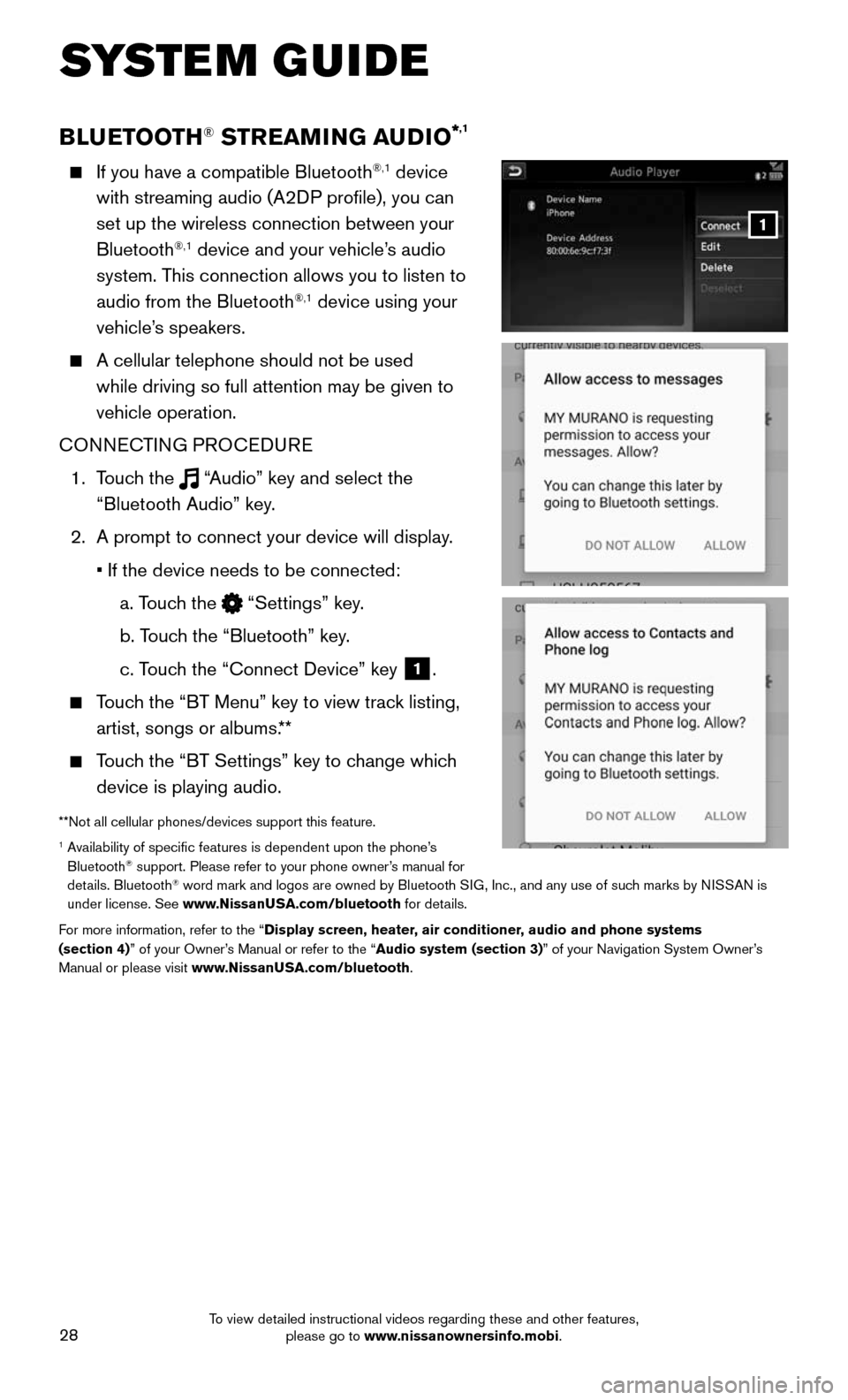
1. Touch the “Audio” key and select the
“Bluetooth Audio” key.
2. A prompt to connect your device will display .
• If the device needs to be connected:
a. Touch the “Settings” key.
b. Touch the “Bluetooth” key.
c. Touch the “Connect Device” key 1.
Touch the “BT Menu” key to view track listing,
artist, songs or albums.**
Touch the “BT Settings” key to change which
device is playing audio.
**Not all cellular phones/devices support this feature.1 Availability of specific features is dependent upon the phone’s Bluetooth® support. Please refer to your phone owner’s manual for
details. Bluetooth® word mark and logos are owned by Bluetooth SIG, Inc., and any use of such marks by NISSAN is
under license. See www.NissanUSA.com/bluetooth for details.
For more information, refer to the “Display screen, heater, air conditioner, audio and phone systems
(section 4)” of your Owner’s Manual or refer to the “Audio system (section 3)” of your Navigation System Owner’s
Manual or please visit www.NissanUSA.com/bluetooth.
1
To view detailed instructional videos regarding these and other features, please go to www.nissanownersinfo.mobi.
Page 31 of 36

29
NAVIGATION SYSTEM
Your Navigation System can calculate a route from your current location t\
o a preferred
destination. The real-time map display and turn-by-turn voice guidance will lead you
along the route.
The Navigation System will continually update your vehicle’s position. If you have
deviated from the original route, it will recalculate the route from you\
r current location.
To help promote safe driving, some functions cannot be operated or have limited operation\
when
the vehicle speed is above 5 mph (8 km/h). The on-screen text and keys for these restricted
functions will be grayed-out or muted and cannot be selected while drivi\
ng. These functions will
become available again when the vehicle speed is reduced to 5 mph (8 km\
/h). Voice commands
may be available for some of the restricted functions. For more information, refer to the “Display
screen, heater, air conditioner, audio and phone systems (section 4)” of your Owner’s Manual and
the “Information (section 5)” of your Navigation System Owner’s Manual.
1 MENU - Touch to access all items in the menu, including Navigation items.
2 Touch-screen
3 MAP Menu - Touch to access different options related to either a selected location
by touch or one that you have navigated to. Some options include “Save Location”,
“Nearby POIs” or “Map Icons”.
4 Navi (Navigation) - Touch to access the Navigation function.
5 Info (Information) - Touch to display the vehicle, traffic (if so equipped) and weather
(if so equipped) information.
6 ZOOM OUT, 7 ZOOM IN - Touch to adjust the map scale. When parked, you can
pinch out or in to zoom on the screen.
8 Map - Touch to display the map.
9 Settings - Touch to display the system settings.
5
26
3
7
1849
10
To view detailed instructional videos regarding these and other features, please go to www.nissanownersinfo.mobi.
Page 36 of 36
Nissan, the Nissan Brand Symbol, Z and
Nissan model names are Nissan trademarks.
©
2 015 Nissan North America, Inc.
QR16EA HZ52U0
Printing: December
2 015 (01)
To view detailed instructional videos,
go to www.nissanownersinfo.mobi/2016/murano
or snap this barcode with an appropriate barcode reader.
This Quick Reference Guide is intended to provide an overview of some of the uniq\
ue features of your new vehicle. Please see your Owner’s Manual for important safety information and system operation limitations. Features and equipment in your vehicle
may vary depending on model, trim level, options selected, order, date of production, region or availability. Therefore, you may
find information about features or equipment that are not included or \
installed on your vehicle.
All information, specifications and illustrations in this Quick Reference Guide are those in effect at the time of printing. NISSAN
reserves the right to change specifications, performance, design or component suppliers witho\
ut notice and without obligation.
From time to time, NISSAN may update or revise this Quick Reference Guide to provide owners with the most accurate
information currently available. Please carefully read and retain with this Quick Reference Guide all revision updates sent to
you by NISSAN to ensure you have access to accurate and up-to-date information reg\
arding your vehicle. Current versions of
vehicle Quick Reference Guides, Owner’s Manuals and any updates can also be found in the Owner section of the \
NISSAN
website at https://owners.nissanusa.com/nowners/navigation/manualsGuide. If you have questions concerning any
information in your Owner’s Manual, contact NISSAN Consumer Affairs. See the NISSAN CUSTOMER CARE PROGRAM
page in the Owner’s Manual for contact information.
Helpful Resources
Below is a list of helpful resources that can be used to learn
more about the vehicle’s systems and feature operations.
Vehicle Owner’s Manual
Navigation System Owner ’s Manual (if so equipped)
Printed Quick Reference Guide (this document)
www.NissanUSA.com/bluetooth
www.NissanUSA.com/connect
www.youtube.com/user/NissanUSA
Nissan Consumer Affairs: 1-800-647-7261
Electronic Quic k Reference Guide
(Use Quick Response (QR) code or URL below.)
Nissan Quick Guide (available in the iPhone App
Store or Android Google Play Store for download to
your smartphone).