phone NISSAN NV200 2016 Owner's Guide
[x] Cancel search | Manufacturer: NISSAN, Model Year: 2016, Model line: NV200, Model: NISSAN NV200 2016Pages: 312, PDF Size: 6.65 MB
Page 157 of 312
●If there is a file in the top level of the disc,
“Root Folder” is displayed.
● The playback order is the order in which the
files were written by the writing software.
Therefore, the files might not play in the
desired order.
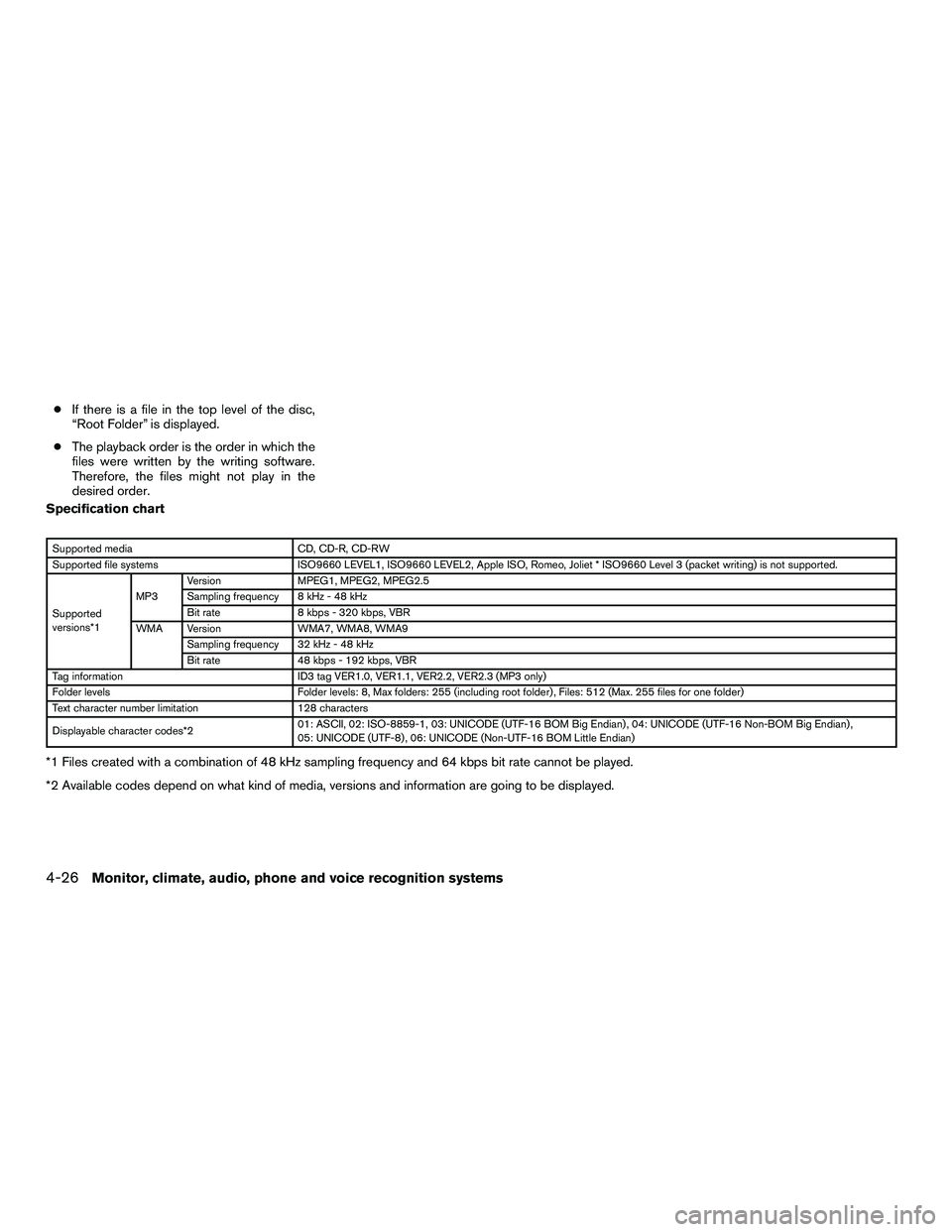
Specification chart
Supported media CD, CD-R, CD-RW
Supported file systems ISO9660 LEVEL1, ISO9660 LEVEL2, Apple ISO, Romeo, Joliet * ISO9660 Level 3 (packet writing) is not supported.
Supported
versions*1 MP3
Version
MPEG1, MPEG2, MPEG2.5
Sampling frequency 8 kHz - 48 kHz
Bit rate 8 kbps - 320 kbps, VBR
WMA Version WMA7, WMA8, WMA9
Sampling frequency 32 kHz - 48 kHz
Bit rate 48 kbps - 192 kbps, VBR
Tag information ID3 tag VER1.0, VER1.1, VER2.2, VER2.3 (MP3 only)
Folder levels Folder levels: 8, Max folders: 255 (including root folder) , Files: 512 (Max. 255 files for one folder)
Text character number limitation 128 characters
Displayable character codes*2 01: ASCII, 02: ISO-8859-1, 03: UNICODE (UTF-16 BOM Big Endian) , 04: UNICODE (UTF-16 Non-BOM Big Endian) ,
05: UNICODE (UTF-8) , 06: UNICODE (Non-UTF-16 BOM Little Endian)
*1 Files created with a combination of 48 kHz sampling frequency and 64 kbps bit rate cannot be played.
*2 Available codes depend on what kind of media, versions and information are going to be displayed.
4-26Monitor, climate, audio, phone and voice recognition systems
Page 158 of 312
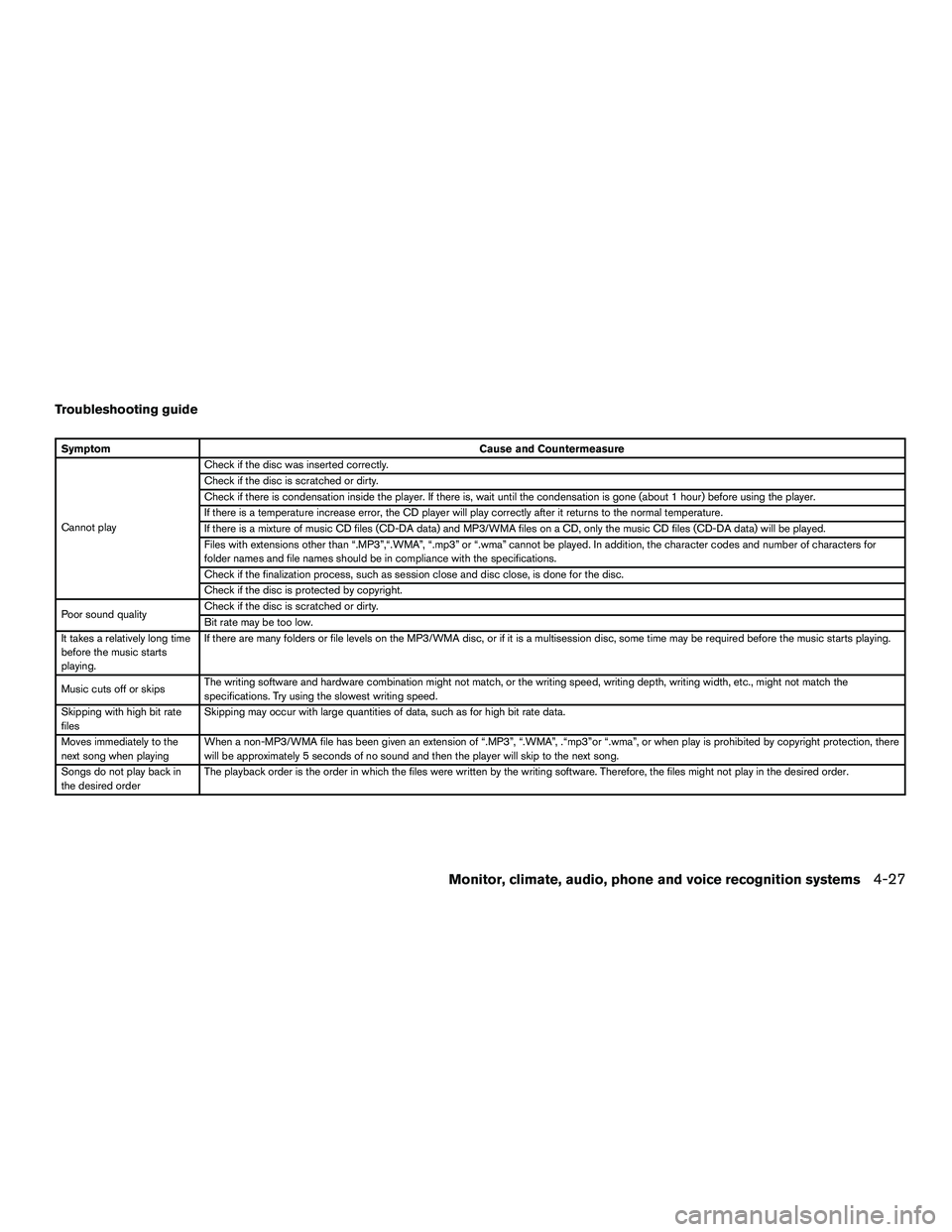
Troubleshooting guide
SymptomCause and Countermeasure
Cannot play Check if the disc was inserted correctly.
Check if the disc is scratched or dirty.
Check if there is condensation inside the player. If there is, wait until the condensation is gone (about 1 hour) before using the player.
If there is a temperature increase error, the CD player will play correctly after it returns to the normal temperature.
If there is a mixture of music CD files (CD-DA data) and MP3/WMA files on a CD, only the music CD files (CD-DA data) will be played.
Files with extensions other than “.MP3”,“.WMA”, “.mp3” or “.wma” cannot be played. In addition, the character codes and number of characters for
folder names and file names should be in compliance with the specifications.
Check if the finalization process, such as session close and disc close, is done for the disc.
Check if the disc is protected by copyright.
Poor sound quality Check if the disc is scratched or dirty.
Bit rate may be too low.
It takes a relatively long time
before the music starts
playing. If there are many folders or file levels on the MP3/WMA disc, or if it is a multisession disc, some time may be required before the music starts playing.
Music cuts off or skips The writing software and hardware combination might not match, or the writing speed, writing depth, writing width, etc., might not match the
specifications. Try using the slowest writing speed.
Skipping with high bit rate
files Skipping may occur with large quantities of data, such as for high bit rate data.
Moves immediately to the
next song when playing When a non-MP3/WMA file has been given an extension of “.MP3”, “.WMA”, .“mp3”or “.wma”, or when play is prohibited by copyright protection, there
will be approximately 5 seconds of no sound and then the player will skip to the next song.
Songs do not play back in
the desired order The playback order is the order in which the files were written by the writing software. Therefore, the files might not play in the desired order.
Monitor, climate, audio, phone and voice recognition systems4-27
Page 159 of 312
USB (Universal Serial Bus)
Connection Port
WARNING
Do not connect, disconnect, or operate the
USB device while driving. Doing so can be
a distraction. If distracted you could lose
control of your vehicle and cause an acci-
dent or serious injury.
CAUTION
●Do not force the USB device into the
USB port. Inserting the USB device
tilted or up-side-down into the port may
damage the port. Make sure that the
USB device is connected correctly into
the USB port.
● Do not grab the USB port cover (if so
equipped) when pulling the USB device
out of the port. This could damage the
port and the cover.
● Do not leave the USB cable in a place
where it can be pulled unintentionally.
Pulling the cable may damage the port.
The vehicle is not equipped with a USB device.
USB devices should be purchased separately as
necessary. This system cannot be used to format USB de-
vices. To format a USB device, use a personal
computer.
In some jurisdictions, the USB device for the front
seats plays only sound without images for regu-
latory reasons, even when the vehicle is parked.
This system supports various USB memory de-
vices, USB hard drives and iPod® players. Some
USB devices may not be supported by this sys-
tem.
● Partitioned USB devices may not play cor-
rectly.
● Some characters used in other languages
(Chinese, Japanese, etc.) may not appear
properly in the display. Using English lan-
guage characters with a USB device is rec-
ommended.
General notes for USB use ● Refer to your device manufacturer’s owner
information regarding the proper use and
care of the device.
Notes for iPod® use
iPod® is a trademark of Apple Inc., registered in
the U.S. and other countries. ●
Improperly plugging in the iPod® may cause
a check mark to be displayed on and off
(flickering) . Always make sure that the
iPod® is connected properly.
● An iPod® nano (1st Generation) may remain
in fast forward or rewind mode if it is con-
nected during a seek operation. In this case,
please manually reset the iPod®.
● An iPod® nano (2nd Generation) will con-
tinue to fast-forward or rewind if it is discon-
nected during a seek operation.
● An incorrect song title may appear when the
Play Mode is changed while using an iPod®
nano (2nd Generation) .
● Audiobooks may not play in the same order
as they appear on an iPod®.
● Large video files cause slow responses in an
iPod®. The vehicle center display may mo-
mentarily black out, but will soon recover.
● If an iPod® automatically selects large video
files while in the shuffle mode, the vehicle
center display may momentarily black out,
but will soon recover.
4-28Monitor, climate, audio, phone and voice recognition systems
Page 160 of 312
Bluetooth® streaming audio
●Some Bluetooth® audio devices may not be
recognized by the in-vehicle audio system.
● It is necessary to set up the wireless con-
nection between a compatible Bluetooth®
audio device and the in-vehicle Bluetooth®
module before using the Bluetooth® audio.
● Operating procedure of the Bluetooth® au-
dio will vary depending on the devices. Make
sure how to operate your audio device be-
fore using it with this system.
● The Bluetooth® audio may be stopped un-
der the following conditions:
● Receiving a call on the Hands-Free
Phone System.
● Checking the connection to the hands-
free phone.
● Do not place the Bluetooth® audio device in
an area surrounded by metal or far away from
the in-vehicle Bluetooth® module to prevent
tone quality degradation and wireless con-
nection disruption. ●
While an audio device is connected through
the Bluetooth® wireless connection, the
battery power of the device may discharge
quicker than usual.
● This system supports the Bluetooth® Audio
Distribution Profile (A2DP, AVRCP) .
BLUETOOTH® is a
trademark owned by
Bluetooth SIG, Inc.
and licensed to
Bosch.
Monitor, climate, audio, phone and voice recognition systems4-29
Page 161 of 312
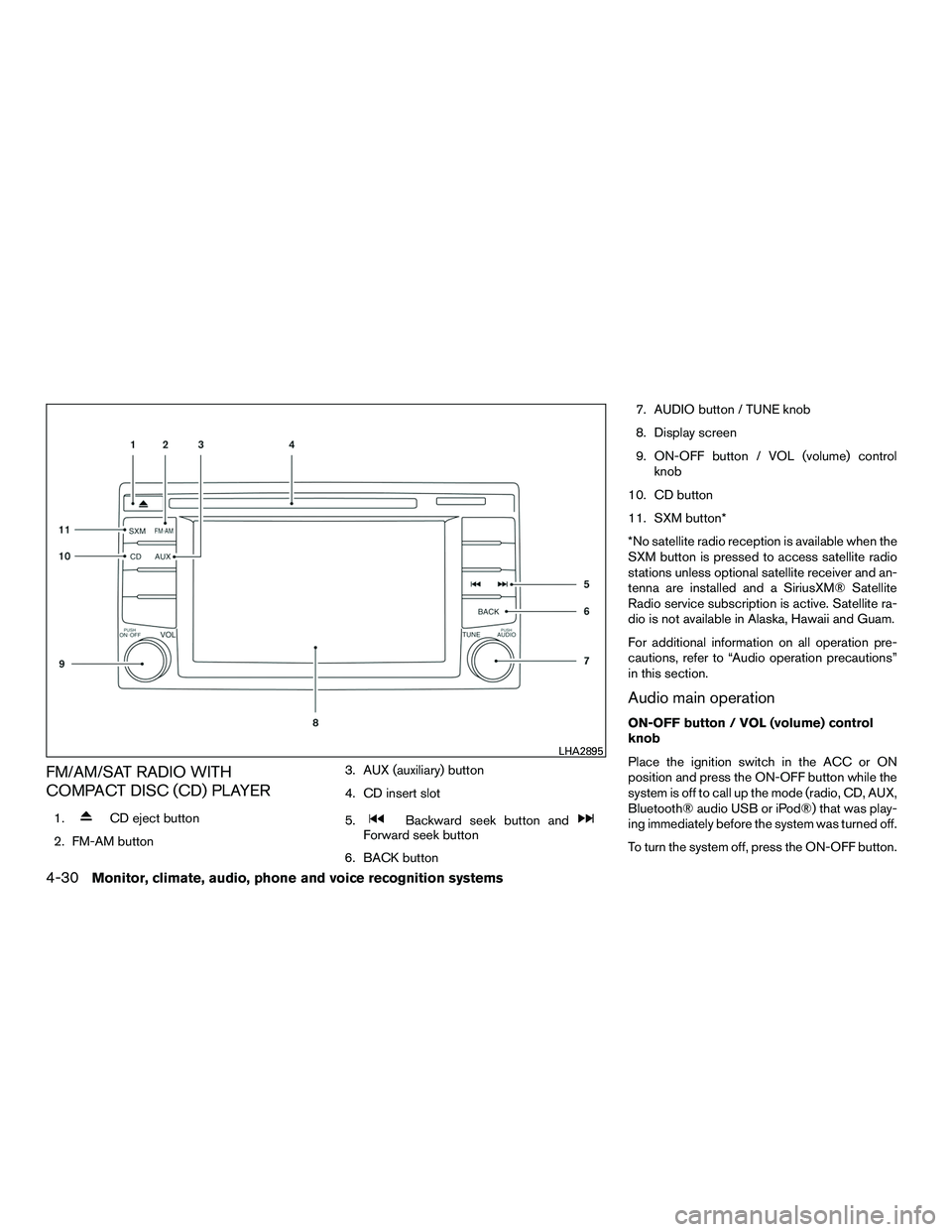
FM/AM/SAT RADIO WITH
COMPACT DISC (CD) PLAYER
1.CD eject button
2. FM-AM button 3. AUX (auxiliary) button
4. CD insert slot
5.Backward seek button andForward seek button
6. BACK button 7. AUDIO button / TUNE knob
8. Display screen
9. ON-OFF button / VOL (volume) control
knob
10. CD button
11. SXM button*
*No satellite radio reception is available when the
SXM button is pressed to access satellite radio
stations unless optional satellite receiver and an-
tenna are installed and a SiriusXM® Satellite
Radio service subscription is active. Satellite ra-
dio is not available in Alaska, Hawaii and Guam.
For additional information on all operation pre-
cautions, refer to “Audio operation precautions”
in this section.
Audio main operation
ON-OFF button / VOL (volume) control
knob
Place the ignition switch in the ACC or ON
position and press the ON-OFF button while the
system is off to call up the mode (radio, CD, AUX,
Bluetooth® audio USB or iPod®) that was play-
ing immediately before the system was turned off.
To turn the system off, press the ON-OFF button.
LHA2895
4-30Monitor, climate, audio, phone and voice recognition systems
Page 162 of 312
Turn the VOL (volume) control knob to adjust the
volume.
This vehicle may be equipped with Speed Sen-
sitive Volume. When this feature is active, the
audio volume changes as the driving speed
changes.
Audio settings1. Press the [
] button.
2. Touch the “Settings” key.
3. Touch the “Audio” key.
Use the touch-screen to adjust the following
items to the desired setting:
Audio
Bass Adjusts the bass to the desired level.
Treble Adjusts the treble to the desired level.
Balance Adjusts the balance to the desired level. Balance adjusts the sound level between the left and right speakers.
Fade Adjusts the fade to the desired level. Fade adjusts the sound level between the front and rear speakers.
Speed Sensitive Vol. Adjusts the Speed Sensitive Volume function, which increases the volume of the audio system as the speed of the ve-
hicle increases. Set to “OFF” to disable the feature. The higher the setting, the more the volume increases in relation to
vehicle speed.
AUX Volume Level Controls the volume level of incoming sound when an auxiliary device is connected to the system. Available options are
Low (Quiet) , Medium, and High (Loud) .
Bass, treble, balance and fade can also be adjusted by pressing the AUDIO button and turning the TUNE knob to select the item to adjust. When the desired
item is shown on the display, turn the tuning to adjust and then press the AUDIO button until the display returns to the main audio screen. If the button is not
pressed for approximately 10 seconds, the radio or CD display will automatically reappear.
Monitor, climate, audio, phone and voice recognition systems4-31
Page 163 of 312
![NISSAN NV200 2016 Owners Guide Clock set1. Press the [
] button.
2. Touch the “Settings” key.
3. Touch the “System” key.
4. Touch the “Clock” key.
5. Touch “Clock Mode” to select “Manual” to adjust time manually](/img/5/58180/w960_58180-162.png "NISSAN NV200 2016 Owners Guide Clock set1. Press the [
] button.
2. Touch the “Settings” key.
3. Touch the “System” key.
4. Touch the “Clock” key.
5. Touch “Clock Mode” to select “Manual” to adjust time manually")
Clock set1. Press the [
] button.
2. Touch the “Settings” key.
3. Touch the “System” key.
4. Touch the “Clock” key.
5. Touch “Clock Mode” to select “Manual” to adjust time manually.
6. Touch the “Set Clock Manually” key.
7. Touch “+” and “-” keys to adjust hour, min- ute, day, month and year.
8. Press the BACK button to finish.
SXM settings
To view the SXM settings:
1. Press the [
] button.
2. Touch the “Settings” key.
3. Touch the “SXM” key.
The signal strength, activation status and other
information are displayed on the screen.
FM/AM/SAT radio operation
FM·AM button
Press the FM·AM button to change the band as
follows:
AM →FM1 →FM2 →AM
If another audio source is playing when the
FM·AM button is pressed, the audio source play-
ing will automatically be turned off and the last
radio station played will begin playing.
The FM stereo indicator (ST) is shown on the
screen during FM stereo reception. When the
stereo broadcast signal is weak, the radio auto-
matically changes from stereo to monaural re-
ception.
SXM band select
Press the SXM button to change the band as
follows:
SXM1* →SXM2* →SXM3* →SXM1
When the XM button is pressed while the ignition
switch is in the ACC or ON position, the radio will
come on at the station last played.
The last station played will also come on when
the
(power) is pressed ON.
*When the SXM button is pressed, the satellite
radio reception will not be available unless an optional satellite receiver and antenna are in-
stalled and a SiriusXM® Satellite Radio service
subscription is active. Satellite radio is not avail-
able in Alaska, Hawaii and Guam.
If a compact disc is playing when the SXM button
is pressed, the compact disc will automatically be
turned off and the last radio station played will
come on.
Tuning with the touch-screen
When in AM or FM mode, the radio can be tuned
using the touch-screen. To bring up the visual
tuner, touch the “Tune” key on the lower right
corner of the screen. A screen appears with a bar
running from low frequencies on the left to high
frequencies on the right. Touch the screen at the
location of the frequency you wish to tune and the
station will change to that frequency. To return to
the regular radio display screen, touch the “OK”
key.
Tuning with the TUNE control knob
The radio can also be manually tuned using the
TUNE knob. When in FM or AM mode, turn the
TUNE control knob to the left for lower frequen-
cies or to the right for higher frequencies. When
in SXM mode, turn the TUNE control knob to
change the channel.
4-32Monitor, climate, audio, phone and voice recognition systems
Page 164 of 312
SEEK tuning
When in FM or AM mode, press the seek
buttons
orto tune from low to high
or high to low frequencies and to stop at the next
broadcasting station.
When in SXM mode, press the seek
buttons
orto change the category.
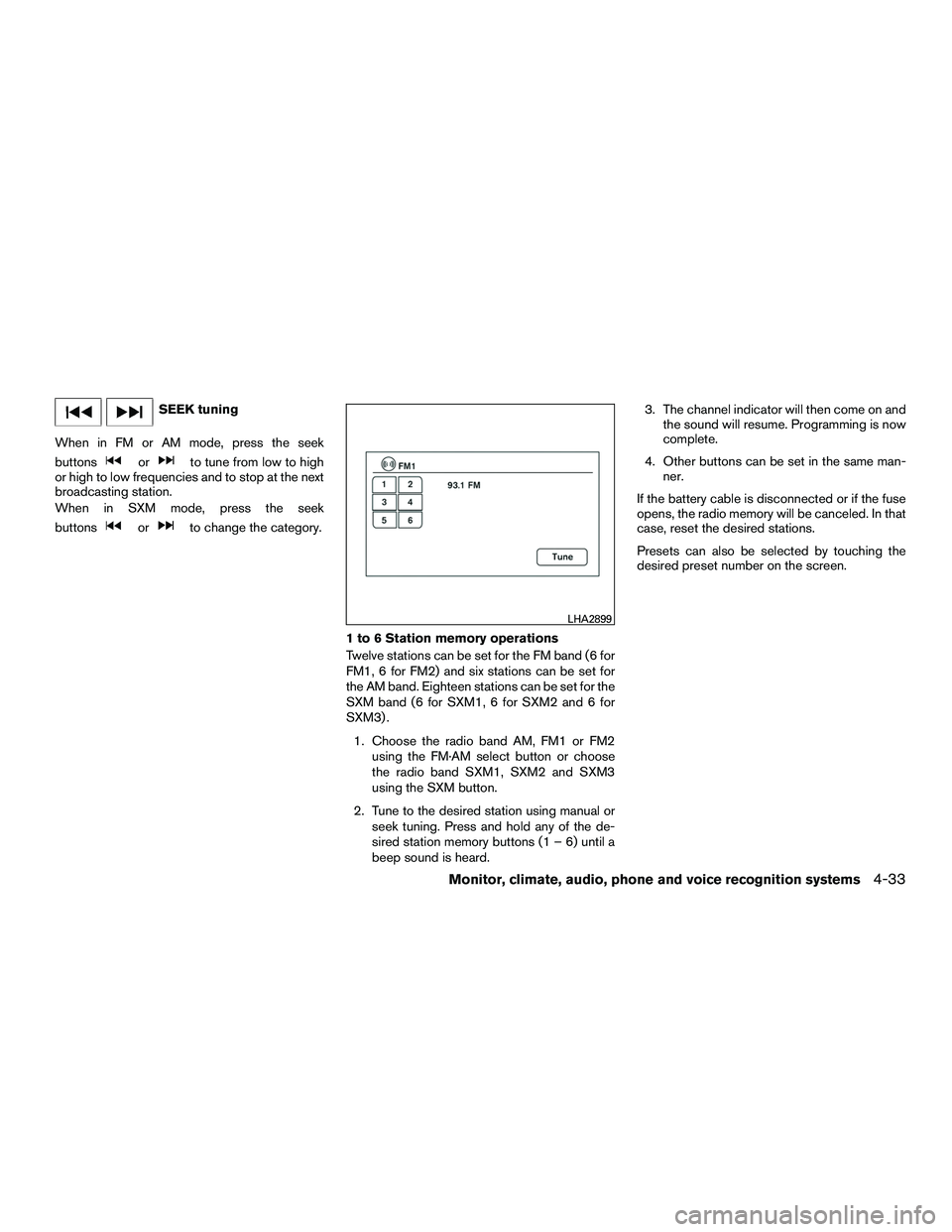
1 to 6 Station memory operations
Twelve stations can be set for the FM band (6 for
FM1, 6 for FM2) and six stations can be set for
the AM band. Eighteen stations can be set for the
SXM band (6 for SXM1, 6 for SXM2 and 6 for
SXM3) .1. Choose the radio band AM, FM1 or FM2 using the FM·AM select button or choose
the radio band SXM1, SXM2 and SXM3
using the SXM button.
2. Tune to the desired station using manual or seek tuning. Press and hold any of the de-
sired station memory buttons (1 – 6) until a
beep sound is heard. 3. The channel indicator will then come on and
the sound will resume. Programming is now
complete.
4. Other buttons can be set in the same man- ner.
If the battery cable is disconnected or if the fuse
opens, the radio memory will be canceled. In that
case, reset the desired stations.
Presets can also be selected by touching the
desired preset number on the screen.
LHA2899
Monitor, climate, audio, phone and voice recognition systems4-33
Page 165 of 312
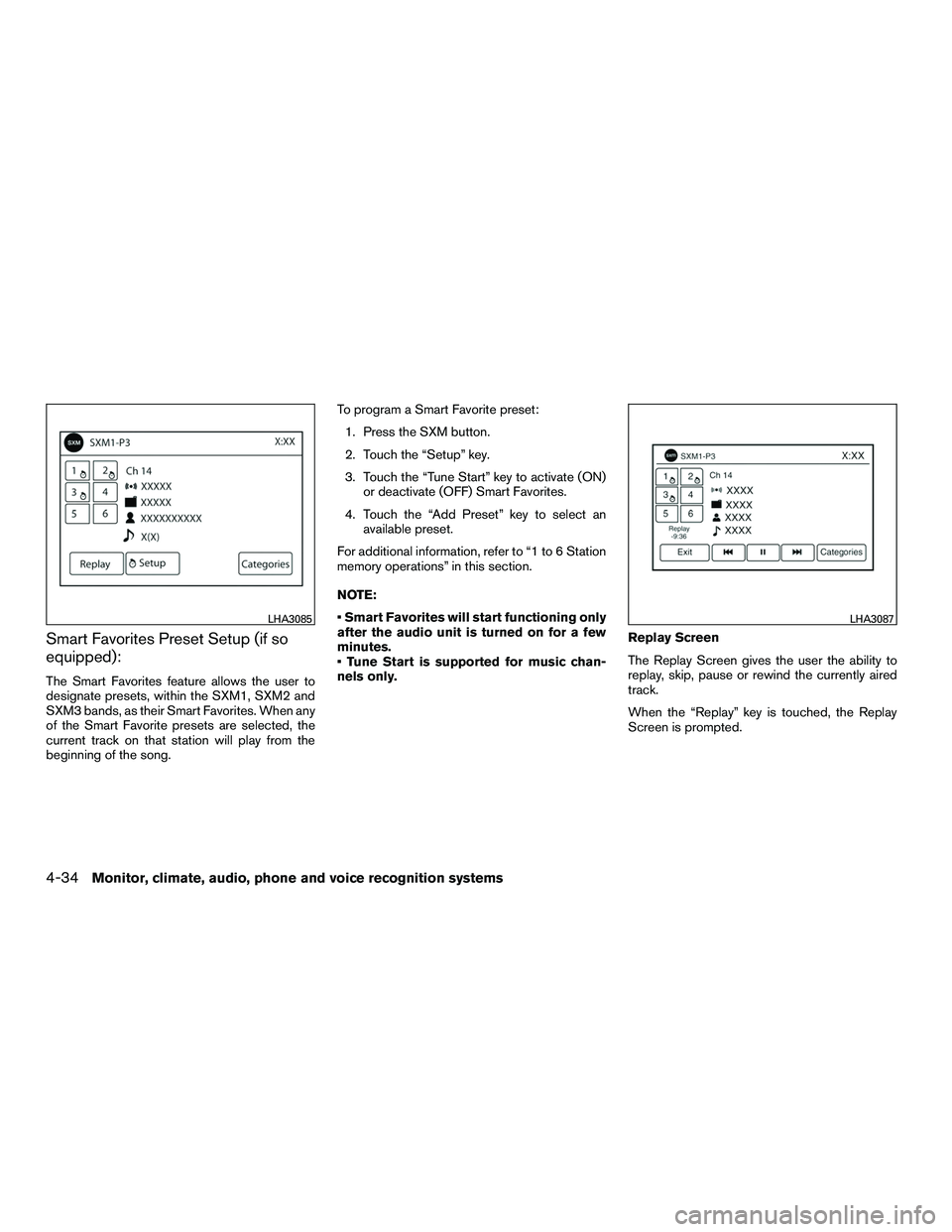
Smart Favorites Preset Setup (if so
equipped):
The Smart Favorites feature allows the user to
designate presets, within the SXM1, SXM2 and
SXM3 bands, as their Smart Favorites. When any
of the Smart Favorite presets are selected, the
current track on that station will play from the
beginning of the song.To program a Smart Favorite preset:
1. Press the SXM button.
2. Touch the “Setup” key.
3. Touch the “Tune Start” key to activate (ON) or deactivate (OFF) Smart Favorites.
4. Touch the “Add Preset” key to select an available preset.
For additional information, refer to “1 to 6 Station
memory operations” in this section.
NOTE:
• Smart Favorites will start functioning only
after the audio unit is turned on for a few
minutes.
• Tune Start is supported for music chan-
nels only. Replay Screen
The Replay Screen gives the user the ability to
replay, skip, pause or rewind the currently aired
track.
When the “Replay” key is touched, the Replay
Screen is prompted.
LHA3085LHA3087
4-34Monitor, climate, audio, phone and voice recognition systems
Page 166 of 312
REPLAYTo replay a track from the
beginning, press the
seek button. The user can
continue to press the
seek button to replay previ-
ous songs, but can only go
back as far as the system
permits. The system will
warn the user when they
cannot skip any further back
by displaying “At the End” in
the bottom left corner of the
screen. SKIP
To skip a track, press
the
track button.
“Live” will appear in the bot-
tom left corner of the screen
indicating the difference
from play time to live audio.
PAUSE To pause a track, press
the
pause button.
REWIND/
FAST
FORWARD To rewind/ fast forward a
track, hold the
orseek/track button.
Compact disc (CD) player operation
If the radio is already operating, it automatically
turns off and the compact disc begins to play.
CD button
When the CD button is pressed with the system
off and the compact disc loaded, the system will
turn on and the compact disc will start to play.
When the CD button is pressed with a compact
disc loaded and the radio playing, the radio will
automatically be turned off and the compact disc
will start to play.
Monitor, climate, audio, phone and voice recognition systems4-35