manual radio set NISSAN NV200 2019 Owners Manual
[x] Cancel search | Manufacturer: NISSAN, Model Year: 2019, Model line: NV200, Model: NISSAN NV200 2019Pages: 372, PDF Size: 4.74 MB
Page 135 of 372
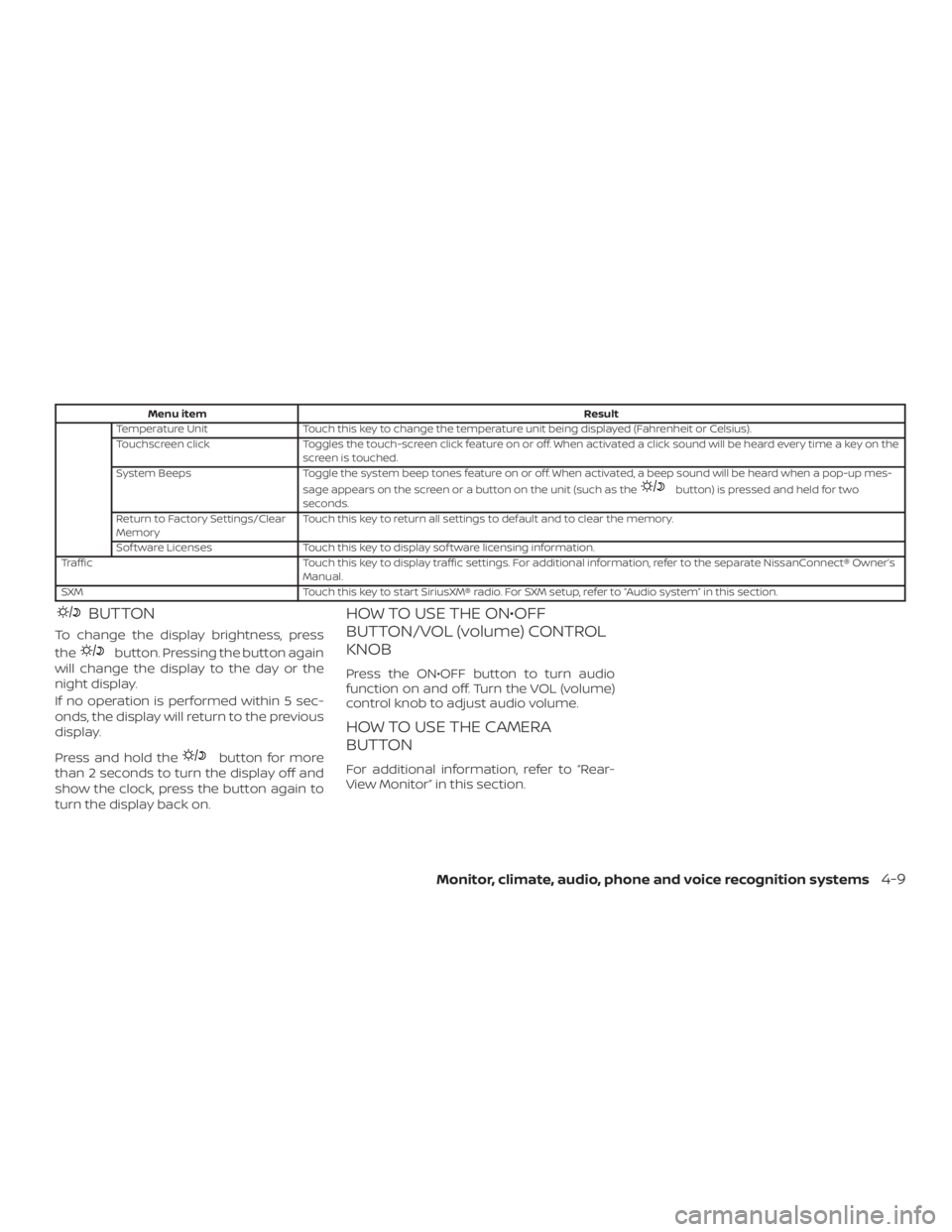
button) is pressed and held for two
seconds.
Return to Factory Settings/Clear
MemoryTouch this key to return all settings to default and to clear the memory.
Sof tware Licenses Touch this key to display sof tware licensing information.
Traffic Touch this key to display traffic settings. For additional information, refer to the separate NissanConnect®
Manual.
SXM Touch this key to start SiriusXM® radio. For SXM setup, refer to systemŽ in this section.
BUTTON
To change the display brightness, press
the
button. Pressing the button again
will change the display to the day or the
night display.
If no operation is performed within 5 sec-
onds, the display will return to the previous
display.
Press and hold the
button for more
than 2 seconds to turn the display off and
show the clock, press the button again to
turn the display back on.
HOW TO USE THE ON€OFF
BUTTON/VOL (volume) CONTROL
KNOB
Press the ON€OFF button to turn audio
function on and off. Turn the VOL (volume)
control knob to adjust audio volume.
HOW TO USE THE CAMERA
BUTTON
For additional information, refer to
View MonitorŽ in this section.
Monitor, climate, audio, phone and voice recognition systems4-9
Page 164 of 372
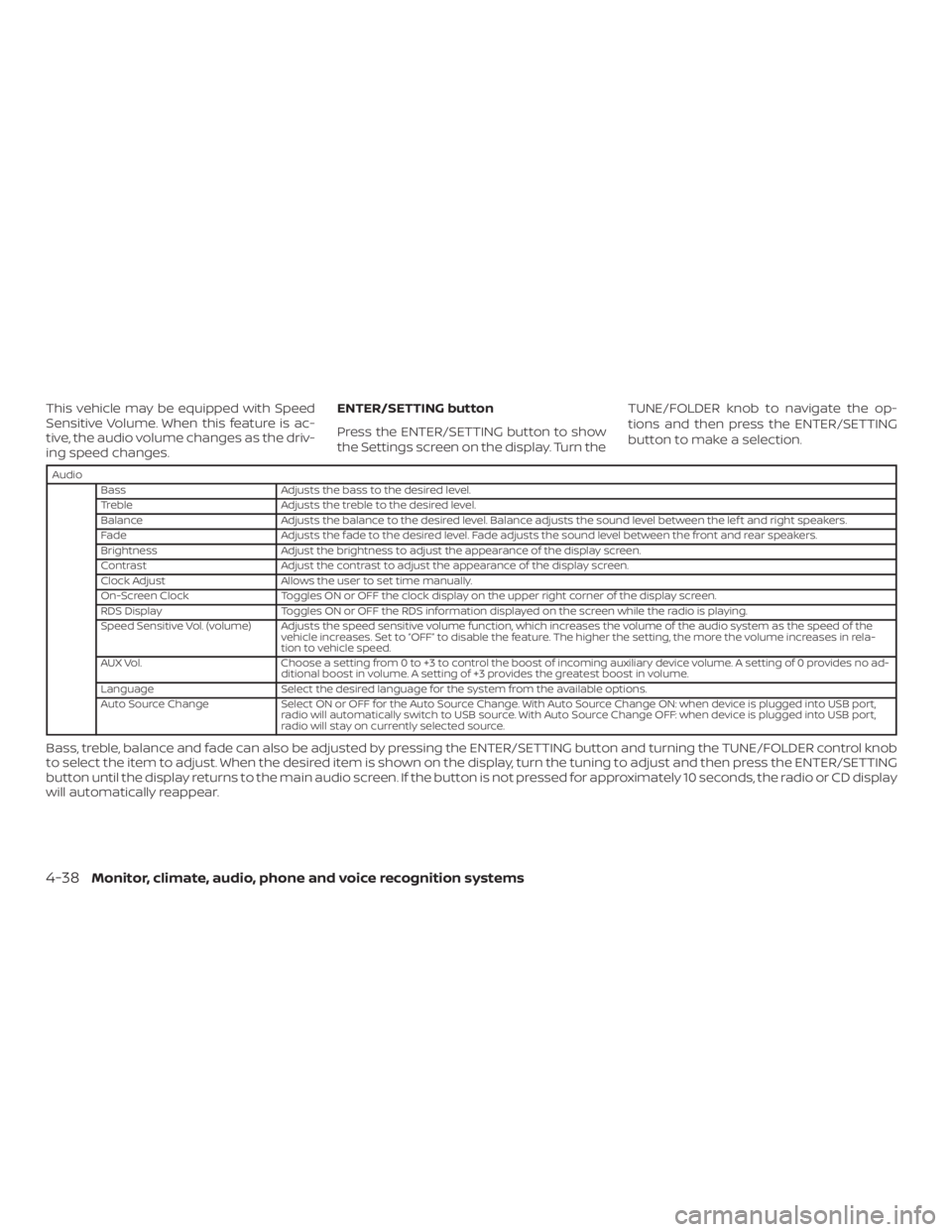
Audio
Bass Adjusts the bass to the desired level.
Treble Adjusts the treble to the desired level.
Balance Adjusts the balance to the desired level. Balance adjusts the sound level between the lef t and right speakers.
Fade Adjusts the fade to the desired level. Fade adjusts the sound level between the front and rear speakers.
Brightness Adjust the brightness to adjust the appearance of the display screen.
Contrast Adjust the contrast to adjust the appearance of the display screen.
Clock Adjust Allows the user to set time manually.
On-Screen Clock Toggles ON or OFF the clock display on the upper right corner of the display screen.
RDS Display Toggles ON or OFF the RDS information displayed on the screen while the radio is playing.
Speed Sensitive Vol. (volume) Adjusts the speed sensitive volume function, which increases the volume of the audio system as the speed of the
vehicle increases. Set to to disable the feature. The higher the setting, the more the volume increases in rela-
tion to vehicle speed.
AUX Vol. Choose a setting from 0 to +3 to control the boost of incoming auxiliary device volume. A setting of 0 provides no ad-
ditional boost in volume. A setting of +3 provides the greatest boost in volume.
Language Select the desired language for the system from the available options.
Auto Source Change Select ON or OFF for the Auto Source Change. With Auto Source Change ON: when device is plugged into USB port,
radio will automatically switch to USB source. With Auto Source Change OFF: when device is plugged into USB port,
radio will stay on currently selected source.
Bass, treble, balance and fade can also be adjusted by pressing the ENTER/SETTING button and turning the TUNE/FOLDER control knob
to select the item to adjust. When the desired item is shown on the display, turn the tuning to adjust and then press the ENTER/SETTING
button until the display returns to the main audio screen. If the button is not pressed for approximately 10 seconds, the radio or CD display
will automatically reappear.
4-38Monitor, climate, audio, phone and voice recognition systems
Page 165 of 372
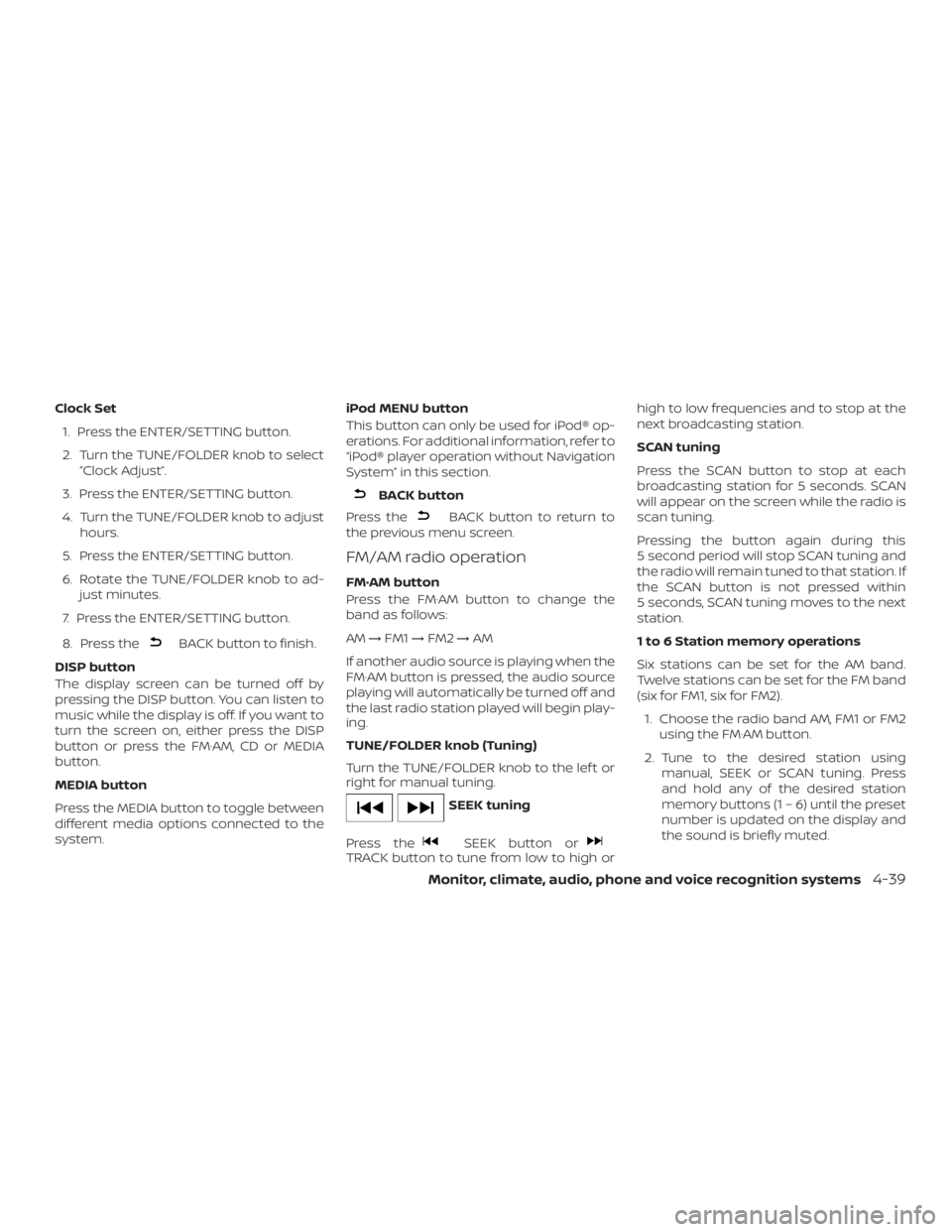
BACK button to finish.
DISP button
The display screen can be turned off by
pressing the DISP button. You can listen to
music while the display is off. If you want to
turn the screen on, either press the DISP
button or press the FM·AM, CD or MEDIA
button.
MEDIA button
Press the MEDIA button to toggle between
different media options connected to the
system.iPod MENU button
This button can only be used for iPod® op-
erations. For additional information, refer to
“iPod® player operation without Navigation
System” in this section.
BACK button to return to
the previous menu screen.
FM/AM radio operation
FM·AM button
Press the FM·AM button to change the
band as follows:
AM→FM1→FM2→AM
If another audio source is playing when the
FM·AM button is pressed, the audio source
playing will automatically be turned off and
the last radio station played will begin play-
ing.
TUNE/FOLDER knob (Tuning)
Turn the TUNE/FOLDER knob to the lef t or
right for manual tuning.
SEEK button orTRACK button to tune from low to high orhigh to low frequencies and to stop at the
next broadcasting station.
SCAN tuning
Press the SCAN button to stop at each
broadcasting station for 5 seconds. SCAN
will appear on the screen while the radio is
scan tuning.
Pressing the button again during this
5 second period will stop SCAN tuning and
the radio will remain tuned to that station. If
the SCAN button is not pressed within
5 seconds, SCAN tuning moves to the next
station.
1 to 6 Station memory operations
Six stations can be set for the AM band.
Twelve stations can be set for the FM band
(six for FM1, six for FM2).
1. Choose the radio band AM, FM1 or FM2
using the FM·AM button.
2. Tune to the desired station using
manual, SEEK or SCAN tuning. Press
and hold any of the desired station
memory buttons (1 – 6) until the preset
number is updated on the display and
the sound is briefly muted.
Monitor, climate, audio, phone and voice recognition systems4-39
Page 171 of 372
orto change the cat-
egory.
1 to 6 Station memory operations
Twelve stations can be set for the FM band
(6 for FM1, 6 for FM2) and six stations can be
set for the AM band. Eighteen stations can
be set for the SXM band (6 for SXM1, 6 for
SXM2 and 6 for SXM3).
1. Choose the radio band AM, FM1 or FM2
using the FM·AM select button or
choose the radio band SXM1, SXM2 and
SXM3 using the SXM button.
2. Tune to the desired station using
manual or seek tuning. Press and hold
any of the desired station memory but-
tons (1 – 6) until a beep sound is heard.3. The channel indicator will then come
on and the sound will resume. Pro-
gramming is now complete.
4. Other buttons can be set in the same
manner.
If the battery cable is disconnected or if the
fuse opens, the radio memory will be can-
celed. In that case, reset the desired sta-
tions.
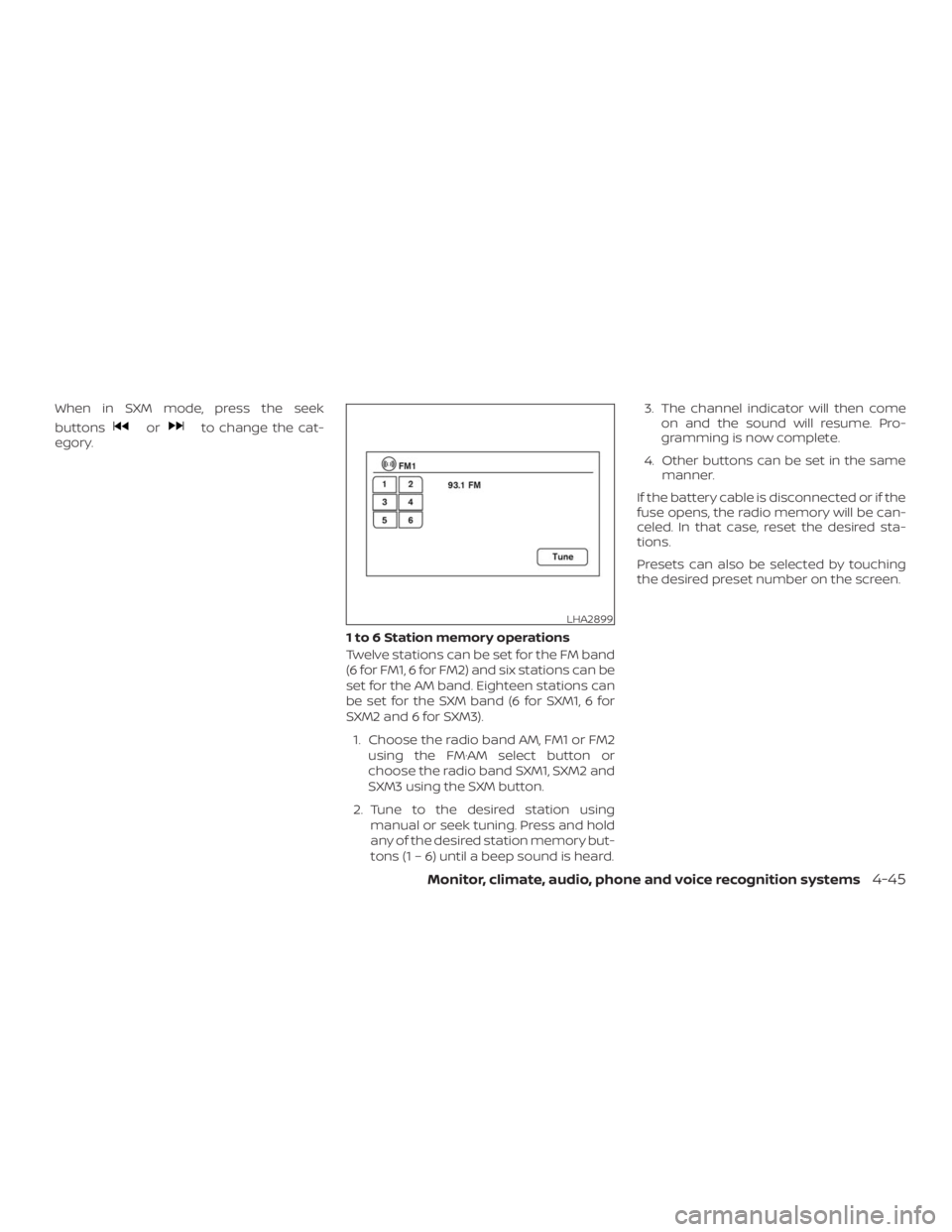
Presets can also be selected by touching
the desired preset number on the screen.
LHA2899