key NISSAN PATHFINDER 2009 Owner´s Manual
[x] Cancel search | Manufacturer: NISSAN, Model Year: 2009, Model line: PATHFINDER, Model: NISSAN PATHFINDER 2009Pages: 471, PDF Size: 5.9 MB
Page 267 of 471

The chapter/title/track number will be automati-
cally selected (if valid, based on media content) if
3 seconds expire without any keypad inputs.
The operator can cancel the input chapter/title/
track number by actuating the CLEAR control
prior to the expiration of the 3-second timer.
These functions can be used only for the DVD
discs which correspond to them.
CARE AND MAINTENANCE
Use a lightly dampened, lint free cloth to clean the
surfaces of your NISSAN Mobile Entertainment
System (DVD player face, screen, remote control,
etc.) .
Do not attempt to use the system in extreme
temperature conditions [below -4°F (-20°C) or
above 158°F (70°C)].
Do not attempt to operate the system in extreme
humidity conditions (less than 10% or more than
75%) .
CAUTION
cDo not use any solvents or cleaning
solutions when cleaning the video
system.
cDo not use excessive force on the moni-
tor screen.
cAvoid touching or scratching the moni-
tor screen as it may become dirty or
damaged.
HOW TO HANDLE THE DVD
CAUTION
cHandle a DVD by its edges. Never touch
the surface of the disc.
cTo clean a disc, wipe the surface from
the center to the outer edge using a
clean, soft cloth. Do not wipe the disc
using a circular motion.
cDo not use a conventional record
cleaner, benzine, thinner or alcohol in-
tended for industrial use.
LHA0049
Monitor, climate, audio, phone and voice recognition systems4-101
ZREVIEW COPYÐ2009 Pathfinder(pat)
Owners ManualÐUSA_English(nna)
05/29/08Ðdebbie
X
Page 276 of 471
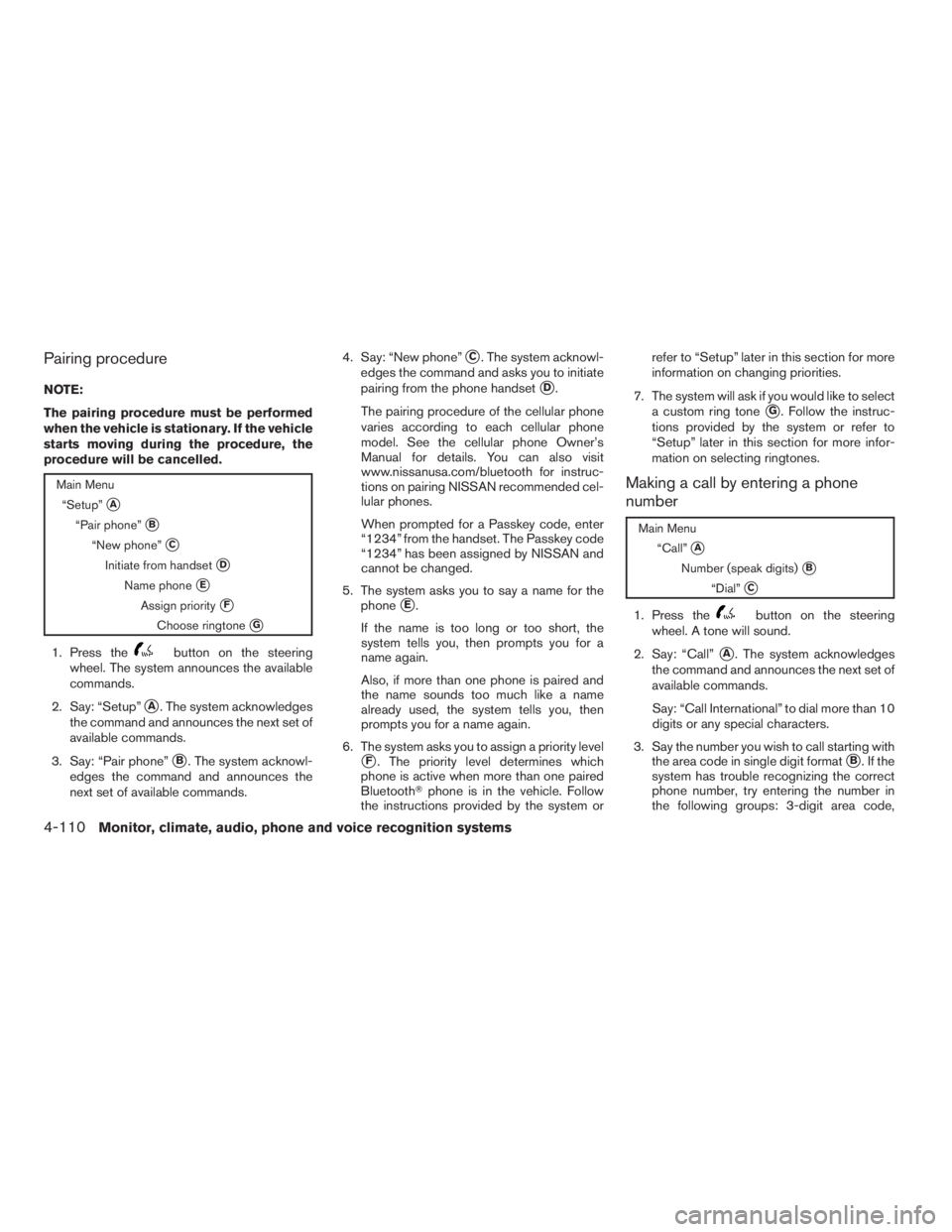
Pairing procedure
NOTE:
The pairing procedure must be performed
when the vehicle is stationary. If the vehicle
starts moving during the procedure, the
procedure will be cancelled.
Main Menu
“Setup”
sA
“Pair phone”sB
“New phone”sC
Initiate from handsetsD
Name phonesE
Assign prioritysF
Choose ringtonesG
1. Press thebutton on the steering
wheel. The system announces the available
commands.
2. Say: “Setup”
sA. The system acknowledges
the command and announces the next set of
available commands.
3. Say: “Pair phone”
sB. The system acknowl-
edges the command and announces the
next set of available commands.4. Say: “New phone”
sC. The system acknowl-
edges the command and asks you to initiate
pairing from the phone handset
sD.
The pairing procedure of the cellular phone
varies according to each cellular phone
model. See the cellular phone Owner’s
Manual for details. You can also visit
www.nissanusa.com/bluetooth for instruc-
tions on pairing NISSAN recommended cel-
lular phones.
When prompted for a Passkey code, enter
“1234” from the handset. The Passkey code
“1234” has been assigned by NISSAN and
cannot be changed.
5. The system asks you to say a name for the
phone
sE.
If the name is too long or too short, the
system tells you, then prompts you for a
name again.
Also, if more than one phone is paired and
the name sounds too much like a name
already used, the system tells you, then
prompts you for a name again.
6. The system asks you to assign a priority level
sF. The priority level determines which
phone is active when more than one paired
BluetoothTphone is in the vehicle. Follow
the instructions provided by the system orrefer to “Setup” later in this section for more
information on changing priorities.
7. The system will ask if you would like to select
a custom ring tone
sG. Follow the instruc-
tions provided by the system or refer to
“Setup” later in this section for more infor-
mation on selecting ringtones.
Making a call by entering a phone
number
Main Menu
“Call”
sA
Number (speak digits)sB
“Dial”sC
1. Press thebutton on the steering
wheel. A tone will sound.
2. Say: “Call”
sA. The system acknowledges
the command and announces the next set of
available commands.
Say: “Call International” to dial more than 10
digits or any special characters.
3. Say the number you wish to call starting with
the area code in single digit format
sB.Ifthe
system has trouble recognizing the correct
phone number, try entering the number in
the following groups: 3-digit area code,
4-110Monitor, climate, audio, phone and voice recognition systems
ZREVIEW COPYÐ2009 Pathfinder(pat)
Owners ManualÐUSA_English(nna)
05/29/08Ðdebbie
X
Page 278 of 471
See “Phone book” later in this section to learn
how to store entries.
When prompted by the system, say the name of
the phone book entry you wish to call. The system
acknowledges the name.
If there are multiple locations associated with the
name, the system asks you to choose the loca-
tion.
Once you have confirmed the name and location,
the system begins the call.
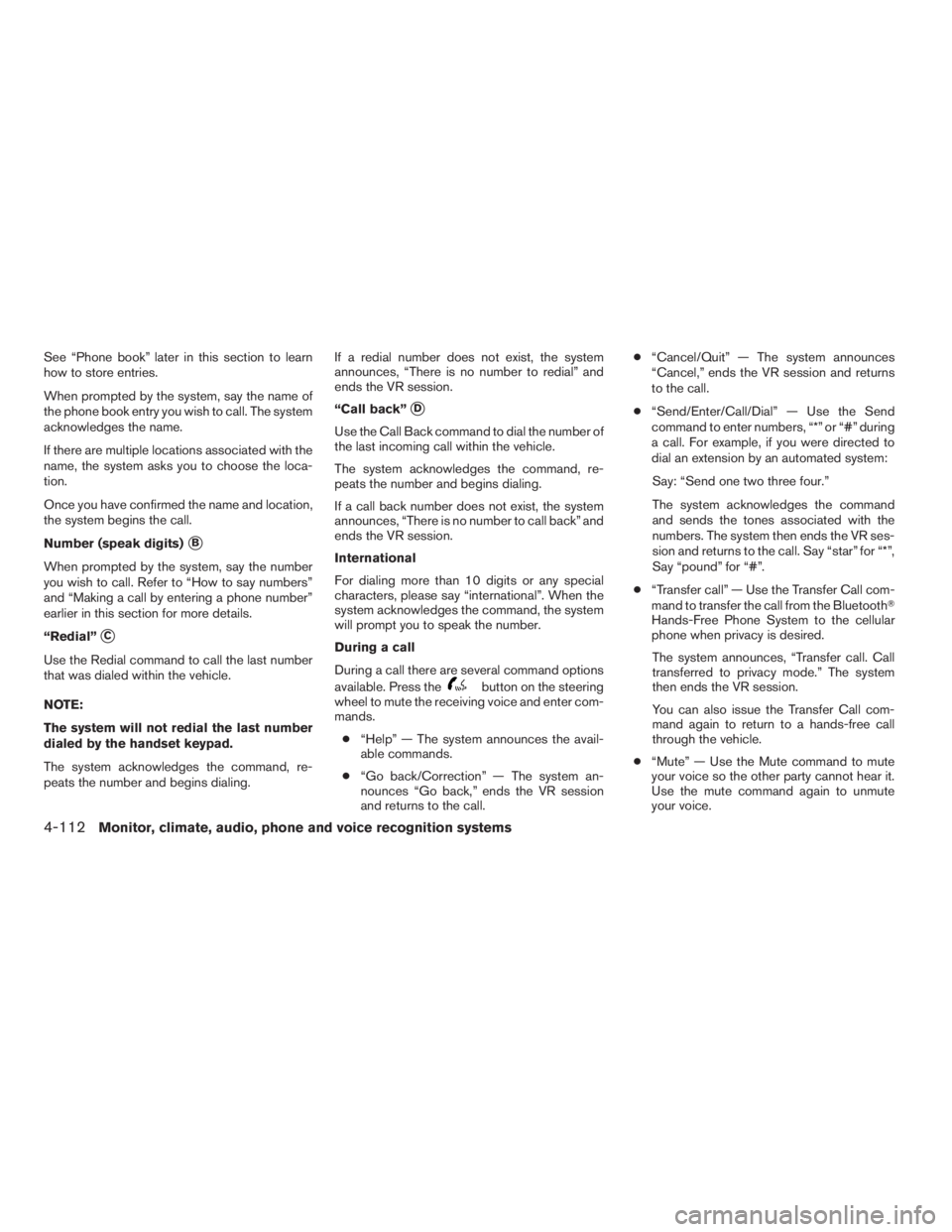
Number (speak digits)
sB
When prompted by the system, say the number
you wish to call. Refer to “How to say numbers”
and “Making a call by entering a phone number”
earlier in this section for more details.
“Redial”
sC
Use the Redial command to call the last number
that was dialed within the vehicle.
NOTE:
The system will not redial the last number
dialed by the handset keypad.
The system acknowledges the command, re-
peats the number and begins dialing.If a redial number does not exist, the system
announces, “There is no number to redial” and
ends the VR session.
“Call back”
sD
Use the Call Back command to dial the number of
the last incoming call within the vehicle.
The system acknowledges the command, re-
peats the number and begins dialing.
If a call back number does not exist, the system
announces, “There is no number to call back” and
ends the VR session.
International
For dialing more than 10 digits or any special
characters, please say “international”. When the
system acknowledges the command, the system
will prompt you to speak the number.
During a call
During a call there are several command options
available. Press the
button on the steering
wheel to mute the receiving voice and enter com-
mands.
c“Help” — The system announces the avail-
able commands.
c“Go back/Correction” — The system an-
nounces “Go back,” ends the VR session
and returns to the call.c“Cancel/Quit” — The system announces
“Cancel,” ends the VR session and returns
to the call.
c“Send/Enter/Call/Dial” — Use the Send
command to enter numbers, “*” or “#” during
a call. For example, if you were directed to
dial an extension by an automated system:
Say: “Send one two three four.”
The system acknowledges the command
and sends the tones associated with the
numbers. The system then ends the VR ses-
sion and returns to the call. Say “star” for “*”,
Say “pound” for “#”.
c“Transfer call” — Use the Transfer Call com-
mand to transfer the call from the BluetoothT
Hands-Free Phone System to the cellular
phone when privacy is desired.
The system announces, “Transfer call. Call
transferred to privacy mode.” The system
then ends the VR session.
You can also issue the Transfer Call com-
mand again to return to a hands-free call
through the vehicle.
c“Mute” — Use the Mute command to mute
your voice so the other party cannot hear it.
Use the mute command again to unmute
your voice.
4-112Monitor, climate, audio, phone and voice recognition systems
ZREVIEW COPYÐ2009 Pathfinder(pat)
Owners ManualÐUSA_English(nna)
05/29/08Ðdebbie
X
Page 288 of 471
REGULATORY INFORMATION
FCC Regulatory information
– CAUTION: To maintain compliance with
FCC’s RF exposure guidelines, use only the
supplied antenna. Unauthorized antenna,
modification, or attachments could damage
the transmitter and may violate FCC regula-
tions.
– Operation is subject to the following two con-
ditions:
1. This device may not cause interference and
2. this device must accept any interference,
including interference that may cause un-
desired operation of the device.
IC Regulatory information
– Operation is subject to the following two con-
ditions: (1) this device may not cause interfer-
ence, and (2) this device must accept any
interference, including interference that may
cause undesired operation of the device.
– This Class B digital apparatus meets all re-
quirements of the Canadian Interference-
Causing Equipment Regulations.
BLUETOOTHtis a
trademark owned by
Bluetooth SIG, Inc.,
U.S.A. and licensed to
Xanavi Informatics
Corporation.
VOICE COMMANDS
You can use voice commands to operate various
BluetoothTHands-Free Phone System features
using the NISSAN Voice Recognition system. For
more details, see “NISSAN Voice Recognition
System (if so equipped)” later in this section.
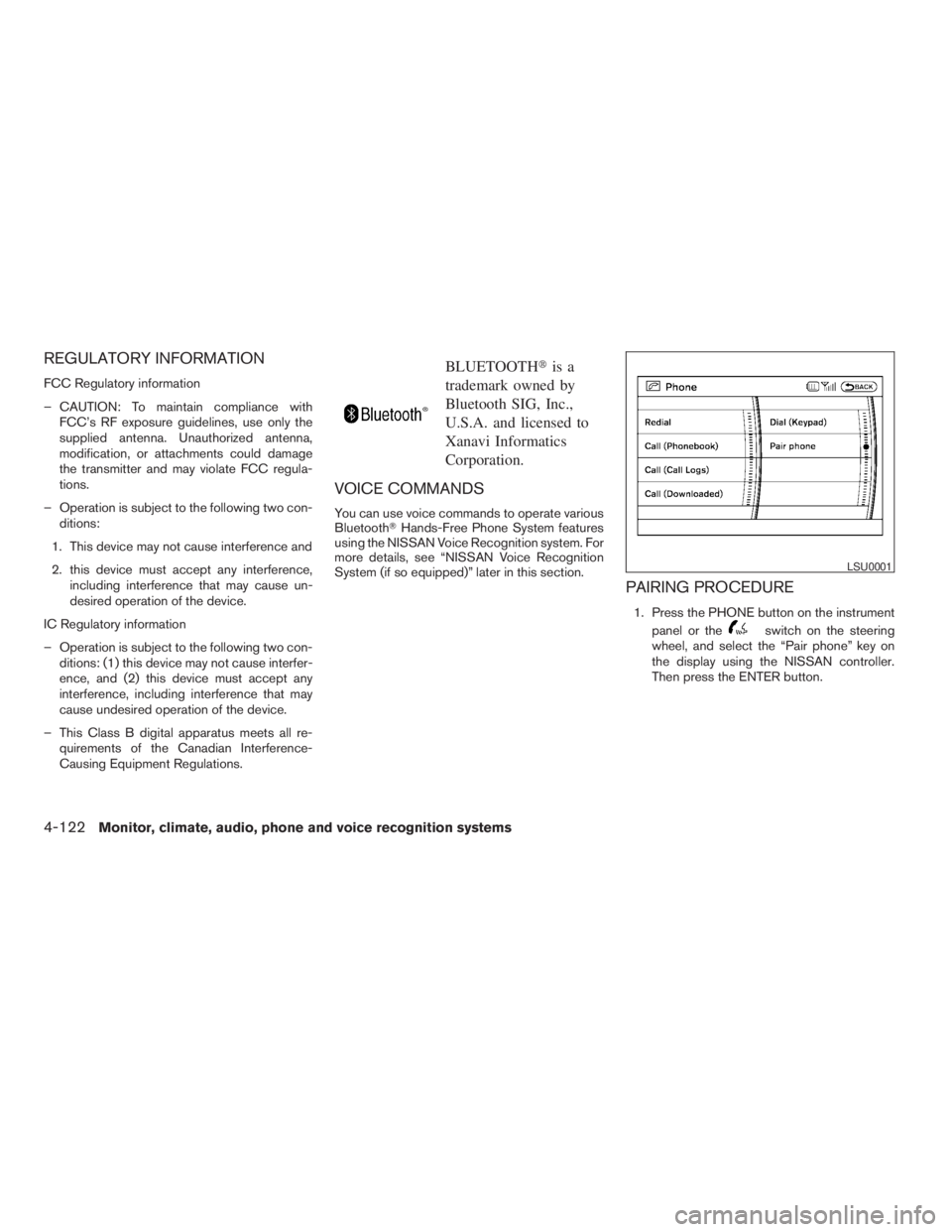
PAIRING PROCEDURE
1. Press the PHONE button on the instrument
panel or the
switch on the steering
wheel, and select the “Pair phone” key on
the display using the NISSAN controller.
Then press the ENTER button.
LSU0001
4-122Monitor, climate, audio, phone and voice recognition systems
ZREVIEW COPYÐ2009 Pathfinder(pat)
Owners ManualÐUSA_English(nna)
05/29/08Ðdebbie
X
Page 289 of 471
NOTE:
If a phone is already paired with the sys-
tem, Step 1 will not work. To pair another
phone, press the SETTING button, then se-
lect the “Phone” key and press the ENTER
button. Scroll to the bottom of the list and
select the “Bluetooth Setup” key and press
the ENTER button. Select the “Pair Phone”
key, and press the ENTER button then fol-
low the instructions in Step 2.
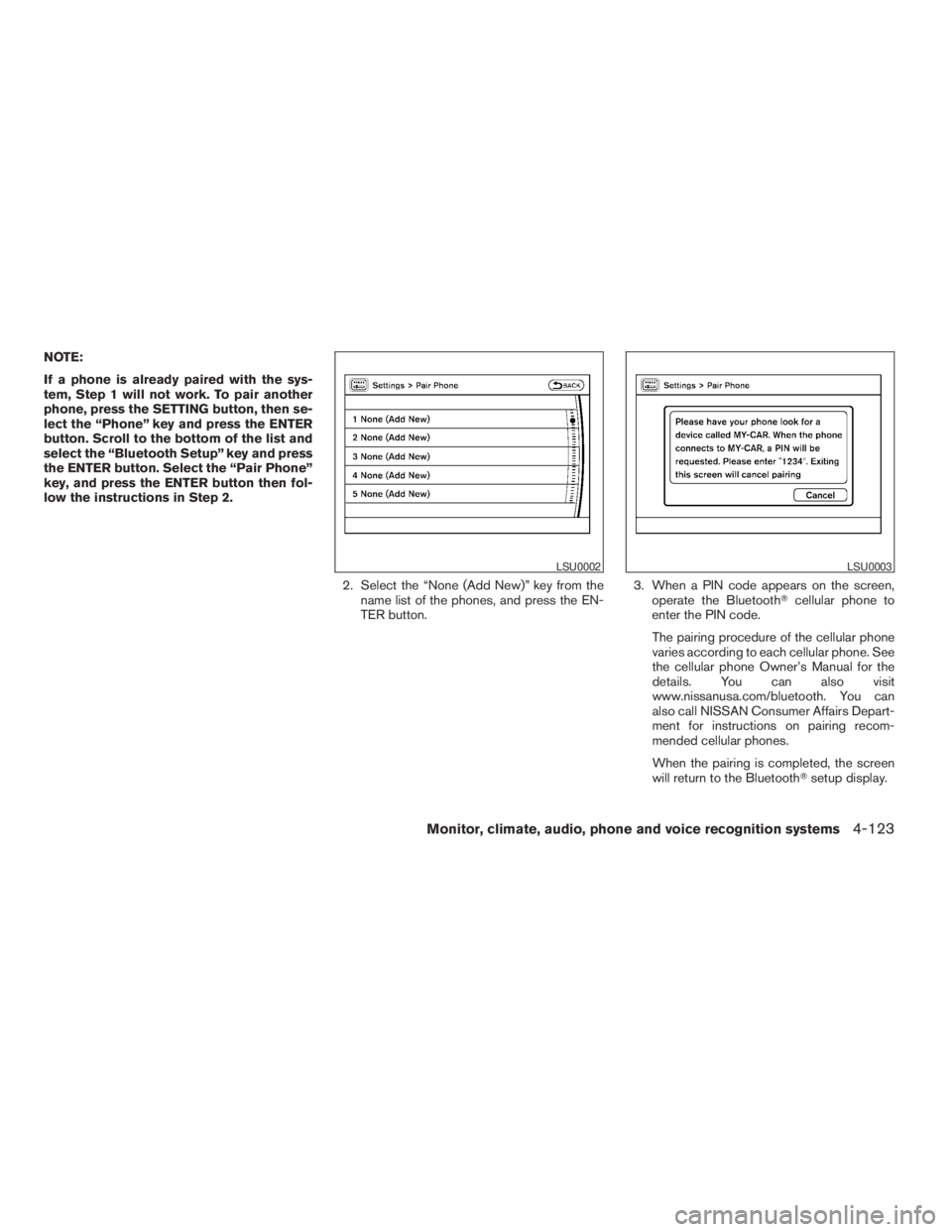
2. Select the “None (Add New)” key from the
name list of the phones, and press the EN-
TER button.3. When a PIN code appears on the screen,
operate the BluetoothTcellular phone to
enter the PIN code.
The pairing procedure of the cellular phone
varies according to each cellular phone. See
the cellular phone Owner’s Manual for the
details. You can also visit
www.nissanusa.com/bluetooth. You can
also call NISSAN Consumer Affairs Depart-
ment for instructions on pairing recom-
mended cellular phones.
When the pairing is completed, the screen
will return to the BluetoothTsetup display.
LSU0002LSU0003
Monitor, climate, audio, phone and voice recognition systems4-123
ZREVIEW COPYÐ2009 Pathfinder(pat)
Owners ManualÐUSA_English(nna)
05/29/08Ðdebbie
X
Page 290 of 471
PHONEBOOK
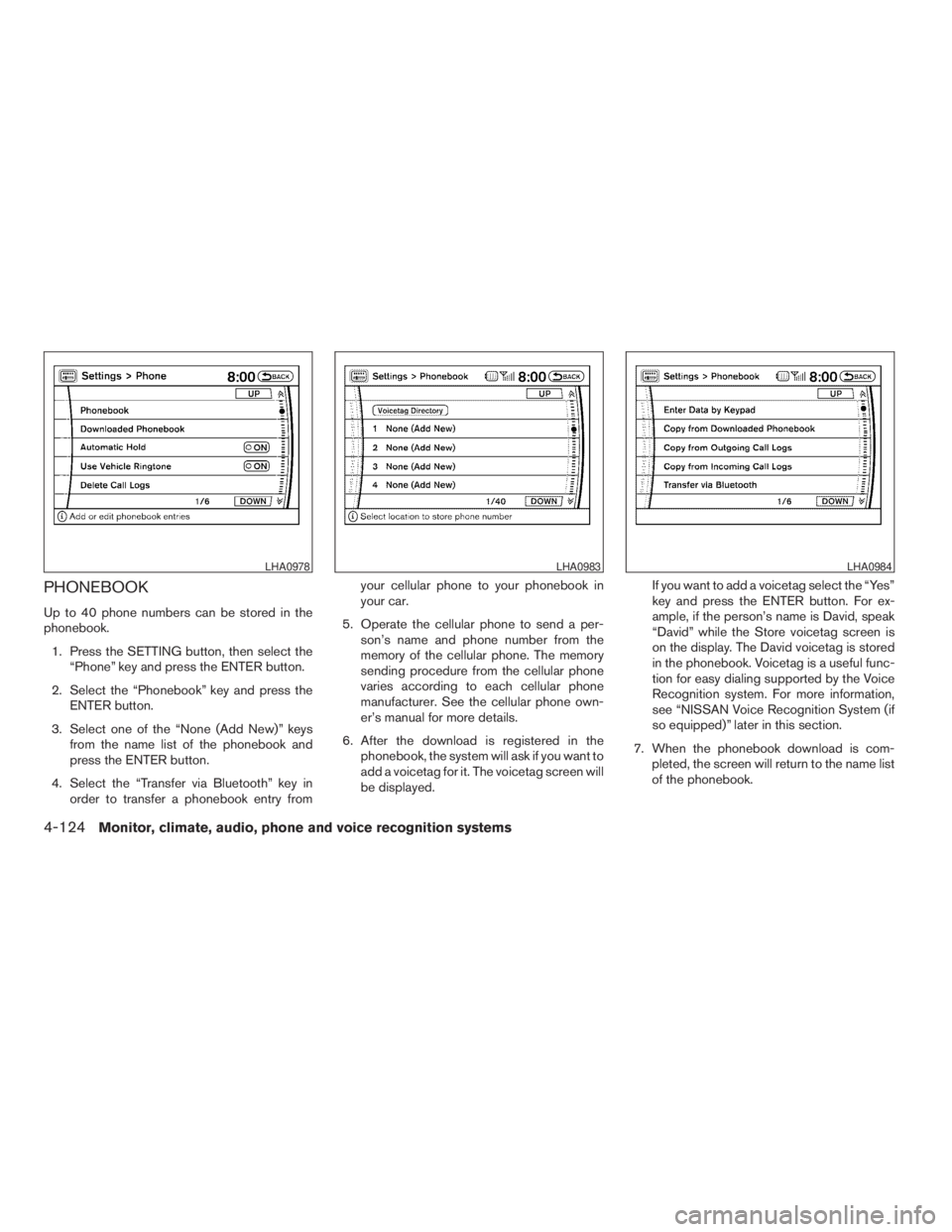
Up to 40 phone numbers can be stored in the
phonebook.
1. Press the SETTING button, then select the
“Phone” key and press the ENTER button.
2. Select the “Phonebook” key and press the
ENTER button.
3. Select one of the “None (Add New)” keys
from the name list of the phonebook and
press the ENTER button.
4. Select the “Transfer via Bluetooth” key in
order to transfer a phonebook entry fromyour cellular phone to your phonebook in
your car.
5. Operate the cellular phone to send a per-
son’s name and phone number from the
memory of the cellular phone. The memory
sending procedure from the cellular phone
varies according to each cellular phone
manufacturer. See the cellular phone own-
er’s manual for more details.
6. After the download is registered in the
phonebook, the system will ask if you want to
add a voicetag for it. The voicetag screen will
be displayed.If you want to add a voicetag select the “Yes”
key and press the ENTER button. For ex-
ample, if the person’s name is David, speak
“David” while the Store voicetag screen is
on the display. The David voicetag is stored
in the phonebook. Voicetag is a useful func-
tion for easy dialing supported by the Voice
Recognition system. For more information,
see “NISSAN Voice Recognition System (if
so equipped)” later in this section.
7. When the phonebook download is com-
pleted, the screen will return to the name list
of the phonebook.
LHA0978LHA0983LHA0984
4-124Monitor, climate, audio, phone and voice recognition systems
ZREVIEW COPYÐ2009 Pathfinder(pat)
Owners ManualÐUSA_English(nna)
05/29/08Ðdebbie
X
Page 291 of 471
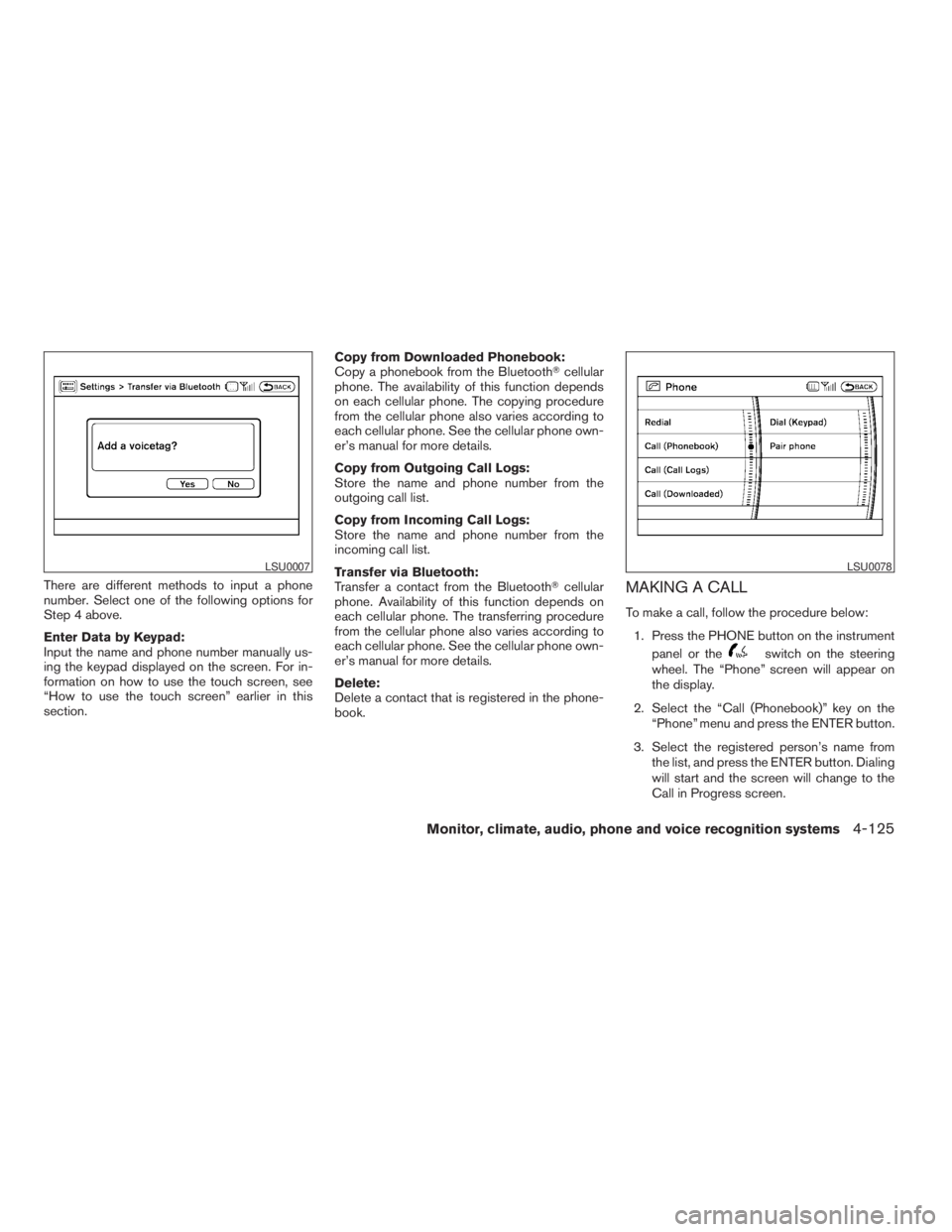
There are different methods to input a phone
number. Select one of the following options for
Step 4 above.
Enter Data by Keypad:
Input the name and phone number manually us-
ing the keypad displayed on the screen. For in-
formation on how to use the touch screen, see
“How to use the touch screen” earlier in this
section.Copy from Downloaded Phonebook:
Copy a phonebook from the BluetoothTcellular
phone. The availability of this function depends
on each cellular phone. The copying procedure
from the cellular phone also varies according to
each cellular phone. See the cellular phone own-
er’s manual for more details.
Copy from Outgoing Call Logs:
Store the name and phone number from the
outgoing call list.
Copy from Incoming Call Logs:
Store the name and phone number from the
incoming call list.
Transfer via Bluetooth:
Transfer a contact from the BluetoothTcellular
phone. Availability of this function depends on
each cellular phone. The transferring procedure
from the cellular phone also varies according to
each cellular phone. See the cellular phone own-
er’s manual for more details.
Delete:
Delete a contact that is registered in the phone-
book.MAKING A CALL
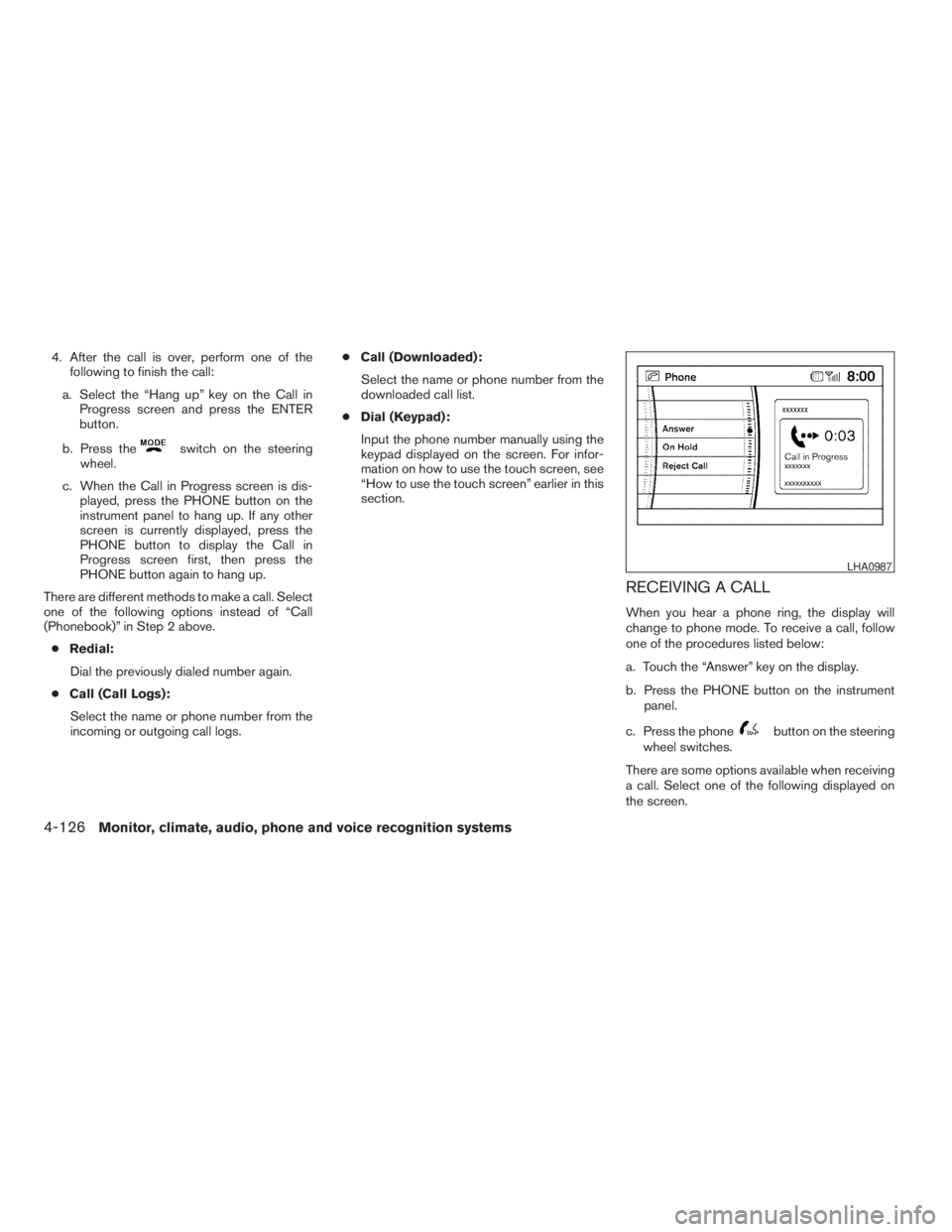
To make a call, follow the procedure below:
1. Press the PHONE button on the instrument
panel or the
switch on the steering
wheel. The “Phone” screen will appear on
the display.
2. Select the “Call (Phonebook)” key on the
“Phone” menu and press the ENTER button.
3. Select the registered person’s name from
the list, and press the ENTER button. Dialing
will start and the screen will change to the
Call in Progress screen.
LSU0007LSU0078
Monitor, climate, audio, phone and voice recognition systems4-125
ZREVIEW COPYÐ2009 Pathfinder(pat)
Owners ManualÐUSA_English(nna)
05/29/08Ðdebbie
X
Page 292 of 471
4. After the call is over, perform one of the
following to finish the call:
a. Select the “Hang up” key on the Call in
Progress screen and press the ENTER
button.
b. Press the
switch on the steering
wheel.
c. When the Call in Progress screen is dis-
played, press the PHONE button on the
instrument panel to hang up. If any other
screen is currently displayed, press the
PHONE button to display the Call in
Progress screen first, then press the
PHONE button again to hang up.
There are different methods to make a call. Select
one of the following options instead of “Call
(Phonebook)” in Step 2 above.
cRedial:
Dial the previously dialed number again.
cCall (Call Logs):
Select the name or phone number from the
incoming or outgoing call logs.cCall (Downloaded):
Select the name or phone number from the
downloaded call list.
cDial (Keypad):
Input the phone number manually using the
keypad displayed on the screen. For infor-
mation on how to use the touch screen, see
“How to use the touch screen” earlier in this
section.
RECEIVING A CALL
When you hear a phone ring, the display will
change to phone mode. To receive a call, follow
one of the procedures listed below:
a. Touch the “Answer” key on the display.
b. Press the PHONE button on the instrument
panel.
c. Press the phone
button on the steering
wheel switches.
There are some options available when receiving
a call. Select one of the following displayed on
the screen.
LHA0987
4-126Monitor, climate, audio, phone and voice recognition systems
ZREVIEW COPYÐ2009 Pathfinder(pat)
Owners ManualÐUSA_English(nna)
05/30/08Ðbarbara
X
Page 293 of 471
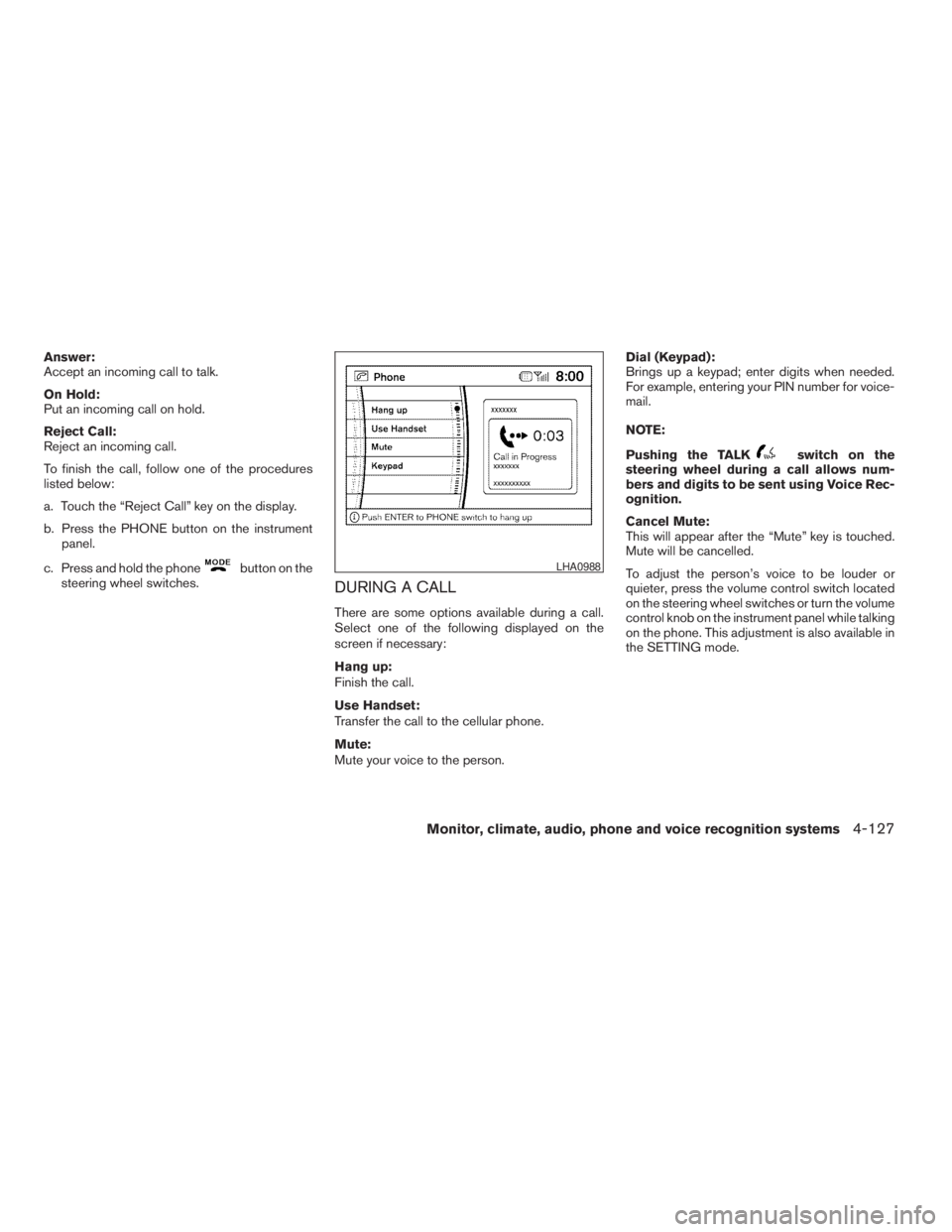
Answer:
Accept an incoming call to talk.
On Hold:
Put an incoming call on hold.
Reject Call:
Reject an incoming call.
To finish the call, follow one of the procedures
listed below:
a. Touch the “Reject Call” key on the display.
b. Press the PHONE button on the instrument
panel.
c. Press and hold the phone
button on the
steering wheel switches.
DURING A CALL
There are some options available during a call.
Select one of the following displayed on the
screen if necessary:
Hang up:
Finish the call.
Use Handset:
Transfer the call to the cellular phone.
Mute:
Mute your voice to the person.Dial (Keypad):
Brings up a keypad; enter digits when needed.
For example, entering your PIN number for voice-
mail.
NOTE:
Pushing the TALK
switch on the
steering wheel during a call allows num-
bers and digits to be sent using Voice Rec-
ognition.
Cancel Mute:
This will appear after the “Mute” key is touched.
Mute will be cancelled.
To adjust the person’s voice to be louder or
quieter, press the volume control switch located
on the steering wheel switches or turn the volume
control knob on the instrument panel while talking
on the phone. This adjustment is also available in
the SETTING mode.
LHA0988
Monitor, climate, audio, phone and voice recognition systems4-127
ZREVIEW COPYÐ2009 Pathfinder(pat)
Owners ManualÐUSA_English(nna)
05/29/08Ðdebbie
X
Page 294 of 471
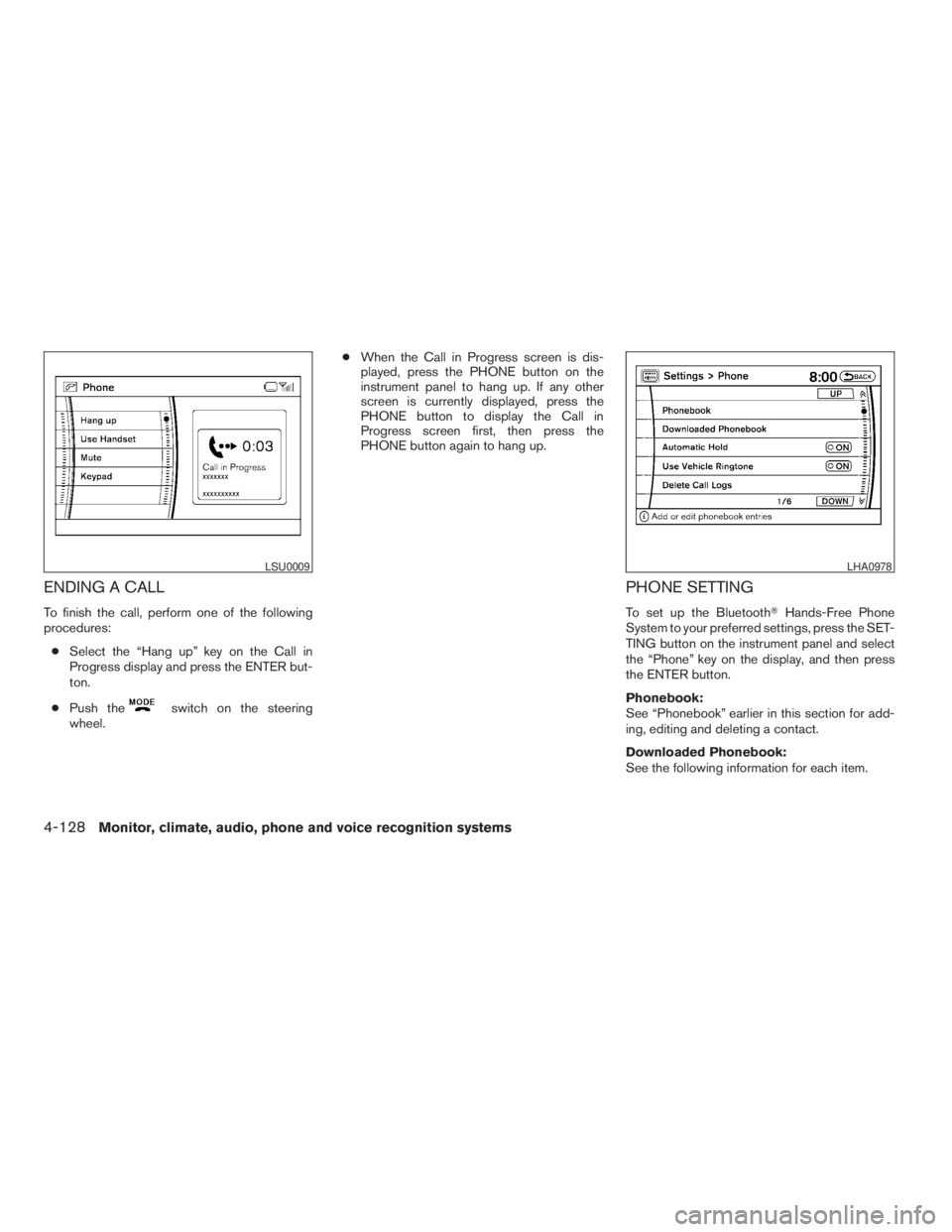
ENDING A CALL
To finish the call, perform one of the following
procedures:
cSelect the “Hang up” key on the Call in
Progress display and press the ENTER but-
ton.
cPush the
switch on the steering
wheel.cWhen the Call in Progress screen is dis-
played, press the PHONE button on the
instrument panel to hang up. If any other
screen is currently displayed, press the
PHONE button to display the Call in
Progress screen first, then press the
PHONE button again to hang up.
PHONE SETTING
To set up the BluetoothTHands-Free Phone
System to your preferred settings, press the SET-
TING button on the instrument panel and select
the “Phone” key on the display, and then press
the ENTER button.
Phonebook:
See “Phonebook” earlier in this section for add-
ing, editing and deleting a contact.
Downloaded Phonebook:
See the following information for each item.
LSU0009LHA0978
4-128Monitor, climate, audio, phone and voice recognition systems
ZREVIEW COPYÐ2009 Pathfinder(pat)
Owners ManualÐUSA_English(nna)
05/29/08Ðdebbie
X